
Worried that switching to Webflow will tank your hard-earned Google rankings? Here's the truth: migrating to Webflow does not hurt your SEO authority if done correctly. In fact, most sites experience improved rankings after migration due to Webflow's cleaner code, faster performance, and superior technical SEO capabilities.
This fear is based on a misunderstanding. Your SEO authority lives in your domain, technical SEO (meta titles, descriptions, schema, etc.), URLs, and backlinks, not in WordPress, Wix, or any other platform. When you migrate correctly by preserving these elements and implementing proper 301 redirects, search engines see it as the same site with a better foundation.
This guide explains exactly how SEO authority works, why Webflow improves your SEO signals, and the step-by-step process to migrate without losing a single ranking position.
Understanding how SEO authority actually works in Webflow migrations
Before diving into the migration process, you need to understand what "SEO authority" really means and where it actually lives.
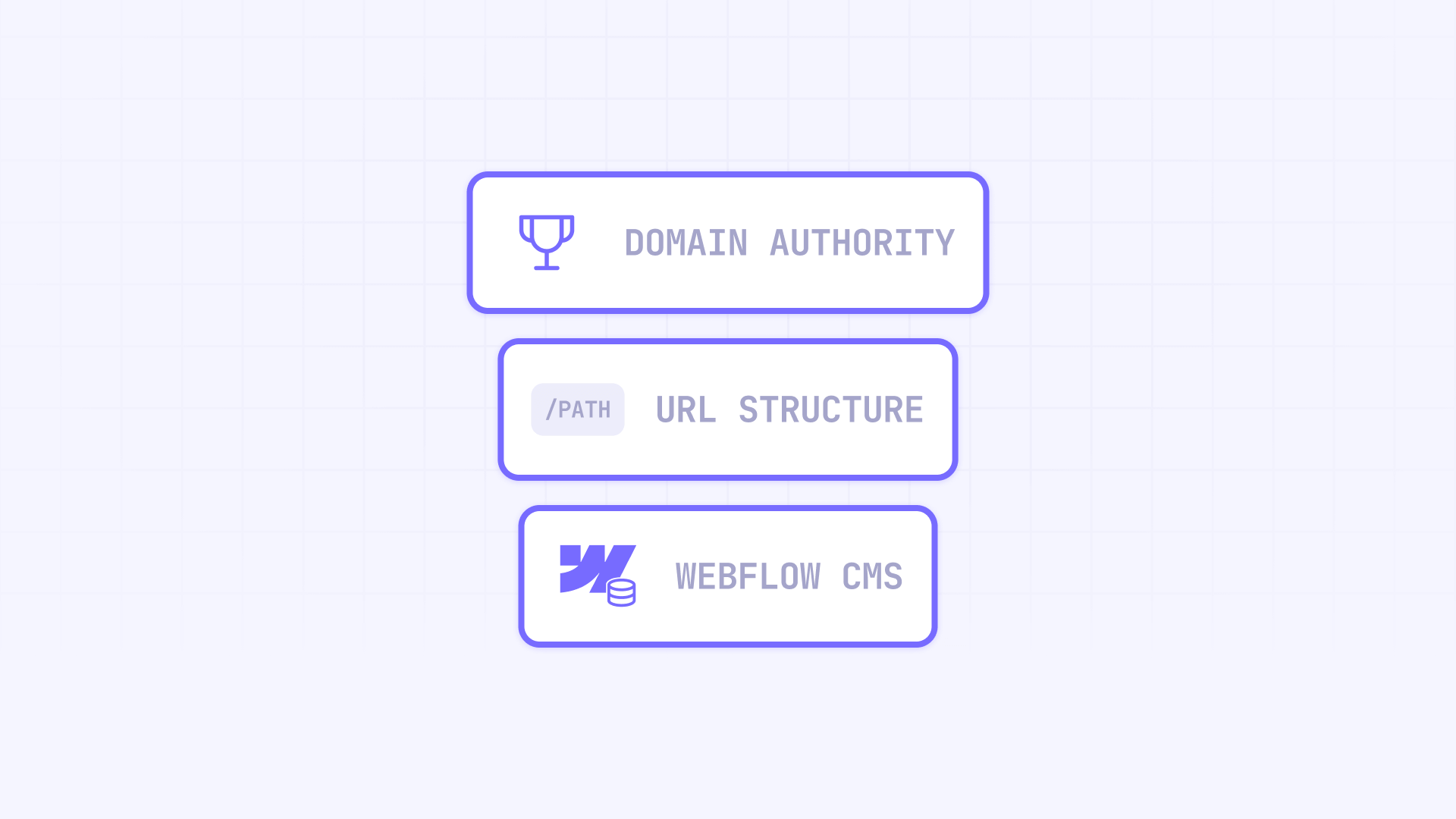
Google doesn't care what CMS powers your site. It ranks pages based on content quality, backlink profiles, and technical performance. Whether you're on WordPress, Webflow, or a custom-coded solution is completely invisible to the algorithm. What matters is your domain's history and the signals attached to it.
Your authority accumulates at two levels. First, at the domain level — the overall trust Google assigns to yourbusiness.com based on years of quality content and earned backlinks. Second, at the URL level — each page builds its own ranking power through the specific links pointing to it and the engagement it generates.
Here's where migrations get risky: backlinks point to specific URLs, not to "pages in WordPress." If your services page at /services has earned 50 backlinks over the years, that ranking power lives in that exact URL path. Rebuild it in Webflow at the same URL, and nothing changes. But change it to /our-services without a redirect? Those 50 backlinks now point to a 404 error, and the authority vanishes.
The good news: this isn't even a problem in most cases. Webflow gives you full control over your URL structure, so you can replicate your existing URLs exactly. If your WordPress blog post lives at /blog/seo-tips, you can create the identical path in Webflow. Same URL, same backlinks working, zero risk. There are only a few edge cases where WordPress URL structures can't be replicated — like date-based archives (/2024/03/15/post-title) or query parameter URLs (/?category=news). But even when URL changes are unavoidable, there's a solution.
That solution is the 301 redirect. This HTTP response tells Google that a page has permanently moved and that all ranking signals should transfer to the new location. Modern SEO consensus confirms that properly implemented 301 redirects pass virtually 100% of link equity. This is the mechanism that makes migrations safe.
Beyond URLs, you need to preserve your technical SEO elements during the transition:
- Meta titles and descriptions — these directly influence click-through rates from search results
- Heading structure (H1, H2, H3) — helps Google understand content hierarchy
- Image alt text — contributes to image search visibility and accessibility
- Internal linking patterns — distributes authority across your site
- Schema markup — enables rich results in search
Change all of these simultaneously during migration, and you create unnecessary uncertainty for search engines. The safest approach is replicating them exactly first, then optimizing incrementally after rankings stabilize.
Why Webflow actually improves SEO after migration
Now here's where things get interesting. Not only does a proper migration preserve your SEO authority, but switching to Webflow often improves it. Most sites see better rankings after migration because Webflow addresses common technical SEO problems that plague other platforms. Let's break down why.
Webflow generates dramatically cleaner HTML code. This matters more than most people realize. WordPress sites built with page builders like Elementor, Divi, or WPBakery produce notoriously bloated markup. A simple hero section that should be 20 lines of HTML often becomes 200+ lines of nested divs, inline styles, and unnecessary wrappers.
Here's what Elementor typically outputs for a basic two-column section:
<div class="elementor-element elementor-element-abc123 elementor-section elementor-top-section elementor-element-edit-mode elementor-section-boxed elementor-section-height-default elementor-section-height-default" data-id="abc123" data-element_type="section">
  <div class="elementor-container elementor-column-gap-default">
    <div class="elementor-column elementor-col-50 elementor-top-column elementor-element elementor-element-def456" data-id="def456" data-element_type="column">
      <div class="elementor-widget-wrap elementor-element-populated">
        <div class="elementor-element elementor-element-ghi789 elementor-widget elementor-widget-heading" data-id="ghi789" data-element_type="widget" data-widget_type="heading.default">
          <div class="elementor-widget-container">
            <h2 class="elementor-heading-title elementor-size-default">Your Headline</h2>
          </div>
        </div>
      </div>
    </div>
  </div>
</div>
That's seven nested divs just to display a heading. Here's what Webflow produces for the same result:
<div class="hero-section">
  <div class="container">
    <h2 class="heading-style-h2">Your Headline</h2>
  </div>
</div>
Clean, semantic, and easy for both humans and search engines to understand. This difference in code quality affects page parsing speed, file sizes, and how well Google can interpret your content structure.
Webflow's infrastructure is faster because everything is integrated. The issue with WordPress isn't the platform itself — it's the plugin ecosystem. A typical WordPress site runs 20-40 plugins for features like SEO, caching, image optimization, security, forms, and backups. Each plugin adds database queries, loads its own scripts and styles, and can conflict with others.
Webflow, by contrast, hosts every site on Amazon CloudFront's global CDN with over 200 edge locations worldwide. You get automatic Brotli compression, HTTP/2 delivery, and image optimization without configuring anything or installing plugins. There's no caching plugin to configure, no CDN to set up separately, no image optimization tool to manage. It just works, and it works fast.
Webflow includes native SEO controls that WordPress requires plugins to match. WordPress SEO depends heavily on plugins like Yoast, RankMath, or All in One SEO. These tools work, but they add complexity:
- Each plugin adds database queries on every page load
- Plugin updates can break functionality or conflict with themes
- Multiple plugins competing for the same functions create unpredictable behavior
- Plugin abandonment leaves sites vulnerable to security issues and compatibility problems
Webflow builds these capabilities directly into the platform:
- Meta titles and descriptions — editable per page and dynamically for CMS collections
- Open Graph and Twitter Cards — native settings without additional plugins
- Automatic XML sitemap — generated and updated on every publish
- Robots.txt editor — full control over crawler directives
- Canonical URL configuration — prevents duplicate content issues
- 301 redirect management — including CSV bulk import/export for large migrations
- Schema markup — with AI-assisted generation for structured data
Because these features are built-in, they work reliably. No plugin conflicts, no compatibility issues after updates, no wondering if your SEO settings survived a theme change.
How to ensure your migration to Webflow goes perfectly from an SEO perspective
Now that you understand why migrations are safe (and often beneficial), let's talk about execution. The difference between a smooth migration and a disaster comes down to three things: working with the right people, verifying the technical details, and monitoring the results.
1. Hire a Webflow agency with SEO migration experience
This might sound self-serving, but it's genuinely the most important factor. Platform migrations are not standard web design projects. A beautiful Webflow site that ignores SEO fundamentals can destroy years of organic traffic in a single launch.
Before hiring any agency, ask these specific questions:
- "How many platform migrations have you completed, and what were the SEO outcomes?" Look for agencies that can share concrete examples — traffic maintained, rankings preserved, or ideally improved. Be skeptical of agencies that can't point to specific migration projects.
- "What's your process for URL mapping and redirect implementation?" The answer should include crawling the existing site, creating a comprehensive URL map, implementing 301 redirects before launch, and testing them thoroughly. If they seem unfamiliar with this process, walk away.
- "How do you handle meta data, schema, and technical SEO during the transition?" They should mention auditing existing meta titles and descriptions, replicating them in Webflow, preserving or implementing schema markup, and configuring canonical URLs. Vague answers here indicate inexperience.
- "What does your post-launch monitoring look like?" Good agencies monitor Google Search Console for crawl errors, track ranking movements for key terms, and have a process for quickly fixing any issues that emerge.
The reality is that most agencies focus on design and treat SEO as an afterthought. For migrations specifically, you need a team that treats SEO preservation as the primary success metric, not a secondary concern.
If you're looking for a team with deep experience in SEO-focused Webflow migrations, our Webflow agency has handled projects ranging from small business sites to large content libraries, with a consistent track record of preserving and improving organic performance.
2. Verify all SEO elements are properly configured before launch
Even with the right agency, you should understand what needs to happen and verify it yourself. Here's the complete checklist of SEO elements that must transfer correctly:
Meta titles and descriptions — Every page needs its meta data transferred from the old site to Webflow. For CMS collections (like blog posts), this should be set up dynamically so each item pulls its own unique title and description. You can use crawlers like Screaming Frog to analyze this at scale and quickly find any errors or missing entries. Good agencies like BRIX Templates use tools like this by default to catch issues before they become problems.
Heading structure — Your H1, H2, and H3 hierarchy should match the original site. One H1 per page, logical H2/H3 nesting. In Webflow, headings are assigned through the Typography settings — make sure they're actual heading tags, not just styled text.
Image alt text — Alt attributes should transfer with your images. For CMS content, alt text should pull from a dedicated field. This affects both accessibility and image search visibility.
Schema markup — If your current site has structured data (article schema, organization schema, product schema, FAQ schema, etc.), it needs to be replicated in Webflow.
We've written detailed guides on implementing various schema types in Webflow: article schema for blog posts, organization schema, FAQ schema, product schema, and review schema.
Canonical URLs — Configure these in Webflow's project settings to prevent duplicate content issues. Decide on www vs non-www, trailing slash vs no trailing slash, and stick to it consistently.
301 redirects — If any URLs are changing (and some probably are), every old URL needs a redirect to its new location. For large sites, use Webflow's wildcard redirect functionality to handle pattern-based URLs efficiently.
Robots.txt configuration — Verify your robots.txt isn't blocking important content. Also ensure you've enabled "Disable Webflow subdomain indexing" so your staging URL doesn't compete with your production domain.
XML sitemap — Webflow generates this automatically at /sitemap.xml. After launch, submit it to Google Search Console and Bing Webmaster Tools.
Internal linking — Your internal link structure should replicate the original site. Broken internal links hurt both user experience and crawlability.
LLMs.txt — If you want your site optimized for AI agents and large language models (like ChatGPT, Claude, or Gemini), consider adding an llms.txt file to your Webflow site. This is a newer optimization that helps AI systems understand your content better.
The goal is a like-for-like transfer of all SEO signals. Don't try to "improve" everything during migration — that introduces too many variables. Get the migration stable first, then optimize incrementally.
3. Monitor performance post-launch in Google Search Console
If you've done everything correctly, the post-launch period should be uneventful (or even positively eventful — improved rankings, faster load times, happy clients). But you need to verify this with data, not assumptions.
Google Search Console is your primary monitoring tool. Within the first 24-48 hours after launch:
- Submit your new sitemap — this tells Google to crawl all your new URLs faster
- Go to Coverage (or Pages in the newer interface) and check for any spike in errors
- Look specifically for 404 errors — these indicate missed redirects
- Check Excluded pages to ensure nothing important got accidentally blocked
During the first week, check Search Console daily. Watch for:
- New 404 errors appearing (indicates crawlers finding broken URLs)
- Drops in Valid page count (indicates indexing problems)
- Any warnings about mobile usability or Core Web Vitals
During the first month, compare your metrics to pre-migration baselines:
- Organic clicks and impressions (some fluctuation is normal)
- Average position for your top keywords
- Total indexed pages
If everything was configured correctly, you should see stable or improving metrics within 2-4 weeks. Google needs time to recrawl your site and process the redirects, so minor fluctuations during this period are expected. What you don't want to see is a sustained drop — that indicates something went wrong that needs immediate attention.
Signs of a problem:
- Massive spike in 404 errors → check your redirect map for gaps
- Significant drop in indexed pages → verify robots.txt and noindex settings
- Rankings dropped for multiple keywords → audit the affected pages for technical issues
- Traffic dropped but rankings stable → likely a tracking implementation issue, not SEO
The faster you identify and fix issues, the shorter any recovery period. Most migration problems are easily fixable if caught within the first few days.
Frequently asked questions about Webflow SEO migration
Does migrating from WordPress to Webflow hurt SEO rankings?
No. Migrating to Webflow does not inherently hurt your SEO rankings. Your domain authority and link equity stay intact as long as you keep the same domain and implement proper 301 redirects for any changed URLs.
What damages rankings is poor execution — broken links, missing redirects, changed URLs without forwarding, and losing on-page SEO elements like meta titles, meta descriptions, and heading structure. When done correctly, most sites actually improve their rankings due to Webflow's faster load times and cleaner code.
How long does it take for SEO to stabilize after a Webflow migration?
Expect 2-4 weeks for Google to fully recrawl your site and update its index. Minor ranking fluctuations during this period are normal as search engines reindex all your pages.
Most sites return to baseline traffic within 30 days if the migration was executed properly. If you're still seeing issues after 60 days, something likely went wrong with technical configuration. Monitor Google Search Console daily during the first week to catch problems early.
What happens to my backlinks when I migrate to Webflow?
Your backlinks continue working normally. If you keep the same URLs in Webflow (which is possible in most cases), your backlinks work exactly as before — no action needed. If URLs must change, 301 redirects forward visitors and transfer ranking authority to the new location.
The key is ensuring every backlinked page either keeps its URL or has a corresponding redirect. Use tools like Ahrefs or Semrush to export your backlink profile before migration. Backlinks pointing to 404 pages lose their SEO value completely.
Is Webflow better than WordPress for SEO performance?
Webflow offers several SEO advantages over typical WordPress installations: faster page speeds without plugin bloat, cleaner semantic HTML, and all essential SEO tools built-in natively.
WordPress can match Webflow's SEO capabilities, but requires extensive optimization, premium hosting, and multiple plugins. For most businesses, Webflow delivers better SEO outcomes with less technical overhead and lower risk of plugin conflicts breaking critical functionality.
Do I need to change my domain when migrating to Webflow?
No — and you shouldn't unless absolutely necessary. Keeping your existing domain is the safest migration path because all your accumulated authority stays attached to that domain.
Webflow fully supports custom domains with automatic SSL. Simply point your DNS to Webflow's servers. If you must change domains simultaneously, expect a longer recovery period and use Google Search Console's Change of Address tool in addition to 301 redirects.
How do I set up 301 redirects correctly in Webflow?
Navigate to Site Settings → Publishing → 301 Redirects. Enter the old URL path in the Old Path field and the new destination in the Redirect To field.
For bulk redirects, create a two-column CSV with old paths and new paths, then use the Import function. Important: CSV imports overwrite existing redirects, so export first and merge files. Always test redirects after publishing by visiting old URLs.
Will my Google rankings improve after migrating to Webflow?
Many sites see improvements, particularly those moving from slow, plugin-heavy WordPress installations. Webflow's optimized hosting, cleaner HTML, and built-in image compression often result in better Core Web Vitals scores.
However, improvement isn't guaranteed. It depends on your current site's condition and migration execution. Sites already well-optimized may see neutral results; sites with poor performance will benefit most.
What SEO settings should I configure in Webflow immediately after migration?
Start with Project Settings → SEO to configure Google Site Verification, Open Graph defaults, and sitemap generation. Then verify each page's meta title, description, and canonical URL. If your previous site had schema markup, replicate it in Webflow using the native schema feature or custom code.
Critical settings: enable Disable Webflow subdomain indexing to prevent duplicate content, configure robots.txt properly, and submit your sitemap to Google Search Console. Finally, verify your analytics tracking works on all pages.
How do I avoid duplicate content issues during Webflow migration?
Ensure Webflow's subdomain indexing is disabled so your staging site doesn't compete with production. Set up canonical tags pointing to your preferred URL version (www vs non-www, trailing slash vs none).
Use 301 redirects immediately upon launch so only one version of each page exists. Configure global canonical settings in Project Settings and verify no duplicate paths exist across your page structure.
Can I migrate only part of my site to Webflow while keeping the rest?
Yes, partial migrations are possible using reverse proxy setups or subdomain strategies. You can host marketing pages on Webflow while keeping a web application on existing infrastructure.
This approach requires technical expertise and careful planning. Ensure consistent internal linking between sections and proper canonical configuration. For simpler situations, migrating everything to Webflow typically produces better SEO results than maintaining hybrid setups.
Conclusion
Migrating to Webflow doesn't mean sacrificing your SEO authority. When executed properly with comprehensive URL mapping, correct 301 redirects, and careful metadata transfer, your rankings remain intact — and often improve. Webflow's technical advantages in page speed, clean code, and native SEO tools provide a stronger foundation for long-term organic growth than most alternatives.
The key is treating migration as an SEO project, not just a design refresh. Plan thoroughly, document everything, and monitor actively during the first 90 days. The extra preparation time pays off with a seamless transition that preserves your traffic and positions you for better performance.
For complex migrations involving large content libraries, advanced SEO considerations, or tight timeline requirements, our experienced Webflow agency can ensure your transition protects every ranking position while maximizing performance improvements.








Join readers commenting on this post!