
Managing a CMS-driven Framer site gets complicated the moment you need to change the same field across dozens or hundreds of items. A brand name update, a price correction, a new category tag — each one means clicking into every single CMS entry unless you know the alternatives.
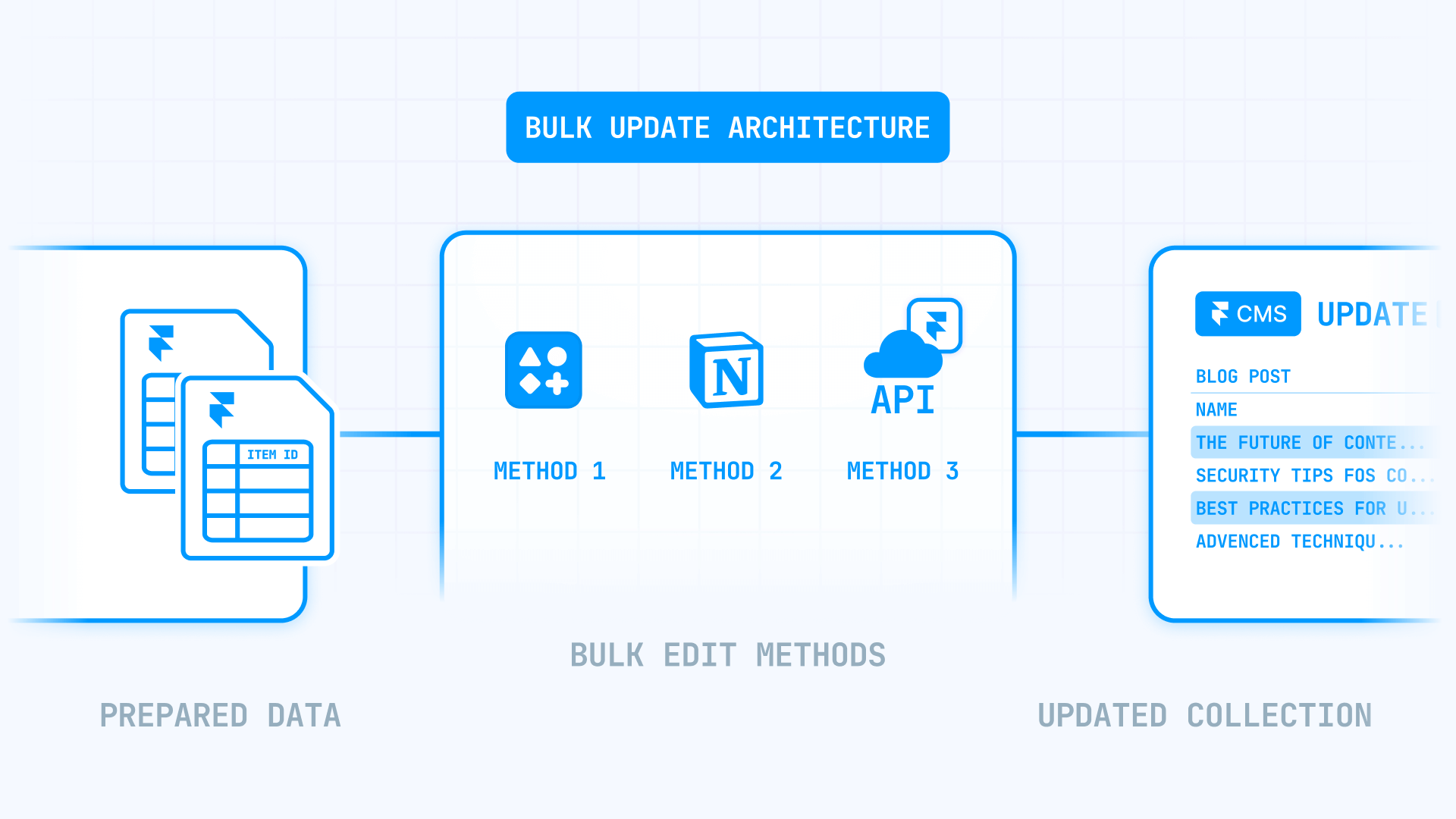
Framer's CMS editor is fast for individual items, but it wasn't built for mass field updates. The good news: between marketplace plugins, sync tools, and the Framer Server API, you have three solid paths to handle bulk edits without falling back on the CSV export-and-reimport cycle.
Why bulk editing CMS items matters for Framer sites
Knowing where bulk edits deliver the most value helps you decide which method deserves your attention:
- Rebrands and terminology changes: Replace an old product name, update a legal disclaimer, or swap a deprecated term across hundreds of CMS pages — without opening each item one by one in the Framer editor.
- Programmatic SEO at scale: Update templated fields like city names, pricing tiers, or FAQ content across large collections that power programmatic pages, where even a small change multiplies across every entry.
- Content team operations: Give non-technical editors a way to make controlled, filterable edits in a spreadsheet-style view instead of navigating the CMS item by item.
- Avoiding manual fatigue and human error: When a collection has 200+ items and your change is repetitive, doing it by hand isn't just slow — it's where typos, skipped entries, and inconsistent formatting creep in.
What Framer can and cannot bulk edit natively in the CMS
Before exploring external methods, it helps to understand exactly where Framer's native CMS stops and where plugins and scripts take over.
Framer's CMS editor handles several things well on its own. You can edit individual items directly and have content update everywhere it's used on the site. You can work with Framer Drafts so in-progress content doesn't go live until you explicitly publish it. Framer also supports CSV import with duplicate detection — when importing into an existing collection, it can match items by Slug and let you update or skip duplicates. And inline editing makes quick one-off changes fast.
What Framer doesn't offer natively is any way to apply a field change across many items at once. There's no built-in find and replace across an entire collection (especially inside rich text), no multi-cell editing to set a value for 200 rows with one action, and no rules-based updates to change field Y when field X meets a condition. For any of these, you need one of the three methods below.
How to pick the right Framer CMS bulk edit method
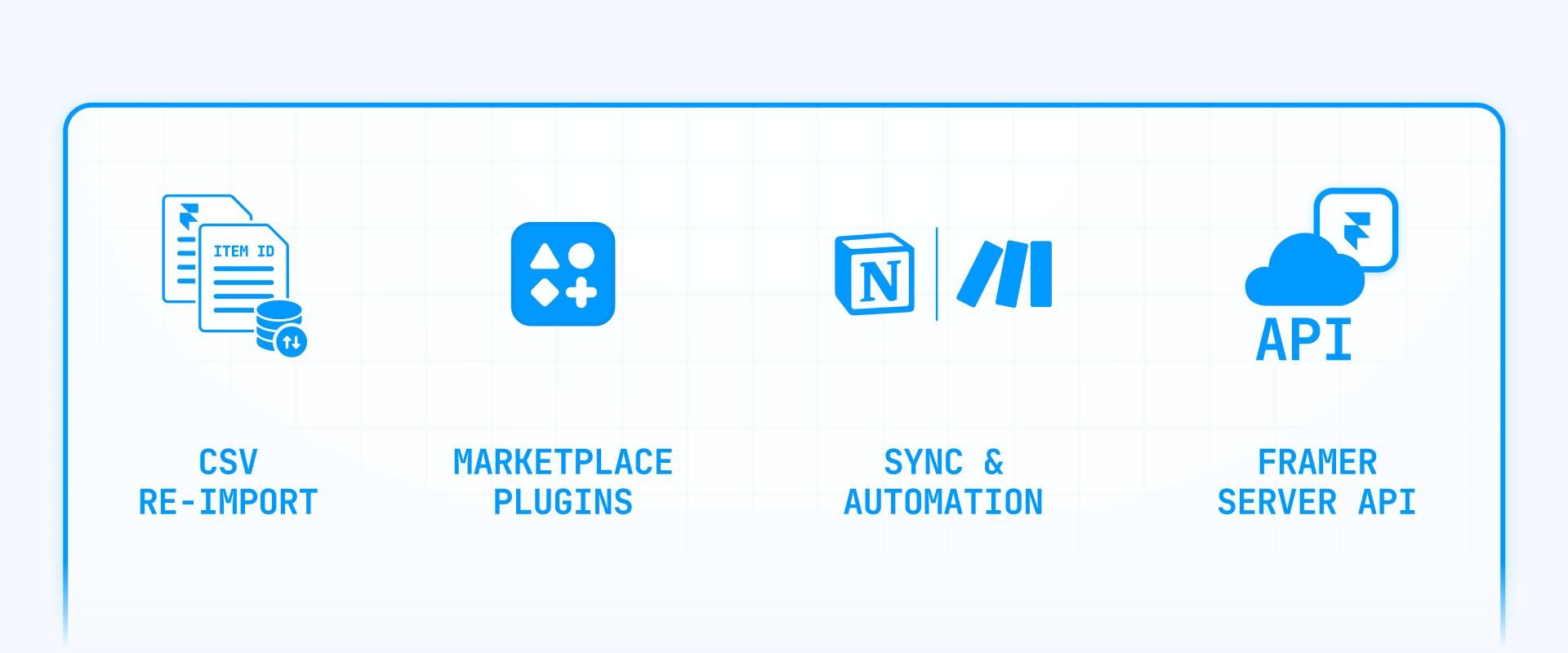
Each method fits a different team and workflow. Here's how they break down:
- Marketplace plugins: Best for content and ops teams who want visual, hands-on control. Spreadsheet-style editors give you multi-cell selection, filters, undo/redo, and find/replace with previews — all without writing a single line of code. The tradeoff is that you can't build complex conditional logic.
- Sync plugins and automation: Best for teams that manage content in an external source like Google Sheets or Notion and want Framer to reflect those changes. Official sync plugins handle the mapping, and tools like Make can bridge more complex pipelines. The tradeoff is that some sync workflows still require a manual trigger in Framer.
- Framer Server API: Best for development teams that need full programmatic control — scripted updates, conditional logic, publish and deploy in the same workflow, and repeatable automation jobs. The tradeoff is that it requires writing and maintaining code.
If you want the one-sentence summary: use plugins for hands-on visual edits, sync tools for keeping Framer aligned with an external source, and the Server API when you need scripted precision and full automation.
How to prepare your Framer CMS for safe bulk edits
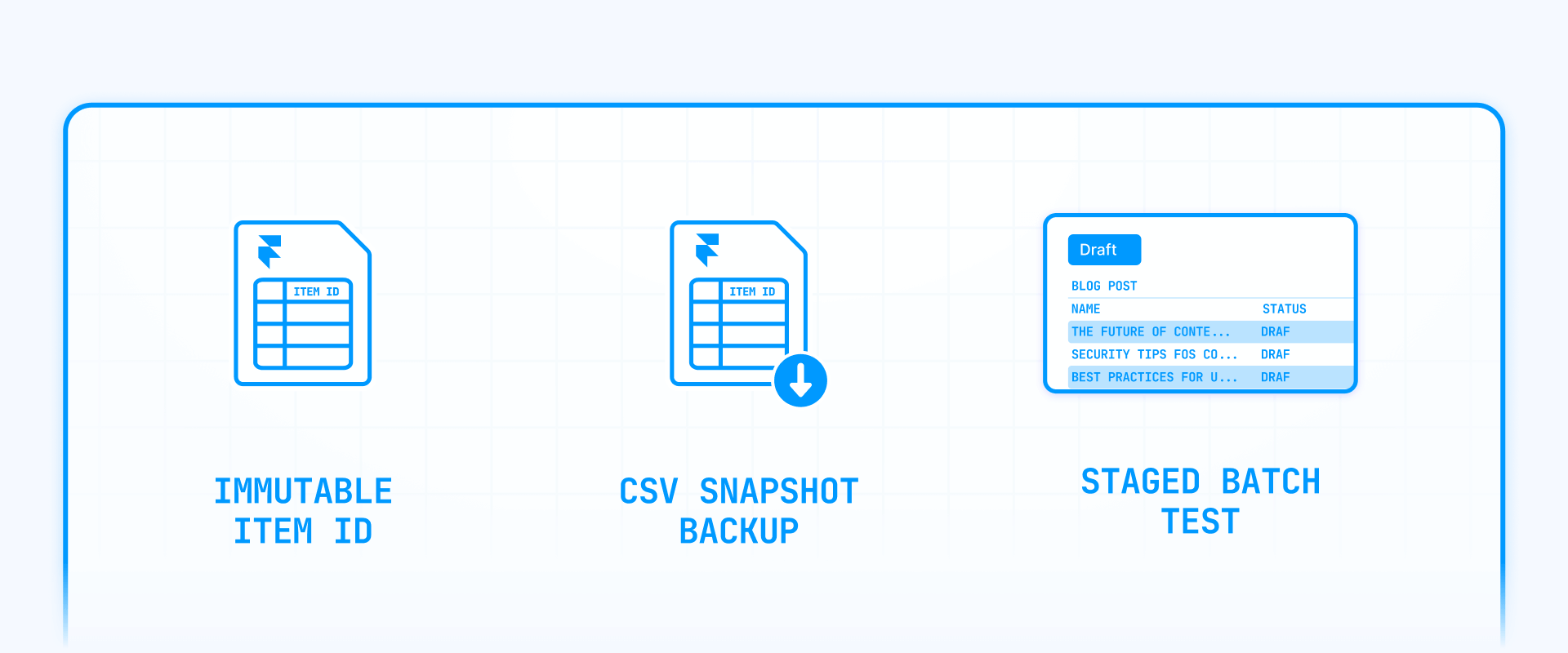
Good preparation makes the difference between a clean bulk edit and a stressful rollback. These steps apply regardless of which method you choose.
How to pick a stable identifier for Framer CMS items
Framer CMS items have both a Slug (visible in URLs) and an internal id. When running any kind of programmatic update, always prefer the id — it's immutable and won't change if someone edits the slug later.
The practical approach is to build a slug → id mapping once using the Server API's Collection.getItems() method, then store those IDs in your external source of truth (spreadsheet, Notion, Airtable). This one-time effort of about 30 minutes prevents the most common bulk edit failure: updating the wrong item because the identifier shifted.
How Framer Drafts and publishing affect your bulk edits
Framer supports Drafts for CMS items, which means in-progress content won't appear on your staging or live site until you choose to publish. This is a significant advantage for bulk edits — you can make all your changes, review them in the editor, and only push them live when you're confident everything looks right.
One thing to watch: Collection.getItems() in the Server API may return draft items alongside published ones. Your script or workflow needs to handle this explicitly, either by filtering drafts out or by intentionally including them in the update.
Framer's publishing is also versioned, which means you can roll back to a previous version if a bulk edit goes wrong. This built-in safety net is one of the strongest arguments for using Framer's native publish/deploy flow rather than trying to push changes directly to production.
How to back up your Framer CMS before bulk edits
Even with versioned publishing, having a local snapshot gives you peace of mind and a clear reference point. Two Framer marketplace plugins make this easy:
- CSV Export: Exports any CMS collection as a CSV file — straightforward and fast for creating a before-and-after comparison.
- JSON Sync: Exports collections as JSON, which preserves more structure and is useful for migrations or detailed backups.
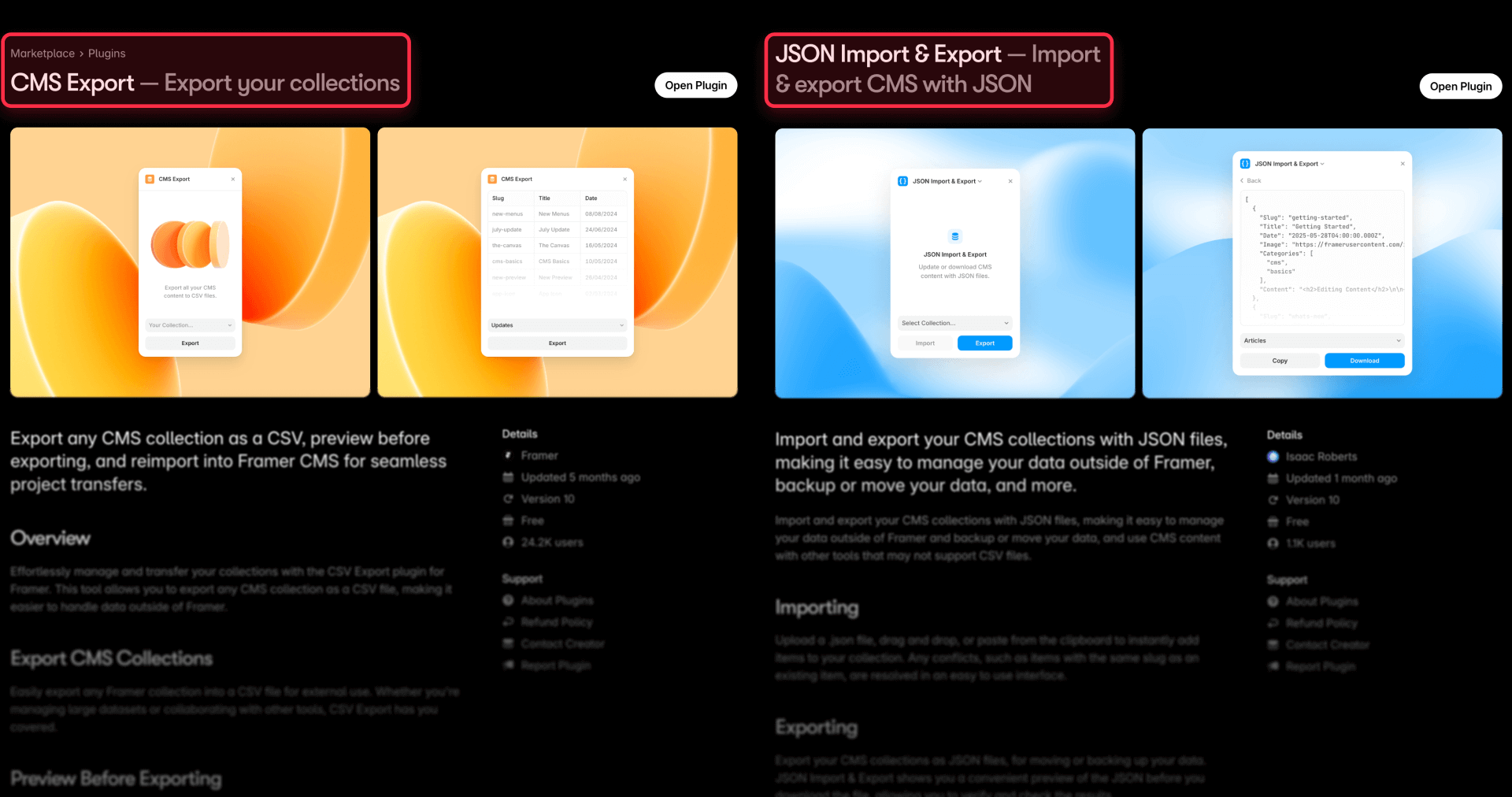
Beyond plugin exports, keep a simple spreadsheet log of planned changes — item ID, field name, old value, new value. If anything goes wrong, this log lets you reverse the edit precisely without guessing what changed.
Method 0 — Bulk edit Framer CMS items with CSV export and re-import
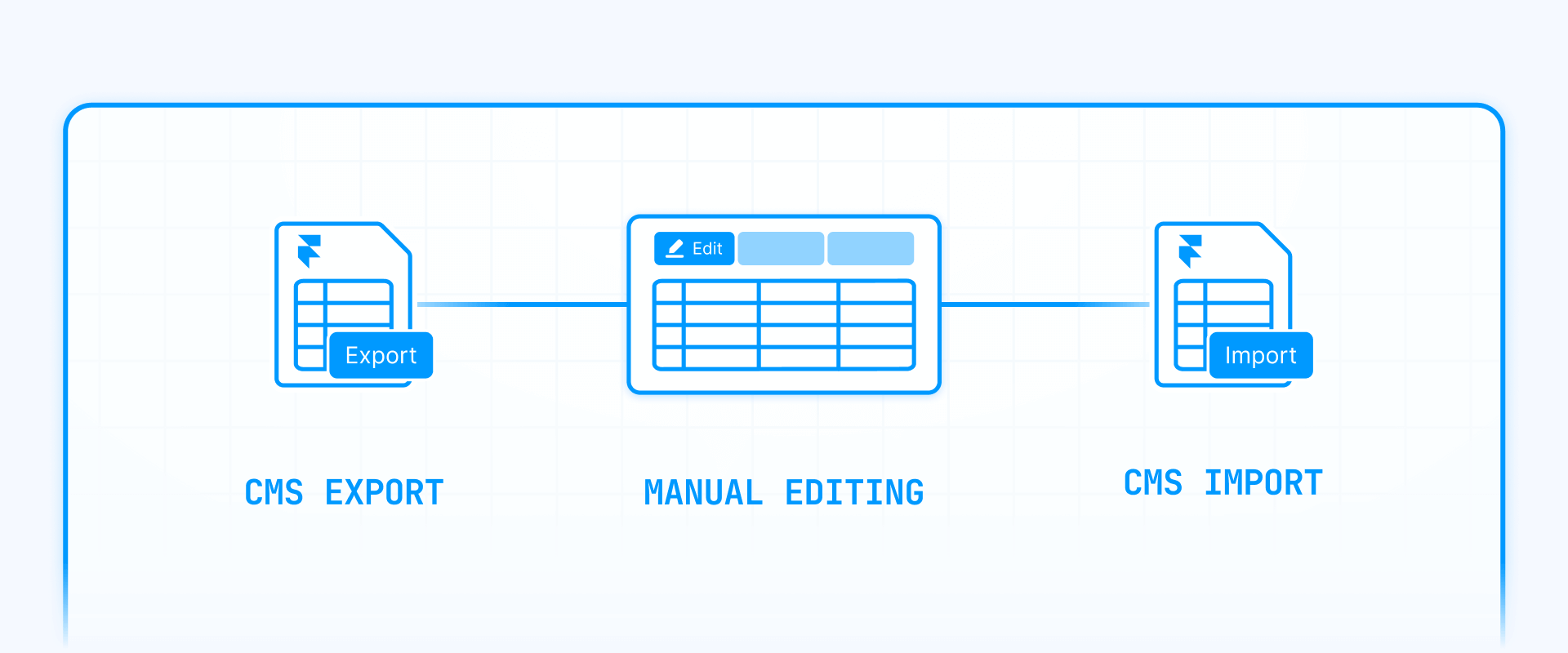
This is the approach most teams default to, and it works — up to a point.
The workflow is familiar: export your collection as CSV, open it in Google Sheets or Excel, make your edits, and re-import the file back into Framer. Framer's CSV import has one meaningful advantage over Webflow's: it can detect existing items by Slug and offer to update matches or skip duplicates rather than blindly creating new entries.
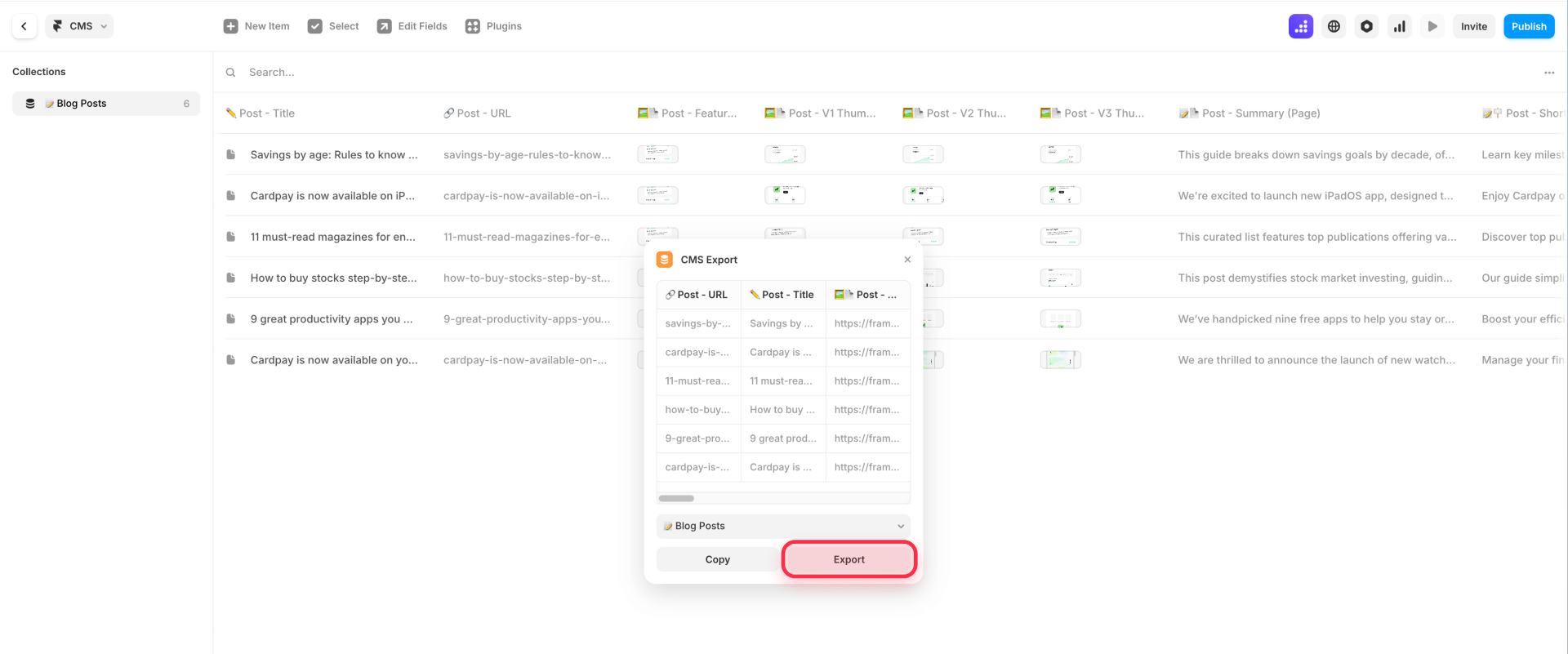
That said, CSV re-import is still a manual, one-shot process with no undo beyond your backup. It doesn't handle rich text well, gives you no preview of what will change, and can produce unexpected results when field types don't map cleanly between your spreadsheet and the CMS. For a one-time change to a small collection, it gets the job done. For anything you'll repeat or that touches more than a handful of items, the methods below are significantly more reliable.
Method 1 — Bulk edit Framer CMS items with marketplace plugins
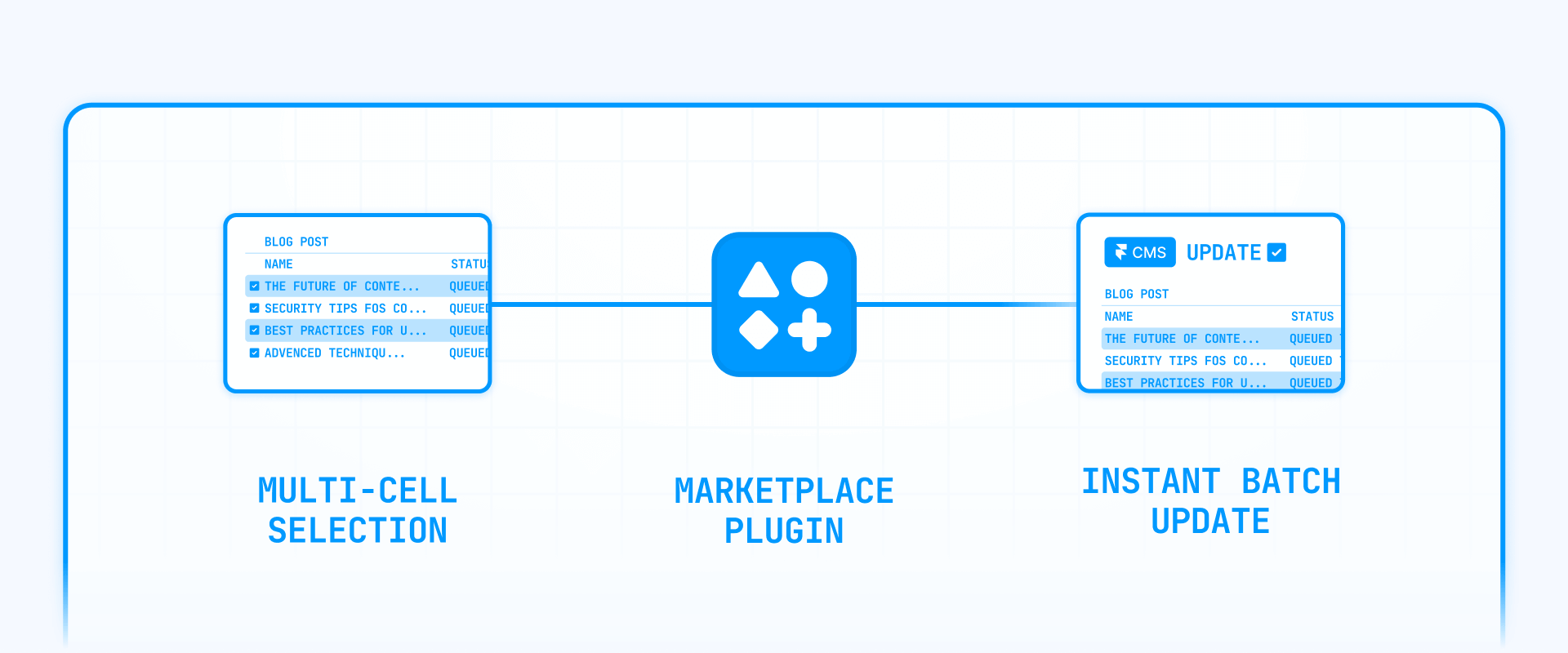
Framer's plugin ecosystem is where most teams should start for bulk editing. These tools run directly inside the Framer editor, require no code, and give you visual control with undo/redo — something no CSV workflow or API script can match.
How to use CMS Sheets in Framer for spreadsheet-style bulk edits
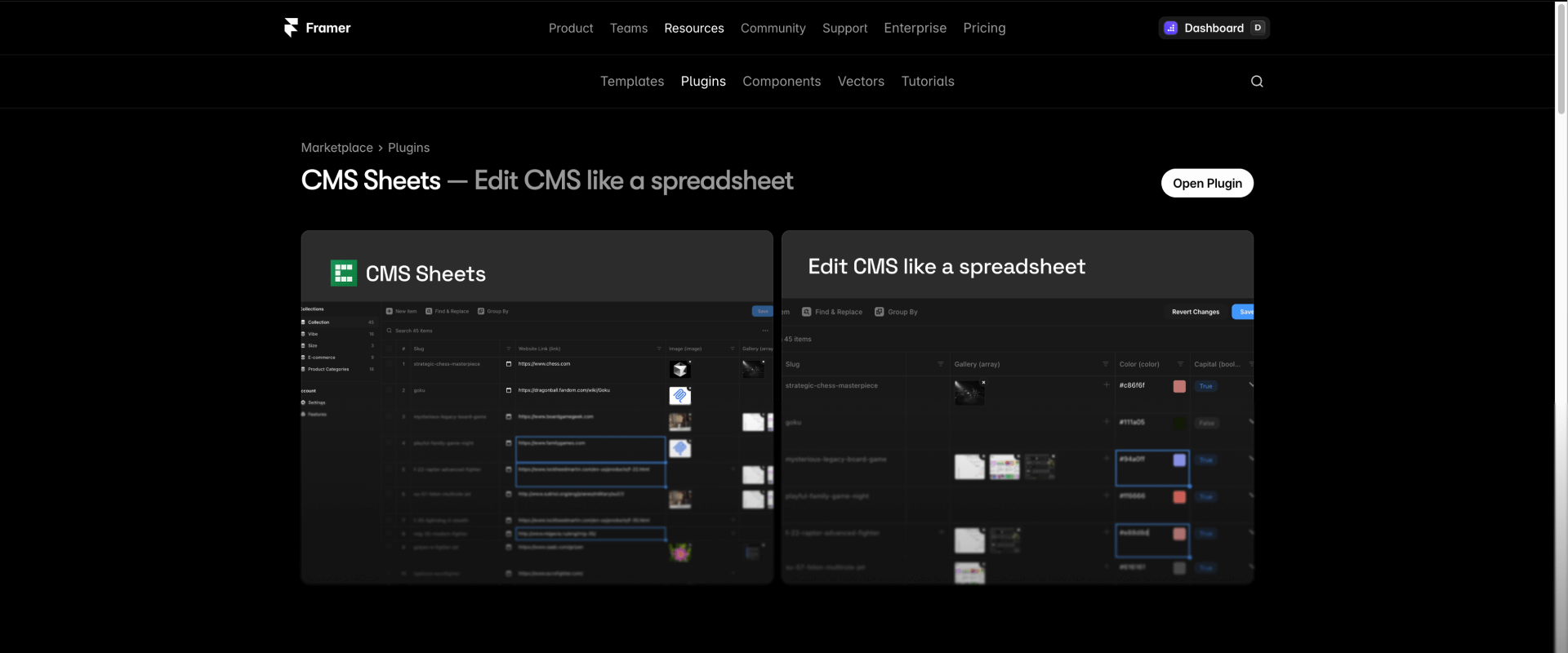
CMS Sheets turns your Framer collection into a fully interactive spreadsheet with multi-cell selection, inline editing, column filters, grouping, and undo/redo. It's the closest thing to "Excel for your CMS" that exists inside Framer.
Here's how to get started:
- Install the plugin. Open your Framer project, go to Plugins → Marketplace, search for CMS Sheets, and install it.
- Open and select your collection. Launch the plugin and choose the CMS collection you want to edit.
- Filter to isolate your target rows. Use the Search bar and Column Filters to narrow down to exactly the items you need to change — for example, only items where status is "draft" or where category matches a specific value.
- Select and edit in bulk. Use Shift + Click to select a range of cells in the same column, or Cmd/Ctrl + Click for non-contiguous selections. Type or paste the new value to apply it across all selected cells.
- Verify and undo if needed. Check a few random rows after the edit. If something looks wrong, Cmd/Ctrl + Z reverses the change immediately.
Tip: Always apply a filter before bulk editing so you only touch the rows you intend to change. Clear the filter afterward and spot-check a few random items to confirm nothing unexpected was modified.
How to use Search and Replace for CMS in Framer for text changes
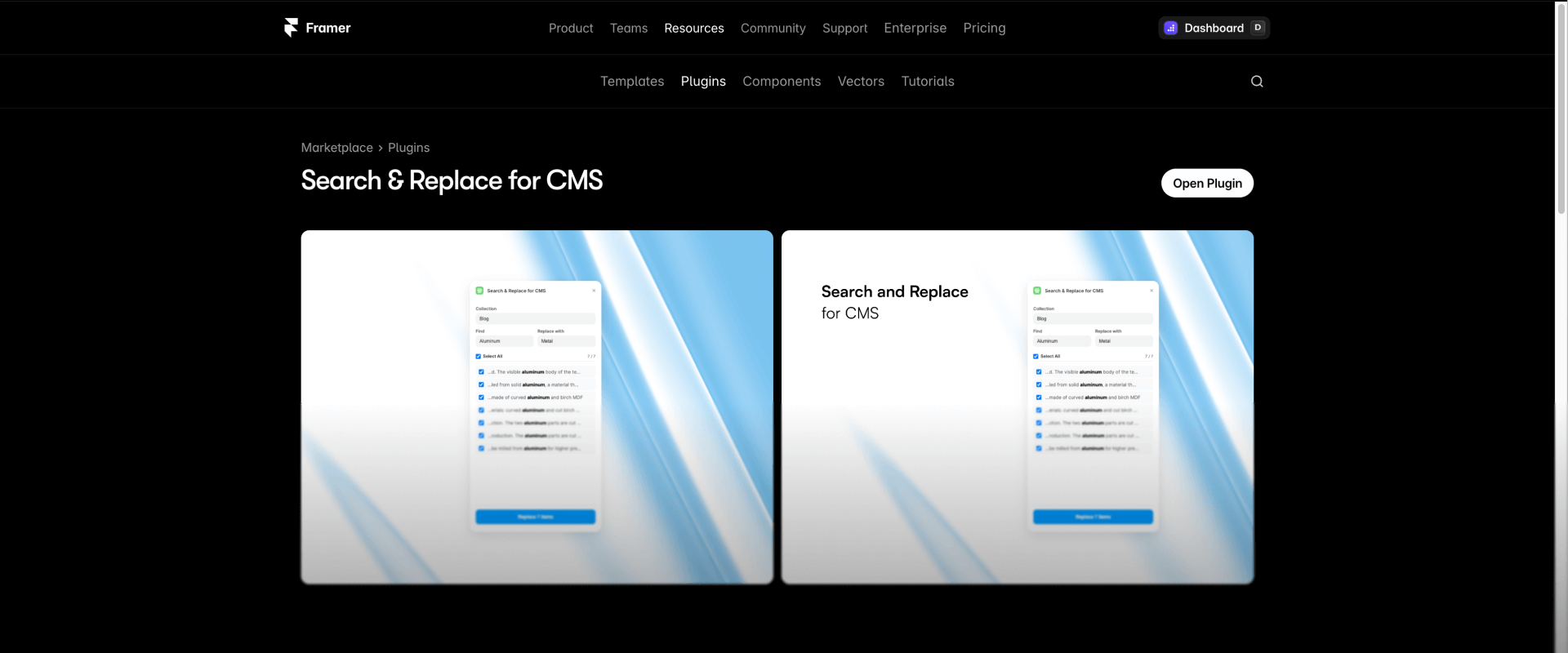
When your bulk edit is specifically about replacing a word or phrase across a collection — especially inside rich text or formatted text fields — a dedicated find-and-replace plugin is safer than any spreadsheet approach.
Search and Replace for CMS scans your entire collection (including formatted text content) and shows a live preview of every match before you apply anything. This means you can visually confirm each replacement instead of trusting a blind find-and-replace that might catch unintended matches.
- Install and open the plugin from the Framer Marketplace.
- Select your collection and enter the search term.
- Review the matches. The plugin highlights every occurrence across all items, showing you the surrounding context.
- Apply selectively or globally. Replace individual matches or all at once, depending on your confidence level.
This approach is far safer than CSV-based find-and-replace because you see exactly what will change before it changes.
Framer-specific limitations of marketplace plugins you should know
Plugins are the most accessible option, but they have boundaries:
- No conditional logic. Plugins can't say "only update field Y if field X equals Z." If your bulk edit requires conditions or transformations, you'll need the Server API.
- Plugin-dependent features. Each plugin has its own capabilities and constraints — what one supports (like rich text editing), another might not. Always test on a small batch first before running a large edit.
- No scheduled or automated runs. Plugins operate inside the Framer editor and require manual interaction. If you need edits to happen automatically on a schedule, you need sync tools or the Server API.
Method 2 — Automate ongoing Framer CMS updates with sync plugins
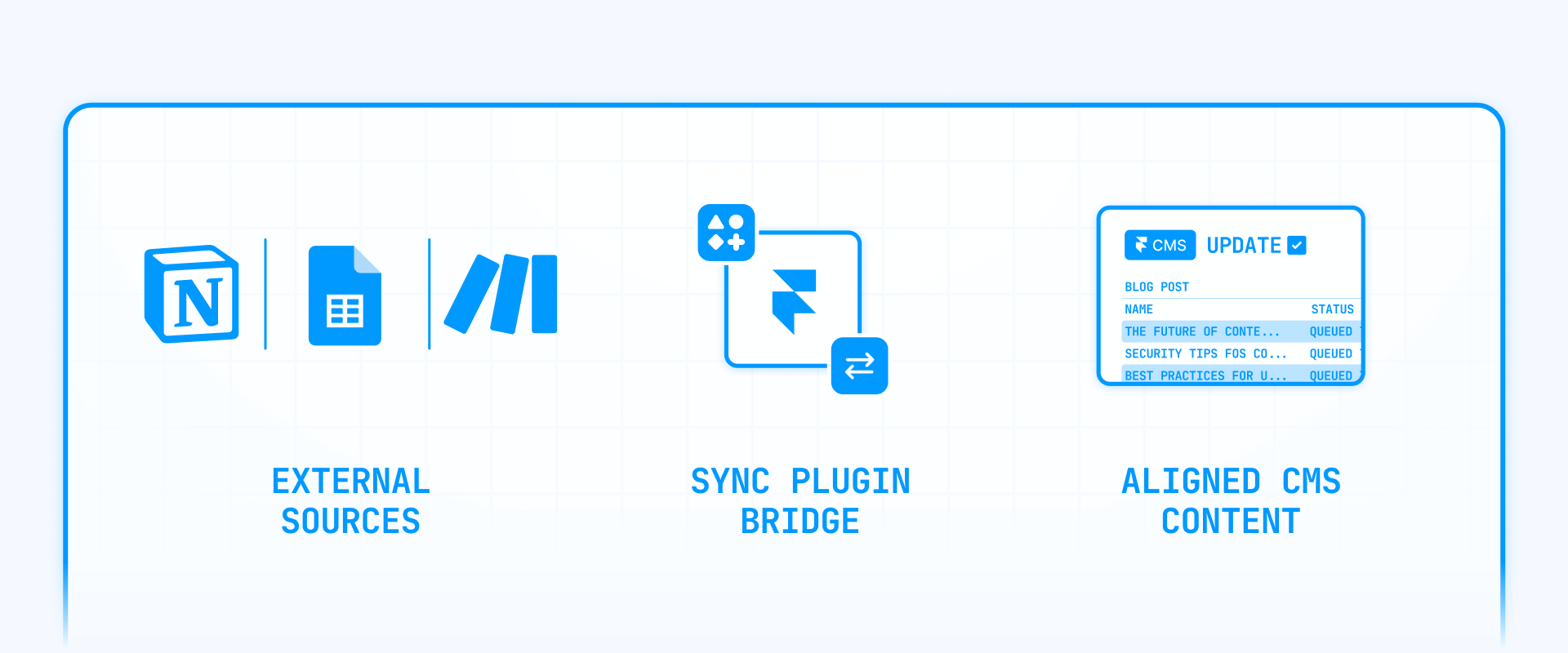
When bulk edits aren't a one-time task but a recurring operation — updated prices from a spreadsheet, new blog posts from Notion, inventory changes from an external database — sync plugins let you keep Framer's CMS aligned with your external source of truth.
How to sync Google Sheets to Framer CMS for ongoing bulk updates
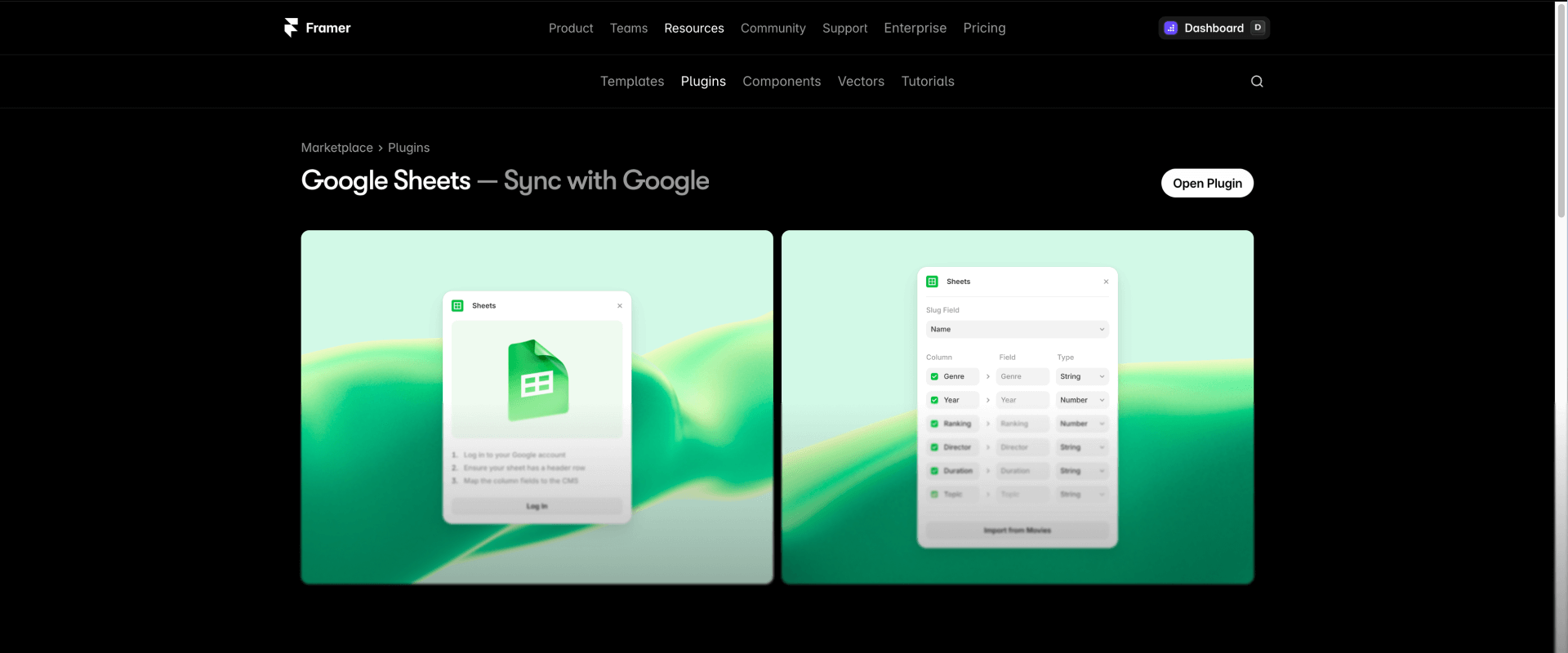
Framer offers an official Google Sheets plugin that connects a spreadsheet directly to a CMS collection. You paste the sheet URL, map columns to CMS fields, and sync. The plugin supports most CMS field types including text, formatted text, booleans, images, and links.
This is ideal when your team already operates in Sheets and wants fast operational updates without touching the Framer CMS editor. Edits happen in the spreadsheet, and a single sync action pushes them into Framer.
The key to reliable syncing is keeping a stable slug column in your sheet. Since Framer matches imported rows to existing items by slug, a consistent slug ensures updates land on the right items every time instead of creating duplicates.
How to sync Notion databases to Framer CMS for content teams
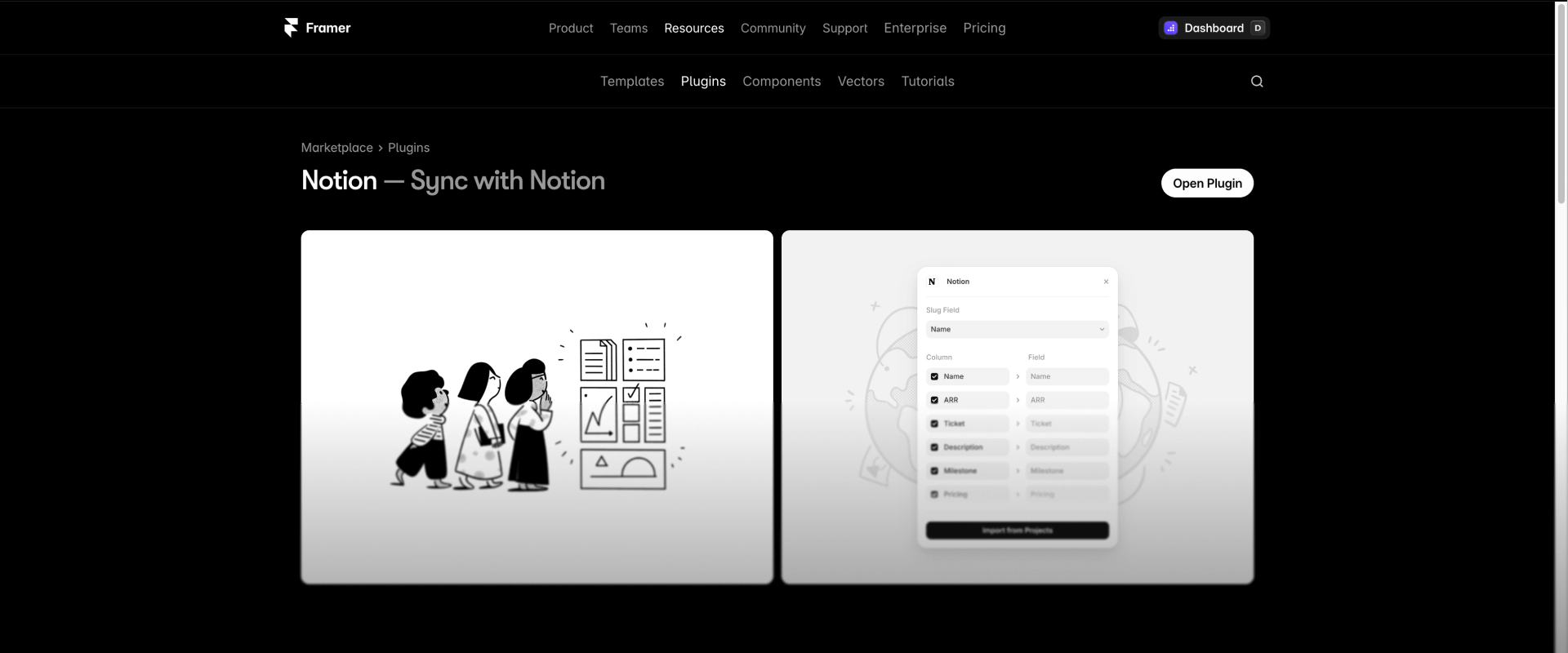
Framer's official Notion plugin syncs Notion databases into Framer CMS and supports automatic syncing after the initial setup. This makes it the strongest option for editorial teams where writers and editors live in Notion and Framer handles the presentation layer.
Map your Notion database properties to Framer CMS fields once, and from that point forward, changes in Notion flow into Framer without manual CSV handling. Like with Sheets, keep your slug property stable so updates match consistently over time.
How to connect Make to Framer CMS for automated bulk updates
For teams that need a more custom pipeline — pulling data from a REST API, a database, or combining multiple sources — Make can serve as the bridge between your external data and Framer's CMS.
The architecture works differently from Webflow. In Webflow, Make pushes updates directly to the CMS via API. In Framer, the flow is reversed: Make prepares the data and responds to a webhook call, and a Framer sync plugin pulls that response into the CMS.
The module chain looks like this: Webhooks → Custom webhook (triggered by Framer) → Google Sheets → Search rows (pull changed data) → Flow Control → Array Aggregator (batch items) → Webhooks → Webhook response (return payload to Framer).
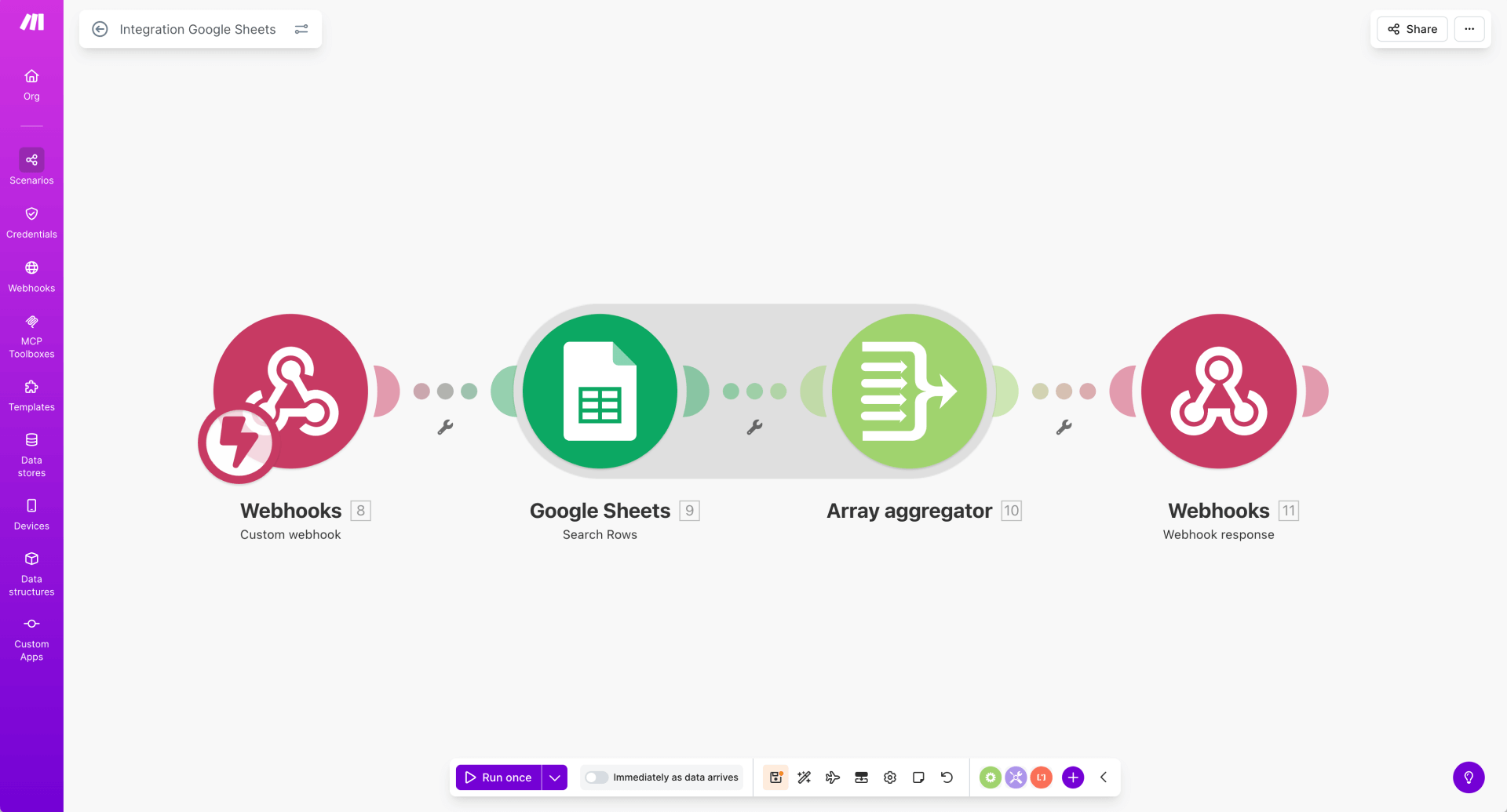
Here's the high-level setup:
- Create a Make scenario with a Custom webhook as the trigger. Copy the webhook URL.
- Add a Google Sheets → Search rows module to pull the rows you want to sync, filtered by a needs_sync = TRUE flag.
- Add a filter after Search rows to skip any rows missing a framer_item_id — this prevents accidental creates.
- Add a Flow Control → Array Aggregator to batch the rows into a single payload, mapping each row's item ID, slug, and field values.
- Add a Webhooks → Webhook response module that returns the aggregated items array as JSON with a 200 status.
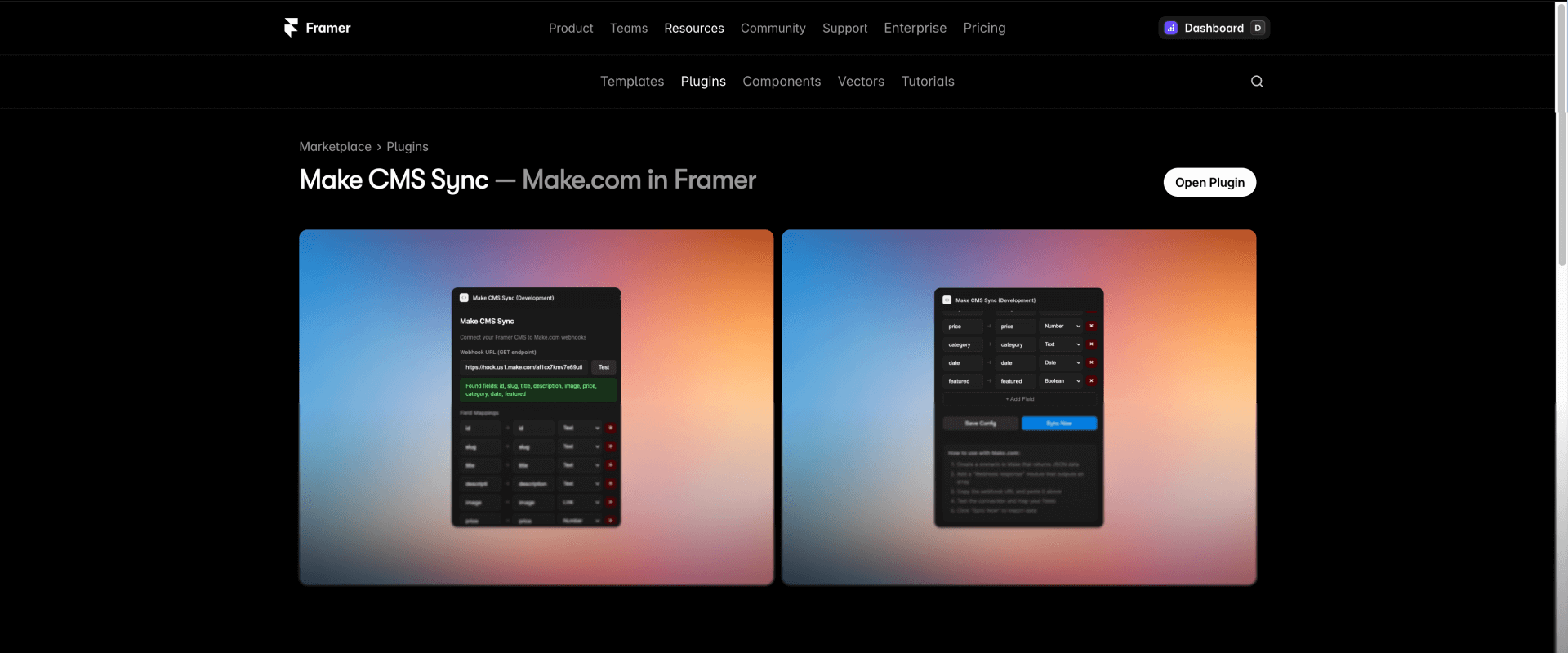
- In Framer, install the Make CMS Sync plugin from the Marketplace. Set the Make Webhook URL to the URL you copied, select your target CMS collection, and click Sync.
Important: Make's interface labels change periodically. If an exact module name differs from what's described here, look for the equivalent option — the underlying functionality remains the same.
Framer-specific limitations of sync plugins you should know
- Manual sync is still the norm. Many Framer sync plugins — including the Make CMS Sync plugin — require you to click Sync in the Framer editor to trigger the update. Fully automatic background syncing is a known community request but isn't universally supported yet.
- Auto-sync varies by plugin. The official Notion plugin supports automatic syncing, but others may not. Always check whether your chosen plugin syncs on a schedule or only on demand.
- Reference field handling differs. In Framer plugins, references are typically mapped using slugs (single or array), not internal IDs. The behavior can also vary between regular collections and managed collections. Test reference fields on a small batch before running a full sync.
- userEditable fields are ignored by plugins. If a CMS field is marked as userEditable, plugin-driven updates via addItems() won't overwrite it. Keep fields that Make or sync tools should control set to non-userEditable, and use separate fields for manual overrides.
If you need a Make + Framer pipeline customized for your specific data source and collection structure, our Framer team can build and configure it for you.
Method 3 — Bulk edit Framer CMS items with the Framer Server API
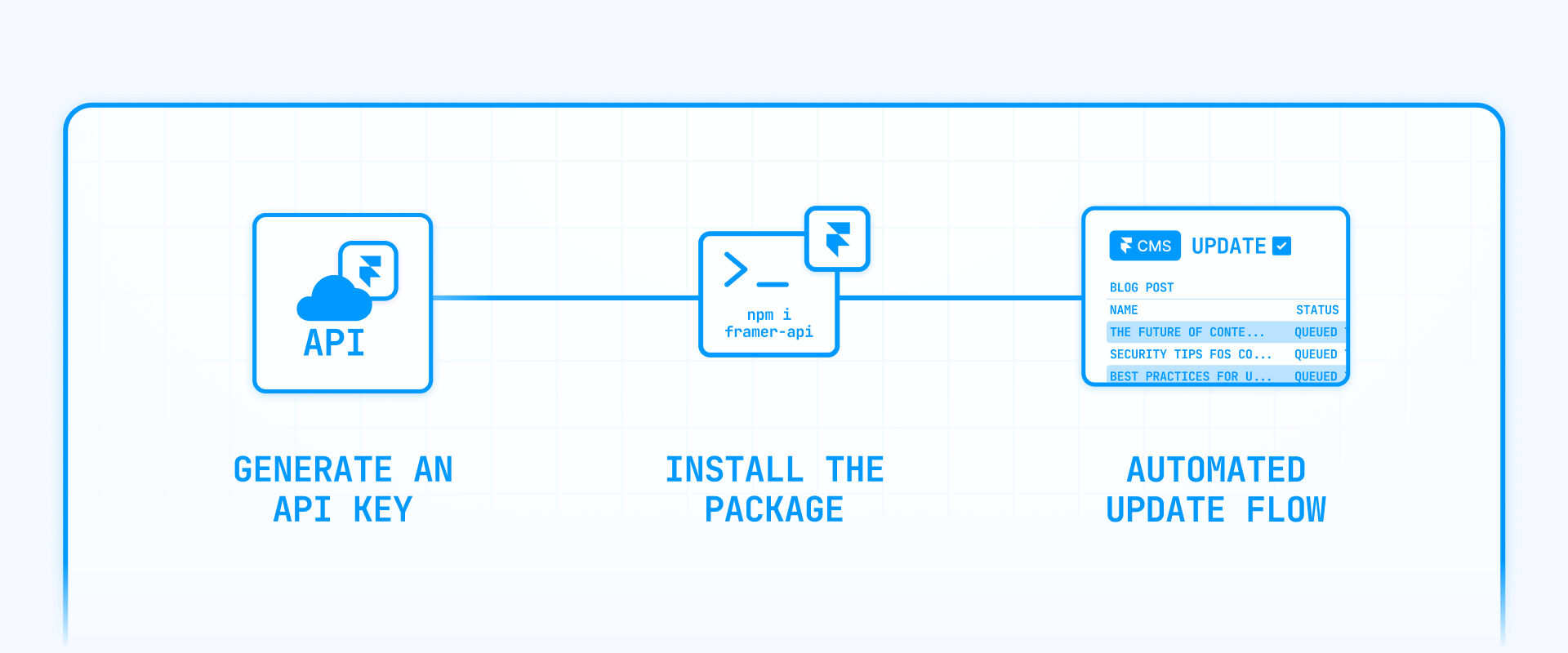
The Framer Server API is the most powerful option available. It lets you connect to a project programmatically, read and update CMS collections, and then publish and deploy — all from a script that runs outside the Framer editor. This is the method to use when you need conditional logic, repeatable automation, or full audit logging.
How to set up the Framer Server API for bulk editing
Getting started requires three things:
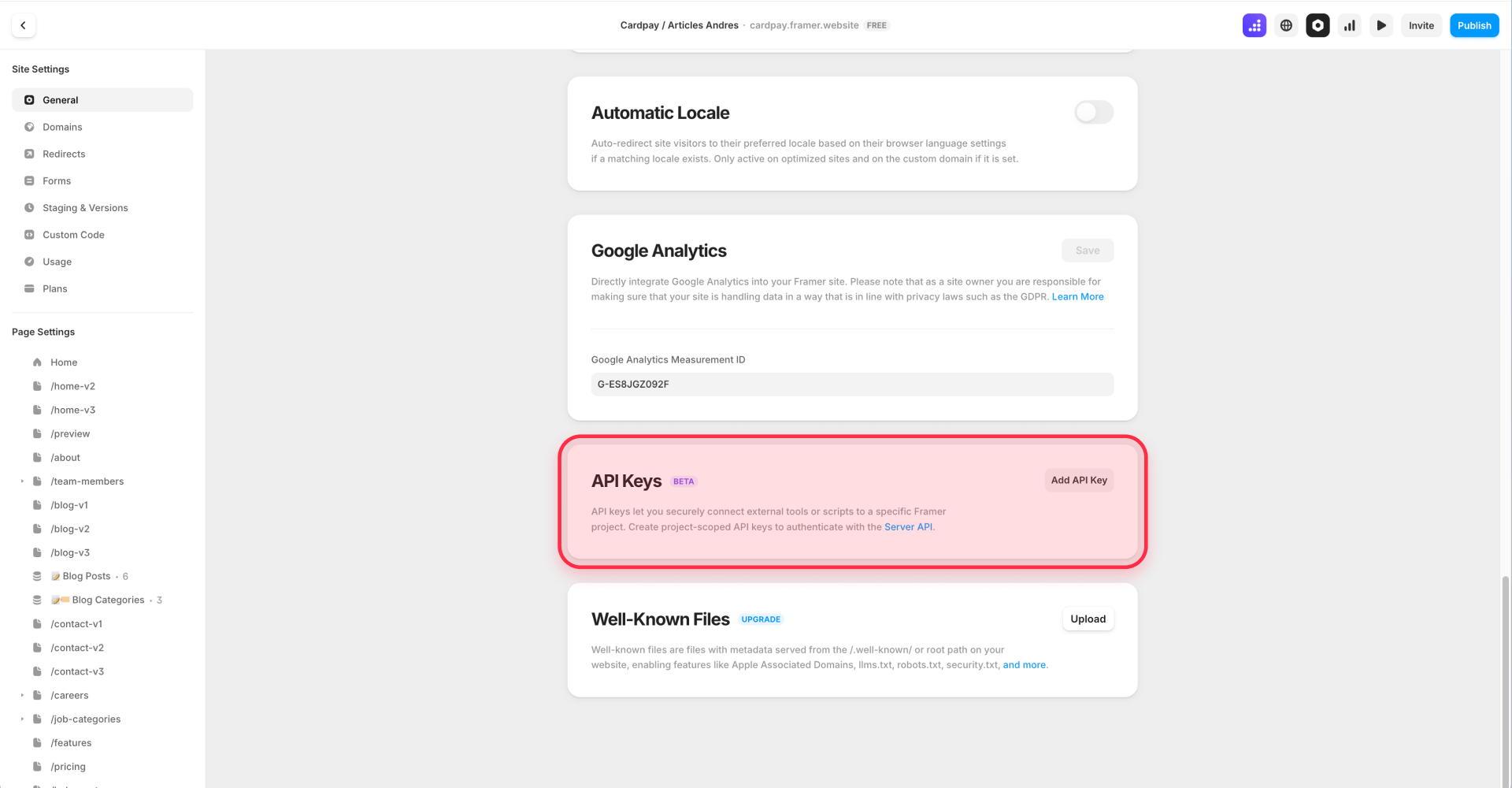
- Generate an API key. Open your Framer project, go to Site Settings → General, and generate an API key. Keys are bound to the project and authenticate as the user who created them. Store it securely in an environment variable.
- Install the package. Run the following command in your terminal:
npm i framer-api
- Get your project URL. You'll need the full Framer project URL in the format https://framer.com/projects/your-project-id. This is what the script uses to connect to the right project.
How a Framer Server API bulk update script works
The core pattern is straightforward: connect to the project, find the collection, load the items and fields, build your updates using item id values, apply them with Collection.addItems(), and optionally publish and deploy. Here's a reference script that shows the full workflow.
The script below demonstrates updating a boolean field across all items in a collection. Your actual implementation will vary based on your field types, update logic, and whether you need conditional processing.
/**
 * BRIX Templates — Framer Server API Bulk Edit Reference
 * -------------------------------------------------------
 * Updates a boolean field across all CMS items in a collection.
 * Uses Collection.addItems() with existing item IDs (updates, not duplicates).
 * Optional: publish preview + deploy to production.
 *
 * Version: 1.0.0
 * Author: BRIX Templates
 *
 * Usage:
 * - Set FRAMER_API_KEY and FRAMER_PROJECT_URL in your environment
 * - Adjust the collection name, field name, and update logic below
 * - Run with: node bulk-update.js
 */

import { connect } from "framer-api"

const projectUrl =
  process.env.FRAMER_PROJECT_URL || "https://framer.com/projects/<id>"

const apiKey = process.env.FRAMER_API_KEY
if (!apiKey) throw new Error("Missing FRAMER_API_KEY")

// Simple assertion helper
const assert = (condition, message) => {
  if (!condition) throw new Error(message)
}

const main = async () => {
  const framer = await connect(projectUrl, apiKey)

  try {
    // 1) Find the target collection by name
    const collections = await framer.getCollections()
    const collection = collections.find((c) => c.name === "Posts")
    assert(collection, "Collection 'Posts' not found")

    // 2) Map fields by name to get the field ID
    const fields = await collection.getFields()
    const featuredField = fields.find((f) => f.name === "Featured")
    assert(featuredField, "Field 'Featured' not found")

    // 3) Load all items (note: may include drafts)
    const items = await collection.getItems()

    // 4) Build update objects using item ID (critical for safe updates)
    const updates = items.map((item) => ({
      id: item.id,
      slug: item.slug,
      fieldData: {
        [featuredField.id]: { type: "boolean", value: true },
      },
    }))

    console.log(`Updating ${updates.length} items...`)

    // 5) Apply updates (addItems updates existing items when IDs match)
    await collection.addItems(updates)

    console.log("Bulk update complete.")

    // 6) Optional: publish and deploy
    const publishResult = await framer.publish()
    console.log("Published preview:", publishResult.deployment?.id)

    await framer.deploy(publishResult.deployment.id)
    console.log("Deployed to production.")
  } finally {
    // Always disconnect or the script will hang
    await framer.disconnect()
  }
}

main().catch((err) => {
  console.error(err)
  process.exit(1)
})
This script is a starting point. Every real implementation will differ based on which collection you're targeting, what fields you're updating, and whether you need conditional logic (like "only update items where status equals draft"). The key principles stay the same: always update by id to prevent duplicates, always call disconnect() when finished, and log what you're changing so you can reverse it if needed.
How publishing and deploying works after Framer Server API bulk edits
The Framer Server API gives you explicit control over the publish-and-deploy flow, which is one of its biggest advantages.
After your script finishes updating items, calling framer.publish() creates a new preview version — a snapshot of the current state that you can inspect before pushing it live. If everything looks right, calling framer.deploy() with the deployment ID pushes that version to your production domain.
This two-step process means you can script the entire workflow (update → publish → deploy) while still maintaining a safety checkpoint. And because Framer's publishing is versioned, you can roll back to any previous deployment from the Framer editor if something goes wrong — no reverse scripts needed.
Why the Framer Server API is the most robust bulk edit method
The Server API gives you capabilities that plugins and sync tools can't match: conditional update logic (if field X meets a condition, change field Y), full field type control (booleans, numbers, formatted text — each with explicit type declarations), repeatable scripts you can run on a schedule or trigger from CI/CD, built-in publish and deploy so the entire workflow is automated end to end, and audit-friendly logging since you control every step and can record exactly what changed.
The tradeoff is that it requires development work — writing scripts, managing API keys, and handling edge cases like draft items and field type mismatches. For teams that run bulk edits regularly, this investment pays back quickly through reliability and speed. For teams that need it done once or want a production-hardened automation built correctly from the start, working with a development team saves time and risk.
At BRIX Templates, we build custom Framer CMS workflows — bulk edit scripts, sync pipelines, publish automation, and rollback strategies. If that's what your project needs, our Framer agency can set it up.
Troubleshooting Framer CMS bulk edits without CSV re-import
Here are the most common issues teams run into when bulk editing Framer CMS, with specific fixes:
- Server API script never finishes running: You forgot to call disconnect() at the end. Add a finally block that calls framer.disconnect() and confirm the process exits cleanly after re-running.
- Bulk update created duplicate items instead of updating existing ones: You used slugs instead of item id values in your update objects. Use Collection.getItems() to build an id mapping first, then pass matching id values in every update. Verify by checking the item count in your collection after the run.
- Plugin or script changes are ignored for certain fields: The field is likely marked as userEditable, which causes Framer to ignore plugin-driven updates for that field. Change the field setting to non-userEditable if Make or scripts should control it, and re-test on a single item.
- Reference or multi-reference fields don't update correctly: Framer reference fields are typically set using slugs in plugins, not internal IDs. The behavior can also differ between regular and managed collections. Verify the expected format for your collection type and test on a few items before running the full batch.
- Draft items were accidentally modified: Collection.getItems() may return draft items alongside published ones. Add explicit filtering logic in your script to exclude drafts if they shouldn't be touched, and verify by inspecting draft status in the CMS after a dry run.
- Sync plugin doesn't auto-sync on a schedule: This is a known limitation across much of the Framer ecosystem. Many sync plugins still require clicking Sync manually in the editor. Use the Framer Server API for scheduled jobs, or operationally schedule a daily "sync window" as part of your deploy checklist.
- Changes don't appear on the custom domain after editing: If you're using staging, you may need to explicitly publish and then deploy the desired version to production. Check the Staging & Versions panel in Framer to confirm the correct version is deployed.
- CSV import created duplicates instead of updating: Framer matches by Slug during CSV import. If your CSV has empty or changed slugs, Framer treats those rows as new items. Ensure every row has a stable slug that matches the existing CMS entry.
Frequently asked questions about bulk editing CMS items in Framer
What is the fastest way to bulk edit Framer CMS items without writing code?
The fastest no-code option is a spreadsheet-style plugin like CMS Sheets. It turns your Framer collection into an interactive grid where you can filter rows, select multiple cells, and paste values across all of them in one action — with full undo/redo support if something goes wrong.
For text-specific changes (replacing a term across many items, including inside rich text), a dedicated find-and-replace plugin is even faster because it scans the entire collection and shows you every match before applying anything. The key is choosing the right tool for the type of edit: spreadsheet plugins for field value changes, find-and-replace plugins for text replacements. Start with the plugin approach and only move to the Server API if you need conditional logic.
How does the Framer Server API work for CMS bulk updates?
The Server API is a Node.js package (framer-api) that connects to your Framer project using an API key and project URL. Once connected, you can read collections, fetch items, update fields, and publish/deploy — all from a script running outside the Framer editor.
The critical detail is that Collection.addItems() doubles as an update method: when you include an existing item's id in the update object, Framer updates that item instead of creating a duplicate. This means your script needs to fetch item IDs first (via getItems()), build update objects with matching IDs, and then apply them. Always call disconnect() when finished — without it, the script will hang indefinitely.
Can I bulk find and replace text inside Framer CMS rich text fields?
Yes, and it's one of the areas where a dedicated plugin genuinely outperforms any script or CSV approach. Search and Replace for CMS scans inside formatted text content and shows live previews of every match with surrounding context, letting you confirm each replacement before it applies.
This matters because rich text fields contain formatting, links, and embedded elements that can break if you do a naive string replacement via CSV. A CMS-aware find-and-replace plugin preserves the formatting structure while only changing the target text. Run it on a filtered subset first (for example, only items in a specific category), then expand to the full collection once you've confirmed the results look right.
How do I sync Google Sheets to Framer CMS without re-importing CSV files?
Use Framer's official Google Sheets plugin. Paste your sheet URL, map columns to CMS fields, and trigger a sync. Unlike CSV re-import, this creates a persistent connection between the sheet and the collection, so future updates only require clicking sync again — not re-exporting and re-uploading a file.
The most important setup detail is keeping a stable slug column in your sheet. Framer matches rows to existing items by slug, so if slugs change or are missing, you'll get duplicates instead of updates. Add the slug column before your first sync, populate it with values that match your existing CMS items, and don't edit it afterward unless you intentionally want to create new entries.
What's the difference between Framer Drafts and published CMS content for bulk edits?
Drafts are CMS items (or changes to existing items) that exist in the editor but aren't visible on your staging or live site until you publish. Published content is live and visible to visitors immediately. This distinction directly affects bulk edits because changes made to draft items won't appear on the live site until you explicitly publish the version that includes them.
The practical advantage is that Drafts give you a built-in review step. Make all your bulk changes, inspect them in the Framer editor, and only publish when you're satisfied. If you're using the Server API, Collection.getItems() may return drafts alongside published items — so add filtering logic in your script if you only want to update published content. Default to working with the draft/publish workflow rather than pushing changes directly to production.
Why do my Framer CMS bulk updates create duplicates instead of updating items?
This almost always means your update didn't include the correct item id. When using Collection.addItems(), Framer checks whether each object's id matches an existing item — if it does, the item gets updated. If the id is missing or doesn't match, Framer creates a new entry.
The fix is to build an id mapping before running any updates. Use Collection.getItems() to fetch all items, create a lookup table of slug → id, and include the matching id in every update object. For CSV imports, the equivalent rule is keeping a stable slug column — Framer uses slug matching for CSV, not internal IDs. Whichever method you use, verify after the run by checking your collection's total item count against what it was before.
Is Framer's CSV import good enough for bulk editing CMS items?
It's functional but limited. Framer's CSV import does detect duplicates by slug and lets you update existing items, which puts it ahead of many other platforms. For a small, one-time change where you don't need conditional logic or previews, it gets the job done.
Where it falls short is everything beyond the basics: there's no preview of what will change before import, no undo if something goes wrong, no support for complex field types like formatted text, and no way to selectively update only specific fields while leaving others untouched. If you're doing bulk edits more than once or working with collections larger than a few dozen items, any of the three methods in this guide (plugins, sync tools, Server API) will be more reliable and safer than CSV re-import.
How do I roll back a Framer CMS bulk edit that went wrong?
Framer's versioned publishing is your strongest safety net. Every time you publish, Framer creates a version snapshot you can roll back to from the Staging & Versions panel. If a bulk edit went live and something is wrong, reverting to the previous version restores the CMS content as it was before the change.
For changes that haven't been published yet, simply don't publish — draft changes stay in the editor without affecting the live site. For an extra layer of protection, always take a backup before running bulk edits (using the CSV Export or JSON Sync plugins) and keep a change log with item IDs and before/after values. This combination of version rollback plus local backups covers virtually every recovery scenario.
Can I automate Framer CMS updates to run on a schedule without manual sync?
This is one of the most requested features in the Framer ecosystem, and the answer depends on your method. The official Notion plugin supports automatic syncing after initial setup. Other sync plugins — including the Make CMS Sync plugin — still require clicking Sync manually in the Framer editor.
For true scheduled automation, the Framer Server API is the only fully reliable path. You can run a Server API script on any schedule (cron job, CI/CD pipeline, cloud function) and it will connect, update, publish, and deploy without ever opening the Framer editor. If your workflow requires hourly or daily updates without human intervention, build around the Server API rather than depending on plugin sync behavior that may require manual triggers.
Do I need to publish and deploy after every Framer CMS bulk edit?
Not necessarily — it depends on whether your changes need to be visible on the live site immediately. CMS edits that don't involve Drafts will typically appear on the next publish, but if you're working with Framer Drafts or staging workflows, changes stay invisible until you explicitly publish and deploy the version that includes them.
The Server API gives you the most control here: framer.publish() creates a preview version, and framer.deploy() pushes it to production. You can chain these in a script for full automation, or publish without deploying to create a staging preview you can inspect first. For plugin-based edits, Framer handles publishing through the editor's normal publish flow. The general rule is to always verify on the live URL after deploying, not just in the editor preview.
Conclusion
Bulk editing Framer CMS content no longer requires the fragile CSV export-and-reimport cycle. Marketplace plugins give your team fast, visual, undo-friendly editing for hands-on changes. Sync plugins keep Framer aligned with Google Sheets, Notion, or custom data sources as your operational hub. And the Framer Server API delivers full scripted control for conditional logic, scheduled automation, and publish/deploy workflows.
The natural next step is identifying which method fits your team's workflow and running a small test batch before scaling. And if you need a custom bulk edit system — API scripts, sync pipelines, publish automation, or rollback safeguards — built and maintained for your specific project, our Framer development team can handle it.








Join readers commenting on this post!