
A manual FAQ accordion in Webflow works until the client wants to add a question, rewrite an answer, or reorder the list. Every item is hand-built on the canvas, so each change means opening the Designer — and clients cannot edit the content safely on their own.
The fix is a CMS-powered FAQ accordion: one FAQ Collection, one Dropdown\-based accordion inside a Collection List, and Question and Answer fields bound to the CMS. Clients add, edit, and reorder questions from the CMS, and the design updates automatically. This guide builds it with Webflow-native tools — no Finsweet, no custom code.
Why a CMS FAQ accordion matters for Webflow sites
A CMS-powered FAQ accordion matters whenever the content needs to be editable or reused:
- Client-managed content — clients add and edit questions from the CMS, not the Designer.
- Clean scaling — going from 5 to 50 questions is a data change, not a design change.
- Consistent styling — one Collection Item controls every row, so the look never drifts.
- Reuse across pages — one FAQ collection can feed the accordion on your homepage, a product page, and a help page.
- Structured Q\&A — separate Question and Answer fields stay consistent and map cleanly into FAQ schema.
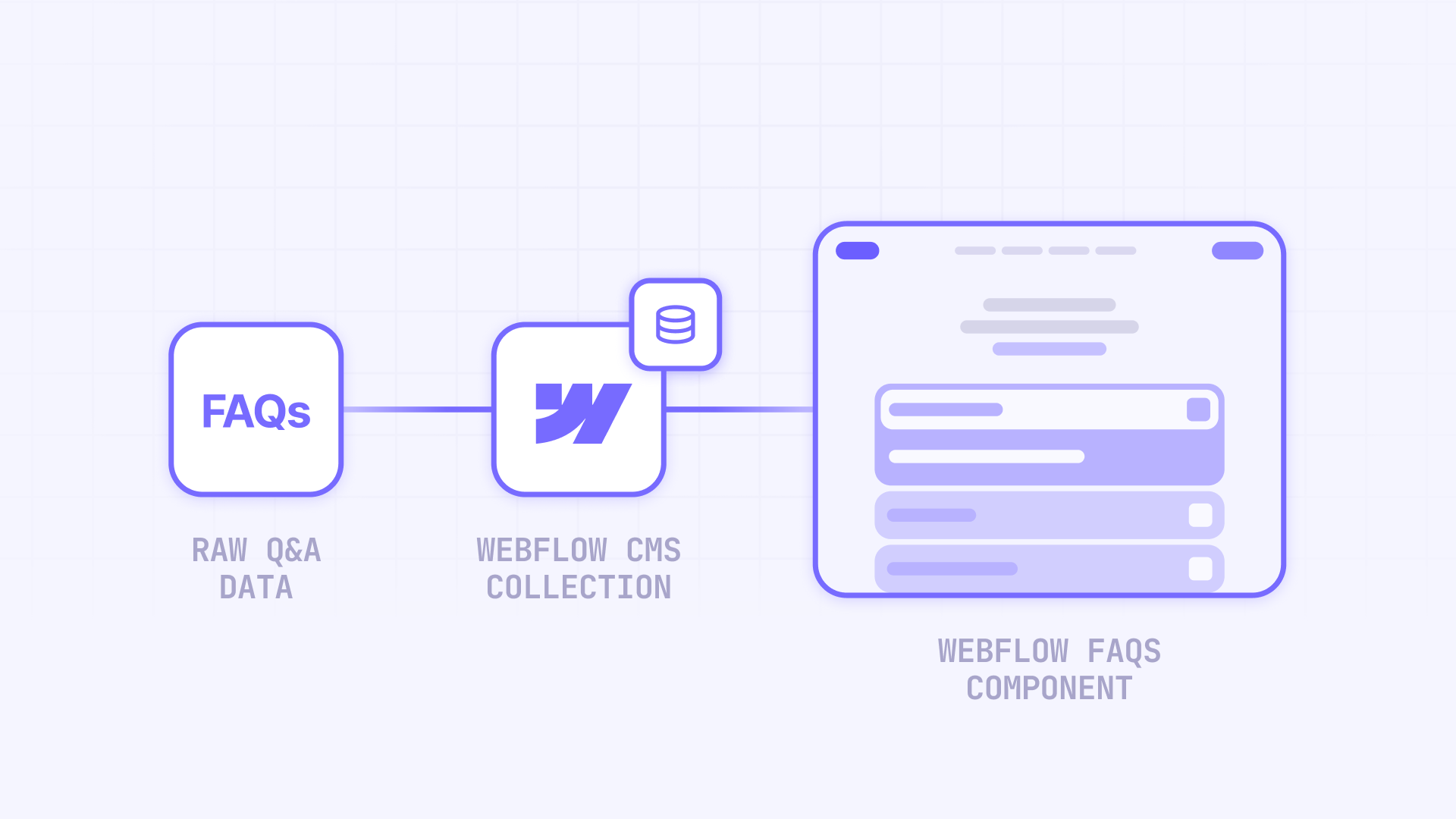
What you are going to build
By the end of this guide you will have:
- a Webflow CMS Collection for FAQ items
- one Collection List\-powered accordion
- Question and Answer fields bound to the CMS
- simple open/close behavior using a Dropdown element, with optional Webflow Interactions for smoother height and icon animation
- optional sorting with a Sort Order field
Let's build it step by step.
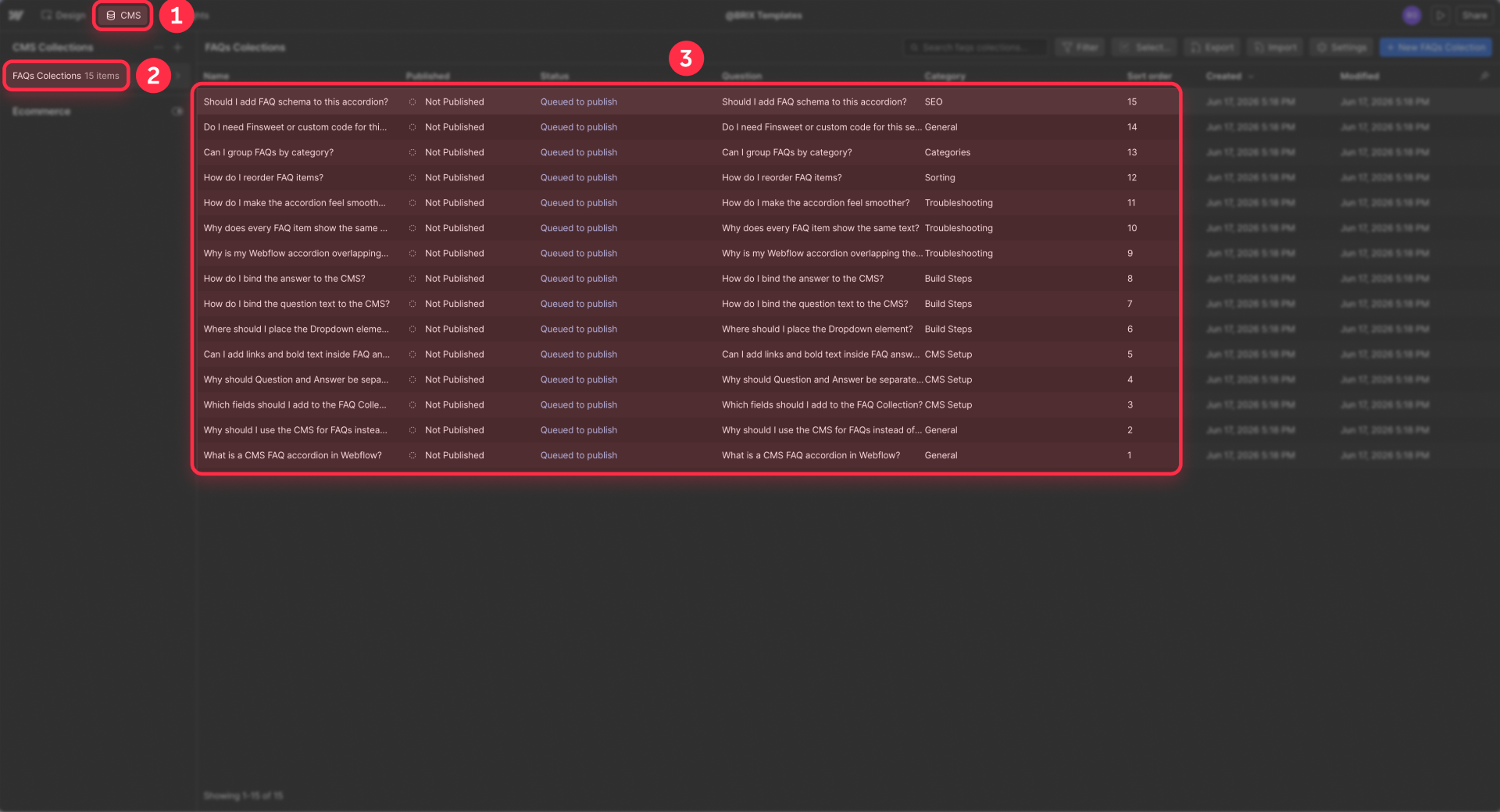
Step 1: Create the FAQ CMS Collection
In the CMS tab, create a new Collection and name it FAQ. Add these fields:
- Question — a Plain Text field for the question.
- Answer — a Rich Text field, so links, bold, and lists work inside answers.
- Category — an Option field, optional, for simple grouping.
- Sort Order — a Number field, for predictable manual ordering.
Keep Question and Answer as separate fields. The question lives in the accordion trigger (the Dropdown Toggle) and the answer lives inside the collapsible area (the Dropdown List) — they need to be independent so you can bind each one to its own element.
Step 2: Add a Collection List to the page
Drag a Collection List onto the page and connect it to your FAQ collection in the settings.
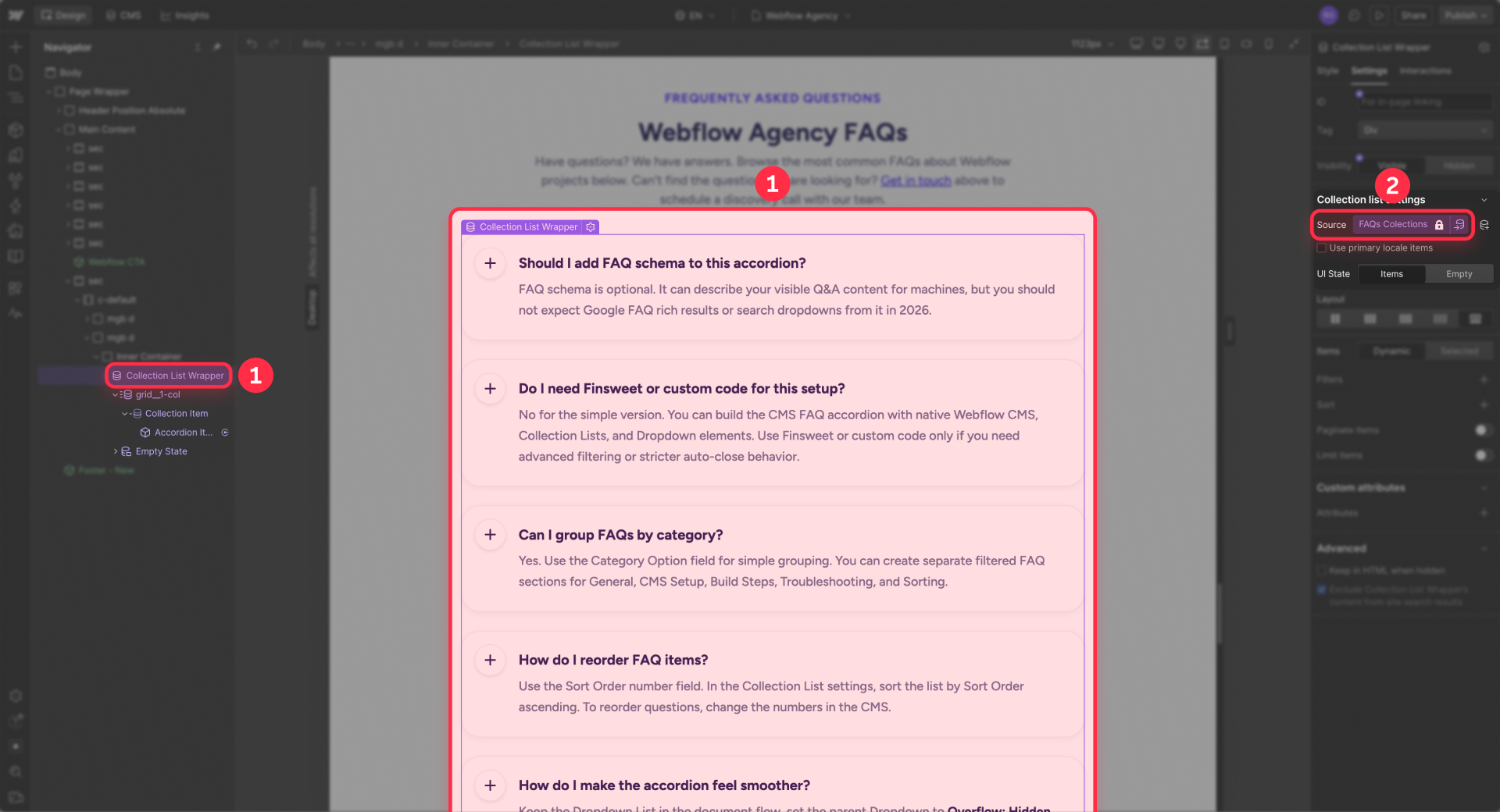
Inside the Collection Item, build only one FAQ row. Webflow repeats that single item for every entry in the collection — you never build a second row by hand. This is the single biggest difference between a maintainable FAQ and a manual one.
Step 3: Build the accordion using a Dropdown element
Inside the Collection Item, add one accordion item. This single item becomes the template that Webflow repeats for every FAQ entry in your CMS collection.
Option A: Use an existing Accordion Item component
If you already have an Accordion Item component, drop it inside the Collection Item and bind its properties to your CMS fields:
Title   → Question
Content → Answer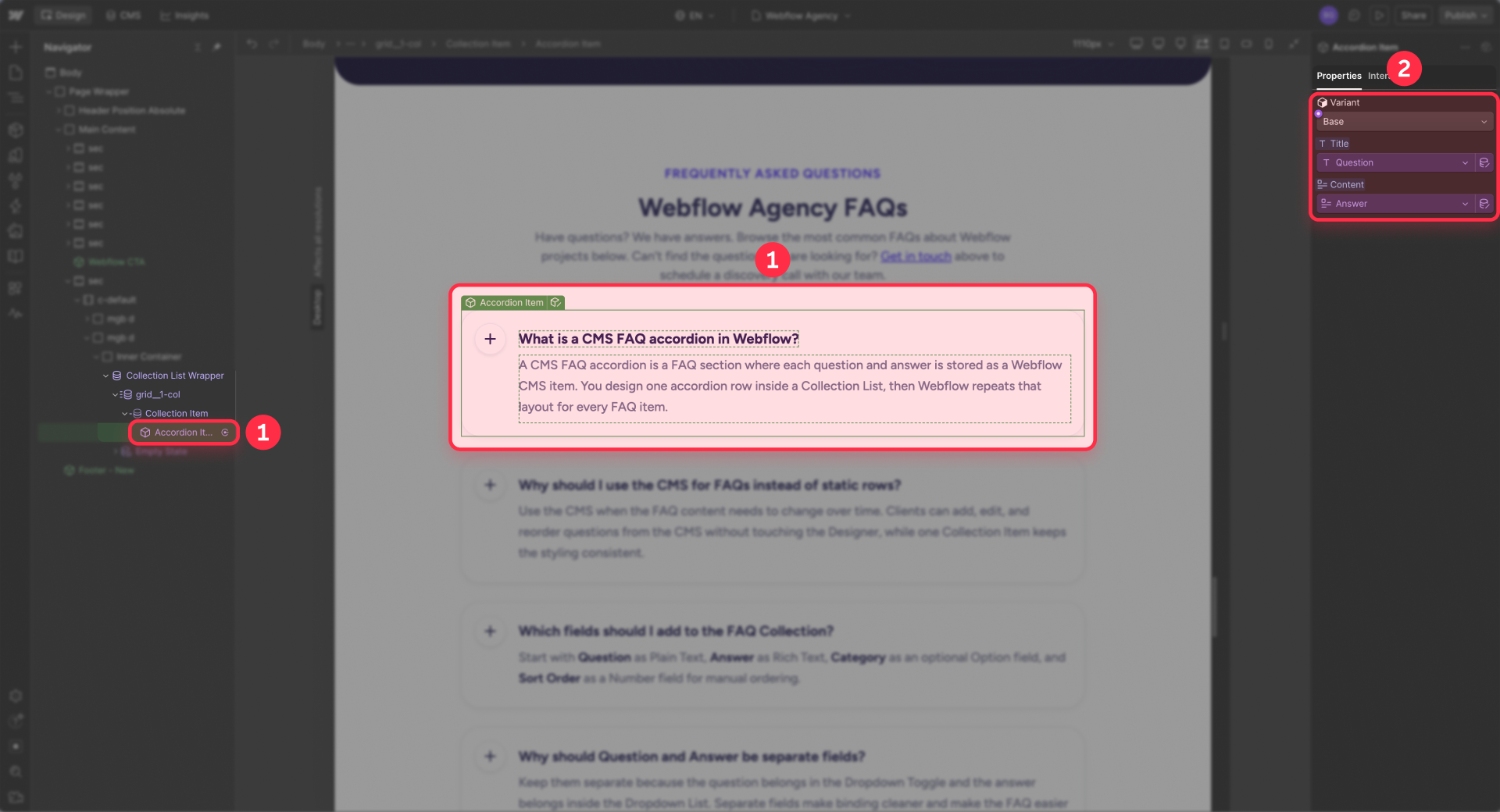
This preserves your existing design, layout, and open/close behavior — you are only swapping static text for CMS content.
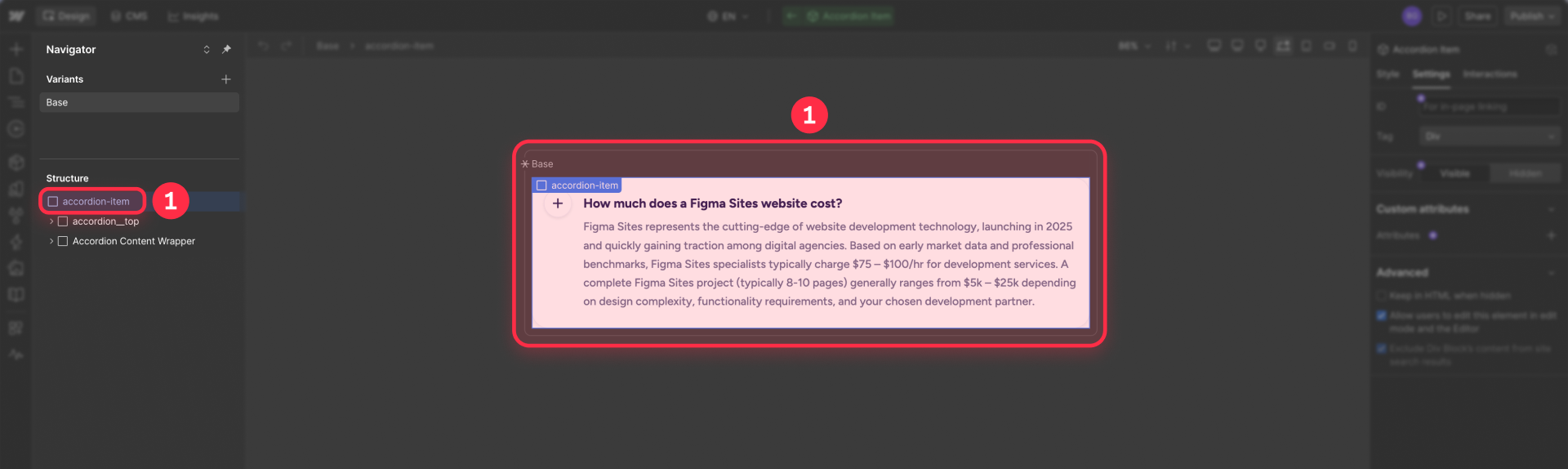
Option B: Build one with a Dropdown
If you are starting from scratch, use Webflow’s Dropdown element as your accordion base:
Dropdown Toggle → Question
Dropdown List   → Answer
Final structure
Using an Accordion Item component:
Collection List Wrapper
  Collection List
    Collection Item
      Accordion Item component
Using a Dropdown:
Collection List Wrapper
  Collection List
    Collection Item
      Dropdown
Do not build multiple FAQ rows by hand. Build one accordion item inside the Collection Item and let Webflow repeat it for every FAQ in the CMS.
Step 4: Sort the FAQs
Open the Collection List settings and set it to sort by Sort Order, ascending. Now reordering is a data change: the client types new numbers in the CMS and the list resequences itself — no dragging layers in the Designer.
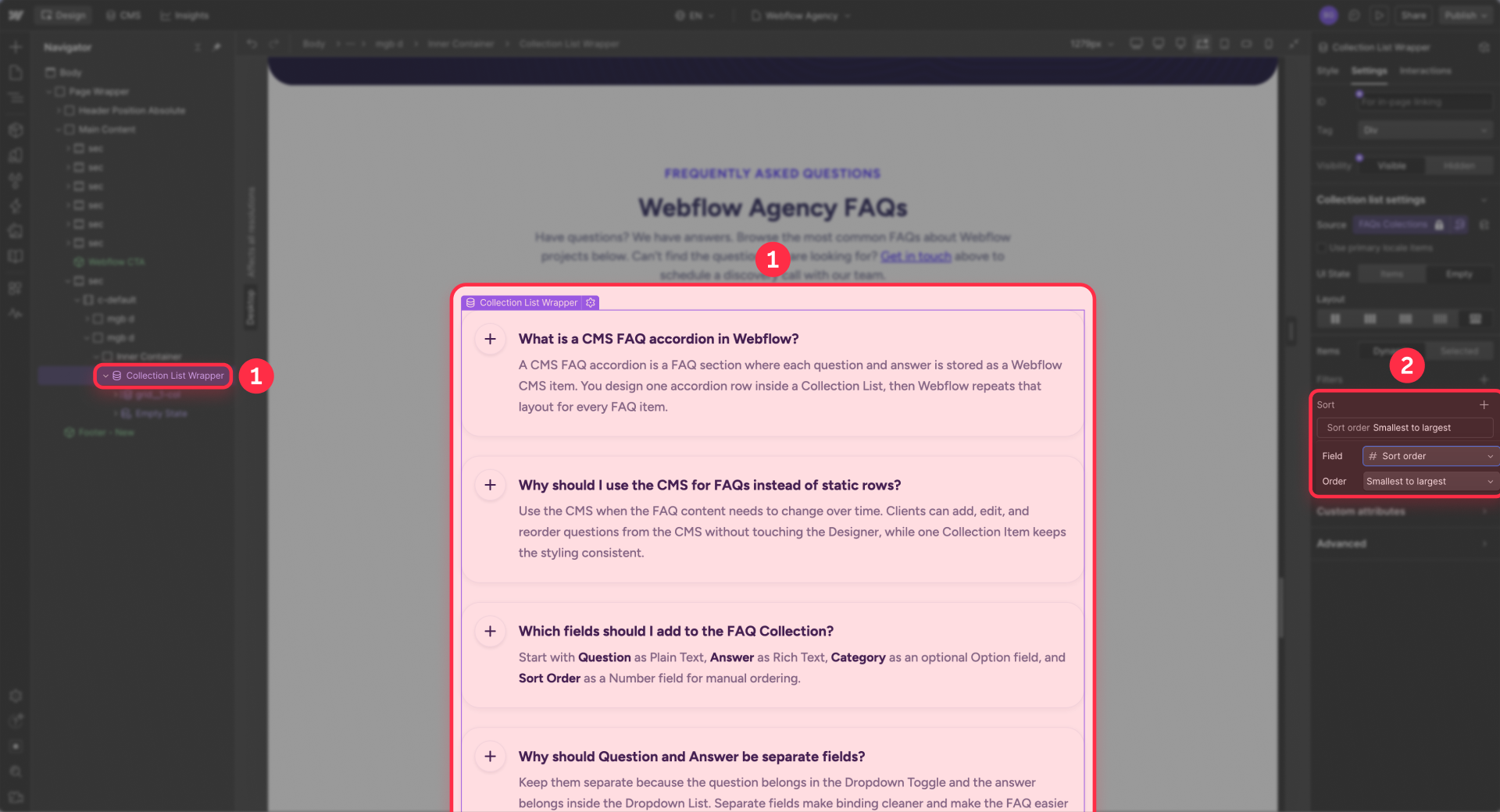
For the full range of ordering options — including Webflow's native drag-to-reorder and other sorting strategies — see our guide on how to manually order items in Webflow CMS collections. And if your FAQ collection is large, it is worth knowing how to overcome the Webflow CMS item limit so you do not hit a ceiling mid-build.
Step 5: Make the accordion feel smooth
A CMS controls the content — the open/close animation still comes from the accordion item itself.
Option A: Using an existing Accordion Item component
Keep its current interaction or variant setup. You do not need to rebuild the animation — just test that the component still opens, closes, and expands correctly when Webflow repeats it inside the Collection List.
Check these basics:
- The answer wrapper can grow with the CMS content
- Long answers do not use a fixed height
- The content does not overflow on mobile
- The same interaction works across every repeated CMS item
Option B: Building with a Dropdown element
If you started from scratch with Webflow’s Dropdown element, keep the setup simple:
- Use the Dropdown Toggle as the question row
- Use the Dropdown List as the answer area
- Set the Dropdown List to Position: Static
- Set the parent Dropdown to Overflow: Hidden
- Avoid custom show/hide hacks unless you really need them
If the accordion feels jumpy, check the answer wrapper first — it should be allowed to expand naturally instead of being locked to a fixed height.
Step 6: Optional category filters for larger FAQ sections
For a longer FAQ, you can filter by category. A Category Option field works well for a simple dropdown or segmented filter. Native filter tabs are possible but need more setup and should not be the default beginner recommendation; a dropdown built from an Option field is simpler.
Webflow Collection Lists support filters, sorting, and limits straight from the settings panel. And if a filtered section ends up empty on certain pages, learn how to hide empty CMS sections in Webflow so the layout never leaves a gap.
Troubleshooting common Webflow FAQ accordion issues
Here's how to fix the most common problems:
- Every accordion item shows the same question and answer: The text was typed directly into the element instead of bound to a CMS field. Select the Question and Answer elements and bind them to their fields inside the Collection List.
- The answer overlaps the questions below instead of pushing them down: The Dropdown List is still on absolute positioning. Set it to Position: Static so each open answer pushes the next question down.
- CMS fields will not update inside the Collection Item: The element is still static. Select the text or Rich Text element and connect it to the correct CMS field. Select it and connect it to the Question or Answer field so it pulls its value from the CMS.
- The answer appears or disappears with a hard jump: You are toggling visibility. Keep the answer inside the Dropdown List, set the parent Dropdown to Overflow: Hidden, and rely on the Dropdown's built-in open/close.
- The section jumps or cuts off on mobile: Avoid fixed heights for long answers, keep Overflow: Hidden on the parent, and let answers size to their content.
- Reordering questions does nothing: The Collection List is not set to sort by Sort Order. Open its settings and set it to sort by that Number field, ascending.
Frequently asked questions about Webflow CMS FAQ accordions
How do I build a client-editable FAQ accordion in Webflow?
Create an FAQ Collection with separate Question and Answer fields, add a Dropdown inside a Collection List, and bind the question and answer to their CMS fields. Clients then add and edit questions from the CMS without opening the Designer.
Why does every item in my Webflow CMS accordion show the same text?
The Question and Answer were typed directly into the element, so every item copies that text. Bind both elements to their CMS fields inside the Collection List — each item then pulls its own values.
How do I make a Webflow CMS accordion push content down instead of overlapping it?
Set the Dropdown List to Position: Static. By default it is absolutely positioned and overlaps the content below it; static positioning makes each open answer push the next question down.
How do I connect a Webflow Dropdown to the CMS?
Add a Dropdown inside a Collection Item, use the Dropdown Toggle as the question (bound to the Question field) and the Dropdown List as the answer (a Rich Text element bound to the Answer field). Use a Rich Text field for the answer so links and bold work.
How do I sort FAQ questions in a Webflow Collection List?
Add a Sort Order Number field to your FAQ collection, fill it in for each item, then open the Collection List settings and set it to sort by Sort Order ascending. Reordering is then a data change, not a Designer change.
Can I add links inside Webflow CMS accordion answers?
Yes. Make the Answer field a Rich Text field, and you can add hyperlinks, bold, and lists inside each answer straight from the CMS. Rich Text answers are what let you cross-link to related guides without leaving the CMS.
Are Webflow accordion answers crawlable by Google when collapsed?
Yes — as long as the answer text lives in the page's HTML, Google can read it. The Dropdown keeps the answer in the DOM, so the content stays indexable even when closed. Avoid hiding answers with display: none, which can make content harder to crawl. To make the Q\&A explicit for machines regardless of open state, add FAQPage JSON-LD schema.
Does Webflow FAQ schema still help with SEO in 2026?
Add FAQPage schema to document your Q\&A content cleanly, but do not expect Google FAQ rich results — Google deprecated them for most sites. Treat schema as optional cleanup, not a ranking reason. For the implementation, see our guide on how to add FAQ schema to Webflow.
Conclusion
A CMS-powered FAQ accordion in Webflow comes down to one pattern: a FAQ Collection, one Dropdown\-based accordion inside a Collection List, Question and Answer fields bound to the CMS, and a Sort Order field so reordering is a data change. The two settings that make it feel right — Position: Static on the Dropdown List and Overflow: Hidden on the parent — are also the two most common things people miss.
If you would rather have an experienced team handle the Webflow build — CMS structure, the accordion, and the binding — our Webflow agency can take it off your plate.







Join readers commenting on this post!