
If you're coming from WordPress, you're used to full control over every part of a URL — custom permalinks, category-in-path structures, plugins that rewrite anything you want. Webflow works differently. It has a clear set of rules for how URLs are generated, what characters are allowed, and how static pages and CMS pages behave. Those rules are straightforward once you understand them, but not knowing them upfront leads to rework — restructuring pages, adding redirects, and fixing SEO issues that were entirely preventable.
The most common mistake is assuming Webflow can replicate any URL structure you've seen elsewhere. It can do a lot — clean paths, nested folders, CMS-driven pages with configurable prefixes — but it draws hard lines around things like multiple dynamic segments in one URL or special characters in slugs. Knowing where those lines are before you start building saves you from painful restructuring later.
This guide covers everything about how Webflow URLs work: static pages, CMS pages, slug rules, reserved paths, and the workarounds for when Webflow's native capabilities aren't enough. Whether you're planning a new site, migrating from another platform, or troubleshooting a URL issue right now, you'll find specific answers here.
Webflow URL structure explained: what you can and can't do
Why understanding Webflow URL structure matters
Getting URL structure right from the start prevents costly rework and protects your SEO investment:
- Plan your URL structure correctly from the start: Changing URLs after launch means setting up 301 redirects, and Webflow recommends keeping your total redirect count at ~1,000 or fewer. Every URL change you could have avoided is a redirect you didn't need to create. Getting the structure right before you publish means less reliance on redirects to fix preventable mistakes.
- Migration from WordPress or other platforms: The URL structures you had on WordPress, Squarespace, or a custom site probably won't replicate exactly in Webflow. Understanding the rules helps you plan your redirect strategy before migration day, not during it.
- Programmatic SEO architecture: If you're building hundreds of CMS-driven pages, your URL structure determines what's possible at scale. The constraints covered here directly affect how you model Collections and plan page types — for the full pSEO workflow, see our guide on how to do programmatic SEO in Webflow.
- Avoiding rework on large sites: Folders, slugs, and Collections interact in specific ways. A poorly planned hierarchy can force you to rebuild entire sections of your site when you realize a URL pattern you assumed would work doesn't exist in Webflow.
1 - How static page URLs work in Webflow
Static pages are the simplest part of Webflow's URL model. Every page you create in the Designer gets a URL based on its name, and you can organize pages into folders to build deeper paths.
How Webflow generates URLs from page names and folders
When you create a new static page, Webflow automatically converts the page name into a URL slug — lowercase, with hyphens replacing spaces. A page named "About Us" becomes /about-us. You can edit the slug manually in Page Settings, but it always follows Webflow's character rules (more on that below).
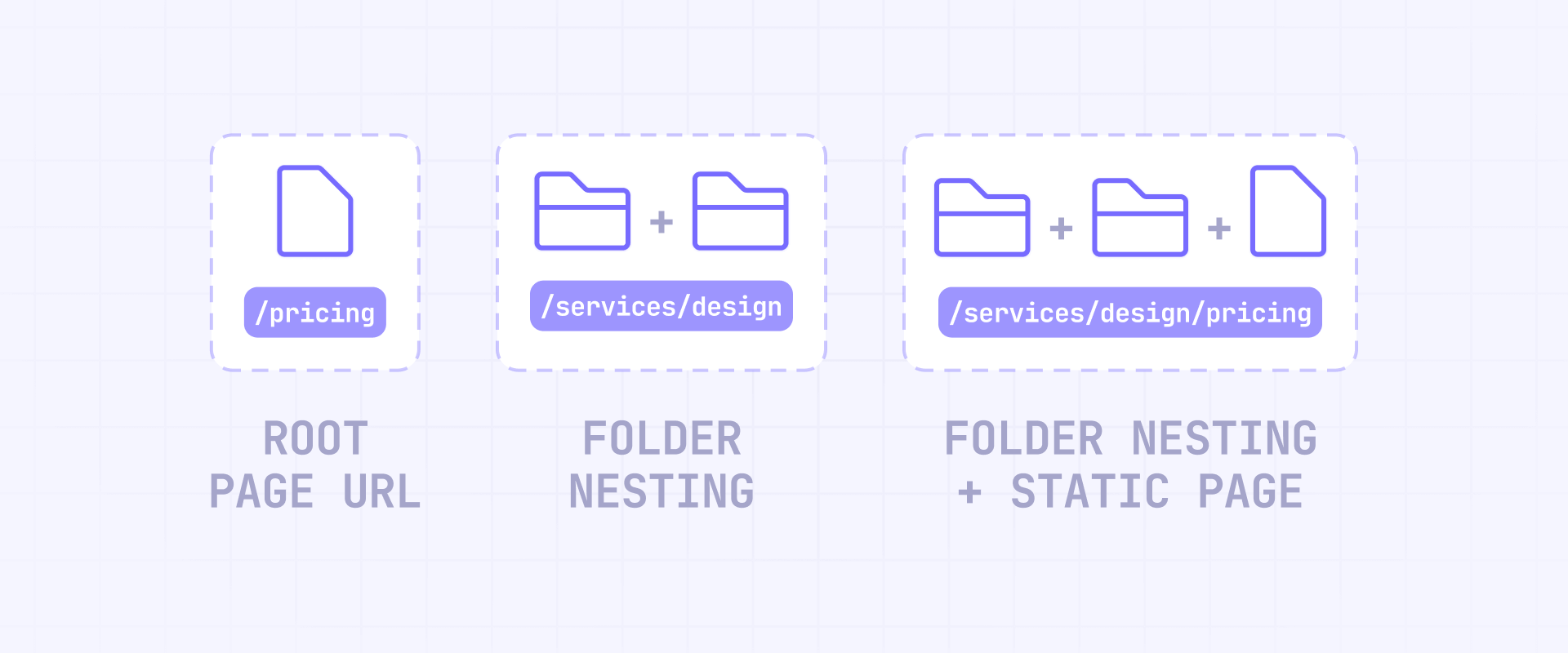
Folders let you group pages under shared path segments. You can nest folders inside other folders to create multi-level hierarchies. Here's what that looks like:
- /about — a static page at the root level
- /legal/privacy-policy — a page named "Privacy Policy" inside a folder named Legal
- /services/web-design/pricing — a page named "Pricing" inside a Web Design folder, which is itself inside a Services folder
There's no hard limit on how deep you can nest folders, but keep your hierarchy practical. Every level adds a path segment, and deeply nested URLs are harder to manage and less user-friendly. Two to three levels of nesting covers the vast majority of real-world site structures.
Moving a page to a different folder changes its URL immediately — the old path returns a 404 unless you add a redirect. This is important to remember when reorganizing your site after launch.
What characters Webflow allows and blocks in page slugs
Webflow enforces strict character rules for page slugs:
- Allowed: lowercase Latin letters (a-z), numbers (0-9), and hyphens (-)
- Uppercase letters: converted to lowercase automatically
- Non-Latin characters: transliterated to their closest Latin equivalent based on pronunciation — for example, ü becomes u, ñ becomes n, and ö becomes o
- Special characters: removed entirely — parentheses, underscores, periods, and other symbols are stripped from the slug
A practical example: if you name a page "Über Uns — Kontakt", the slug becomes uber-uns-kontakt. The umlauts get transliterated and the em dash gets removed.
That said, using uppercase letters, underscores, unicode characters, or case-sensitive paths in URLs is not a best practice on any platform. Clean, lowercase, hyphen-separated slugs are the standard that search engines and users expect. So if your previous site used non-standard characters, Webflow's slug rules are actually enforcing the correct approach. You'll still need to set up 301 redirects from the old paths to the new Webflow-compatible slugs and make sure your canonical tags point to the right place — but the end result is a cleaner, more consistent URL structure.
2 - How Webflow CMS page URLs work
CMS pages follow a different pattern than static pages. Instead of setting a slug per page, you configure a Collection URL once, and each CMS item contributes its own slug as the final segment. Understanding this pattern is essential for planning any CMS-driven site.
How Webflow builds CMS URLs from Collection URL and item slug
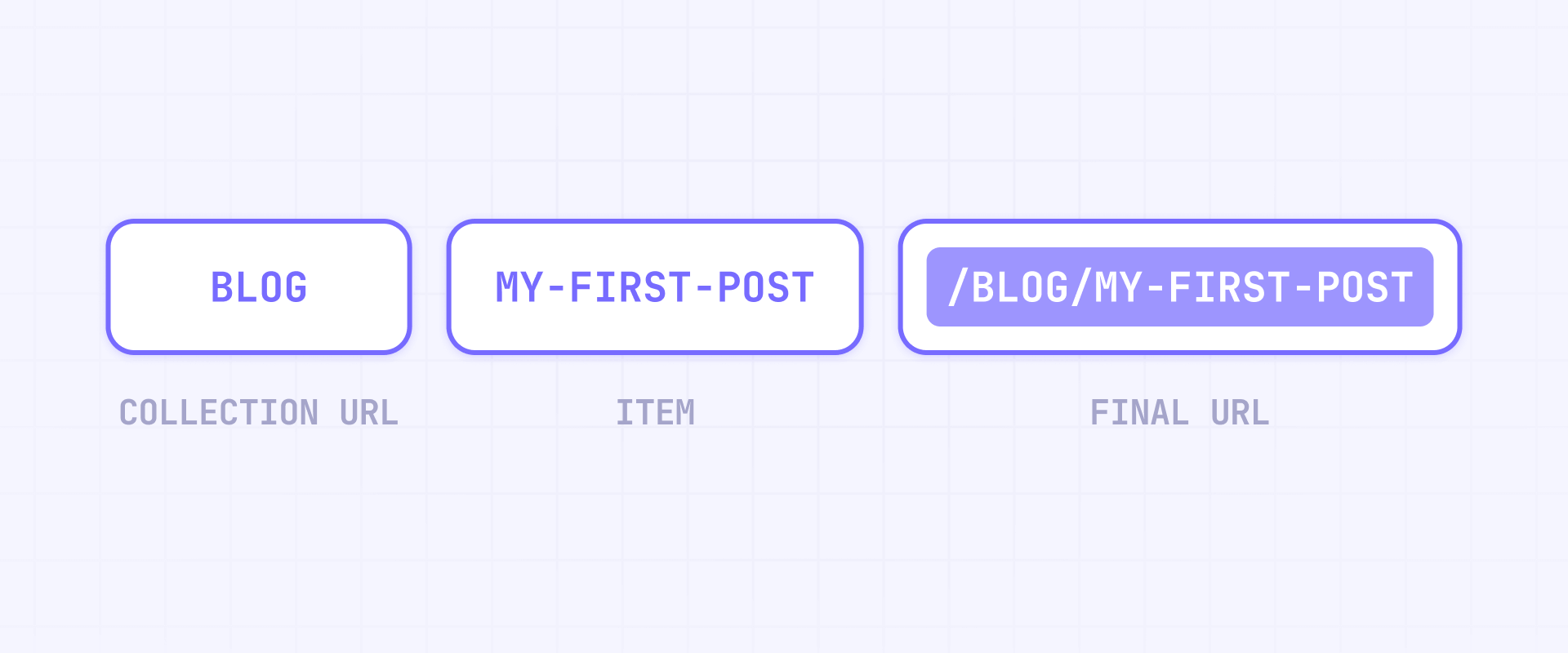
Every CMS page URL in Webflow follows this formula:
/{collection-url}/{item-slug}
The Collection URL is a path you set once when creating the Collection — it applies identically to every item in that Collection. The item slug is unique per CMS item and is the only part of the URL that changes from page to page.
Here's what this looks like with real examples:
- /blog/my-first-post — Collection URL is blog, item slug is my-first-post
- /integrations/salesforce — Collection URL is integrations, item slug is salesforce
- /glossary/churn-rate — Collection URL is glossary, item slug is churn-rate
You configure the Collection URL in the Collection's settings. The item slug is set per item — either manually in the editor or automatically from a field during CSV import. The same character rules that apply to static page slugs also apply to CMS item slugs: lowercase, Latin characters, numbers, and hyphens only.
How to use Webflow CMS Folders to add path segments before the slug
Since April 2023, Webflow supports CMS Folders — a feature that lets you assign a parent folder to a Collection's template page. This adds static path segments before the Collection URL, giving you deeper hierarchies without workarounds.
Here's how the URL changes when you use CMS Folders:
- Without parent folder: /blog/my-post — just Collection URL + item slug
- With one parent folder: /content/blog/my-post — folder content + Collection URL blog + item slug
- With nested parent folders: /content/enterprise/blog/my-post — two folders + Collection URL + item slug
To set this up:
- Create the static folder (or nested folders) you want as the parent path.
- Open the Collection template page settings.
- Assign the Parent folder to the folder you created.
- Publish your site.
One UI quirk to be aware of: when you assign a parent folder to a Collection template, the template page doesn't appear under that folder in the Pages panel. This is expected behavior — the folder relationship only affects the published URL path, not the editor organization.
CMS Folders are useful for grouping multiple Collections under a shared section. For example, you could have /content/blog/{slug} and /content/case-studies/{slug} both living under the same /content/ prefix, making your URL hierarchy cleaner and more consistent.
Why Webflow only supports one dynamic URL segment per CMS page
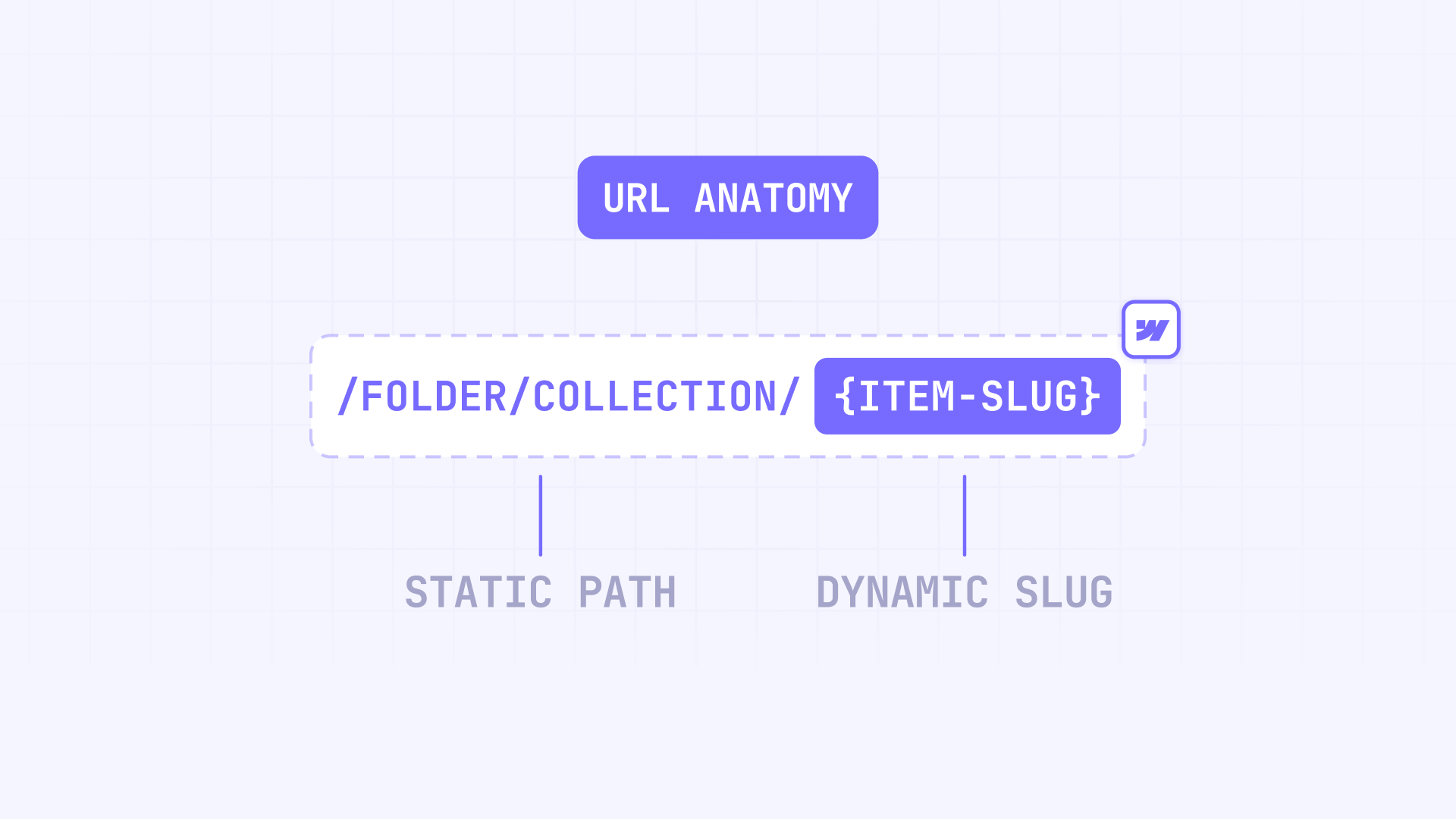
This is the most important constraint to understand about Webflow CMS URLs: in any CMS page URL, only the last segment is dynamic. Everything before it — folders, Collection URL — is static and defined once in your project settings.
That means Webflow supports exactly one dynamic segment per URL, and it's always the item slug at the end. Here's the distinction:
What works — one dynamic segment (the item slug):
- ✅ /blog/{slug} — Collection URL (blog) + dynamic item slug
- ✅ /content/blog/{slug} — static folder (/content/) + Collection URL (blog) + dynamic item slug
- ✅ /services/web-design/projects/{slug} — two static folders (/services/web-design/) + Collection URL (projects) + dynamic item slug
In every example above, the folders and Collection URL are fixed — they're the same for every single CMS item. Only {slug} at the end changes per page.
What doesn't work — multiple dynamic segments:
- ❌ /services/{category}/{item} — {category} changes per item AND {item} changes per item. That's two dynamic segments, and Webflow only allows one.
- ❌ /blog/{year}/{month}/{slug} — {year}, {month}, and {slug} all change per item. Three dynamic segments are not possible.
- ❌ /{category}/{subcategory}/{item} — every single segment is dynamic. Webflow needs at least a fixed Collection URL somewhere in the path.
If you're coming from WordPress, this is the biggest conceptual difference. In WordPress, you can set permalinks to /%category%/%postname%/ and both segments change based on the post's category and title. In Webflow, the category exists in your data (as a Reference field), but it cannot appear as a dynamic URL segment. Your URL will always be /collection-url/{slug}, regardless of what category the item belongs to.
This isn't a bug — it's how Webflow's CMS routing model currently works. Each Collection contributes one template, and that template resolves pages based on a single slug. Hopefully Webflow will add support for multiple dynamic URL segments in the future, but for now, designing your URL structure around this constraint is the practical path forward.
3 - What URL structures are not possible natively in Webflow
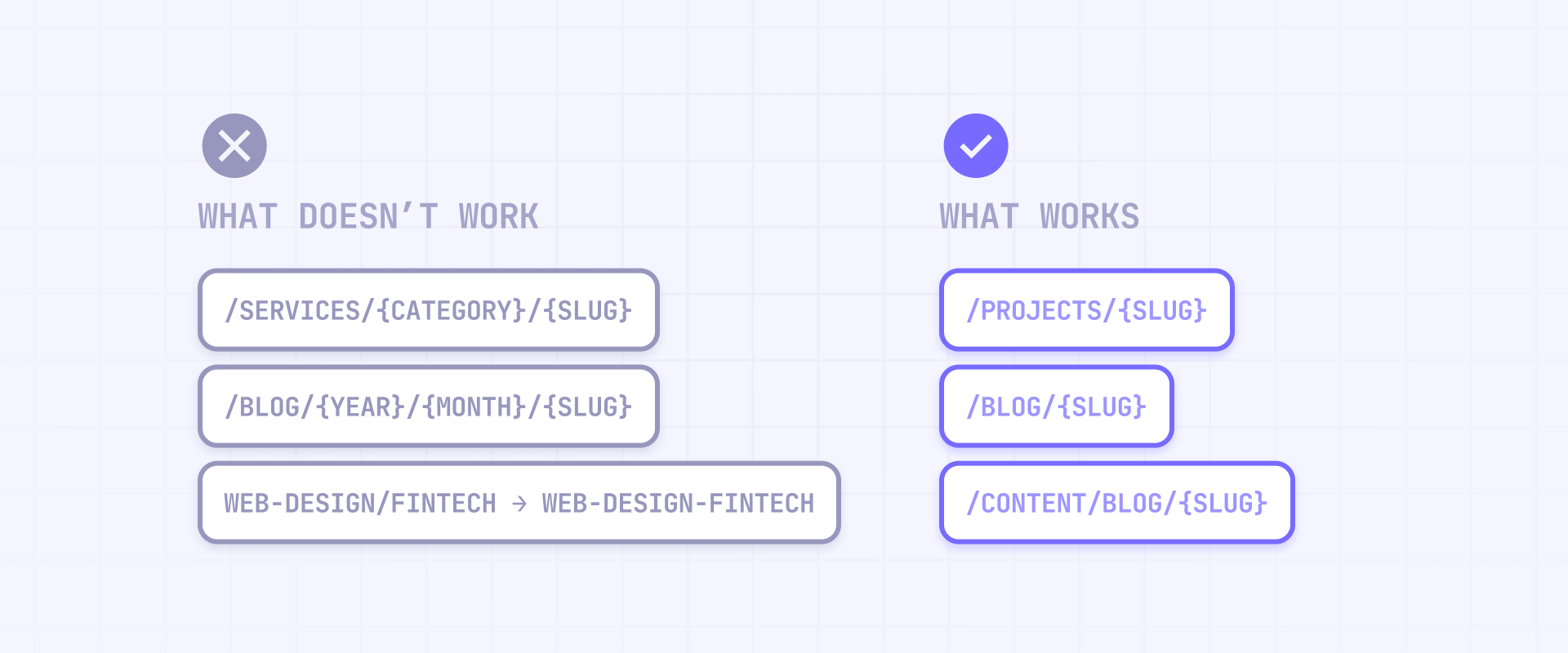
Now that you understand the model, here are the specific things you cannot do with Webflow's native URL system — and why.
Why you can't build dynamic category URLs in Webflow CMS
The most common request from WordPress migrants is category-based URLs like /services/web-design/project-name where web-design is pulled from a CMS field and changes per item.
In Webflow, your CMS data can absolutely include a category Reference field — and you can filter, sort, and display items by category on your pages. But that category cannot become part of the URL path. The URL for every item in a Collection follows the same pattern: /collection-url/{item-slug}.
So if you have a Projects Collection with items categorized as "Web Design", "SEO", and "Branding", every project URL looks like:
- /projects/acme-redesign — not /web-design/acme-redesign
- /projects/growth-audit — not /seo/growth-audit
- /projects/logo-refresh — not /branding/logo-refresh
The category data is there and usable everywhere else — in Collection lists, filters, conditional visibility, internal linking. It just doesn't appear in the URL. If having the category in the URL is genuinely important for your project, see the workarounds section below — or assess whether this is a hard requirement that means you should consider another platform entirely.
Why Webflow slugs don't support slashes, uppercase, or special characters
These restrictions exist because clean, lowercase, hyphen-separated URLs are a web standard and an SEO best practice. Search engines prefer predictable URL formats, users can read and share them more easily, and servers handle them more reliably. Webflow enforces this automatically rather than leaving it up to you.
Here's exactly what Webflow does to slugs:
- Slash (/): If you type a / inside a CMS item slug, Webflow converts it to a hyphen (-). So web-design/fintech becomes web-design-fintech. You cannot force a slug to contain a path separator.
- Uppercase: Automatically converted to lowercase. My-Post becomes my-post.
- Non-Latin characters: Transliterated based on pronunciation — café becomes cafe, naïve becomes naive.
- Special characters: Removed. Underscores, periods, parentheses, ampersands, and other symbols are stripped.
This means that if your current site relies on URLs with uppercase letters, underscores, unicode paths, or slashes within slugs, those exact paths cannot exist in Webflow. Migration always requires a redirect plan that maps old URLs to Webflow-compatible slugs.
What reserved slugs and paths Webflow blocks
Webflow reserves certain URL paths depending on which features are enabled on your site. You cannot use these paths for your own pages, folders, or Collections:
On Ecommerce-enabled sites:
- /product and /category — blocked for folders and Collections
- /checkout, /paypal-checkout, /order-confirmation — blocked for static pages
On sites with User authentication enabled:
- /log-in, /sign-up, /reset-password, and other auth-related paths
Utility pages (all sites):
- /404, /401, /search — these have fixed slugs that you cannot change
There's also a folder vs Collection collision rule: a folder and a CMS Collection cannot share the same slug. If your Collection URL is blog, you cannot also have a folder named blog at the same level.
However, a static page and a CMS Collection can share the same slug. This is actually useful — you can create a static page at /blog that serves as your blog index (listing posts, categories, featured articles), while the CMS Collection uses blog as its Collection URL to generate item pages at /blog/{slug}. This gives you a clean hub page at /blog with individual post pages nested underneath it.
4 - How to work around Webflow URL limitations
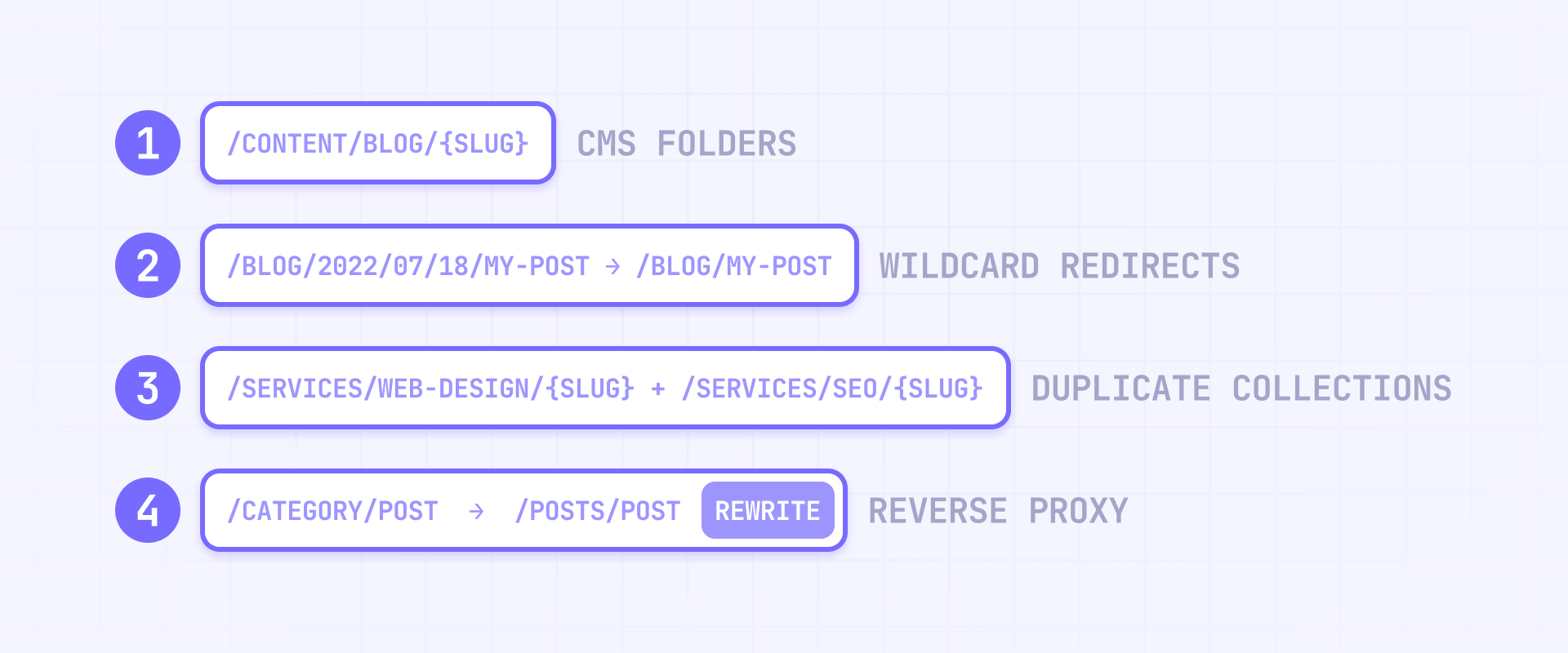
When Webflow's native URL capabilities don't cover your needs, there are several approaches — ordered here from simplest to most complex.
How to use Webflow CMS Folders for cleaner URL hierarchies
The simplest workaround for deeper URL structures is CMS Folders (the parent folder feature). It won't give you multiple dynamic segments, but it does let you build URLs like /content/blog/{slug} or /services/projects/{slug} natively.
This is the right approach when you want a visual hierarchy in your URL paths without needing dynamic category segments. It's low complexity, low SEO risk, and fully supported by Webflow.
How to use Webflow wildcard redirects to normalize legacy URLs
If you're migrating from a platform that used date-based, category-based, or deeply nested URL paths, wildcard redirects are your tool for mapping old URLs to Webflow's simpler structure.
Webflow supports capture groups using (.*) and target variables like %1 and %2. For example:
- Old path: /blog/2022/07/18/my-post
- Redirect rule: /blog/(.)/(.)/(.*)/(.*) → /blog/%4
- Result: Redirects to /blog/my-post
You can also redirect entire folder structures:
- /old-section/(.*) → /new-section/%1
Two important constraints to keep in mind. First, redirect rules live in Webflow's manifest.json file, which means they're part of your published site assets — not an edge routing layer. Webflow recommends keeping your total redirect count at ~1,000 or fewer for performance reasons. This is where wildcards are essential: a single wildcard rule counts as just one redirect but can cover as many URLs as the pattern matches. One rule like /old-section/(.*) → /new-section/%1 can handle hundreds or thousands of old URLs by itself.
Second, when matching URLs that contain query parameters or special characters, you need to escape them using % notation — including ?, =, &, +, and parentheses. For the complete syntax reference and step-by-step examples, see our guide to wildcard redirects in Webflow.
How to duplicate Webflow Collections for category-based URL paths
If you absolutely need the category in the URL — for example, /services/web-design/{slug} and /services/seo/{slug} — one native workaround is creating separate Collections with different Collection URLs.
Instead of one "Projects" Collection, you'd create:
- A Web Design Projects Collection with Collection URL web-design
- An SEO Projects Collection with Collection URL seo
- Both nested under a /services/ parent folder via CMS Folders
This gives you the URL structure you want, but the trade-off is real: you're duplicating your entire CMS schema for each category. That means separate templates, separate content management, and separate automation for each Collection. If you have 3 fixed categories that will never change, this can work. If you have 15 categories or they shift regularly, this approach doesn't scale.
When to use a reverse proxy for Webflow URL rewrites
If you need true URL rewrites — where the browser shows /category/post but Webflow serves /posts/post without a visible redirect — you need infrastructure outside of Webflow.
Cloudflare Workers is the most common choice for Webflow sites. A Worker sits between the user's browser and Webflow's servers, intercepting requests and rewriting URLs before they reach Webflow. The user sees your preferred clean URL, while Webflow receives a request for the actual CMS page path.
This approach requires careful attention to canonicals and sitemaps. Since Webflow's auto-generated sitemap uses the real CMS paths (not your rewritten URLs), you need to generate a custom sitemap and configure canonical tags to point to the rewritten versions. Both are necessary — getting either one wrong means Google may index the wrong URLs or see duplicate content.
Use a reverse proxy only when no other workaround solves your problem. It's the most powerful option, but also the most complex and the highest SEO risk if implemented incorrectly. If you need a reverse proxy setup for your Webflow site, our Webflow agency team has deep experience building custom URL architectures with Cloudflare Workers — we can help you get it right.
5 - How Webflow handles redirects, canonicals, and localized URLs
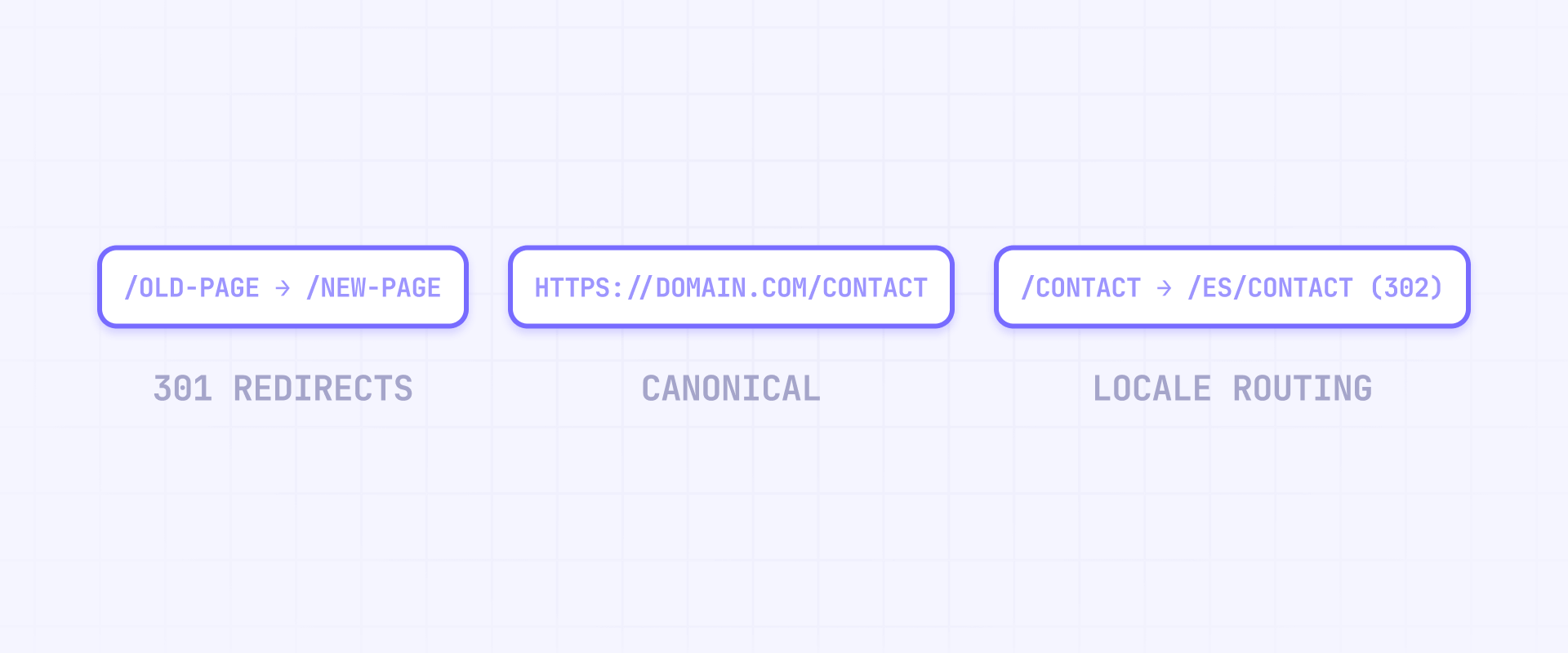
Beyond URL structure, three SEO mechanisms interact with your URLs and need deliberate configuration — especially if you're running a multi-language site or managing a migration.
How Webflow 301 redirects work and their performance limits
Webflow's redirect rules are 301 (permanent) redirects that get compiled into your site's manifest.json file when you publish. This is an important detail: they're not processed by an edge server or CDN rule engine — they're part of your published site assets.
This means there's a practical performance limit. Webflow recommends keeping your total redirect count at ~1,000 rules or fewer. Wildcard redirects with capture groups help you consolidate many old paths into a single rule, which is why they're strongly preferred over individual redirect entries.
One critical gotcha for multilingual sites: Webflow redirects are relative to the root domain and don't apply to localized subdirectories. If you add a redirect from /old-page to /new-page, that rule does not automatically apply to /es/old-page → /es/new-page. You must create separate redirect rules for each locale prefix. This means your redirect count grows with every locale you support.
How canonical tags work in Webflow and the trailing slash gotcha
Webflow generates self-referencing canonical tags automatically on every published page. This is generally the right behavior — each page tells Google "this is the canonical version of myself."
The main pitfall is the trailing slash. If your canonical base URL in Webflow's site settings ends with a trailing slash, Webflow may generate canonical URLs with double slashes — like https://yourdomain.com//contact instead of https://yourdomain.com/contact. Check your site settings and make sure the canonical base does not end with /.
If you're serving your Webflow site through a reverse proxy, subdomain setup, or any kind of URL rewriting, always verify the canonical tags after publishing. In these setups, Webflow might generate canonicals pointing to the original Webflow staging domain or an unintended URL variation. Open the page source of your live site and confirm that the canonical URL matches the URL where users actually land — if it doesn't, search engines may ignore your pages or attribute ranking signals to the wrong domain.
How Webflow locale routing uses 302 redirects with no native override
Webflow's localization feature routes visitors to locale-specific versions of your pages using 302 redirects — not 301. This means the redirect is treated as temporary by search engines, which is the standard approach for language-based routing (since the user's preferred language could change).
The important constraint is that you cannot override this to use 301 redirects. There's no setting, custom code, or workaround within Webflow to change the redirect type for locale routing. If your SEO strategy specifically requires permanent redirects for locale negotiation, you'd need to handle locale routing outside of Webflow entirely.
On the positive side, Webflow automatically generates hreflang tags — both in page-level HTML and in the sitemap — when localization is enabled. This tells search engines which language version of each page to show in different regions, which is the more important SEO signal for multilingual sites.
Frequently asked questions about Webflow URL structure
Can I create nested URLs for Webflow CMS pages?
Yes — since April 2023, Webflow supports CMS Folders that let you assign a parent folder to your Collection template page. This adds static path segments before the Collection URL, giving you URLs like /content/blog/post-name or /services/projects/project-name. The folders are created as regular static folders, and you assign them in the Collection template's page settings. The key detail is that these prefix segments are static — they're the same for every item in the Collection. Only the final segment (the item slug) changes per page.
Why does Webflow change my page slug to lowercase automatically?
Webflow enforces a strict slug format: only lowercase Latin letters, numbers, and hyphens are allowed. Uppercase input is automatically lowered, non-Latin characters are transliterated to their closest Latin equivalent, and special characters are removed entirely. This ensures URL consistency across the platform, but it means you can't preserve case-sensitive paths from a previous site. If legacy URLs depend on uppercase characters, set up 301 redirects from the old paths to the new Webflow slugs.
How many redirects can I add in Webflow before it affects performance?
Webflow recommends keeping your total redirect count at ~1,000 or fewer as a best practice. Redirect rules are stored in your site's manifest.json file and are part of your published assets, so a very large number of rules can affect load performance. The most effective strategy is using wildcard redirects with capture groups — a single wildcard rule can replace hundreds of individual entries. For the full syntax, see our guide to wildcard redirects in Webflow.
Can I use slashes inside a Webflow CMS item slug?
No. If you type / inside a CMS item slug, Webflow automatically converts it to a hyphen (-). So a slug like web-design/fintech becomes web-design-fintech. This is a hard constraint — there's no setting or workaround to include path separators in a CMS slug. If you need path-like structures in your URLs, use CMS Folders to add static prefix segments before the Collection URL.
What URL paths are reserved in Webflow and can't be used?
Webflow reserves several paths depending on active features. On Ecommerce-enabled sites, /product and /category are blocked for Collections and folders, and paths like /checkout and /order-confirmation are blocked for static pages. On sites with User authentication, paths like /log-in, /sign-up, and /reset-password are reserved. All sites have fixed utility page slugs at /404, /401, and /search. Additionally, a folder and a CMS Collection cannot share the same slug at the same path level.
Can I have two dynamic segments in a Webflow CMS URL?
No. Webflow's CMS routing supports exactly one dynamic segment per URL — the item slug, which is always the last segment. Everything before it (folders, Collection URL) is static and applies identically to all items. A URL pattern like /services/{category}/{item} where both segments change per page is not possible natively. If you need this, your options are duplicating Collections per category, using a reverse proxy, or restructuring your URL strategy around a single dynamic segment.
How do I migrate WordPress permalink structures to Webflow?
WordPress permalinks like /%category%/%postname%/ or /%year%/%monthnum%/%postname%/ have multiple dynamic segments that Webflow can't replicate natively. The migration approach is to flatten your URLs to Webflow's /collection-url/{slug} format and set up wildcard 301 redirects from the old paths. For date-based structures, a wildcard like /blog/((.)/(.*)/(.*) → /blog/%4 maps old date-path URLs to the new flat slug. Plan your redirect strategy before migration to ensure no traffic is lost.
Does Webflow support URL rewrites without visible redirects?
No — Webflow only supports 301 redirects, which change the URL visible in the browser. If you need a "rewrite" where the browser shows one URL but Webflow serves a different page (without the URL changing), you need an external reverse proxy like Cloudflare Workers. This sits between the user and Webflow, intercepting requests and mapping your preferred URLs to Webflow's actual paths. It requires careful canonical and sitemap management to avoid SEO issues.
How do Webflow CMS Folders affect my URL structure?
CMS Folders add static path segments before your Collection URL. When you assign a parent folder to a Collection template, every item in that Collection gets the folder path prepended to its URL. For example, assigning the folder /content/ to a Blog Collection changes item URLs from /blog/post-name to /content/blog/post-name. You can nest multiple folders for deeper paths. The folder segments are always static — they don't change per item — and the template page won't appear under the folder in the Pages panel (this is expected behavior, not a bug).
Can I change my Webflow Collection URL without breaking SEO?
You can change the Collection URL in Webflow's Collection settings, but doing so changes the URL of every CMS page in that Collection immediately. This means all existing links, bookmarks, and search engine entries pointing to the old URLs will return 404 errors unless you add redirects. Before changing a Collection URL, set up a wildcard redirect from the old Collection path to the new one (for example, /old-blog/(.*) → /blog/%1). Publish and verify that old URLs redirect correctly before considering the change complete.
Conclusion
Webflow's URL model is straightforward once you understand its boundaries: static pages can be nested freely in folders, CMS pages follow a fixed pattern of static prefix segments plus one dynamic slug, and everything outside that pattern requires a workaround. The key constraint — exactly one dynamic URL segment per CMS page — is the most important thing to internalize, especially if you're migrating from a platform with more flexible permalink structures.
For most sites, Webflow's native capabilities cover everything you need. CMS Folders give you clean hierarchical paths, wildcard redirects handle migrations efficiently, and automatic canonicals and hreflang tags support multilingual SEO. When you do hit the edges — dynamic category paths, URL rewrites, or complex legacy migrations — the workarounds are well-documented and achievable with the right planning.
If you need help planning a Webflow URL architecture for a large site, complex migration, or programmatic SEO project, our Webflow agency team can design a structure that works within the platform's strengths.










Join readers commenting on this post!