

You have a Framer change that needs to go live at a specific time — a CMS post, a campaign page, a pricing update, a case study, a product launch, or a full-site release — and you do not want (or cannot be) in front of the Publish button at that moment. Framer's native publishing is fast, but it is manual: there is no built-in way to schedule a CMS post or a full-site publish for a future time.
The simplest no-code way to schedule most Framer publishing workflows is a plugin. This guide explains what Framer can and can't schedule on its own and walks you through, step by step, how to schedule publishes with Publishr or Framer CMS Scheduler, the two clearest plugins for this.
Why schedule Framer CMS updates and site publishes?
Scheduling is not a luxury for big teams: it is the difference between a clean, predictable launch and a stressful one. The main reasons to schedule your Framer publishes instead of publishing manually:
- Avoid last-minute manual publishing: the content is ready days ahead, so there's no reason to risk a rushed, error-prone publish at the last second.
- Coordinate launches across channels: a Framer change usually has to go live at the same time as emails, ads, social posts, and product updates; scheduling keeps everything in sync.
- Publish during off-hours or in another timezone: your audience may be most active at a time your team does not want to be online.
- Reduce missed launch windows: scheduled content does not depend on someone remembering to click Publish at the right minute.
- Make agency and client workflows predictable: the client approves a date, the change goes live that day, and nobody has to chase anyone at launch time.
- Keep editorial calendars organized: a content team can queue up a week of posts and let them release on their own cadence.
What Framer can and can't schedule natively
Framer's standard publishing workflow is manual. You prepare your changes in the editor, and when you are ready you publish them yourself.
On Pro or higher with staging enabled, teams get a bit more control: you can publish to staging for review and then deploy the latest version to production when it is approved. That is genuinely useful for review and release control — but it is not scheduled publishing. You still choose the moment to deploy. Not sure which plan includes staging? Our guide to Framer's pricing plans breaks down what each tier covers.
Framer's documented native workflow does not include a built-in, calendar-style way to schedule CMS posts, CMS releases, or full-site publishes for a future date and time. For that, you use a plugin.
Pick your Framer scheduling plugin: Publishr or Framer CMS Scheduler
Both plugins live in the Framer Marketplace and follow the same pattern (install, connect, schedule), but they have different scopes. Pick based on what you are launching.
Publishr
The broader option, and the closest Framer equivalent to a full scheduling app. It works at two levels — CMS Item Publishing and Website Publishing — so it can schedule everything from an individual CMS item to the entire website. That makes it the right choice when a release includes page design, site-wide changes, a pricing update, a homepage change, or CMS and design changes together.
- Good use cases: a product launch at a set time, a homepage redesign at midnight, a pricing update timed with an announcement, a case study for a campaign, or several articles spread over a week.
- Caveats: the exact UI labels may vary slightly, but the basic workflow is always connect the project → choose what to publish → set the schedule → confirm. Publishr is freemium (a free tier with 5 publishes, then paid Pro and Unlimited plans for higher volume). And like any scheduled publish, a job can still fail — so check the status after the scheduled time.
Framer CMS Scheduler
The simpler, CMS-only option. It schedules draft CMS items — both single drafts and bulk scheduling — and nothing else. It is built for editorial and content workflows, not for design or site releases.
- Good use cases: blog posts, resources, announcements, editorial calendars, and publishing several drafts on a cadence.
- Caveats: it is not for full-site publishes or design/page releases. If your launch includes design or site-wide changes, use Publishr instead.
Quick rule: if the launch is just a queue of CMS drafts, Framer CMS Scheduler is enough. If it includes design changes, a full-site release, or CMS \+ design together, use Publishr.
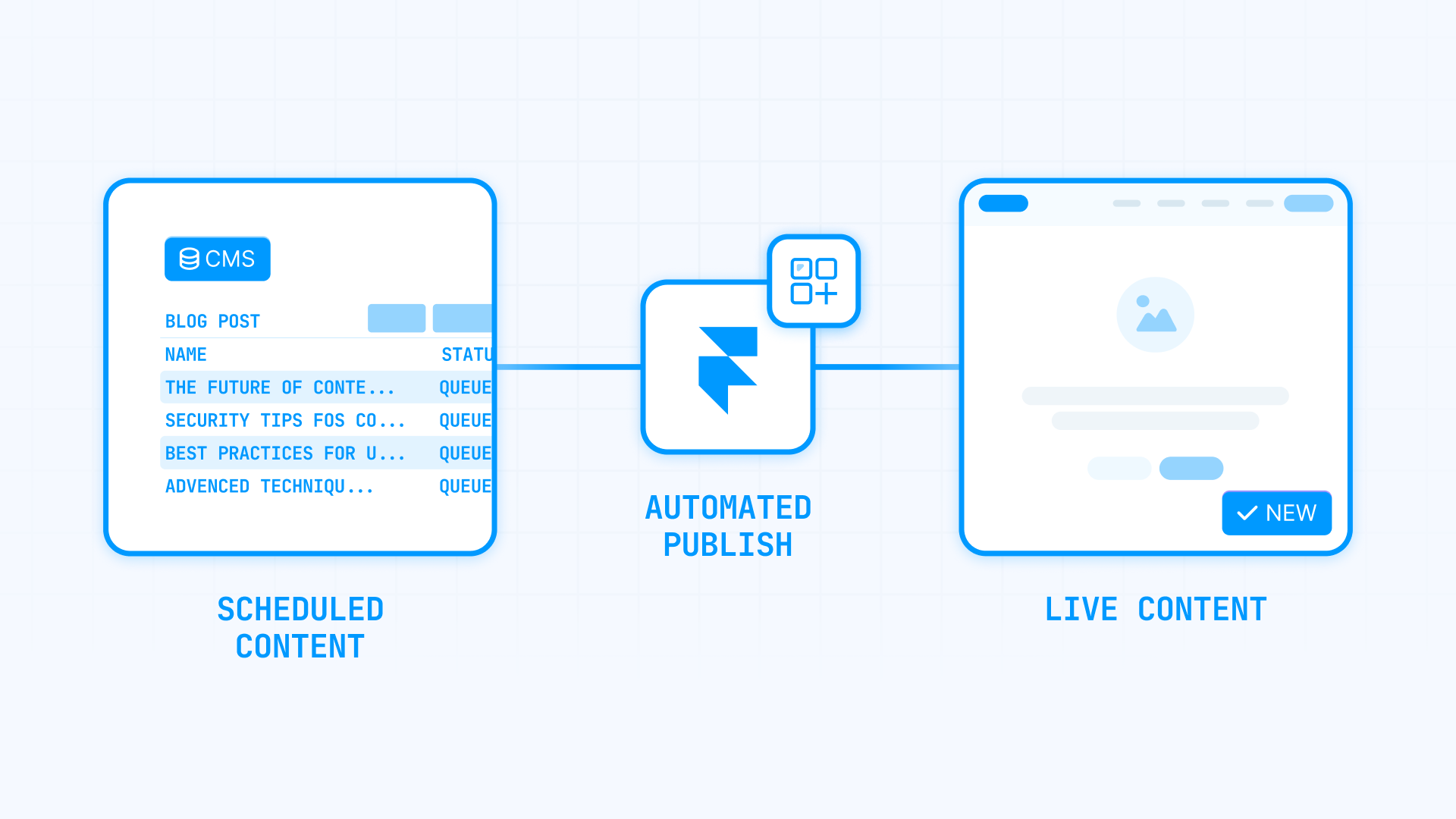
How to schedule a full-site publish in Framer with Publishr
Use this when a coordinated launch, a redesign, or a set of design and CMS changes all need to ship at once.
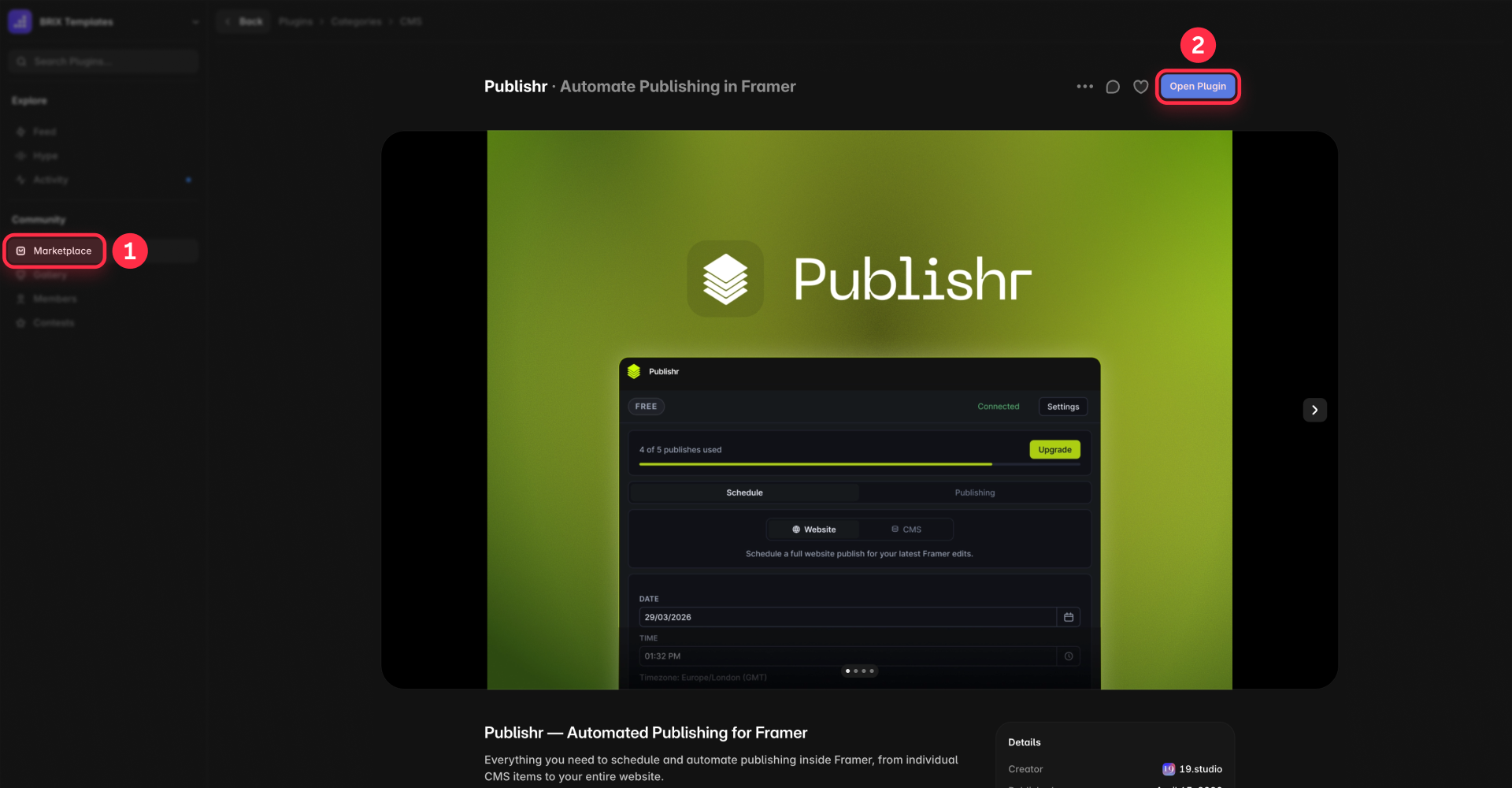
Step 1: Install or open Publishr
- Open the Framer Marketplace and search for Publishr.
- Open the plugin page and click Install (or open it inside your project).
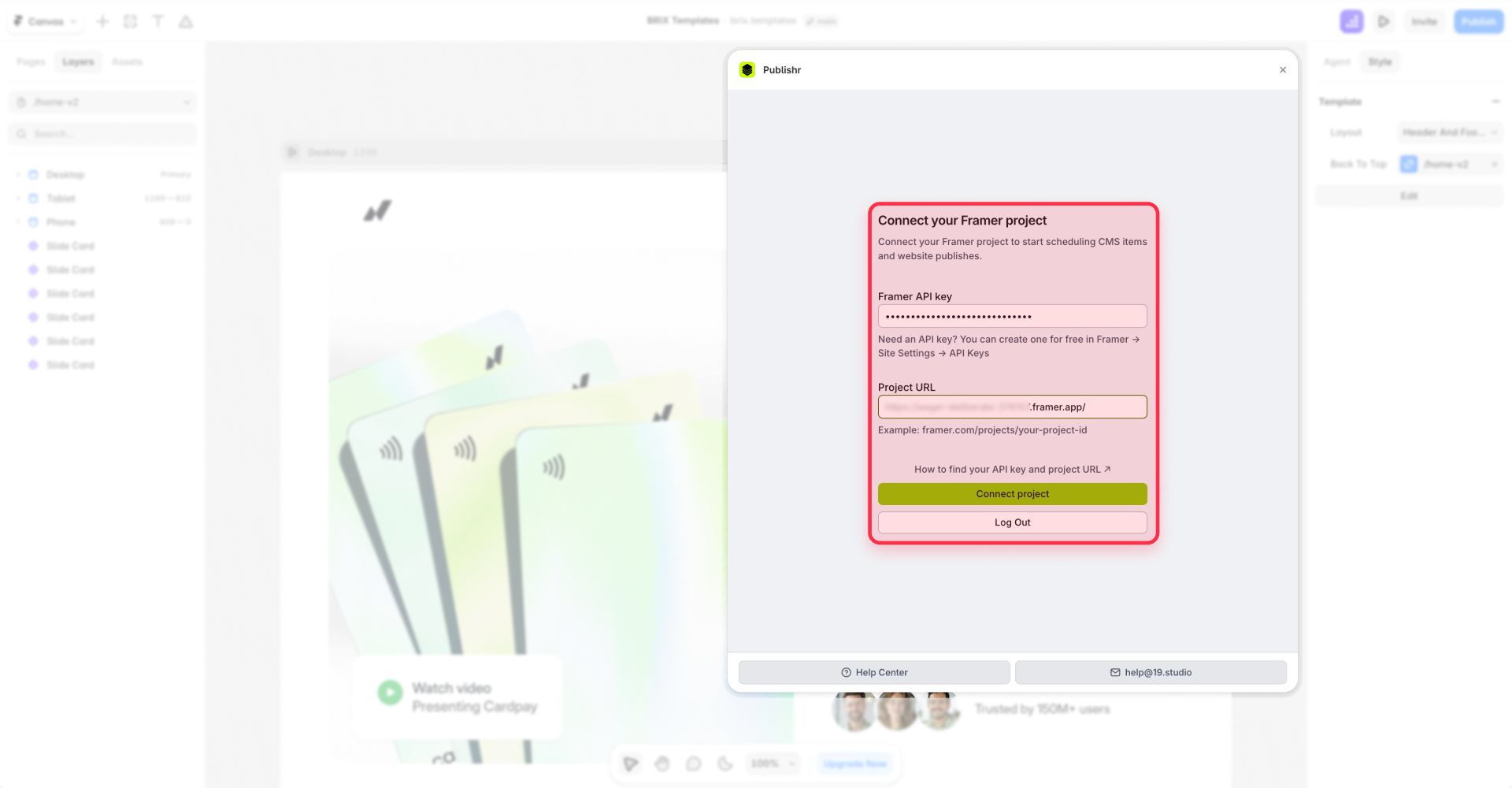
Step 2: Connect the Framer project
- Launch Publishr inside the project you want to schedule publishes for.
- Connect the project so Publishr can publish on your behalf.
Tip: the user who connects the project should have publish permissions, because the plugin acts with that level of access.
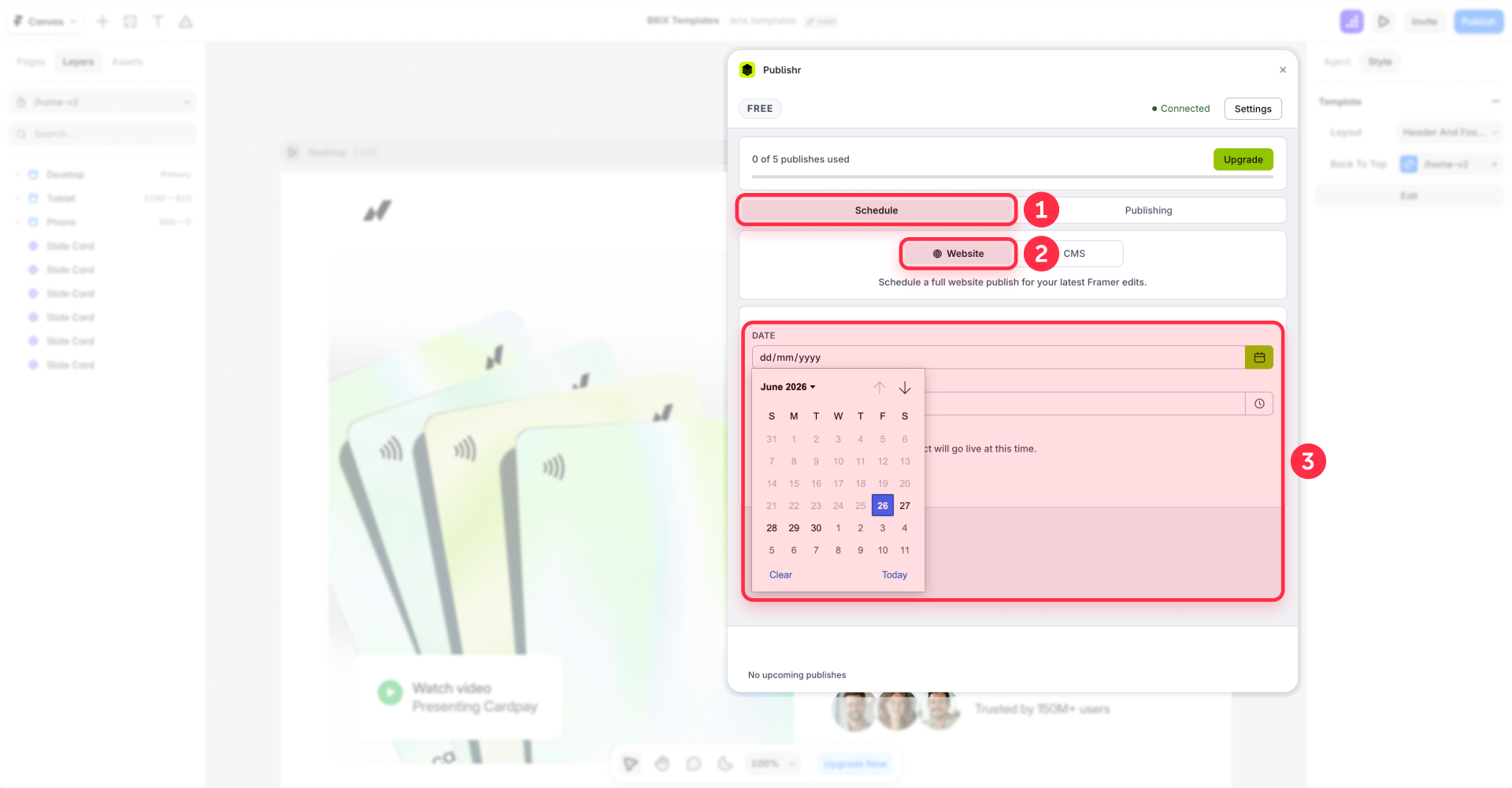
Step 3: Choose Website Publishing
- In Publishr, select the Website Publishing / full-site publish option (as opposed to a single CMS item).
Step 4: Prepare and review the changes in Framer
- Back in the editor, make sure every change you want to ship is ready: design edits, CMS changes, new or edited pages, copy, links, and SEO fields.
- Use staging (if you are on Pro or higher) to preview the full set of changes before you schedule them.
Tip: make sure that staging site isn't indexed — our guide to keeping your Framer staging subdomain out of Google explains how.
Step 5: Set the publish date and time
- In Publishr, set the date and time you want the full site to go live.
- Double-check the timezone so it matches your launch plan.
Step 6: Confirm the scheduled job
- Review what will publish and when, then confirm the schedule. Publishr tracks the job through states like scheduled, publishing, published, and failed.
Step 7: Verify the live site after the scheduled time
- After the scheduled time, open the live site and confirm the changes shipped.
- Check the job status in Publishr to confirm it shows published (and not failed).
A full-site publish can ship all publishable, non-draft changes in the current release, so review what is ready before scheduling and keep anything unfinished in Draft. Always check the job status after the time, and keep a manual fallback for critical launches.
How to schedule Framer CMS items with Publishr
Publishr also schedules individual CMS items — blog posts, case studies, product updates, announcements, and campaign content that needs to go live at a precise time. It is the better choice when the CMS content is part of a larger launch, or when the same team also needs full-site publishing.
The workflow is the same shape as the full-site flow, scoped to one item: connect the project → select the CMS item → choose the date and time → schedule → verify after publishing.
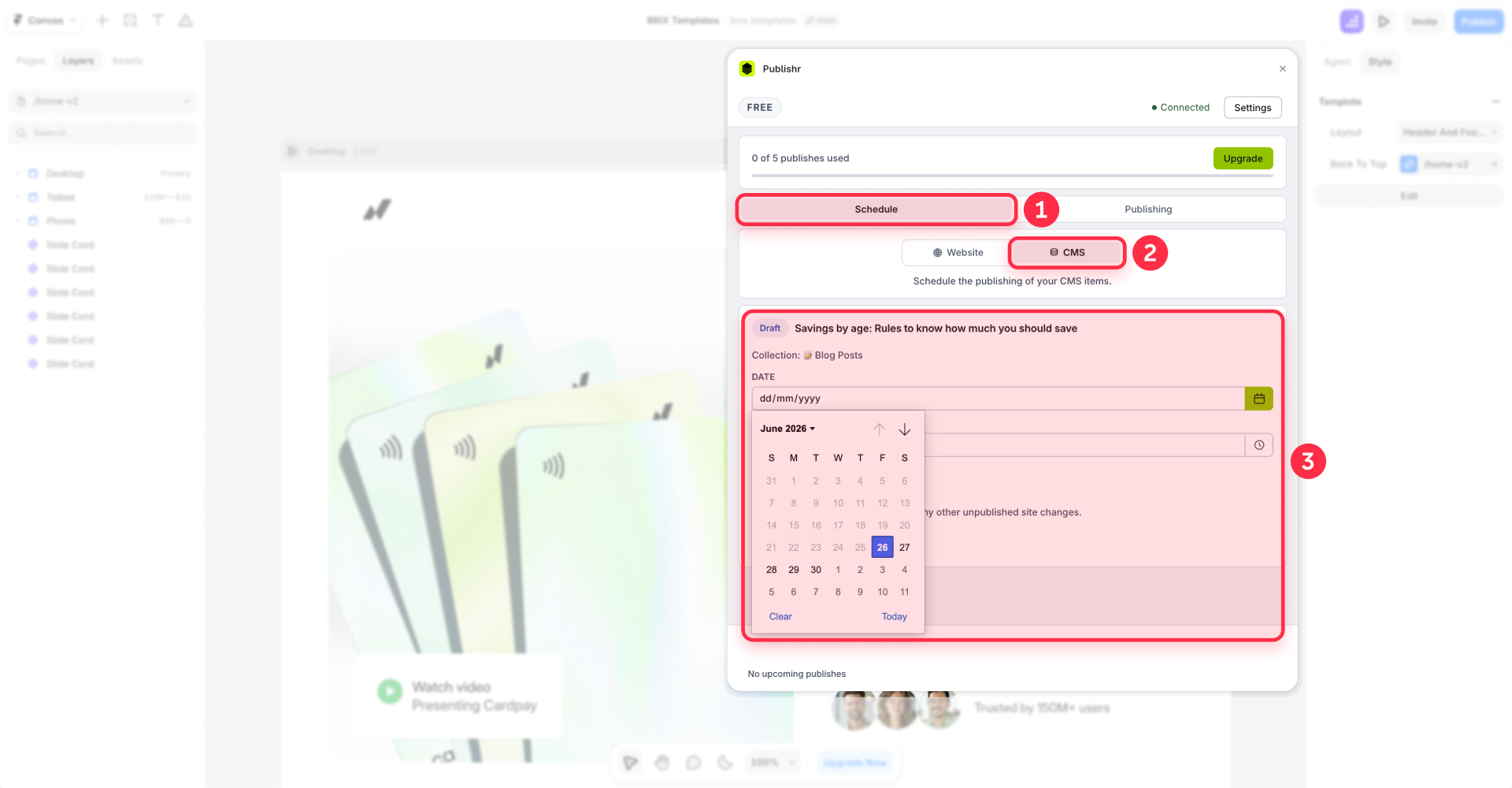
Testing note: Publishr is the closest option for scheduling CMS changes that need to go live later, especially when those changes are part of a broader website release. If your exact workflow is editing an already-published CMS item and scheduling only that item's update, test it once in your project first so you know how Publishr handles that CMS state.
How to schedule Framer CMS drafts with Framer CMS Scheduler
Use this when the content is still in draft and the workflow is purely CMS and editorial — blog posts, resources, announcements, editorial calendars, and bulk publishing. It supports single draft scheduling and bulk scheduling, and it is not for full-site publishes or design/page releases.
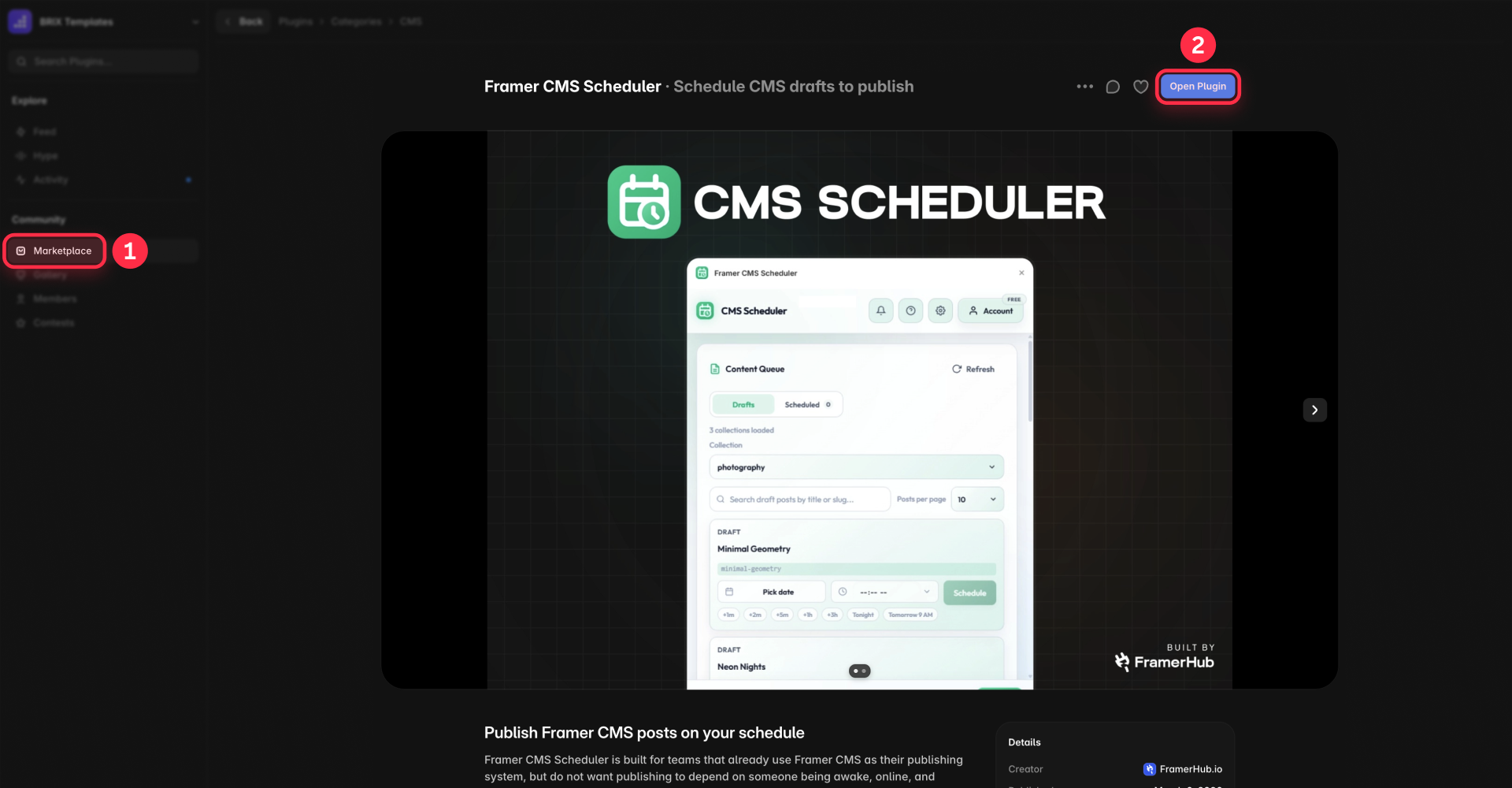
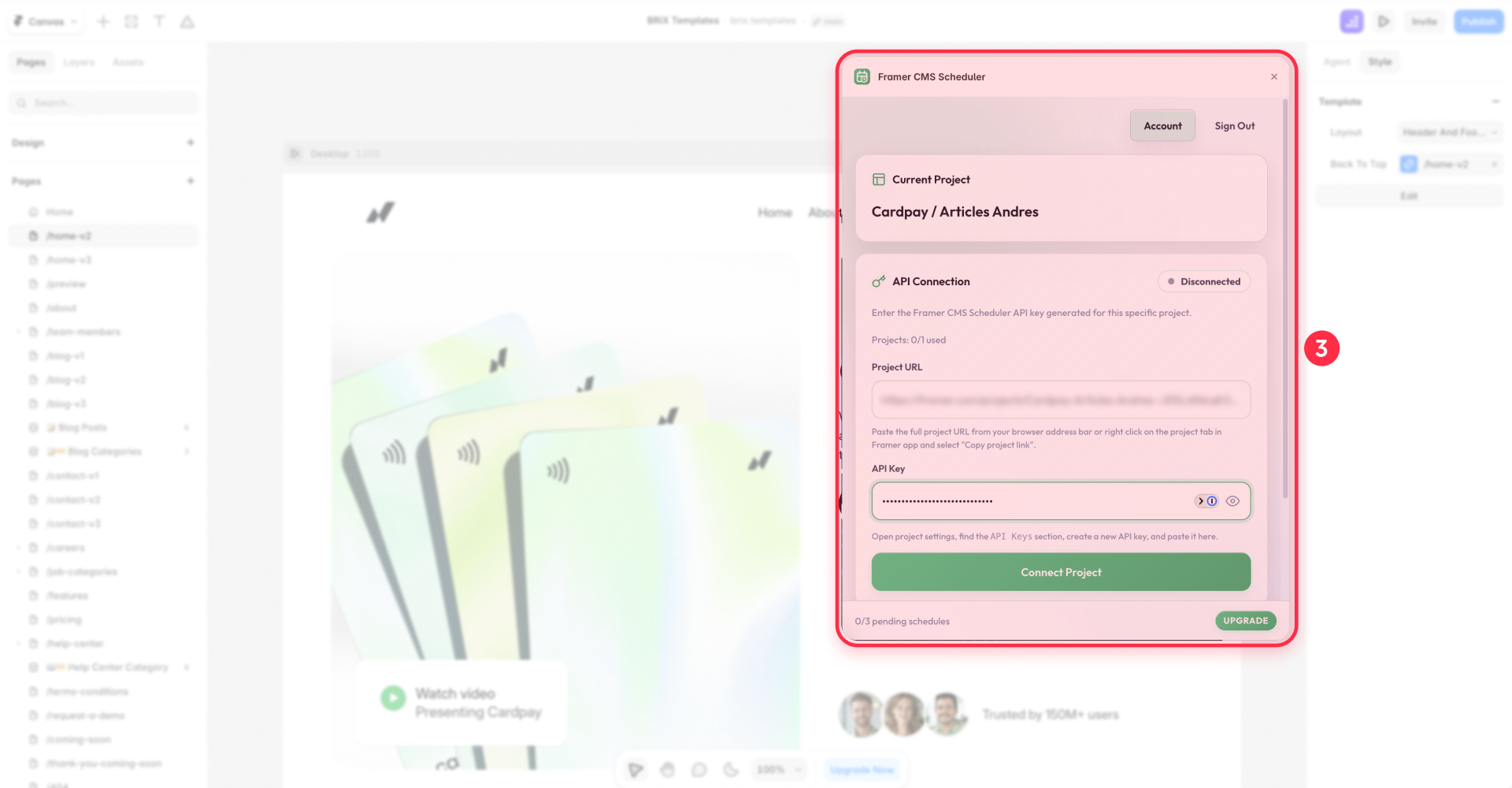
Step 1: Open Framer CMS Scheduler and connect the project
- Open Framer CMS Scheduler inside your Framer project and connect the project.
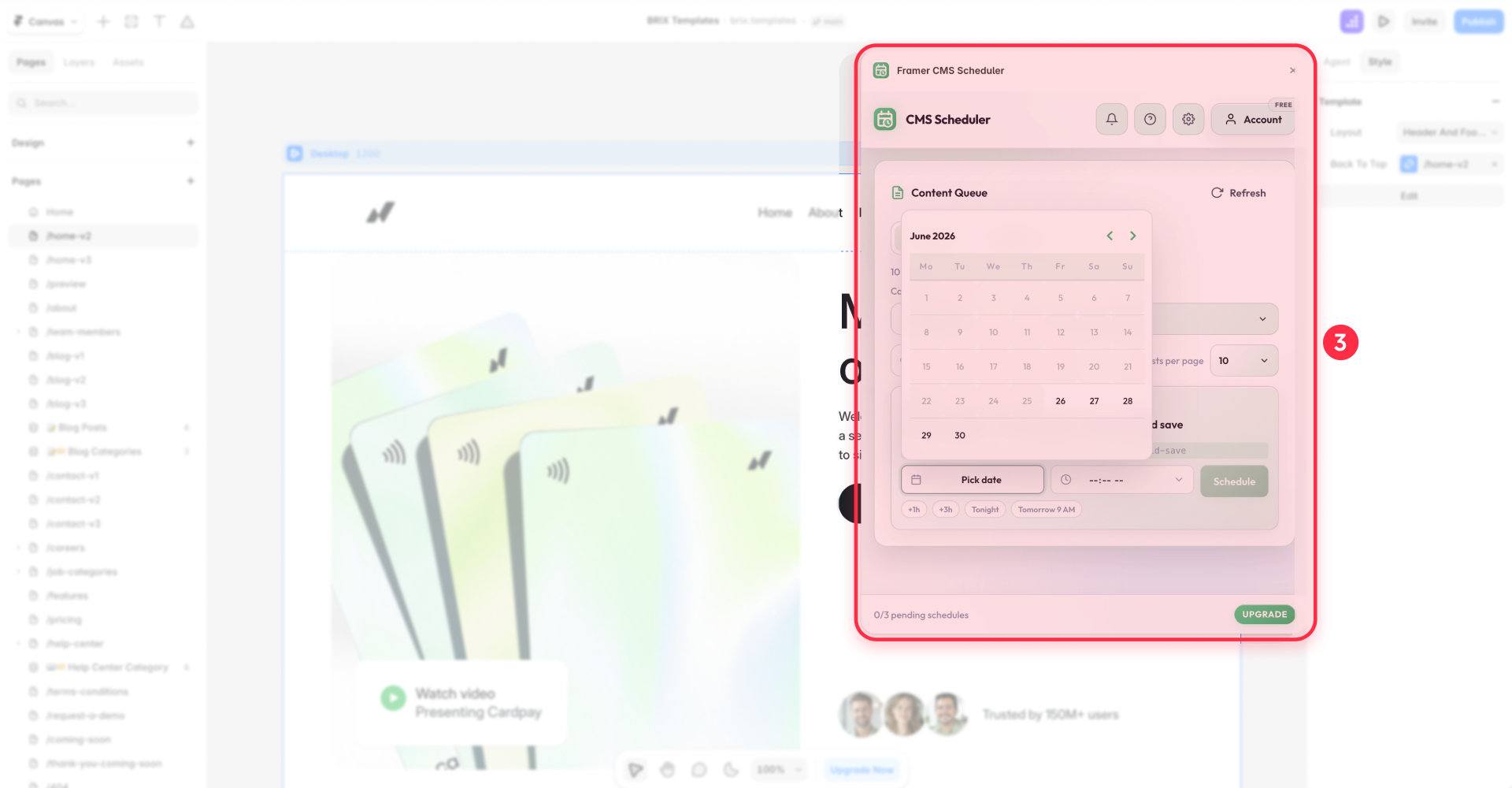
Step 2: Choose the drafts and the time
- Select the CMS collection, then choose one or more draft CMS items.
- Set the date and time for each.
Step 3: Confirm and verify
- Confirm the schedule.
- After the publish time, check the status to confirm the items are live and watch for any failed schedules.
Common mistakes when scheduling Framer publishes
Most failed scheduled launches come from a handful of avoidable mistakes. Watch for these:
- Assuming Framer has native scheduled publishing. It does not; publishing is manual, and staging is release control, not scheduling.
- Using Framer CMS Scheduler when you actually need a full-site publish. It only schedules CMS drafts. Use Publishr for design or site releases.
- Not reviewing publishable, non-draft changes before a full-site release. A full-site publish can ship more than the one change you care about.
- Not checking the timezone. 9:00 AM your time is not 9:00 AM everywhere.
- Not testing the plugin before a launch. Run a dry run so the connection and timing are not a surprise.
- Not verifying after the scheduled time. "Scheduled" can still fail — confirm the job actually published.
Frequently asked questions about scheduled Framer publishing
Can you schedule publishing in Framer natively?
Not through Framer's standard publishing workflow. Native publishing is manual — you open the editor and click Publish yourself. On a Pro plan or higher with staging enabled, you can publish to staging and then deploy the latest version to production, but that is release control, not scheduled publishing. To put a Framer CMS post or full-site publish live at a future date and time, you need a scheduling plugin like Publishr or Framer CMS Scheduler.
Can you schedule Framer CMS posts?
Yes. Publishr schedules individual CMS items — blog posts, case studies, announcements, and campaign content — to go live at a set time. Framer CMS Scheduler does the same for draft CMS items, individually or in bulk. Pick Publishr if the post is part of a larger launch; pick Framer CMS Scheduler if it is just one entry in an editorial calendar. Tip: schedule a low-risk post first to confirm the timezone before a real launch.
Can you schedule a full-site publish in Framer?
Yes, with Publishr, whose Website Publishing level can push design changes, CMS changes, and full-site releases live at a scheduled time — a homepage redesign at midnight, for example. Framer CMS Scheduler cannot do this; it only schedules CMS drafts. For a fully custom setup, technical teams can also trigger full-site publishes through the Framer Server API, but Publishr is the simplest no-code option.
Which plugin should I use to schedule Framer publishing: Publishr or Framer CMS Scheduler?
Use Publishr when the launch includes design changes, a homepage or pricing update, a full-site release, or CMS and design changes together. Use Framer CMS Scheduler when you only need to publish draft CMS items like blog posts on a calendar. The short version: if anything beyond a CMS draft needs to ship, choose Publishr.
Can Publishr schedule updates to already published CMS items?
Publishr supports scheduled CMS item publishing and full-site scheduled publishing, including CMS changes as part of a website release. However, the public plugin information does not fully document a granular, versioned workflow for editing an already-live CMS item and scheduling only that specific update. If that is your exact use case, test it in your project first; in most cases, the safer approach is to treat the change as part of a scheduled website release.
Can I schedule Framer publishing with Auto Publish, CMS Auto Publish, or the Server API?
Other CMS-only tools such as Auto Publish or CMS Auto Publish can also handle draft or content scheduling, and technical teams can build custom workflows with the Framer Server API. This guide focuses on the two clearest options: Publishr for CMS plus full-site releases, and Framer CMS Scheduler for CMS drafts. If your needs are purely editorial drafts, any of these CMS-only schedulers will do the job.
What should I check before scheduling a full-site Framer publish?
Review your staging site, confirm which publishable (non-draft) changes are included in the release, check CMS edits, links, and SEO fields, and double-check the timezone and date/time. Then keep a manual fallback ready in case the scheduled job fails. A 10–15 minute check after the scheduled time catches problems before your audience does.
Want these answers to appear as rich results in Google? Our guide to adding FAQ schema in Framer walks through the markup.
Conclusion
Framer's native publishing is fast, but it is manual. When a CMS post, a CMS draft, or a full-site release needs to go live at an exact time, a scheduling plugin is the answer. Use Publishr for scheduled CMS items and full-site publishes, and Framer CMS Scheduler when you only need draft CMS scheduling. Whichever you pick, test the plugin, double-check the timezone, and verify after the scheduled time — a scheduled publish is only done when it actually shows as published.
The BRIX Templates team builds and maintains Framer (and Webflow) sites for designers, marketers, and agencies, from CMS architecture to launch-day automation. If you want a reliable publishing workflow without the guesswork, our experienced Framer development team can set it up for you.









Join readers commenting on this post!