
You upload a beautiful custom font to Webflow, publish your site, and then check PageSpeed Insights. The verdict: your 400 KB font file is dragging down performance. The frustrating part? You're only using maybe 80 characters out of the thousands included in that file.
The problem is that Webflow serves the entire font file you upload—it won't strip out unused characters for you. So if your font includes Cyrillic, Greek, Vietnamese, and hundreds of symbols you'll never use, all of that downloads to every visitor's browser.
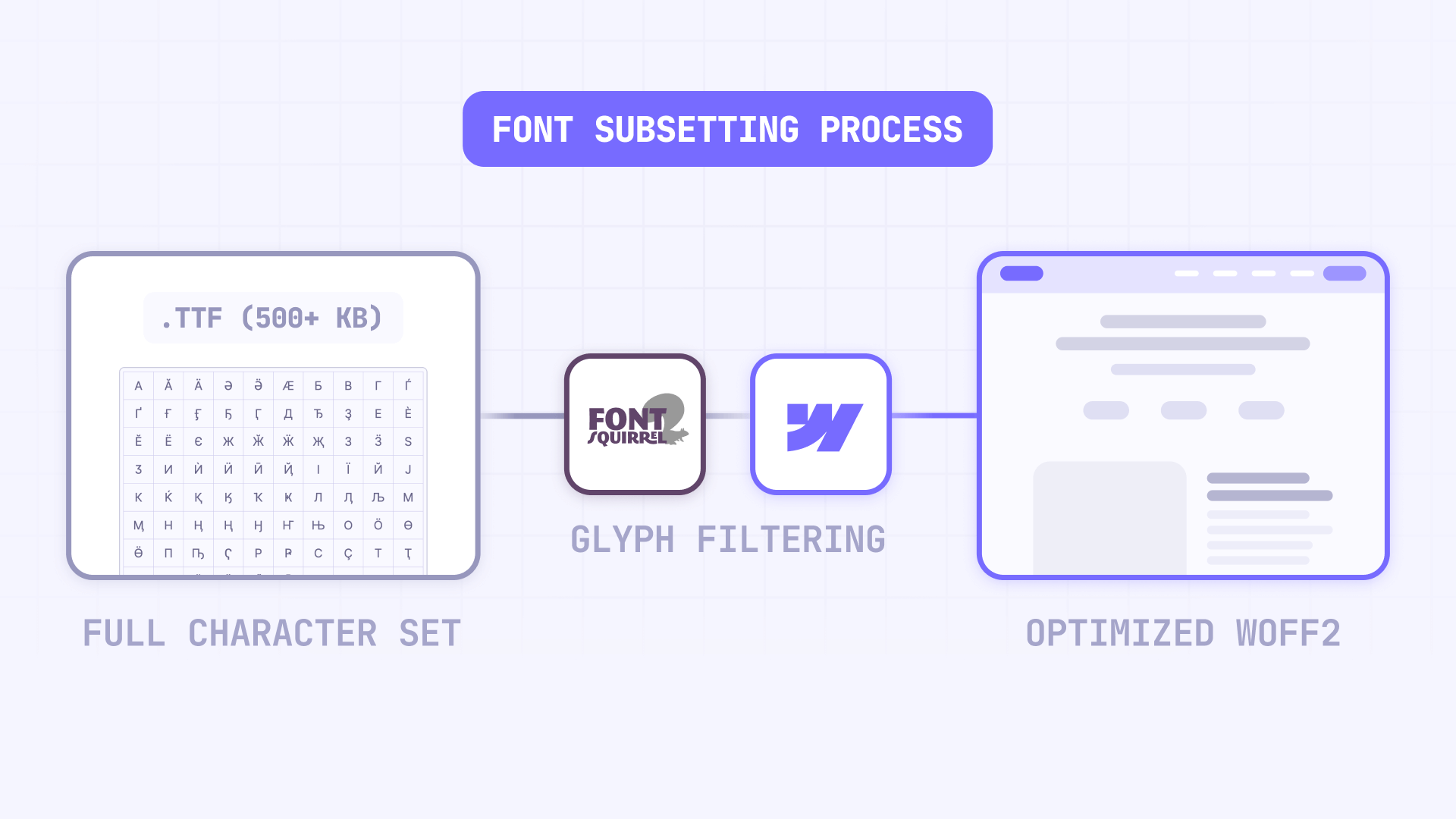
The solution is font subsetting: creating a smaller font file that contains only the characters your site actually needs, then uploading that optimized version to Webflow. In this tutorial, you'll learn the practical workflow to create a subset with Font Squirrel, upload it safely to Webflow, and validate everything works.
Why font subsetting matters for Webflow sites
Custom fonts can quietly dominate your site's transfer size. When your font file is larger than necessary, real consequences follow.
- Slower page loads on Webflow: Large font files delay text rendering, especially on mobile connections where every kilobyte counts
- Higher Webflow bandwidth costs: If you're getting significant traffic, oversized fonts eat into your monthly bandwidth allocation fast
- LCP bottlenecks in Webflow: When your largest contentful paint element uses a custom font, file size directly impacts that Core Web Vital metric
- Wasted resources on unused characters: Icon fonts and multi-language fonts often ship thousands of glyphs you'll never display
The good news: subsetting is a one-time optimization that can shave 50-80% off your font file size without any visual change to your site.
When font subsetting is worth it for Webflow projects
Before diving into the process, make sure subsetting will actually move the needle for your site.
Realistic savings for Webflow font optimization
Here's the honest priority order for font optimization:
- Fewer font weights is usually the biggest win—dropping from 6 weights to 2 often saves more than any subsetting
- WOFF2 format should be your default; it's roughly 30-50% smaller than TTF/OTF
- Subsetting delivers meaningful savings when your font has extended language support, symbol sets, or OpenType features you don't use
If you're keeping 5 weights and 3 styles, subsetting the character set will feel underwhelming. Cut unnecessary weights first, then subset what remains.
When Webflow font subsetting makes the biggest difference
Subsetting is worth the effort when:
- Your font includes Latin Extended, Cyrillic, Greek, or Asian character sets you don't need
- You're using an icon font with hundreds of icons but only displaying a dozen
- Your font file is over 100 KB even in WOFF2 format
If your font is already small and you only need Western European characters, subsetting might save you 10-20 KB—nice, but not transformative. However, if you're already optimizing your Webflow bandwidth usage, font subsetting is one of the most effective strategies to reduce transfer size.
How to create a Webflow font subset with Font Squirrel
Font Squirrel's Webfont Generator is the most accessible way to subset fonts without touching command-line tools. The Expert mode gives you precise control over which characters to keep.
Checking font licenses before subsetting for Webflow
A quick note before you proceed: some font licenses prohibit modification, which includes subsetting. Before creating a subset for production use, verify that your license allows web embedding and font file modification.
This tutorial shows you how to subset fonts—whether you're permitted to do so depends on your specific license agreement. If you're using a commercial font, check the license details on your purchase confirmation or the foundry's website.
Uploading your font to Font Squirrel Webfont Generator
Start with the original font file, not an already-converted webfont.
- Go to Font Squirrel's Webfont Generator
- Click Upload Fonts and select your original TTF or OTF file (not WOFF or WOFF2—those are already converted webfonts)
- Select the Expert radio button to access subsetting options
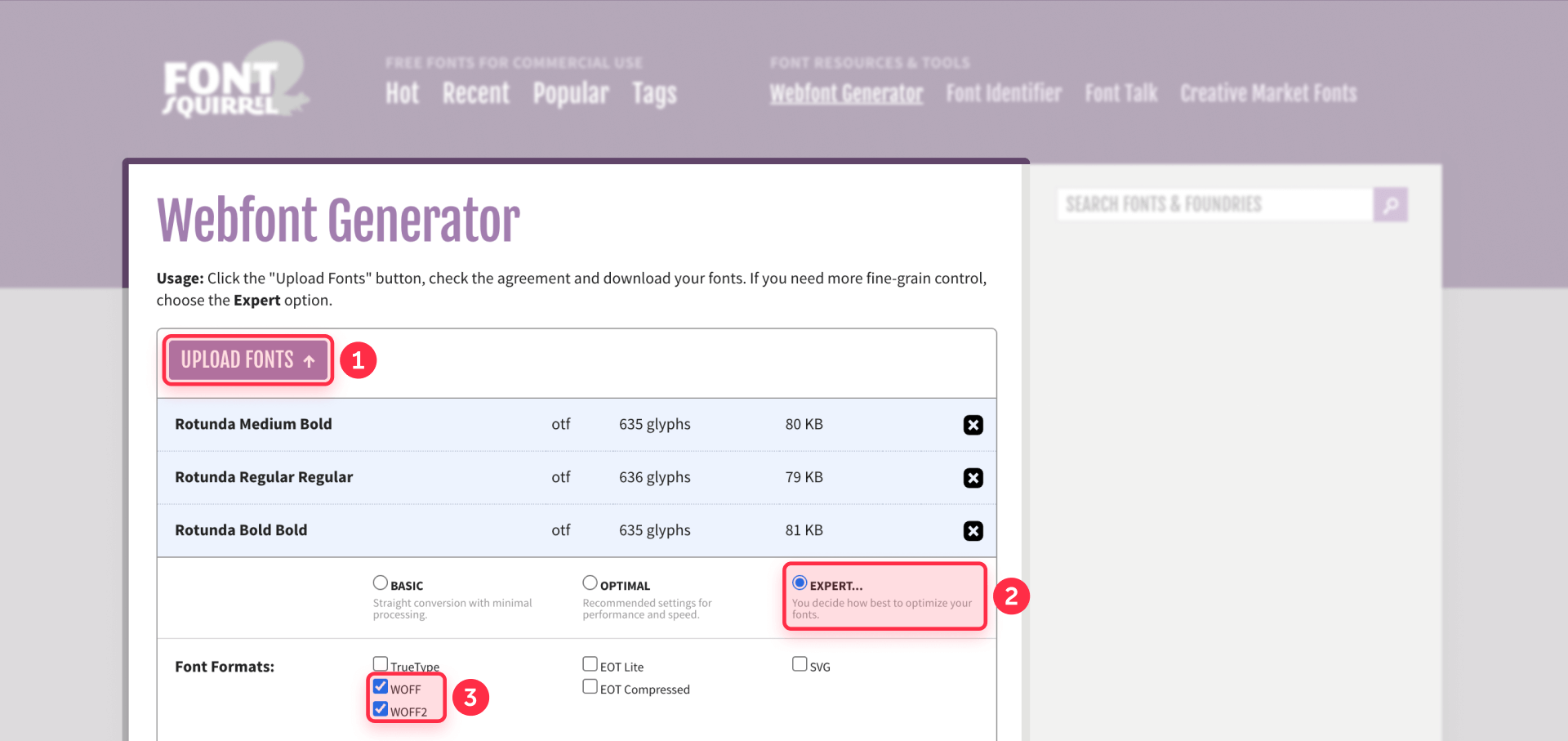
Font Squirrel explicitly warns against reprocessing existing webfonts—always start from the source TTF/OTF for best results.
Configuring Font Squirrel Expert settings for Webflow
The Expert panel has many options. Here's what matters for Webflow:
Font Formats section:
- Check WOFF2 (primary format—best compression, wide browser support)
- Optionally check WOFF as a fallback for older browsers
Truetype Hinting:
- Select Keep Existing—this preserves the original font rendering and avoids the "looks worse on Windows" problem that auto-hinting can cause
Subsetting section:
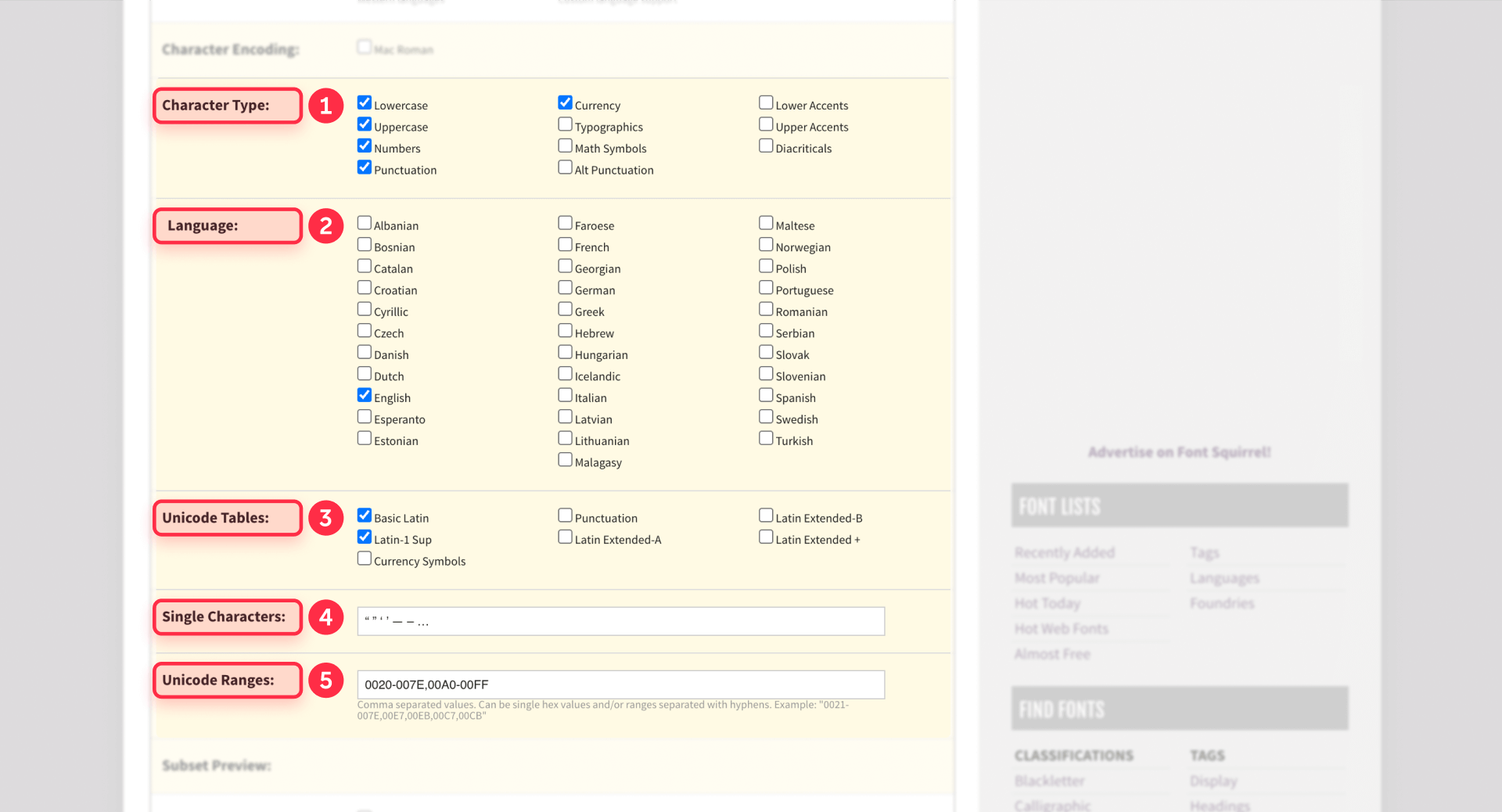
This is where the magic happens. Choose Custom Subsetting and configure:
- Character Types: Select the categories you need—typically Lowercase, Uppercase, Numbers, Punctuation, and Currency
- Languages: Select languages you support—English plus any others your content uses
- Single Characters: Paste any specific characters you need that aren't covered by the categories (like smart quotes: ' ' " " – — …)
- Unicode Ranges: For precise control, enter ranges like 0020-007E (Basic Latin) and 00A0-00FF (Latin-1 Supplement)
OpenType Features:
- Keep these enabled unless you know you don't need ligatures, kerning, or stylistic alternates
Downloading your Webflow-ready subset from Font Squirrel
- Check the agreement box confirming you have rights to the font
- Click Download Your Kit
- Extract the ZIP file—you'll find your WOFF2 (and WOFF if selected) files inside
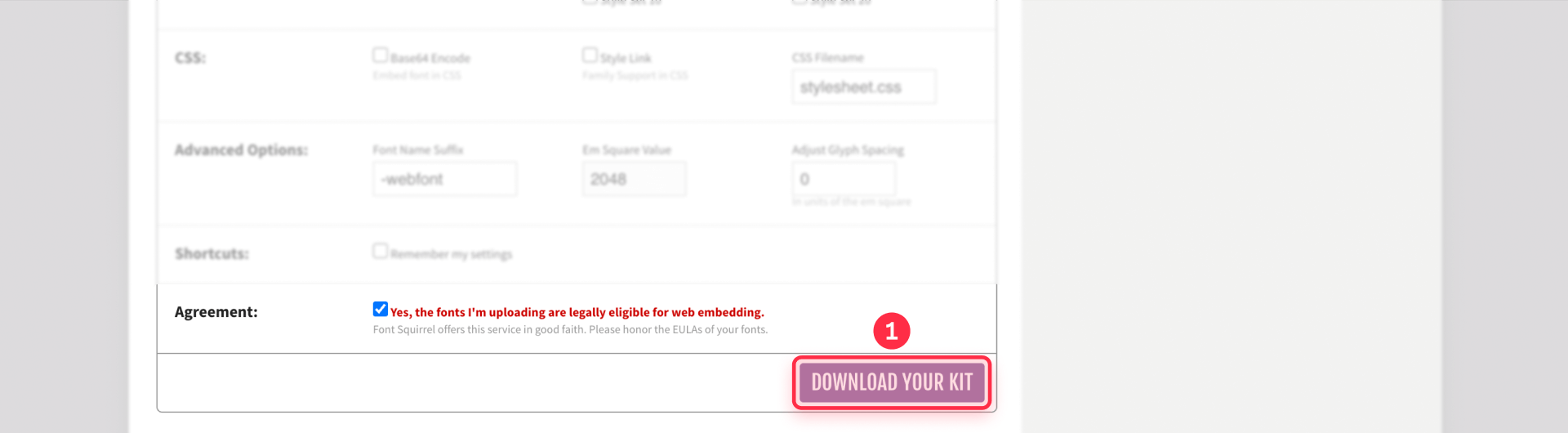
Before uploading to Webflow, note the file sizes. Compare your subset to the original—you should see significant savings if the source font had extended character sets.
How to upload subset fonts to Webflow
With your optimized font files ready, the upload process is straightforward.
Adding your subset font in Webflow site settings
- Open your Webflow project and go to Site settings
- Navigate to the Fonts tab
- Under Custom fonts, click Upload and select your subset WOFF2 file
- After upload, configure the font metadata:
- Font family name: Use a clear name (consider adding "Subset" to distinguish from the original)
- Font weight: Match the original weight (Regular = 400, Bold = 700, etc.)
- Font style: Normal or Italic as appropriate
- Click Save
Repeat for each weight and style you need.
Important: If your font name matches a Google Font that exists in Webflow, rename it to prevent Webflow from accidentally loading the Google-hosted version instead of your custom file.
Configuring font-display for Webflow performance
While in font settings, set font-display to swap for your custom font. This tells browsers to show fallback text immediately, then swap in your custom font once it loads—eliminating the "flash of invisible text" problem.
For a deeper dive on this setting and how to fix font-display warnings, check out our guide on how to fix the "Ensure text remains visible during webfont load" warning in Webflow.
Applying the subset font in Webflow Designer
- Open the Webflow Designer
- Go to the Style Manager (or search styles)
- Find everywhere the old font was used
- Update the font family to your new subset font
- Publish your site
Note: If you're replacing an existing custom font, you must remove all style references to the old font before deleting it from Site Settings. Webflow won't fully remove a font from your published CSS until no styles reference it.
How to validate your Webflow font subset
Don't call the job done until you've confirmed nothing broke. The number one reason subsetting fails: you forgot a character. Three months later, someone pastes an em dash into a CMS field and your visitors see □ squares instead of punctuation.
Building a safe character set for Webflow validation
For most Webflow marketing sites in English or Western European languages, you should have kept these character ranges:
- Basic Latin: Letters A-Z, numbers 0-9, standard punctuation (covers 95% of English content)
- Latin-1 Supplement: Accented characters like é, ñ, ü, ø (essential if you have any international content)
- Smart punctuation: Curly quotes (" " ' '), em dashes (—), en dashes (–), ellipsis (…)
- Currency symbols: Euro (€), pound (£), and any others you display
This baseline covers what most Western-language Webflow sites actually use, with enough buffer for common copy-paste scenarios.
Auditing text sources on your Webflow site
Walk through every place text can appear on your site to ensure your subset covers everything:
- Static pages: Navigation, headings, buttons, footers, legal pages, error messages
- CMS content: Blog posts, collection fields, testimonials, team bios
- Form elements: Placeholders, validation messages, success states
- Third-party content: Anything you paste from external sources—press kits, job descriptions, partner content
Pay special attention to CMS fields. Your designers might swear they'll never use curly quotes, but content editors will paste from Word, and Word loves smart punctuation.
Creating a Webflow font test page after subsetting
Build a QA page to validate your subset works correctly.
- In Webflow, create a new page called Font Test (keep it unlinked or password-protected)
- Add a text block and set it to your custom font
- Paste this coverage string:
ABCDEFGHIJKLMNOPQRSTUVWXYZ
abcdefghijklmnopqrstuvwxyz
0123456789

Standard punctuation:
! " # $ % & ' ( ) * + , - . / : ; < = > ? @ [ \ ] ^ _ { | } ~

Smart punctuation:
' ' " " – — …

Accents (sample):
á é í ó ú ü ñ ç ø Á É Í Ó Ú Ü Ñ

Currency:
€ $ £ ¥- Publish and check for any □ squares—those indicate missing characters
- Test in at least two browsers (Chrome and Safari cover most cases)
- Check your CMS content, especially rich text fields where editors paste external content
If you spot missing characters, you'll need to regenerate the subset with those characters included and re-upload.
Creating a rollback plan for Webflow font changes
Keep your original font uploaded in Webflow until you're confident the subset works everywhere:
- Keep the original font file in Site Settings (you can leave it unused)
- If problems appear, swap your styles back to the original font family
- Republish—instant rollback with no drama
Once you've validated across your site for a week or two with no issues, you can safely delete the original.
Troubleshooting Webflow font subsetting issues
Missing accents (é, ü, ñ) appear as □ after subsetting
Your subset excluded the Latin-1 Supplement range. Regenerate including Unicode range 00A0-00FF (or select the appropriate languages in Font Squirrel), then re-upload and test.
Smart quotes and em dashes show as □ in Webflow
These characters live outside Basic Latin. Add them explicitly in Font Squirrel's Single Characters field: ' ' " " – — … Then regenerate and re-upload.
Subset file is larger than the original
This sometimes happens with already-optimized fonts or when keeping too many OpenType features. Try a tighter character selection, or verify you're starting from the original TTF/OTF, not an already-converted webfont.
Webflow shows "Something went wrong" on font upload
Try uploading one font file at a time. Clear your browser cache and try in an incognito window.
Wrong font loads after upload (Google Fonts collision)
Your custom font name matches a Google Font in Webflow's library. Rename your custom font to something unique (e.g., "MyFont Custom" instead of "MyFont").
Deleted font still appears on published Webflow site
You have styles still referencing the old font. Open the Style Manager, find all uses of that font family, update them to use a different font, then republish.
Frequently asked questions about font subsetting in Webflow
What is font subsetting and why does it matter for Webflow sites?
Font subsetting creates a smaller font file containing only the characters your website actually uses. This matters for Webflow because the platform serves whatever font file you upload—it won't automatically remove unused characters.
If your font includes thousands of glyphs for languages you don't support, every visitor downloads that unnecessary data. Subsetting can reduce font file sizes by 50-80%, improving load times and reducing bandwidth costs.
Can Webflow automatically remove unused characters from custom fonts?
No. Webflow's font system serves the complete file you upload without any automatic optimization. If you want a smaller font file, you must create that subset yourself using a tool like Font Squirrel.
This gives you control over exactly which characters to include, but it does require a manual optimization step outside of Webflow before uploading.
How do I know which characters to keep when subsetting Webflow fonts?
Start with a safe baseline: Basic Latin (A-Z, numbers, standard punctuation), Latin-1 Supplement (accented characters), and smart punctuation (curly quotes, em dashes, ellipsis).
Then audit your specific site—check CMS fields, form placeholders, and any content editors might paste from external sources. When in doubt, include more characters rather than fewer; a slightly larger file beats broken typography.
Will font subsetting break special characters on my Webflow site?
Only if you remove characters you actually need. The risk is forgetting characters that appear later—like when a content editor pastes text with em dashes from Word.
Protect yourself by: keeping a generous character baseline, creating a test page with all expected characters, and keeping your original font as a backup until you've validated the subset in production.
What's the difference between font subsetting and using WOFF2 in Webflow?
WOFF2 is a compression format—it makes any font file smaller through better encoding, regardless of content. Subsetting removes content—it eliminates characters you don't need.
For best results, do both: subset your font to remove unused characters, then export as WOFF2 for optimal compression. These optimizations stack.
How much file size can I save by subsetting Webflow custom fonts?
Savings depend on your source font. A font with only Latin characters might shrink 10-20% from subsetting. A font with Latin, Cyrillic, Greek, and extended symbols might shrink 60-80%.
The fonts with the most to gain are those with broad language coverage or large icon/symbol sets that you're only partially using.
Is it better to reduce font weights or subset characters for Webflow performance?
Reducing font weights typically delivers bigger savings. Each weight (Regular, Medium, Bold, etc.) is essentially a separate font file. If you're loading 6 weights but only using 2, eliminating those 4 unused weights will likely save more than subsetting.
The optimal approach: first reduce to only the weights you need, then subset each remaining weight.
Do I need to subset fonts if I'm only using English on my Webflow site?
It depends on your font. If your font was designed primarily for English and has minimal extended character sets, subsetting might save only 10-20 KB—nice but not critical.
If your font includes extensive Latin Extended, Cyrillic, Greek, or Asian characters for internationalization you're not using, subsetting can save hundreds of kilobytes.
How do I test if my Webflow font subset is working correctly?
Create a dedicated test page with a comprehensive character string covering letters, numbers, punctuation, accents, and special characters. After uploading your subset, publish and check this page for any □ squares (which indicate missing glyphs).
Also test your actual CMS content and form fields. Use Chrome DevTools Network tab to verify the font file size is smaller than before.
Can I use Google Fonts instead of subsetting custom fonts in Webflow?
Google Fonts automatically serves optimized subsets based on the text your page uses, which is convenient. However, you lose control over the specific font files and rely on Google's CDN.
If you need a custom font not available on Google Fonts, or prefer hosting fonts yourself for performance or privacy reasons, subsetting your own fonts and uploading to Webflow gives you complete control.
Conclusion
Font subsetting for Webflow follows a simple principle: Webflow serves exactly what you upload, so optimize the file before it reaches Webflow. Create a subset with Font Squirrel keeping only the characters you'll actually use, upload the optimized WOFF2, and validate that nothing broke.
The result is faster font loading, lower bandwidth usage, and the same visual quality—with no changes your visitors will ever notice.
For Webflow sites where performance is critical, combining font subsetting with weight reduction and proper font-display settings can dramatically improve load times. If you want expert help optimizing your Webflow site's typography and overall performance, our Webflow team at BRIX can handle the technical details.










Join readers commenting on this post!