
You ran PageSpeed Insights on your Framer site and saw the warning "Ensure text remains visible during webfont load". But here's the thing: Framer already optimizes font loading automatically for most cases. So why is the warning still there?
The answer usually comes down to a few specific edge cases: you're using a Thin (100) weight, a decorative font category, fonts loaded through Custom Code, or icon fonts. These fall outside Framer's automatic optimization rules.
This tutorial explains why this warning exists, what Framer already does to prevent it, and how to fix the specific cases where the problem — and the warning — still appear.
Understanding the font loading problem (and why Framer usually solves it)
Before diving into fixes, it helps to understand what this warning actually means — and why Framer handles it automatically in most situations.
What causes invisible text during font loading
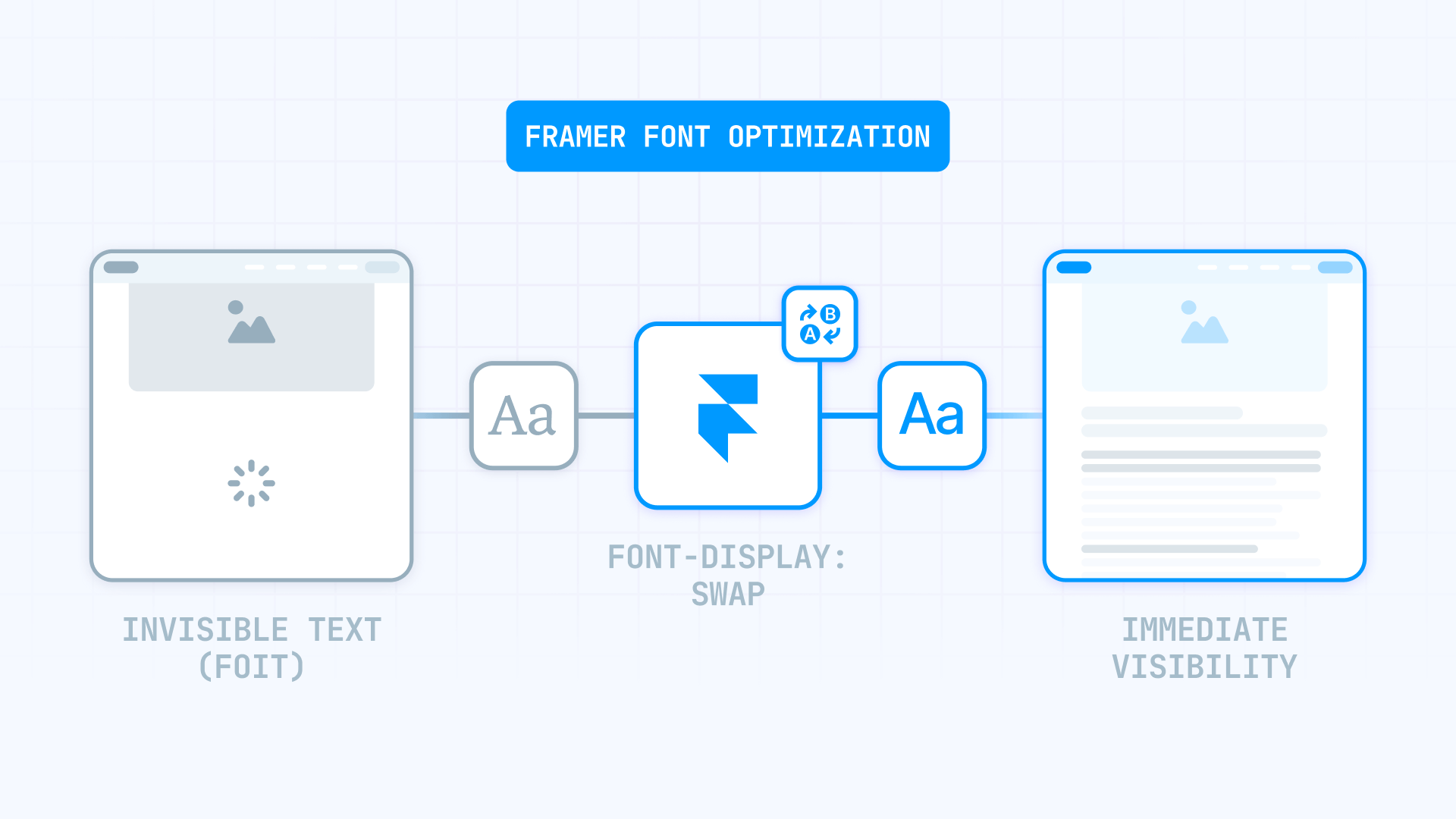
When a browser loads a page with custom fonts, it faces a decision: what should it show while the font file downloads? By default, many browsers hide the text completely until the font arrives. This behavior is called FOIT (Flash of Invisible Text).
For users, FOIT means staring at a page where images and buttons are visible, but they can't read anything. On slow connections, this blank period can last several seconds.
FOIT vs FOUT explained simply
- FOIT (Flash of Invisible Text): Text stays hidden until the custom font loads. This is what the warning is trying to prevent.
- FOUT (Flash of Unstyled Text): Text appears immediately using a fallback font (like Arial), then swaps to the custom font when ready.
FOUT is almost always better. Users might briefly see a different font, but at least they can read your content right away.
The solution: font-display
The font-display CSS property tells the browser what to do while waiting for a font. Setting it to swap means: "Show fallback text immediately, then swap when the custom font arrives."
This is what the PageSpeed warning is checking — whether your fonts have this fallback strategy defined.
What Framer already does automatically
Here's the good news: Framer applies font-display: swap automatically for most fonts. You don't need to configure anything if you're using standard font setups.
Framer's automatic font-display rules
Framer enables swap behavior under these conditions:
- Font weights from 300 (Light) to 800 (Extra Bold) — these get automatic swap
- Google and Fontshare fonts — but only for serif and sans-serif categories
- Custom uploaded fonts — as long as you use weights within the 300-800 range
Framer also applies size-adjust automatically when swap is enabled, which helps reduce layout shift by matching the fallback font's dimensions more closely to your custom font.
Why Framer doesn't apply swap to everything
Framer intentionally excludes certain cases from automatic swap:
- Thin (100) weights: The fallback font (Arial, Georgia, etc.) looks drastically different from a Thin custom font. Showing the fallback would create an ugly mismatch, so Framer prefers to wait for the real font.
- Decorative/Display font categories: Same reasoning — a system font fallback for a decorative headline font would look completely off.
This is a deliberate UX tradeoff. Framer prioritizes visual consistency over eliminating every possible FOIT scenario.
When the warning still appears in Framer
If Framer already optimizes most fonts, why does PageSpeed still flag yours? Usually it's one of these cases:
- You're using Thin (100) weight — Framer doesn't apply swap for this
- You're using a decorative/display category font from Google or Fontshare — no automatic swap
- You're loading fonts via Custom Code — Framer's optimization doesn't apply to external code
- You're using icon fonts (Font Awesome, Bootstrap Icons, etc.) — loaded separately from Framer's font system
The fix depends on which case applies to you. Let's start by identifying the culprit.
How to identify which font triggers the warning in Framer
Before changing anything, find out exactly which font file PageSpeed is flagging. This prevents the classic mistake of "fixing" one font while the real problem is somewhere else.
Finding the flagged font in PageSpeed Insights
- Run PageSpeed Insights on your published Framer URL
- Look for "Ensure text remains visible during webfont load" (in newer versions it may appear under Font display)
- Expand the warning to see the specific font URL(s) being flagged
The URL tells you where the font comes from:
- fonts.googleapis.com or fonts.gstatic.com → Google Font (likely a weight/category issue)
- Third-party domain → External embed, widget, or font service
- Font Awesome CDN or similar → Icon font
Confirming the source in Chrome DevTools
For more detail:
- Open your published Framer site in Chrome
- Open DevTools (press F12) and go to the Network tab
- Refresh the page
- Filter by Font (or search for .woff2)
- Click the font request and check Initiator to see what triggered it
This tells you whether the font comes from Framer's font system or from Custom Code/external scripts.
How to fix font-display for Thin (100) weights in Framer
If you're using a Thin weight and that's what PageSpeed flags, you have two options.
Option 1: Change to a supported weight (recommended)
The simplest fix is switching to a weight that Framer optimizes automatically.
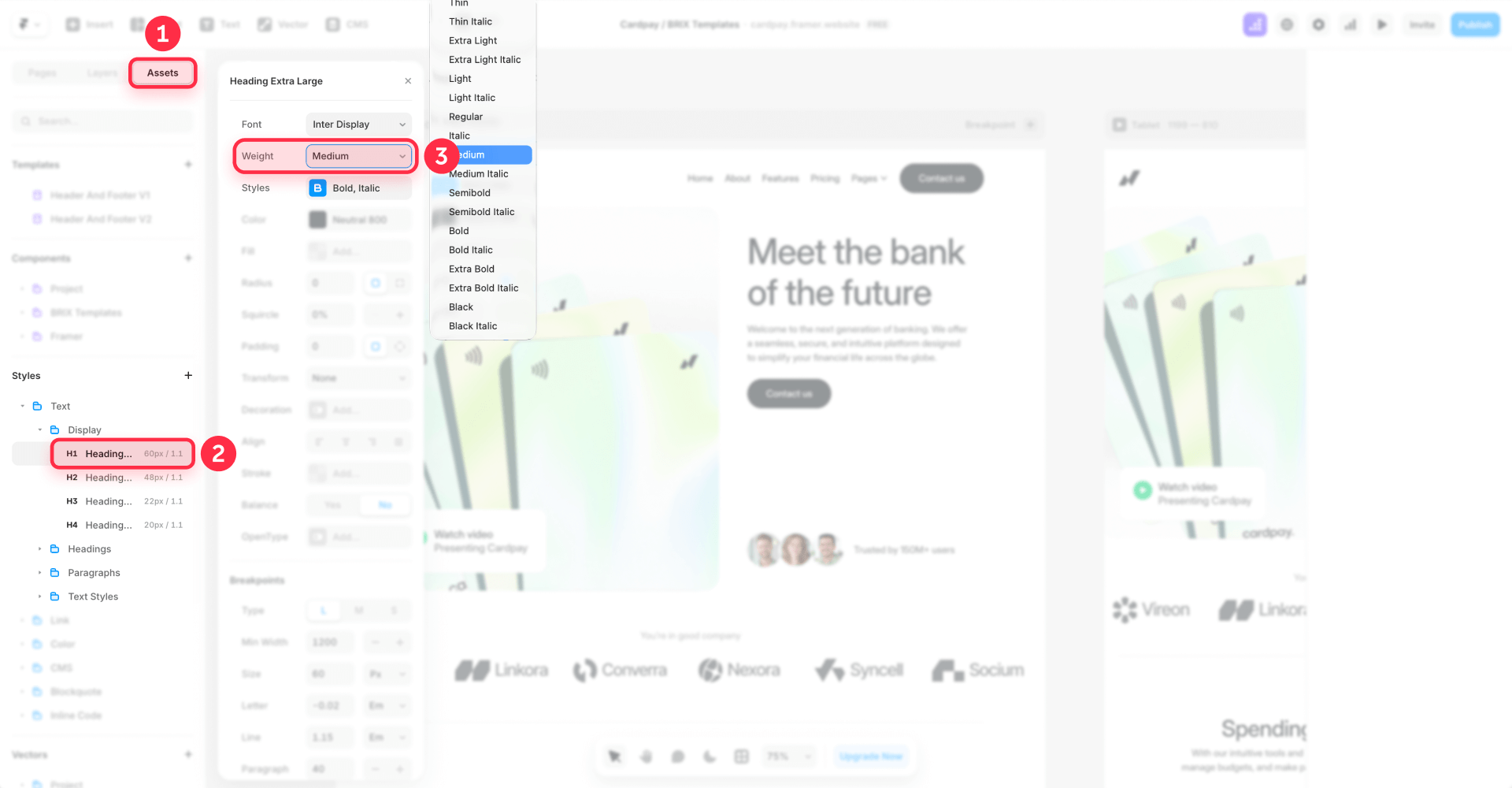
- Select the text layer using the Thin font
- In the right Properties panel, open the Font settings
- Change the weight from Thin (100) to Light (300) or Regular (400)
- Publish and retest in PageSpeed
This works because weights 300-800 get automatic font-display: swap from Framer.
Option 2: Keep Thin but accept the tradeoff
If your design absolutely requires Thin weights, understand the tradeoff: Framer won't apply swap because the fallback would look too different. You're choosing visual consistency over eliminating the warning.
In this case, the warning may persist, but your users likely won't notice FOIT on fast connections. You can also load the font yourself via Custom Code with explicit font-display control (see the Custom Code section below).
How to fix font-display for decorative fonts in Framer
If you're using a decorative or display category font from Google or Fontshare, Framer doesn't apply automatic swap for the same reason as Thin weights — the fallback mismatch would be too jarring.
Option 1: Switch to a serif or sans-serif alternative
If a visually similar font exists in the serif or sans-serif categories, switching gives you automatic swap behavior.
- Open the Font picker in the Properties panel
- Browse Google or Fontshare tabs
- Filter by serif or sans-serif categories
- Select a font that matches your design intent
- Publish and retest
Option 2: Load the font via Custom Code with font-display
If you need that specific decorative font, you can load it yourself with explicit font-display control. See the Custom Code section below for the exact implementation.
How to fix font-display for fonts loaded via Custom Code in Framer
If you're loading fonts through Custom Code (external stylesheets, scripts, or your own @font-face rules), Framer's automatic optimization doesn't apply. You need to add font-display yourself.
Adding font-display to a custom @font-face rule
If you're self-hosting fonts or loading them via CSS, add font-display: swap directly in your @font-face declaration.
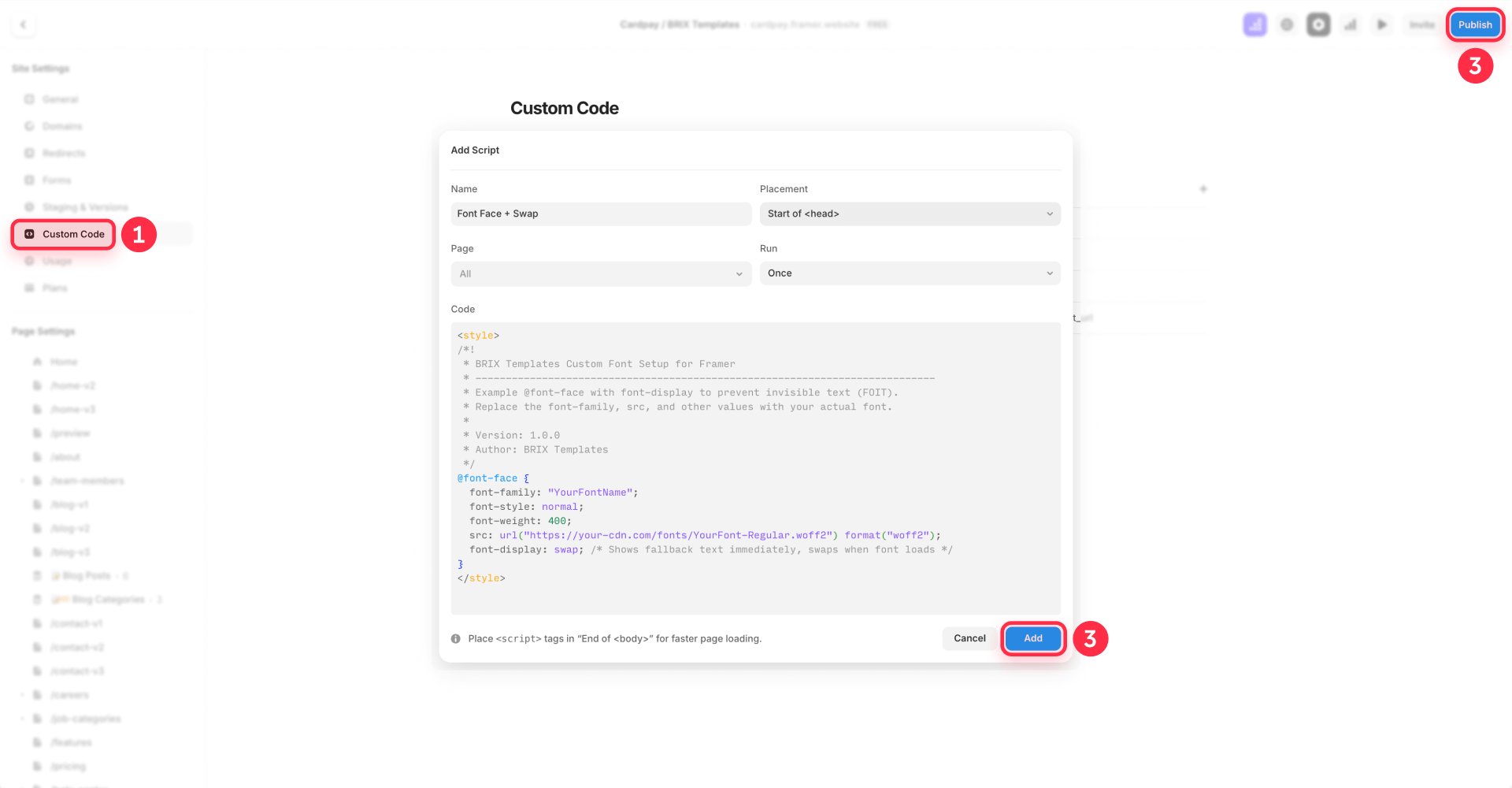
Add this via Custom Code in Framer:
<style>
/*!
 * BRIX Templates Custom Font Setup for Framer
 * ----------------------------------------------------------------------------
 * Example @font-face with font-display to prevent invisible text (FOIT).
 * Replace the font-family, src, and other values with your actual font.
 *
 * Version: 1.0.0
 * Author: BRIX Templates
 */
@font-face {
  font-family: "YourFontName";
  font-style: normal;
  font-weight: 400;
  src: url("https://your-cdn.com/fonts/YourFont-Regular.woff2") format("woff2");
  font-display: swap; /* Shows fallback text immediately, swaps when font loads */
}
</style>
Adding display=swap to a Google Fonts link
If you're loading Google Fonts via your own link tag (not through Framer's font picker), add display=swap to the URL:
<!-- Google Fonts with explicit font-display control -->
<link
  href="https://fonts.googleapis.com/css2?family=Playfair+Display:wght@400;700&display=swap"
  rel="stylesheet"
/>
The key is display=swap in the URL — this tells Google's CSS to include font-display: swap in the generated rules.
Where to add Custom Code in Framer
- Open your Framer project
- Go to Site Settings (gear icon)
- Click the Custom Code tab
- Click Add Script or the + icon
- Name it clearly (example: Font Display Fix)
- Set placement to Head
- Paste your code and save
- Publish your site
How to fix font-display for icon fonts in Framer
Icon fonts (Font Awesome, Bootstrap Icons, Material Icons, etc.) are a common reason the warning persists even after fixing your text fonts. They load separately and often don't have font-display configured.
Why icon fonts are tricky
With text fonts, swap works well — users see fallback text, then it swaps. But with icon fonts, the "fallback" is usually empty squares or random characters, which looks broken. This makes icon fonts harder to handle gracefully.
Option 1: Switch to SVG icons (recommended)
The cleanest solution is replacing icon fonts with SVG icons:
- Most icon libraries (Font Awesome, Heroicons, Feather, etc.) offer SVG versions
- In Framer, use Code Components or Embed elements for inline SVGs
- SVGs render immediately — no font loading, no warning
When you use inline SVGs, the icon code is part of your HTML — it doesn't add an extra network request, so there's no performance penalty.
Option 2: Add font-display to the icon font
If you must keep the icon font, ensure it has font-display defined. Check how the icon font is loaded:
- If it's via a CDN link you control, look for a display=swap parameter option
- If you're loading it via CSS you control, add font-display: swap to the @font-face rule
After applying the fix, verify that icons don't show broken placeholder characters during the swap period. If they do, SVGs are the professional solution.
How to fix font-display for Adobe Fonts in Framer
If you're using Adobe Fonts (Typekit), the font is loaded through Adobe's embed code. You can configure font-display directly in Adobe's dashboard.
- Log into your Adobe Fonts account
- Open your Web Project settings
- Look for the font-display option
- Set it to swap (or your preferred value)
- Save and republish your Framer site
- Verify in PageSpeed that the warning is gone
If you can't find the option or it doesn't resolve the issue, the alternative is self-hosting the fonts (if your license allows) and loading them via Custom Code with explicit font-display control.
How to verify your Framer font-display fix worked
After making changes, verify properly — don't just assume it worked.
Rerun PageSpeed Insights
- Publish your Framer site (changes don't apply until published)
- Run PageSpeed Insights on the published URL
- Check that the "Ensure text remains visible during webfont load" warning is gone
If it's still there, check if the flagged URL changed. You might have fixed one font but another is still failing.
Confirm in Chrome DevTools
- Open your published site in Chrome
- Open DevTools → Network and filter by Font
- Refresh the page
- Find the font file and look at the CSS that loads it
- Confirm the @font-face rule includes font-display: swap (or your chosen value)
Check your Framer site version
If changes aren't reflecting:
- In Framer, open Site Settings → Versions
- Confirm the latest version shows as Optimized
- If not, republish and wait for optimization to complete
Troubleshooting Framer font-display issues
"I'm using Thin (100) and the warning won't go away"
Framer intentionally doesn't apply swap for Thin weights because the fallback mismatch would look bad. Switch to Light (300) or higher, or accept the tradeoff.
"I changed my font but the warning still shows"
The flagged font probably isn't the one you changed. Go back to PageSpeed, check the exact URL being flagged, and trace it in DevTools to find the real source.
"The flagged font is from a widget or embed I added"
Framer's optimization only applies to fonts loaded through Framer's font system. For external widgets, you need to configure font-display in the widget's settings or replace it with an alternative that handles font loading properly.
"Font Awesome or another icon font triggers the warning"
Icon fonts often don't have font-display configured. Either add it to the icon font's CSS, or switch to SVG icons — which is the recommended approach anyway.
"Lighthouse says it can't check my font-display value"
Some implementations (iframes, script loaders, cross-origin CSS) limit what Lighthouse can validate. Focus on the real outcome: test on a slow connection and watch if text is ever invisible. If it renders immediately, you're fine regardless of what the audit says.
Frequently asked questions about the Framer font loading warning
Why does the font warning appear if Framer already optimizes fonts?
Framer applies font-display: swap automatically, but only under specific conditions: weights between 300-800 and (for Google/Fontshare) serif or sans-serif categories. If you're using Thin (100) weights, decorative fonts, fonts via Custom Code, or icon fonts, you fall outside these rules.
The fix depends on your case: change to a supported weight, switch font categories, or add font-display manually via Custom Code for fonts you load yourself.
What does "Ensure text remains visible during webfont load" actually mean?
This warning means the browser might hide text while waiting for your custom font to download. Users see blank areas where text should be — a problem called FOIT (Flash of Invisible Text).
The solution is setting font-display: swap so the browser shows fallback text immediately. Framer does this automatically for most fonts, so if you're seeing this warning, you're likely hitting one of the edge cases.
Why doesn't Framer apply swap to Thin (100) weights?
It's a deliberate design decision. Thin weights look very different from standard system fonts like Arial or Georgia. If Framer applied swap, users would see a jarring mismatch — regular-weight fallback text that suddenly becomes ultra-thin.
Framer decided it's better to wait for the real font than show a confusing fallback. If you need the warning gone, switch to Light (300) or higher.
How do I fix fonts loaded through Framer's Custom Code?
Framer's automatic optimization only applies to fonts selected through the built-in font picker. For fonts loaded via Custom Code, you need to add font-display yourself.
Create an @font-face rule with font-display: swap and add it to your site's Head via Custom Code. For Google Fonts loaded via link tags, add display=swap to the URL parameters.
Should I use swap, optional, or fallback for font-display in Framer?
Swap is the safe default — it shows fallback text immediately and swaps whenever the font arrives. Use optional if you prioritize stability over typography (the browser may keep the fallback permanently if the font is slow). Fallback is a middle ground with a short invisible period.
For most Framer sites, stick with swap unless you notice significant layout shift when fonts swap in.
How do I fix icon fonts triggering the warning in Framer?
Icon fonts load separately from Framer's font system, so they don't get automatic optimization. You can add font-display to the icon font's CSS if you control it, but the better solution is switching to SVG icons.
SVGs render immediately, don't require font loading, and give you more styling control. Most icon libraries offer SVG versions alongside their font versions.
Does Framer automatically convert fonts to WOFF2?
Yes, since November 2023. Framer automatically converts uploaded custom fonts to WOFF2 format for better compression and faster loading. If you uploaded fonts before that date, consider re-uploading them to get the automatic conversion.
How do I verify the font-display fix worked in Framer?
After publishing, run PageSpeed Insights again and confirm the warning is gone. Then open DevTools → Network, filter by fonts, and check that the loaded CSS includes font-display: swap in the @font-face rule.
If the warning persists, compare the flagged URL to what you fixed — you might have addressed one font while another is still causing the issue.
Can I keep using Thin fonts without the PageSpeed warning?
Not easily. Framer intentionally skips swap for Thin weights, and there's no native setting to override this. Your options are: accept the warning (it may not affect real users much), load the font via Custom Code with your own font-display rule, or change to a heavier weight.
For most marketing sites, switching to Light (300) is the practical choice.
Does fixing this warning actually improve my site's performance?
Fixing the warning ensures users see text immediately rather than staring at blank space. Whether this matters depends on your audience's connection speeds. On fast connections, the difference is negligible. On slow mobile connections, it can mean seconds of readable content vs blank space.
The real benefit is user experience — but if your fonts already fall within Framer's automatic optimization rules, you're likely fine without any changes.
Conclusion
The "Ensure text remains visible during webfont load" warning in Framer usually indicates you've hit one of the edge cases that Framer's automatic optimization doesn't cover: Thin weights, decorative fonts, fonts loaded via Custom Code, or icon fonts.
For most Framer projects using standard weights and font categories, you won't see this warning at all — Framer handles font-display automatically. When the warning does appear, the fix is usually straightforward: change to a supported weight, switch font categories, or add explicit font-display control for fonts you load yourself.
If you'd like help optimizing fonts and overall performance across your Framer site, our team specializes in Framer development and can handle these optimizations efficiently.









Join readers commenting on this post!