
You open your website on a slow connection and... nothing. The page loads, you can see images and buttons, but the text is invisible. A second or two later, it suddenly appears. Your visitors just experienced a broken-feeling page.
This "invisible text" problem happens when browsers hide text while waiting for a custom font to download. The good news is that fixing this in Webflow is straightforward once you understand what's happening and where your fonts are coming from.
In this tutorial, you'll learn how to keep text visible during font loading by configuring font-display correctly. You'll also learn how to handle the common edge cases like Google Fonts loaded through Webflow, external font embeds, and icon fonts.
Why fixing invisible text matters for Webflow sites
The core issue is simple: invisible text makes your page useless until fonts load. When visitors can't read your content, they suffer in concrete ways.
- Wasted first impression: Users see a page that looks broken — buttons and images are there, but they can't read anything
- Mobile frustration amplified: On slower connections (common on mobile), the invisible text period can last several seconds
- Perceived slowness: Even if your page loads fast technically, users feel it's slow because they're staring at blank space where text should be
- Missed engagement window: Those first seconds are when users decide to stay or leave — and they can't engage with content they can't see
- Accessibility concerns: Screen readers may also struggle with text that isn't rendered yet
This problem shows up in audits like Lighthouse and PageSpeed Insights as the warning "Ensure text remains visible during webfont load". These tools can help you identify font-loading issues, but remember: the goal isn't passing an audit — it's making sure your users can read your content immediately (for example, using a third-party live chat widget might add a few hundred milliseconds to your "Time to Interactive" score, but the business value of real-time customer support far outweighs a slightly lower performance number).
How to identify if fonts cause invisible text on your Webflow site
Before changing anything, confirm that font loading is actually causing the problem. Invisible content can also come from CSS issues, JavaScript errors, or lazy-loading behavior.
The real-world test for Webflow font loading
The most reliable way to check is to experience your site like a user on a slow connection.
- Open your published Webflow site in Chrome
- Open DevTools (press F12 or right-click and select Inspect)
- Go to the Network tab
- Find the throttling dropdown (usually says "No throttling") and select Slow 3G
- Reload the page and watch carefully — do you see empty spaces where text should be?
Pay attention to your hero section, navigation, and any text above the fold. If you see blank areas that suddenly "pop" with text after a moment, you've confirmed the problem.
Using PageSpeed Insights to find the specific font in Webflow
PageSpeed Insights can point you to the exact font file causing the issue.
- Go to PageSpeed Insights
- Enter your published Webflow URL
- Look for the warning "Ensure text remains visible during webfont load" (in newer versions it may appear as a Font display diagnostic)
- Expand the warning to see the specific font URL(s) being flagged
Write down the flagged URLs — this tells you exactly which font to fix:
- fonts.googleapis.com or fonts.gstatic.com → Google Fonts loaded through Webflow or external code
- Your domain/assets/ or Webflow's asset domain → Custom fonts uploaded to Webflow
- Third-party domain → External embed, widget, or font service
- Font Awesome CDN or similar → Icon font
Why fonts cause invisible text in Webflow (the core concept)
Understanding why this happens makes the fix intuitive.
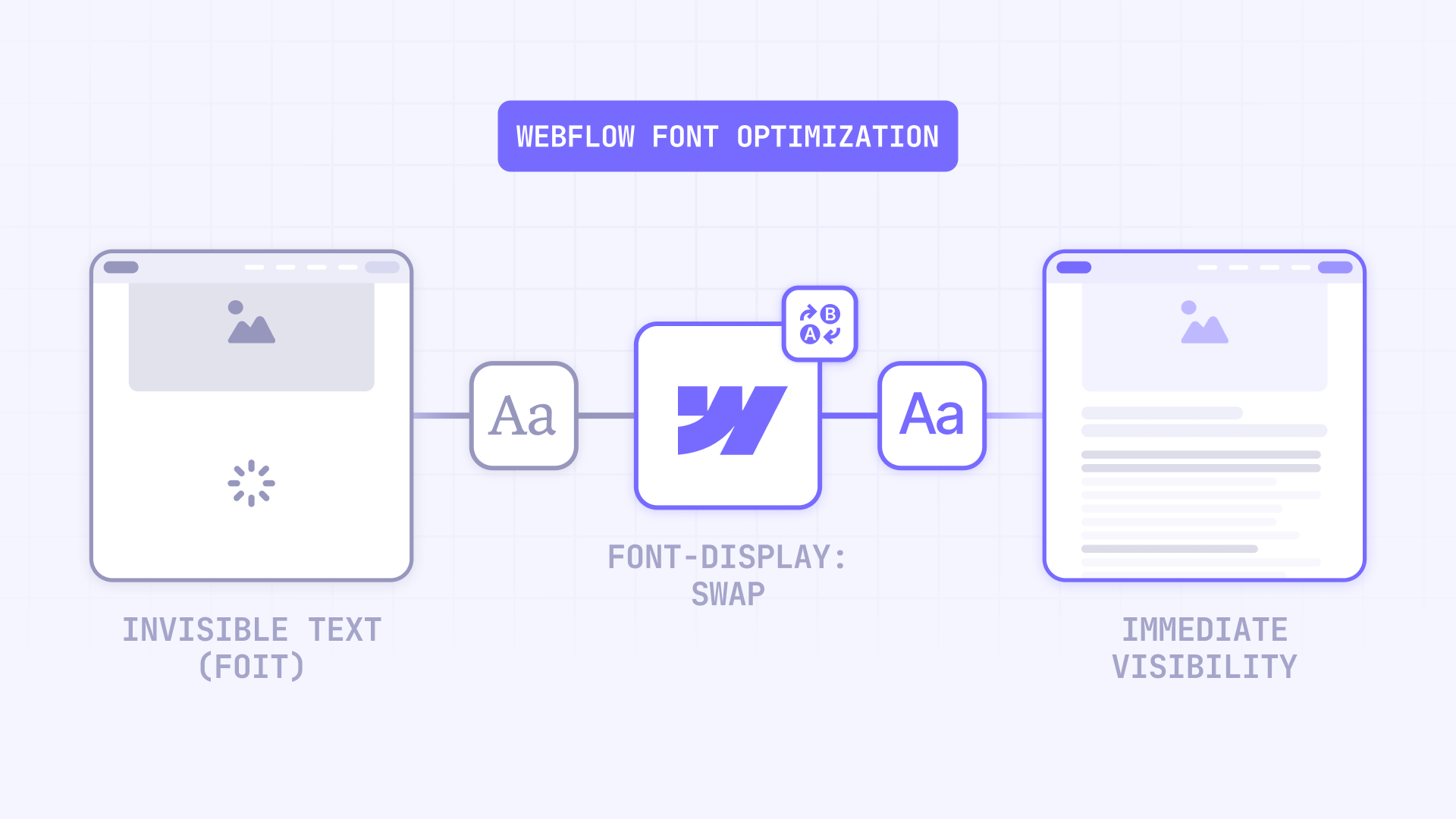
When a browser encounters a custom font in your CSS, it has a decision to make: what should I do while the font file downloads? By default, many browsers choose to hide the text completely until the font arrives. This behavior is called FOIT (Flash of Invisible Text).
FOIT vs FOUT explained simply
- FOIT (Flash of Invisible Text): Text is hidden until the custom font loads. This is what causes the "blank page" experience — and what Lighthouse is trying to prevent.
- FOUT (Flash of Unstyled Text): Text renders immediately using a fallback font (like Arial or Georgia), then swaps to the custom font when it's ready.
FOUT is almost always better for users. Yes, they might briefly see a different font, but at least they can read your content immediately. That's the tradeoff we want.
The solution: font-display
The font-display property tells the browser what to do while waiting for your font. Instead of hiding text, you can instruct it to show fallback text immediately.
Think of it as giving the browser a plan B: "If my custom font isn't ready, show the text anyway with whatever font you have available."
Understanding font-display values in Webflow
Before implementing, understand your options. The font-display property accepts several values, but these three matter most:
Swap
Swap shows fallback text immediately and swaps to the custom font whenever it arrives — even if that takes several seconds.
- Best for: Marketing sites where you want text visible instantly
- Tradeoff: Can cause noticeable layout shift if your fallback font has different metrics than your custom font
Optional
Optional gives the font a very short window to load. If it doesn't arrive almost immediately, the browser sticks with the fallback font for the entire page session — it won't swap later.
- Best for: Performance-critical pages where you prefer stability over perfect typography
- Tradeoff: Users might never see your custom font if their connection is slow
Fallback
Fallback is a middle ground — it gives the font a short block period (text invisible), then a swap period, then stops trying.
- Best for: When you want some FOIT tolerance but not infinite waiting
- Tradeoff: Still allows brief invisible text
Recommendation: Start with Swap for most Webflow sites. It eliminates invisible text completely. Only switch to Optional if you notice significant layout shift problems.
How to fix font-display for custom fonts uploaded to Webflow
This is the most straightforward case. If you've uploaded font files directly to Webflow, you can set font-display using native Webflow settings.
Setting font-display in Webflow project settings
- Open your project in the Webflow Designer
- Click the project name dropdown (top-left) and select Project settings
- Go to the Fonts tab
- Scroll to Custom fonts and find your font under Installed fonts
- Click Edit next to the font family or specific variant
- Find the Font display dropdown and select Swap (or Optional if you know why)
- Click Save
- Return to the Designer and click Publish to push changes live
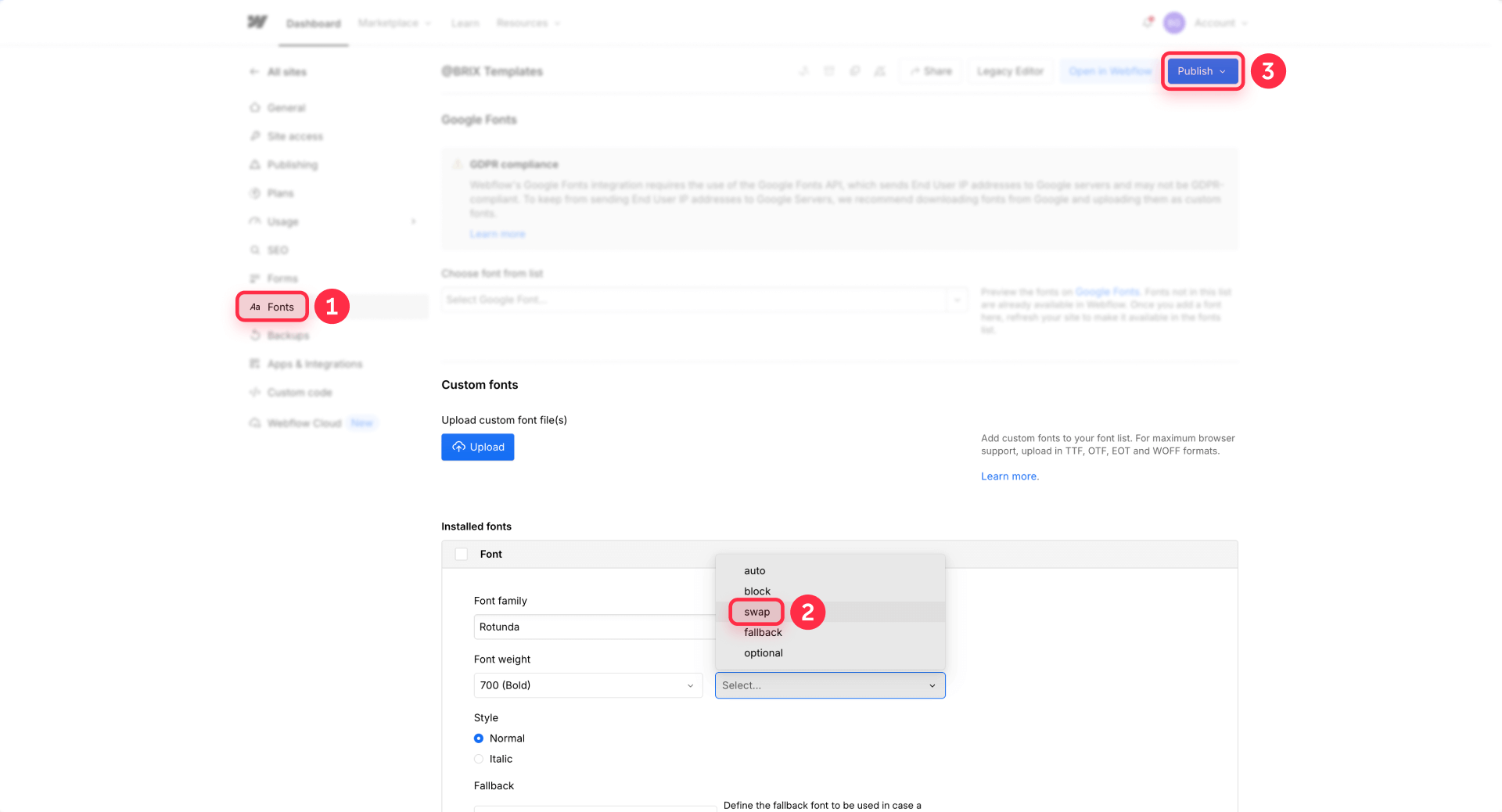
Important: If your design uses multiple weights or styles (Regular, Bold, Italic, etc.), repeat this for every variant you actually use. Setting it on one variant doesn't automatically apply to others.
Keeping Webflow fonts responsive after setting font-display
Setting font-display doesn't affect how your fonts look or scale — it only controls the loading behavior. Your typography will work exactly as before, just without the invisible text period.
How to fix font-display for Google Fonts in Webflow
This is where most people get stuck. Webflow's native font-display setting only works for custom uploaded fonts — not for Google Fonts added through Webflow's integration.
When you add a Google Font via Project settings → Fonts, Webflow loads it through a script called webfont.js. You don't have direct control over the font-display value in this setup.
The recommended fix: self-host the Google Font in Webflow
The cleanest solution is to download the Google Font and upload it as a custom font. This gives you full control.
- Note which Google Font you're using and which weights (Regular, Bold, etc.)
- Download the font files from Google Fonts — click the font, select your weights, and use the download button
- Convert to WOFF2 format if needed (use a tool like Font Squirrel Webfont Generator)
- Go to Project settings → Fonts → Custom fonts and upload your font files
- Rename the font family if it matches a common Google Font name (like Montserrat or Roboto) — this prevents Webflow from still trying to load it from Google
- Update your typography: use the Style panel to find every class using the old Google Font and switch to your uploaded version
- Remove the Google Font from Project settings → Fonts
- Publish your site
How to verify Google Fonts are no longer loading in Webflow
After publishing, confirm the Google Font loader is gone:
- Open your published site in Chrome
- Open DevTools → Network
- Refresh the page
- Search for webfont.js, fonts.googleapis.com, or fonts.gstatic.com
If any of these appear, you still have a reference to Google Fonts somewhere in your project. Check your styles again — even one class using the old font name will keep the loader active.
Alternative: control the Google Fonts link yourself
If you must use Google-hosted fonts, you can add your own link with display=swap — but this only works if you completely remove Google Fonts from Webflow settings first. This approach is also useful if you want to optimize your Webflow hosting bandwidth, since font files are served from Google's CDN instead of counting against your Webflow plan.
Add this to your Project settings → Custom code → Head code:
<!-- Google Fonts with font-display control -->
<link
  href="https://fonts.googleapis.com/css2?family=Roboto:wght@400;700&display=swap"
  rel="stylesheet"
/>
Replace Roboto and the weights with your actual font. The key is display=swap in the URL — this tells Google's CSS to include font-display: swap in the generated @font-face rules.
How to fix font-display for external fonts loaded via custom code
If your fonts are loaded through external CSS or a JavaScript-based font loader (like Adobe Fonts/Typekit patterns), Webflow's font settings won't help. You need to add font-display directly in the @font-face rule.
Adding font-display to a custom @font-face rule
If you control the @font-face declaration (in your own external CSS or Webflow's Head code), add font-display: swap directly:
/*!
 * BRIX Templates Custom Font Setup for Webflow
 * ----------------------------------------------------------------------------
 * Example @font-face with font-display to prevent invisible text (FOIT).
 * Replace the font-family, src, and other values with your actual font.
 *
 * Version: 1.0.0
 * Author: BRIX Templates
 */
@font-face {
  font-family: "YourFontName";
  font-style: normal;
  font-weight: 400;
  src: url("https://your-domain.com/fonts/your-font.woff2") format("woff2");
  font-display: swap; /* Prevents invisible text while font loads */
}
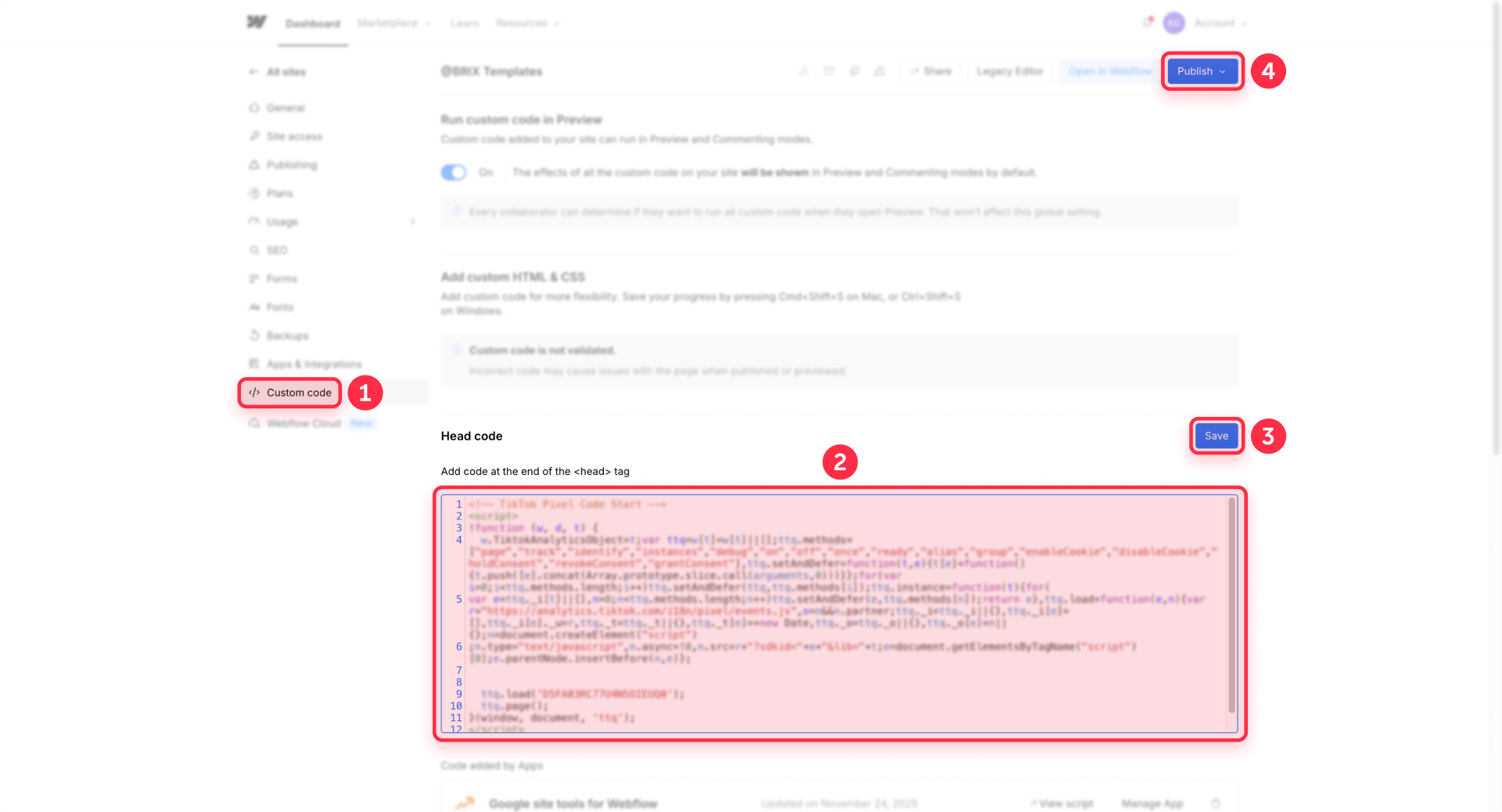
Where to add custom font code in Webflow
Site-wide (recommended):
- Go to Project settings → Custom code
- Paste your CSS into the Head code section (wrap it in <style> tags if it's CSS)
- Click Save changes
- Publish your site
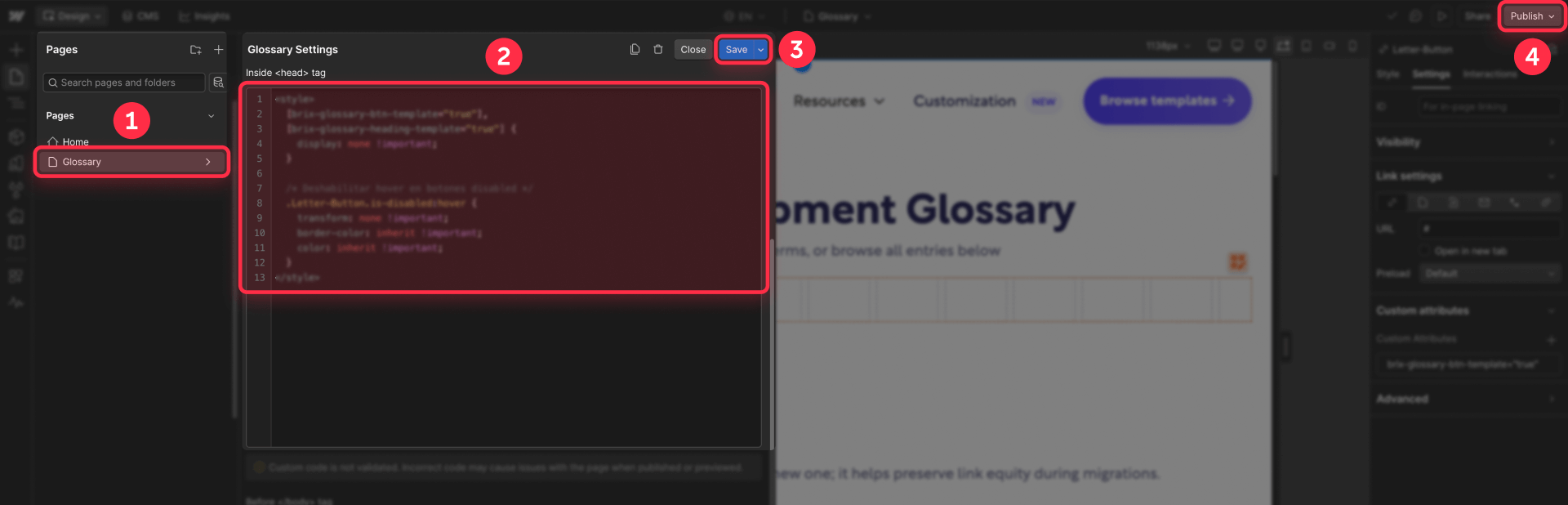
Page-level (only when needed for a specific page):
- In the Designer, open the page and go to Page settings
- Paste into Inside <head> tag
- Save and publish
How to fix font-display for icon fonts in Webflow
Icon fonts (Font Awesome, Bootstrap Icons, Material Icons, etc.) are a common reason the warning persists even after you fix your text fonts. They're loaded the same way as regular fonts, so they need font-display too.
Why icon fonts behave differently
With text fonts, Swap works great — users see fallback text, then it swaps. But with icon fonts, the "fallback" is usually empty squares or random characters, which looks broken. This makes icon fonts trickier to handle gracefully.
Option 1: Replace icon fonts with SVGs (recommended)
The cleanest solution is switching from icon fonts to SVG icons:
- Most icon libraries (Font Awesome, Heroicons, etc.) offer SVG versions
- In Webflow, use Embed elements for inline SVGs, or upload SVG files as images
- SVGs render immediately — no font loading, no invisible icons, no audit warnings
When you use inline SVGs via Embed elements, the icon code is part of your HTML — it doesn't add an extra network request, so there's no performance penalty to worry about.
This approach eliminates the problem entirely rather than just patching it.
Option 2: Add font-display to your icon font
If you must keep the icon font, ensure its @font-face includes font-display:
- Find how the icon font is loaded (external CSS, CDN link, or embedded styles)
- If you control the CSS, add font-display: swap to the @font-face rule
- If it's loaded from a CDN you don't control, check if the service offers a parameter (some do, some don't)
After applying the fix, test that icons don't visibly "pop" in a way that looks broken. If they do, SVGs are the professional solution.
How to verify your Webflow font-display fix worked
If you don't verify correctly, you'll waste time thinking your changes "didn't apply."
Real-world verification for Webflow fonts
- Publish your site — changes in the Designer don't go live until published
- Open the published page in an incognito/private window (avoids cached fonts)
- Open DevTools → Network and throttle to Slow 3G
- Reload and watch your text areas — do they render immediately, or do you see invisible text first?
If text appears right away (even in a fallback font that later swaps), your fix is working.
Using PageSpeed Insights to confirm in Webflow
After real-world testing:
- Run PageSpeed Insights on your published URL
- Check if the "Ensure text remains visible during webfont load" warning is gone
- If it persists, expand it to see which font URL is still being flagged — you might have fixed one font but missed another
Confirm font-display is in the published CSS
For custom fonts:
- Open your published site
- Open DevTools → Sources (or Network → find the CSS file)
- Search for your font name and find its @font-face block
- Confirm it includes font-display: swap (or your chosen value)
If the @font-face doesn't include font-display, your setting might not have published correctly, or the flagged font is coming from a different source.
Troubleshooting Webflow font-display issues
"I set font-display to Swap in Webflow, but PageSpeed still shows the warning"
The flagged font probably isn't the one you configured. Check the URL in the PageSpeed warning — is it your custom font, a Google Font, or an icon font? Each source needs its own fix.
"Webflow still loads Google Fonts even after I removed them in settings"
One class or tag somewhere still references that font family. Use the Style panel selector search to find every instance using the old font name, replace them, then publish again. Verify by checking that webfont.js no longer appears in DevTools Network.
"My text flashes with a different font before the custom font loads"
That's FOUT — and it's the expected behavior with Swap. If the flash is too noticeable, choose a fallback font stack that's closer to your custom font (similar x-height and width), or use Optional with preloading for critical fonts.
"The warning is caused by Font Awesome or another icon font"
Either add font-display to the icon font's @font-face rule, or switch to SVG icons. Icon fonts are largely a legacy approach at this point — SVGs give you better control and eliminate this class of problems entirely.
"Lighthouse says it can't automatically check my font-display value"
Some implementations (iframes, script loaders, cross-origin CSS) limit what Lighthouse can validate. Focus on the real UX outcome: do you ever see invisible text? Test manually with network throttling and trust what you observe.
Frequently asked questions about Webflow font loading
What does "Ensure text remains visible during webfont load" mean in Webflow?
This warning means Lighthouse detected that your fonts might cause FOIT — text stays invisible until the custom font downloads. Visitors see a blank page (or blank text areas) while waiting.
The fix is telling the browser to show fallback text immediately using font-display: swap or similar. Once you configure this correctly for all your fonts, text will always be readable — it might briefly appear in a different font before swapping, but that's far better than invisible content.
How do I set font-display swap for uploaded fonts in Webflow?
For custom fonts uploaded to Webflow, use the native setting. Go to Project settings → Fonts → Custom fonts, click Edit on your font, and set Font display to Swap. Save and publish.
This adds font-display: swap to the font's @font-face rule, so text renders immediately with a fallback font while yours loads. Repeat this for every weight and style you use — setting it on Regular doesn't automatically apply to Bold or Italic.
Why does the warning persist after I set font-display in Webflow?
Usually because the flagged font isn't the one you configured. Webflow sites often load fonts from multiple sources: your uploaded custom fonts, Google Fonts from the integration, icon fonts, and third-party embeds.
Check the exact URL in the PageSpeed warning. If it points to fonts.googleapis.com, you have a Google Fonts issue. If it points to Font Awesome's CDN, it's an icon font. Each source needs its own fix — the Webflow font-display setting only affects uploaded custom fonts.
How do I fix font-display for Google Fonts added through Webflow?
Webflow's Google Fonts integration loads fonts via webfont.js, and you can't directly control font-display in this setup. The cleanest fix is to self-host: download the Google Font, upload it to Webflow as a custom font, set font-display to Swap, update your typography to use the uploaded version, then remove the Google Font from settings.
After publishing, verify that webfont.js and fonts.googleapis.com no longer appear in DevTools Network. If they do, you still have a reference somewhere.
What's the difference between swap, optional, and fallback in Webflow?
These control how long the browser waits for your font before showing text. Swap shows fallback text immediately and swaps whenever the font arrives — best for most sites. Optional gives a tiny window, then sticks with fallback permanently — best for maximum stability. Fallback is a middle ground with a short invisible period then a limited swap window.
Start with Swap unless you notice significant layout shift when fonts swap in. In that case, try Optional combined with preloading your critical fonts.
Should I replace icon fonts with SVGs in Webflow?
Yes, in most cases. Icon fonts were popular years ago, but they create problems: font-loading delays, invisible icons during FOIT, accessibility issues, and this exact Lighthouse warning. SVGs render immediately, scale perfectly, and can be styled with CSS.
In Webflow, you can use Embed elements for inline SVGs or upload SVG files as images. Most icon libraries (Font Awesome, Heroicons, Feather) offer SVG options. The migration takes some work, but it eliminates font-loading problems for icons entirely.
Does fixing font-display affect how my fonts look in Webflow?
No. The font-display property only controls loading behavior — what happens while the font file downloads. Once loaded, your fonts render exactly as before. Your typography, sizing, spacing, and styling remain unchanged.
The only visible difference is what users see during loading: fallback text instead of invisible text. And once the font arrives, it swaps in and looks exactly as you designed it.
Why does my text flash with a different font before loading in Webflow?
That flash is called FOUT (Flash of Unstyled Text), and it's the intended behavior when using font-display: swap. The browser shows your fallback font immediately, then swaps to the custom font when it's ready.
If the flash is too noticeable, you can minimize it by choosing a fallback font with similar metrics to your custom font, or by preloading critical fonts so they arrive faster. But some FOUT is normal and far better than invisible text.
How can I verify that font-display is working on my Webflow site?
Test on the published site with network throttling. Open DevTools, throttle to Slow 3G, and reload. If text appears immediately (even in a fallback font), your fix is working. If text stays invisible for a moment, something's still wrong.
Then run PageSpeed Insights to confirm the audit passes. If it still warns, check which font URL is flagged — you might have fixed one source but missed another.
Does font-display affect my Webflow site's performance or SEO?
Font-display improves perceived performance — users see content faster, which feels faster even if actual load times are similar. This can reduce bounce rates and improve engagement signals.
For SEO specifically, fixing this warning helps your Core Web Vitals (Lighthouse uses it as an input), but the bigger benefit is user experience. Users who can read your content immediately are more likely to engage and convert.
Conclusion
Fixing the "Ensure text remains visible during webfont load" warning in Webflow comes down to one principle: give the browser a fallback plan. Set font-display to Swap so text renders immediately, even if your custom font takes a moment to load.
For custom fonts uploaded to Webflow, use the native Font display setting. For Google Fonts, self-host them to gain full control. For icon fonts, either add font-display or switch to SVGs. And always verify on the published site with network throttling — not just in PageSpeed reports.
The goal isn't a perfect audit score — it's making sure your visitors can read your content the moment they arrive.
If you'd like help optimizing font loading and typography performance across your Webflow site, our team can handle the implementation efficiently.









Join readers commenting on this post!