

Your recruiting team opens and closes roles in Lever, but your branded careers page lives in Framer — and the moment someone copies a job title across by hand, the page starts going stale. Every requisition change turns into a marketing ticket.
Lever's public Postings API fixes that by exposing your published jobs without authentication, so Framer can read them. This guide covers three Framer-compatible ways to use that data: render jobs directly with Framer Fetch, sync them into the Framer CMS with Make CMS Sync (the main method), or build a custom scheduled sync with the Framer Server API (the robust, advanced route).
Why a Lever-powered careers page matters for Framer sites
A careers page is one of the most frequently outdated pages on a company site, usually because the ATS and the page builder are two different systems. Connecting Lever directly to Framer fixes that. The main benefits:
- No more manual copy-paste: every job title, location, and department already lives in Lever, so a new role can appear on the page without someone pasting it across by hand.
- Stays accurate on each sync run: when a role is closed or a posting changes in Lever, the page follows on the next scheduled sync instead of drifting out of date.
- Filtering by department and location: Lever's structured categories map onto Framer CMS fields, so candidates can narrow "Engineering — Remote" roles without rebuilding the data by hand.
- A clean application flow: candidates still apply through Lever, so recruiting keeps a single attributable funnel while marketing controls the branded Framer page.
- Clear team ownership: recruiting manages roles in Lever, marketing manages the page in Framer, and neither team has to touch the other's tool to stay in sync.
Three ways to use Lever jobs in Framer
There are three practical ways to connect Lever job data to a Framer careers page:
- Method 1 — Front-end rendering: use Framer Fetch or an Embed/custom script to read Lever's public Postings API and render job cards directly on the page. Best for a simple live listing or proof of concept.
- Method 2 — Framer CMS sync with Make CMS Sync: use Make and the Make CMS Sync plugin to turn Lever jobs into Framer CMS items. Best for CMS-powered job pages, filtering, slugs, and stronger editorial control.
- Method 3 — Framer Server API: build a custom scheduled sync for production-grade automation, logs, retries, publishing control, and closed-role handling.
This guide focuses on Method 1 as the quick front-end option and Method 2 as the main no-code/low-code CMS workflow. Method 3 is the advanced custom route.
What Lever's public Postings API provides
Lever's public Postings API (the unauthenticated v0 endpoint) is designed for building job sites, and it returns the jobs Lever has already made public without requiring an API key. The fields you'll use:
- id → the posting ID.
- text → the job title.
- categories.department, categories.team, categories.location, categories.allLocations, and categories.commitment.
- workplaceType → a top-level field for remote, on-site, or hybrid.
- description and descriptionPlain → the full and plain-text descriptions.
- lists → structured content sections (responsibilities, requirements, benefits).
- hostedUrl and applyUrl → the Lever-hosted job page and the application link.
- Optional salary / compensation fields, when the employer exposes them.
Two boundaries matter. First, workplaceType is a top-level field, not part of categories. Second, state, distributionChannel, and updatedAt belong to Lever's authenticated/internal API flows — not the public Postings API. The public endpoint is enough for showing published jobs on a careers page; it already returns only published postings.
Method 1 — Show Lever jobs in Framer with Fetch or an Embed
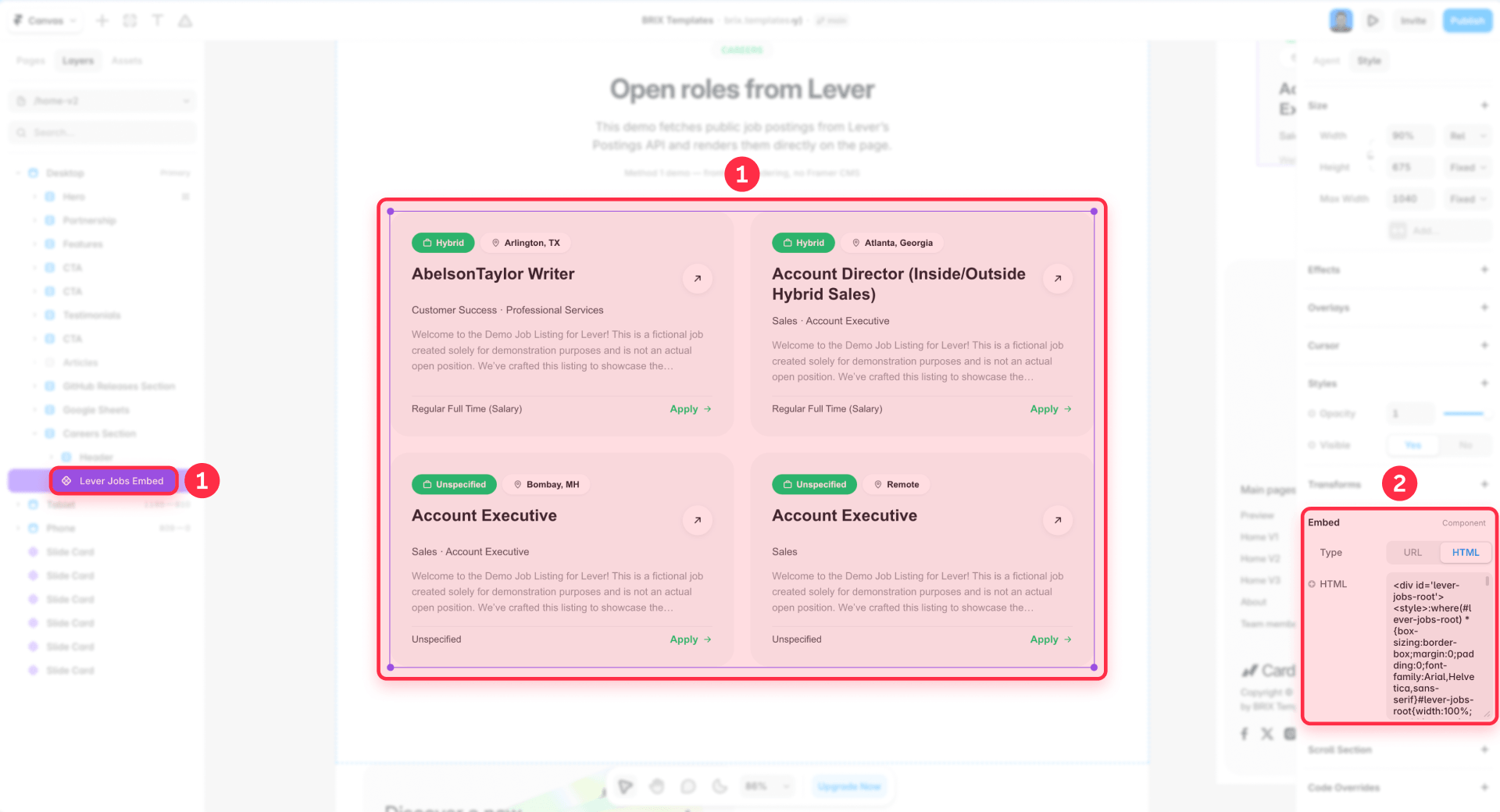
This is the quickest way to get Lever jobs onto a Framer page. Nothing is saved to Framer CMS, and there is no Make scenario in the middle. The page simply reads Lever's public jobs endpoint and renders the current openings as cards.
To get the API URL, start with the company's public Lever careers page:
https://jobs.lever.co/company-name
Then use the same company slug in Lever's public JSON endpoint:
https://api.lever.co/v0/postings/company-name?mode=json
For example, if the careers page is https://jobs.lever.co/acme, the JSON endpoint is:
https://api.lever.co/v0/postings/acme?mode=json
In Framer, use Fetch when the setup is simple, or use an Embed/custom script when you need more control over the card layout, loading state, error state, or fallback link. The cards can use Lever fields like text for the job title, categories.department, categories.location, categories.commitment, workplaceType, and applyUrl.
This method works well for a simple live jobs list or a quick proof of concept. You still need to style the cards so they match the Framer site.
In practice, Method 1 is the right choice when the team mainly needs a clean, always-fresh list of open roles and does not need to manage those jobs inside Framer. It is fast to set up, easy to test, and keeps Lever as the only source of truth. For teams that just need a branded careers section with Apply links back to Lever, this may be enough.
If you need CMS items, individual job pages, SEO-friendly URLs, or stronger control over updates and closed roles, use Method 2 instead. For a broader look at how the platform handles search, see our guide on whether Framer is good for SEO.
Method 2 — Sync Lever jobs into Framer CMS with Make CMS Sync
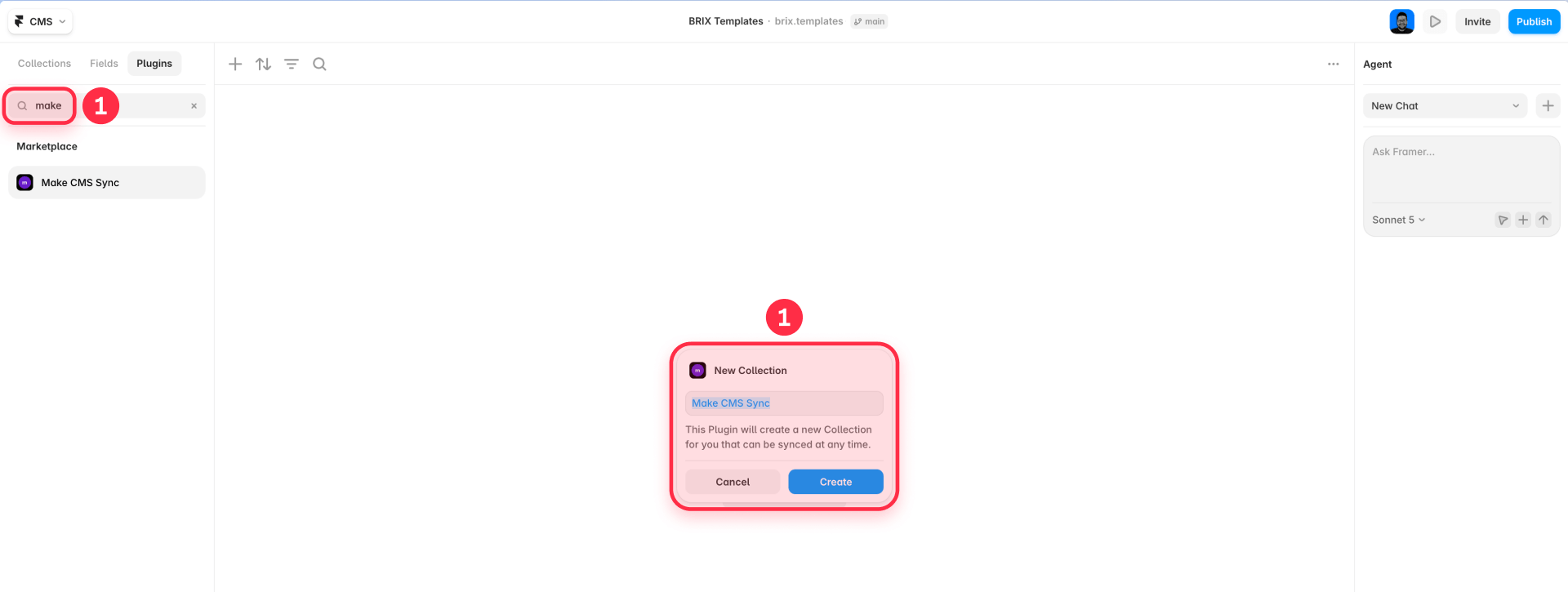
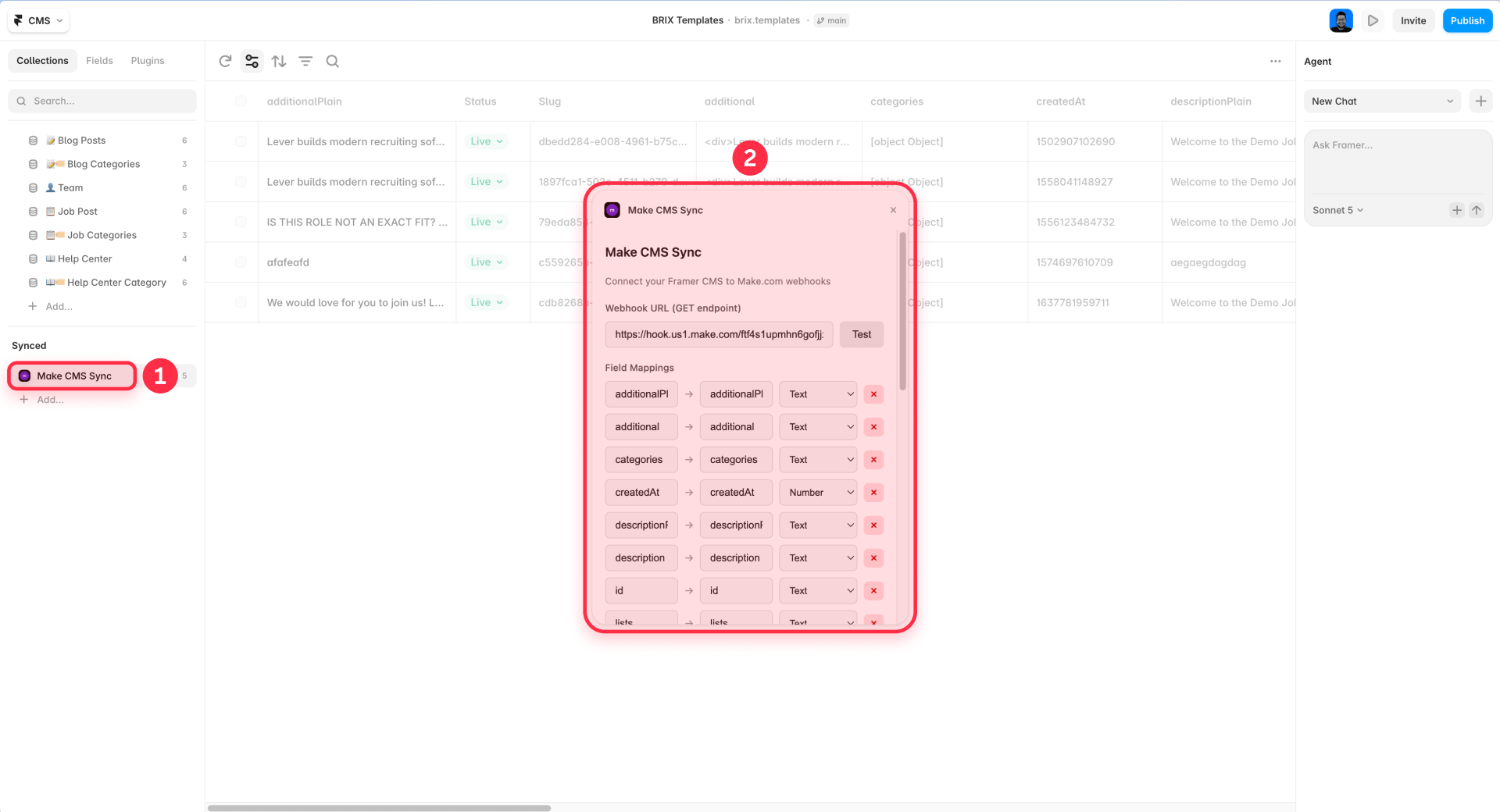
In Method 2, the jobs are not rendered directly from the page. Make sits between Lever and Framer. It reads the company's public jobs from Lever, maps the important fields, and sends them to Framer through Make CMS Sync. The plugin then creates or updates a synced collection in Framer, which you can use to design the careers section. Make CMS Sync needs a Framer plan that includes the CMS — our Framer pricing plans break down the options.
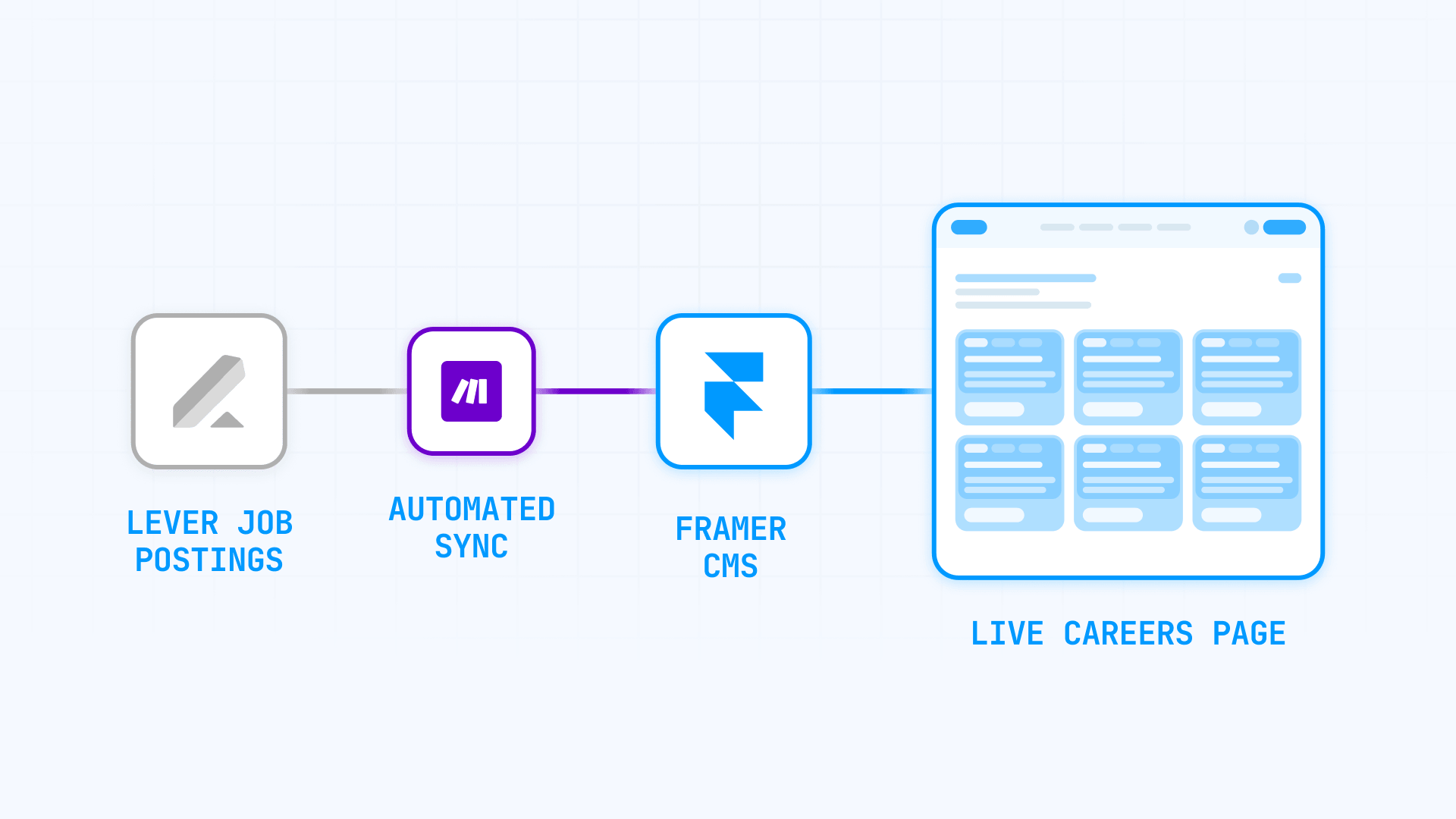
The flow is: Lever public Postings API → Make scenario → Make CMS Sync → Framer synced collection → Framer careers page.
What Make does
Make does three main things:
- Fetches the company's public jobs from Lever: https://api.lever.co/v0/postings/company-name?mode=json
- Maps the fields the Framer page needs.
- Sends those fields to Make CMS Sync, so Framer receives them as CMS items in a synced collection.
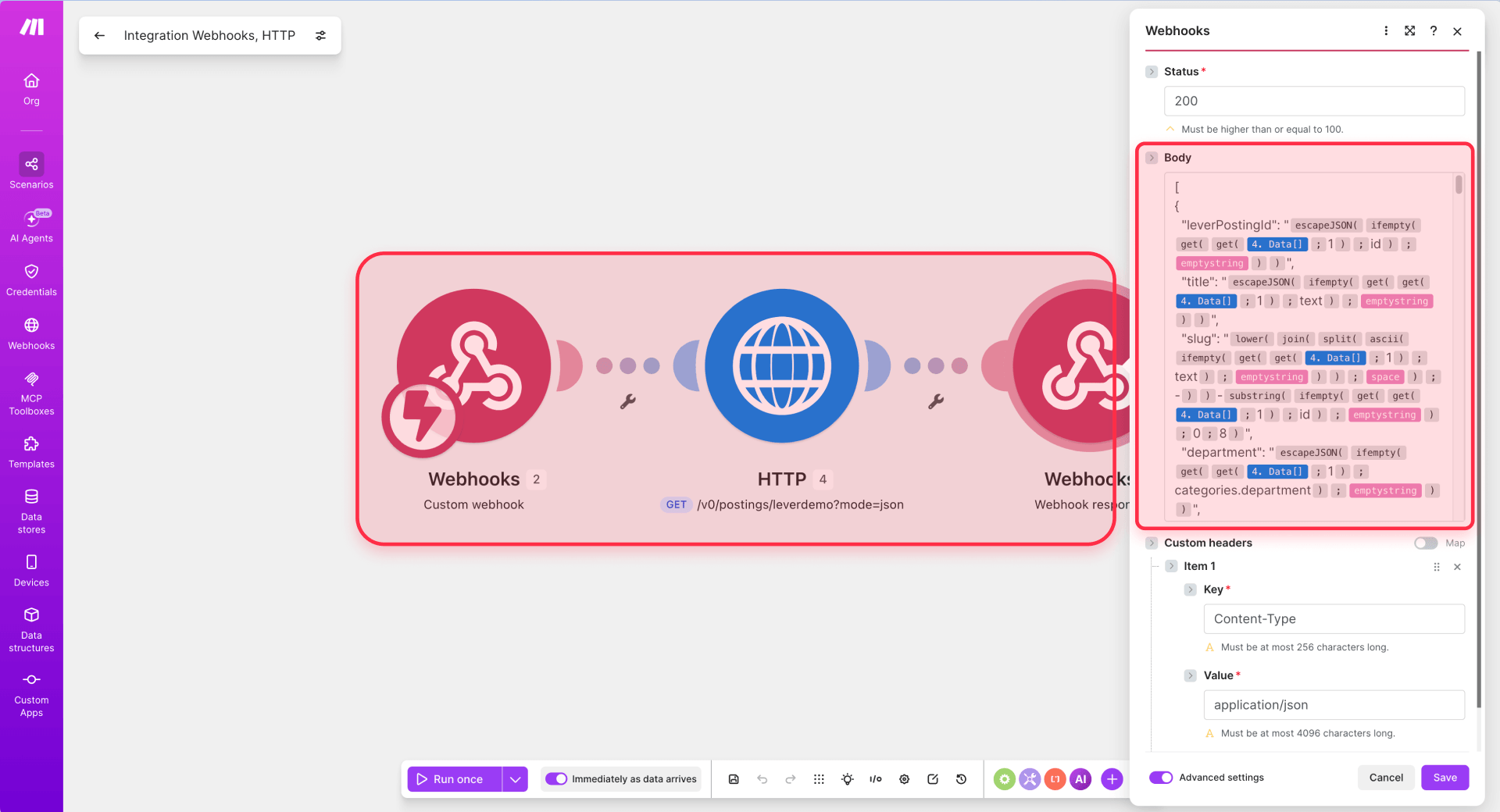
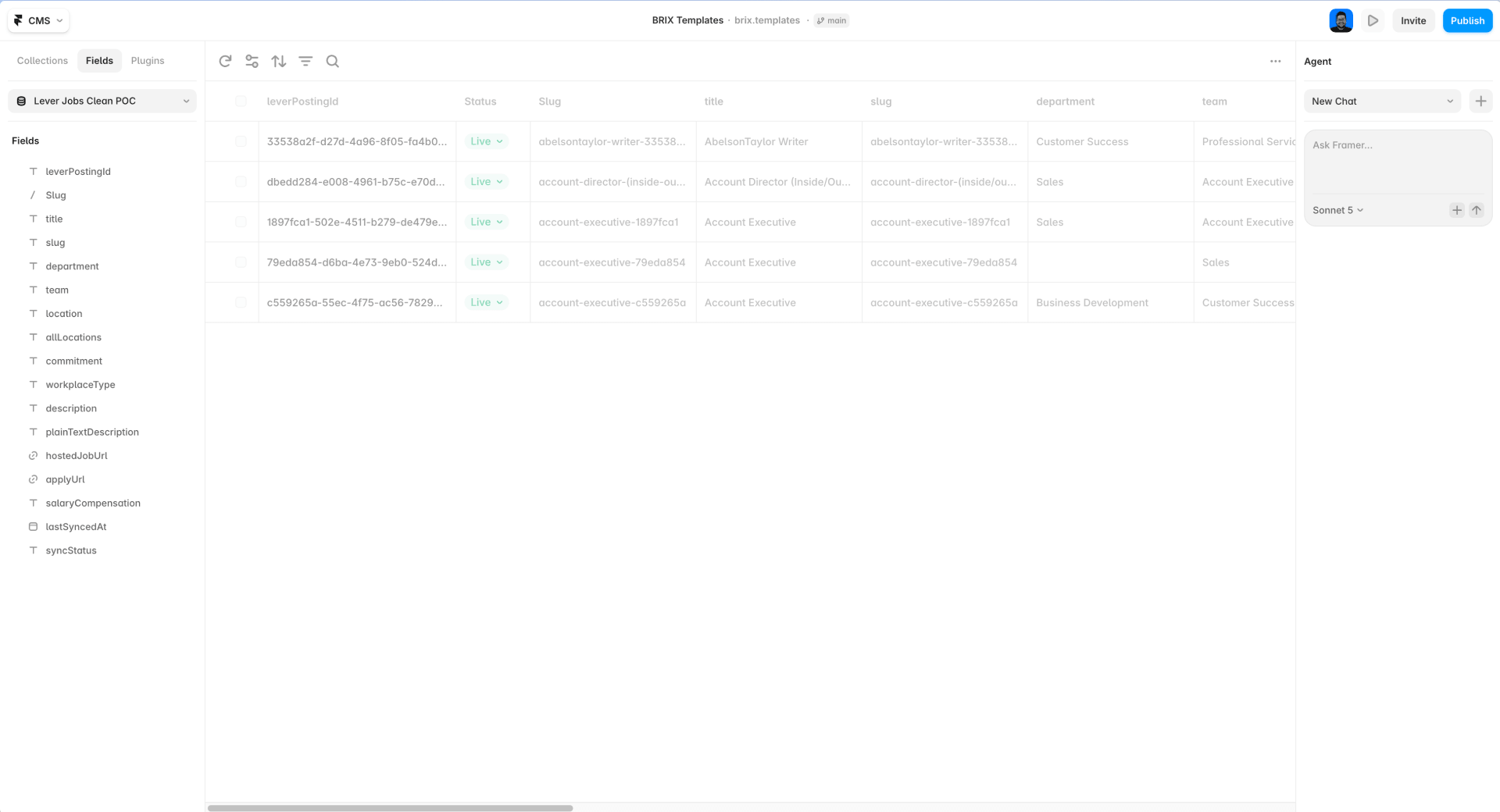
For a simple careers section, you do not need to send every field Lever provides. Start with the fields the design actually uses:
- leverPostingId
- title
- department
- location
- commitment
- workplaceType
- applyUrl
You can also send optional fields like team, description, plainTextDescription, salaryCompensation, hostedJobUrl, or lastSyncedAt if the page design needs them.
The important part is to send clean, flat fields. Do not send the raw categories object directly. Instead, map values like categories.department, categories.location, and categories.commitment into separate fields before they reach Framer.
What happens in Framer
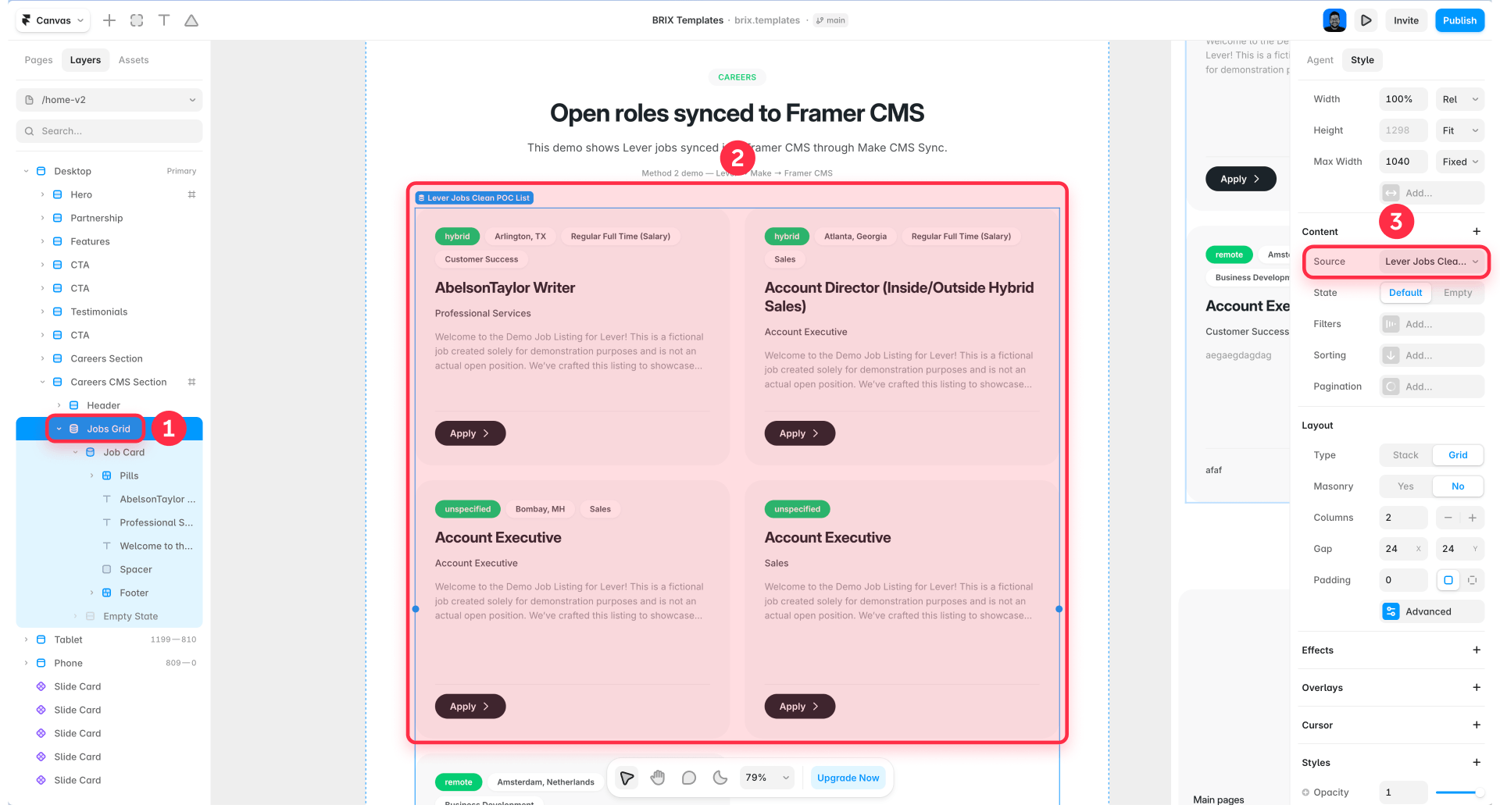
Once Make CMS Sync creates the synced collection, the rest is normal Framer design work. Build a careers section, connect the cards to the synced collection, and map the fields into the design: title, tags, location, commitment, and Apply button.
The Apply button should use the applyUrl field, so candidates still apply in Lever.
For production
For a proof of concept, this is enough: you can show that Lever jobs become Framer CMS items and can be displayed on a Framer page.
For a real client site, the sync should also avoid duplicates, update existing jobs, and handle closed roles. Keeping that workflow reliable over time is part of ongoing Framer maintenance; if the setup needs that level of reliability, the BRIX Templates team can help configure the full Lever-to-Framer workflow.
Advanced method — Build a scheduled sync with Framer Server API
Method 3 is the advanced custom route, and it does not rely on Make CMS Sync. It uses the Framer Server API for a fully automated, production-grade sync with logs, retries, strict create/update/remove logic, content cleanup, and publishing control.
The flow is: scheduled job or serverless function → Lever public Postings API → Framer Server API → Framer CMS → publish or update the site.
Reach for it when the company has many jobs, the sync must run automatically without manual plugin interaction, and you need monitoring, error handling, or controlled publish and deploy behavior. This is where a simple no-code flow stops being enough. If you need this level of reliability, BRIX can design the Framer careers page and build the scheduled Lever-to-Framer Server API sync end to end.
Common issues when connecting Lever to Framer
- Using the wrong Lever API: the public Postings API is for published jobs; state, distributionChannel, and updatedAt live in the authenticated API.
- Assuming a native Lever plugin exists: there's no dedicated Lever plugin for Framer — use Fetch, Make CMS Sync, a generic CMS sync plugin, or the Server API.
- Using Fetch when you need CMS job pages: Fetch renders a list; it doesn't give you CMS items or detail pages.
- Not comparing missing Lever IDs: closed roles stay live unless the sync compares current IDs against existing CMS items.
- Messy HTML descriptions: clean Lever's HTML to useful tags before it lands in the rich-text field.
- Broken apply URLs: bind every apply button to the applyUrl field, not a hardcoded link.
- CORS issues with front-end rendering: test Fetch on the real company domain, not just staging.
- Exposing private API keys in client-side code: keep any authenticated-API tokens server-side only.
- Forgetting loading/error/fallback states: a failed Fetch should never leave the page blank.
- Overestimating sync plugins: closed-role handling may need extra setup depending on the plugin.
Frequently asked questions about Lever and Framer careers pages
Can I build a Framer careers page with Lever jobs?
Yes. You can render public Lever postings directly with Framer Fetch or a code component, sync them into the Framer CMS through a plugin workflow like Make CMS Sync, or build a scheduled sync with the Framer Server API. Fetch is the fastest; CMS sync gives you individual job pages and structured content; the Server API is the most robust for high-volume teams.
Does Lever's public Postings API require an API key?
No, not for published public postings. The public endpoint is unauthenticated by design, so Framer Fetch or a sync layer can read published jobs without credentials — which is exactly why it's safe to call from the browser. The authenticated API is separate and covers internal fields like state and distributionChannel, which the public endpoint doesn't expose.
Is there a native Lever plugin for Framer?
At the time of writing, we couldn't find a dedicated Lever plugin in Framer's Marketplace. Use Framer Fetch for a simple list, Make CMS Sync for the recommended CMS workflow, a generic CMS sync plugin like AnySync or CMS Data Sync, or the Framer Server API for a custom scheduled sync. Confirm current Marketplace options before building, since Framer's plugin ecosystem changes.
Should I use Fetch or Framer CMS?
Use Fetch for a simple, live job list where you don't need individual job pages. Use the Framer CMS when you want CMS items, dedicated detail pages, better design control, filtering, and more structured content. If SEO for individual roles or editorial control matters, the CMS path is the stronger choice.
Is Make required?
No, but it's the recommended no-code/low-code path here because the Make CMS Sync plugin sends content straight to Framer collections and Make handles the arrays, iteration, and branching this workflow needs. Alternatives include AnySync, CMS Data Sync, or a custom Server API sync — but Make is the easiest starting point for most teams.
Should applications happen in Framer or Lever?
Usually in Lever. Framer should present the job; Lever should handle the actual application flow through applyUrl. That keeps recruiting data, attribution, and candidate consent inside the ATS. Only run applications in Framer if you have a separate, approved custom application system with its own secure backend.
How do I remove closed roles?
Compare the current Lever posting IDs against the jobs already synced into Framer, then hide, remove, or mark inactive any Framer job whose Lever ID no longer appears. Looping only through current Lever jobs catches new and changed roles but misses closed ones — the ID comparison against existing CMS items is what detects removals.
When should I contact BRIX Agency?
When you need a production-grade sync using the Framer Server API — custom scheduling, retries, logs, content cleanup, reliable closed-role handling, or a fully designed Framer careers page. For those requirements, our experienced Framer development team can build and maintain the integration end to end.
Conclusion
Connecting Lever to a Framer careers page turns your ATS into the single source of truth and lets Framer present a branded, filterable recruiting experience that stays aligned with Lever on each sync. For most teams, Method 2 — Make CMS Sync is the right balance of Framer-compatible structure and no-code simplicity; Fetch works for a quick list, and the Server API is the robust custom route for high-volume or high-reliability needs.
The BRIX Templates team builds and maintains Framer sites for recruiting, marketing, and product teams. If you'd rather skip the trial and error on a Lever careers page, our experienced Framer development team can set it up for you, or you can compare the best Framer agencies for the right fit.








Join readers commenting on this post!