
Framer CMS pages are great for blogs, case studies, portfolios, changelogs, and resource libraries. But without previous and next links, every CMS detail page can feel like a dead end.
The good news is that Framer now includes native Previous and Next CMS links, so you do not need custom code, manual fields, or old code override hacks to connect your CMS items.
In this tutorial, you'll learn how to add previous and next links to a Framer CMS page, style them properly, handle first and last item edge cases, and understand when native links are enough versus when you may need a different structure for categories or filtered navigation.
Why previous and next links matter in Framer CMS
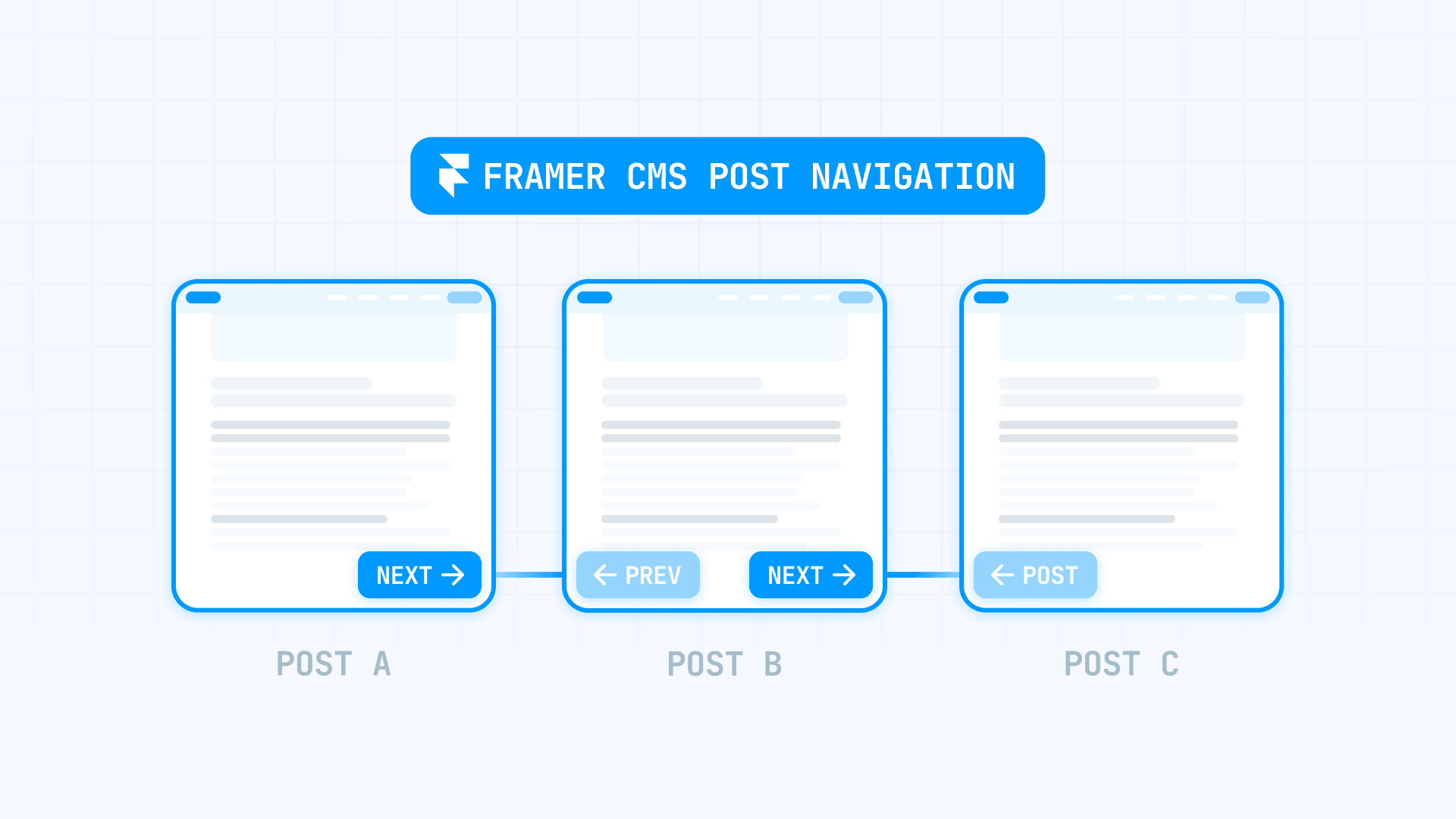
Previous and next links give visitors a clear path between CMS items instead of leaving them at a dead end after each page.
- Better content discovery. Readers finishing an article get a natural next step instead of going back to an index page.
- Cleaner navigation. Visitors browsing portfolios, case studies, or resource libraries can move between items without leaving the detail page.
- Improved internal linking. Search engines can follow previous and next links to discover and crawl related CMS pages more easily.
- Zero maintenance. Once set up, every CMS item connects to its neighbors automatically — no manual link updates when you publish new content.
- Reduced bounce rates. Visitors stay on your site longer when they have a clear path to more content.
It is worth being honest about SEO: previous and next links can improve internal linking and help search engines discover related content, but they do not guarantee better rankings or sitelinks. Think of them as a clean navigation pattern, not an SEO trick.
The old way vs. the current Framer way
Older tutorials often suggested manual previous and next CMS reference fields, hidden CMS lists, custom code overrides, duplicated components, or hardcoded URLs. These approaches worked, but they added complexity and broke easily when CMS items were reordered or new items were published.
The safer current method is to use Framer's native Previous and Next CMS links. These are built into the CMS detail page system and connect the current item to its neighboring item automatically.
If you only need basic previous and next navigation between CMS items, start with Framer's native feature instead of custom code. It is simpler, more reliable, and does not break after Framer updates.
How Framer's native Previous and Next CMS links work
Previous and Next links are available inside CMS detail pages. They connect the current CMS item to its neighboring item based on the collection's sort order. You insert them from Framer's Fields menu, style them visually like normal Framer elements, and use them for blog posts, portfolio projects, case studies, and other CMS collections.
These links are not the same as a normal static link. They depend on the CMS detail page context — they only work on a CMS detail page, not on a static page or a CMS list page. They should be tested on the first, middle, and last CMS items to make sure they behave as expected.
Before you add the links: check your CMS structure
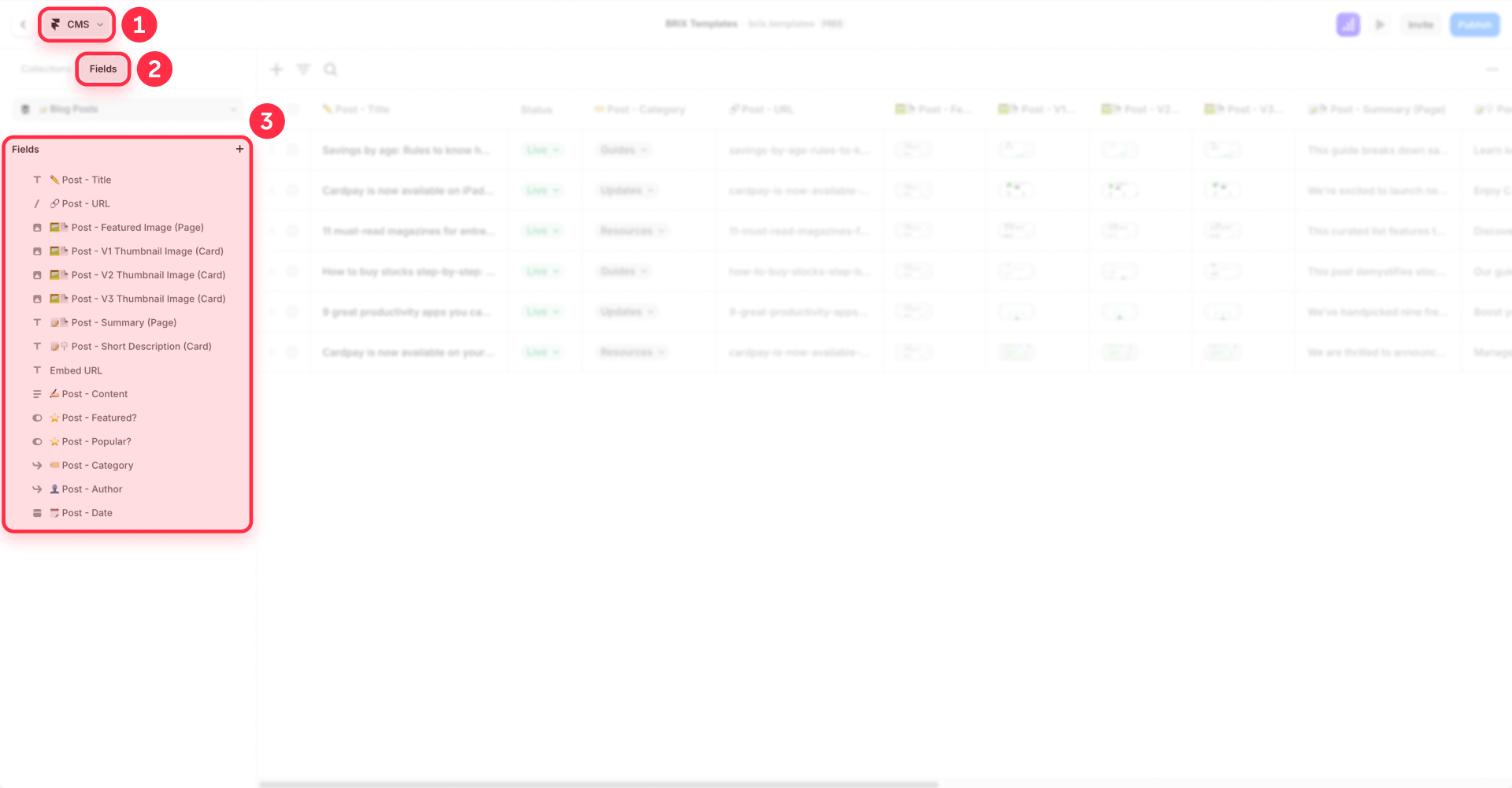
Before adding navigation, make sure your CMS collection has the basics in place:
- Title field — the name of each item.
- Slug field — used for the URL.
- Publish date or order field — determines the sequence.
- Featured image — optional, but useful for visual navigation cards.
- Category or tag field — optional, helpful if you plan to add related content sections later.
- A working CMS detail page — the page template where each item renders.
- Published CMS items — you need at least three items to test previous, middle, and next behavior.
A clean CMS structure makes the navigation easier to understand and debug. If your collection is missing any of these fields, add them before proceeding.
Step-by-step: adding Previous and Next links to a Framer CMS page
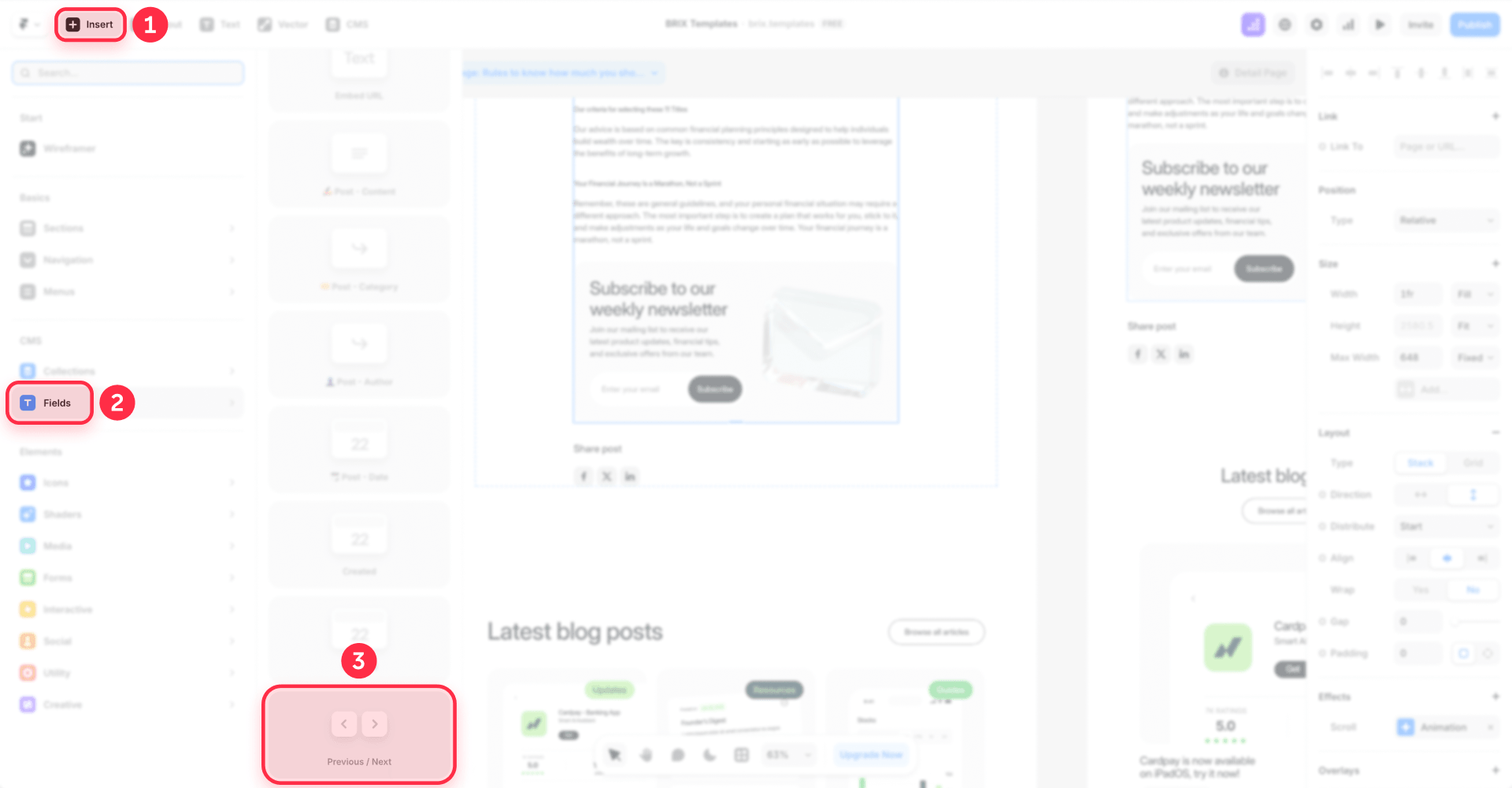
- Open the CMS detail page in the Framer editor.
- Click Insert in the top-left menu.
- In the left panel, go to the CMS section and select Fields.
- Scroll to the bottom of the fields list to find Previous/Next — identified by the < > icons.
- Drag or select the Previous link field and the Next link field to place them on your page.
- Style them as you prefer — buttons, cards, text links, or with thumbnail images of the neighboring CMS item.
Designing the previous and next navigation section
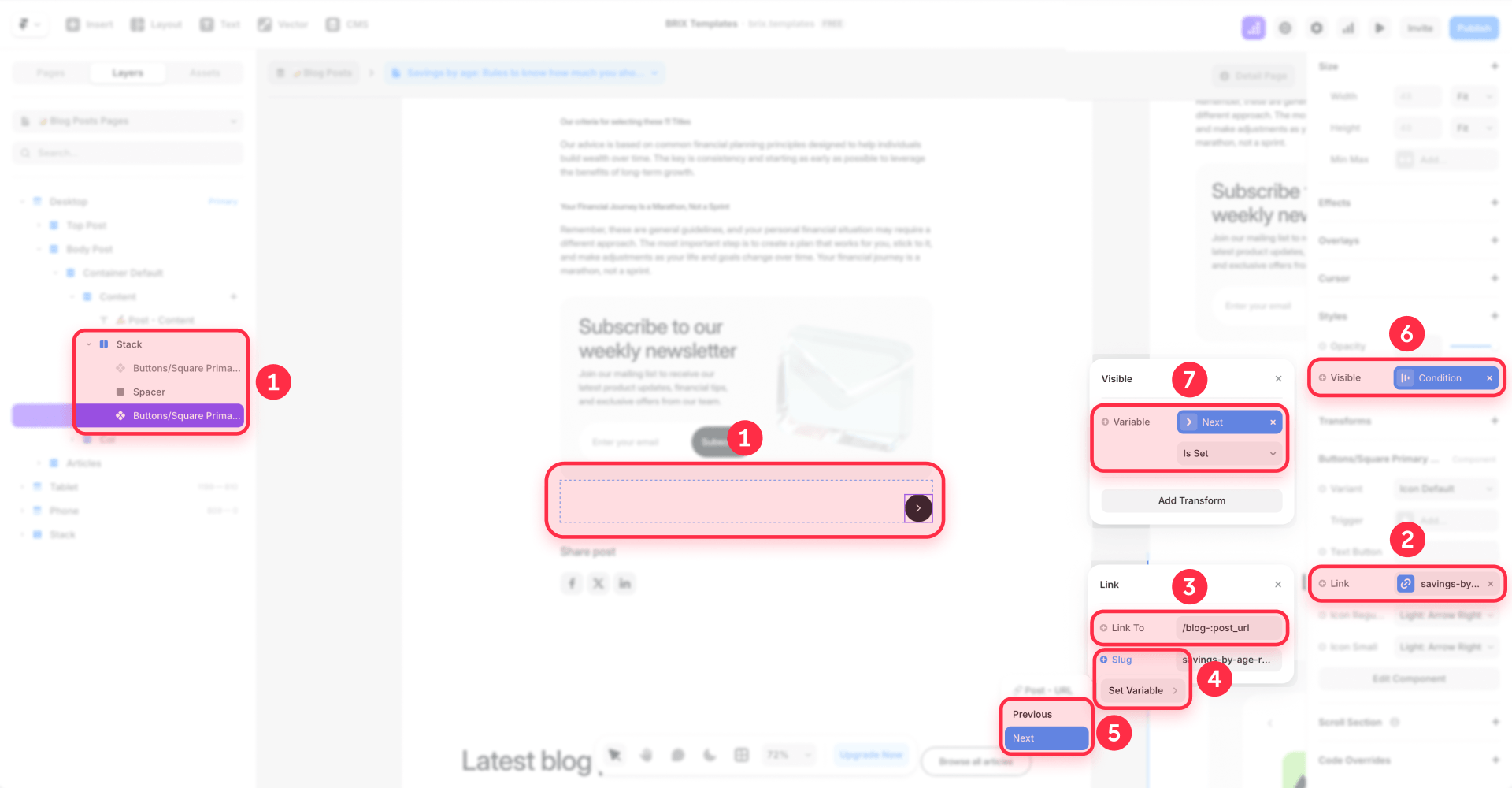
How you style the navigation depends on your content and design. Common options include two side-by-side cards with thumbnails, minimal text links, or stacked cards for mobile.
The important thing is to keep the layout clear, test it across desktop and mobile, and make sure each link shows enough context — like the post or project title — so visitors know where they are going. If your card layouts have alignment issues, see our guide to fixing uneven card heights in Framer grids.
Need help designing a polished navigation section? Get in touch with BRIX Templates and we will help you set it up.
How to handle the first and last CMS item
The main edge case with previous and next navigation is the first and last CMS item. The first item in the collection may not have a previous item to link to. The last item may not have a next item.
There are several ways to handle this:
- Hide the empty card — if there is no previous item, hide the previous card entirely. Show only the next card. Same for the last item in reverse.
- Show only the available link — keep the layout symmetrical by showing one card when only one neighbor exists.
- Add a fallback link — instead of leaving a gap, show a link back to the blog index, portfolio overview, or main collection page. For example: "← Back to all articles."
- Avoid broken URLs — never send users to an empty or broken URL. Test the first and last items specifically.
For a detailed walkthrough on handling empty CMS elements, see our guide to hiding empty CMS sections on your Framer website.
Advanced navigation options
Can I loop the last CMS item back to the first?
Native Previous and Next links connect items sequentially — they are not designed for infinite looping from the last item back to the first. For most sites, a strong link back to the blog or portfolio index on the last item works better than forcing a loop.
Can previous and next links stay inside the same category?
Native links connect items based on the overall collection order, not by shared categories or tags. If category-specific navigation is critical for your site, a "Related posts" section filtered by category is usually more reliable. If you're building more complex CMS navigation, our guide to creating filters in Framer CMS walks through the process step by step.
If you need looping navigation, category-based filtering, or a custom CMS flow, get in touch with BRIX Templates and we can help you build it.
How Framer decides the order of CMS items
Previous and next links depend entirely on the order of CMS items in the collection. Several things can affect the perceived order:
- Publish date — the most common sort method.
- Manual CMS order — if you drag items into a specific position.
- Sort field — a custom field used for ordering.
- Collection setup — how the collection was originally configured.
- Draft vs. published state — draft items are usually excluded from navigation.
To verify the order is correct, test these scenarios:
- Test the newest item — does "next" behave as expected?
- Test an item in the middle — do both previous and next work?
- Test the oldest item — does "previous" behave as expected?
- Reorder CMS items and check if the navigation still makes sense.
- Publish a new item and verify where it appears in the sequence.
Why you should avoid old code override hacks
Old tutorials may recommend custom code overrides to read all CMS items, detect the current page, calculate the next and previous item manually, create looping behavior, or filter by category.
This is no longer the best default approach. Framer now has a native Previous and Next CMS feature that handles the basic use case without any code. Direct CMS access through old override methods is not a reliable long-term solution — code overrides can break after Framer updates, add unnecessary complexity for a simple navigation feature, and create maintenance burden for non-technical team members.
Use code only when you have a very specific advanced requirement that the native feature cannot handle. For normal blog, project, or case study navigation, the native CMS links are the safer choice.
SEO considerations for previous and next CMS links
Previous and next links create internal links between CMS detail pages. They help users discover more content. They may help search engines crawl related content paths. They reduce isolated CMS pages and support better site architecture.
However, they are not an SEO trick. They do not guarantee better rankings, special search result features, or sitelinks. The value is in creating a clean internal linking pattern that supports navigation and crawlability.
Previous and next links are best understood as a user experience improvement that also happens to be good for SEO — not the other way around. For a broader look at how Framer handles technical SEO across your site, see our analysis of whether Framer is good for SEO.
Troubleshooting common issues with Previous and Next links in Framer
- Previous/Next fields do not appear in the insert menu. You are likely on a static page instead of a CMS detail page. Previous and Next fields only work inside CMS detail page templates — open the detail page for your collection and try again.
- Links point to the wrong CMS items. The navigation order depends on your collection's sort setting. Check your collection's sort field in the CMS settings — the most common sort method is publish date, but manual order or a custom field can change the sequence.
- First or last item shows an empty or broken link. The first item has no previous neighbor and the last item has no next neighbor. Hide the empty side entirely, or add a fallback link back to your blog or portfolio index page.
- Links disappear or overlap on mobile. Side-by-side card layouts can break or overflow on small screens. Stack the previous card above the next card and make both full-width for a mobile-friendly layout.
- Clickable elements nest inside each other. Do not place a link inside another link — this breaks accessibility and browser behavior. Make sure the Previous and Next link components are separate, independent clickable elements.
Frequently asked questions about Previous and Next links in Framer CMS
How do I add Previous and Next links in Framer without code?
Open your CMS detail page in the Framer editor, click Insert in the top-left menu, go to the CMS section, select Fields, and scroll to the bottom to find the Previous/Next option with the < > icons. Drag or select both fields to place them on your page, then style them as buttons, cards, or text links.
Do Previous and Next links work on all Framer CMS collections?
Yes. Previous and Next links work on any Framer CMS collection that has a detail page set up — blogs, portfolios, case studies, changelogs, resource libraries, and more. As long as the content lives in a Framer CMS collection with a detail page template, you can add sequential navigation.
What happens to Previous and Next links on the first and last CMS item?
The first item in the collection has no previous neighbor, and the last item has no next neighbor. You should handle these edge cases by hiding the empty link, showing only the available link, or adding a fallback link back to the main blog or portfolio index page.
Can Framer Previous and Next links filter by category?
No. Native Previous and Next links connect items sequentially based on the collection's overall sort order, not by shared categories or tags. If category-specific navigation is important for your site, a "Related posts" section filtered by category is a more reliable solution.
Do Previous and Next CMS links help with SEO?
Previous and next links support internal linking and content discovery between CMS pages, which can help search engines crawl your site more effectively. However, they do not guarantee better rankings, special search features, or sitelinks. Think of them as a good navigation practice that also supports crawlability.
Why are my Previous and Next links not showing in Framer?
The most common reason is that you are on a static page or a CMS list page instead of a CMS detail page. Previous and Next fields only appear inside CMS detail page templates. Open the detail page for your collection and check that the fields are inserted correctly.
Can I customize the design of Previous and Next links in Framer?
Yes. Once inserted, Previous and Next links behave like normal Framer elements — you can style them as text links, buttons, cards with thumbnails, or any layout that fits your design. You can connect them to the neighboring item's title, featured image, or other CMS fields for richer navigation cards.
Conclusion
Previous and Next links are one of the simplest ways to make Framer CMS pages feel more connected and easier to browse. For most blogs, portfolios, case studies, and resource libraries, Framer's native Previous and Next CMS links are the best starting point — no code needed.
The key is testing the order, handling the first and last item properly, designing a clear responsive layout, and knowing when te related posts instead of forcing previous and next navigation to do everything.
If you want help building a clean Framer CMS blog with proper navigation, responsive card layouts, and conversion-focused detail pages, the BRIX Templates Framer agency team can design and build it for you.







Join readers commenting on this post!