
Most people don't arrive at "Framer filters" out of technical curiosity. They arrive because they have a blog with 50 posts, a portfolio with 8 categories, a tools directory, or a resource catalog — and their users can't find anything. The grid looks nice but it's not navigable.
Today Framer lets you add dynamic filters natively: Search Fields, Tabs, Dropdowns, Checkboxes, and Toggles, connected to automatic page variables, with reset, free-form layout, and compatibility with Empty States and Pagination. You no longer need duplicated variants, third-party plugins, or custom code for many common filtering scenarios.
This guide explains when to add filters, how to model your CMS fields correctly before designing the UI, which control to use, how to configure it step by step, and what mistakes to avoid so everything works on the published site.
Why Dynamic Filters matter for Framer CMS sites
- Navigating large collections without frustration: A blog with 50 uncategorized posts, a portfolio with 8 industries, or a resource directory with dozens of entries.
- Making existing CMS data visible: If your collection already has categories, tags, or types modeled in the CMS, filters expose that structure to visitors instead of keeping it hidden behind a uniform grid.
- Reducing reliance on variants and third-party plugins: Before Dynamic Filters, the only options were building component variants for each filter state or paying for plugins. Now most common filtering needs are covered natively.
- Enabling shareable filtered views: Dynamic Filters can sync with URL query parameters automatically, meaning visitors can copy and share a specific filtered view.
Before designing filters, structure your Framer CMS properly
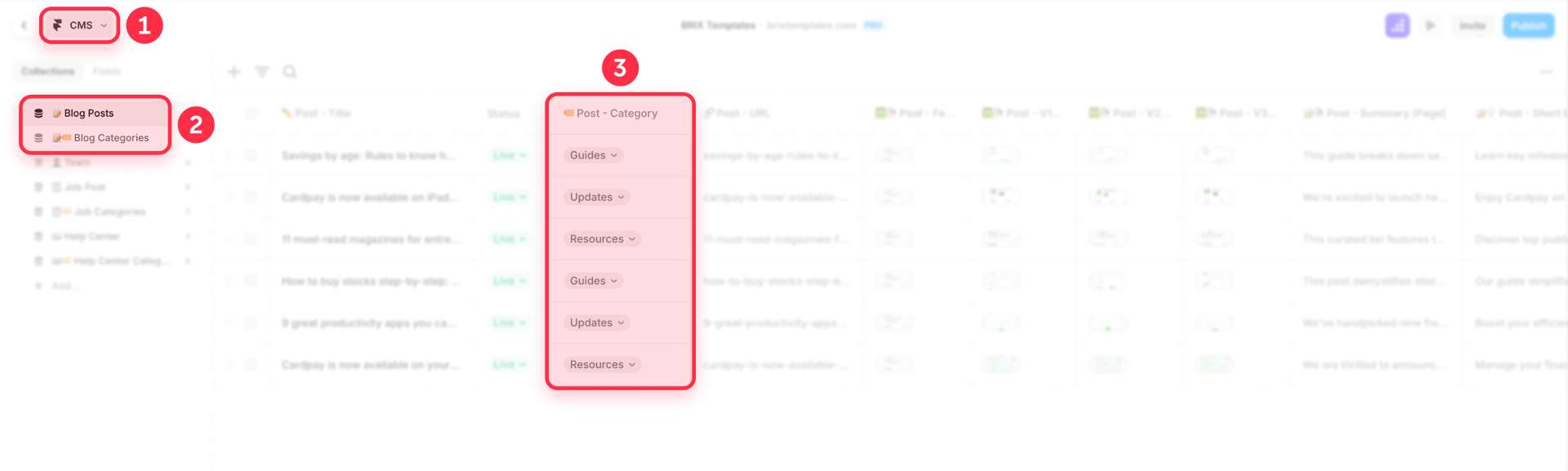
The most common mistake is opening Framer, trying to add a filter, and discovering the options you expect don't appear. This almost always comes down to CMS fields not being modeled correctly. The field type you choose determines which filter controls will be available.
In practice, each field type tends to be associated with different filter controls. Check which appear in your Dynamic panel, but this is what's typically observed:
- Plain text fields (Title, Description): Normally only produce Search Fields. If you have categories in a text field with comma-separated values (e.g., "design, marketing, branding"), the only filter available will likely be a search bar.
- Option fields (Option / Enum): Usually allow Dropdowns. Useful for single categories where the item belongs to exactly one category.
- Boolean fields (true/false): Normally produce Toggles. Ideal for binary filters like "Featured only" or "Available only".
- Reference fields (1:1): An item belongs to exactly one category. May produce Tabs or Dropdowns.
- Multi-reference fields (1:many): An item can belong to multiple categories. These typically unlock the most controls — Tabs, Checkboxes, Dropdowns, Toggles, and Search Field.
If you don't see Tabs or Checkboxes when configuring filters, check the field type — it's usually because it isn't multi-reference, though behavior can depend on your plan or project configuration.
Why plain-text tags break filtering
If your categories live in a plain-text field — like "design, marketing, ux" — the Dynamic Filters system can only offer a Search Field. It likely won't generate tabs, dropdowns, or checkboxes reliably, because those values aren't modeled as relationships or structured categories.
The solution: create a second collection in your CMS with your categories as individual items (e.g., a "Categories" collection with items "Design", "Marketing", "UX"), and connect it to your main collection with a multi-reference field. Now Framer understands the relationship and can generate all filter types.
How to add Dynamic Filters to a Framer collection list
The process is straightforward if your CMS is well structured.
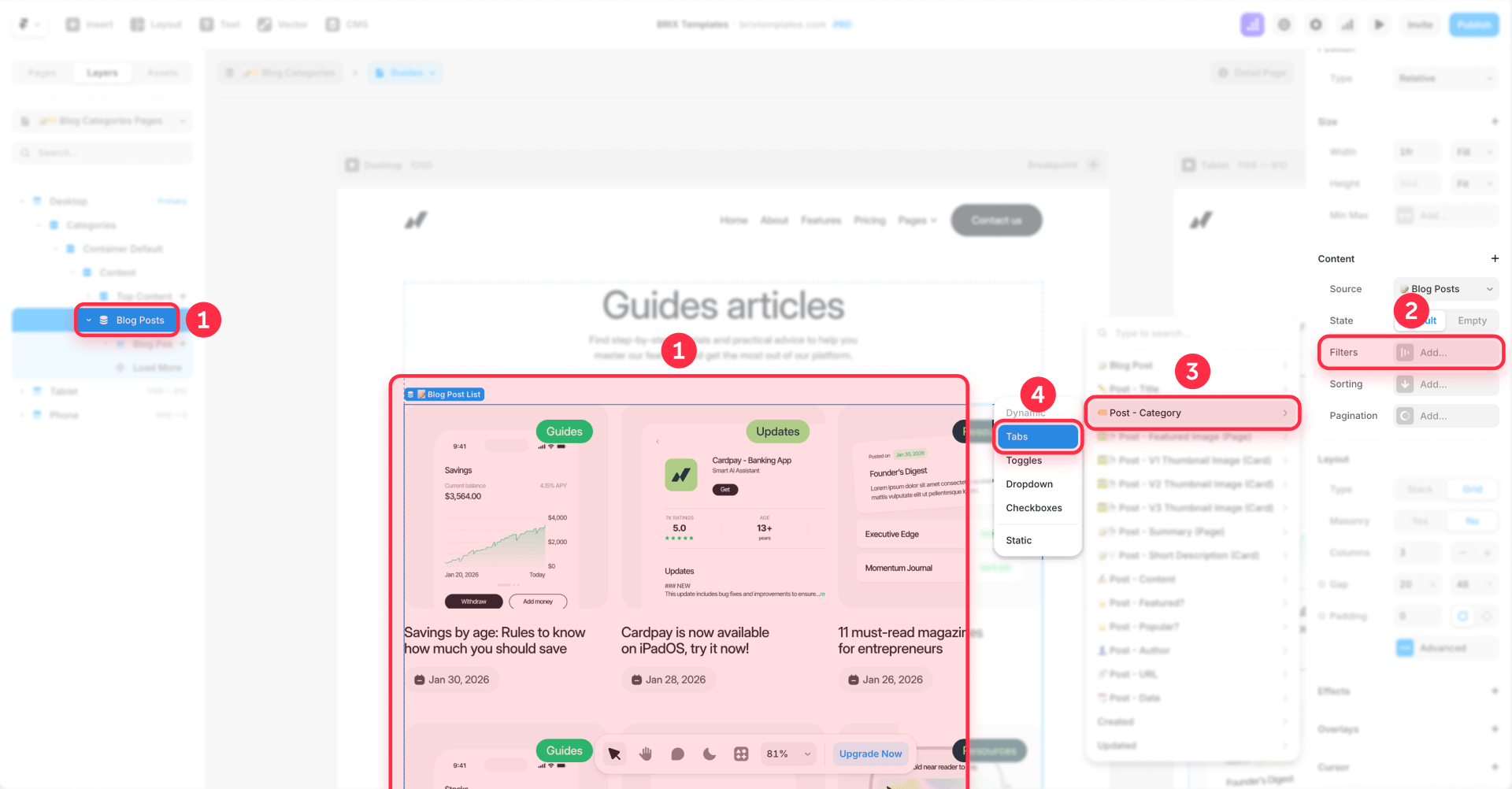
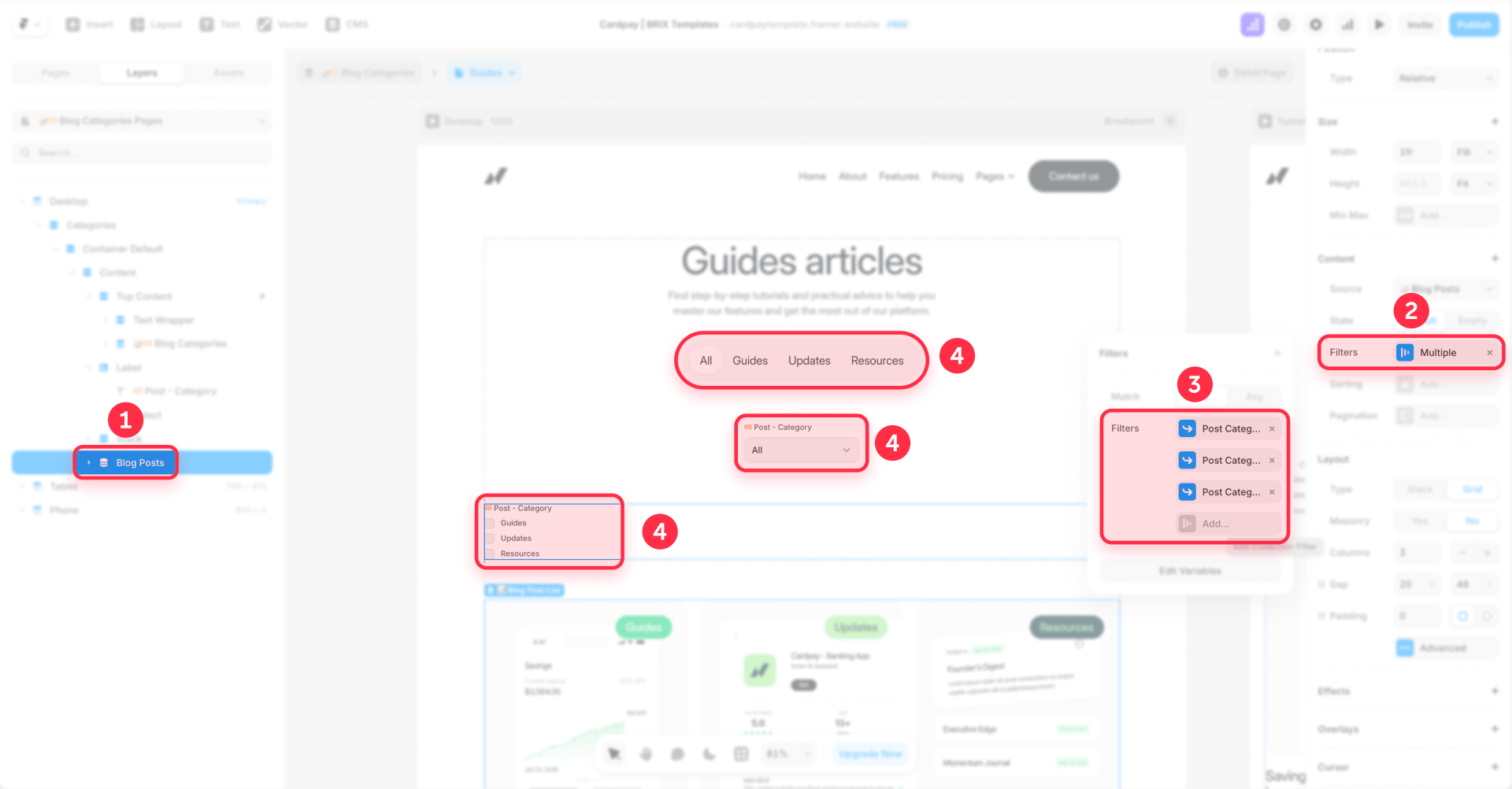
- Select your collection list on the canvas — not in the CMS sidebar, but the visual element showing your items on the page.
- In the right properties panel, go to Content and open the Filters menu. Choose the CMS field you want to filter by. For example, if you want a category filter, select your category field.
- Framer will show the available filter options for that field. Under Dynamic, choose the control that best fits your experience: Tabs, Toggles, Dropdown, or Checkboxes.
- Style and position the control. Filter controls are regular Framer components — double-click to edit colors, typography, spacing, borders, and active/inactive states. You can move controls anywhere on the page; they're not tied to the collection list.
- Test on the live domain. Publish the site and verify on the live URL. Some users report filters working in preview but failing on the published site. If this happens, republish, clear browser cache, or try in incognito. If the problem persists, check your CMS fields, page variables, query parameters, current plan, or contact Framer support.
How to choose the right filter control for your case
Each control type has a distinct filtering logic. Choosing wrong creates confusion for the visitor.
Search Field — when the user knows what they're looking for
A text field where the visitor types and the list updates in real time. Filters by text fields (title, description, name). Use it for large blogs, directories, resource libraries, and help centers — when the visitor has something specific in mind.
Tabs — few categories, one selection at a time
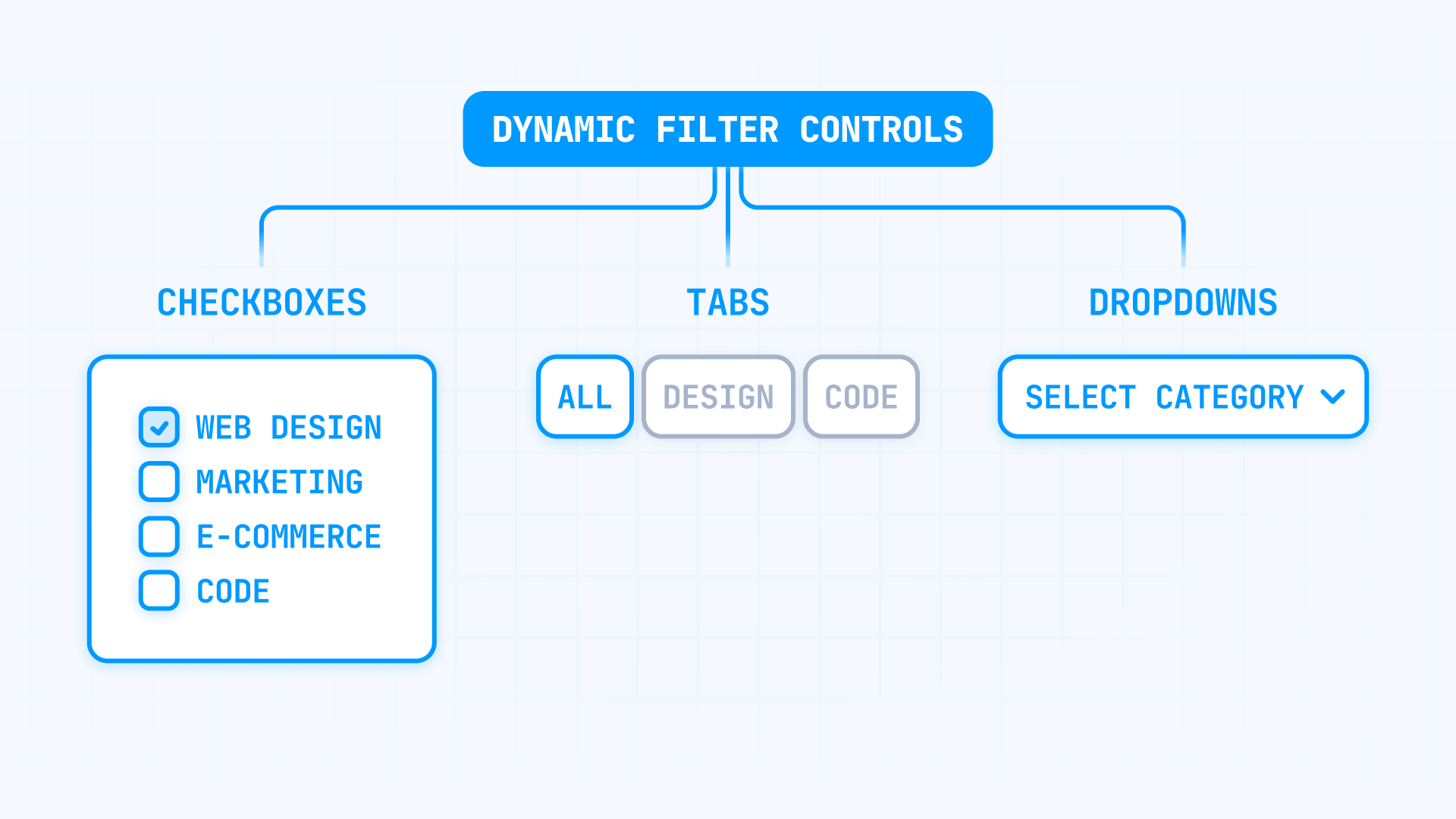
Horizontal buttons where the visitor selects one category at a time (e.g., "All" / "Design" / "Development" / "Marketing"). Use when you have between 2 and 7 categories. Limitation: you can't deselect a tab by clicking it again — you need an "All" tab or a reset button.
Dropdown — many options, little space
A drop-down menu that shows all options when opened. Ideal when you have more than 7 categories. Known limitation: the dropdown shows all items from the referenced collection with no limit. If your category collection has 50+ items, the dropdown will show 50+ options with no way to limit them.
Checkboxes — multi-select with OR logic
Checkboxes where the visitor can select multiple values. Uses OR logic: selecting "Design" and "Marketing" shows items that are Design OR Marketing (union of results). Use when the visitor wants breadth — "show me items matching any of these criteria."
Toggles — cumulative criteria with AND logic
On/off switches where each activated toggle adds a mandatory criterion. Uses AND logic: the item must meet all active toggles. Use for boolean criteria like "Only show featured" or "Only show available." Don't use toggles for categories — if a visitor toggles "Design" AND "Marketing", they'll only see items that are both, which is likely none.
Combining multiple filter types
You can add several filters to the same collection list — for example, a Search Field for title, Tabs for category, and a Toggle for "featured only." Filters communicate automatically: results narrow across all active criteria at once. Place each control wherever you want on the page.
How to create a clear filters button in Framer
When a visitor applies several filters and doesn't find what they need, they need a quick way back. Without a reset button, they have to undo each filter manually — and with tabs, they can't even deselect without an "All" tab.
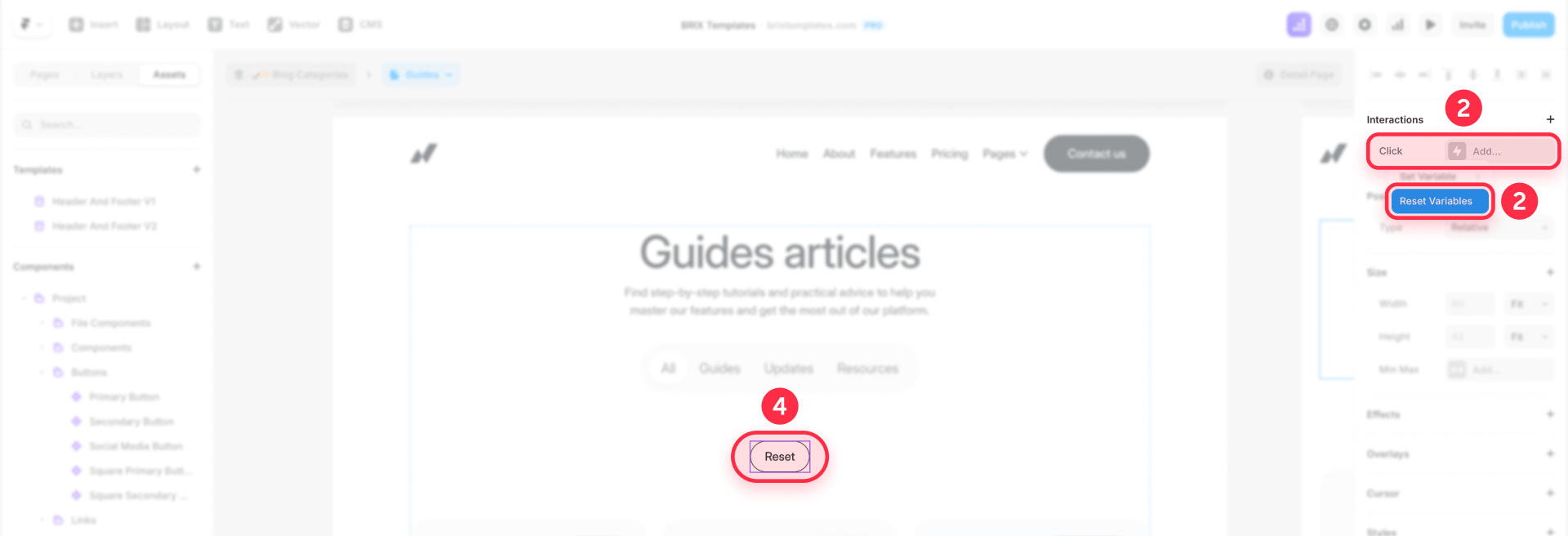
To set it up: add a button to your page, select it, go to the Interactions panel, and add a Reset Variables action. When clicked, all filters return to their default state instantly. For best UX, include the reset button inside your empty state so visitors can recover when filters return no results.
How to handle empty states when filters return no results
A blank empty state makes the visitor think something is broken. A designed empty state (clear message + action button) communicates that the system works but found no matches.
To configure it: select your collection list on the canvas, find the Empty State layer in the layer structure, and design what you want the visitor to see — a message, an icon, and a "Clear Filters" button.
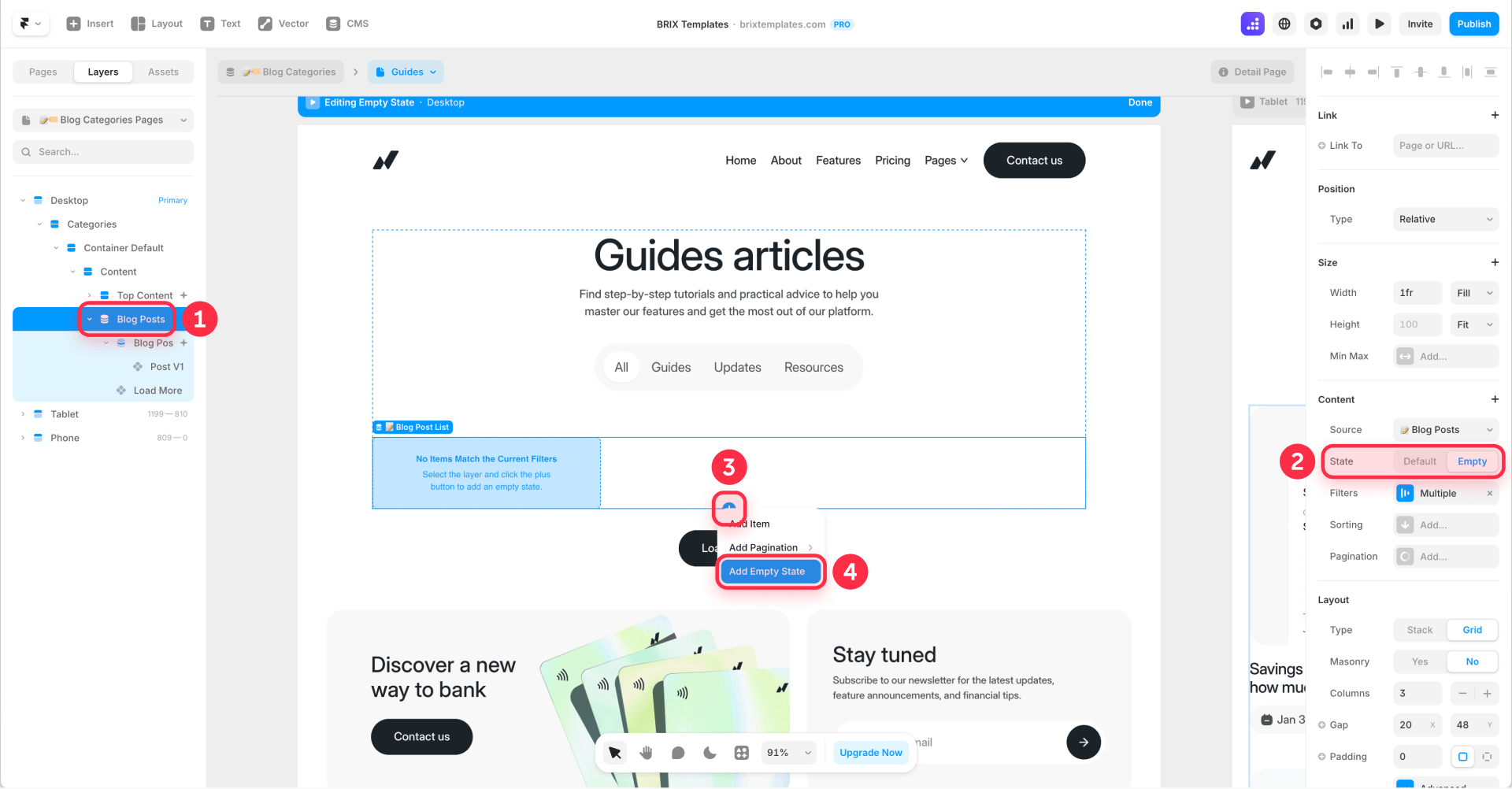
Good copy patterns: "No results found for those filters" + clear button. Or "Try different criteria or clear filters to see all content." Keep it direct and solution-oriented.
URL parameters and shareable filter states
When a visitor interacts with filters, Framer can sync the browser URL with query parameters automatically — for example, /blog?category=design&featured=true. Each page variable has a Query Parameter property you can customize.
When query parameters work correctly, a visitor can copy the URL and share it so the recipient sees the same filtered view. This is valuable for directories, job boards, and catalogs where sharing a specific view matters. The browser's back and forward buttons generally respect filter states, but test navigation on your published site to confirm behavior.
Common mistakes with Dynamic Filters in Framer
Filter controls don't appear due to incorrect field type. If you only see Search Field as an option, your field is likely not multi-reference. Create a separate collection for your categories and connect it with a multi-reference field.
Confusing Checkboxes (OR) with Toggles (AND). Checkboxes = visitor wants to see "any of these." Toggles = visitor wants "all of these" to be met. Using the wrong one produces empty or unexpected results.
Filters work in preview but fail on the published site. Republish from the Publish button, clear browser cache, or try incognito. If it persists, check CMS fields, page variables, query parameters, current plan, or contact Framer support.
Expecting filters to also sort. Dynamic Filters filter content — they don't sort it. "Filter by category" and "sort by date" are different operations. For sorting, you need a plugin like Superfields.
Plan limitations with multi-reference fields. Advanced controls (Tabs, Dropdowns, Checkboxes, Toggles) typically require multi-reference fields, which need a second CMS collection. The availability of certain controls can depend on your plan limits. Check your current plan before promising tabs or checkboxes — if your plan limits collections, you may only have access to Search Fields.
Common misconceptions about Framer Dynamic Filters
"You still need variants or plugins to create CMS filters in Framer." — False. Framer launched native Dynamic Filters in February 2026. For basic and intermediate filtering, you don't need anything else.
"Dynamic Filters let you sort your collection." — False. Filters filter, they don't sort. For sorting, you need third-party tools like Superfields.
"Checkboxes and Toggles work the same way." — False. Checkboxes use OR logic (union). Toggles use AND logic (intersection). Confusing them produces empty results.
"If it works in preview, it works on the published site." — Not always. Republish, clear cache, try incognito. Always test on the live domain.
"Any CMS field type works with any filter control." — Not exactly. The field type tends to determine which controls appear. Text fields normally produce Search Fields. Multi-reference fields can unlock Tabs, Checkboxes, Dropdowns, and Toggles.
"Dynamic Filters are only available on paid plans." — It depends. Framer presents Dynamic Filters as a native CMS capability, but the practical availability of certain controls can depend on the plan, the number of CMS collections, and access to relational or multi-reference fields.
When native Dynamic Filters aren't enough
Dynamic Filters cover many common scenarios — blogs, portfolios, simple directories, resource hubs. But there are cases where you need more:
- Sorting by price, date, or custom order — not supported natively
- Range sliders for numeric values — no native range filter; third-party plugins may cover this, or use range categories ("Under $50", "$50-$100") as a simple workaround
- Weighted multi-criteria search where a title match counts more than a description match
- Custom URL logic or filter behavior outside the five native control types
When you hit these limits, Superfields (by Insert Frame, ~$68-$109 one-time) is the most complete third-party option. It adds sorting, real-time cross-field search, filtered item counters, masonry layouts, visitor-side favorites, and randomization.
Frequently asked questions about CMS filters in Framer
How do you add filters to a CMS collection in Framer?
Select your collection list on the canvas, go to the properties panel, find Filters > Dynamic tab, and click +. Choose the CMS field and control type (Search Field, Tabs, Dropdown, Checkboxes, or Toggles). Framer creates the page variable and connects everything automatically. Position the control, style it, and publish.
What's the difference between Checkboxes and Toggles in Framer?
Checkboxes use OR logic: selecting "Design" and "Marketing" shows items that are either. They broaden results. Toggles use AND logic: each toggle adds a mandatory criterion, and the item must meet all of them. They narrow results. Use checkboxes for "any of these" and toggles for binary criteria like "featured only."
Why don't I see Tabs or Dropdowns when adding Dynamic Filters?
Usually because your CMS field isn't a multi-reference field. In practice, advanced controls tend to appear for multi-reference fields connected to a second CMS collection. If your categories are in a text or option field, you'll likely only see Search Field or Dropdown. Check your Dynamic panel to see what's available.
Can you combine multiple filter types on the same collection?
Yes. Add several Dynamic Filters to the same collection list — for example, a Search Field by title, Tabs by category, and a Toggle for "featured only." All filters communicate automatically and results narrow across all active criteria. Each control is an independent layer you can position freely.
Do Framer Dynamic Filters work with pagination?
Yes, with Load More and Infinite Scroll. Pagination recalculates based on filtered results. When filters are cleared, pagination returns to its full state. Numbered pagination (page 1, 2, 3...) may require third-party solutions.
Can you sort a CMS collection in Framer with Dynamic Filters?
No. Dynamic Filters filter content — they don't sort it. If you need visitors to sort by price, date, name, or any other criterion, you need a third-party plugin like Superfields.
Why do my filters work in preview but not on the published site?
Republish the site, clear your browser cache, or try incognito. If it persists, check CMS fields, page variables, query parameters, current plan, or contact Framer support. Always test on the live domain.
Are Dynamic Filters available on Framer's free plan?
Framer presents Dynamic Filters as a native CMS capability, but the practical availability of certain controls can depend on the plan, the number of CMS collections, and access to relational or multi-reference fields. Check your current plan's limitations before assuming all filter types will be available.
Conclusion
Framer's Dynamic Filters changed what previously required duplicated variants, paid plugins, and fragile hacks into something you can configure without variants or custom code in many scenarios. But the key isn't knowing which button to click — it's modeling the CMS correctly before touching a single filter. The field type you choose determines which controls appear, and a text field with comma-separated categories probably won't produce tabs or checkboxes reliably.
If your collection has more than 20 items and your visitors need to find something specific, configure filters with the correct data structure, choose the control that matches your user's search logic (OR for checkboxes, AND for toggles), add a reset button, design a useful empty state, and publish. For sorting, advanced search, or range filters, Superfields covers what Framer doesn't yet do natively.
And if you need help configuring advanced filters on your Framer project, our Framer development team can help you structure the CMS, design the filter UX, and make sure everything works correctly on the published site.










Join readers commenting on this post!