

If you've worked with WordPress or another CMS before, you're probably used to having full control over every part of a URL — custom permalinks, category segments, date-based paths, plugins that rewrite anything. Framer handles URLs differently. It has its own set of rules for how pages get their paths, what CMS routes look like, and where the platform draws hard lines. Those rules are clean and logical, but not understanding them before you start building leads to rework — restructuring pages, adding redirects, and fixing SEO problems that didn't need to happen.
The biggest misconception is that Framer can replicate any URL pattern you've seen on other platforms. It covers a lot of ground — customizable CMS paths, folder nesting, built-in rewrites, and flexible redirects — but there are specific things it cannot do natively, like putting two dynamic segments in the same URL. Knowing those boundaries upfront shapes better decisions from the start.
This guide explains how Framer URLs actually work: static pages, CMS pages, slug rules, redirect capabilities, Multi Site rewrites, and the workarounds for when Framer's native features fall short. Whether you're building a new project, migrating from another platform, or debugging a URL issue right now, you'll find clear answers here.
Why understanding Framer URL structure matters
Getting your URL structure right from the beginning avoids painful changes down the road:
- Plan your URL structure correctly from the start: Changing URLs after launch means creating redirects, and Framer has a hard limit of 2,500 redirects per project. Every URL change you could have avoided is a redirect you didn't need to waste. Getting the structure right before you publish means less dependence on redirects to clean up preventable mistakes.
- Migration from WordPress or other platforms: The URL structures you had on your previous site in some cases won't replicate exactly in Framer. Understanding the rules helps you plan a redirect strategy before migration, not in the middle of it.
- Programmatic SEO architecture: If you're building hundreds of CMS-driven pages, your URL structure defines what's achievable at scale. The constraints in this guide directly affect how you model Collections and plan page types — for the full pSEO workflow, see our guide on how to do programmatic SEO in Framer.
- Take advantage of Framer's unique capabilities: Framer includes features like Multi Site rewrites (a built-in proxy) and translatable page paths for localization that other platforms don't offer natively. Understanding them means you can use them — instead of building external workarounds for problems Framer already solves.
1 - How static page URLs work in Framer
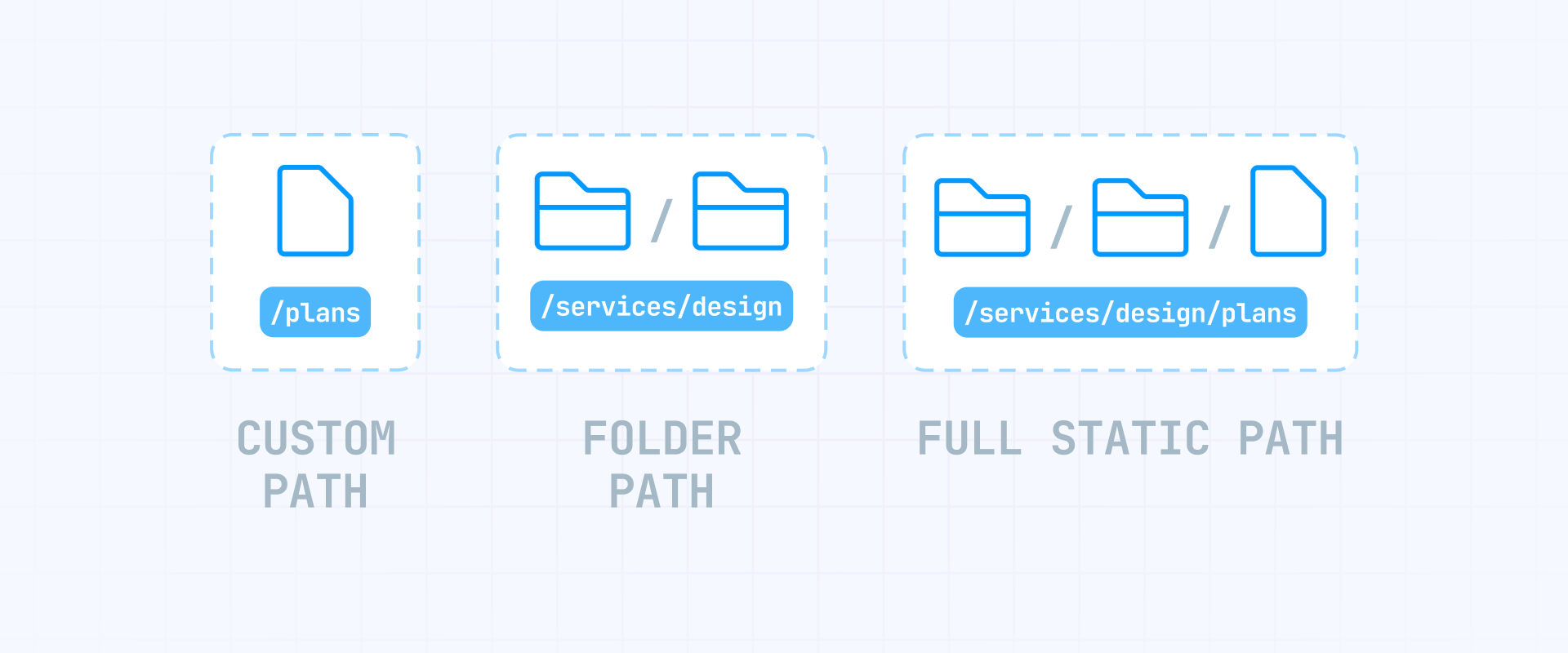
Static pages are the most straightforward part of Framer's URL system. Every page you create gets a URL based on its name, and you can organize pages into folders for deeper path structures.
How Framer generates URLs from page names and folders
When you create a new page in Framer, the platform converts the page name into a URL path — lowercase, with spaces replaced by hyphens. A page named "About Us" becomes /about-us. You can also customize the URL directly in the page settings if you want something different from the auto-generated path.
Folders let you group pages under shared path segments, and you can nest folders inside each other for multi-level hierarchies. Here's what that looks like:
- /about — a static page at the root level
- /legal/privacy-policy — a page named "Privacy Policy" inside a folder named Legal
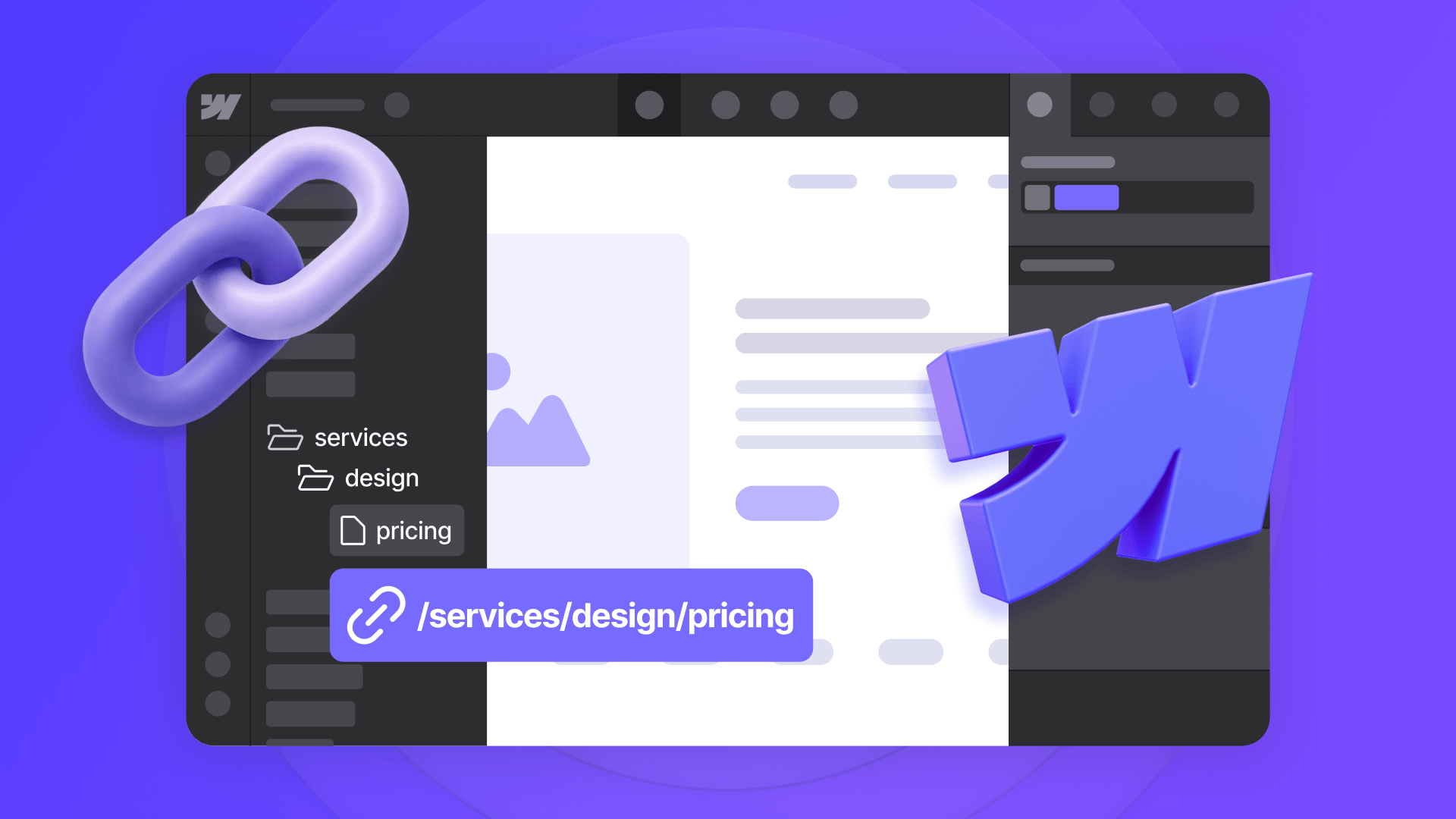
- /services/web-design/pricing — a page named "Pricing" inside a Web Design folder, which is itself inside a Services folder
There's no documented hard limit on nesting depth, but keep your hierarchy practical. Every level adds a path segment, and deeply nested URLs become harder to manage and less user-friendly. Two to three levels covers most real-world site structures.
One thing to keep in mind: renaming a folder or moving a page changes its URL. Framer updates the path automatically when you rename, but the old URL stops working unless you set up a redirect. Plan your folder structure before publishing to avoid unnecessary redirect creation.
What characters Framer allows in page slugs
Framer converts page names into valid URL paths automatically. The platform produces lowercase, hyphen-separated slugs — which is the standard format that search engines and users expect. Clean URLs like /about-us and /services/web-design are what you'll get out of the box.
Unlike Webflow, Framer doesn't publish a detailed character whitelist or transliteration ruleset in their documentation. The practical behavior is that page names get sanitized into web-safe paths. If you're migrating from a site that used uppercase letters, underscores, unicode characters, or other non-standard path formats, those exact URLs won't exist in Framer — but that's actually a good thing. Lowercase, hyphen-separated slugs are the web standard and an SEO best practice, so Framer is enforcing the correct approach by default.
If legacy URLs need to keep working, set up redirects from the old paths to the new Framer-compatible slugs.
2 - How Framer CMS page URLs work
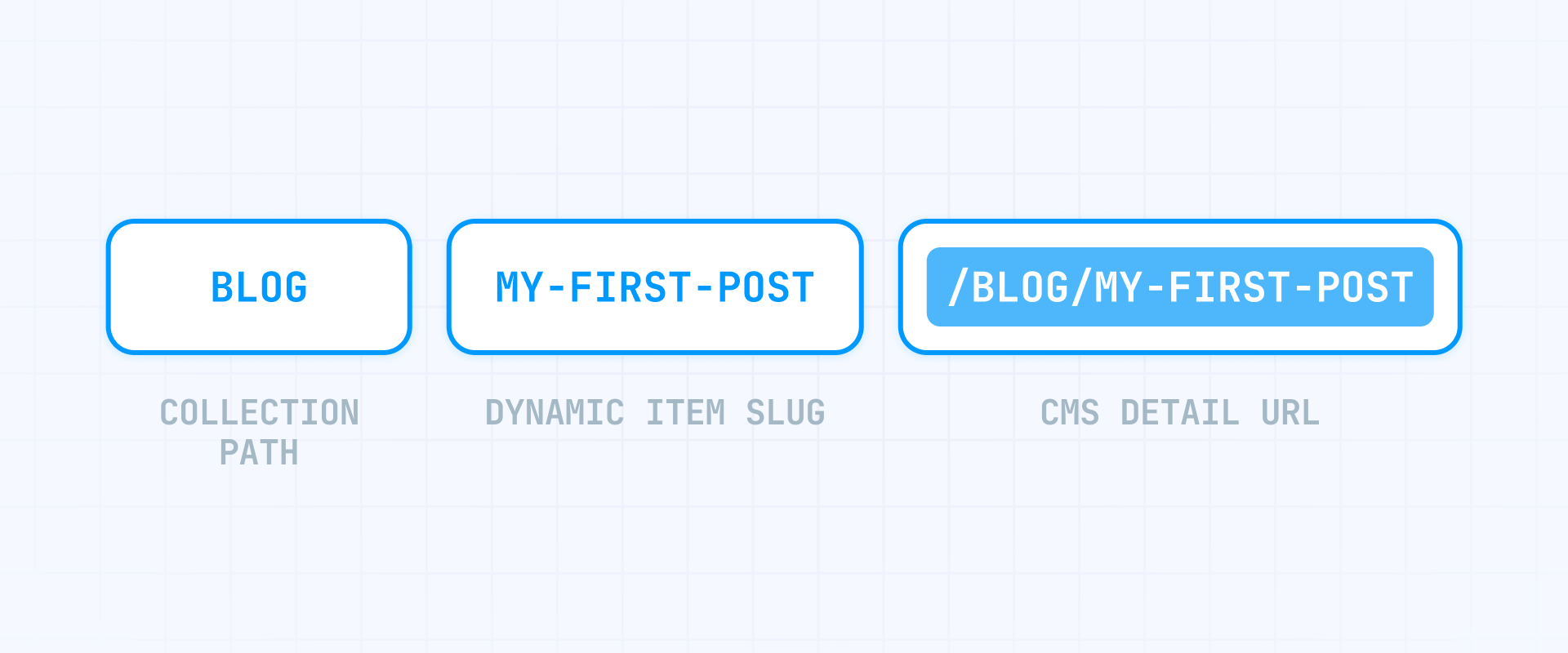
CMS pages follow a different pattern than static pages. Instead of a single fixed slug, each CMS page URL has a Collection path plus a dynamic item slug that changes per CMS item. Understanding this pattern is essential for any CMS-driven Framer project.
How Framer builds CMS URLs from Collection path and item slug
Every CMS page URL in Framer follows this structure:
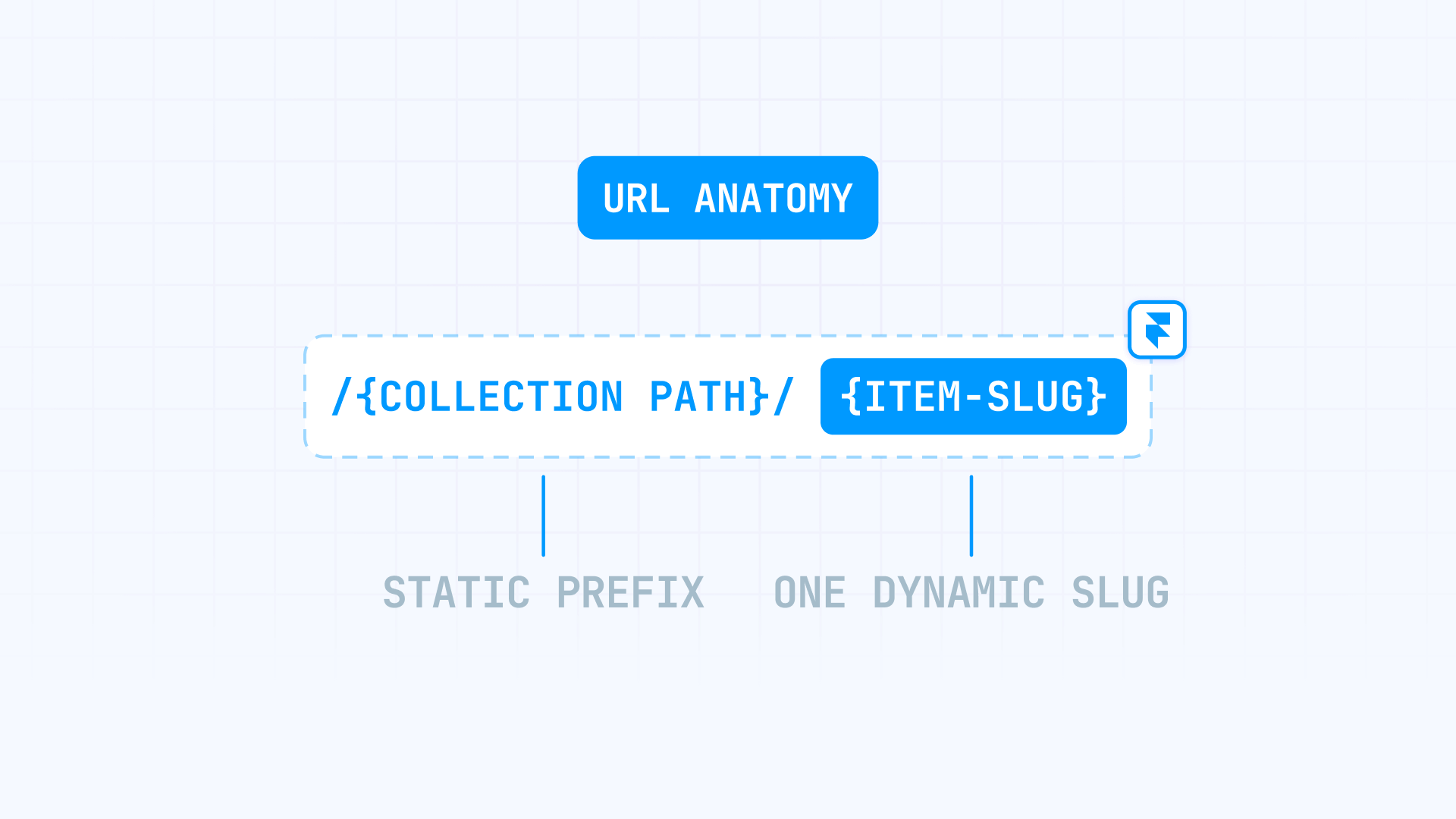
/{collection-path}/:slug
The Collection path is the base route you define for that CMS page — it stays the same for every item. The :slug is the dynamic part that changes per CMS item, pulling from each item's slug field.
Here's what this looks like with real examples:
- /blog/my-first-post — Collection path is blog, item slug is my-first-post
- /integrations/salesforce — Collection path is integrations, item slug is salesforce
- /glossary/churn-rate — Collection path is glossary, item slug is churn-rate
You set the Collection path when configuring the CMS detail page's URL in Framer. The item slug is unique per CMS item — set either manually in the editor or via the slug field when syncing from a spreadsheet or plugin.
Framer expects a CMS index page and a CMS detail page to coexist at the same base path. For example, /blog as the index (listing all posts) and /blog/:slug for individual items. This is the standard CMS setup and works without any conflicts.
However, be careful when adding other static pages under the same path — like /blog/categories or /blog/tags. If a CMS item slug happens to match one of those page names, Framer may not resolve the conflict the way you expect. A practical safeguard: treat page names like categories, tags, and author as reserved and avoid using them as CMS item slugs.
How to customize Framer CMS page URL paths for deeper hierarchies
Framer lets you add static segments between the Collection path and the dynamic slug. You do this by editing the CMS detail page URL directly in the page settings — no folder creation or parent assignment required.
This means that if your Collection is blog, you can extend the URL to /blog/resources/:slug or /blog/templates/:slug by adding segments after the Collection path and before the slug. The Collection path itself stays as the base.
Here are examples of what you can achieve:
- /blog/:slug — simple, standard CMS path
- /blog/resources/:slug — Collection path (blog) + static suffix segment (resources) + dynamic slug
- /blog/templates/:slug — Collection path (blog) + static suffix segment (templates) + dynamic slug
What you cannot do is add prefix segments before the Collection path:
- ❌ /content/blog/:slug — a prefix before the Collection path is not supported
This is different from Webflow, where CMS Folders let you prepend static segments before the Collection URL (like /content/blog/:slug). In Framer, the extra segments go after the Collection path, not before it.
How Framer supports suffix segments after the Collection path
Beyond adding segments between the Collection path and the slug, Framer also supports placing static segments after the dynamic slug. Framer's documentation shows that a duplicated CMS detail page can live at a path like /articles/:slug/copy, which can then be renamed to something like /articles/:slug/amp or an entirely different path like /authors/:slug.
This enables patterns like:
- /blog/:slug/amp — an AMP version of each blog post
- /products/:slug/reviews — a reviews subpage for each product
- /articles/:slug/summary — an alternate view of each article
The item is still resolved by the same slug — the suffix after :slug is static and identical across all items. This is a niche capability, but it's worth knowing about if you need alternate page views or endpoints for your CMS content.
Why Framer only supports one dynamic URL segment per CMS page
This is the most important constraint to understand: in any Framer CMS page URL, only one segment is dynamic — the item slug (:slug). Everything else in the path is static and stays the same for every item in that Collection.
That means Framer supports exactly one dynamic segment per URL. Here's the distinction:
What works — one dynamic segment (the item slug):
- ✅ /blog/:slug — Collection path (blog) + dynamic item slug
- ✅ /blog/resources/:slug — Collection path (blog) + static suffix segment (resources) + dynamic item slug
- ✅ /integrations/:slug — Collection path (integrations) + dynamic item slug
In every example above, the Collection path and any suffix segments are fixed — they're the same for every CMS item. Only :slug changes per page.
What doesn't work — multiple dynamic segments:
- ❌ /services/{category}/{item} — {category} changes per item AND {item} changes per item. That's two dynamic segments, and Framer only supports one.
- ❌ /blog/{year}/{month}/{slug} — {year}, {month}, and {slug} all change per item. Three dynamic segments aren't possible.
- ❌ /{category}/{subcategory}/{item} — every single segment is dynamic. Framer needs at least a fixed Collection path somewhere.
If you're coming from WordPress, this is the biggest conceptual shift. In WordPress, you can configure permalinks like /%category%/%postname%/ where both segments are dynamic. In Framer, the category can exist in your CMS data (as a field), but it cannot become a dynamic URL segment. Your URL will always follow the pattern of static path + one dynamic slug.
This isn't a bug — it's how Framer's CMS routing currently works. Each CMS page resolves items based on a single slug. Hopefully Framer will add support for multiple dynamic URL segments in the future, but for now, designing your URL structure around this constraint is the practical approach.
3 - What URL structures are not possible natively in Framer
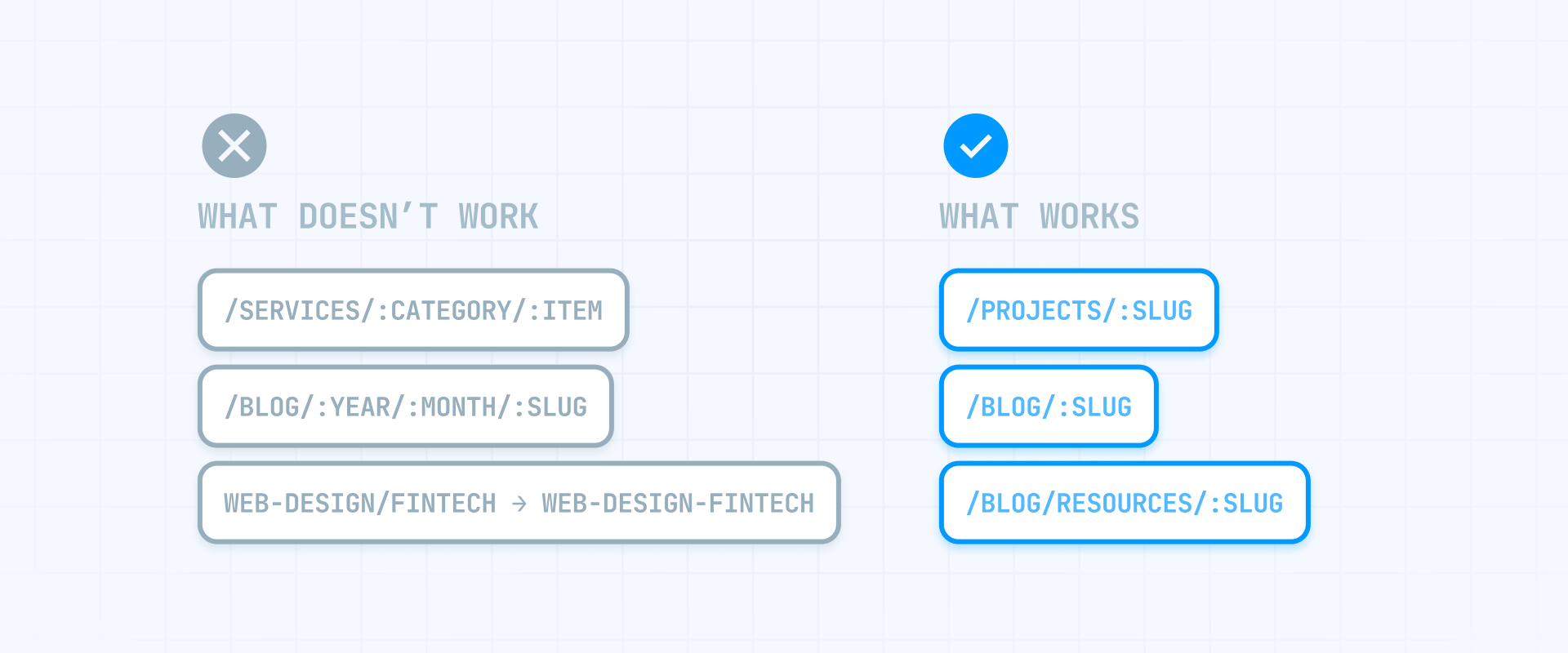
Now that you understand how Framer URLs work, here are the specific things you cannot do with the platform's native URL system — and why.
Why you can't build dynamic category URLs in Framer CMS
The most frequent request from people migrating from WordPress is category-based URLs like /services/web-design/project-name where web-design is pulled from a CMS field and changes per item.
In Framer, your CMS data can absolutely include a category field — and you can filter, display, and organize items by category on your pages. But that category cannot become part of the URL path dynamically. The URL for every item in a Collection follows the same pattern: /{collection-path}/:slug.
So if you have a Projects Collection with items categorized as "Web Design", "SEO", and "Branding", every project URL looks like:
- /projects/acme-redesign — not /web-design/acme-redesign
- /projects/growth-audit — not /seo/growth-audit
- /projects/logo-refresh — not /branding/logo-refresh
The category data is there and usable everywhere else — in Collection lists, filters, conditional sections, related content modules. It just doesn't show up in the URL. If having the category in the URL is a hard requirement for your project, see the workarounds section below — or assess whether this need means you should consider a different platform entirely.
Why Framer slugs follow strict formatting rules
Clean, lowercase, hyphen-separated URLs are a web standard and an SEO best practice — and Framer enforces this automatically. The platform sanitizes page names and CMS slugs into web-safe paths, ensuring consistency across your entire site.
Here's what Framer does to slugs:
- Slash (/): Cannot be included inside a CMS item slug. If you need path-like structures, customize the CMS page URL template instead.
- Uppercase: Converted to lowercase automatically.
- Spaces: Replaced with hyphens.
- Special characters: Removed or converted to produce clean, web-safe paths.
Framer's documentation doesn't publish a detailed transliteration ruleset the way Webflow does, but the practical result is the same: you get clean, predictable URLs. If your previous site relied on uppercase letters, underscores, or unicode in paths, those exact URLs won't exist in Framer — but the resulting structure follows better practices than what you had before. Set up redirects from old paths to handle the transition.
4 - How to work around Framer URL limitations
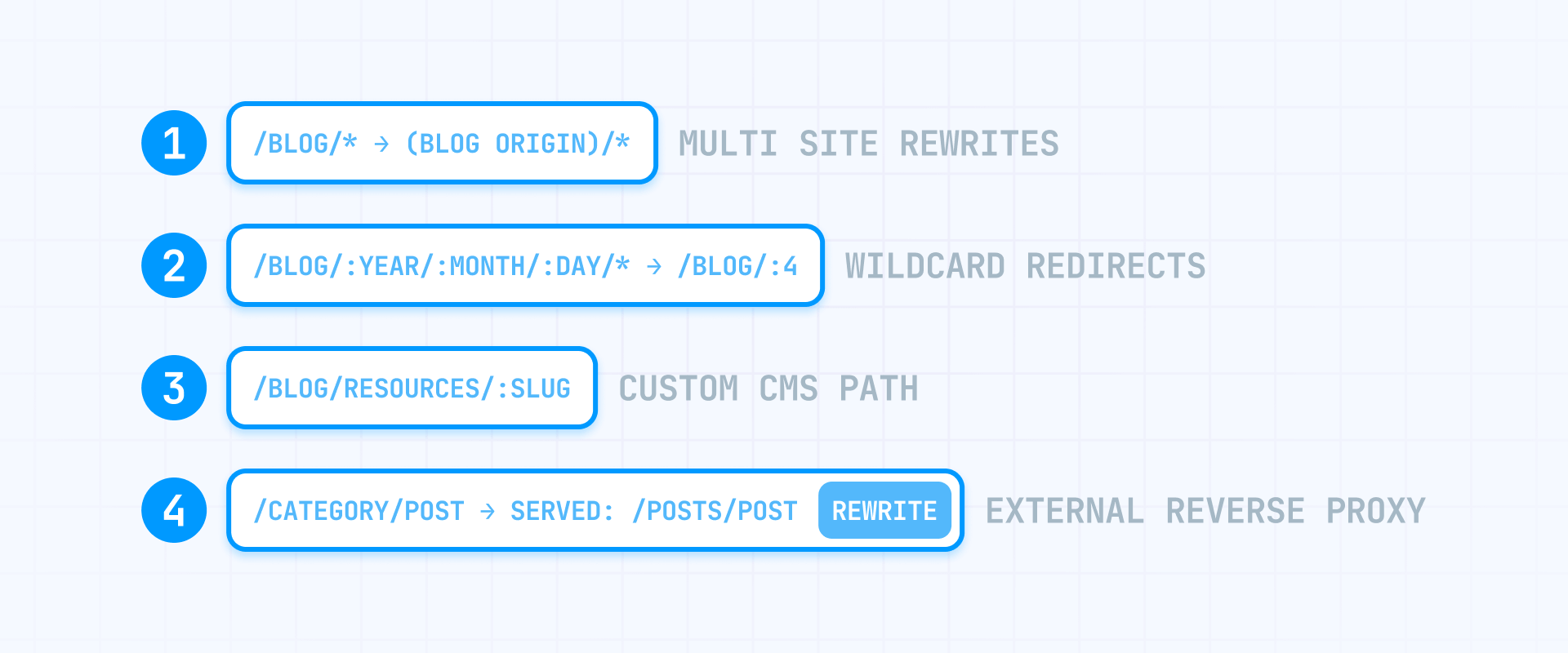
When Framer's native URL features don't cover your needs, there are several options — ordered from simplest to most complex.
How to use Framer Multi Site rewrites for advanced URL structures
This is where Framer has a significant advantage over many other platforms. Multi Site rewrites are a built-in proxy feature that lets you mount separate Framer projects or external origins under specific paths on your domain — without the URL changing in the browser. On other platforms, achieving this typically requires external infrastructure like Cloudflare Workers.
Multi Site rewrites are useful when:
- You want to serve a separate blog project at /blog on your main domain
- You need a docs site at /docs while keeping everything under one domain
- You're combining multiple Framer projects into a single domain for a larger site
Here's how it works: you add rewrite rules in your project settings that map paths to other origins. For example, /blog/* can point to a separate Framer blog project, and /docs/* can point to an external documentation site. The user sees your domain the entire time.
Important constraints to keep in mind:
- CMS routes must match between the rewrite and the origin project. If the origin uses /blog/:slug, your rewrite must also use /blog/:slug — you can't mount it as /posts/:slug. If you need a different path, change the CMS page URL in the origin project first.
- Rewrite rules are evaluated in order, and a rewrite can shadow a same-path Framer page. Be intentional about rule ordering.
- Sitemaps are merged automatically across rewrite sources, which is convenient — but you must set canonical URLs in each project to point to the final domain where content is served. Otherwise, canonicals may default to the origin project's domain.
- Locale expansion in rewrites can prefix locale codes, but it doesn't support localized paths or slugs automatically. If your localized pages use translated paths, you need separate rewrite rules per locale.
Multi Site rewrites are the right tool for combining multiple projects or origins under one domain. They're not a workaround — they're a first-class feature that solves URL architecture problems other platforms can't handle natively.
How to use Framer redirect wildcards to normalize legacy URLs
If you're migrating from a platform that used date-based, category-based, or deeply nested URLs, redirect wildcards are your tool for mapping old paths to Framer's structure.
Framer supports several matching patterns:
- Wildcards using * — matches multiple segments. For example, /blog/* matches /blog/2022/07/18/hello-world.
- Capture groups using :1, :2 — reuse matched segments in the target URL.
- Named parameters like :year, :month, :day — useful for matching structured legacy URLs like /blog/:year/:month/:day/*.
For example, migrating date-based WordPress URLs:
- Old path: /blog/2022/07/18/my-post
- Redirect rule: /blog/:year/:month/:day/* → /blog/:4
- Result: Redirects to /blog/my-post
Framer has a hard limit of 2,500 redirects per project — the platform throws an error if you try to exceed this. Wildcard redirects are essential for staying under the cap: a single wildcard rule counts as just one redirect but can handle as many URLs as the pattern matches. One rule like /old-section/* → /new-section/:1 can cover hundreds or thousands of old paths by itself.
For the complete syntax reference and step-by-step examples, see our guide to wildcard redirects in Framer.
When to use an external reverse proxy with Framer
If Multi Site rewrites don't cover your needs — for example, you need advanced header manipulation, complex conditional routing, or integration with infrastructure that Multi Site can't proxy — an external reverse proxy is the next option.
When using an external proxy with Framer, the most important thing to configure is the Canonical URL setting. Go to Settings → Domains and enter your actual domain (or domain + subpath like https://yourdomain.com/blog). Without this, Framer may default canonical tags to your .framer.website subdomain, which tells Google to index the wrong domain entirely.
You also need to generate a custom sitemap and configure canonical tags to point to the correct URLs. Both are necessary — getting either one wrong means search engines may index the wrong paths or see duplicate content.
Use an external reverse proxy only when Multi Site rewrites can't solve the problem. It adds complexity and SEO risk that Framer's built-in features are designed to eliminate. If you need help setting up a reverse proxy for a Framer project, our Framer agency team has experience building custom URL architectures — we can help you get it right.
5 - How Framer handles redirects, canonicals, and localized URLs
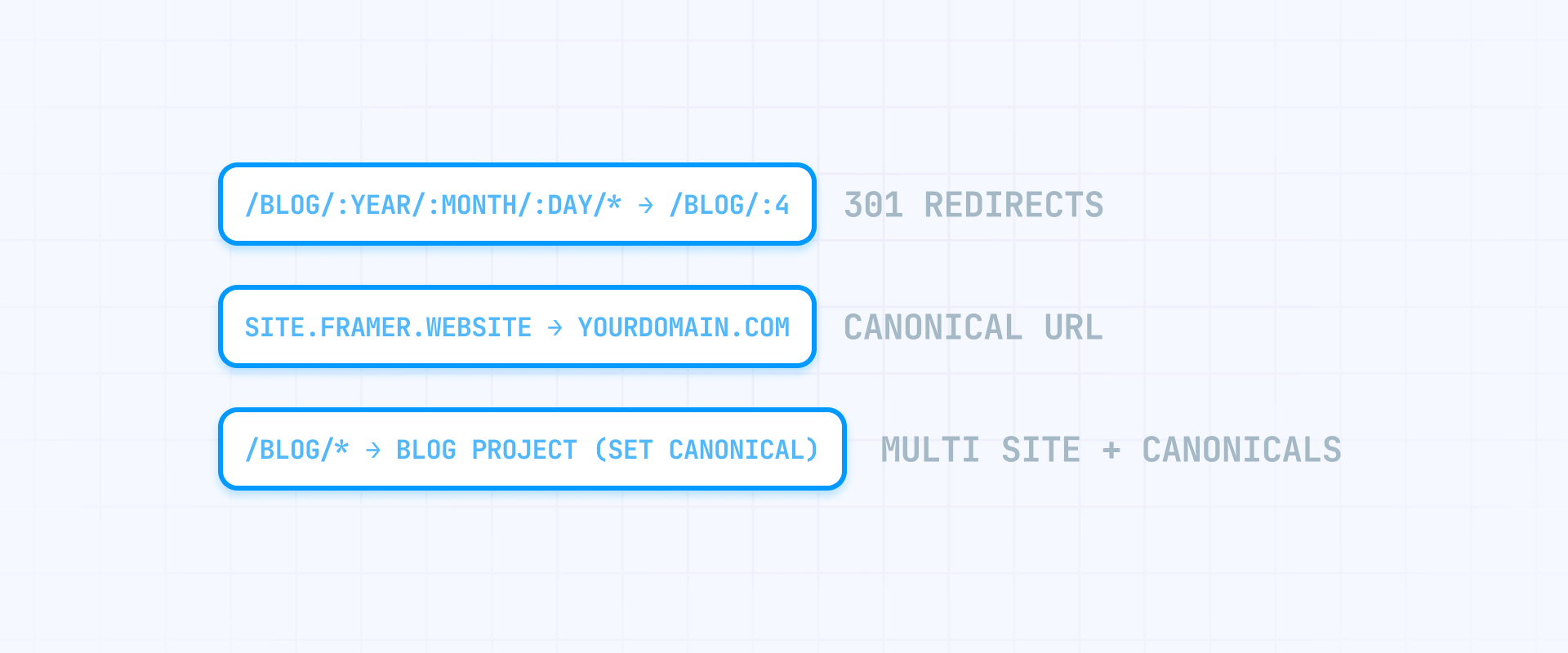
Beyond URL structure, three SEO mechanisms interact with your URLs and require careful configuration — especially if you're running a multi-language site or managing a migration.
How Framer redirects work and their 2,500 limit
Framer supports 301 (permanent) redirects with a hard cap of 2,500 rules per project. Unlike Webflow's ~1,000 recommendation (a best practice, not a hard limit), Framer enforces this number strictly — the platform throws an error if you exceed it.
Framer's redirect system is more expressive than what many platforms offer. You can use:
- Wildcards (*) that match multiple path segments
- Capture groups (:1, :2) to reuse matched segments in target URLs
- Named parameters (:year, :month, :day) for matching structured legacy paths
One important constraint: redirects in Framer are limited to sub-paths within the current domain. If you need to redirect from an entirely different domain to your Framer site, that redirect must be configured at the old domain's hosting provider — not in Framer.
Wildcard rules are the best way to keep your redirect count manageable. Each wildcard rule counts as a single redirect regardless of how many URLs it matches, so consolidating patterns is essential when migrating from sites with complex URL structures.
How canonical tags work in Framer and the .framer.website gotcha
Framer generates self-referencing canonical tags automatically on every published page. When your domain is connected directly to Framer, this works correctly out of the box.
The critical issue arises when you're using a reverse proxy, Multi Site rewrites, or serving your Framer project under a domain that isn't directly connected. In these cases, Framer may default the canonical tag to your .framer.website subdomain — which tells search engines that the Framer staging URL is the "real" version of each page. This can cause Google to de-index your actual domain and attribute all ranking signals to the wrong URL.
To fix this:
- Open Settings in your Framer project.
- Go to Domains.
- Find the Canonical URL field.
- Enter your actual domain (for example, https://yourdomain.com or https://yourdomain.com/blog if you're proxying a subpath).
- Publish your site.
- Verify by viewing the page source on your live site and confirming that <link rel="canonical"> points to the correct domain.
This applies to every project in a Multi Site setup. If you have three projects rewritten under one domain, each project needs its Canonical URL set to the final served domain. Framer merges sitemaps across rewrite sources automatically, but canonicals must be configured per project.
Frequently asked questions about Framer URL structure
Can I customize the URL path for Framer CMS pages?
Yes — Framer lets you edit the CMS detail page URL directly in the page settings. You can add static segments between the Collection path and the slug, like changing /blog/:slug to /blog/resources/:slug. The Collection path stays as the base, and extra segments go after it. The dynamic segment (:slug) always resolves to each CMS item's slug field. Note that you cannot add prefix segments before the Collection path — this is different from Webflow, which supports that through CMS Folders.
Why does Framer change my page name into a different URL slug?
Framer converts page names into web-safe URL paths automatically — lowercase, with hyphens replacing spaces, and special characters removed. This follows the standard format that search engines and browsers expect. You can also customize the URL independently of the page name in your page settings, so the display name and the URL path don't have to match exactly. If a legacy URL needs to keep working after the conversion, add a redirect from the old path.
How many redirects can I add in a Framer project?
Framer enforces a hard limit of 2,500 redirects per project — the platform throws an error if you exceed it. This isn't a recommendation like Webflow's ~1,000 guideline; it's a strict cap. The most effective strategy is using wildcard redirects — a single wildcard rule counts as one redirect but can match as many URLs as the pattern covers. For the full syntax, see our guide to wildcard redirects in Framer.
Can I use slashes inside a Framer CMS item slug?
No. CMS item slugs in Framer are single path segments — they can't contain path separators. If you need deeper URL structures, customize the CMS detail page URL template instead. For example, change the path from /blog/:slug to /blog/resources/:slug to add a static segment between the Collection path and the slug. The slug itself stays as a single clean segment like my-first-post.
Can I have two dynamic segments in a Framer CMS URL?
No. Framer's CMS routing supports one dynamic segment per URL — the item slug (:slug), which resolves based on each CMS item's slug field. Everything else in the path is static. A URL pattern like /services/{category}/{item} where both segments change per page is not achievable natively. Your options are accepting the flat URL structure, or using Multi Site rewrites to mount an external router that handles multi-variable routing.
What is Framer Multi Site and how does it affect URLs?
Multi Site is Framer's built-in proxy feature that lets you mount separate Framer projects or external sites under paths on your domain — like /blog or /docs — without the URL changing in the browser. It's essentially a reverse proxy that you configure inside Framer, eliminating the need for external tools like Cloudflare Workers. The key constraint is that CMS routes must match between the rewrite rule and the origin project. Multi Site also merges sitemaps automatically, but you must set canonical URLs in each project to point to the final served domain.
How do I fix Framer canonical tags pointing to .framer.website?
Go to Settings → Domains in your Framer project and set the Canonical URL field to your actual live domain. This overrides the default behavior where Framer may use the .framer.website subdomain as the canonical. After setting it, publish and verify by checking the <link rel="canonical"> tag in the page source. This is essential for any project using reverse proxies, Multi Site rewrites, or domains that aren't directly connected to Framer.
How do I migrate WordPress permalink structures to Framer?
WordPress permalinks like /%category%/%postname%/ or /%year%/%monthnum%/%postname%/ use multiple dynamic segments that Framer can't replicate natively. The migration approach is to flatten your URLs to Framer's /{collection-path}/:slug format and set up wildcard redirects from the old paths. Framer supports named parameters like :year, :month, :day in redirect rules, making it straightforward to capture structured legacy URLs and map them to flat slugs. Plan the redirect strategy before migration to ensure no traffic gets lost.
Does Framer support URL rewrites without visible redirects?
Yes — this is exactly what Multi Site rewrites do. They let you serve content from a different origin (another Framer project or an external site) at a path on your domain without the URL changing. This is Framer's native alternative to setting up an external reverse proxy. The user sees your domain the entire time while content is served from the origin. For cases that Multi Site can't handle, you'd need an external proxy — but most URL rewrite needs are covered by the built-in feature.
Conclusion
Framer's URL model is clear once you know its boundaries: static pages nest freely in folders, CMS pages use a customizable path template with one dynamic slug, and Multi Site rewrites provide built-in proxy capabilities that most platforms require external tools for. The key constraint — one dynamic URL segment per CMS page — is the most important thing to understand, especially if you're migrating from a platform with more flexible permalink structures.
For most projects, Framer's native features handle everything you need. Customizable CMS paths give you clean hierarchical URLs, wildcard redirects manage migrations efficiently, Multi Site rewrites let you combine projects under one domain, and automatic hreflang tags support multilingual SEO with translatable page paths. When you do reach the edges — dynamic category paths or complex external routing — the workarounds are well-documented and achievable.
If you need help designing a Framer URL architecture for a large site, migration, or programmatic SEO project, our Framer agency team can build a structure that takes full advantage of the platform's strengths.









Join readers commenting on this post!