
Your Framer form may look great on the page, but the email experience after submission can still feel limited for client projects. Native notifications work for simple alerts but they are not built for sending a branded confirmation email back to the person who filled it out.
The solution is to send each form submission through a webhook into Make, then trigger a branded auto-reply confirmation email to the submitter. Framer captures the data; Make and your email tool handle the professional confirmation workflow.
In this tutorial, you’ll learn how to connect a Framer form to Make, send the data through the MailerSend API, and deliver a branded "thanks, we received your message" email to the submitter.
Why professional Framer form emails matter
When someone submits a form on your site, they want to know their message arrived. A branded confirmation email sent right after submission does that — and it reinforces your brand at the same time.
- Better user experience. The person who submits the form gets immediate confirmation that their message was received.
- Branded confirmation. The email matches your site and brand, not a generic system notification.
- Clear expectations. The confirmation email can tell the submitter when to expect a response, reducing follow-up anxiety.
- Less uncertainty. Users know their message went through — no second guesses or duplicate submissions.
- Optional backup. The same workflow can store submissions in Google Sheets, Airtable, Notion, or a CRM so nothing gets lost.
What Framer forms can do with email
Framer's built-in form handling works well for simple use cases. Understanding what it does well — and where it falls short — helps you decide whether to stick with native email or move to a webhook workflow.
What Framer form email handles well
Native email notifications are fine when you need a basic heads-up that someone submitted a form. The notification arrives quickly, submissions are stored in Framer's form submissions panel, and the setup requires zero configuration beyond selecting Email Inbox as the destination. If you need those notifications to reach multiple team members, you can also send Framer forms to multiple email addresses without any third-party tools.
When Framer form email is not enough
Native notifications are useful for basic form alerts, but they are not a full transactional email workflow. You cannot send fully branded HTML templates, set a custom sending domain, or send an auto-reply confirmation to the person who submitted the form. There is also no built-in way to back up submissions to a spreadsheet or CRM.
This is where webhooks come in. Framer can send form submissions as a JSON payload via HTTP POST to any HTTPS webhook URL. From there, an automation platform catches the data and an email service sends a branded confirmation email — with templates, variables, and reply-to.
Which Framer form email setup do you need?
Before following the steps, decide what your project actually requires.
- Basic contact form. Use Framer's native email notification if you only need a simple alert when someone submits a form.
- Branded auto-reply confirmation. Use Framer webhook → Make → MailerSend to send a branded confirmation email to the person who submitted the form.
- Backup or CRM workflow. Optionally save the submission to Google Sheets, Airtable, Notion, or a CRM after the confirmation email sends.
- Advanced setup. If your workflow needs CRM sync, conditional logic, multiple templates, or production-ready error handling, our Framer development team can help design and implement the setup.
The simple Framer webhook workflow
The entire process follows four steps:
- Framer captures the form submission from the site visitor.
- Webhook sends the form data as a JSON payload to the automation platform.
- Make maps the data into variables and calls the MailerSend API.
- MailerSend sends the branded auto-reply confirmation email to the submitter.
You build this once, and it runs automatically for every submission.
Step 1 — Prepare your Framer form fields
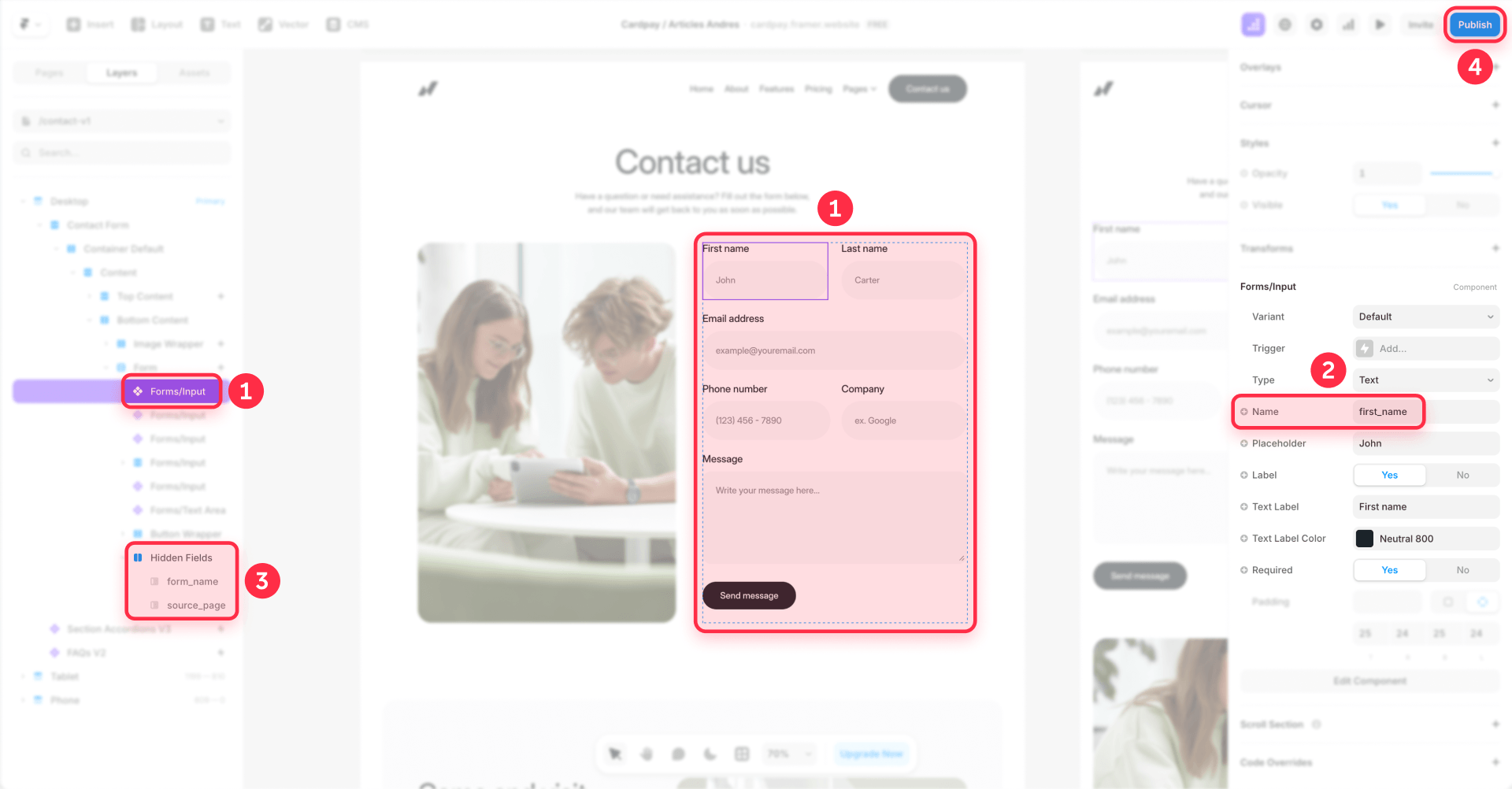
Your Framer form field names become the JSON keys in the webhook payload. Use simple, descriptive names for a clean integration:
- first_name — first name
- last_name — last name
- email — email address
- phone_number — phone number (optional)
- company_name — company name (optional)
- form_name — form identifier (optional, useful when you have multiple forms)
- source_page — page the form was submitted from (optional)
- inquiry_message — the free-text message body
For the phone number field, you can add a phone number mask to your Framer forms so the input automatically formats as users type.
Avoid spaces and special characters in field labels. The JSON payload mirrors exactly what you name the fields in Framer.
Step 2 — Create the webhook URL in Make
You need a webhook URL from your automation platform before connecting anything in Framer. This tutorial uses Make as the main implementation path. If your team already uses Zapier, the same webhook concept can also be adapted there, but the steps below will focus on Make.
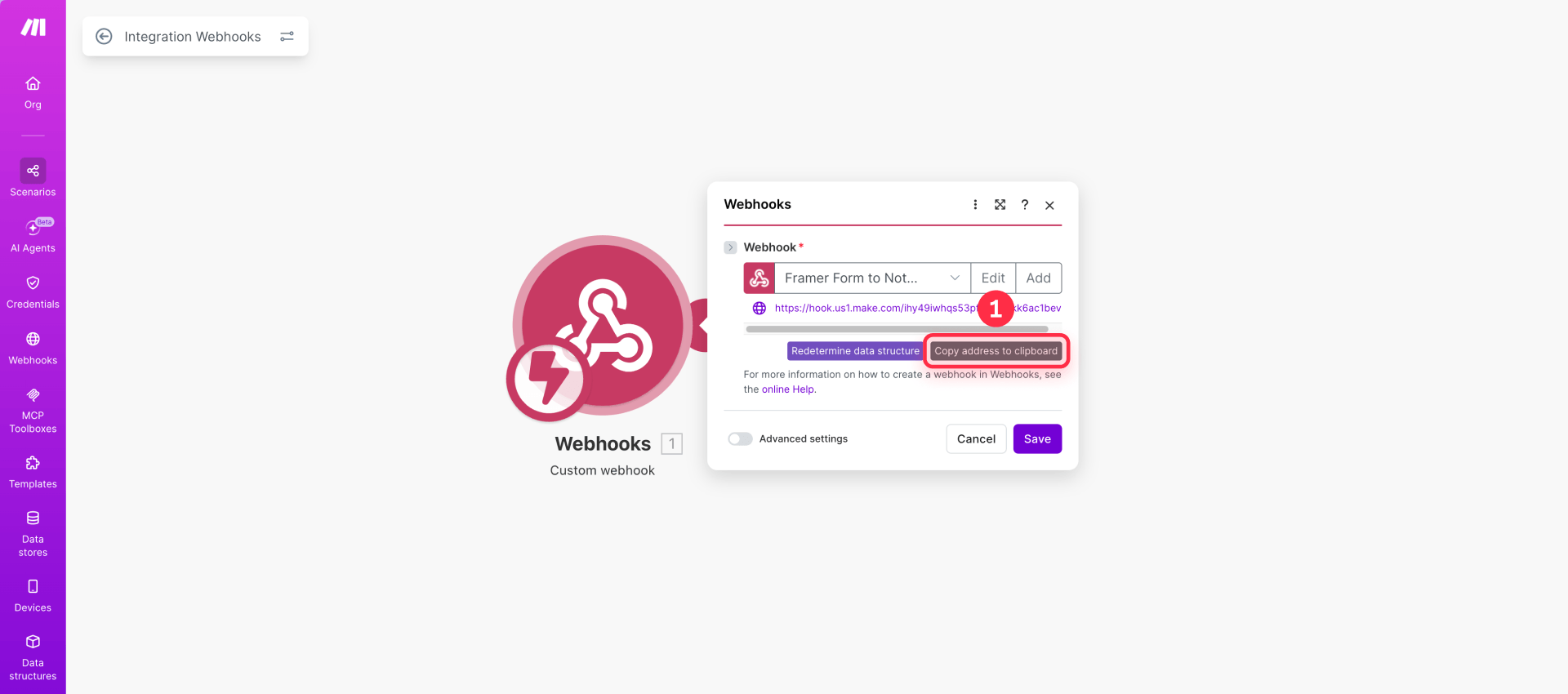
- Create a new scenario in Make.
- Add a Webhooks module and select Custom Webhook as the trigger.
- Click Add to create a new webhook and give it a descriptive name (for example, "Framer Contact Form").
- Copy the generated webhook URL. You will paste this into Framer in the next step.
Step 3 — Add the webhook URL to your Framer form
Now connect the webhook URL to your Framer form.
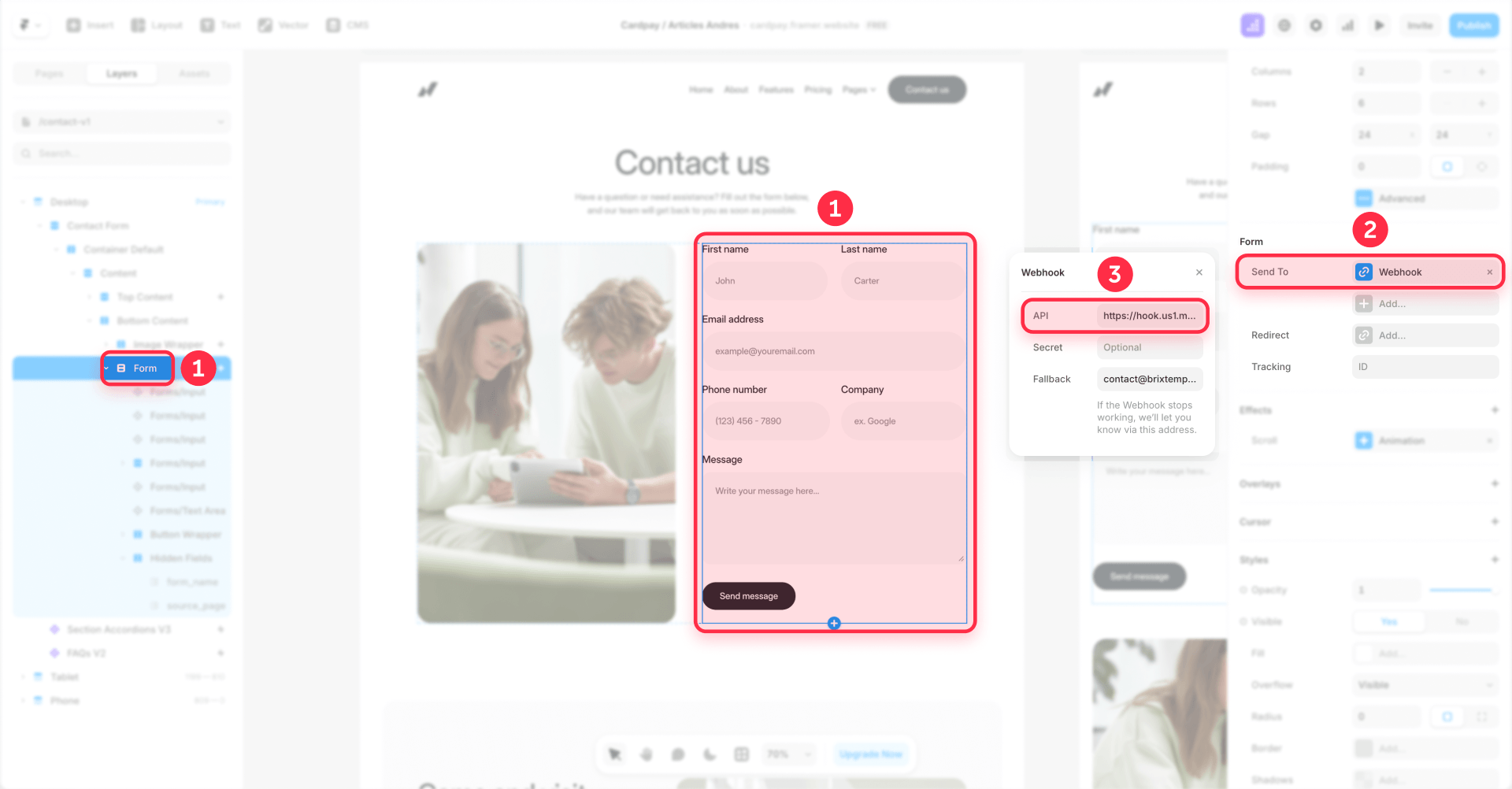
- Open your Framer project and select the form component.
- In the properties panel, locate the Send To section.
- Change the destination from Email Inbox to Webhook.
- Paste the HTTPS webhook URL you copied from Make.
- Save and publish the site.
The webhook URL must start with https://. Framer expects a 2xx HTTP response to confirm delivery, and may retry on non-2xx responses. For production workflows, consider enabling Framer's webhook signature verification so your endpoint can confirm the request came from Framer.
Step 4 — Test the Framer webhook payload
Before building the email workflow, confirm that Framer sends data correctly.
- In Make, click Run Once to start listening.
- Open your published Framer site and submit the form with test data.
- Make captures the payload and displays the detected field structure.
The webhook payload will look like this:
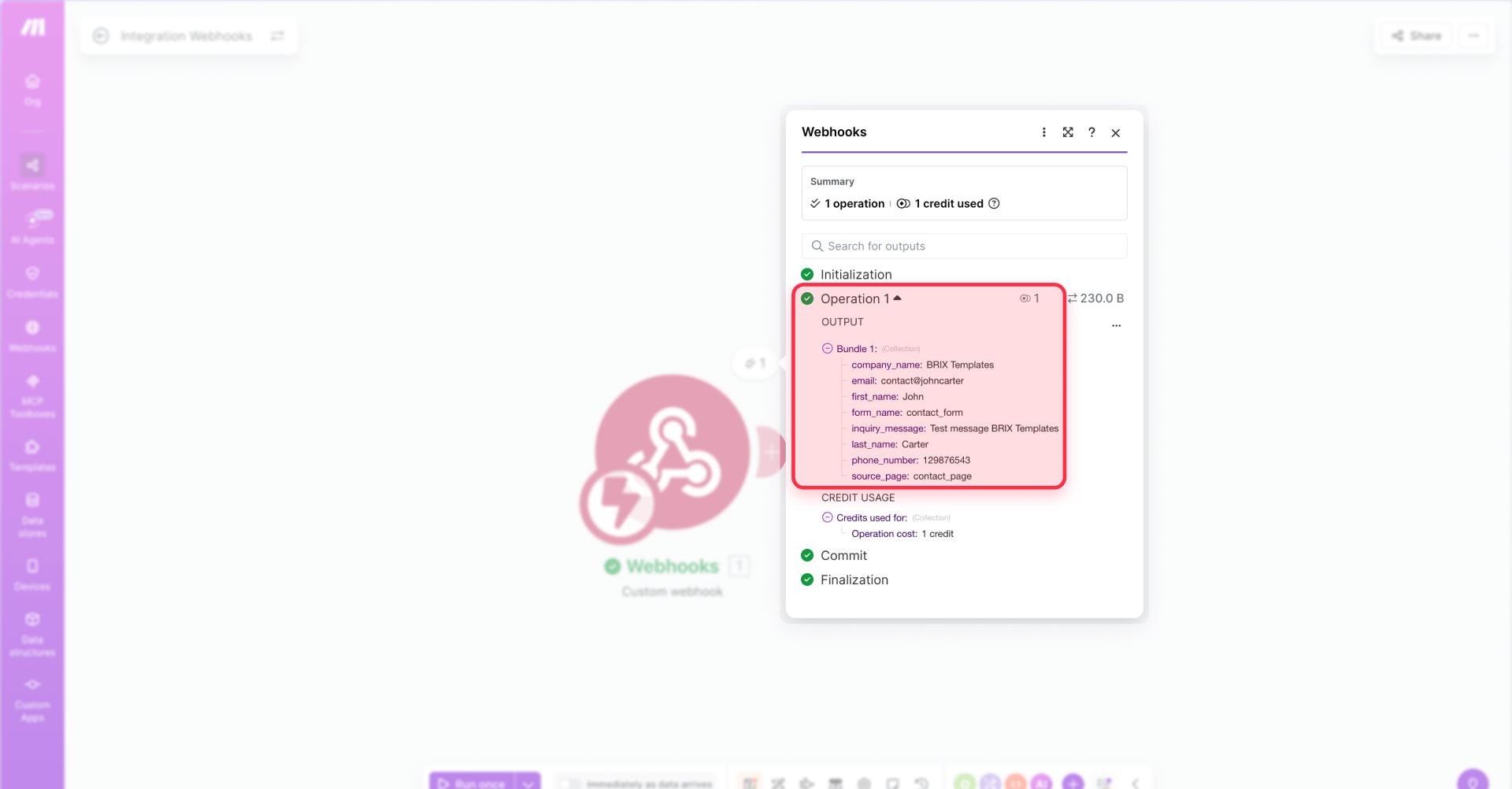
Each key matches a field name from your Framer form. Make creates mapped variables you can reference in subsequent modules using syntax like {{1.first_name}}, {{1.email}}, and so on.
Step 5 — Plan the professional email layout
Before creating the template, plan what the confirmation email should contain. This is the email the submitter receives after filling out your form.
Auto-reply confirmation — sent to the person who submitted the form:
- Logo or brand name
- Greeting with the submitter's name ("Hi Jane")
- Short confirmation that the message was received
- What happens next and expected response time
- Optional context like the form name or source page
- Company name and signature
- Reply-to set to your team's email so the submitter can reply if neede
Do not include the full form data in the confirmation email — the submitter already knows what they sent.
What makes a Framer form email feel professional
- Branded sender name and address
- Logo or brand name at the top
- A clear, friendly greeting using the submitter's name
- Confirmation that the message was received
- Expected response time so the submitter knows when to expect a reply
- Reply-to set to your team's email address
- Mobile-friendly spacing
Step 6 — Set up your sending domain and create the MailerSend template
Create a free account at MailerSend. Before building the template, set up the domain you want to send from. This is what lets the confirmation email come from a professional address like [email protected] instead of a temporary test domain.
Add your sending domain in MailerSend
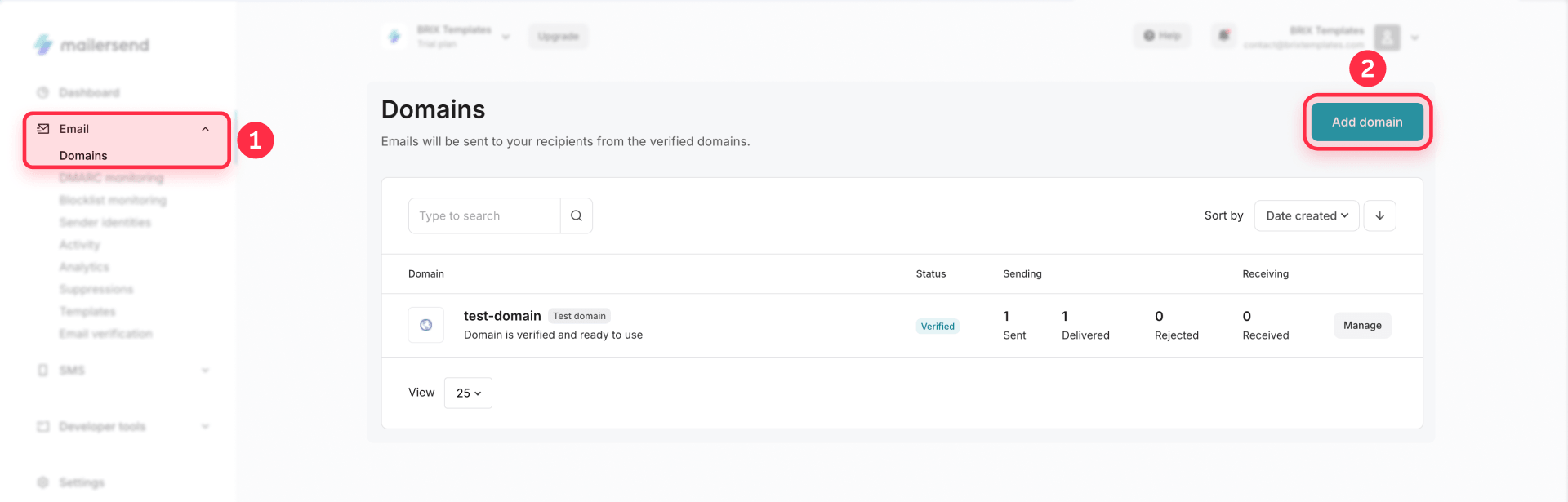
- In MailerSend, go to Email → Domains.
- Click Add domain.
- Enter the domain you want to send from, such as yourdomain.com.
- MailerSend will generate DNS records for that domain.
- Add those DNS records in your domain provider, such as Cloudflare, GoDaddy, Namecheap, or your hosting provider.
- Return to MailerSend and complete the domain verification.
MailerSend usually asks you to add records for SPF, DKIM, and Return-Path. These records prove that MailerSend is allowed to send email for your domain and help improve deliverability.
Tip: For quick testing, you can use MailerSend's trial domain. For a real client project, use a verified custom domain before sending production emails.
Create the auto-reply confirmation template
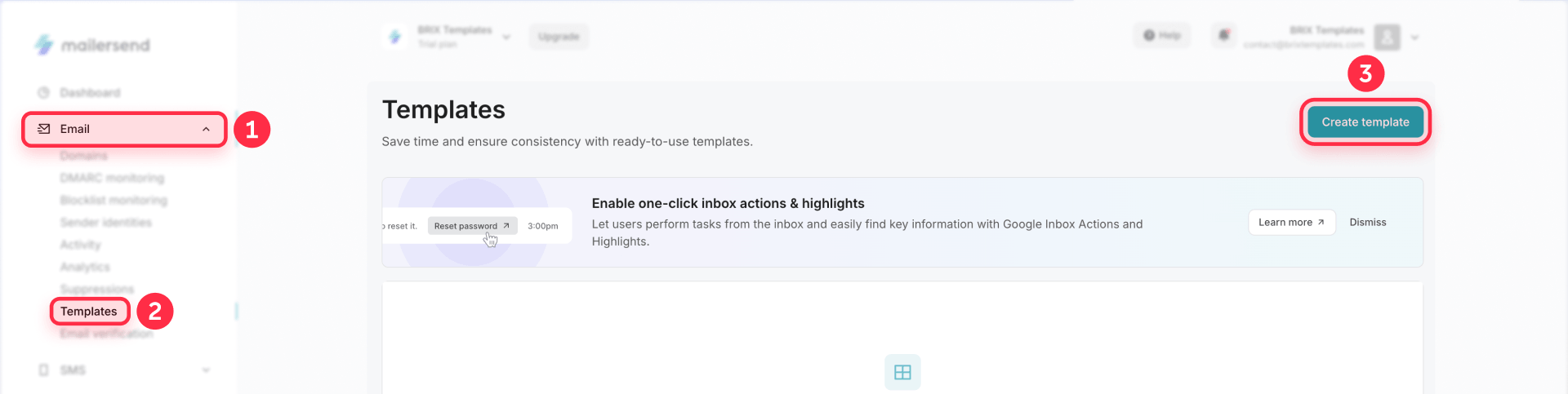
Build one auto-reply confirmation template in MailerSend's visual editor or with custom HTML.
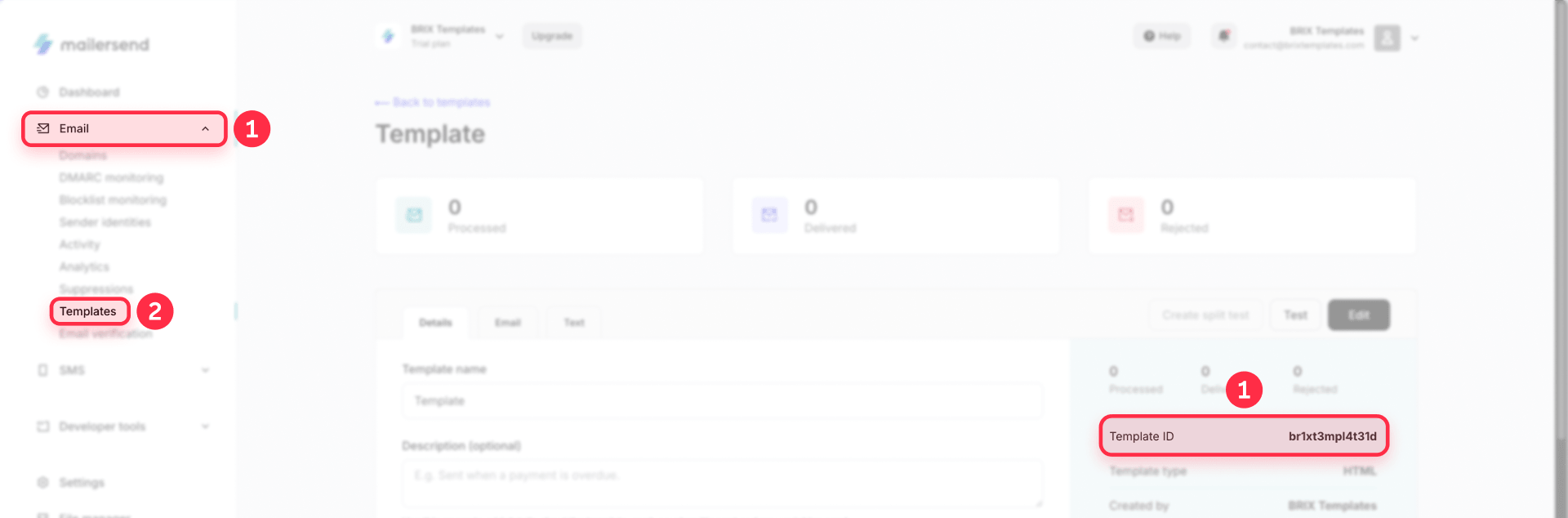
The template gets a unique template ID you reference in Make.
Add Framer form variables to the template
Use the {{var_name}} syntax for dynamic placeholders:
- {{clientName}} — the submitter's name
- {{leadCompany}} — the submitter's company (optional)
- {{formName}} — the name of the form (optional)
- {{sourcePage}} — the page the form was submitted from (optional)
You typically only need {{clientName}} for the greeting. The optional variables let you add context like "You submitted the Contact Form from our Services page" without hardcoding those details into the template.
If you want to show a short summary of what the submitter sent, you can also add {{clientEmail}}, {{clientPhone}}, or {{clientMessage}} — but keep the first version simple.
Tip: MailerSend's Free plan currently allows 500 emails per month after approval, with a daily limit of 100 emails. Brevo offers 300 emails per day on its free plan.
Step 7 — Send the auto-reply email from Make
With the webhook catching data and the template built, connect everything in Make using a direct API call to MailerSend.
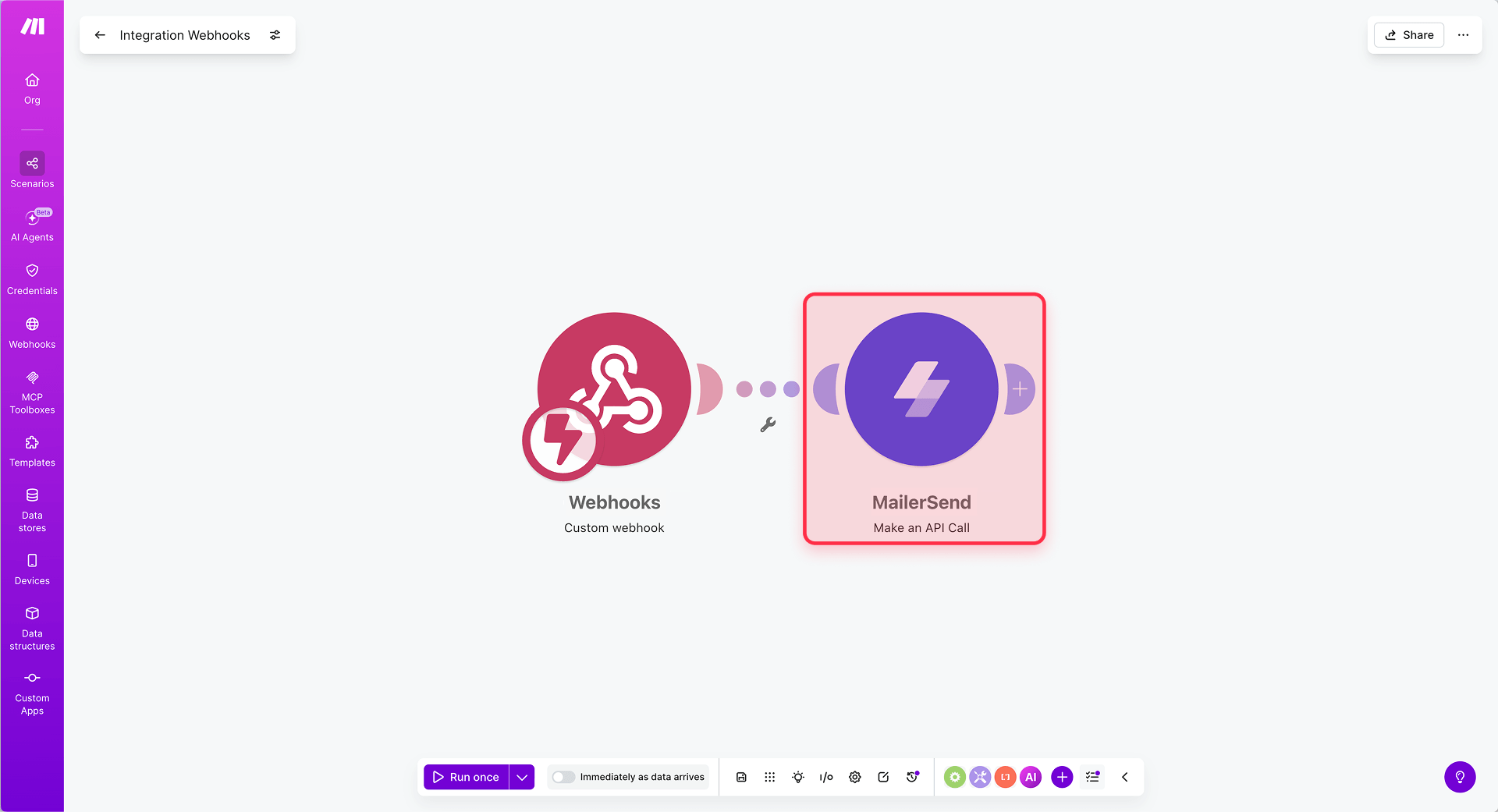
- Add a MailerSend → Make an API Call module after the webhook trigger.
- Connect your MailerSend account using the API token.
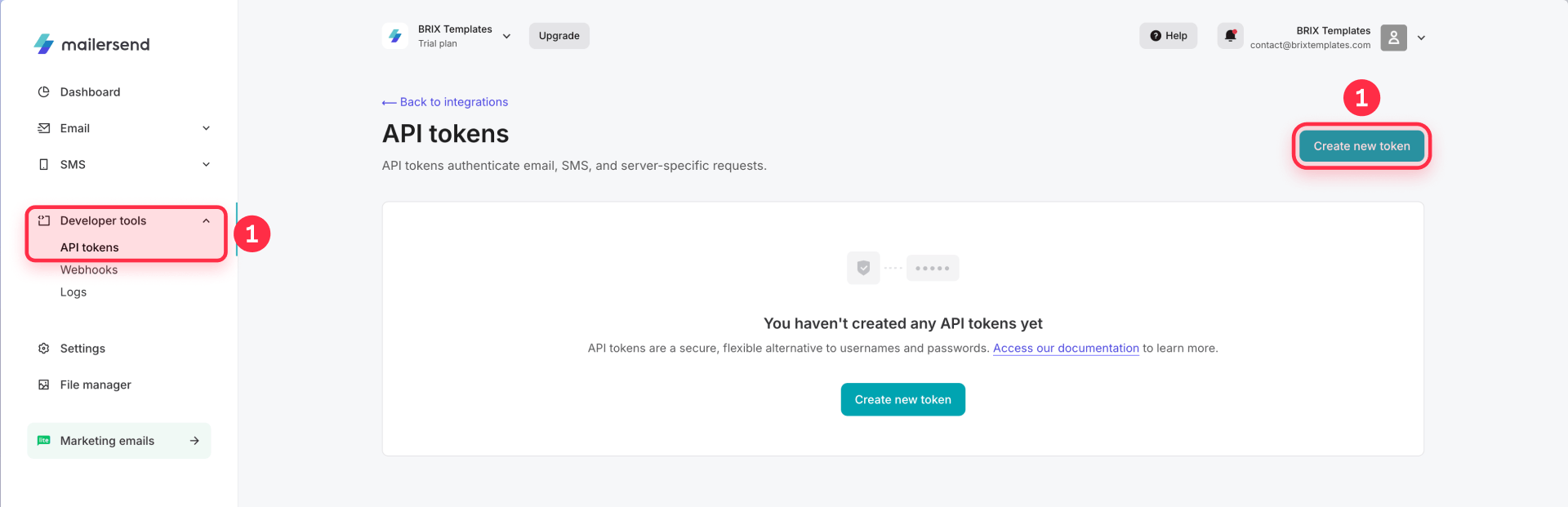
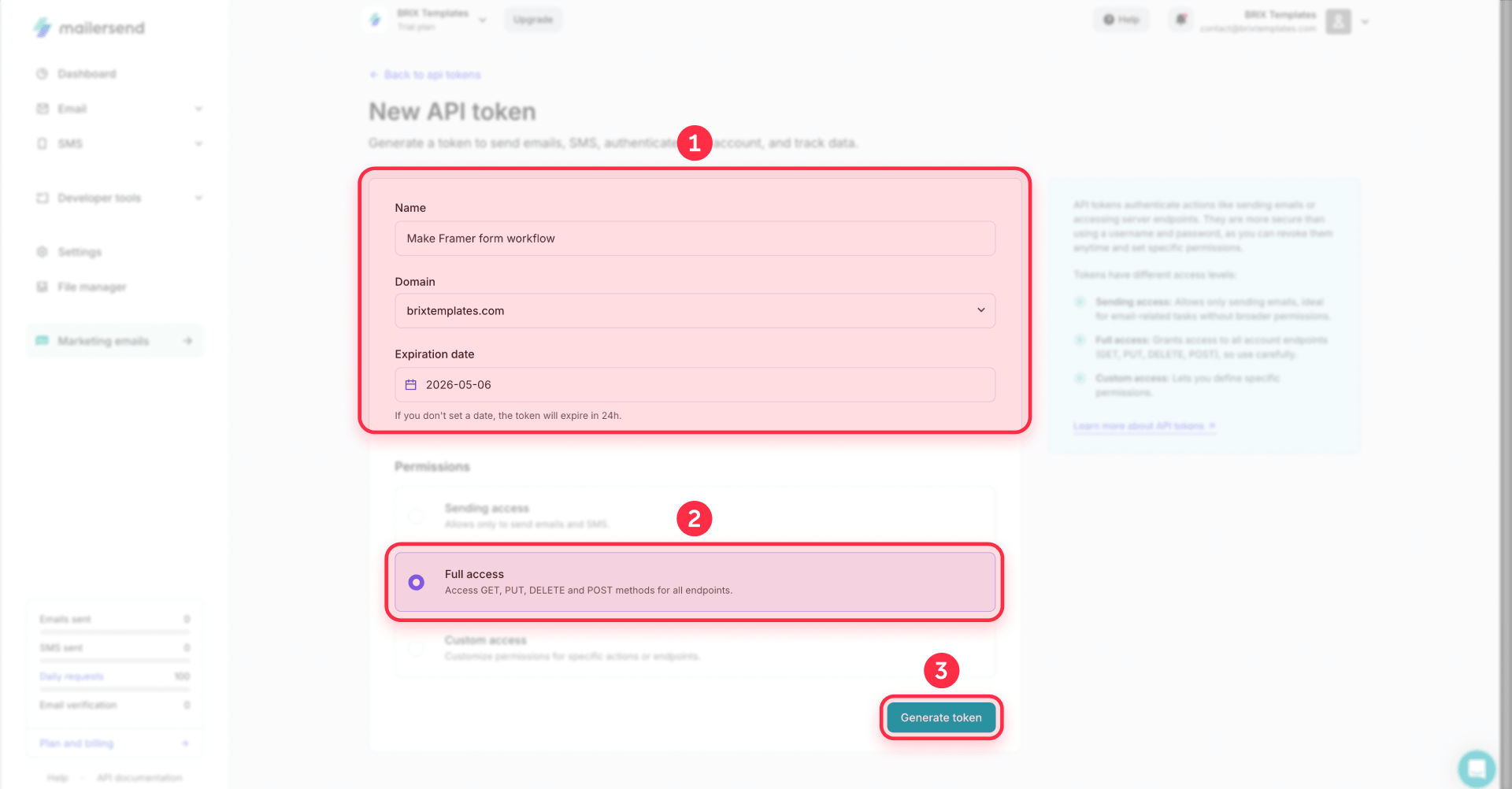
Note: If you do not have an API token yet, create one in MailerSend → Developer tools → API tokens → Create new token, then paste it into Make when creating the MailerSend connection.
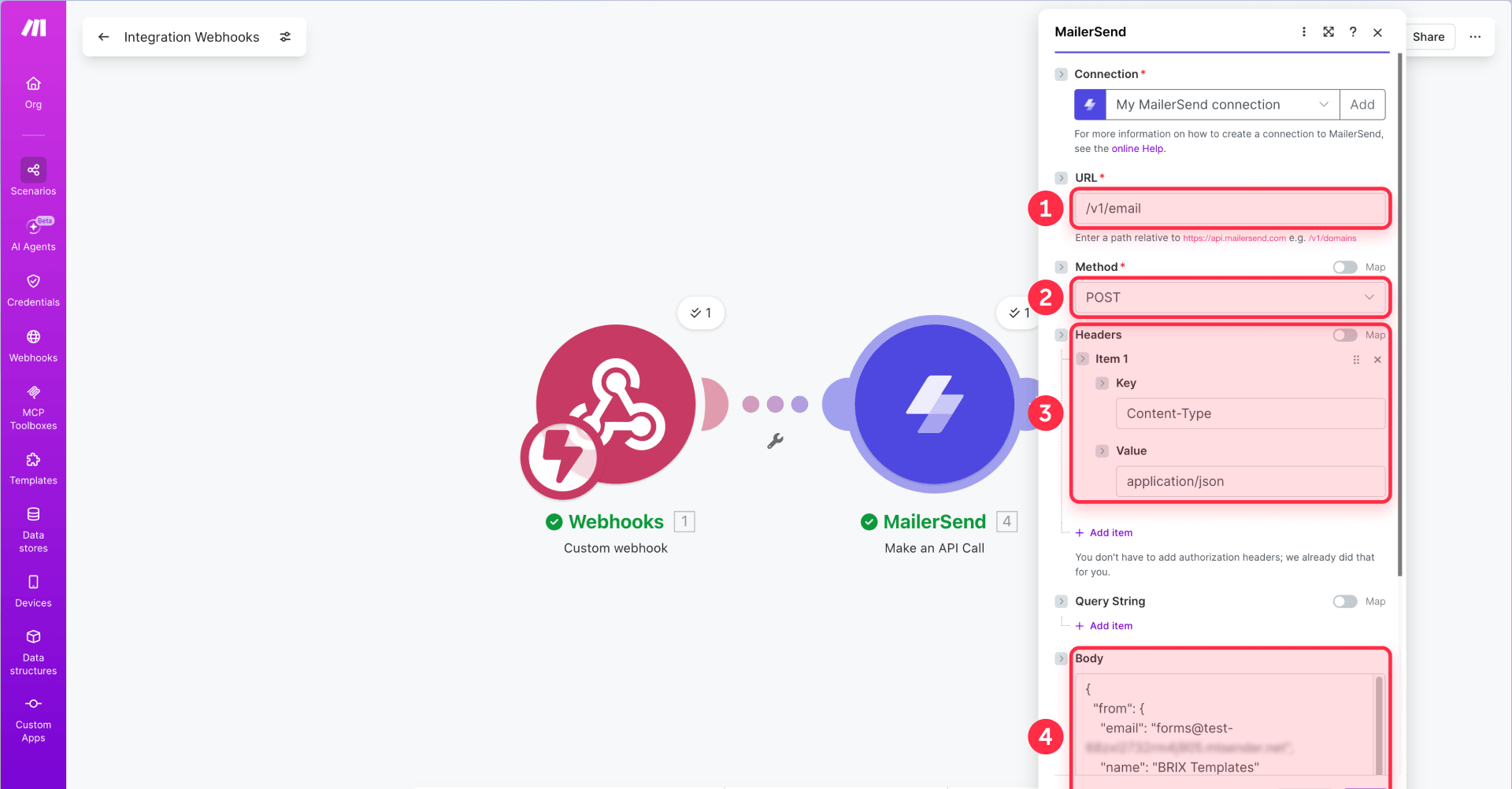
Configure the API call:
- HTTP Method — POST
- URL — /v1/email
- Headers — add Content-Type: application/json
Paste this JSON body into the Body field, replacing the placeholder values with your own:
Replace the following with your actual values:
- from.email — your verified MailerSend sender address. Use an email address from the domain you verified in Step 6, such as [email protected] or [email protected]. For testing only, you can use MailerSend's trial domain.
- from.name — your brand or company name
- template_id — the template ID from Step 6
- reply_to.email — your team's email address so the submitter can reply
- reply_to.name — your brand or company name
The personalization array passes variables into the MailerSend template. Each variable maps from the webhook payload (the {{1.*}} values) to the template variable names you set up in Step 6.
Tip: The reply_to address should always be your team's email — not the submitter's. This way, if the submitter replies to the confirmation email, it goes to your team.
Step 8 — Add optional backup or CRM steps
Once the confirmation email flow works, you can extend it:
- Backup. Add a Google Sheets, Airtable, Notion, or CRM module and map the same fields to store every submission.
- CRM sync. Push leads into HubSpot, Airtable, or another sales tool.
- Form analytics. Track Framer form submissions with GTM and GA4 to monitor completion rates and identify drop-off points.
If your workflow needs advanced routing, CRM sync, webhook verification, or multi-step error handling, BRIX Templates' Framer team can help design and implement the setup correctly.
Step 9 — Test the full Framer email workflow
Submit the form from your published Framer site and verify:
- Make receives the payload with all fields populated
- The auto-reply confirmation email arrives in the test submitter's inbox
- The email shows the correct sender name, subject, and branded layout
- Template variables like the submitter's name are filled in correctly
- Reply-to is set to your team's email — click Reply and confirm it goes to the right address
- The backup step saves the data, if enabled
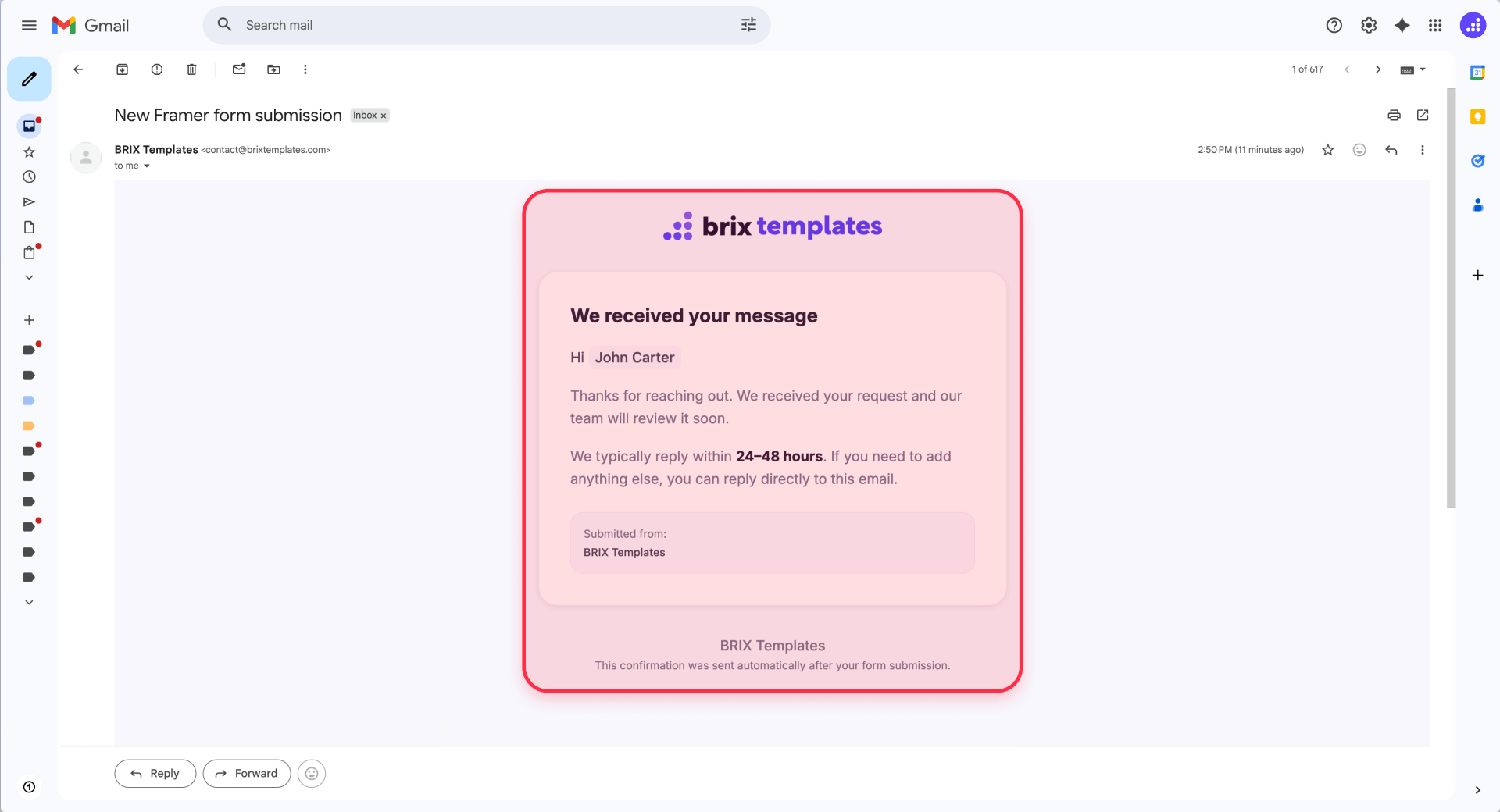
Test in at least two email clients (Gmail and Outlook) to confirm the layout renders correctly. If the layout breaks in Outlook, the issue is usually unsupported CSS like flexbox or border-radius.
Optional — Use Brevo instead of MailerSend
The same workflow works with Brevo (formerly Sendinblue). Brevo is a good alternative if you already use it for marketing emails or want its free plan.
The key difference is variable syntax. Brevo templates use {{params.variable_name}}, and values are passed through a params object in the send request. In Make, use the Sendinblue (Brevo) integration with the Send a Transactional Email module and map Framer fields into the params object.
The workflow structure is the same: Framer webhook → Make → email template. Switching from MailerSend to Brevo is a module swap, not a workflow redesign.
Common mistakes when sending professional emails from Framer forms
- The webhook does not receive data. Check that the URL starts with https://, is pasted correctly in Framer's Send To > Webhook field, the site is published, and Make is in Run Once mode.
- The sender domain is not verified. Add and verify your domain in MailerSend before sending production emails. For testing, the trial domain can work, but client workflows should use a verified custom domain.
- Variables appear empty. Check that Framer field names, Make mappings, and template variable names all match exactly.
- The email still looks plain. Make sure you are passing a Template ID in the API call body, not sending plain text.
- Reply-to does not work. Check that the reply_to object in the JSON body has your team's email address set correctly.
- No backup exists. Add a simple Google Sheets, Airtable, Notion, or CRM step after the API call module.
- The workflow is getting too complex. Keep the base workflow simple. Get help for advanced routing, CRM sync, or production-ready error handling.
Frequently asked questions about professional emails from Framer forms
Can Framer forms send professional emails?
Framer's native notifications work for basic alerts — you can set the recipient, subject, and message. For branded HTML confirmation emails sent to the submitter, custom sending domains, template variables, and submission backups, route submissions through a webhook to Make and use a transactional email service like MailerSend or Brevo.
How do Framer form webhooks work?
Framer sends an HTTP POST request with a JSON body to the webhook URL you configure. The JSON keys match your form field names. An automation platform like Make catches the payload and processes the data in subsequent workflow steps.
Can I send an auto-reply from a Framer form?
Not natively. But by routing the form through a webhook to Make, you can call the MailerSend API and send a templated confirmation email to the submitter's address right after they submit the form.
Can I customize the email layout from a Framer form?
Yes — through a webhook workflow. Use MailerSend or Brevo to create an HTML template with your logo, colors, and branded layout. The webhook passes form data as variables that the email service injects into the template at send time.
What is the best way to send branded emails from Framer forms?
The most flexible approach is Framer webhook → Make → MailerSend (or Brevo). This gives you full control over sender address, templates, reply-to, confirmation emails, and backups. Setup takes 30–60 minutes and runs automatically after that.
Can I also notify my team after sending the Framer auto-reply?
Yes. After the auto-reply works, you can add another Make step to notify your team or save the submission to a CRM. Keep the first version focused on the confirmation email, then add team notifications only if your workflow needs them.
How do I set reply-to for Framer form emails?
In the Make API call, set the reply_to field in the JSON body to your team's email address. This way, if the submitter replies to the confirmation email, the reply goes to your team. Native Framer notifications do not support dynamic reply-to configuration.
Conclusion
Sending a branded confirmation email from a Framer form follows a straightforward pattern: Framer captures the submission, the webhook sends the data, Make calls the MailerSend API, and MailerSend delivers a branded confirmation email to the submitter.
You now have a workflow that sends a professional "we received your message" email to every person who submits your form — with branded templates, dynamic variables, and optional submission backups — all running automatically, no custom code required.
If you need a more advanced setup with CRM sync, conditional routing, custom templates, or production-ready error handling, BRIX Templates' Framer team can help.









Join readers commenting on this post!