

You want a phone field that shows a template like (XXX) XXX-XXXX and auto-fills the formatting as the user types. Framer's Form Builder provides a Phone field type for mobile keyboards and autofill hints, but it doesn't insert parentheses or dashes automatically. To get that "fills in while typing" experience, you need a formatting layer that runs on every keystroke and paste.
This guide uses the BRIX Templates approach: one Framer Code Override applied directly to the phone input. The brixPhoneMask override formats input on every keystroke, automatically inserting punctuation while preserving Framer's native form submission behavior. You'll learn how to implement this with a single reusable override — plus how to customize the mask pattern to match your audience's preferred format.
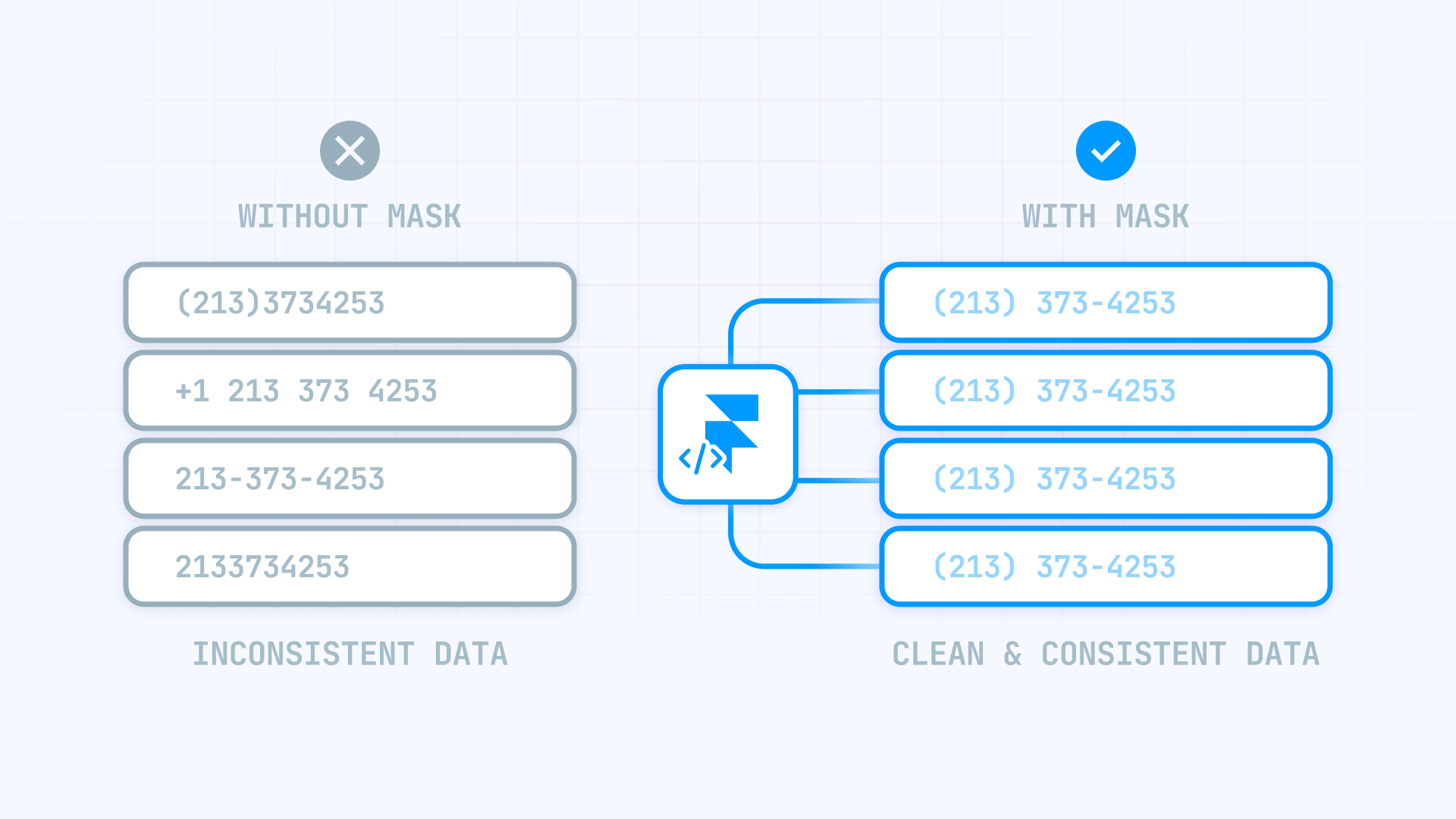
Why phone input masking matters for Framer sites
Adding a live phone mask to your Framer forms improves both data quality and user experience. Here's why it's worth implementing:
- Cleaner form submissions: Users don't submit half-formatted numbers like 415555-0137, ensuring consistent data across all entries and reducing manual cleanup in your CRM or database
- Higher completion rates on mobile: A masked field removes the "where do I put the dash?" confusion, reducing cognitive load and helping users complete forms faster on small screens
- More consistent CRM data: Optionally store a digits-only value alongside the formatted display, making it easier to integrate with tools that expect raw phone numbers
- Fewer validation errors: Users are guided into the correct format as they type, preventing frustrating error messages at submission time that could cause form abandonment
- Faster QA and scaling: Reuse the same BRIX Templates override across multiple forms and inputs throughout your site, maintaining consistency without duplicating code
- Better UX clarity: Live masking removes guesswork compared to placeholders and submit-only validation, showing users exactly what format you expect in real-time
Understanding validation vs masking in Framer phone fields
People often confuse these two concepts. Understanding the distinction helps you choose the right approach for your Framer forms.
What validation does in Framer phone fields
Validation checks format requirements (required fields, length rules, etc.) at submission time or via UI states you design. It can block bad submissions but does not automatically insert characters while typing. Users still need to manually format their input correctly.
What masking does in Framer phone fields
A live mask formats input on every change event, automatically inserts parentheses, spaces, and dashes, and handles paste operations predictably. Framer doesn't provide this natively in Form Builder, so we add it with a Code Override that transforms the typing experience.
1 - Setting up your Framer phone field correctly
Before adding any override, configure the field so it's easy to target and works well on mobile devices.
1.1 How to add a phone field in Framer Form Builder
Start by creating the basic phone input structure in your Framer project:
- In Framer, insert a Form using the Form Builder component
- Add a new field and choose a Phone input type (or set the input type to tel if configuring manually)
- Set the field Name to something clear like phone
- Set a placeholder like (415) 555-0137 to guide users
Tip: Using a Phone / type="tel" field improves the mobile keyboard experience and autofill behavior, but it won't enforce formatting on its own.
1.2 Selecting the correct input element in Framer for the override
In Framer, it's easy to accidentally select a wrapper or stack instead of the actual input element. The override must attach to the correct layer.
- In the Layers panel, expand the form field until you can select the real input element (the one users type into)
- Rename the input layer to something obvious like Phone Input so you can find it later
- Confirm the Code Override will be applied to the input — not the label, not a container frame, not a stack
1.3 How to change the mask format in Framer (BRIX Templates patterns — not regex)
The BRIX Templates override uses a pattern-based system that's easy to customize. The character "0" means "accept a digit here" — any other character (spaces, dashes, dots, parentheses) is treated as a literal and inserted automatically.
To change the default format, open BrixPhoneMask.tsx and edit the BRIX_DEFAULT_MASK constant:
const BRIX_DEFAULT_MASK = "(000) 000-0000"Example patterns you can use:
- Parentheses format: (000) 000-0000 → (415) 555-0137
- Dash-separated: 000-000-0000 → 415-555-0137
- Dot-separated: 000.000.0000 → 415.555.0137
- Space-separated: 000 000 0000 → 415 555 0137
- 7-digit format: 000 00 00 → 123 45 67
- 10-digit mobile: 0000 000 000 → 0412 345 678
Important: The number of "0" characters in your pattern defines the maximum digits accepted. A pattern with 10 zeros accepts up to 10 digits; a pattern with 7 zeros accepts up to 7 digits.
2 - Adding the live phone input mask in Framer
This section covers the actual implementation that creates the "template gets filled in while typing" behavior.
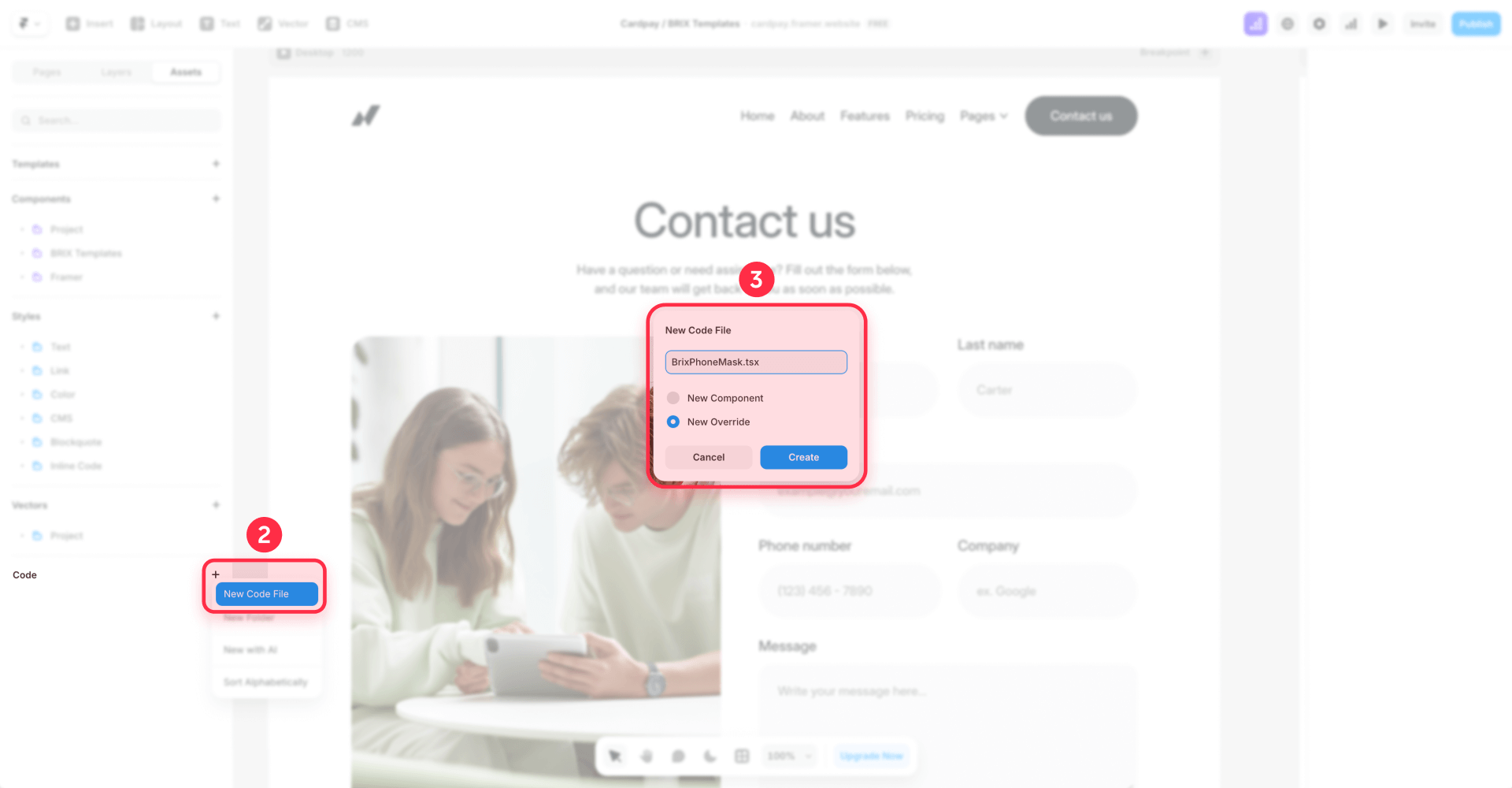
2.1 Creating the BRIX Templates Code Override file in Framer
Set up the override file that will contain your phone masking logic:
- Create a new Code Override file in your Framer project
- Name it exactly: BrixPhoneMask.tsx
- Paste the BRIX Templates override code provided below
- Click Save
2.2 The complete BRIX Templates phone mask Code Override for Framer
Copy and paste this code into your BrixPhoneMask.tsx file:
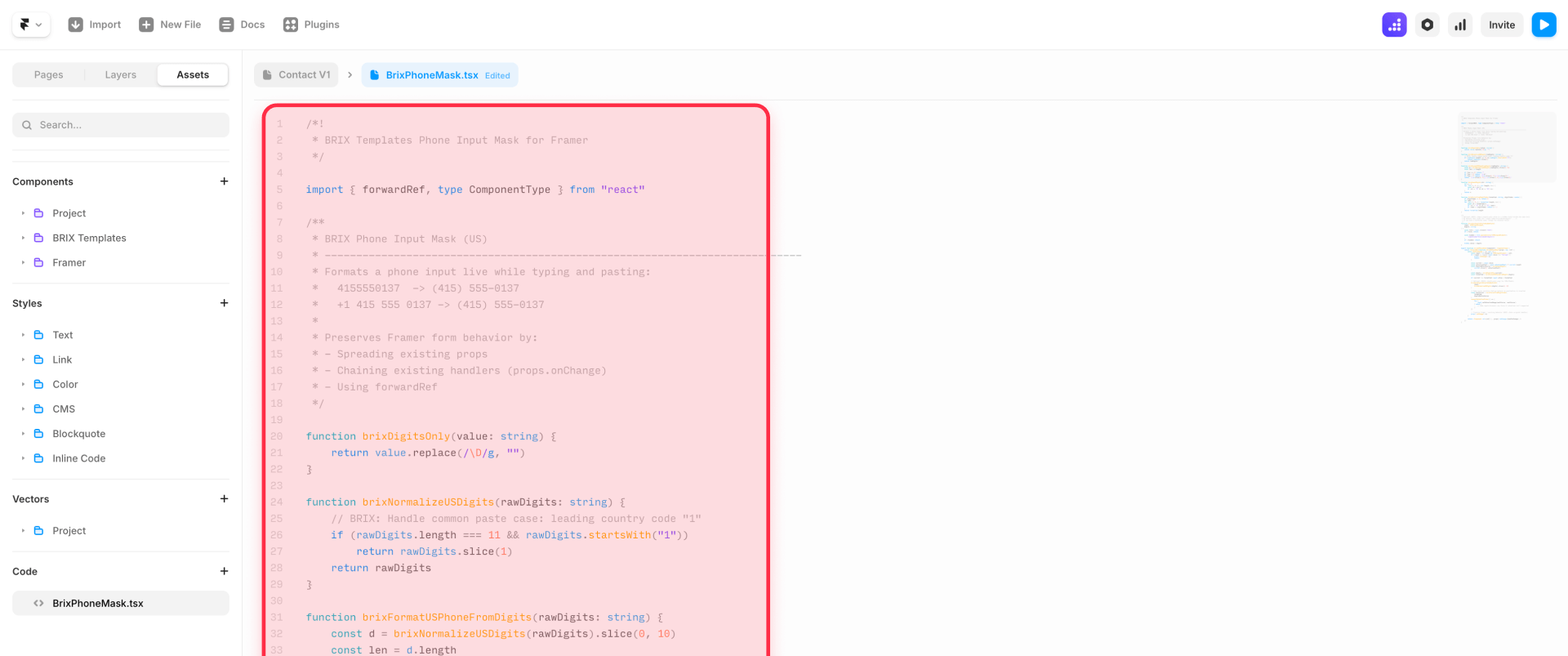
/*!
 * BRIX Templates Phone Input Mask for Framer
 * Version: 1.1.0
 * Author: BRIX Templates
 */

import { forwardRef, type ComponentType } from "react"

/**
 * BRIX Phone Input Mask (Pattern-based)
 * ----------------------------------------------------------------------------
 * Mask pattern rules (BRIX):
 * - "0" means "accept a digit here"
 * - any other character is treated as a literal (spaces, dashes, dots, parentheses, etc.)
 *
 * Examples:
 *   (000) 000-0000  -> (415) 555-0137
 *   000-000-0000    -> 415-555-0137
 *   000.000.0000    -> 415.555.0137
 *   000 00 00       -> 123 45 67
 *
 * Preserves Framer form behavior by:
 * - Spreading existing props
 * - Chaining existing handlers (props.onChange)
 * - Using forwardRef
 */

const BRIX_DEFAULT_MASK = "(000) 000-0000"
const BRIX_MASK_ATTR = "data-brix-phone-mask"

function digitsOnly(value: string) {
  return value.replace(/\D/g, "")
}

function countMaskDigits(mask: string) {
  let n = 0
  for (let i = 0; i < mask.length; i++) if (mask[i] === "0") n++
  return n
}

function isMaskLike(value: string | null | undefined) {
  return typeof value === "string" && value.includes("0")
}

function resolveMaskPattern(input: HTMLInputElement, props: any) {
  const fromAttr = input.getAttribute(BRIX_MASK_ATTR)
  if (isMaskLike(fromAttr)) return fromAttr as string

  const fromPlaceholder = input.placeholder || props?.placeholder
  if (isMaskLike(fromPlaceholder)) return fromPlaceholder as string

  return BRIX_DEFAULT_MASK
}

function normalizeDigitsForMask(rawDigits: string, mask: string) {
  const expected = countMaskDigits(mask)
  if (expected === 10 && rawDigits.length === 11 && rawDigits.startsWith("1")) return rawDigits.slice(1)
  return rawDigits
}

function applyMask(mask: string, digits: string) {
  if (digits.length === 0) return ""

  let di = 0
  let out = ""

  for (let i = 0; i < mask.length; i++) {
    const ch = mask[i]
    if (ch === "0") {
      if (di >= digits.length) break
      out += digits[di]
      di++
    } else {
      if (di < digits.length) out += ch
    }
  }

  return out
}

function countDigits(str: string) {
  let n = 0
  for (let i = 0; i < str.length; i++) {
    const ch = str[i]
    if (ch >= "0" && ch <= "9") n++
  }
  return n
}

function cursorFromDigitIndex(formatted: string, digitIndex: number) {
  if (digitIndex <= 0) return 0
  let seen = 0
  for (let i = 0; i < formatted.length; i++) {
    const ch = formatted[i]
    if (ch >= "0" && ch <= "9") seen++
    if (seen >= digitIndex) return i + 1
  }
  return formatted.length
}

function syncDigitsOnlyToHiddenField(input: HTMLInputElement, digits: string) {
  const form = input.closest("form")
  if (!form) return

  const hidden = form.querySelector<HTMLInputElement>('input[name="brix-phone-digits"]')
  if (!hidden) return

  hidden.value = digits
}

export function brixPhoneMask(Component): ComponentType {
  return forwardRef(function BrixPhoneMask(props: any, ref) {
    const handleChange = (e: any) => {
      const input = e?.target as HTMLInputElement | null
      if (!input || typeof input.value !== "string") {
        props?.onChange?.(e)
        return
      }

      const current = input.value
      const selectionStart = input.selectionStart ?? current.length
      const digitsBeforeCursorRaw = countDigits(current.slice(0, selectionStart))

      let mask = resolveMaskPattern(input, props)
      let maxDigits = countMaskDigits(mask)
      if (maxDigits <= 0) {
        props?.onChange?.(e)
        return
      }

      const rawDigits = digitsOnly(current)
      const normalized = normalizeDigitsForMask(rawDigits, mask)
      const trimmed = normalized.slice(0, maxDigits)

      const formatted = applyMask(mask, trimmed)
      if (current !== formatted) input.value = formatted

      syncDigitsOnlyToHiddenField(input, trimmed)

      const digitsBeforeCursor = Math.min(digitsBeforeCursorRaw, trimmed.length)
      const nextCursor = cursorFromDigitIndex(formatted, digitsBeforeCursor)
      requestAnimationFrame(() => {
        try {
          input.setSelectionRange(nextCursor, nextCursor)
        } catch {}
      })

      props?.onChange?.(e)
    }

    return <Component ref={ref} {...props} onChange={handleChange} />
  })
}
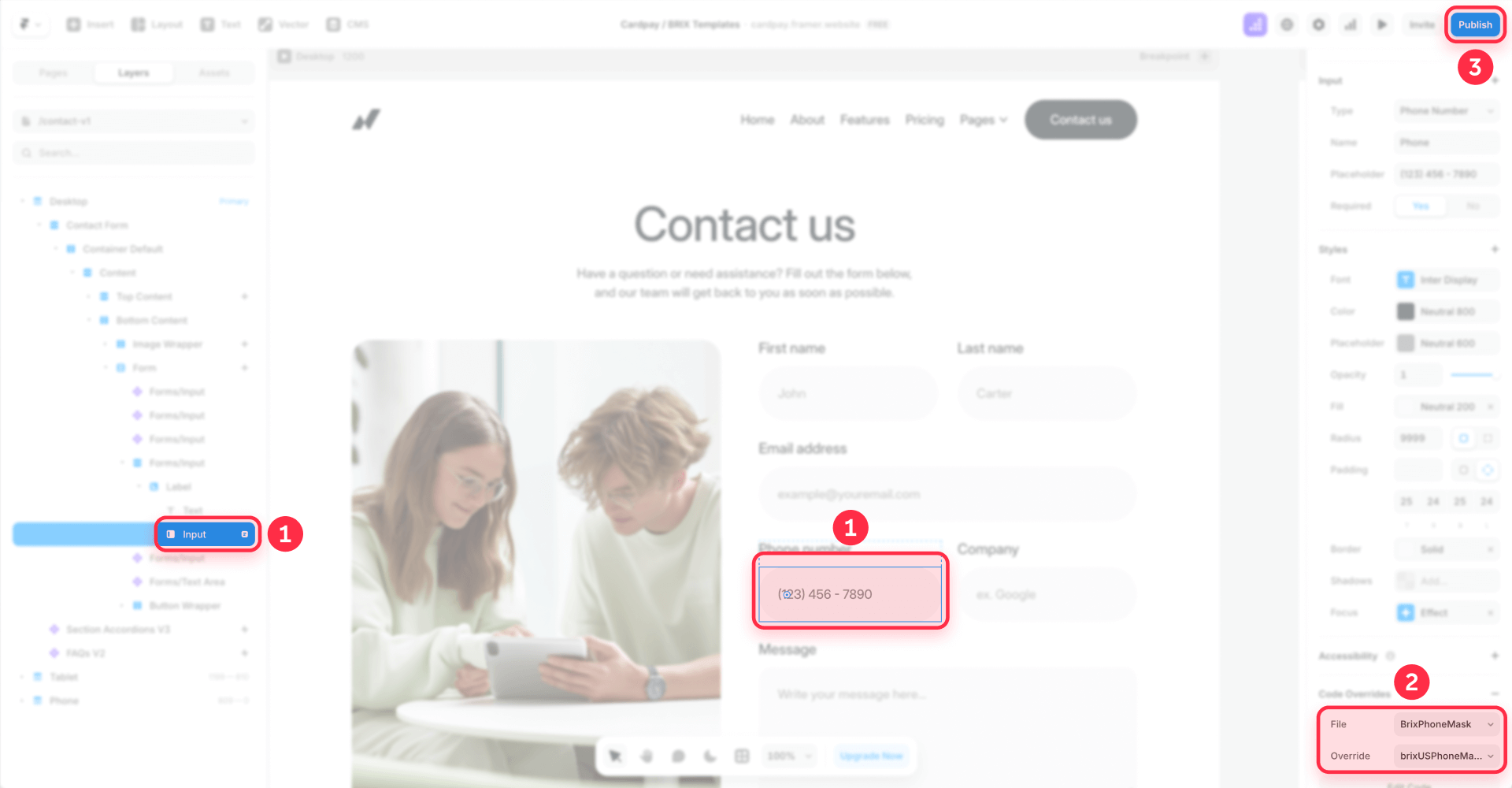
2.3 Applying the BRIX Templates override to your Framer phone input
Once the code is saved, connect it to your form field:
- Select the actual phone input layer (the one users type into)
- In the right panel, find the Code Overrides section
- Choose File: BrixPhoneMask.tsx
- Choose Override: brixPhoneMask
- Publish your site and test the formatting
Expected behavior while typing:
- Type 4 → (4
- Type 415 → (415
- Type 4155 → (415) 5
- Type 4155550137 → (415) 555-0137
- Digits beyond the mask limit are automatically ignored
Expected behavior when pasting:
- Paste 4155550137 → (415) 555-0137
- Paste +1 415 555 0137 → (415) 555-0137
- Paste Call me at 415.555.0137 → (415) 555-0137
Why Framer form submissions still work normally:
The override preserves Framer's native form behavior by spreading all existing props onto the input, chaining the existing onChange handler after formatting, and using forwardRef so Framer can keep managing the input as expected.
2.4 Advanced: storing digits-only phone values for CRMs in Framer
Some CRMs prefer 4155550137 instead of (415) 555-0137. The BRIX Templates override can optionally maintain a digits-only value in a hidden input inside the same form.
Step 1: Create the hidden field in your Framer form
- Add another input field inside the same Form Builder form
- Set its Name to exactly: brix-phone-digits
- Hide the field (use a Hidden option if available, or visually hide it in your layout while keeping it in the form)
Step 2: Test the submission
- The visible phone field submits the formatted value: (415) 555-0137
- The hidden field brix-phone-digits submits digits only: 4155550137
Country-aware phone validation in Framer forms
The pattern-based mask in this tutorial works great when your audience uses a single phone format. Simply pick the pattern that matches your audience and you're done.
Why this Framer tutorial uses one Code Override method
True country-aware phone validation — with features like country dropdowns with flags, automatic format detection, and real-time validation against country rules — requires a more involved setup. This typically means building a dedicated Code Component with specialized libraries and careful initialization logic.
That level of complexity is out of scope for this guide, which intentionally focuses on a single, reusable Code Override that covers the majority of use cases without added dependencies.
Need country-aware phone support for your Framer site?
If your forms receive traffic from multiple countries and you need proper international phone handling, reach out to our Framer team at BRIX Agency — we can build a custom solution with country selection, automatic formatting, and validation tailored to your specific markets.
Troubleshooting phone masks in Framer
Here's how to fix the most common problems when implementing phone masking.
- Override applied to the wrong layer (most common): Nothing happens when typing. The override is attached to a wrapper, frame, or stack instead of the input. In the Layers panel, select the real input element and re-apply brixPhoneMask.
- Override or module not loading: The override doesn't show up, or it fails in preview. The code file has an error or didn't save properly. Open the code editor, check for errors, save, then reload preview. Confirm the file is named BrixPhoneMask.tsx and the exported override is brixPhoneMask.
- Conflicts with existing validation rules: The form shows invalid state or blocks submission unexpectedly. A validation rule expects a different format (digits-only vs formatted). Align validation with the formatted output, or validate by digit count instead of raw string length.
- Paste edge cases not working as expected: Pasting a number with extensions like 4155550137 x123 doesn't keep the extension. This override keeps digits up to your mask's maximum and ignores the rest. If you need extensions, you'll need a deliberate extension format and should update the formatter accordingly.
- Mobile keyboard doesn't show numeric keypad: The field isn't set to Phone / type="tel". Set the Framer field type to Phone (tel). The mask will still work either way, but UX is significantly better with the numeric keypad on mobile devices.
- Works in one form but not another: One form masks correctly while another doesn't. The override wasn't applied to the second input, or it's applied to a different layer structure. Re-check the target input layer and re-apply brixPhoneMask to the correct element.
Frequently asked questions about phone masks in Framer
What is a phone input mask in Framer?
A phone input mask is a live formatting layer that updates the field as the user types, automatically inserting punctuation like parentheses and dashes. The BRIX Templates brixPhoneMask override handles this by intercepting every keystroke and paste event, reformatting the value instantly. This creates a guided experience where users see their input transform into the correct format.
Why doesn't a Framer phone field create a mask by default?
A Phone field type in Framer primarily improves mobile keyboard behavior and enables browser autofill hints. It does not enforce a specific live formatting structure because different regions use different phone formats. Framer keeps this flexible, allowing developers to implement custom masking solutions for specific formatting needs.
Can I mask phone inputs in Framer without custom code?
Not with true "format-as-you-type" behavior. Live masking requires intercepting keystroke events and reformatting the input value on every change. Placeholders and validation can help guide users, but only a Code Override can automatically insert parentheses, spaces, and dashes while maintaining cursor position.
Where do I apply the BRIX Templates phone mask override in Framer?
Apply the override to the actual input element inside your Form Builder field — not the wrapper, label, or container frame. In the Layers panel, expand your form field structure until you find the element users type into. Select that specific input, then choose BrixPhoneMask.tsx as the file and brixPhoneMask as the override.
How do I submit a digits-only phone number alongside the formatted value in Framer?
Add a hidden input inside the same form with name="brix-phone-digits". The BRIX Templates override automatically detects this field and keeps it updated with just the digits. When the form submits, you'll receive both values: the formatted version from the visible field and the digits-only version from the hidden field.
Does the BRIX Templates phone mask work with Framer's native form validation?
Yes, the override is designed to preserve all native Framer form behavior. It spreads existing props, chains the original onChange handler, and uses forwardRef so Framer maintains full control. However, if you have validation rules checking string length, remember that the formatted value includes punctuation — adjust your validation accordingly.
Can I use different phone formats with the BRIX Templates mask in Framer?
Yes! The override uses a pattern-based system where "0" represents a digit and other characters are literals. Edit BRIX_DEFAULT_MASK in the code to change the format. For example, use 000-000-0000 for dash-separated or 000 000 0000 for space-separated. The number of zeros defines the maximum digits accepted.
Will the phone mask slow down my Framer site's performance?
No. The BRIX Templates override is lightweight JavaScript that runs only when users interact with the specific input field. It doesn't load external libraries, make API calls, or add significant overhead. The formatting logic executes in microseconds on each keystroke, which is imperceptible to users.
Conclusion
If your goal is "a template that gets filled in" while users type, you need live phone masking — not placeholders and not submit-only validation. In Framer, the most reliable approach is a single BRIX Templates Code Override applied to the phone input, formatting on every change event while preserving Framer's native submission behavior.
Use BrixPhoneMask.tsx, apply brixPhoneMask to your input, publish, and test. If you want cleaner CRM data, add the optional hidden field brix-phone-digits for a digits-only value that integrates seamlessly with your backend systems.
For advanced implementations requiring country-aware phone formatting, multi-step form integration, or custom validation logic, our Framer development team at BRIX Agency can create sophisticated solutions tailored to your specific requirements.








Join readers commenting on this post!