

Managing form notifications across your team can be tricky when multiple people need to receive submissions. While you could manually forward emails or rely on external tools, Framer's native forms offer built-in support for multiple recipients that many users overlook.
This guide will show you how to implement native multiple email recipient notifications in Framer Forms simply and effectively.
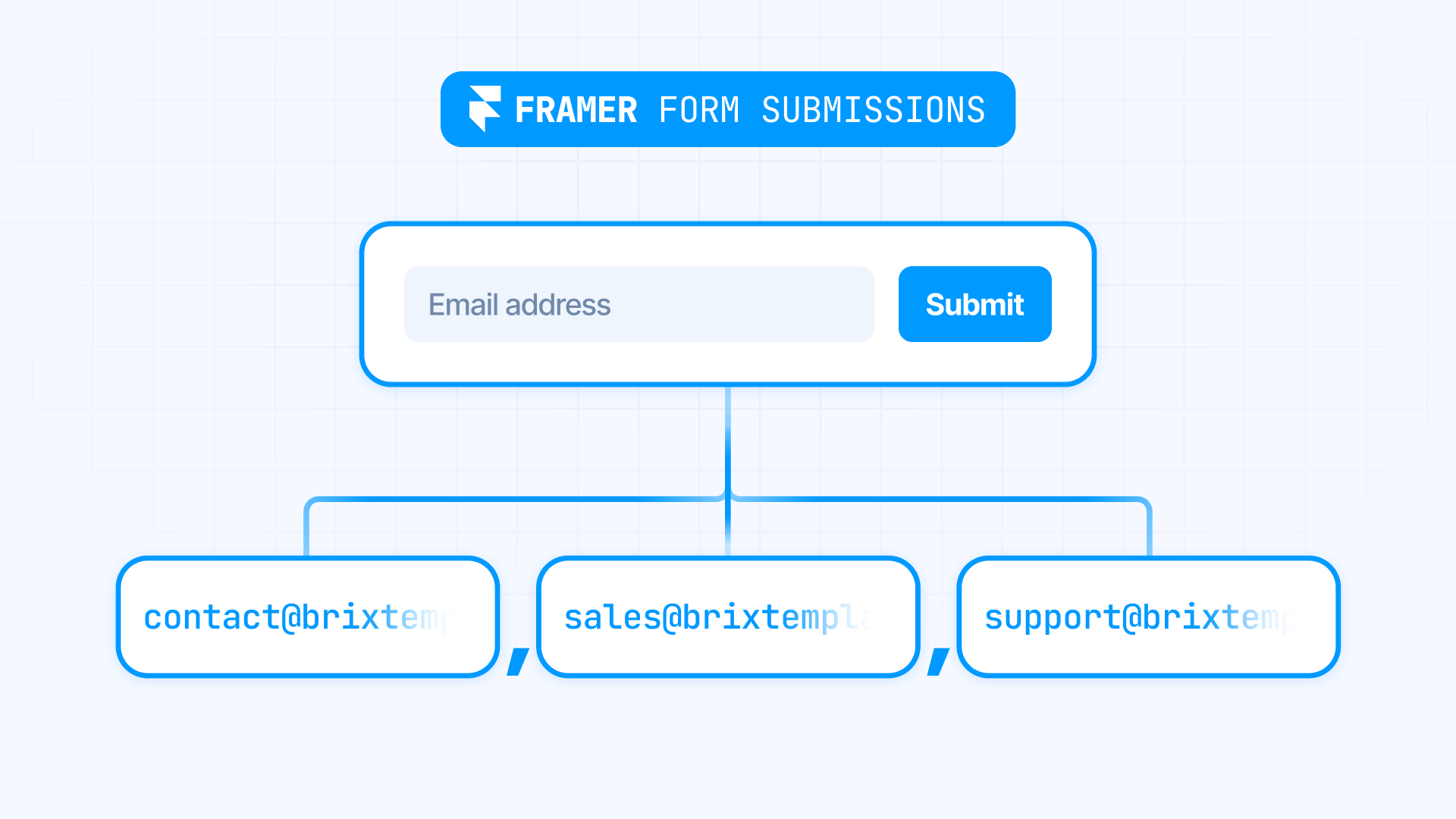
How to use Framer's native multiple email recipients
The simplest approach to sending form submissions to multiple email addresses uses Framer's built-in functionality without requiring external tools or integrations.
How to configure multiple email recipients in your Framer form
Setting up multiple email recipients in Framer Forms requires careful attention to formatting to ensure all recipients receive notifications correctly.
- Open your Framer project in the editor
- Select your Form element on the canvas
- In the right sidebar, locate the Send To section
- Click Add... and select Email if it's not already configured
- In the Recipient field, enter your email addresses using this exact format: [email protected],[email protected],[email protected]
The important formatting rule is to separate each email address with a comma and no spaces between them. Adding spaces can cause the form to malfunction or fail to send notifications to some recipients.
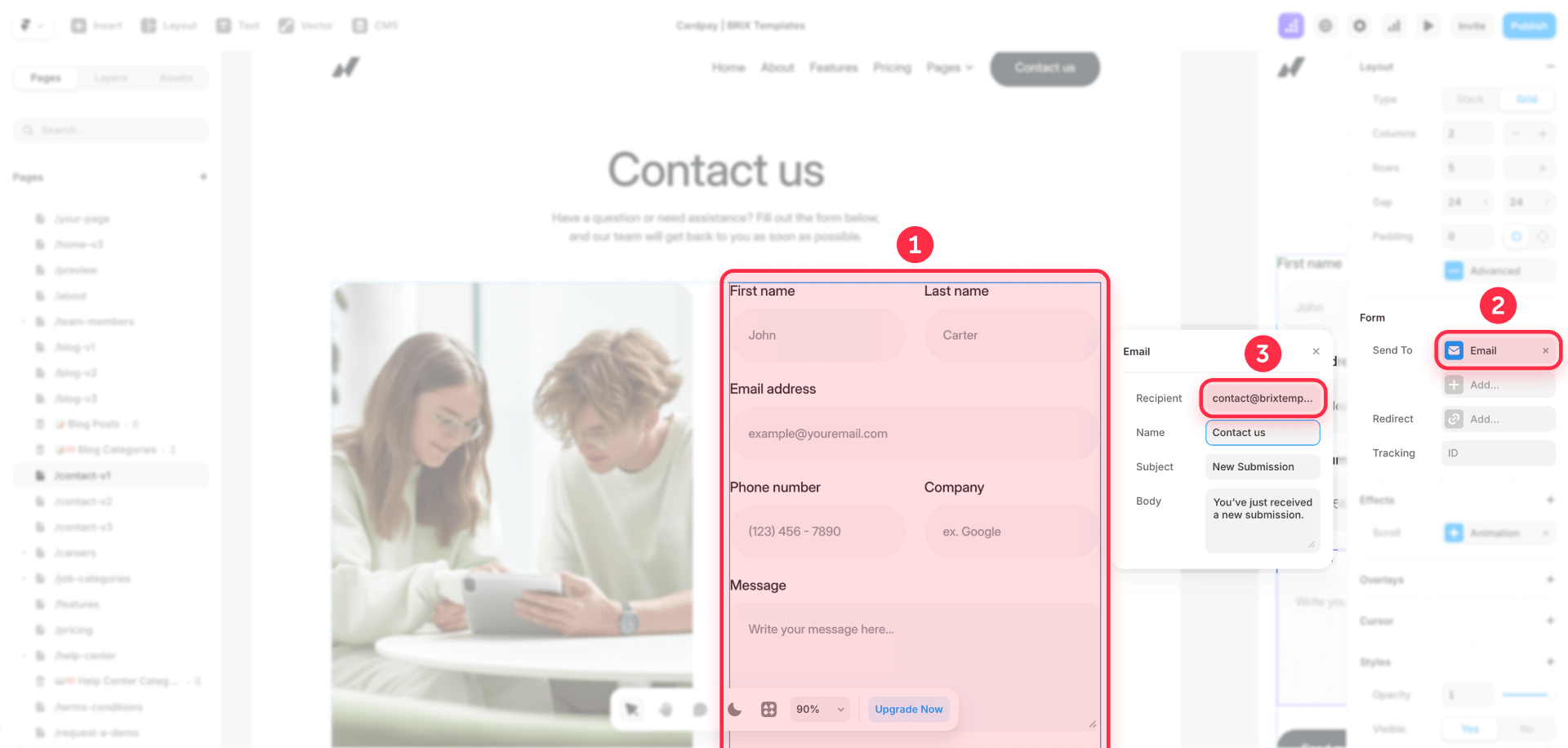
Optional customization: You can also customize the Sender Name and Subject fields in the same settings panel to make notifications more identifiable for recipients.
Troubleshooting common Framer form notification issues
Even with proper setup, you might encounter issues with form notifications. Here's how to solve the most common problems:
Notifications aren't arriving to all recipients: Double-check that you've used commas without spaces between email addresses. The format must be [email protected],[email protected] with no spaces anywhere.
Emails are going to spam folders: Customize the Sender Name and Subject fields to clearly identify the form source. Ask recipients to add [email protected] to their contacts to improve deliverability.
Form submissions aren't being sent: Verify that your form includes a submit button and that all required fields are properly configured. Check that your Framer site is published and that the form element is properly connected to the Send To settings.
Some recipients receive notifications while others don't: Confirm that all email addresses are valid and correctly formatted with commas only (no spaces, semicolons, or other separators).
Changed settings aren't taking effect: Make sure you've published your Framer site after modifying form settings. Changes only take effect on the live site after publishing.
Frequently asked questions about sending Framer forms to multiple emails
How to send Framer forms to multiple email addresses?
Select your form, go to Send To, choose Email, and enter the addresses separated by commas without spaces: [email protected],[email protected],[email protected]. This native Framer feature requires no external tools or integrations.
What is the correct format for multiple recipients in Framer forms?
The correct format is comma-separated addresses without spaces: [email protected],[email protected]. Don't use spaces or semicolons, or the form won't work correctly. This formatting requirement is critical for proper notification delivery.
Do Framer forms allow sending to multiple emails?
Yes, Framer Forms allows sending notifications to multiple email addresses natively. You just need to separate each email with a comma without spaces in the Recipient field. This built-in functionality works seamlessly without requiring third-party services.
Why are my Framer notifications going to spam?
Customize the Sender Name and Subject fields to clearly identify the source. Ask recipients to add [email protected] to their contacts to improve deliverability. Generic or blank sender information increases the likelihood of spam filtering.
How many emails can I add to a Framer form?
There's no official documented limit, but for large teams (more than 10 people) it's recommended to use an email distribution list to avoid delivery issues. Distribution lists also make it easier to manage recipients without updating form settings.
Can I customize Framer form notification emails?
Yes, Framer allows you to customize the Sender Name and Subject fields in the Email settings. However, you cannot customize the email body content with Framer's native features. The notification will include all submitted form data automatically.
What email address do Framer form notifications come from?
Framer form notifications are sent from [email protected]. You cannot change the sending address, but you can customize the Sender Name that appears in recipients' inboxes to make notifications more identifiable.
How do I test if my Framer form is sending to all recipients?
Publish your site and submit a test form entry. Check that all specified email addresses receive the notification. If some recipients don't receive emails, verify the comma-separated format and check spam folders.
Can I send Framer forms to different emails based on form content?
Framer's native forms don't support conditional routing based on form content. All submissions send to the same recipients specified in the Send To settings. For conditional routing, you'd need to use third-party form services or custom integrations.
Do I need a paid Framer plan to send forms to multiple emails?
No, multiple email recipients work with all Framer plans that include form functionality. This native feature doesn't require any premium plan upgrades or additional costs to implement.
Conclusion
Implementing form notifications to multiple recipients in Framer is simple and straightforward using the native comma-separated email method. This built-in functionality allows your entire team to stay informed about new submissions without requiring manual forwarding or additional tools.
Need help implementing any of these solutions or looking to build more sophisticated form workflows? Our experienced Framer development team specializes in creating custom form solutions that integrate seamlessly with your existing tools and processes.







Join readers commenting on this post!