
Framer's native forms already support email, Google Sheets, and custom webhooks, with built-in spam protection and rate limiting. That changes the best setup for Slack notifications. You do not need to default to a third-party automation tool just to get form submissions into Slack.
For most teams using a paid Slack workspace, the cleanest setup is Framer's native webhook combined with Slack Workflow Builder. If you are on Slack Free, or you need more routing and data transformation, then Make or Zapier becomes the better middle layer.
This guide walks you through the complete native setup, plus when Make or Zapier makes more sense for advanced routing needs.
Why Slack notifications matter for Framer form submissions
Forms are only useful if the right people see submissions fast enough to act on them. Slack notifications move new leads, support requests, and inquiries into the place your team is already watching.
Here are the most valuable use cases:
- Faster lead response: Sales teams can respond to inquiries within minutes instead of hours, helping them engage high-intent leads before they move on.
- Support ticket awareness: Support forms instantly alert your team in a dedicated channel, so requests get triaged faster without relying on email monitoring.
- Team collaboration on inquiries: When a form submission lands in a shared channel, multiple team members can see context and coordinate responses without forwarding emails.
- After-hours visibility: Mobile Slack notifications mean you see important form submissions even when you are away from your desk.
- Reduced inbox noise: Moving form notifications to Slack keeps your email cleaner while ensuring nothing gets buried in a crowded inbox.
- Audit trail in context: Slack channels create a searchable history of submissions in context, subject to your workspace's retention settings.
In Framer, this does not require sacrificing form UX either, because native forms still let you design success, error, and loading states normally while delivering submission data through a webhook behind the scenes.
What you need before starting
Before building this integration, confirm you have these prerequisites in place.
Framer requirements: A Framer site with a native form. Framer's native forms support 10+ input types, custom success/error/loading states, hidden fields, spam protection, and webhook delivery. Check your specific plan for any submission or feature limits.
Slack requirements: A Slack workspace on a paid plan with access to Workflow Builder. Slack says by default, anyone on a paid plan can create workflows using Workflow Builder. However, workspace owners and admins can restrict who can create workflows or use webhook triggers. If you do not see the webhook trigger option in Workflow Builder, contact your Slack admin.
Important constraint: Slack webhook-triggered workflows are limited to 1 request per second. For most contact and lead forms, this is not an issue. For high-volume forms, consider Make or Zapier with queuing capabilities.
The fastest method: Framer webhook to Slack Workflow Builder
This is the recommended setup for most Framer users who want instant Slack notifications without additional automation tools.
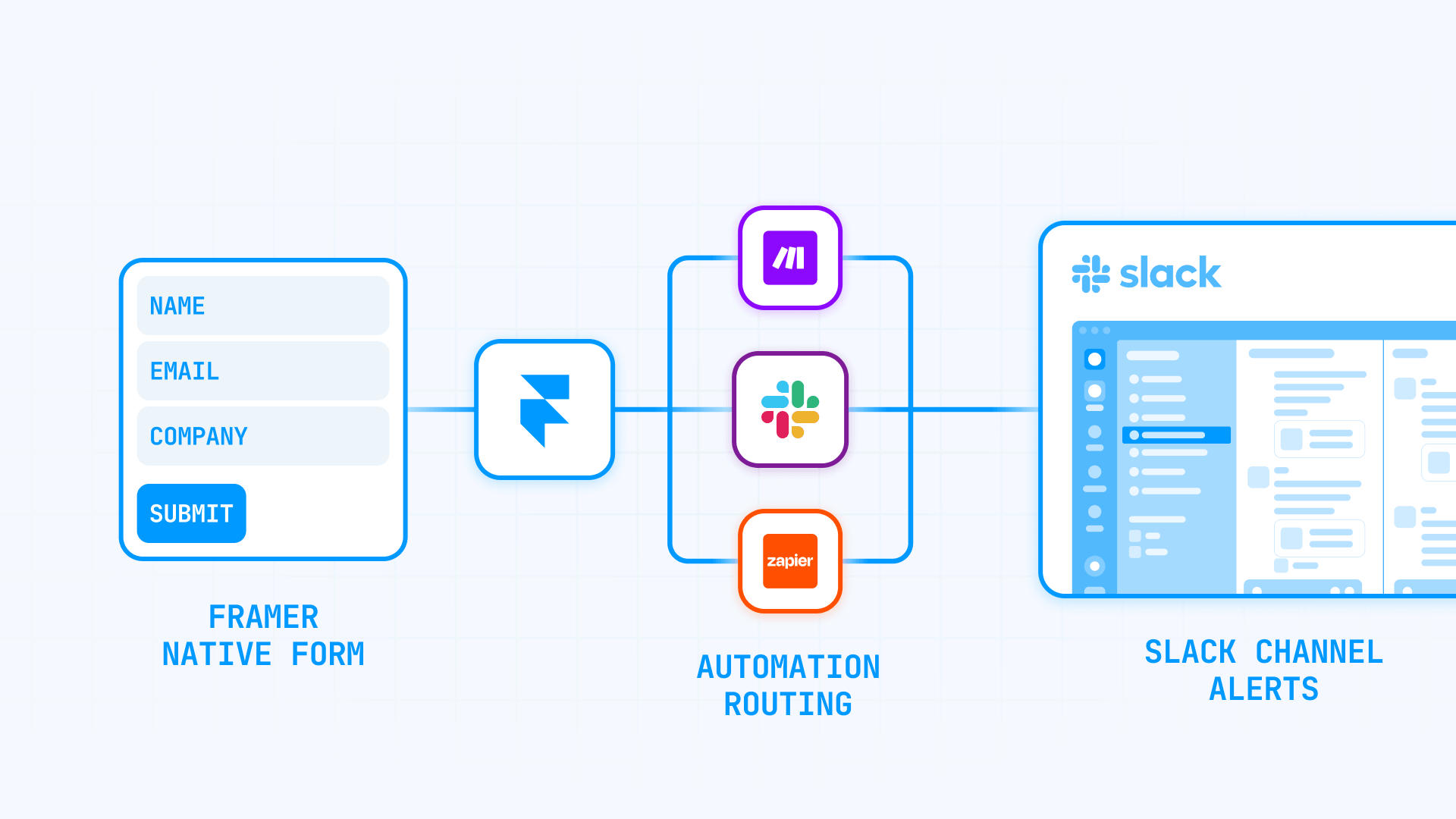
The architecture is simple: Framer sends form data as JSON to a webhook URL. Slack Workflow Builder receives that data and posts a formatted message to your chosen channel. No middleware, no extra subscriptions.
Step-by-step setup
Step 1: Create a Slack workflow that starts from a webhook
Start in Slack, not Framer. You need the webhook URL from Slack before you can configure Framer.
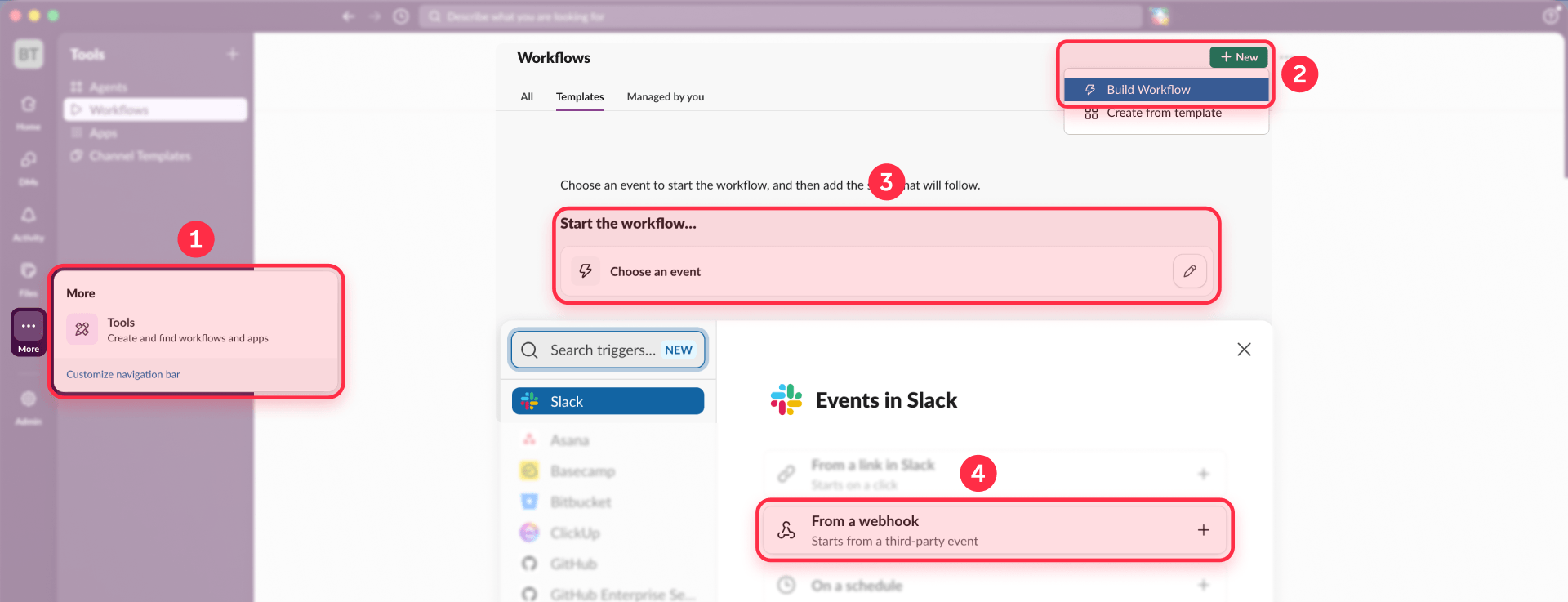
In Slack desktop, go to Tools → Workflows → New → Build Workflow. Under "Start the workflow," choose From a webhook.
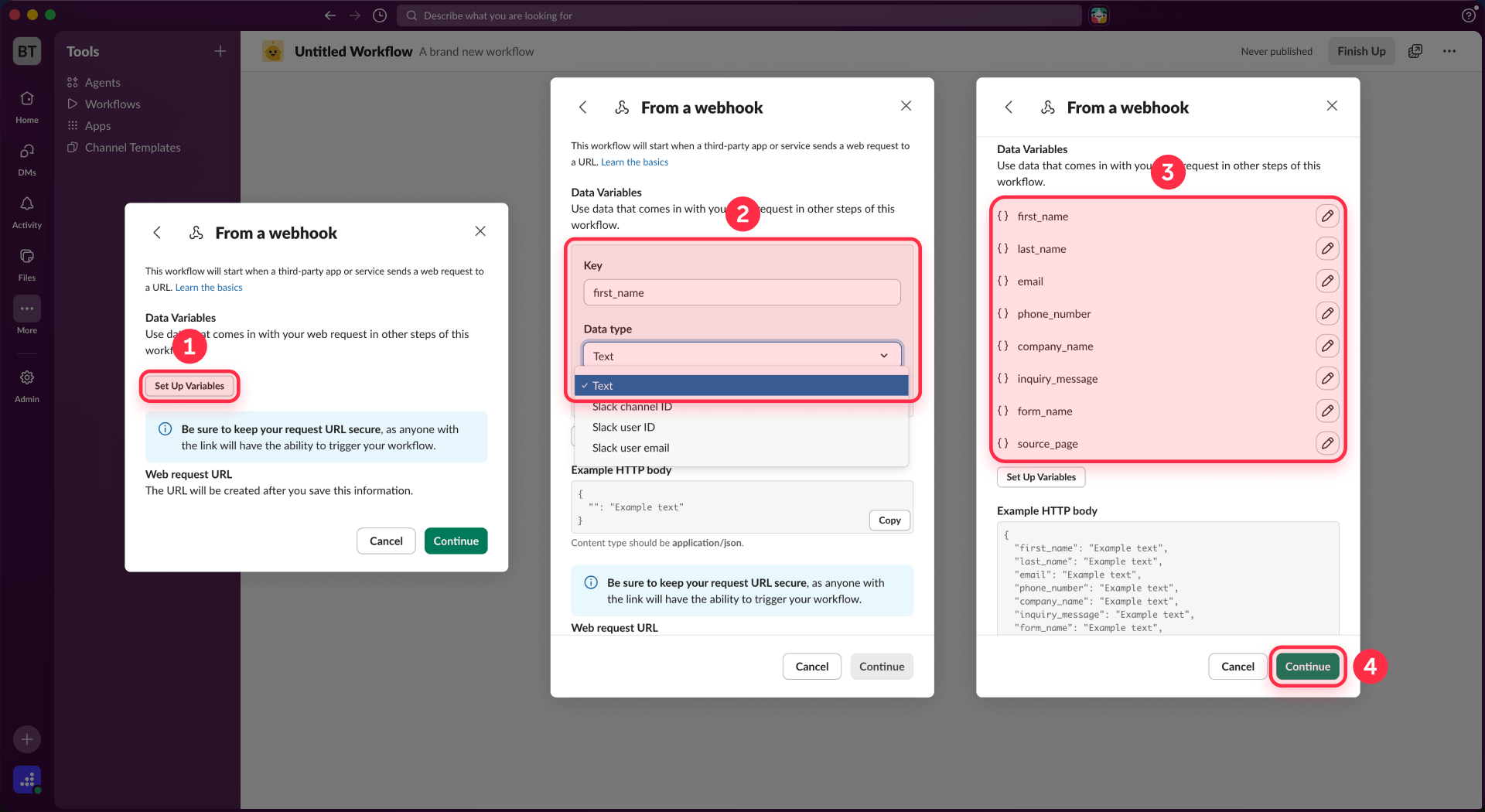
Slack will prompt you to configure variables. These variables represent the form fields you want to receive. Add a variable for each Framer form field you want to include in your notification.
For a typical contact form, create variables like:
- name (text)
- email (text)
- company (text)
- message (text)
- page_source (text)
Variable names should match your Framer form input names exactly, since Framer sends JSON with input names as keys.
Step 2: Add a message step to your Slack workflow
After configuring the webhook trigger, click Continue to add workflow steps.
Add a Send a message to a channel step. Select the channel where you want form notifications to appear—for example, #leads or #contact-form.
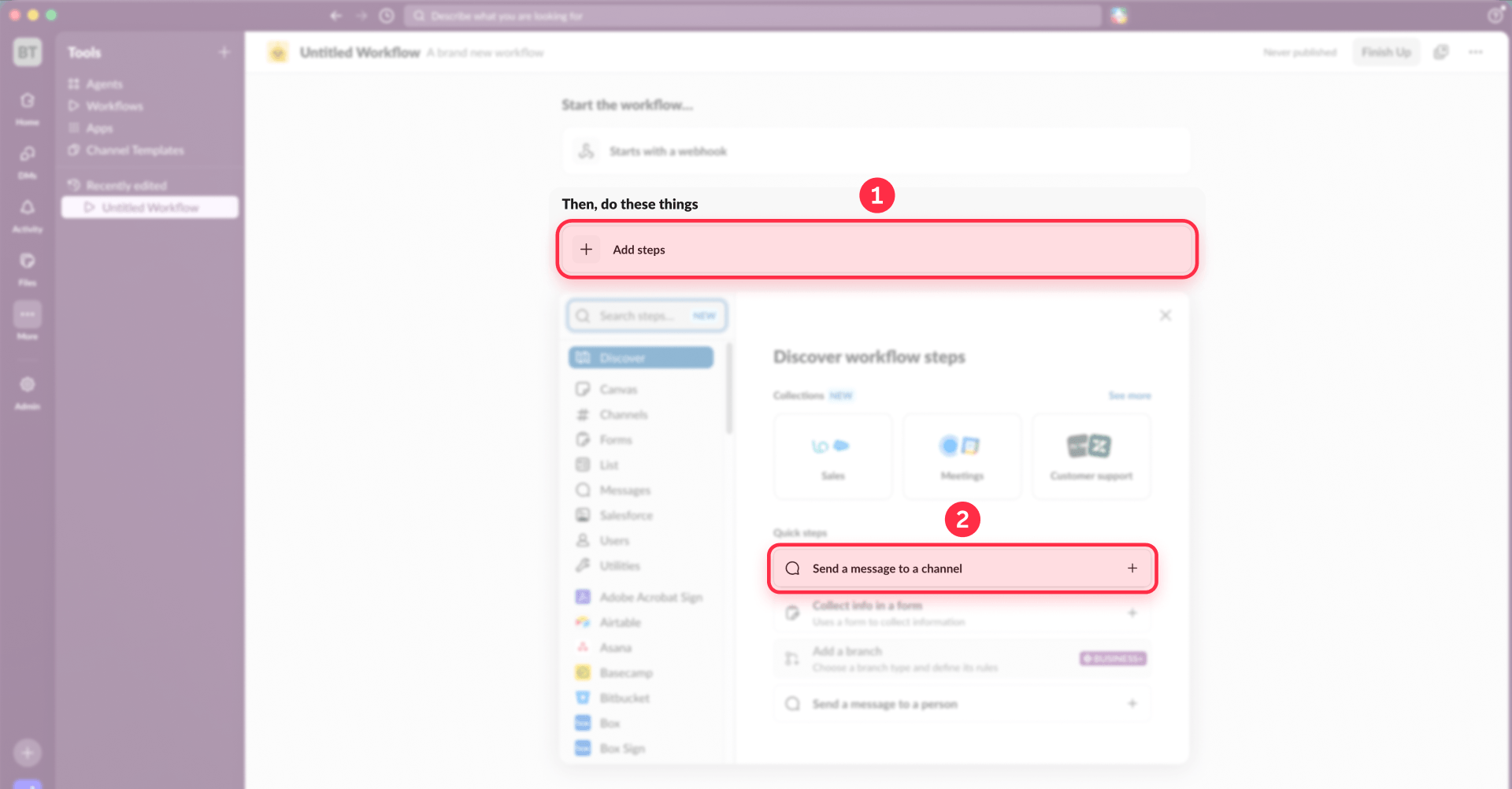
In the message body, use Insert a variable to place your webhook values. Build a message template like:
Keep it short, structured, and easy to scan. The goal is operational speed, not pretty decoration.
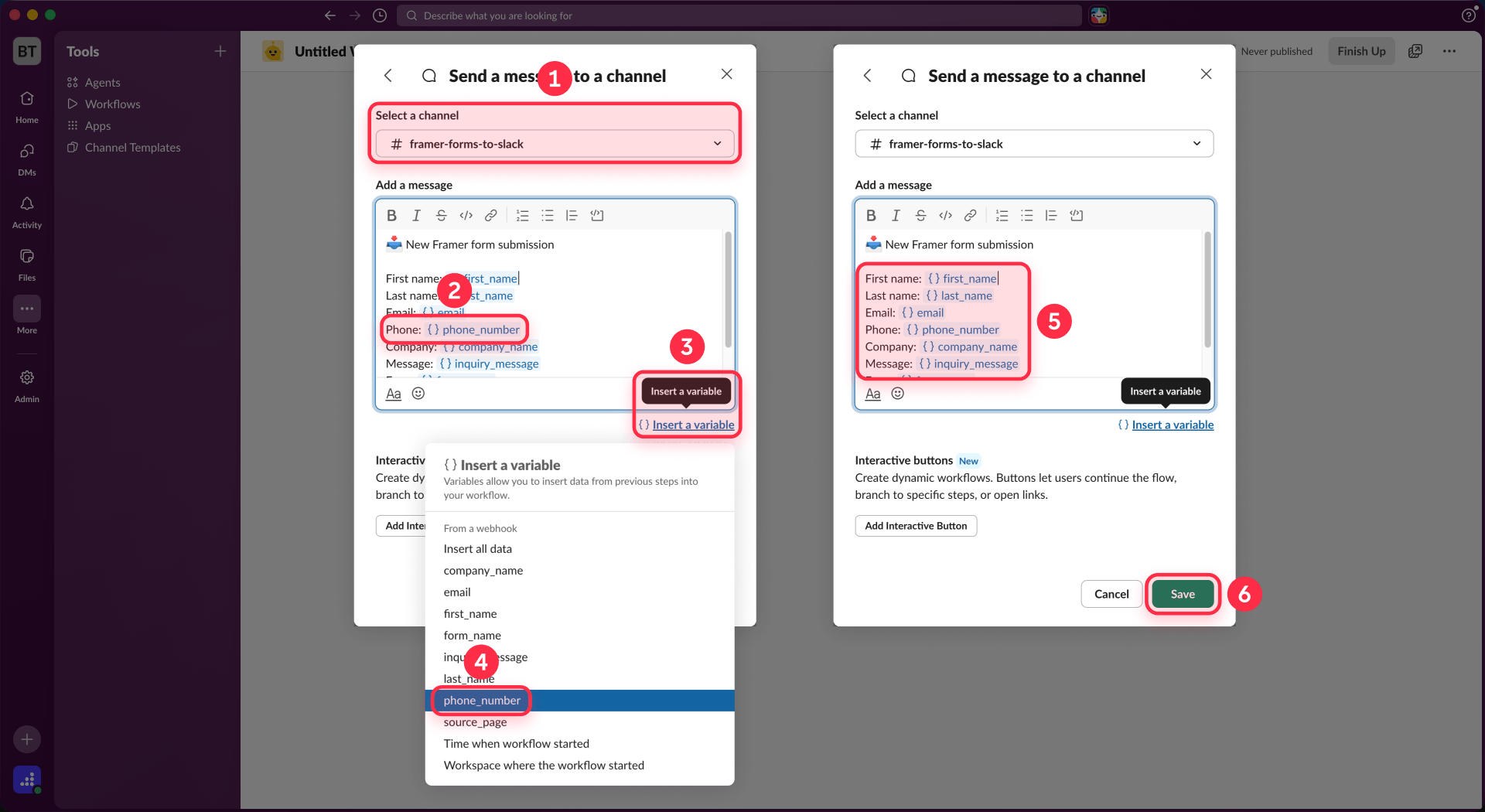
Slack recommends testing workflows in a test channel first, then updating to your production channel after confirming everything works.
Step 3: Publish and copy the Slack webhook URL
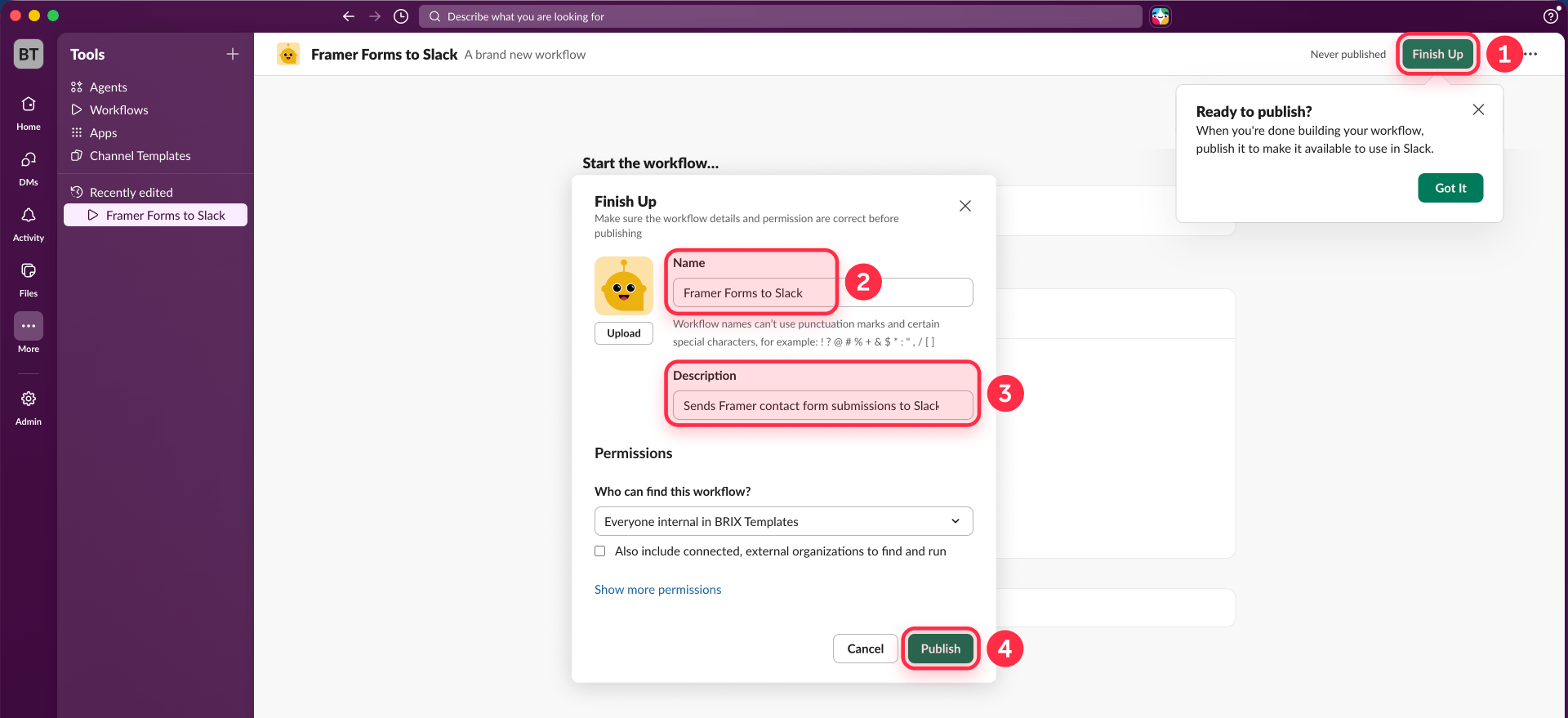
After adding your message step, click Publish to activate the workflow.
Once published, Slack generates the workflow's unique Request URL. This URL starts with https://hooks.slack.com/triggers/... and is what Framer will send form data to.
Copy this URL. You will paste it into Framer in the next step.
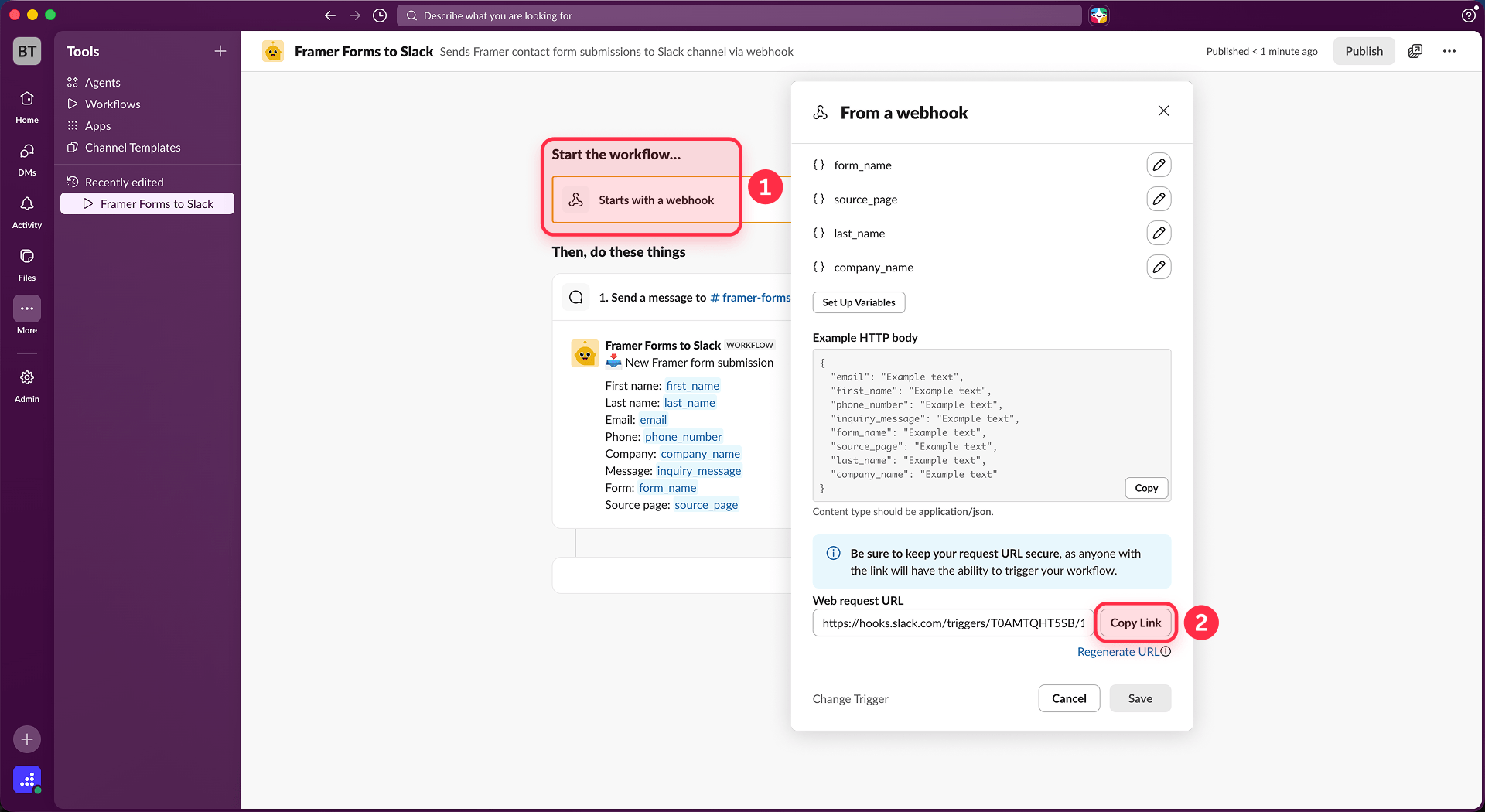
Security note: Keep this URL private. Anyone with the URL can trigger the workflow, so treat it as a secret.
Step 4: Build your native Framer form
Open your Framer project, go to Insert Menu → Forms, and drag a native form onto the page. Framer's native form system supports more than 10 input types and lets you design loading, success, and error states directly in the editor.
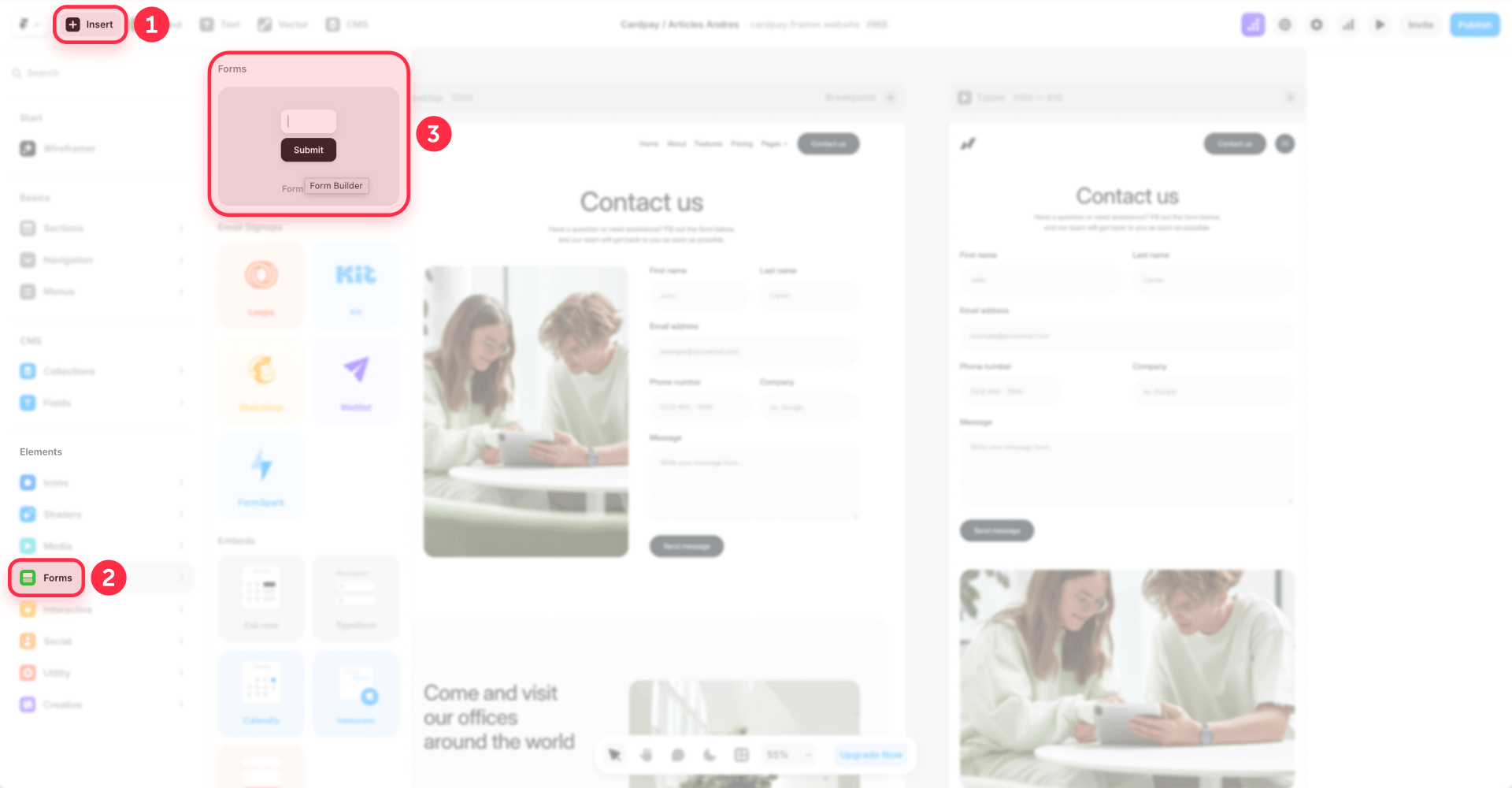
Name your form fields using the same clean keys you defined in your Slack workflow variables. If your Slack workflow expects name, email, company, message, and page_source, your Framer form inputs should use those exact names.
Step 5: Add the webhook destination to your Framer form
Select the form on the canvas. In the right sidebar, click Add… next to Send To and select Webhook.
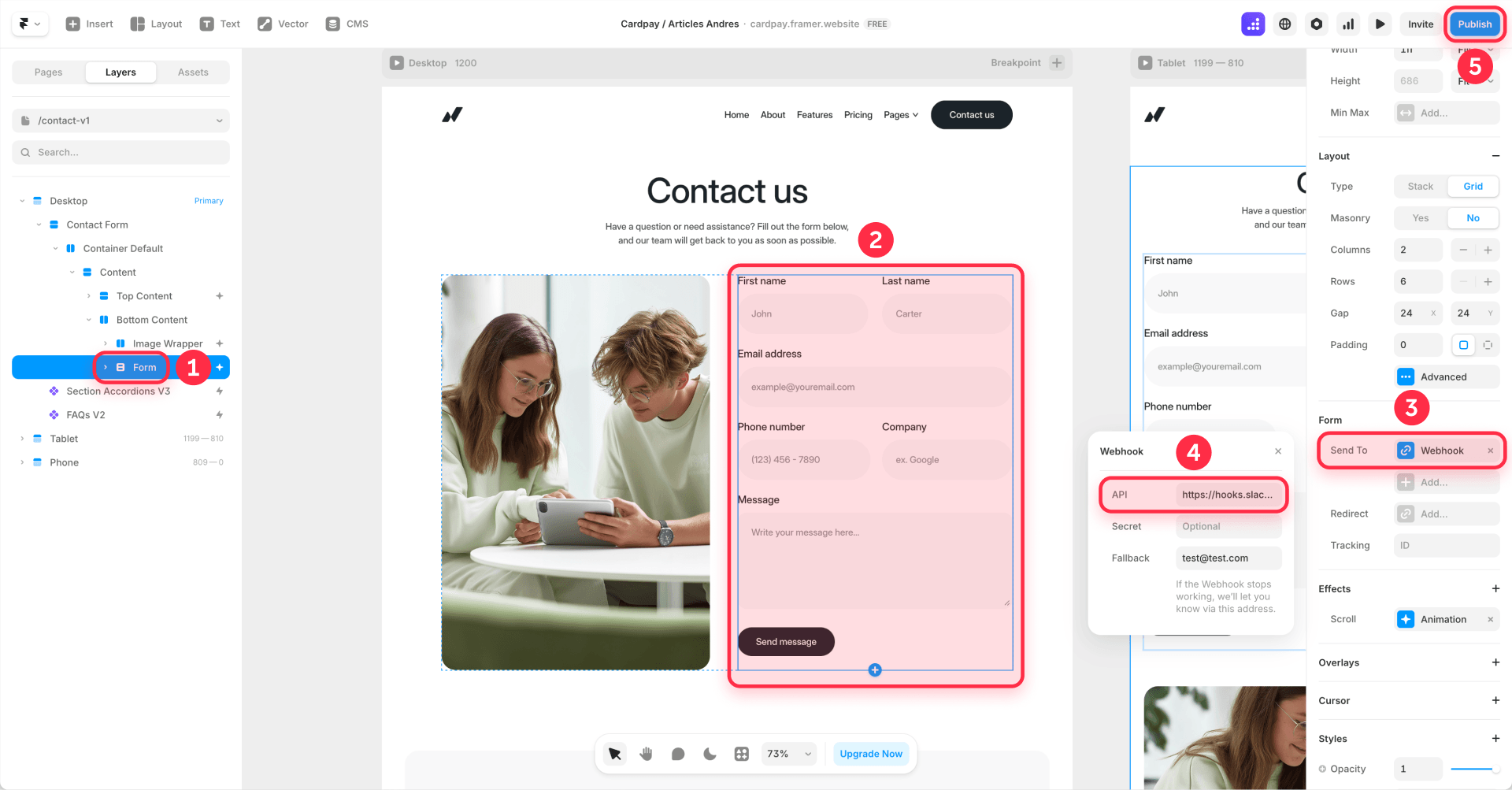
Paste the Slack workflow request URL into the URL field. The URL must start with https://.
Framer sends form submissions as JSON via HTTP POST. The JSON uses your input names as keys and the submitted values as values. For a form with fields named name, email, company, message, and page_source, Framer sends:
Step 6: Publish and test the full flow
Preview is fine for layout checks, but publish the site before you treat the setup as done. Framer's own docs consistently separate previewing from publishing live to begin collecting submissions.
After publishing:
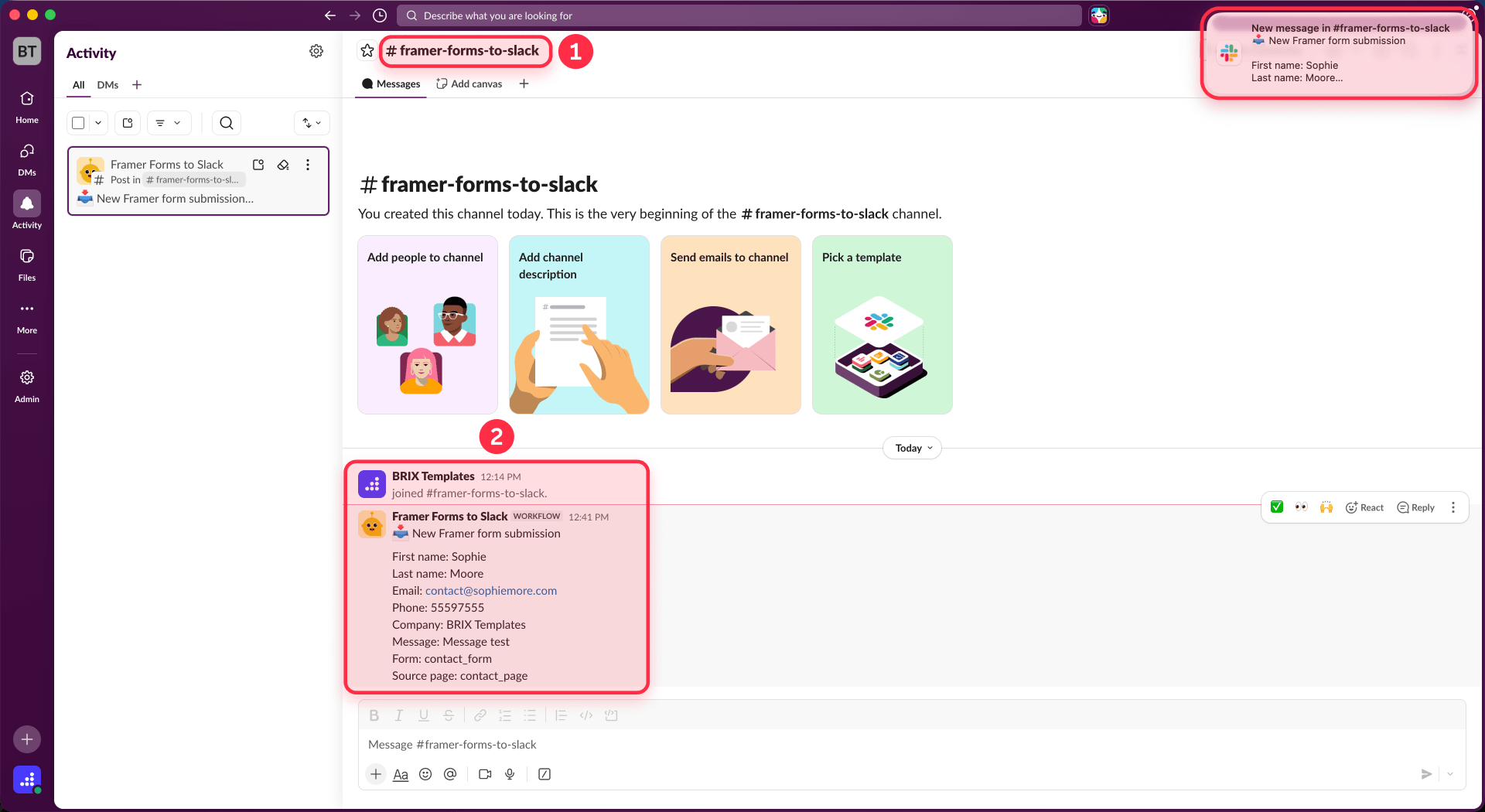
- Submit a real test entry on the live form.
- Check the Slack channel.
- Confirm every field mapped correctly.
- Fix any naming mismatch immediately.
Once published, each new submission should post into Slack automatically.
Understanding how Framer webhooks behave in this setup
Knowing how Framer handles webhooks helps you debug issues and build reliable integrations.
Response requirements: Framer requires the receiving endpoint to return a direct 2xx response. If the endpoint returns any other status code, Framer retries the submission up to 5 times. Slack Workflow Builder is designed to accept the POST request directly, which fits Framer's direct-webhook model.
Redirect handling: Framer does not follow 3xx redirects. If your webhook URL redirects to another location, Framer treats this as a failure and triggers retries. Make sure your Slack webhook URL is the final destination, not a redirect.
Payload format: Framer sends JSON with input names as keys. This flat structure is compatible with Slack Workflow Builder's variable system, which also uses flat key/value pairs.
Hidden fields for source tracking: If multiple pages or campaigns feed the same Slack workflow, add a hidden field like page_source, campaign_name, or offer_variant. This helps you identify which landing page generated each submission.
One subtle but important Framer pitfall: do not hide a field using the regular Visible toggle if you still want it submitted. Framer excludes invisible inputs from submissions. Use the dedicated Hidden property instead.
UTM and campaign tracking: Framer can automatically include UTM parameters and Google Ads click IDs in form submission data when campaign tracking is enabled in Site settings → Forms. This feature may be limited to certain paid plans—check Framer's current documentation or your account settings to confirm availability.
If you need additional custom tracking parameters, use hidden fields. For any lead-gen site that runs paid traffic, enable this if available. Otherwise you may be discarding attribution data. To measure how those submissions perform in Google Analytics, see our guide to tracking Framer form submissions with GTM and GA4.
When Make or Zapier is a better choice
The native Framer-to-Slack path works well for simple notifications. However, automation platforms like Make or Zapier become better choices when your requirements grow beyond basic alerts.
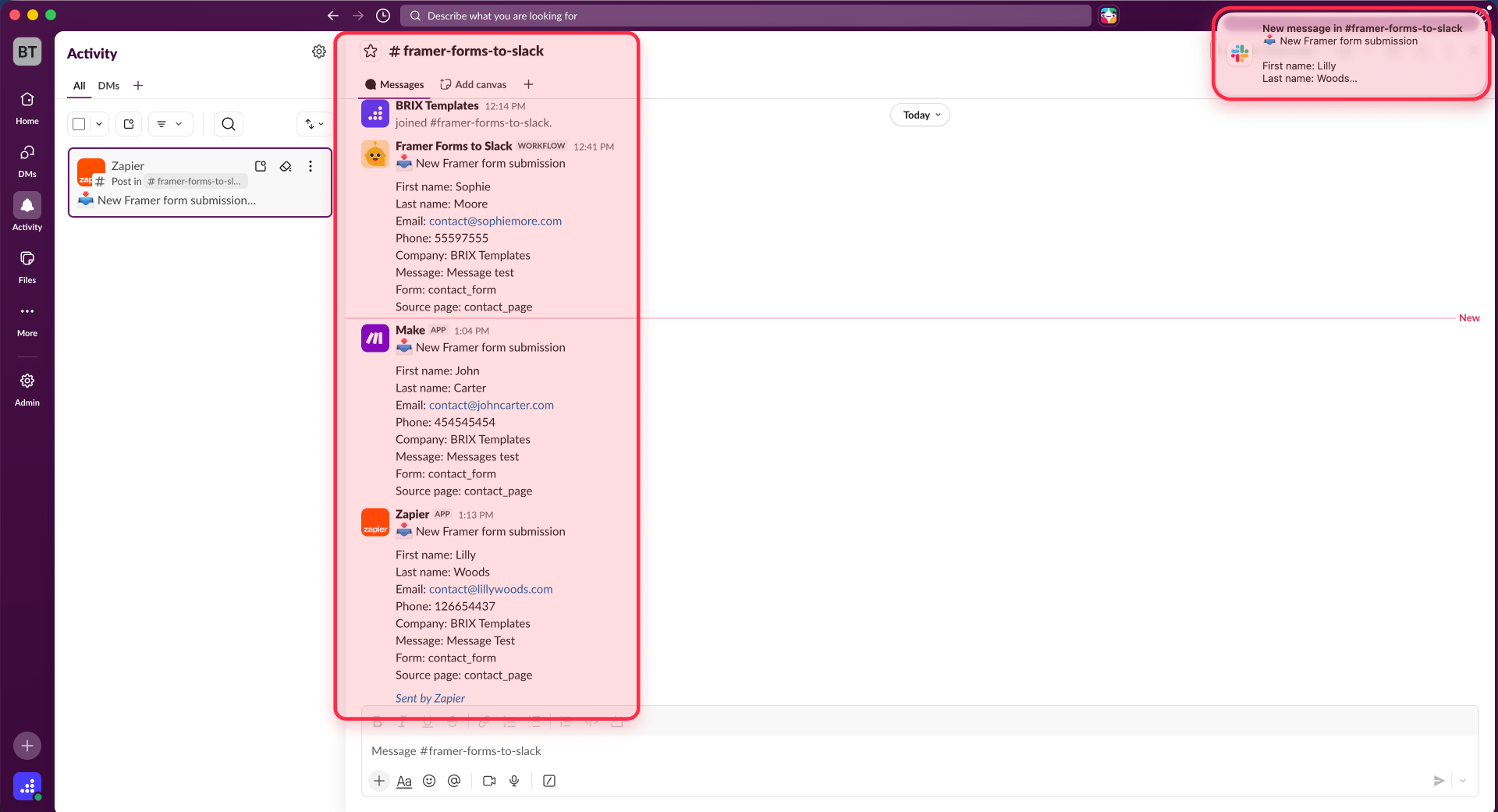
Use Make when you need:
- Queue visibility and logs: Make stores webhook logs for 3 days (30 days on Enterprise) and provides execution history for debugging.
- Data transformation: Modify, combine, or format field values before sending to Slack.
- Routing to multiple destinations: Send the same form submission to Slack, a CRM, email, and a spreadsheet in one workflow.
- Sequential processing: Make can process submissions in order when sequence matters.
- Higher rate limits: Make handles up to 300 webhook requests per 10-second interval, compared to Slack's 1 request per second for webhook workflows.
- Free Slack compatibility: If your Slack workspace is on the Free plan, Workflow Builder is not available. Make gives you a path to Slack notifications without a paid Slack subscription.
Make's free plan includes up to 1,000 credits per month.
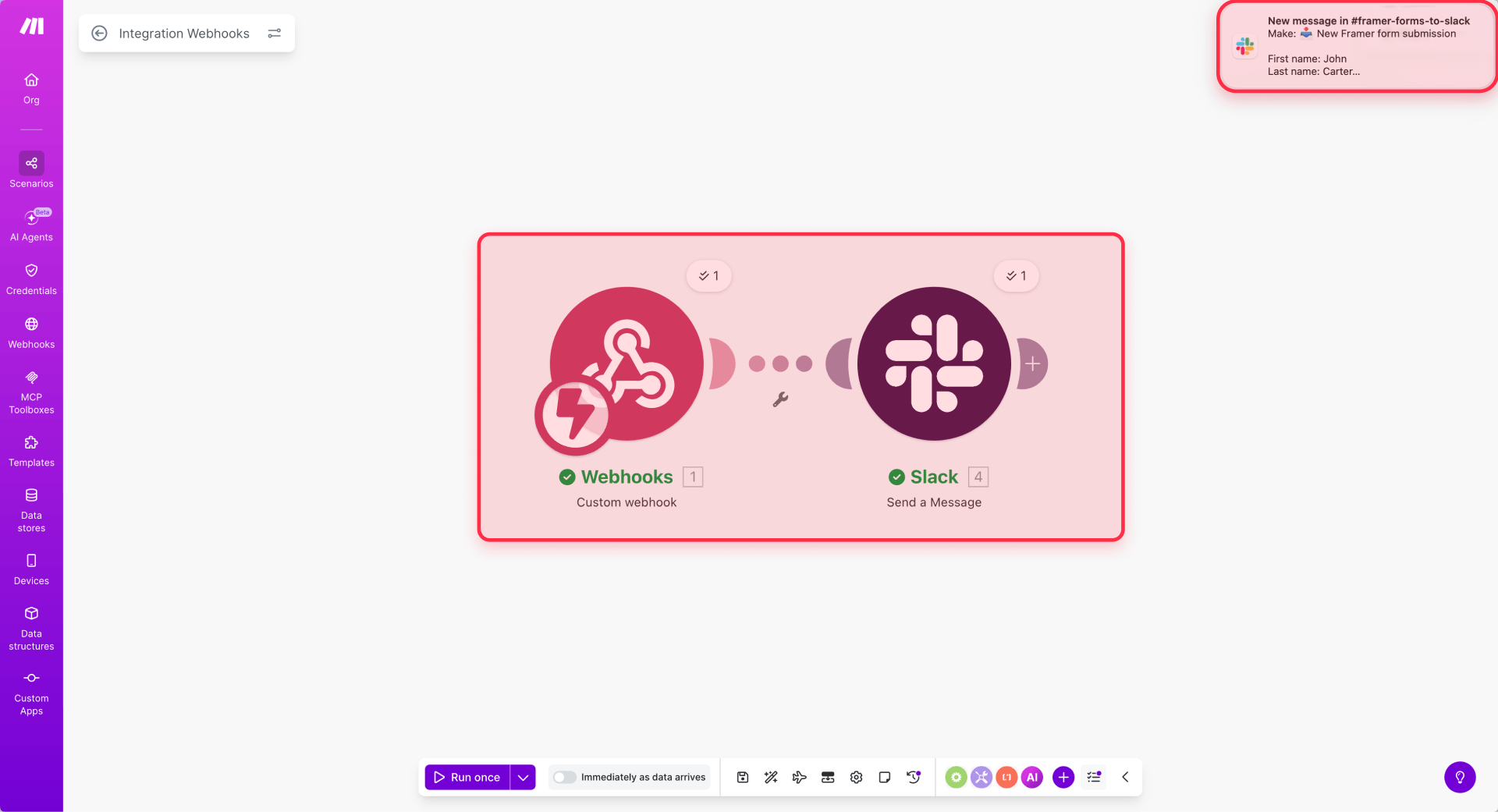
How to set up with Make:
- In Make, create a new scenario.
- Add the Webhooks app and create a Custom webhook.
- Copy the webhook URL.
- In Framer, set your form destination to Webhook and paste that URL.
- In Make, add Slack as the next step and configure the message you want posted to your channel.
- Turn the scenario on and test with a live Framer submission.
Use Zapier when you need:
- Existing Zapier investment: If your team already uses Zapier for other automations, adding Framer form handling keeps everything in one place.
- Specific app integrations: Zapier's app ecosystem may have native connectors for tools Make does not support.
How to set up with Zapier:
- Create a Zap with Webhooks by Zapier → Catch Hook.
- Copy the generated webhook URL.
- Paste it into your Framer form's webhook destination.
- Add Slack as the action.
- Format the message and publish the Zap.
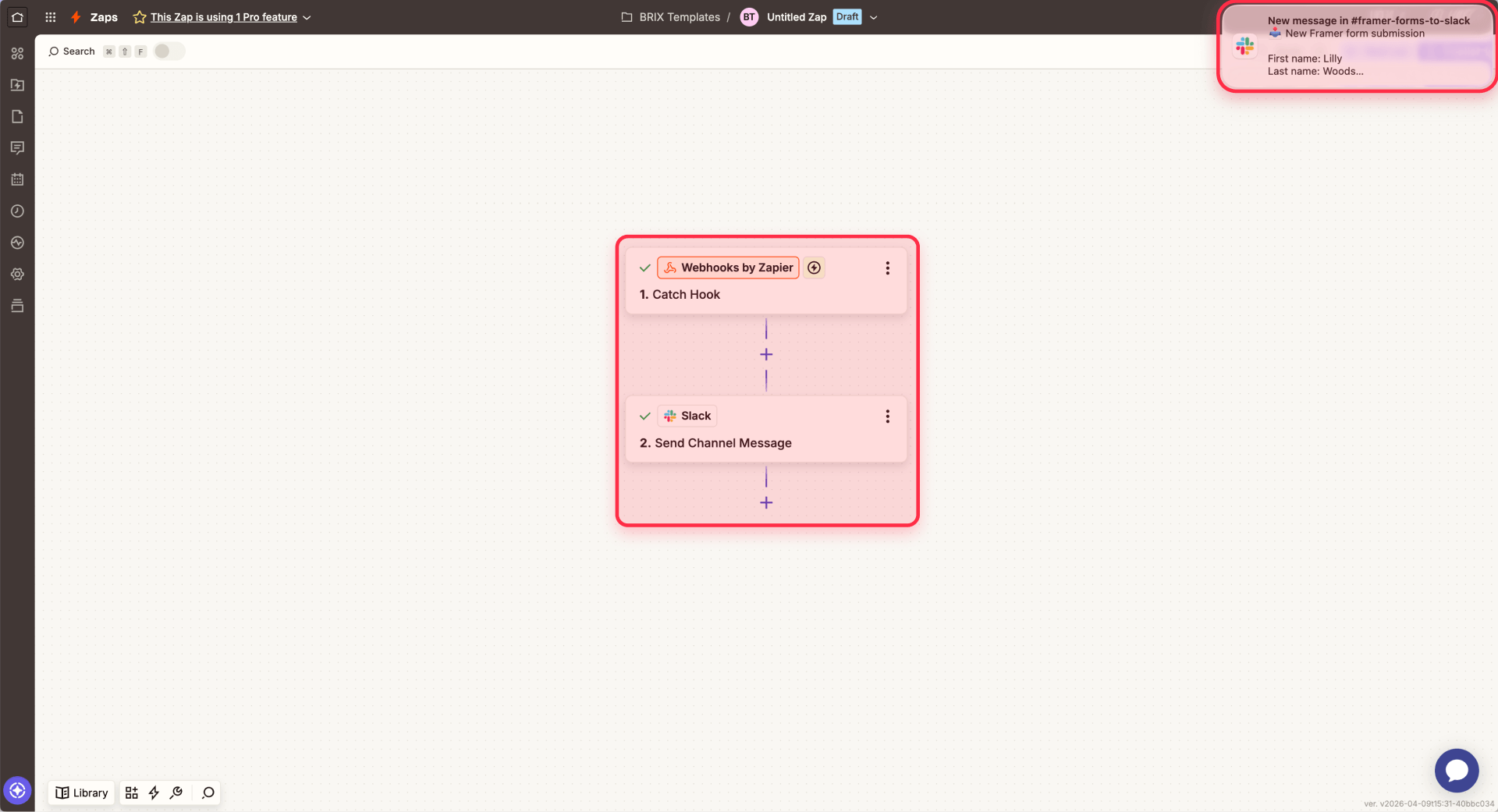
Since Zapier does not have Framer as a native integration app, you use Webhooks by Zapier as the trigger. Zapier's official webhook docs support this catch-hook pattern.
Stick with Slack Workflow Builder when:
- You only need to receive flat form data and post it to a Slack channel
- You want the fewest moving parts and no additional subscriptions
- Your form volume is under 1 request per second
- Your Slack workspace has Workflow Builder access without restrictions
If you need help setting up Make or Zapier workflows for your Framer site, our Framer agency can assist with the technical configuration.
Troubleshooting common Framer to Slack issues
Wrong Slack URL: If your webhook URL starts with .../services/..., you are using a classic incoming webhook. For this setup, you want .../triggers/.... These URLs are not interchangeable.
Variable missing in Slack: Your Framer field names and Slack variable keys do not match exactly. Check that both sides use identical names—this is the most common failure mode.
Form submits but Slack receives nothing: Verify the Slack workflow is published (not just saved), the webhook URL starts with https://hooks.slack.com/triggers/ and was copied completely, and the Framer site is published, not just previewed.
Duplicate Slack messages: If Slack returns a non-2xx response due to rate limits, temporary errors, or permission issues, Framer retries up to 5 times. Each successful retry creates a duplicate message. Fix the underlying Slack issue to prevent retries.
High submission volume: Slack Workflow Builder webhooks are capped at 1 request per second. For high-volume or burst-heavy forms, catch the Framer webhook in Make or Zapier first and post to Slack from there.
Frequently asked questions
Can Framer forms send notifications directly to Slack without Zapier or Make?
Yes. Framer can send native form submissions to a custom webhook, and Slack Workflow Builder can start a workflow from a webhook. That means you can send Framer form notifications to Slack without Zapier or Make, as long as your Slack workspace allows webhook-started workflows.
What data does Framer send to a webhook when a form is submitted?
Framer sends the submission as a JSON POST request. The keys are your form input names, and the values are the visitor's answers. The endpoint must return a direct 2xx response, or Framer will retry the request.
Why is my Framer form webhook not sending messages to Slack?
The most common issues are an incorrect webhook URL, an unpublished Slack workflow, restricted webhook permissions in Slack, or a response that does not return 2xx. Also make sure the payload keys Framer sends match the variables your Slack workflow expects.
Does Slack Workflow Builder require a paid plan for webhook triggers?
Yes. Slack says Workflow Builder is available on paid plans, and by default people on a paid plan can create workflows. Owners and admins can also restrict who can create workflows or start them with webhooks.
What is the difference between Slack incoming webhooks and Workflow Builder webhooks?
They are different tools. Incoming webhooks post a message directly to Slack and require you to send the full message payload yourself. Workflow Builder webhooks start a workflow, so you can map variables and build the message inside Slack with a no-code setup.
Does Framer retry failed webhook submissions to Slack?
Yes. If Framer does not receive a direct 2xx response, it retries the submission up to five times. Framer also does not follow 3xx redirects, so the webhook URL must respond directly.
How do I test a Framer to Slack workflow before going live?
Create the Slack workflow with a test channel first, publish it, and send a test POST to the workflow URL. Then publish your Framer site, submit the form with test data, confirm the message appears correctly, and switch the workflow to the production channel once everything works.
Conclusion
The best default setup for most Framer users is: Framer form → Slack Workflow Builder → Slack channel.
Use that when your Slack workspace is paid and your notification logic is simple. Use Make or Zapier when you need free-Slack compatibility, branching, richer formatting, CRM updates, digests, or more control.
This is the clean version of this workflow for Framer. Not a port from other platforms. The right architecture for the platform as it actually exists today.
If you need help implementing this integration or want to build more sophisticated automation workflows for your Framer site, our agency team can assist with the technical setup and ongoing optimization.







Join readers commenting on this post!