

You add a custom brand font to your Framer project, hit publish, and everything looks great—until you check your site's performance. That 350 KB font file is slowing down your initial load. The frustrating part? Your site only displays maybe 70 characters from a file containing thousands.
Here's the issue: Framer delivers the complete font file you upload—it won't trim out characters you don't use. If your font includes Cyrillic, Greek, Vietnamese, and hundreds of symbols your site never displays, all of that still downloads to every visitor's browser.
One important note: Framer does automatically optimize Google Fonts with built-in subsetting. But for custom fonts you upload yourself, that optimization doesn't apply.
The fix is font subsetting: building a smaller font file with only the characters your site actually needs, then uploading that lighter version to Framer. In this guide, you'll learn how to create a subset using Font Squirrel, upload it correctly to Framer, and verify everything works.
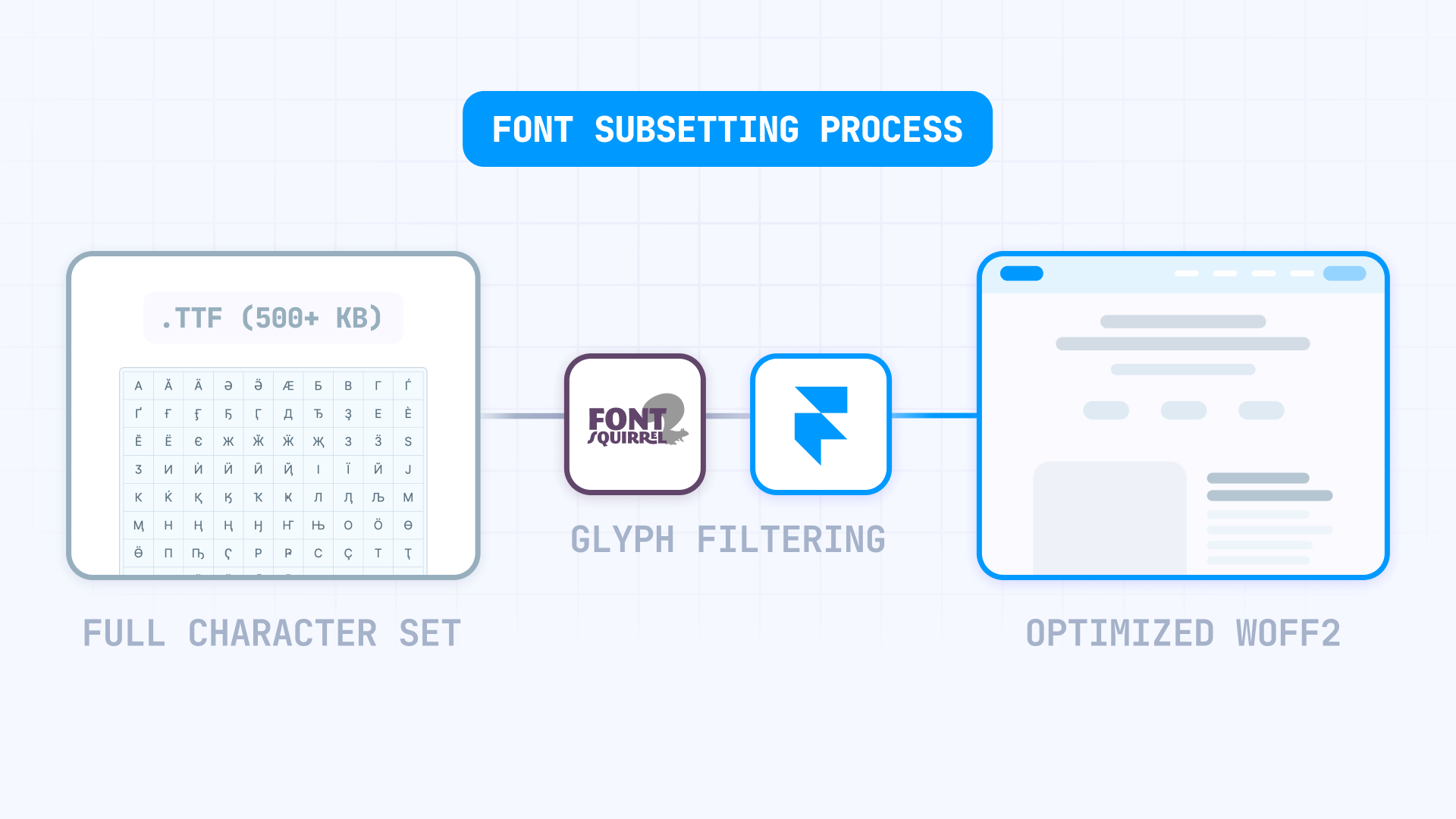
Why font subsetting matters for Framer sites
Custom brand fonts can quietly become the heaviest assets on your Framer site. When font files are larger than necessary, you pay for it in concrete ways.
- Slower initial loads in Framer: Large font files delay text rendering, particularly on mobile devices where every kilobyte affects perceived speed
- Delayed text appearance: Until fonts load, visitors either see fallback text or nothing at all—neither is ideal for first impressions
- Wasted data on unused characters: Multi-language fonts and icon fonts often include thousands of glyphs your site will never display
- Reduced bandwidth consumption: Every visitor downloads your font files—subsetting means less data transferred per visit, which adds up with traffic. For more strategies, see our guide to reducing Framer bandwidth consumption.
- Variable font bloat: If you're using a variable font with extensive language coverage, the single file can be surprisingly heavy
The good news: subsetting is a one-time task that can cut your font file size by half or more without changing how your site looks.
When font subsetting is worth it for Framer projects
Before jumping into the process, confirm that subsetting will actually make a difference for your site.
Realistic savings for Framer font optimization
Here's the honest priority order for font optimization in Framer:
- Use Google Fonts when possible—Framer automatically serves these with built-in subsetting, so you get smaller files without any manual work
- Fewer font weights usually beats subsetting—going from 6 weights to 2 often saves more bytes than trimming characters
- WOFF2 format should be your default; Framer automatically converts uploads to WOFF2 (for fonts added after November 2023)
- Subsetting delivers real value when your custom font has extended language support, large symbol sets, or OpenType features you don't use
If you're loading 5 weights and 3 styles, trimming the character set won't feel impressive. Reduce weights first, then subset what's left.
When Framer font subsetting makes the biggest difference
Subsetting is worth the effort when:
- Your font includes Latin Extended, Cyrillic, Greek, or Asian character sets you don't need
- You're using an icon font with hundreds of icons but only showing a handful
- Your font file is over 100 KB even in WOFF2 format
- You're using a variable font with broad language coverage you'll never use
If your font is already compact and you only need Western European characters, subsetting might trim 10-20 KB—helpful but not dramatic.
How to create a Framer font subset with Font Squirrel
Font Squirrel's Webfont Generator is the simplest way to subset fonts without any command-line tools. The Expert mode gives you full control over which characters stay in the file.
Checking font licenses before subsetting for Framer
Quick note before you start: certain font licenses don't allow modification, and subsetting counts as modification. Before creating a subset for your live site, confirm your license permits web embedding and font file changes.
This guide shows you how to subset fonts—whether you're allowed to depends on your license terms. For commercial fonts, check the license details on your purchase receipt or the foundry's website.
Uploading your font to Font Squirrel Webfont Generator
Always start with the original font file, not a previously converted webfont.
- Go to Font Squirrel's Webfont Generator
- Click Upload Fonts and select your original TTF or OTF file (not WOFF or WOFF2—those are already converted webfonts)
- Select the Expert radio button to access subsetting controls
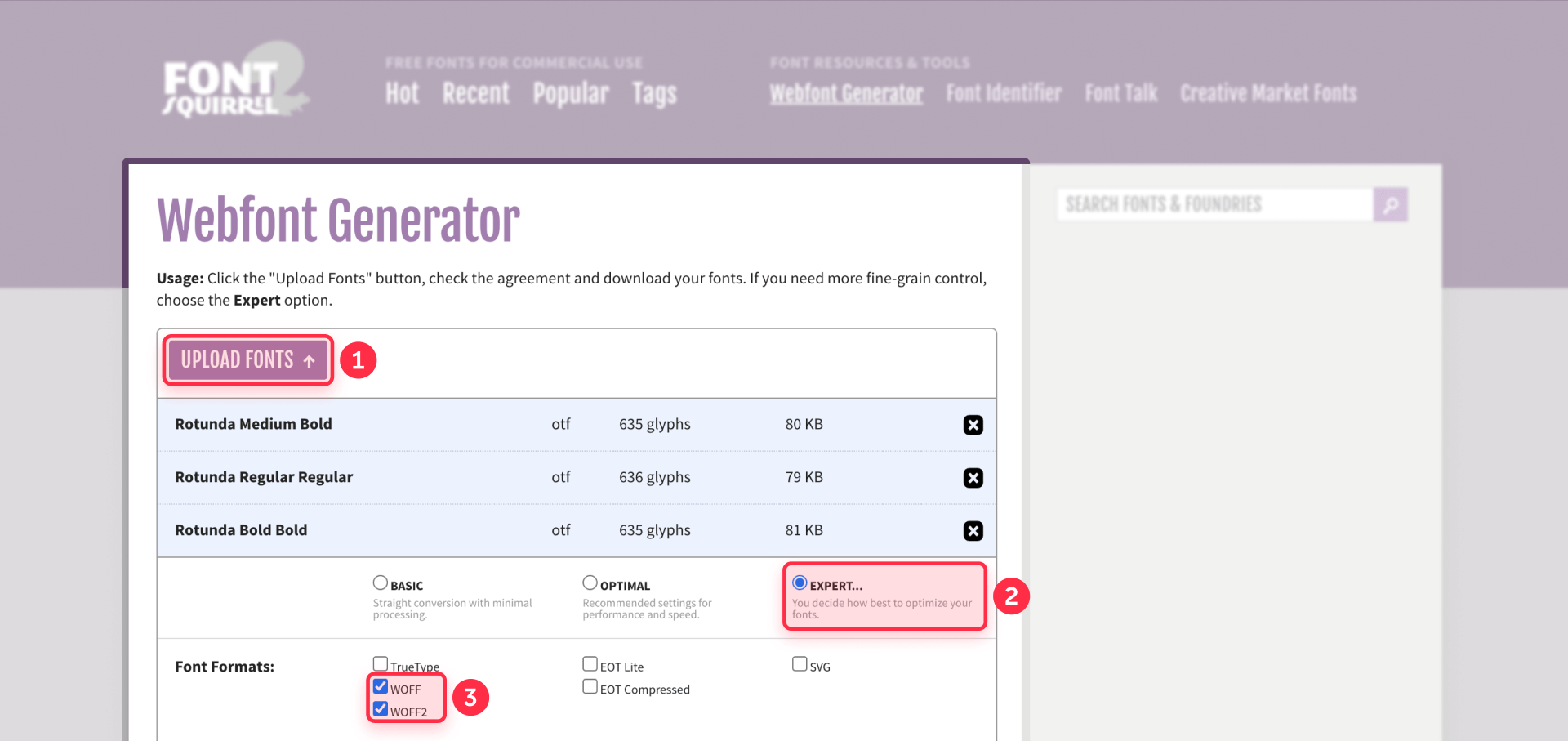
Font Squirrel warns against reprocessing existing webfonts—always use the source TTF/OTF for best results.
Configuring Font Squirrel Expert settings for Framer
The Expert panel has many options. Here's what matters for Framer:
Font Formats section:
- Check WOFF2 (best compression, supported by all modern browsers)
- Optionally check WOFF as a fallback for older browsers
Truetype Hinting:
- Select Keep Existing—this preserves original font rendering and avoids the "looks worse on Windows" issue that auto-hinting sometimes causes
Subsetting section:
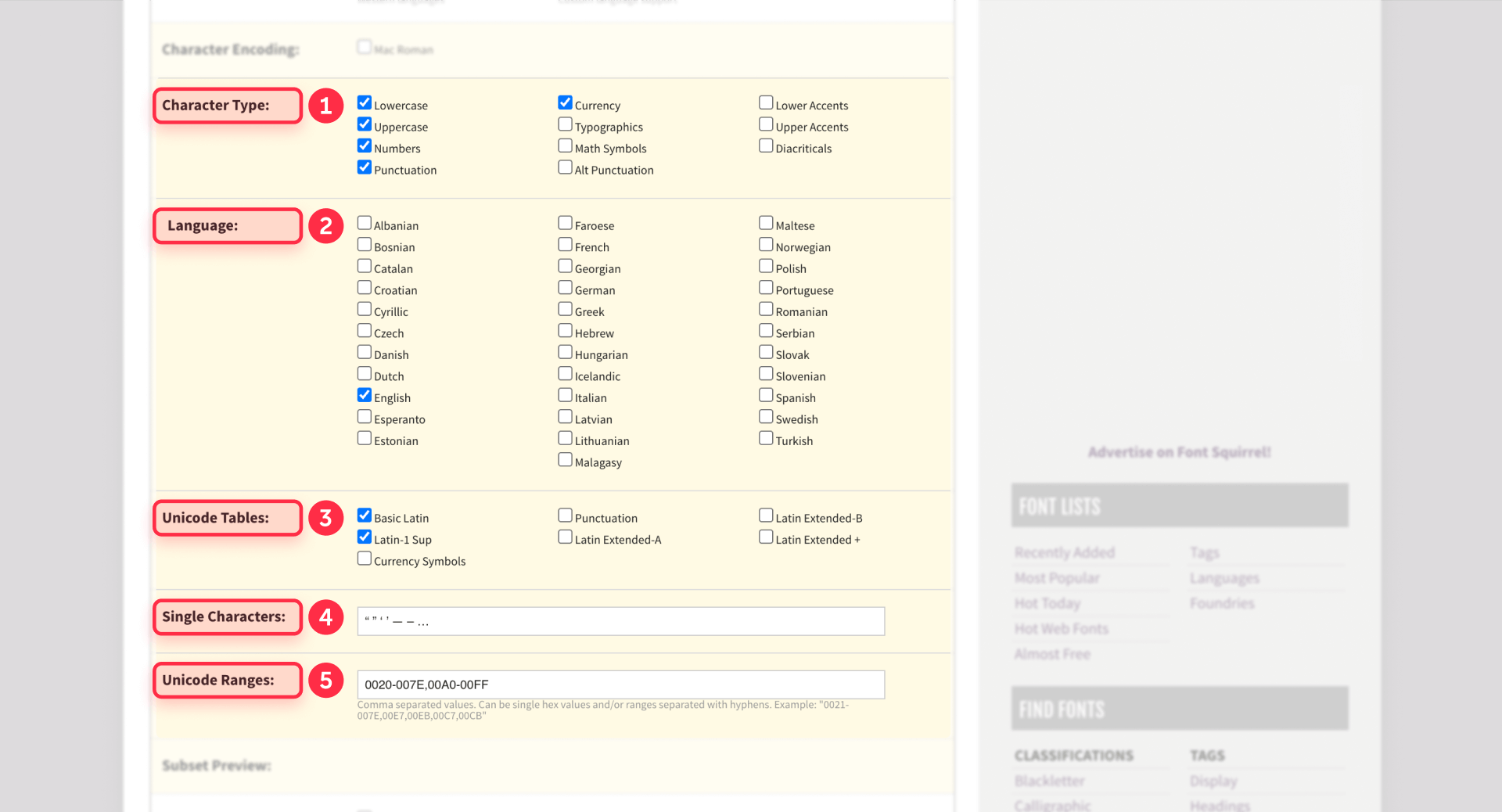
This is where you control file size. Choose Custom Subsetting and configure:
- Character Types: Pick the categories you need—typically Lowercase, Uppercase, Numbers, Punctuation, and Currency
- Languages: Select languages your content uses—English plus any others relevant to your site
- Single Characters: Paste specific characters not covered by categories (like smart quotes: ' ' " " – — …)
- Unicode Ranges: For precise control, enter ranges like 0020-007E (Basic Latin) and 00A0-00FF (Latin-1 Supplement)
OpenType Features:
- Keep these enabled unless you're certain you don't need ligatures, kerning, or stylistic alternates
Downloading your Framer-ready subset from Font Squirrel
- Check the agreement box confirming you have rights to the font
- Click Download Your Kit
- Extract the ZIP file—you'll find your WOFF2 (and WOFF if selected) files inside
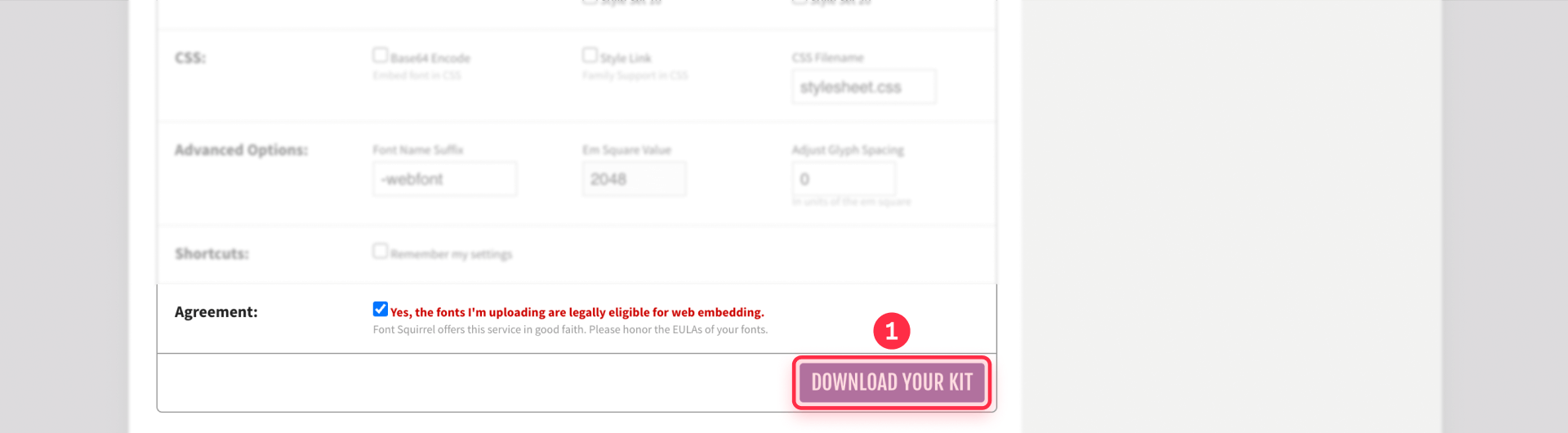
Before uploading to Framer, compare file sizes. Your subset should be noticeably smaller than the original if the source font had extended character sets.
How to upload subset fonts to Framer
With your optimized font files ready, getting them into Framer is straightforward.
Adding your subset font via the Framer font picker
- Open your Framer project
- Add or select a Text layer
- In the Properties panel, click the Font dropdown
- Go to the Custom tab
- Click Upload and select your subset WOFF2 file
- Apply the font to your text layer
Repeat for each weight and style you need.
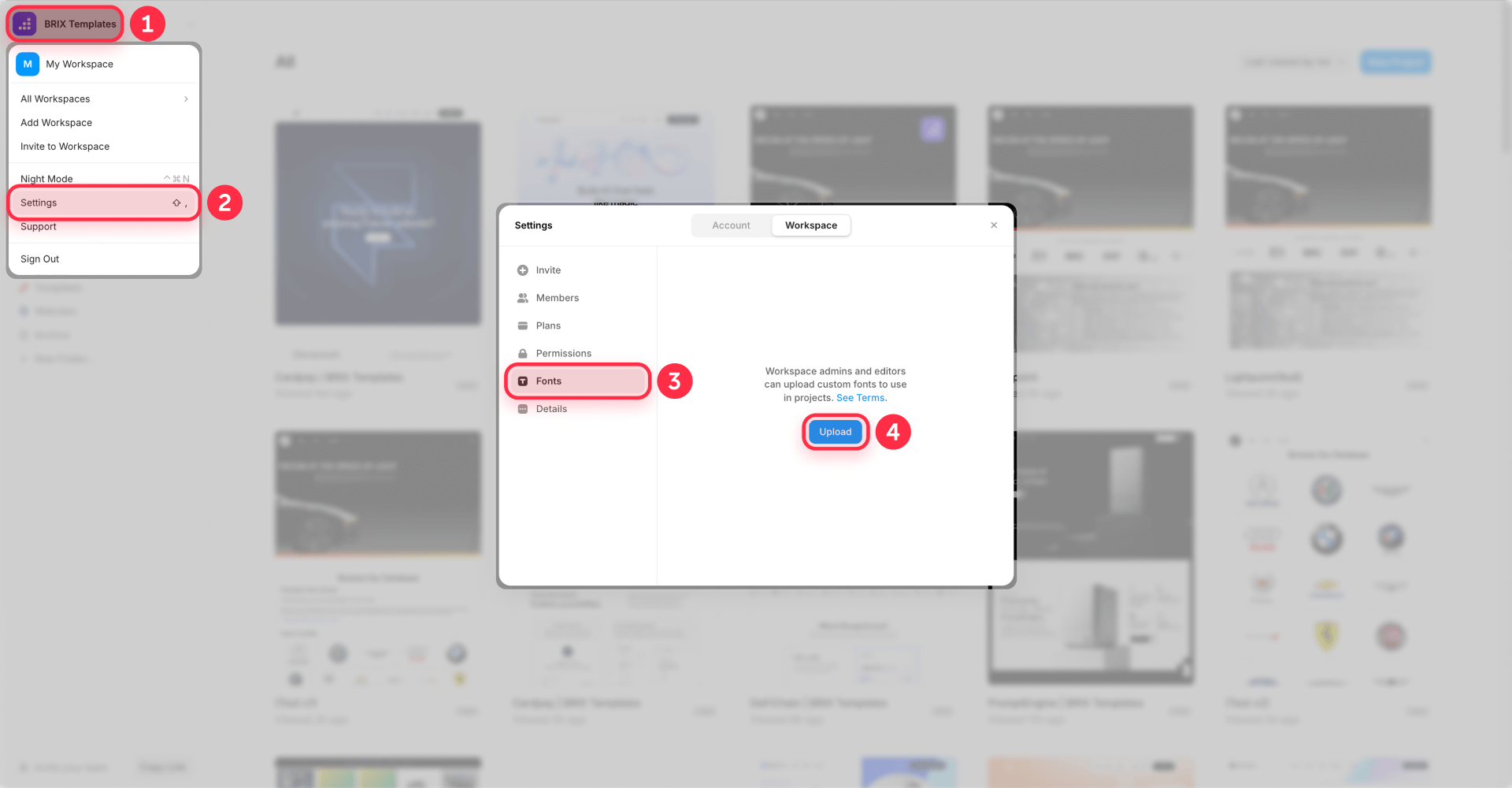
Uploading fonts at workspace level in Framer
If you want fonts available across multiple Framer projects:
- Go to Team Settings
- Upload your WOFF2 files there
- Refresh any open projects so the new fonts appear
This approach works well for agencies or teams managing multiple Framer sites with the same brand fonts.
Understanding font-display behavior in Framer
Framer applies font-display: swap in certain situations, which tells browsers to show fallback text immediately and swap in your custom font once it loads. This eliminates the "flash of invisible text" problem. If you're seeing warnings about text visibility during font loading, check out our guide to fixing the "Ensure text remains visible" warning in Framer.
Framer also uses size-adjust rules to reduce layout shift when fonts swap. Subsetting complements these optimizations by reducing the time it takes for your font to download and become available.
How to validate your Framer font subset
Don't consider the job finished until you've confirmed nothing broke. The most common subsetting mistake? Leaving out a character you actually need. A few weeks later, a content editor copies text from Google Docs, and visitors see □ squares instead of punctuation.
Building a safe character set for Framer validation
For most Framer marketing sites in English or Western European languages, you should have kept these character ranges:
- Basic Latin: Letters A-Z, numbers 0-9, standard punctuation (handles 95% of English content)
- Latin-1 Supplement: Accented characters like é, ñ, ü, ø (necessary for any international content)
- Smart punctuation: Curly quotes (" " ' '), em dashes (—), en dashes (–), ellipsis (…)
- Currency symbols: Euro (€), pound (£), and any others your site displays
This baseline covers what most Western-language Framer sites actually use, with enough buffer for typical copy-paste situations.
Auditing text sources on your Framer site
Walk through every place text can appear to ensure your subset covers everything:
- Static pages: Navigation, headings, buttons, footers, legal pages, 404 messages
- Framer CMS content: Blog posts, collection fields, testimonials, team bios
- Form elements: Placeholders, validation messages, success states
- Third-party content: Anything pasted from external sources—press releases, job descriptions, partner content
Pay close attention to CMS fields. Designers might promise they'll never use curly quotes, but content editors paste from Google Docs and Notion, and those apps love smart punctuation.
Creating a Framer font test page after subsetting
Build a QA page to verify your subset works correctly.
- In Framer, create a new page called Font Test (keep it hidden from navigation)
- Add a text layer and apply your custom font
- Paste this coverage string:
ABCDEFGHIJKLMNOPQRSTUVWXYZ
abcdefghijklmnopqrstuvwxyz
0123456789

Standard punctuation:
! " # $ % & ' ( ) * + , - . / : ; < = > ? @ [ \ ] ^ _ { | } ~

Smart punctuation:
' ' " " – — …

Accents (sample):
á é í ó ú ü ñ ç ø Á É Í Ó Ú Ü Ñ

Currency:
€ $ £ ¥- Publish and check for any □ squares—those indicate missing characters
- Test in at least two browsers (Chrome and Safari cover most cases)
- Review your CMS content, especially rich text fields where editors paste external content
If you spot missing characters, regenerate the subset with those characters included and re-upload.
Creating a rollback plan for Framer font changes
Keep your original font accessible until you're confident the subset works everywhere:
- Keep the original font file saved locally (or uploaded but unused)
- If problems appear, upload the original and swap it back in
- Republish—instant rollback with no complications
Once you've validated across your site for a week or two with no issues, you can confidently use only the subset going forward.
Troubleshooting Framer font subsetting issues
Missing accents (é, ü, ñ) appear as □ after subsetting
Your subset excluded the Latin-1 Supplement range. Regenerate including Unicode range 00A0-00FF (or select the appropriate languages in Font Squirrel), then re-upload and test.
Smart quotes and em dashes show as □ in Framer CMS
These characters live outside Basic Latin. Add them explicitly in Font Squirrel's Single Characters field: ' ' " " – — … Then regenerate and re-upload.
Subset file is larger than the original
This occasionally happens with already-optimized fonts or when keeping too many OpenType features. Try a tighter character selection, or verify you're starting from the original TTF/OTF, not an already-converted webfont.
Font uploads but only one weight appears in Framer
Upload each weight as its own file (Regular, Medium, Bold separately). A single desktop font file won't automatically map to multiple weights.
Custom font fails to upload in Framer
Use WOFF2 format and verify you have the correct webfont license. Framer recommends WOFF/WOFF2 for both licensing and performance reasons.
Newly uploaded font doesn't appear in Framer
Refresh the project. If you uploaded via Team Settings, refresh any open projects so new fonts become available.
Variable font looks wrong after subsetting
You likely removed characters or tables needed for certain features. Rebuild with a broader Unicode set and re-test variable controls across different weights and styles.
You expected Framer to remove unused glyphs automatically
Framer's automatic font subsetting applies to Google Fonts and Framer's default fonts—not custom uploads. You need to subset before uploading.
Frequently asked questions about font subsetting in Framer
What is font subsetting and why does it matter for Framer sites?
Font subsetting creates a smaller font file containing only the characters your website actually uses. This matters for Framer because the platform delivers whatever custom font file you upload—it won't automatically trim unused characters.
If your font includes thousands of glyphs for languages you don't support, every visitor downloads that unnecessary data. Subsetting can cut font file sizes by half or more, improving load times without changing your site's appearance.
Does Framer automatically subset custom fonts I upload?
No. Framer's automatic font subsetting applies to Google Fonts and Framer's default alternatives—not custom fonts you upload yourself. When you upload a custom font, Framer serves the complete file.
This means if you want a smaller custom font file, you need to create the subset yourself using a tool like Font Squirrel, then upload the optimized version to Framer.
Should I use Google Fonts instead of custom fonts in Framer for better performance?
If a Google Font works for your brand, yes—it's often the easier path. Framer automatically serves Google Fonts with built-in subsetting, so you get smaller files without manual optimization.
However, if you need a specific brand font not available on Google Fonts, subsetting your custom font and uploading to Framer gives you similar performance benefits. The extra effort is worth it for brand consistency.
How do I know which characters to keep when subsetting Framer fonts?
Start with a safe baseline: Basic Latin (A-Z, numbers, standard punctuation), Latin-1 Supplement (accented characters), and smart punctuation (curly quotes, em dashes, ellipsis).
Then audit your specific site—check CMS fields, form placeholders, and any content editors might paste from external sources. When uncertain, include more characters rather than fewer; a slightly larger file beats broken typography.
Will font subsetting break special characters on my Framer site?
Only if you remove characters your site actually needs. The risk is forgetting characters that appear later—like when a content editor pastes text with em dashes from Notion.
Protect yourself by: keeping a generous character baseline, creating a test page with all expected characters, and keeping your original font as a backup until you've validated the subset in production.
What's the difference between font subsetting and WOFF2 compression in Framer?
WOFF2 is a compression format—it makes any font file smaller through better encoding, regardless of content. Subsetting removes content—it eliminates characters you don't need.
For best results, do both: subset your font to remove unused characters, then export as WOFF2 for optimal compression. Framer automatically converts uploads to WOFF2, so focus on creating a good subset first.
How much smaller can my Framer font files get with subsetting?
Savings depend on your source font. A font with only Latin characters might shrink 10-20% from subsetting. A font with Latin, Cyrillic, Greek, and extended symbols might shrink 60-80%.
Fonts with the most to gain are those with broad language coverage or large icon/symbol sets that you're only partially using.
Can I subset variable fonts for Framer?
Yes, but test more carefully. Framer supports variable fonts and exposes variable properties in the UI. Subsetting can still reduce file size if the variable font includes lots of unused character sets.
However, you're modifying a single file that powers multiple styles—validate that typography still behaves correctly across the weight and style ranges you actually use.
How do I test if my Framer font subset is working correctly?
Create a dedicated test page with a comprehensive character string covering letters, numbers, punctuation, accents, and special characters. After uploading your subset, publish and check this page for any □ squares (which indicate missing glyphs).
Also test your actual CMS content and form fields. Use Chrome DevTools Network tab filtered by Font to verify the font file size is smaller than before.
Why do I see □ squares in my Framer CMS content after subsetting?
Those squares (called "tofu") appear when your font doesn't include a character the page is trying to display. This usually happens because your subset excluded smart punctuation that content editors paste from tools like Google Docs or Notion.
Add curly quotes, em dashes, and ellipsis to your subset (' ' " " – — …), regenerate the file, and re-upload to Framer.
Conclusion
Font subsetting for Framer follows a straightforward principle: Framer delivers exactly what you upload, so optimize the file before it reaches the platform. Create a subset with Font Squirrel keeping only the characters you'll actually use, upload the optimized WOFF2, and verify that nothing broke.
The result is faster font loading, quicker text rendering, and the same visual quality—with no difference your visitors will ever notice.
Remember: if a Google Font works for your project, Framer already handles subsetting automatically. Custom font subsetting is specifically for brand fonts that must be custom.
For Framer sites where performance is critical, combining font subsetting with weight reduction delivers the best results. If you want expert help optimizing your Framer site's typography and overall performance, our Framer team at BRIX can handle the technical details.









Join readers commenting on this post!