
When attempting to change the Collection list source in Webflow, you may encounter a lock icon that prevents you from switching collections. Similarly, when trying to delete a Collection, Webflow may display an error stating the Collection is "still used in bindings." This happens because elements on your site remain connected to CMS fields.
This guide covers what CMS bindings are, why Webflow locks the Source dropdown, and the specific steps to unbind elements manually using Element settings, the View connections panel, and optionally the Finsweet Unbind CMS tool. You'll also learn common use cases and important considerations to avoid issues during the unbinding process.

Why your Webflow Collection List gets locked (and how bindings work)
Before starting with the step-by-step process to unbind your CMS, it's important to understand what Webflow considers a "binding" and the mechanism behind locked UI controls.
What CMS bindings are in Webflow Collection Lists
In Webflow, a CMS binding represents any connection between an element and a Collection field. Common examples include:
- A Text block pulling content from a Name or Rich text field
- An Image element set to display a Main image from the Collection
- A Link block configured to link to Current item or a Collection page
- Conditional visibility rules that evaluate CMS field values
- Dynamic style properties that use CMS data (such as background color from a Color field)
- Custom attributes like data-category that pull values from Collection fields
Elements with CMS bindings display a purple icon in the Navigator panel, providing a visual indicator of their connection to the CMS.
Why the Webflow Collection List source gets locked
The Source dropdown for a Collection list becomes locked when any child element maintains a binding to the current Collection. This includes:
- Elements inside the Collection item wrapper
- Text or images in the Empty state section
- Pagination controls and their internal links
- Conditional visibility rules that reference Collection fields
- Custom attributes bound to CMS fields
Webflow prevents changing the Collection source while these bindings exist to maintain data integrity. The lock icon appears next to Source in the settings panel, and the dropdown remains disabled until all bindings are removed.
What happens when you unbind CMS items in Webflow
Unbinding an element from Webflow CMS produces the following results:
- The element structure and classes remain intact in your layout
- The content becomes static, displaying whatever text or image you manually set
- The element no longer updates automatically when CMS item data changes
It's important to note that Webflow does not provide an automatic "rebind" function. Once you unbind multiple elements and publish your site, reconnecting them to CMS fields requires manual reconfiguration. Consider unbinding a destructive action for the data connection, though not for the visual layout itself.
How to prepare your Webflow project before unbinding CMS items
Proper preparation before unbinding CMS items helps prevent layout issues and ensures you can restore previous states if needed.
Back up your Webflow project before unbinding CMS items
- Open your project in the Webflow Designer
- Navigate to Backups from the top menu (or access via Project settings → Backups)
- Click Create backup and name it descriptively (such as Before-unbind-blog-template)
- For extensive unbinding operations, consider duplicating the entire project from the Webflow Dashboard and working in the duplicate
Creating backups before unbinding is essential because Webflow does not auto-save binding configurations.
If you plan to unbind elements across multiple pages, taking a few moments to create a backup point can save significant time if restoration becomes necessary.
Audit existing CMS bindings in your Webflow pages
- Open the page where you need to unbind elements (such as your Blog template page)
- In the Navigator panel, expand the structure:
- Collection list wrapper
- Collection list
- Collection item
- Any nested containers or grid structures
- Identify elements marked with purple icons, which indicate CMS bindings
- Click each element with a purple icon and review Element settings to see which properties connect to CMS fields
For a comprehensive view of all CMS bindings across your site, use the View connections panel described in Method 2 below.
Method 1 – Manually unbind CMS elements in Webflow Collection Lists
This method uses Webflow's native tools to unbind CMS elements, requiring no additional extensions or plugins.
How to identify bound elements in your Webflow Collection List
- Select the Collection list you want to modify
- In the Navigator panel, expand the complete structure under:
- Collection list wrapper → Collection list → Collection item
- Look for purple icons next to element names, which indicate CMS bindings
- Also examine:
- Empty state section (commonly contains text bound to sample fields)
- Pagination controls (may have links bound to "Current item")
- Any Link blocks or Buttons (often bound to Collection pages)
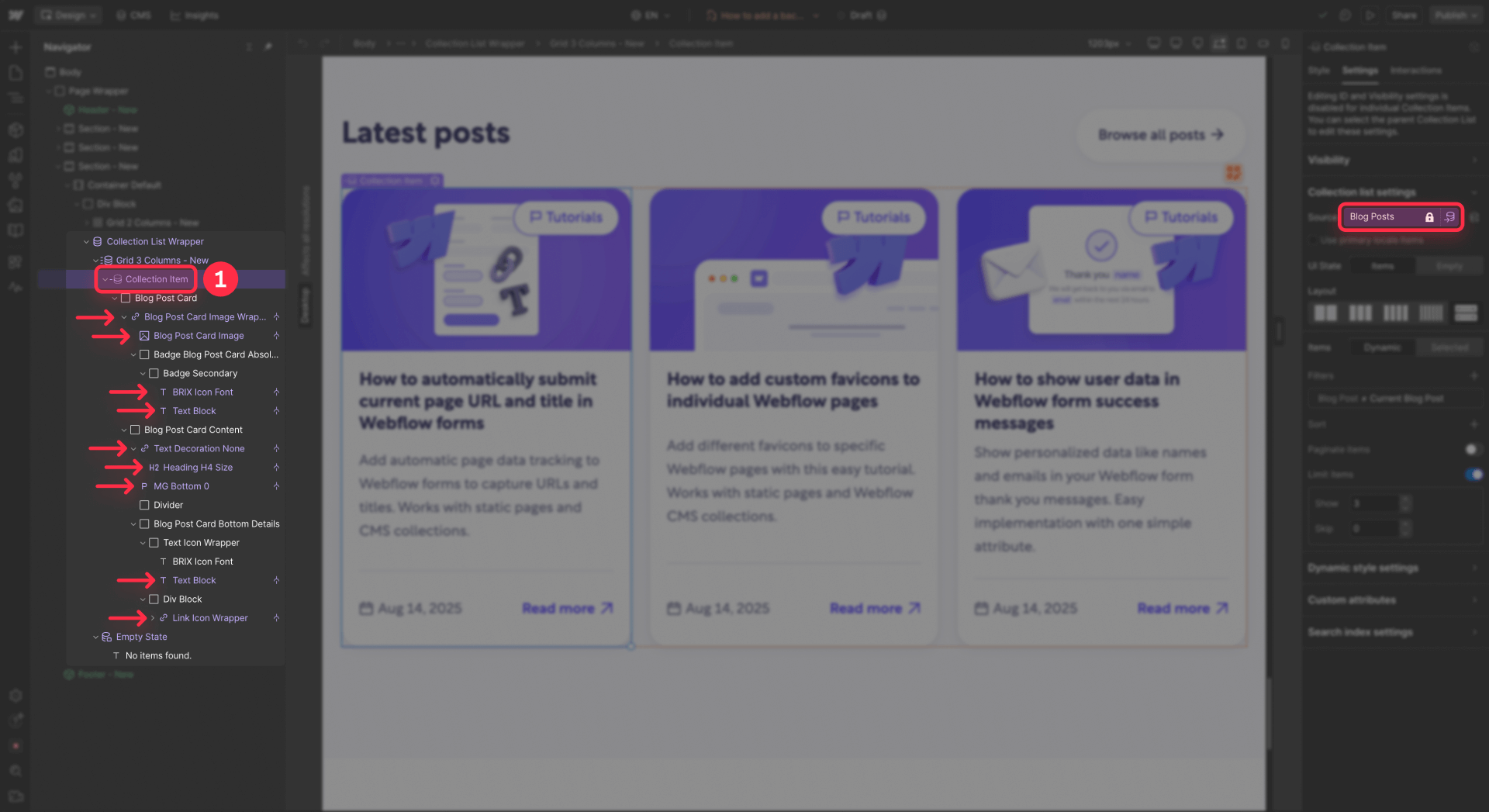
While purple icons make most bindings visible, some connections like conditional visibility rules and custom attributes may not display obvious visual indicators. Check Element settings for each element to identify all bindings.
How to remove CMS bindings from individual Webflow elements
Once you have identified a bound element, follow these steps to disconnect it:
- Select the element in the Navigator panel or directly on the canvas
- Open the Element settings panel on the right side
- For each property with a CMS binding:
- Text bindings: Click the connected field name (such as Name) and select Disconnect property
- Image bindings: Click Main image or the field name and choose Disconnect property
- Link bindings: In the Link settings section, change from Collection page to None or External URL
- Conditional visibility: Open the Conditional visibility panel and delete any active rules
- Dynamic styles: In the Style panel, remove any CMS-linked properties (such as background color)
- Custom attributes: Navigate to Custom attributes and remove any entries that reference CMS fields
- The purple icon disappears once all bindings have been removed from that element
- Repeat this process for every bound element within the Collection list
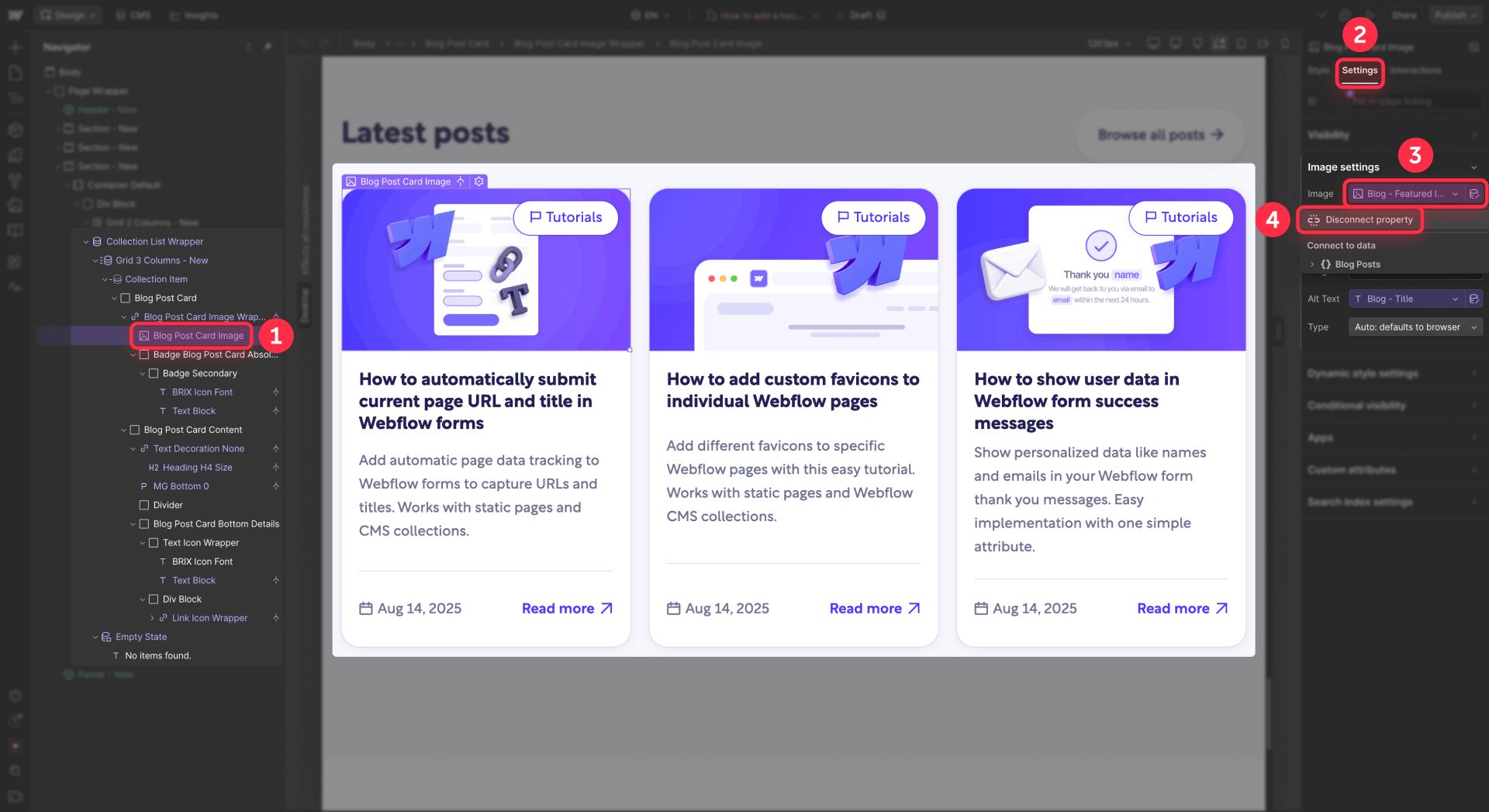
After disconnecting all child elements, select the Collection list element itself and open Collection list settings. The Source dropdown should now be accessible without the lock icon.
How to unlock the Webflow Collection List source dropdown
After removing all bindings from child elements:
- Select the Collection list element
- Open Collection list settings from the right panel
- Verify the lock icon no longer appears next to the Source field
- You can now:
- Change to a different Collection from the dropdown
- Set Source to None to convert the list into a static container
- Delete the Collection list entirely if it's no longer needed
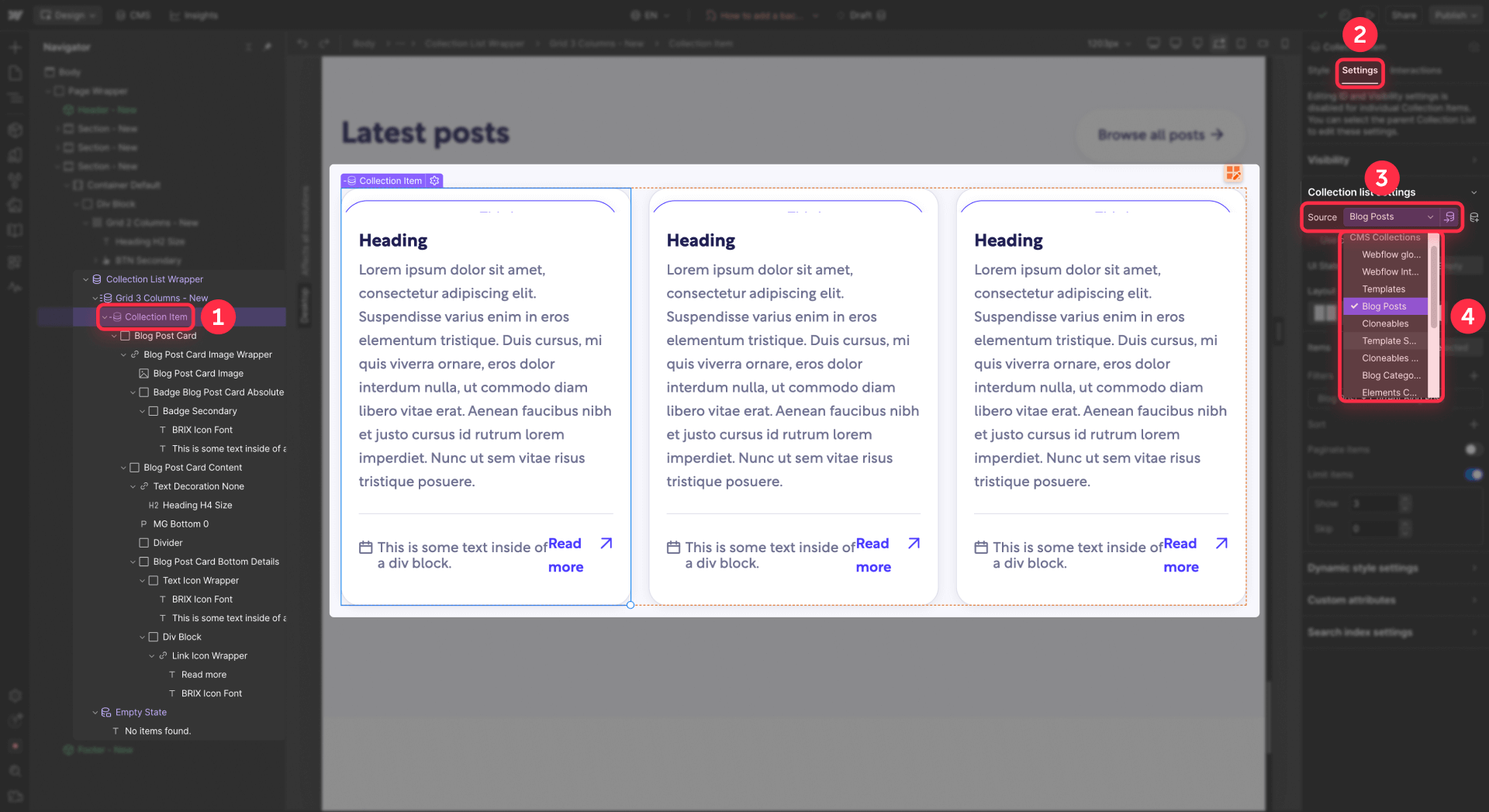
If the lock icon persists, review the Navigator structure again for any remaining purple icons. Common locations for hidden bindings include the Empty state section and Pagination controls.
Method 2 – Use Webflow's View connections to unbind CMS globally
Webflow's View connections panel provides a comprehensive overview of where a Collection and its fields are used throughout your entire site.
How to access the Webflow View connections panel
- Open the CMS panel from the left sidebar in the Designer
- Locate the Collection you want to unbind or delete
- Click the gear icon next to the Collection name
- Select View connections from the menu
- A modal window appears displaying every page, Collection list, and field connection for that Collection
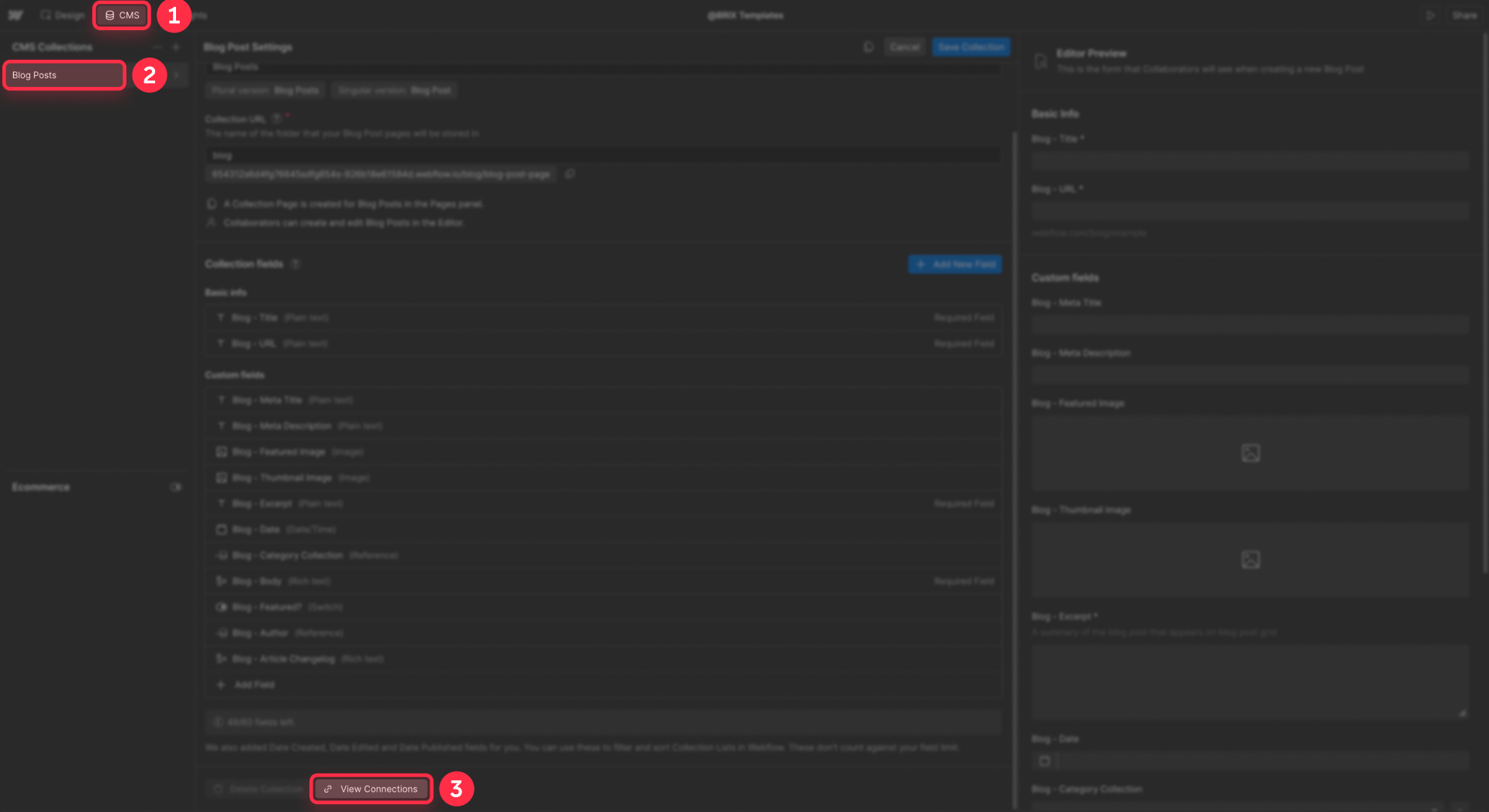
This panel offers the most efficient way to audit CMS usage before deleting Collections or restructuring large templates.
How to disconnect fields and lists using Webflow View connections
Within the View connections modal:
- Expand each section using the arrow icon to reveal detailed connection information
- For field bindings:
- Click the unlink icon next to each field to disconnect it from elements
- The panel shows which specific pages use that field
- For Collection lists:
- Click the eye icon to navigate directly to the page containing that list
- Manually delete the Collection list from the canvas
- Alternatively, click the unlink icon to disconnect the list (the layout structure remains but becomes static)
- Repeat this process until all connections are removed
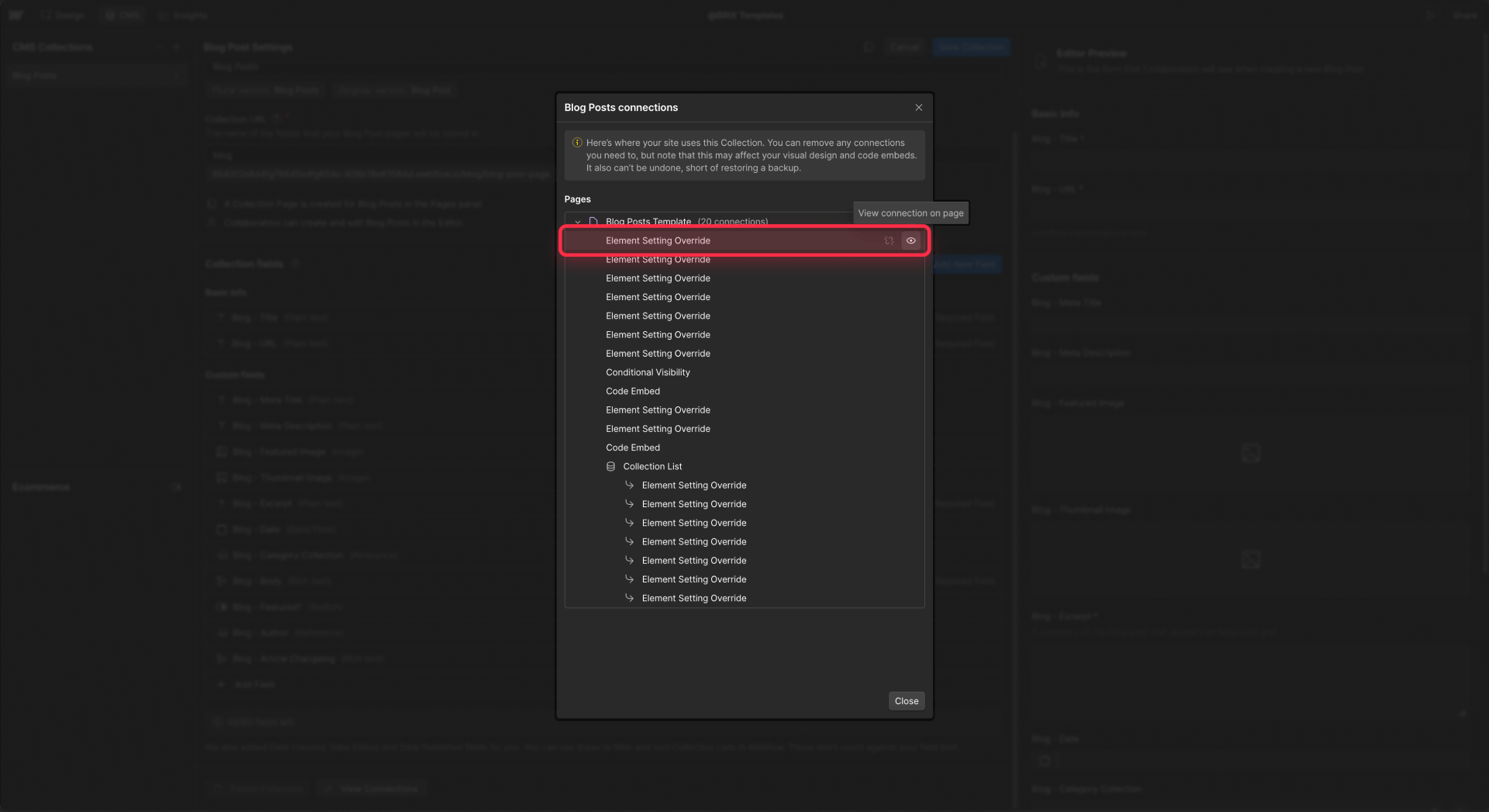
Webflow requires disconnecting fields before Collection lists. Attempting to remove a Collection list that contains bound fields will result in an error message.
Method 3 – Using Finsweet Unbind CMS for bulk Webflow unbinding
Finsweet offers a specialized tool that can accelerate the unbinding process for agencies and freelancers who work with multiple templates regularly.
What is Finsweet Extension and how it evolved for Webflow
Finsweet originally provided a Chrome browser extension with various Webflow workflow tools. They have since launched a dedicated Webflow App that integrates directly into the Webflow Designer, offering expanded features including Unbind CMS functionality.
The Webflow App provides access to multiple productivity features beyond just unbinding, such as Dev Mode, Fluid Design Generator, Merge Combo Classes, Migrate PX to REM, Remove Duplicate Styles, and more.
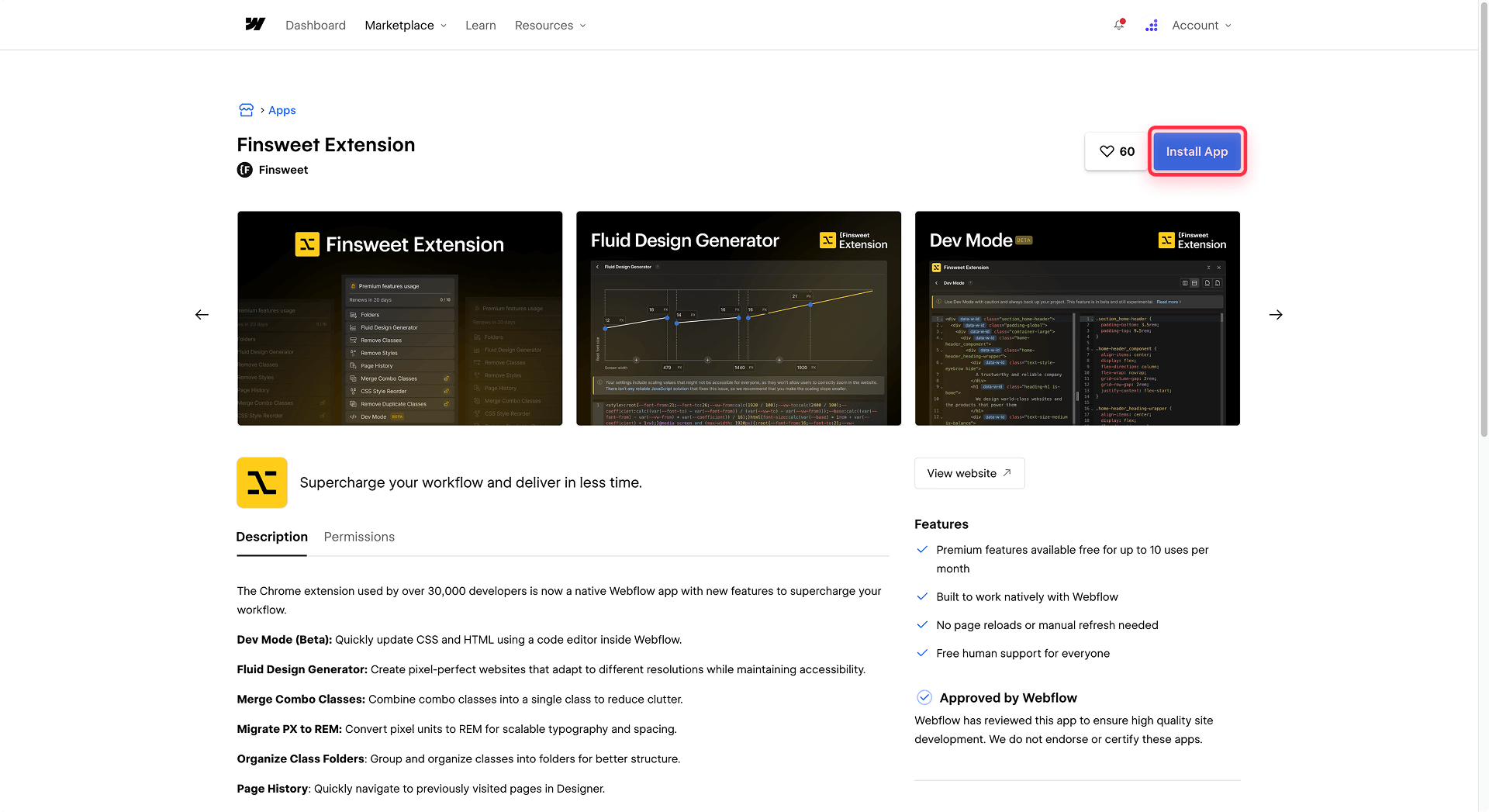
Finsweet Extension pricing and plans for Webflow
The Finsweet Extension operates on three pricing tiers:
- Free plan: Unlimited access to free features, with 10 uses per month of premium features (including Unbind CMS)
- Monthly plan: $6 per month with unlimited access to all features
- Yearly plan: $5 per month when billed annually ($60 total) with unlimited access to all features
The pricing covers all features in the extension, not just the Unbind CMS tool.
How to unbind CMS using Finsweet Extension in Webflow
Follow these steps to use the Unbind CMS feature:
- Open your project in the Webflow Designer
- Click the Finsweet Extension icon in the left panel to open the extension menu
- Select Unbind CMS from the feature list
- In the modal that appears, click Select a Collection List under "Collection to unbind"
- Choose the specific Collection list you want to unbind from the dropdown
- Click the Unbind button at the bottom of the modal
- A confirmation dialog appears showing "This action will count as one use of your premium features. Would you like to proceed?"
- Click Confirm to proceed


The tool creates a duplicate of the Collection list and removes all CMS bindings while preserving the structure and styling. The note in the interface confirms: "A duplicate of the Collection List will be created and unbound from the CMS."
Choosing the right method: When to use Manual unbinding, View connections, or Finsweet
Now that you understand all three methods for unbinding CMS items in Webflow, choosing the right approach depends on your specific situation, how frequently you need to unbind elements, and whether you prefer native Webflow tools or third-party solutions.
1. When to use manual unbinding (Method 1)
Manual unbinding gives you complete control and doesn't require any additional tools or subscriptions. It is the most appropriate choice for occasional tasks or when you are working on a single project making targeted changes.
Use this method when:
- You are switching a single Collection list to reference a different Collection.
- You need precise control over which specific bindings to keep or remove.
- The template structure is straightforward and you know the exact binding locations.
- You want to understand exactly which bindings are being removed for learning purposes.
2. When to use View connections (Method 2)
The View connections panel provides the most thorough overview of where Collections appear across your entire site, making it ideal for projects where you need complete visibility before making changes.
Use this method when:
- You need to delete an entire Webflow CMS collection and must identify all locations where it is used.
- You are cleaning a complex template spanning multiple pages.
- You require a comprehensive audit before beginning a major refactoring project.
3. When to use Finsweet Unbind CMS (Method 3)
The Finsweet Unbind CMS tool is specifically recommended for Webflow agencies and freelancers who need to unbind CMS items frequently across multiple projects.
Use this method when:
- You are an agency or freelancer working with templates regularly.
- Time efficiency is critical for your workflow.
- You frequently clean cloneables, client templates, or prepare projects for static export.
- You are already using other Finsweet Extension features.
If you perform these tasks often, the time savings justify the investment. With plans starting at $6 monthly for unlimited uses, the cost becomes negligible if you use the tool even once or twice per month.
Native Webflow methods vs. Third-party tools
For most users who need to unbind CMS items once or a few times per year, the native Webflow methods described in Method 1 and Method 2 provide sufficient functionality without additional cost.
Stick to the native approaches when:
- You only need to unbind CMS items occasionally.
- You are working on a single project.
- You prefer not to invest in additional tools for sporadic use.
The native Webflow methods give you control over the unbinding process and help you understand your project structure better.
Common use cases for unbinding CMS in Webflow
Understanding practical applications helps you apply the correct unbinding method for your specific situation.
- Change a Webflow Collection List to a different collection: Unbind all child elements, unlock the Source dropdown, select your new Collection, and rebind only essential elements to matching fields.
- Clean a Webflow template and keep only selected CMS content: Use View connections to identify Collections to remove, unlink associated fields and lists, then delete unused Collections while keeping desired sections as static content.
- Delete a Webflow Collection without breaking your site: Use View connections to review all pages using the Collection, decide which layouts to delete or convert to static, systematically unbind or delete each connection, then remove the Collection.
- Convert a Webflow CMS template page to a static page: Unbind all elements on the Collection template page, copy the static layout to a new static page, then delete the original Collection template and Collection if no longer needed.
Troubleshooting common Webflow CMS unbinding issues
Common problems and their solutions when unbinding CMS items in Webflow.
Webflow Collection List source still locked after unbinding visible elements Hidden bindings likely remain. Check Empty state content, Pagination links, Conditional visibility rules on any element within the Collection item, and Custom attributes that may reference CMS fields. Use the Navigator to expand every level and systematically review each element's settings.
Webflow error: "[Field name] currently being used in bindings" when trying to delete a Webflow CMS collection Use View connections to locate all instances where this field is used. Navigate to each page shown in the connections panel and manually unbind that specific field from all elements. After all instances are disconnected, you can delete the field without errors.
Purple icons appear but Element settings shows no bindings in Webflow This typically occurs with Conditional visibility rules that don't display as obvious property bindings. Open the Conditional visibility panel for elements with purple icons and remove any rules. Another approach: temporarily convert the element to a Link block, then convert it back to a Div block to clear hidden binding remnants.
Webflow CMS unbinds when copying from cloned projects This is expected behavior when Collections don't exist in the destination project. Before copying, ensure matching Collections exist in the destination, or be prepared to rebind elements after pasting. Alternatively, use Method 1 to intentionally unbind before copying, making the transfer of static layouts more predictable.
Unbinding CMS in Webflow removed styles or animations Some layouts depend on CMS-driven content for styling (such as class names applied through custom attributes) or interactions (such as specific field values triggering animations). Use your backup to identify what was bound and causing the styling. Rebuild those specific parts more carefully, ensuring not to use CMS data for visual styling and instead using static values.
Frequently asked questions about unbinding CMS items in Webflow
What does "unbind CMS" mean in Webflow?
In Webflow, "unbind CMS" means removing the connection between an element and a Collection field. This includes text pulling from a Name field, images bound to a Main image, links pointing to a Collection page, conditional visibility rules using fields, and custom attributes.
When you unbind CMS, the element remains in your layout but becomes static and stops updating when CMS items change. The visual structure and styling stay intact, but the dynamic data connection is removed.
To unbind elements, you select them individually and use the Element settings panel to disconnect their properties from CMS fields.
Why is my Webflow Collection List source dropdown locked?
Your Source dropdown is locked because at least one element inside that Collection list maintains a binding to the current Collection. Webflow prevents switching Collections while child elements depend on that data to maintain data integrity.
This includes both obvious bindings like text, images, and links, as well as less visible ones like conditional visibility rules, pagination settings, and custom attributes.
To unlock it, expand the list in the Navigator, remove every binding marked with a purple icon using the Element settings panel, and verify the Empty state and Pagination sections are also clear. Once all bindings are removed, the lock icon disappears and the dropdown becomes functional.
How do I unbind a Webflow Collection List so I can change the collection source?
To unbind a Webflow Collection list and enable changing its Collection source, start by selecting the list and expanding its contents in the Navigator panel. Look for elements marked with purple icons, which indicate CMS bindings.
Remove CMS bindings from every element using the Element settings panel: disconnect text, images, links, conditional visibility rules, and custom attributes. Also verify the Empty state and pagination controls are clear of bindings.
After all bindings are removed, select the Collection list, open Collection list settings, and the Source dropdown should now be accessible. From there you can choose a new Collection and rebind only the fields you need.
How do I safely unbind Webflow CMS fields without breaking my layout?
The safest approach to unbind Webflow CMS fields involves working incrementally and maintaining backups. First, create a Backup in Webflow or duplicate the entire project before making any changes.
Then unbind one section or Collection list at a time by selecting bound elements in the Navigator and disconnecting their properties in the Element settings panel. After each batch of changes, publish and visually verify that the layout, interactions, and styles remain intact.
Avoid deleting Collections before confirming all critical layouts are either rebound to a new Collection or successfully converted to static content. The key principle: preserve structure and classes while removing only data connections.
How do I convert a Webflow CMS Collection List into static elements only?
To convert a Webflow CMS Collection list into static elements, first determine whether you want to reuse the layout on the same page or transfer it to a static page. Then unbind all child elements using the Element settings panel, clearing text, image, link, and visibility bindings.
Once no bindings remain, either set the Source of the Collection list to None or rebuild the layout using regular divs with static content.
Many designers unbind the content in place, copy the layout to a new static page, and then delete the original Collection and its template. This approach makes the process controlled and reversible through backups.
What is Finsweet "Unbind CMS" and how does it work with Webflow?
Finsweet Unbind CMS is a feature within the Finsweet Extension Webflow App that bulk-removes CMS bindings. To use it, open the Finsweet Extension panel in the Designer, click Unbind CMS, select the Collection list you want to unbind from the dropdown, and click Unbind.
The tool creates a duplicate of your Collection list and removes all CMS bindings while keeping the structure and classes intact. This saves significant time compared to manually unbinding each element individually.
This feature is part of Finsweet's premium features, available with 10 uses per month on the free plan or unlimited uses on paid plans starting at $6 monthly. It's designed primarily for agencies and freelancers who regularly clean templates or prepare projects for export.
When should I use Finsweet Unbind CMS instead of unbinding elements manually in Webflow?
Use Finsweet Unbind CMS when you're a Webflow agency or freelancer who needs to unbind CMS items frequently across multiple projects. The tool is specifically valuable if you regularly clean templates, work with cloneables, or prepare numerous projects for static export.
With plans starting at $6 monthly for unlimited uses, it makes financial sense only if you perform this task regularly enough to justify the cost.
For occasional unbinding needs—such as switching a single Collection list to another Collection or cleaning one template—manual unbinding using the Element settings panel or the View connections feature is more practical and cost-effective. The native methods provide better control and understanding of the unbinding process without requiring additional tools or subscriptions.
Is it better to unbind Webflow CMS lists or delete and rebuild them when changing collections?
If your layout involves complex styling or detailed interactions, unbinding and rebinding is almost always preferable to deleting and rebuilding. Unbinding preserves structure, classes, and most interactions, while deleting forces you to recreate spacing, grid layouts, and animations from the beginning.
A recommended pattern: unbind all child elements using the Element settings panel, change the Source in the Collection list settings, then rebind only essential fields to your new Collection.
The only scenario where rebuilding from scratch makes sense is when the existing design is outdated and you want a clean slate rather than preserving the old structure.
Conclusion
Unbinding CMS in Webflow provides the solution to unlocking Collection lists with locked source dropdowns, deleting unused Collections safely, and reusing layouts as static pages or connecting them to new data sources. When executed properly, it enables you to modernize templates, migrate projects, and simplify long-term maintenance without compromising your designs.
The core methods available today are: manual unbinding via Element settings, the View connections panel for comprehensive visibility, and optionally the Finsweet Unbind CMS tool for agencies and freelancers who perform this task frequently. For complex Webflow CMS unbinding operations, template cleanup, or complete redesigns that require expert assistance, BRIX Templates' Webflow agency can handle the technical details while you focus on your business.


At BRIX Templates we craft beautiful, modern and easy to use Webflow templates & UI Kits.


Receive one monthly email newsletter with the best articles, resources, tutorials, and free cloneables from BRIX Templates!






Webflow 2026 pricing changes explained: Premium plan, bandwidth, and what it means for your site
Understand Webflow's 2026 pricing update, including new Premium plan, Basic changes, bandwidth add-ons, renewal dates, and calculator tips.

How to add next and previous post links in Webflow CMS
Build next/previous post navigation in Webflow CMS with Reference fields or BRIX Post Nav, including sort order logic.

How to add blog comments to Webflow CMS posts
Add comments to Webflow CMS blog posts with Disqus or Hyvor Talk, ensuring each post has its own discussion thread.