
You've installed Google Tag Manager and Google Analytics 4 on your Framer site, but there's a crucial blind spot in your data: you don't know which buttons people actually click.
This guide shows you how to track specific button clicks in Framer using Google Tag Manager, sending detailed events to GA4 without adding any custom JavaScript to your project.
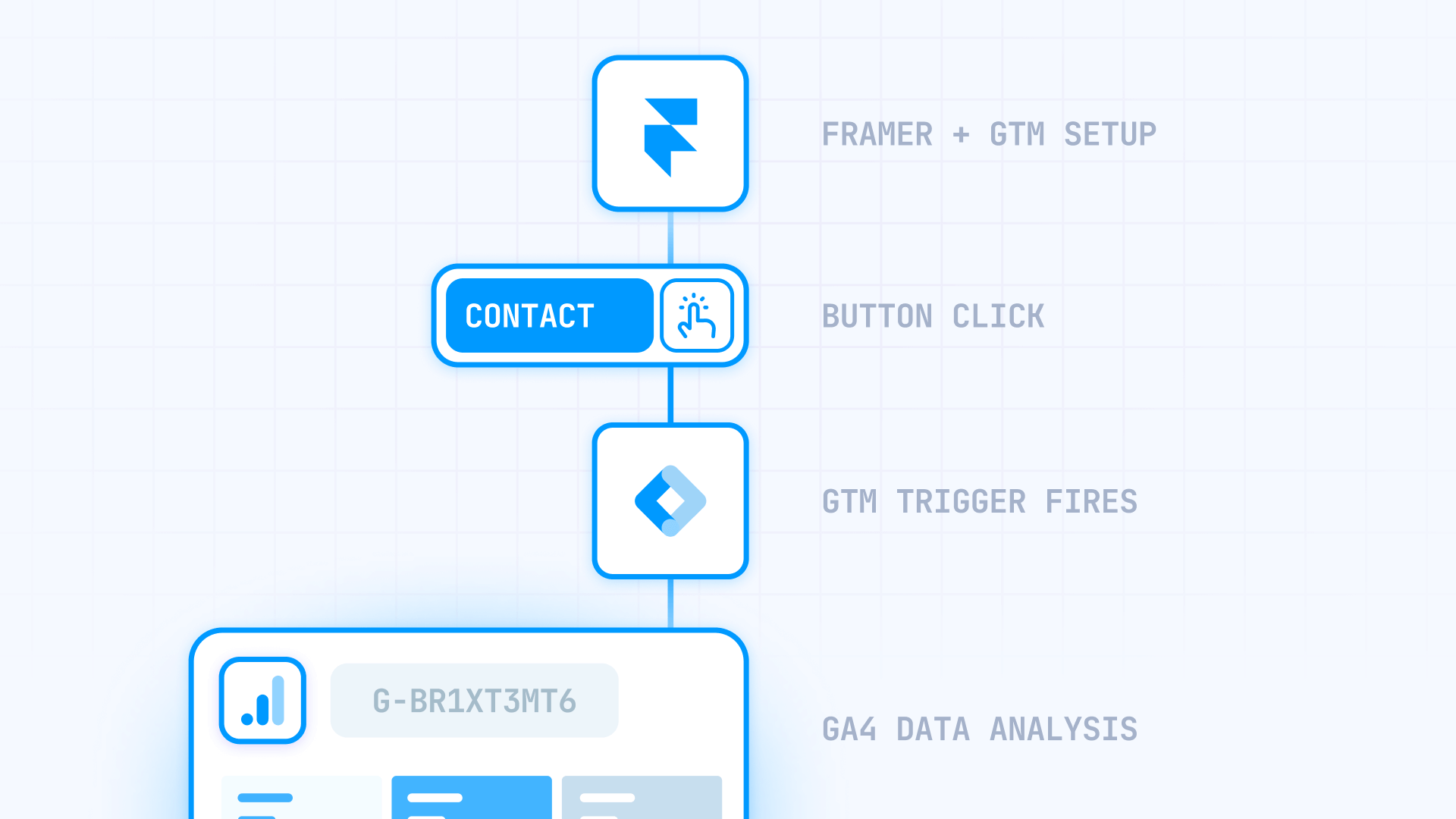
Required setup Before starting, you need:
- Google Tag Manager installed on your Framer site → How to install Google Tag Manager in Framer
- GA4 configured through GTM, not Framer's Measurement ID field → How to install Google Analytics 4 in Framer
If those are in place, you're ready to add button click tracking.
Why tracking button clicks matters for Framer sites
Framer is built for highly interactive, component-driven experiences. Button click tracking turns that interactivity into concrete, measurable data instead of just "it feels like this design works".
See which CTAs actually earn their space:
You can compare how your hero CTA, sticky navigation button, and footer buttons perform against each other on real visitor behavior—not assumptions. This helps you decide which CTAs deserve primary placement and which ones don't justify the space they occupy.
Connect animations and flows to real outcomes:
Framer designs often involve motion, layered components, and micro-interactions. Button click tracking tells you whether those polished interactions actually guide users toward key actions like "Book demo" or "Start trial", or if users get distracted before they ever reach your core CTA.
Validate component and variant decisions:
Because Framer leans heavily on reusable components and variants, it's easy to ship multiple versions of a CTA across your site. Click data lets you compare how different variants (e.g. ghost vs. solid button, primary vs. secondary) perform in the real world, so you can standardize on versions that actually convert.
Treat high-intent clicks as early conversions:
Not every Framer project has a long form at the end of the journey. Sometimes the "success moment" is clicking "Open app", "Join waitlist", or "Download deck". Tracking those button clicks as GA4 key events and conversions gives you meaningful signals earlier in the funnel, before a full signup or purchase happens.
Keep your Framer canvas clean:
Instead of wiring inline JavaScript or manually attaching tracking to each button in Framer, you define your tracking logic once in GTM. The same GTM configuration can follow your components wherever you reuse them, keeping your Framer project maintainable while your tracking stays flexible.
How button click tracking works with GTM and Framer
Under the hood, GTM doesn't know or care that you used Framer—it just listens to the rendered HTML and JavaScript on your published site. Every time someone clicks an element, GTM can record details about that click: the text inside the element, the CSS classes applied, the destination URL, and which page the click happened on.
Your job is to translate your Framer design into a reliable "pattern" GTM can listen for. That pattern might be:
- The button's label plus the page it lives on
- A custom class you added to a Framer component
- A unique id you assigned in the properties panel
You discover that pattern using GTM's Preview mode. Once Preview is connected to your published Framer site, you click the button, inspect the gtm.click event, and note the Click Text / Click Classes / Click ID / Page Path values that uniquely identify it.
From there, you:
- Create a click trigger that fires only when those conditions match.
- Attach a GA4 event tag to that trigger so each click sends a structured event (e.g. button_click) with helpful parameters.
- Test everything in GTM Preview and GA4 DebugView.
- Click Submit in GTM to publish the updated container for all visitors.
Because Framer uses client-side routing and rich transitions, users can move through multiple views without full page reloads—but GTM still captures clicks on each view. As long as your triggers are scoped correctly (e.g. using Page Path or unique classes/IDs), the tracking remains precise across your entire Framer experience.
Prerequisites for button tracking in Framer
Your Framer site must be published on a real domain for testing. This could be your project.framer.website domain or your custom domain. GTM fundamentally doesn't work on design.framer.com editor URLs since the JavaScript container can't load there.
You need GTM properly installed and functional. Open Preview mode and confirm you see Container Loaded when connecting to your published site. If you haven't installed GTM yet, start with the guide on adding Google Tag Manager to Framer.
GA4 should be running through a GA4 Configuration tag in GTM that fires on all pages. Don't use Framer's native Measurement ID field for this—managing everything through GTM gives you significantly more control and flexibility. The GA4 installation guide walks through proper setup.
Finally, you should understand GTM's basic concepts around tags, triggers, and variables. If you've already implemented other GTM tracking, you'll recognize many patterns here since the methodology remains consistent across implementations.
Enable click variables in Google Tag Manager for Framer
GTM needs specific variables enabled to capture click information. Navigate to Variables in GTM's sidebar and click Configure under the Built-in Variables section.
Enable these five essential click variables: Click Element, Click Classes, Click ID, Click Text, and Click URL. Also verify that Page URL and Page Path are enabled, since combining page location with click properties creates precise, reliable triggers.
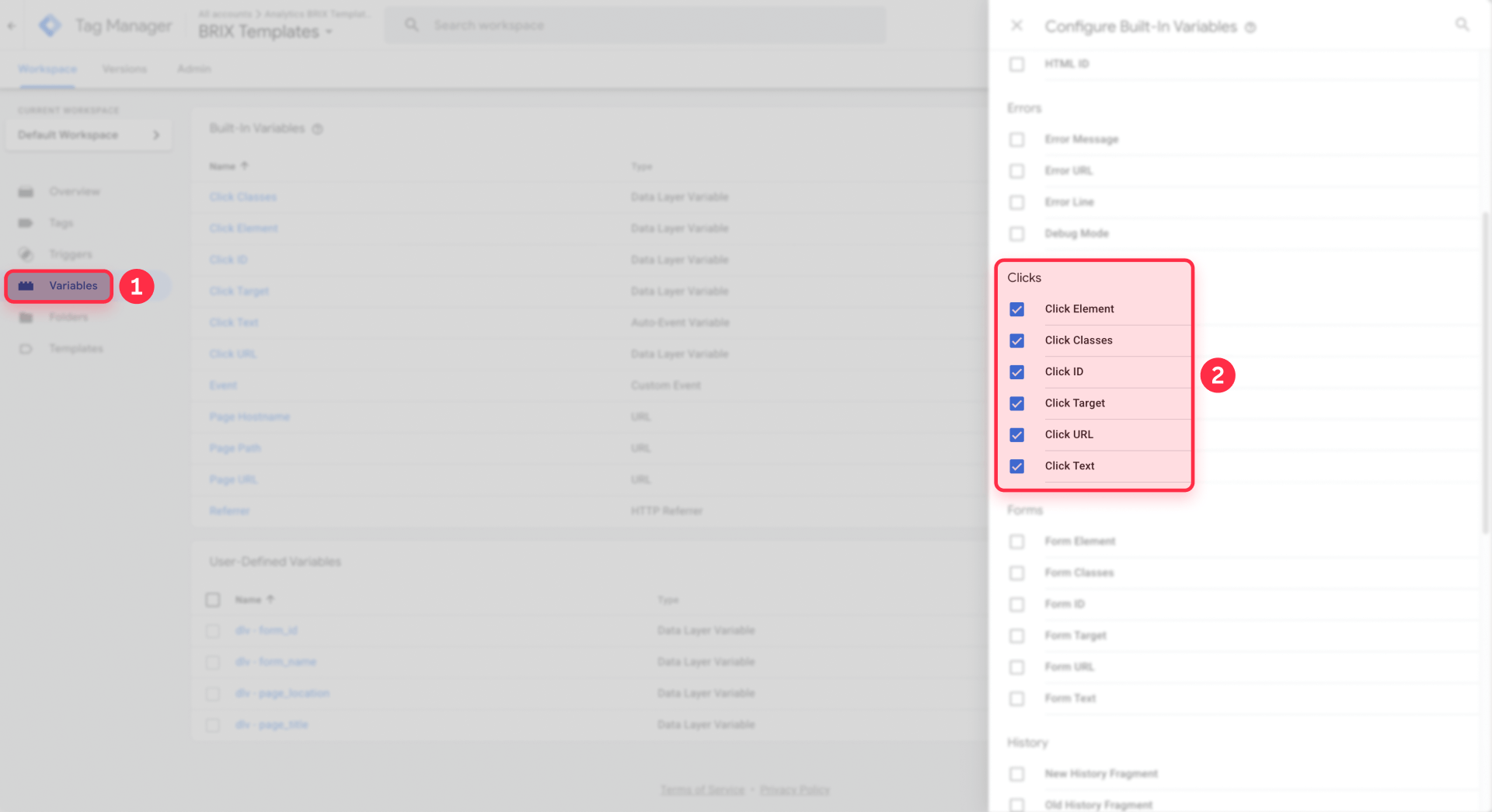
Understanding what each variable captures helps you choose the right identification strategy. Click Text reveals the visible label inside whatever someone clicked, perfect for buttons with unique text like "Book demo" or "Get started". Click Classes exposes the CSS classes Framer applied during rendering, useful when you've created specific component styles.
Click ID captures the id attribute if you manually assigned one in Framer's properties panel. This provides the most precise targeting possible since IDs should be unique across your entire site. Click URL shows the destination href for link elements, helping you track buttons that navigate to specific pages or external sites.
Use GTM Preview to inspect your Framer button
Before you can target a specific button, you need to see how that button looks to GTM.
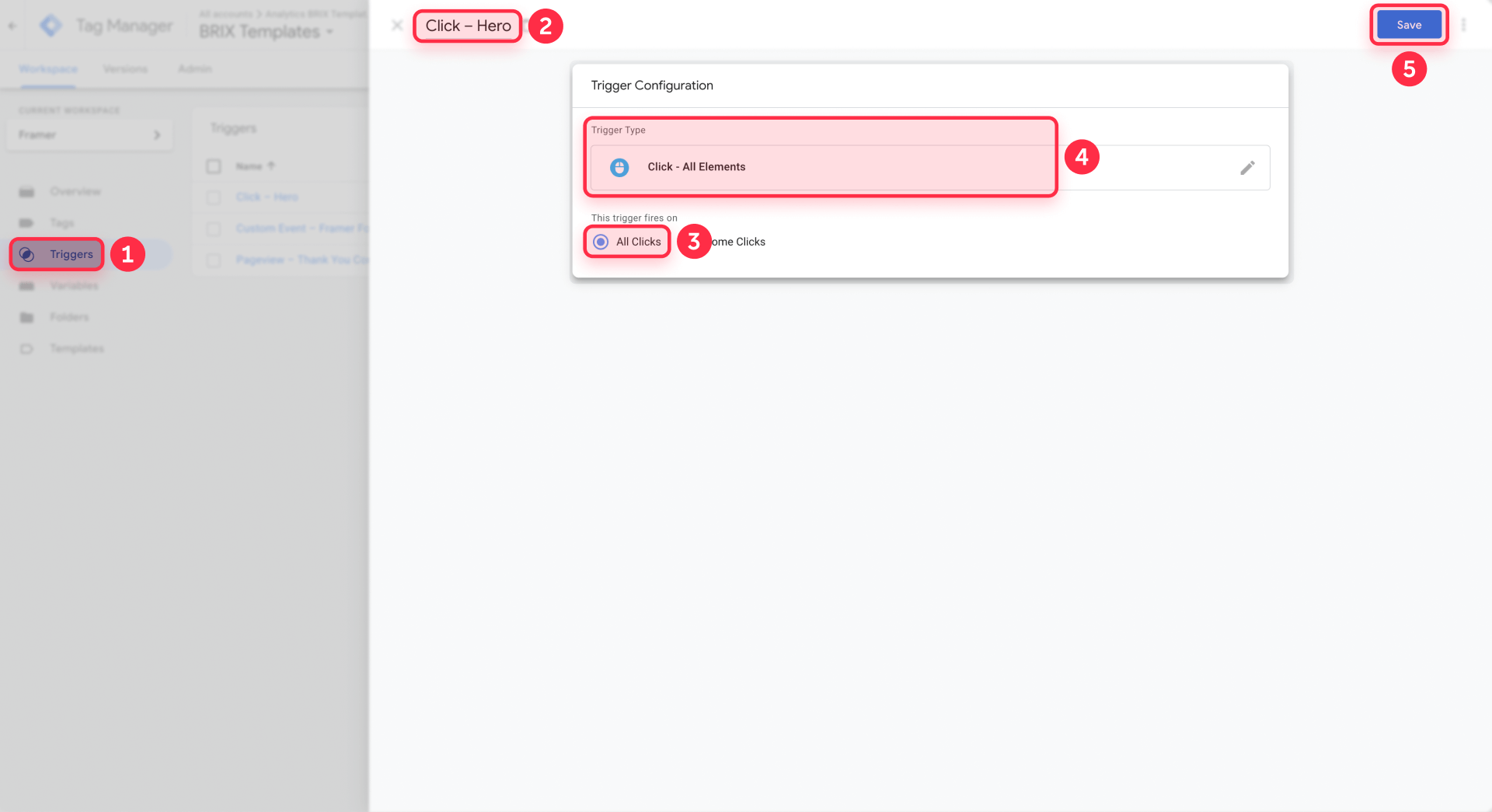
Start by creating a temporary “catch-all” click trigger:
- In GTM, go to Triggers → New.
- Name it something like “Click – All Elements (Debug)”.
- Under Trigger Configuration, choose Click – All Elements.
- Set This trigger fires on to All Clicks.
- Save the trigger. You don’t need to attach it to any tag yet—its only job is to make GTM start listening for click events.
Now, activate Preview mode:
- Click Preview in the top-right corner of GTM.
- In Tag Assistant, enter your published Framer site URL (for example, https://yourproject.framer.website) and click Connect.
- Your site opens in a new tab with Tag Assistant connected.
- Navigate to the page that contains your target button and click that button several times.
Back in Tag Assistant:
- In the left-hand event list, look for events called Click (internally gtm.click) or Link Click (gtm.linkClick).
- Select the event that corresponds to your button click.
- Open the Variables tab and inspect these values:
- Click Text – should show the label of your button (for example, Contact us).
- Click Classes – will show one or more auto-generated Framer classes, such as framer-text framer-styles-preset-1g9xktq.
- Page Path – the current page path (for example, / or /pricing).
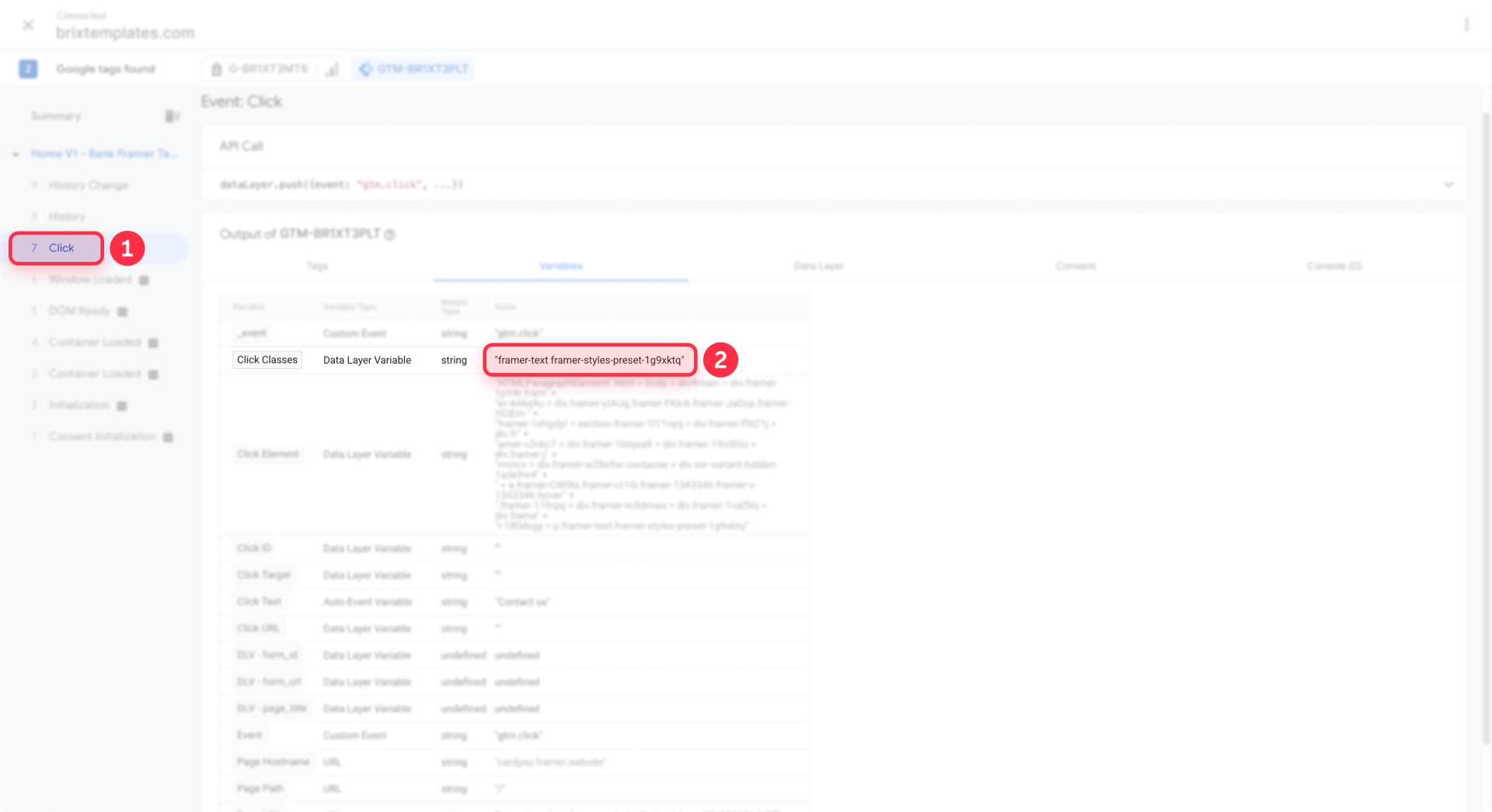
Those Click Classes values are the key: Framer assigns different style presets and component classes to different buttons, and GTM can see those classes even though you don’t manage them directly in the Framer UI. In the next step, you’ll use a combination of Click Text and Click Classes (and optionally Page Path) to target just the button you care about.
Create a click trigger in GTM for your Framer button
With your button’s characteristics captured in Preview, you can now refine your click trigger so it only fires for that specific button.
- In GTM, go back to Triggers and open the “Click – All Elements (Debug)” trigger you created earlier.
- Under This trigger fires on, switch from All Clicks to Some Clicks.
- Add conditions based on what you saw in Tag Assistant. A common pattern for a hero CTA looks like this:
- Click Text equals Contact us
- AND Click Classes contains framer-styles-preset-1g9xktq
- (Optional: AND Page Path Are visitors engaging with your hero "Get started" button or scrolling past it? Does your pricing page "Book demo" CTA outperform the one in your navigation bar? Without button click tracking, you're optimizing your Framer design based on guesswork instead of real user behavior. / if this button only appears on your homepage)
In other words, you’re telling GTM: “Only fire this trigger when the clicked element has this exact label and belongs to this Framer style preset on this page.” Because Framer tends to give different auto-generated classes to different buttons and components, combining Click Text with the specific Click Classes value you saw in Preview is usually enough to isolate a single button, even if there are multiple “Contact us” buttons on the same page.
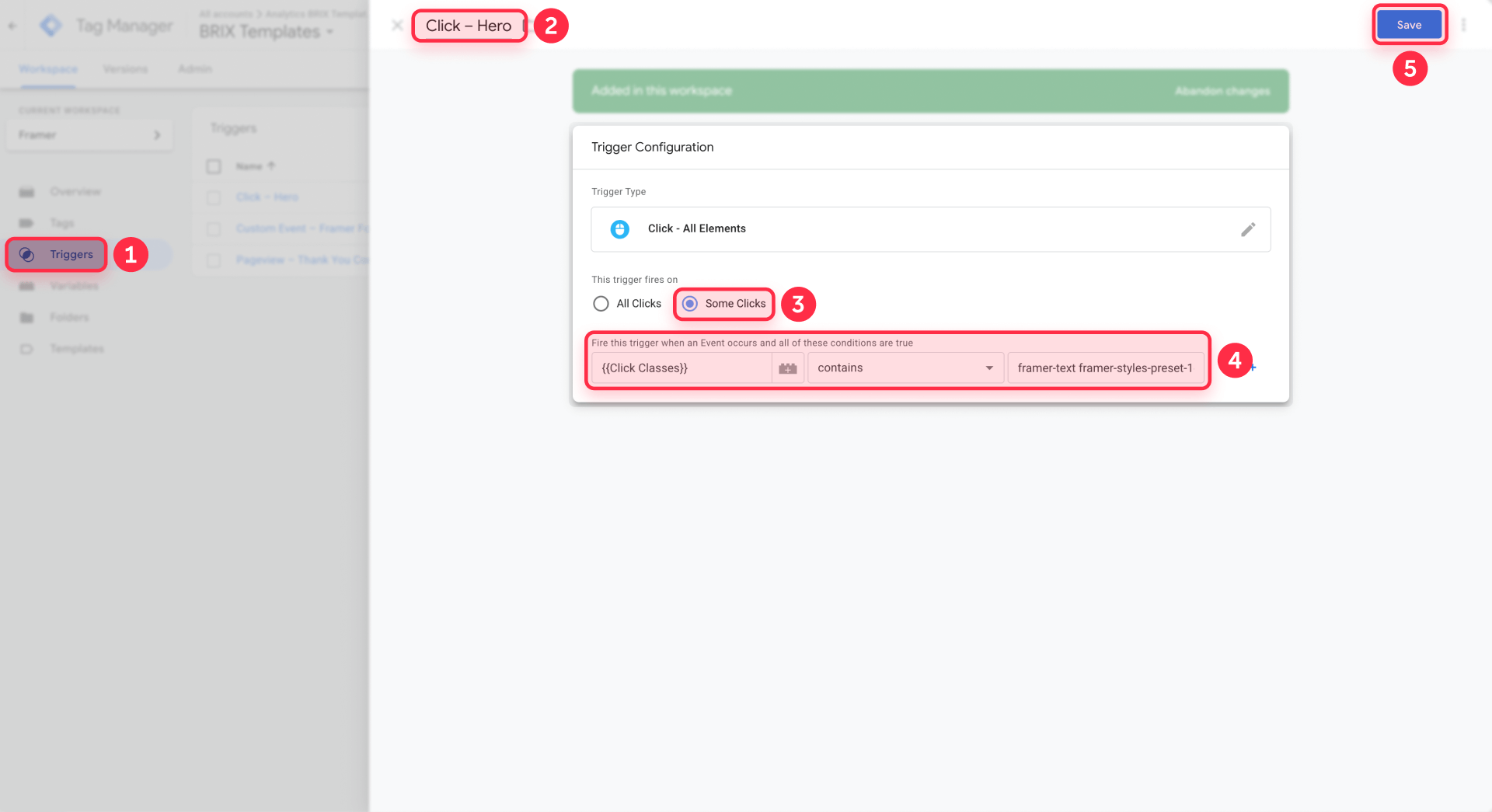
You can now rename the trigger to something more descriptive, such as “Click – Hero Contact (Framer)”, and use it as the trigger for your GA4 event tag. Any time a user clicks that exact button, the trigger will fire and your button_click event will be sent to GA4; other buttons with different classes or text will be ignored.
Create a GA4 event tag for Framer button clicks
Now you'll send data to GA4 whenever your trigger fires. Create a new tag in GTM with a name like "GA4 Event – Framer Button Hero" that clearly indicates both the platform and what's being tracked.
Click Tag Configuration and select Google Analytics: GA4 Event. If you're using GTM's updated interface, this might appear as Google Tag with an event type selection. Choose your existing GA4 configuration tag under Configuration Tag or Measurement ID—this should be the tag that already fires on all pages of your Framer site.
Set your Event Name to something consistent across all button tracking. Most implementations use button_click as a generic event name for all buttons, then differentiate using event parameters. Some prefer cta_click for call-to-action buttons specifically or framer_button_click to distinguish Framer events from other platforms. Choose whatever makes sense for your reporting needs, but maintain consistency.
Event parameters transform generic clicks into meaningful data. Add button_text set to {{Click Text}} to capture what the button says. Include button_url as {{Click URL}} to record where it leads. Add page_path as {{Page Path}} to know which page the click happened on. Consider adding click_classes as {{Click Classes}} if you want to analyze Framer's styling patterns.
You might also create custom parameters like button_location with hardcoded values like "hero", "navigation", or "footer" to group buttons by page section. Or button_type with values like "primary", "secondary", or "tertiary" to analyze performance by visual hierarchy in your Framer design.
Under Triggering, attach the click trigger you created earlier. This connection ensures the tag fires only when that specific button gets clicked, not for every click across your entire Framer site.
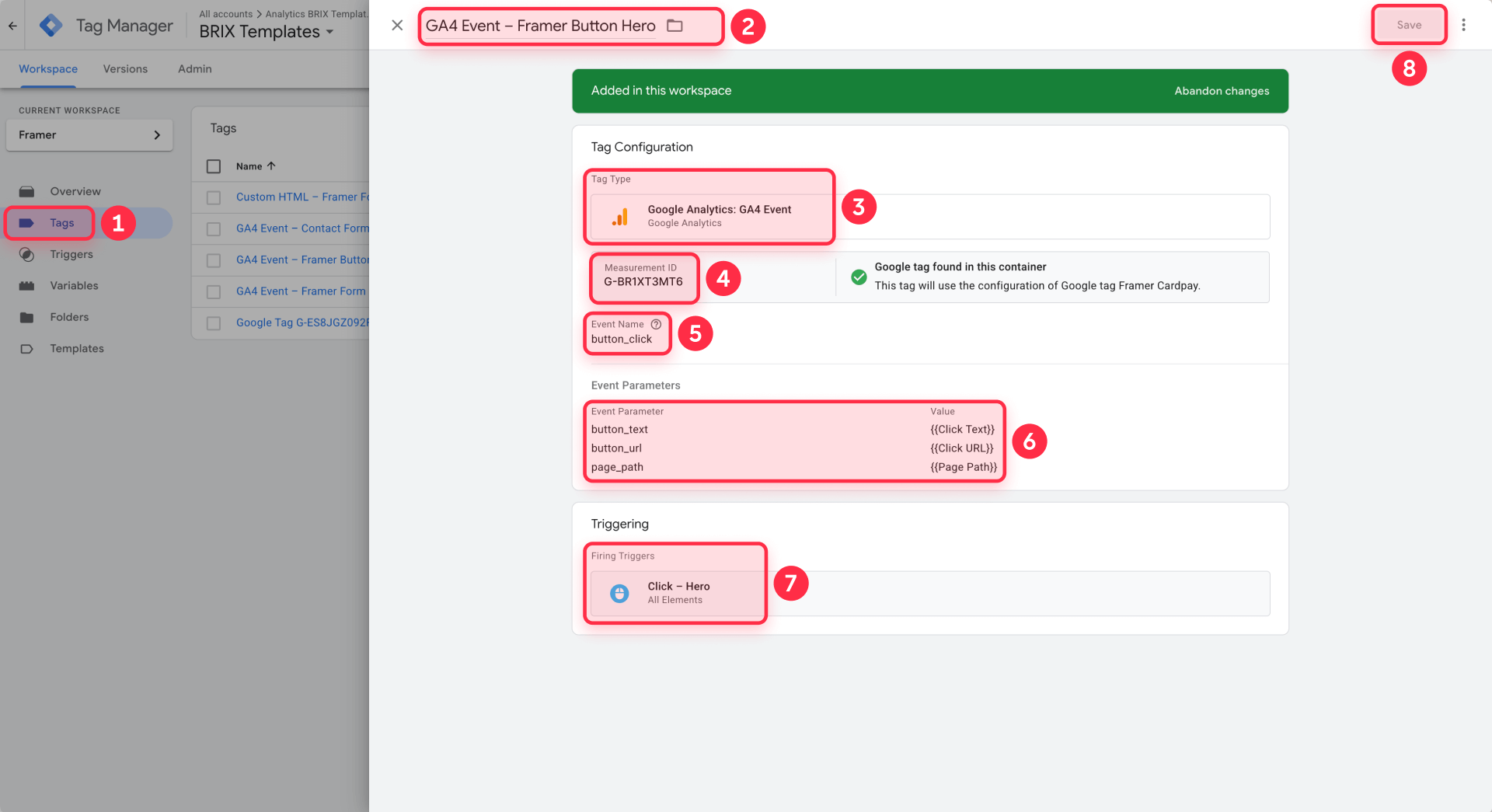
The pattern of one consistent event name differentiated by parameters keeps GA4's event reporting clean and scannable. You'll see one button_click event rather than dozens of uniquely named events, making analysis and debugging significantly easier.
Test button tracking in GTM Preview and GA4 DebugView
Testing before publishing prevents bad data from polluting your analytics. Activate Preview mode again if you closed it, connect to your published Framer site, and click your target button multiple times.
In Tag Assistant, select the Click event for your button and navigate to the Tags tab. Your GA4 event tag should appear under Tags Fired. If it shows there, GTM successfully detected the click and fired your tag.
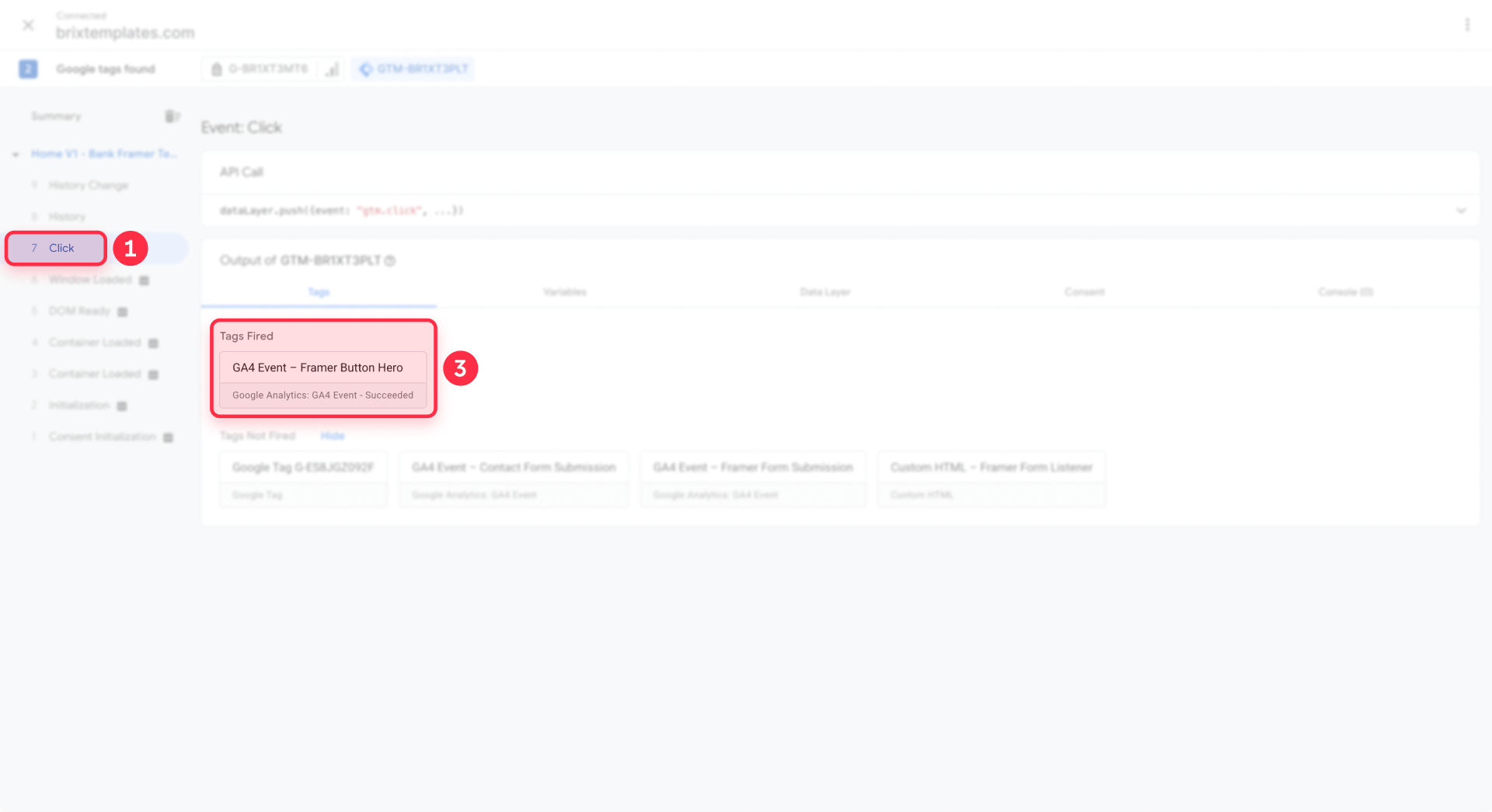
But GTM firing a tag doesn't guarantee GA4 received the data correctly. With Preview mode still running, open Google Analytics, navigate to Admin → DebugView, and perform a few more test clicks on your Framer button. Within seconds, you should see your event name appear in DebugView's event stream.
Click that event in DebugView to inspect its parameters. Verify that button_text shows the correct text, page_path reflects the right page, and all other parameters contain expected values. This confirms data is flowing from Framer through GTM into GA4 with proper formatting.
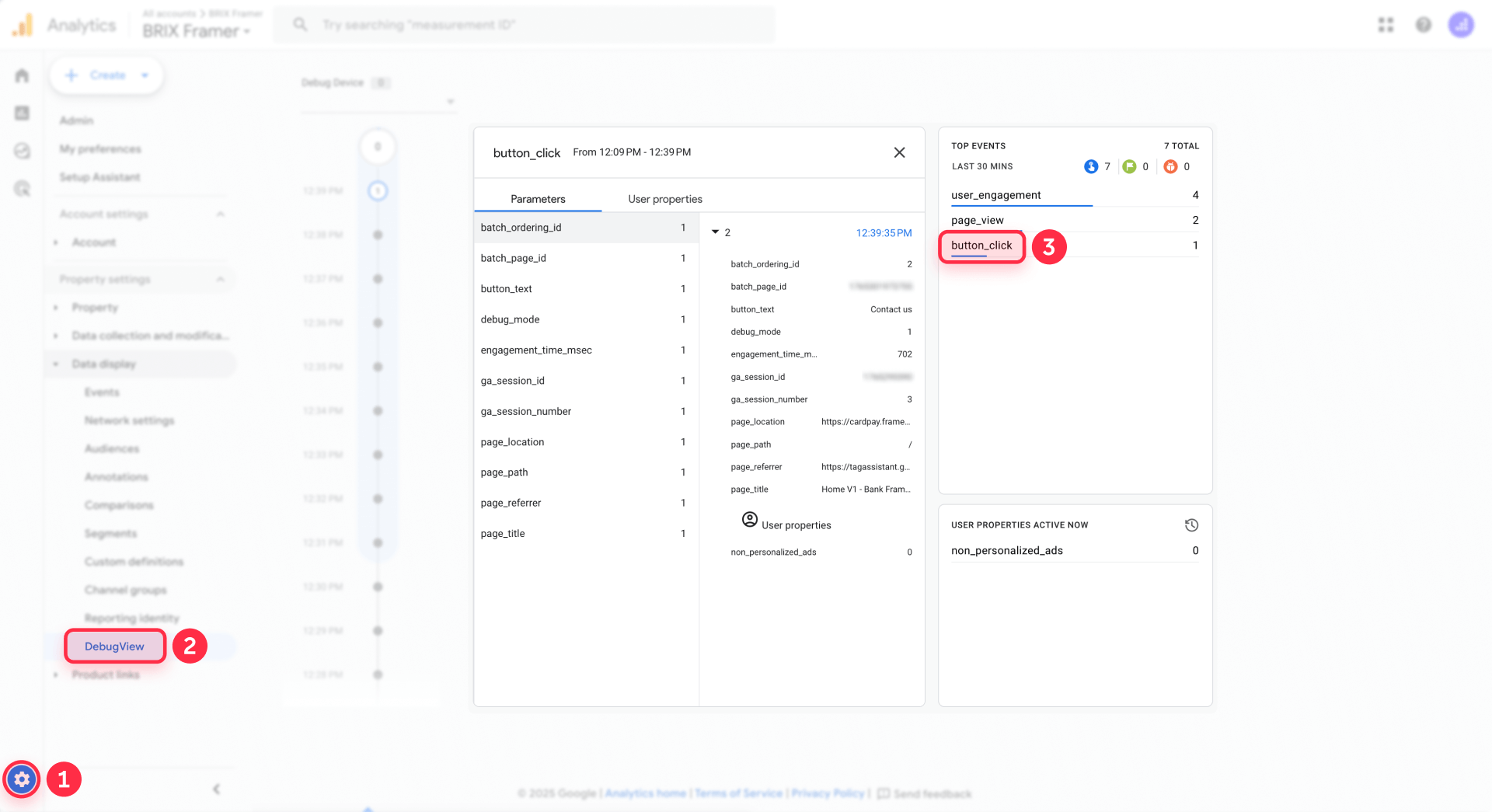
If both Tag Assistant and DebugView show correct data, your implementation is solid. Remember that Preview mode changes remain invisible to real users until you publish. Return to GTM's workspace, click Submit in the top right, add a descriptive version name like "Framer button tracking – Hero CTA", and publish your changes.
Turn Framer button clicks into GA4 conversions
Important button clicks deserve recognition as conversion events in GA4. If your button represents meaningful intent—scheduling demos, starting trials, downloading resources—mark it as a key event to track it as a conversion.
Open GA4 and navigate to Admin → Data display → Events. Find your event name in the list, probably button_click. Toggle Mark as key event to enable it as a conversion. GA4 will now count this event in conversion reports and funnel visualizations.
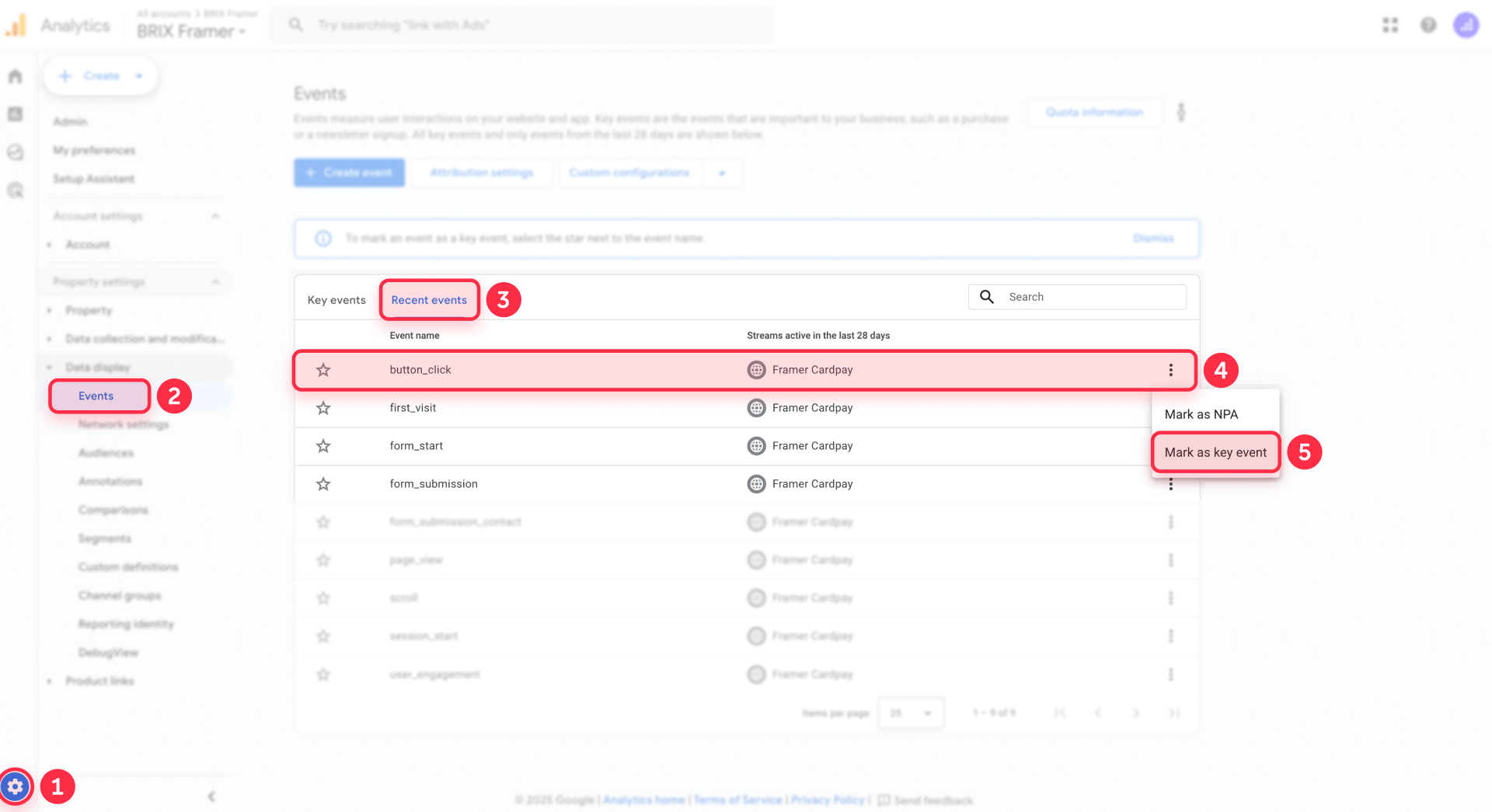
This becomes especially powerful when you want different conversion values for different buttons. You can create separate events like demo_request_click and trial_start_click rather than using generic button_click, giving you granular control over which actions you optimize for in your Framer site.
Key events flow into Google Ads through the conversions import feature. Navigate to Tools & Settings → Conversions → Import in Google Ads and select your GA4 key events. This lets you optimize ad campaigns for specific Framer button clicks like "Schedule call" or "Get quote" rather than just tracking page visits or form submissions.
Advanced button tracking patterns for Framer
Once the basic pattern works for one button, you can reuse it in more sophisticated ways tailored to how Framer projects are built.
Track reusable components across the entire project:
If you use a single "Primary CTA" component across many pages, give that component a consistent class or ID in Framer. Then build one GTM trigger that matches all instances. In GA4 you can still distinguish where it was clicked using parameters like page_path and button_section.
Differentiate variants of the same component:
Framer variants make it easy to test design changes. You can send a parameter such as button_variant with values like primary, secondary, ghost, or outline to see which style actually gets clicked more often. This works even when the underlying component is the same—only the variant changes.
Group CTAs by section or intent:
Add a custom parameter like button_section (hero, nav, pricing, footer) or button_intent (demo, trial, signup, download). This lets you compare how "high-intent" CTAs perform against softer supporting buttons without creating dozens of separate events.
Handle outbound and tool-integrated buttons:
Many Framer sites send users out to tools like Calendly, Notion, or external apps. Create a trigger where Click URL does not contain your domain, and send parameters like destination_domain and link_type = "outbound". That way you can see which external flows actually get used.
Layer button tracking on top of experiments:
If you're manually A/B testing layouts (or using Framer's variant logic to simulate tests), include a page_variant or experiment_name parameter. In GA4, you can then filter button clicks by variant to see which design performs better.
All of these patterns use the same building blocks: inspect the click in Preview, define a precise trigger, attach a GA4 event tag with useful parameters, test, and finally publish via Submit in GTM.
Troubleshooting Framer button click tracking
Implementation issues usually stem from a handful of common problems specific to Framer sites.
Tag doesn't fire in Tag Assistant: First, verify GTM is properly installed and the container is published. If you're testing on design.framer.com editor URLs instead of your published domain, tracking will never work—always test on the live site. Check that your trigger conditions exactly match the values shown in Preview mode's Variables tab. Even small mismatches prevent triggering.
Wrong buttons trigger the event: This indicates your conditions are too generic. If multiple buttons in your Framer project share the same Click Text, add Page Path or unique Click Classes to narrow the match. Consider assigning unique IDs to important buttons in Framer's properties panel to enable precise targeting.
Events appear in Tag Assistant but not GA4: You might be viewing the wrong GA4 property or data stream in Google Analytics. Verify your GA4 Measurement ID matches between GTM and the property you're checking. Look for typos in event names between your tag configuration and what you're searching for in DebugView. Confirm you actually published your GTM container—Preview mode changes don't affect production tracking.
Duplicate events in GA4: You probably have multiple tags firing on the same click, or you've implemented GA4 both through GTM and Framer's native Measurement ID field. Choose one implementation method and remove duplicates. Having GA4 configured in both places causes double-counting and data quality issues.
Framer interactions interfere with tracking: If your button triggers Framer interactions or transitions, ensure you're using Click – All Elements instead of Click – Just Links in your trigger configuration. Framer's interaction system sometimes wraps elements in ways that standard link detection misses.
Classes change after republishing: If you're using Framer's automatically generated CSS classes in your triggers, they might change when you redesign components. Always use custom class names you manually add in Framer's properties panel, not auto-generated ones. Better yet, use the ID attribute for important buttons that need tracking.
Frequently asked questions about tracking Framer button clicks with Google Tag Manager
What is button click tracking in Framer and why should I implement it?
Button click tracking captures detailed interaction data that standard pageview analytics completely miss. While basic analytics show which pages visitors view, button tracking reveals which specific elements drive engagement and which ones get ignored. This matters enormously for Framer sites because you can have identical page layouts with radically different conversion rates based purely on button placement, copy, and design. With button tracking, you'll know whether your hero CTA outperforms your sticky navigation button, whether "Book demo" converts better than "Schedule call", and which sections of your Framer site actually generate clicks versus just looking good. This intelligence transforms aesthetic decisions into data-driven optimization, letting you iterate based on user behavior rather than designer opinions. Most Framer sites waste conversion potential because teams don't know which buttons work and which ones fail.
How do I track Framer button clicks without writing custom code?
Google Tag Manager eliminates the need for custom JavaScript in your Framer project. GTM's built-in click variables automatically capture information about every click—text content, CSS classes, element IDs, destination URLs, and page locations. You enable these variables in GTM's settings, use Preview mode to identify your specific button's characteristics, create a click trigger that matches those characteristics, and attach a GA4 event tag that fires when the trigger activates. This entire process happens in GTM's visual interface without touching Framer's code overrides or custom code components. You maintain clean Framer projects while achieving sophisticated tracking that's easy to update, audit, and scale as your design evolves. The GTM container on your Framer site handles all technical implementation automatically once you configure the tags and triggers.
What makes Framer button tracking different from Webflow button tracking?
While the GTM methodology remains identical, Framer and Webflow generate different HTML structures and CSS classes. Framer's component-based architecture often produces specific class patterns like framer- prefixes that you'll use in your triggers. Framer behaves like a single-page application with client-side routing, but GTM still captures clicks normally even during page transitions. The main practical difference is that Framer's properties panel makes it easier to assign custom IDs to elements compared to Webflow's element settings, giving you more control over precise targeting. Both platforms require testing on published domains rather than editor environments, and both benefit from using consistent event names with differentiating parameters. The core tracking patterns—identifying buttons in Preview mode, building precise triggers, attaching GA4 tags—work identically across both platforms. Your experience with Webflow button tracking translates directly to Framer implementations.
Can I track multiple Framer buttons with a single GTM configuration?
Yes, and using one event name for all buttons with differentiating parameters is the recommended approach for Framer sites. Create a button_click event tag that fires for multiple buttons, using event parameters like button_text, page_path, button_url, and button_section to distinguish between them in GA4 reports. Your GTM trigger can use OR conditions to match multiple Framer buttons, or you can create a trigger that fires on all clicks and filter during analysis. This unified approach keeps your GTM container cleaner and more maintainable than creating dozens of unique events like hero_cta_click, footer_cta_click, pricing_button_click. In GA4, you'll see one button_click event with high volume, then segment by parameters to analyze performance of specific buttons across your Framer site. This pattern scales beautifully as you add new pages and components.
How do I verify that Framer button tracking works correctly before going live?
Verification requires testing in both GTM Preview mode and GA4 DebugView before publishing any changes. Activate Preview mode in GTM, connect to your published Framer site—not the design.framer.com editor—and click your target button several times. In Tag Assistant, verify your GA4 event tag appears under Tags Fired for the click event. This confirms GTM detected the click and fired your tag successfully. Then check GA4 DebugView to ensure data arrives correctly with proper parameters. Look for your event name in the real-time event stream and click it to inspect parameters like button_text, page_path, and button_url. Verify all values match your expectations. Only after confirming both GTM and GA4 show correct data should you click Submit in GTM to publish changes. This testing workflow prevents broken tracking from reaching production and polluting your analytics with bad data. Testing on the actual published Framer domain is critical since GTM doesn't function in the editor environment.
Which Framer button properties work best for creating reliable GTM triggers?
The most reliable targeting strategy depends on how you've structured your Framer project. Click ID provides the most precise targeting if you manually assign unique IDs to important buttons in Framer's properties panel—something like id="hero-contact-button". This eliminates all ambiguity since IDs should be unique site-wide. Click Classes works well when you've added custom class names to your Framer components for styling or organization purposes. Combining Click Text with Page Path creates reliable triggers for buttons with unique labels, like tracking "Book consultation" buttons that only appear on your services page. Avoid relying solely on Click Text for generic labels like "Learn more" or "Get started" that appear on multiple pages. The best practice is layering multiple conditions—perhaps Click Text plus Page Path, or Click Classes plus Page Path—to create triggers that fire only for your specific target button while avoiding false matches. Framer's component system makes it easy to add consistent IDs or classes to master components that propagate across all instances.
How do I convert Framer button clicks into Google Analytics conversions?
Converting button clicks to GA4 key events takes just a few steps. First, ensure your button tracking sends events to GA4 with a consistent event name like button_click. Navigate to Admin → Data display → Events in GA4, find your event in the list, and toggle Mark as key event to enable it. From that point forward, GA4 counts every instance of that event as a conversion in your reports. You can then import these conversions into Google Ads through Tools & Settings → Conversions → Import to optimize ad campaigns for button click actions rather than just pageviews. This proves especially valuable for Framer sites where high-intent buttons like "Request demo", "Start trial", or "Contact sales" indicate serious purchase intent even when users don't immediately complete forms. If you track multiple button types across your Framer site, consider creating separate event names like demo_request_click and trial_start_click so you can assign different conversion values and optimize for specific actions that matter most to your business goals.
What's the best way to organize button tracking across a large Framer site?
Large Framer sites need consistent naming conventions and logical grouping to keep tracking manageable. Use one event name like button_click for all buttons, then differentiate with parameters: button_text for the label, page_path for location, button_section for areas like "hero", "navigation", "pricing", "footer", and button_type for classifications like "primary", "secondary", "tertiary". This structure keeps your GA4 event list clean while enabling powerful segmentation. In GTM, name your triggers and tags descriptively—"Click – Homepage Hero CTA (Framer)" beats "Button Trigger 1"—so you can audit and update tracking months later. Consider maintaining documentation that maps which Framer components you're tracking, what triggers fire for them, what event parameters they send, and what business questions they answer. This documentation becomes invaluable as your Framer project grows. For sites with dozens of tracked buttons, create a GTM folder structure that groups related triggers and tags by page or section, making your container easier to navigate. Leveraging Framer's component architecture means you can add IDs or classes to master components that automatically apply to all instances, making scaling significantly easier.
Can I track Framer buttons that link to external websites or tools?
External link tracking requires slightly different GTM trigger configuration but follows the same core methodology. Create a click trigger where Click URL does not contain your domain name, which catches all clicks leading off your Framer site. This captures buttons linking to scheduling tools like Calendly, external applications, partner websites, or social media profiles. Add event parameters like button_url to see destination URLs, destination_domain to group by external site, and link_type with value "outbound" to distinguish from internal navigation. You might discover that your "Book a call" button linking to Calendly gets significantly more clicks than you realized, or that footer social media icons generate negligible engagement compared to in-content placement. External link tracking helps you understand where users leave your Framer site in their journey and whether those exits lead to conversions on external platforms. This data informs decisions about which external integrations drive value and which ones you might replace with native Framer solutions or custom forms.
Why don't my Framer button clicks appear in Google Analytics reports?
Missing events usually trace back to a few specific issues with Framer implementations. First, confirm you're testing on your published Framer domain (project.framer.website or custom domain), not on design.framer.com editor URLs where GTM cannot function. Verify that you actually clicked Submit in GTM to publish your container—Preview mode changes remain invisible to everyone else until you publish. Check that you're examining the correct GA4 property and data stream since many accounts have multiple properties. Look for exact matches between your tag's event name and what you're searching for in GA4, as even small typos prevent events from appearing. Confirm your GA4 tag in GTM fires on all pages by checking Tag Assistant. If events appear in Tag Assistant but not GA4, you might have configuration issues in your GA4 tag itself—verify your Measurement ID matches your property. Also check whether you've accidentally implemented GA4 both through GTM and Framer's native Measurement ID field, which causes double-counting and makes your reports unreliable. Finally, verify your trigger conditions in GTM actually match your button's properties in Preview mode—mismatches between expected and actual values silently prevent triggers from firing.
Conclusion
Tracking Framer button clicks with Google Tag Manager transforms vague engagement metrics into precise behavioral data. You now understand how GTM captures click information, how to identify buttons using Preview mode, how to build reliable triggers, how to send structured events to GA4, and how to turn important clicks into tracked conversions.
The real power emerges from the scalable pattern you've learned. Adding tracking for additional buttons means identifying their characteristics in Preview mode, adjusting trigger conditions, and republishing your GTM container with Submit. No code changes in Framer, no complex custom scripts—just systematic configuration in GTM.
If you haven't yet established the foundation, start with installing Google Tag Manager in Framer and setting up Google Analytics 4 through GTM. For comprehensive conversion tracking, pair button clicks with form submission tracking to measure both engagement and conversions.
With this GTM and GA4 foundation in place, you'll finally answer the question that drives meaningful optimization: which parts of your Framer site actually generate engagement? If you need help implementing advanced tracking strategies, optimizing conversion funnels, or building custom GTM configurations for complex user journeys, our agency specializes in Framer analytics implementations that transform data into actionable business intelligence.









Join readers commenting on this post!