

You want a phone field that shows a template like (XXX) XXX-XXXX and auto-fills the formatting as the user types. That's a live input mask — and Webflow doesn't include it natively.
Webflow's built-in form behavior is mostly HTML5 validation (things like pattern and maxlength) which only runs when the user submits. It won't insert parentheses or dashes while typing. If you want the "it gets filled in" typing experience, you need a small JavaScript mask layer added via Site settings → Custom Code.
This tutorial shows the best Webflow-friendly approach (BRIX-branded attributes + jQuery Mask Plugin), plus a no-JS fallback so you understand the trade-offs.
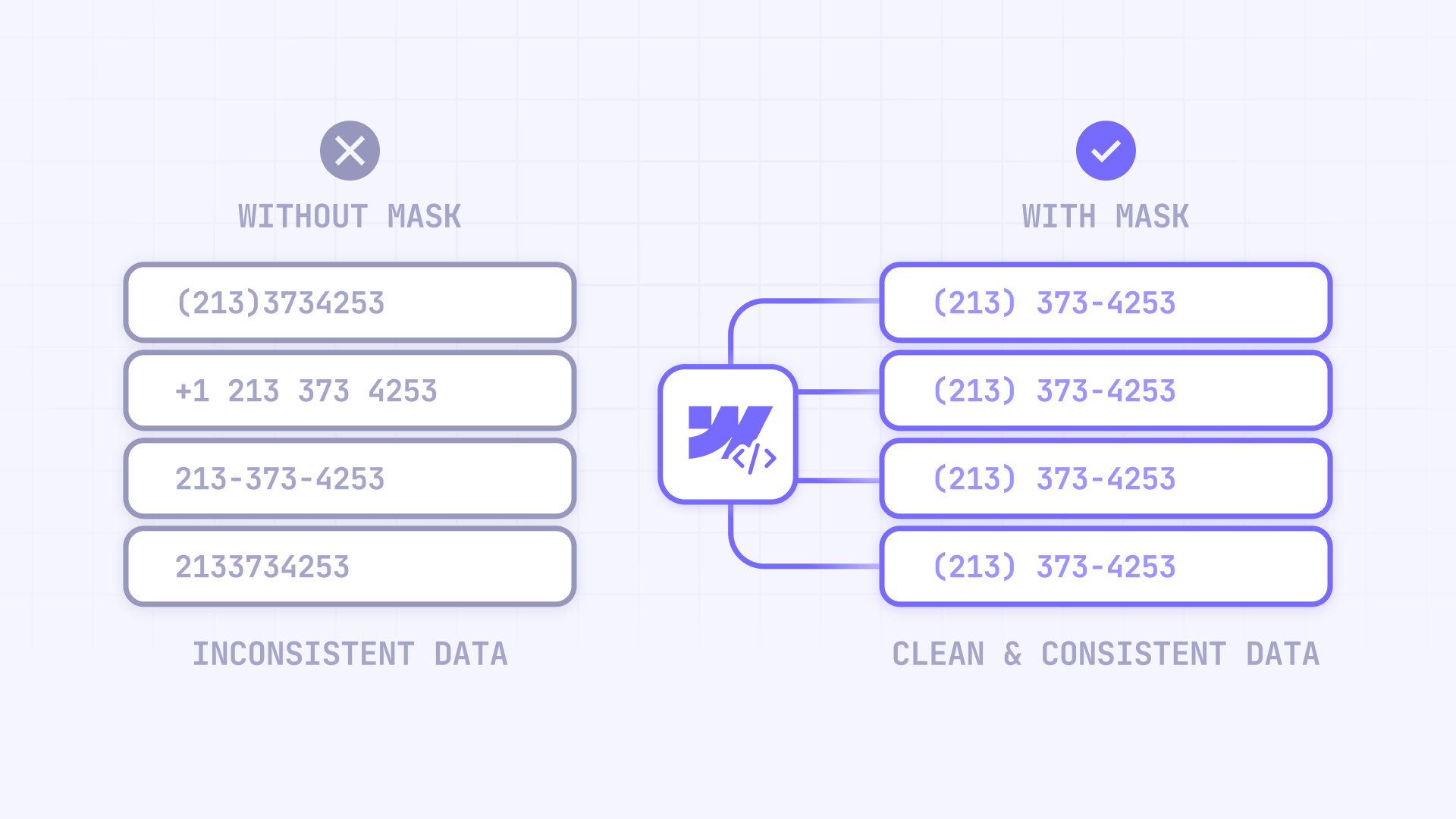
Why phone input masking matters for Webflow sites
Adding a live phone mask to your Webflow forms improves both data quality and user experience. Here's why it's worth implementing:
- Cleaner submissions: Users don't submit half-formatted numbers like "555123-4567"
- Higher completion rate on mobile: A masked field reduces "where do I put the dash?" friction
- More consistent CRM data: You can also store a digits-only value for integrations
- Fewer validation errors: Users are guided into the correct shape as they type
- Faster QA and scaling: One site-wide script can mask every phone field you tag
- Better UX clarity: Masking removes guesswork compared to placeholders and submit-only validation
1 - What phone "masking" actually means in Webflow
People often say "masking" when they actually mean one of three different things. Webflow supports two of them natively — but not the one you want.
Placeholder in Webflow: just a visual hint
A placeholder is gray example text like (555) 123-4567. It does not format input, does not validate input, and disappears when the user types.
Validation in Webflow: blocks bad submissions on submit
Validation uses HTML attributes like pattern, maxlength, minlength, and required. It only checks format when submitting — it does not auto-insert characters while typing.
Masking in Webflow: live formatting while typing
A live mask formats input on every keystroke, inserts parentheses, spaces, and dashes automatically, and handles backspace and paste predictably. Webflow doesn't provide this natively, so you add it with custom code.
2 - How to set up your Webflow phone field correctly
Before you add any script, set up the field so it's easy to target and works well on mobile.
2.1 Add a phone field in Webflow Designer
- Open Webflow Designer and select your Form Block
- From the Add panel, drag in a Text Field
- In Element Settings, rename the field label/name to Phone
- Set Text type to Phone (this renders as type="tel" and shows a numeric keypad on mobile)
Tip: Text type: Phone only affects the mobile keypad. It does not enforce formatting.
2.2 Add BRIX custom attributes for Webflow masking
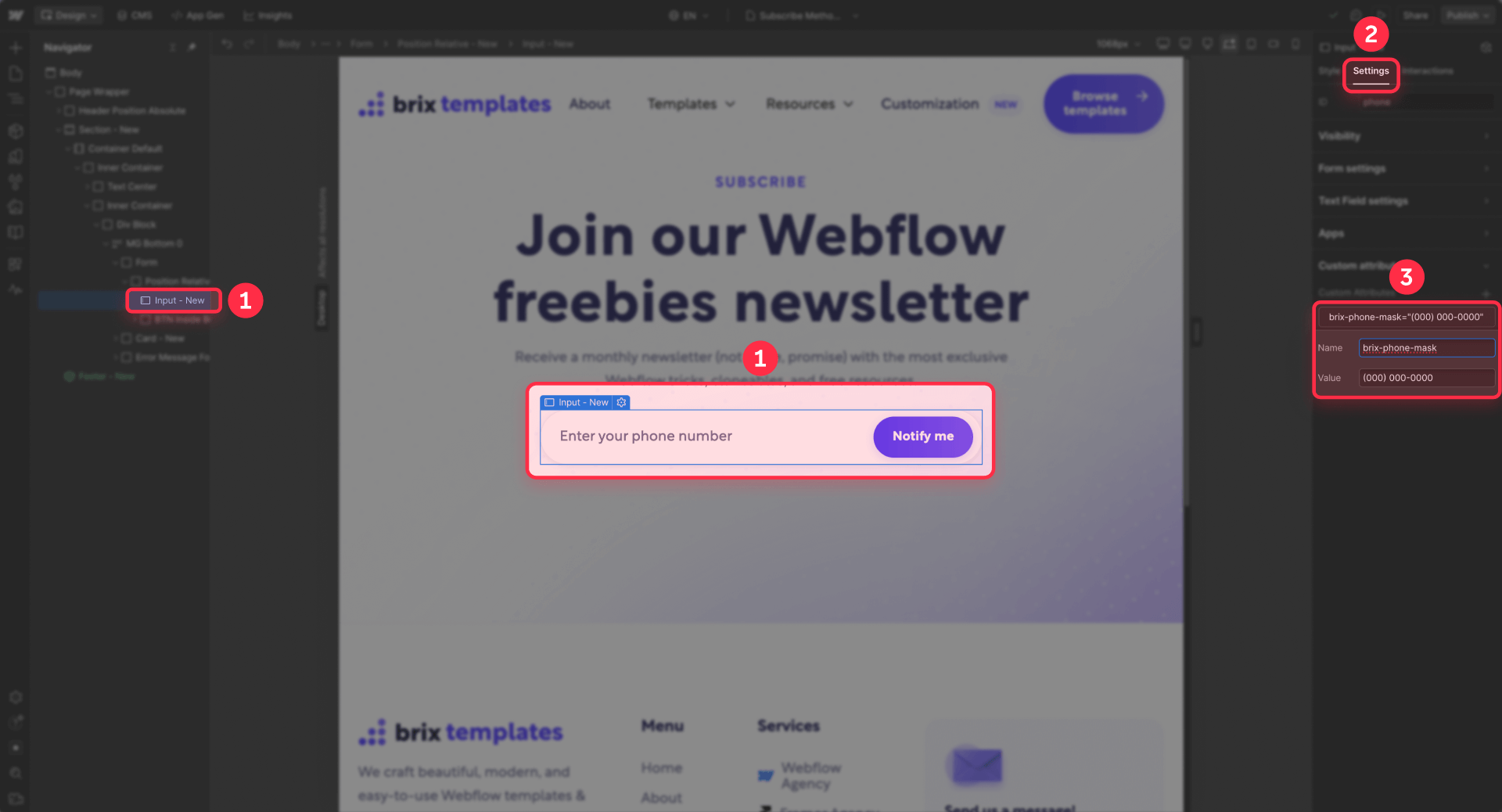
- Select the phone input
- In Element Settings, scroll to Custom Attributes
- Add a new attribute with Name: brix-phone-mask and Value: (000) 000-0000
This is the only thing the script needs to find and mask the field.
2.3 Understand BRIX mask patterns for Webflow (these are NOT regex)
The value you put in brix-phone-mask is a jQuery Mask pattern, not a regular expression.
Mask patterns control live formatting while typing. The character 0 means "accept a digit here." Here are common US mask patterns:
- US parentheses
brix-phone-mask (000) 000-0000
Resultado: (555) 123-4567 - US dashes
brix-phone-mask 000-000-0000
Resultado: 555-123-4567 - US dots
brix-phone-mask 000.000.0000
Resultado: 555.123.4567
3 - How to add a live phone input mask in Webflow
This is the real solution for "template gets filled in while typing."
We're using jQuery Mask Plugin because it's simple, reliable, and works well with Webflow's typical setup. Webflow includes jQuery by default on published sites (since 2020), so you don't need to load it again — and you should avoid importing another version to prevent conflicts.
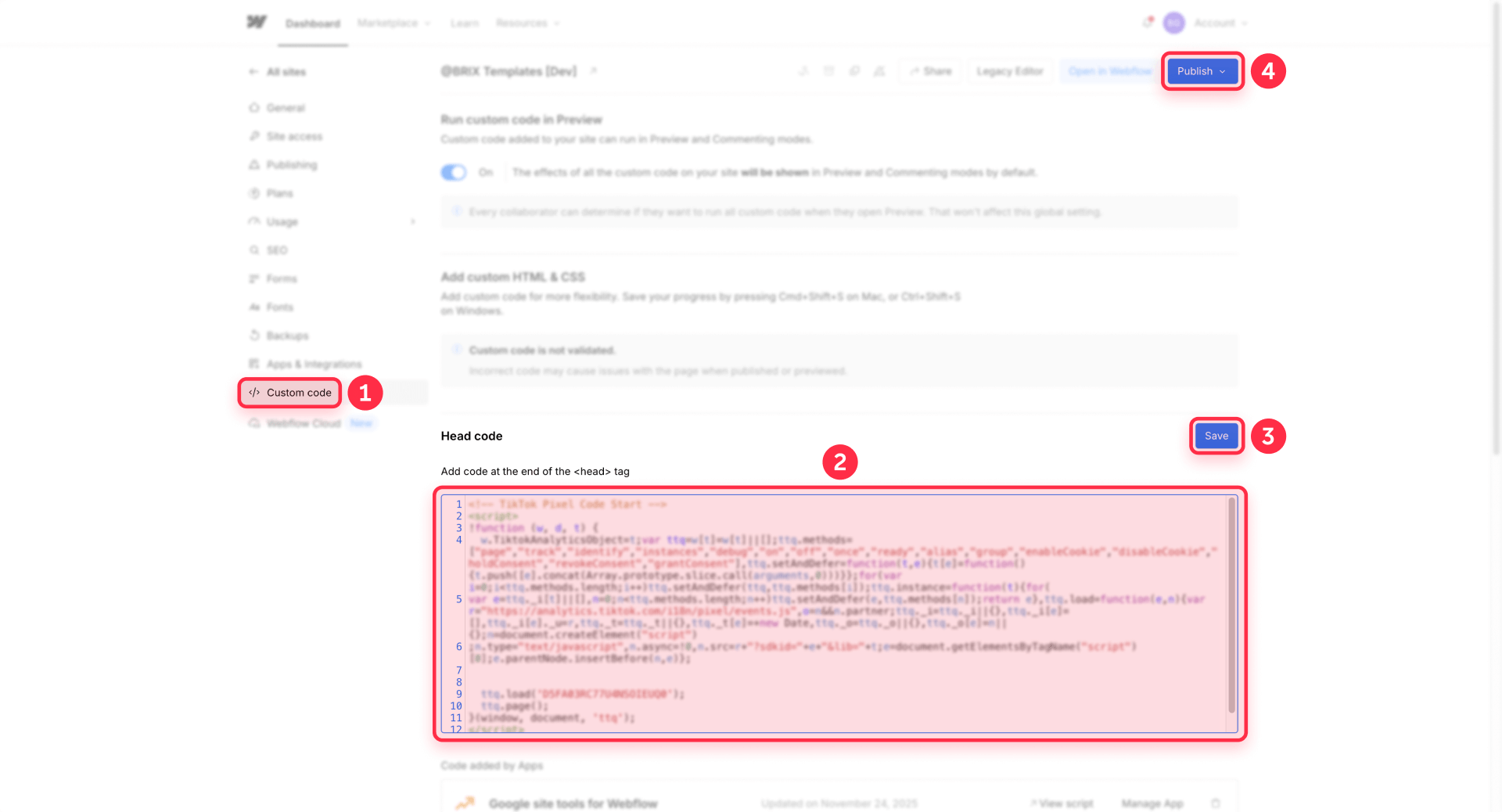
3.1 Add the BRIX phone mask script in Webflow Footer Code
- Go to Site settings → Custom Code
- Scroll to Footer Code
- Paste the complete code below
- Click Save Changes
- Publish your site (custom code won't be live until you publish)
3.2 Paste-ready BRIX phone mask script for Webflow
Paste this into Footer Code:
<!-- jQuery Mask Plugin for BRIX Templates Phone Input Mask for Webflow -->
<script src="https://cdnjs.cloudflare.com/ajax/libs/jquery.mask/1.14.16/jquery.mask.min.js"></script>

<script>
/*!
 * BRIX Templates Phone Input Mask for Webflow
 * ----------------------------------------------------------------------------
 * Adds live phone formatting to Webflow forms using jQuery Mask Plugin.
 * Add brix-phone-mask="(000) 000-0000" to any phone input field.
 * Optional: Add brix-phone-clean="hidden-field-id" to store digits-only value.
 *
 * Version: 1.0.1
 * Author: BRIX Templates
 * Requires: jQuery (included in Webflow) + jQuery Mask Plugin
 */

(function () {
  // Guard: jQuery must exist
  if (!window.jQuery) {
    console.error('[BRIX Phone Mask] jQuery not found.');
    return;
  }

  var $ = window.jQuery;

  // Guard: plugin must exist
  if (!$.fn || typeof $.fn.mask !== 'function') {
    console.error('[BRIX Phone Mask] jQuery Mask plugin not loaded.');
    return;
  }

  $(document).ready(function () {

    // Apply masks to any input with the BRIX mask attribute
    $('[brix-phone-mask]').each(function () {
      var $field = $(this);
      var maskPattern = $field.attr('brix-phone-mask');
      if (maskPattern) $field.mask(maskPattern);
    });

    // On submit: store digits-only value in hidden field (scoped to current form)
    $('form').on('submit', function () {
      var $form = $(this);

      $form.find('[brix-phone-mask][brix-phone-clean]').each(function () {
        var $field = $(this);
        var cleanFieldId = $field.attr('brix-phone-clean');
        if (!cleanFieldId) return;

        var $clean = $form.find('#' + cleanFieldId);
        if ($clean.length) {
          $clean.val($field.cleanVal());
        }
      });
    });

  });
})();
</script>
3.3 How to use the BRIX attributes on your Webflow inputs
Once the script is in place, you need to tag your phone inputs so the script knows which fields to mask.
- Open your page in Webflow Designer and select the phone input field
- In the right panel, click Element Settings (the gear icon)
- Scroll down to Custom Attributes
- Click the + button to add a new attribute
- Set Name to brix-phone-mask
- Set Value to your desired format pattern (e.g., (000) 000-0000)
- Click Save and then Publish your site
The script automatically finds any input with this attribute and applies the mask. You can use different patterns on different fields — just change the value per input.
3.4 Advanced: store digits-only phone value for Webflow CRMs
Some CRMs prefer 5551234567 instead of (555) 123-4567. The script can automatically strip formatting and store the clean value in a hidden field when the user submits. Here's how to set it up:
Step 1: Create the hidden input in Webflow
- Select your Form Block in Webflow Designer
- From the Add panel, drag a Text Field into your form
- In Element Settings, set the Name to whatever you want to receive in your email or CRM (e.g., phone_digits, clean_phone, etc.)
- Still in Element Settings, add an ID — this is what the script uses to find the field. Use something simple like phone-clean
Step 2: Hide the input with CSS
- With the new input still selected, go to the Style panel
- Under Layout, set Display to None
- The field will disappear from the canvas but remain in your form structure
- Important: Also delete the Label element that came with the Text Field, otherwise it may remain visible on your form
Tip: You can find hidden fields in the Navigator panel — they show as grayed out elements.
Step 3: Link the visible phone field to the hidden field
- Select your visible phone input (the one users type into)
- Go to Element Settings → Custom Attributes
- Add a new attribute with Name: brix-phone-clean and Value: the ID you set in Step 1 (e.g., phone-clean)
Now when users submit the form, the script copies the digits-only value into the hidden field. Your form submission will include both:
- Phone: (555) 123-4567 (formatted, from the visible field)
- phone_digits (or whatever Name you chose): 5551234567 (digits only, from the hidden field)
Map the hidden field to your CRM's phone property for cleaner data imports.
Other phone validation options for Webflow
The US mask format (000) 000-0000 works great when your audience is in a single country. But there are other approaches worth knowing about.
Country-specific validation in Webflow
If you need to validate phone numbers based on country rules (length, format, area codes), libraries like intl-tel-input or libphonenumber can handle this. These tools provide:
- A country dropdown with flags
- Automatic formatting based on selected country
- Validation that checks if the number is actually valid for that country
Implementation follows a similar pattern: add the library via Footer Code, then use custom attributes to target your inputs. The setup is more involved than a simple mask, but the UX improvement is significant for international audiences.
Why we didn't include it in this tutorial
Most Webflow sites serve a single market. Adding international validation increases complexity — more code, more edge cases, more testing — without real benefit if 95% of your leads are from one country.
If your forms receive traffic from multiple countries and you need proper international phone handling, reach out to our team — we can integrate the right solution based on your specific markets.
Troubleshooting phone masks in Webflow
- Mask doesn't work in Designer: That's expected. Test on the published site or preview if enabled. Verify: Publish, then type 5551234567 and confirm it becomes (555) 123-4567.
- Mask doesn't work after publishing: Confirm the input has brix-phone-mask in Custom Attributes. Confirm the script is in Site settings → Custom Code → Footer Code. Open the browser Console and check for red errors. Verify: In the Elements panel, inspect the input and confirm the attribute exists.
- Works on one page but not another: You probably forgot to add the attribute to that page's phone input, or you added it to the wrong element (like the wrapper div instead of the input). Verify: Confirm every phone input you want masked has brix-phone-mask.
- Mask breaks in Preview but works live: Preview can behave differently with external scripts. Verify: Always test the published domain before diagnosing deeper.
- Digits-only hidden field stays empty: Confirm the hidden input has the correct ID (example: phone-clean). Confirm the visible input includes brix-phone-clean with the matching ID value. Verify: Submit a test form, then check the submission payload.
Frequently asked questions about phone masks in Webflow
What is a phone input mask in Webflow?
A phone input mask is a JavaScript-based formatting layer that updates the field as the user types. Instead of users entering raw digits and manually adding punctuation, the mask inserts parentheses, spaces, and dashes automatically.
This is different from Webflow's built-in validation, which only checks input when the form is submitted. If you want the "template fills in" behavior, you need the live masking approach covered in this tutorial.
A practical tip: apply masking via a custom attribute so you can reuse one script across multiple forms.
Why doesn't Text type Phone create a phone mask in Webflow?
Setting a phone field to Text type: Phone mainly influences the keyboard on mobile devices — it shows a numeric keypad instead of the full keyboard. It does not apply formatting rules while typing.
Browsers don't enforce a single phone format because phone formats vary globally. If you want formatting to appear as the user types, you must add a masking script.
Keep Text type: Phone for better mobile input, and apply the mask via a BRIX attribute so the same script works everywhere.
Can Webflow mask phone inputs without code?
No. Webflow can't do a true mask without code because masking requires real-time keystroke handling.
Without JavaScript, you can only do submit-time validation using HTML constraints like pattern and maxlength. This does not format the value while typing — it only blocks submission if the format is wrong.
For the best user experience, use the live masking script. The performance cost is negligible (the plugin is ~5KB), and Webflow includes jQuery by default since 2020.
Where do I put the phone mask script in Webflow?
Place it in Site settings → Custom Code → Footer Code so the page loads the form fields first and then runs the script. This prevents timing issues where the script runs before the inputs exist.
After saving, you must publish your site for the code to take effect on the live domain. If you only need the mask on one page, you can place it in Page Settings footer code instead.
How do I mask multiple phone fields across a Webflow site?
Use an attribute-driven approach: add brix-phone-mask to every phone input you want masked, and run a single script that targets all inputs with that attribute.
This scales better than targeting IDs because IDs are easy to misconfigure across pages and forms. It also lets you mix formats across different fields by changing the attribute value per field.
If you also need digits-only storage for your CRM, add brix-phone-clean only where needed.
What's the difference between mask pattern and regex pattern in Webflow?
A mask pattern controls live formatting while typing. It uses placeholders like 0 to represent digits in a fixed format such as (000) 000-0000.
A regex pattern is a regular expression used by HTML validation on submit. It looks like ^(\d{3}) \d{3}-\d{4}$.
They are not interchangeable. If you implement live masking, you generally don't need regex validation because users can't easily produce an incorrectly shaped value.
How do I submit a digits-only phone number from a masked Webflow field?
Add a hidden field and configure the script to copy the unmasked value on submit.
First, drag a Text Field into your form. Set the Name to whatever you want in your submissions (e.g., phone_digits), and add an ID like phone-clean. Then set Display to None in the Style panel to hide it.
On your visible phone input, add the attribute brix-phone-clean with the hidden field's ID as the value. When the user submits, the script strips formatting and writes only digits into the hidden field.
Why does my Webflow phone mask work on one page but not another?
In almost every case, the script is fine — the attribute isn't consistent. The masking script only applies to inputs that have brix-phone-mask.
If one page works and another doesn't, you probably forgot to add the attribute to that page's phone input, or you added it to the wrong element (like the wrapper div instead of the input).
Verify by inspecting the phone input on the broken page and confirming brix-phone-mask exists.
Should I use intl-tel-input instead of a US phone mask in Webflow?
Use a US phone mask when your audience is US-only and you want a simple field that formats as (000) 000-0000.
Use an international phone input solution when you have non-US traffic, multiple country formats, or you need country-aware validation. International tools provide a country dropdown and format numbers based on that country's rules.
Decide based on your analytics: if more than a small percentage of leads are international, switch to a global solution. For US-only landing pages, keep the mask lean and fast.
Conclusion
If your goal is "a template that gets filled in" while users type, you need live phone masking in Webflow — not placeholders or submit-time regex validation. The most reliable approach is the BRIX attribute-driven setup: add brix-phone-mask to your phone input, paste the BRIX script into Footer Code, publish, and test.
If you need cleaner CRM data, add brix-phone-clean to store a digits-only value in a hidden field. For international audiences, skip US-only masking and use an international phone input solution instead.
If you need a custom phone format, country filtering, or international number validation integrated into your Webflow forms, our Webflow agency team can build a tailored solution for your specific requirements.










Join readers commenting on this post!