
Every YouTube or Vimeo video you embed on your Webflow site loads over 500KB of scripts and resources—even if the visitor never clicks play. Add three videos to a page and you've just added 1.5MB+ of unnecessary weight that slows everything down.
This guide shows you two methods to fix this problem: a quick 2-minute fix using native browser lazy loading, and a proper solution using our brix-lazyload-video attribute that delivers maximum performance gains. The brix-lazyload-video feature is free forever and takes 10 minutes or less to implement.
Why external video embeds slow down Webflow sites
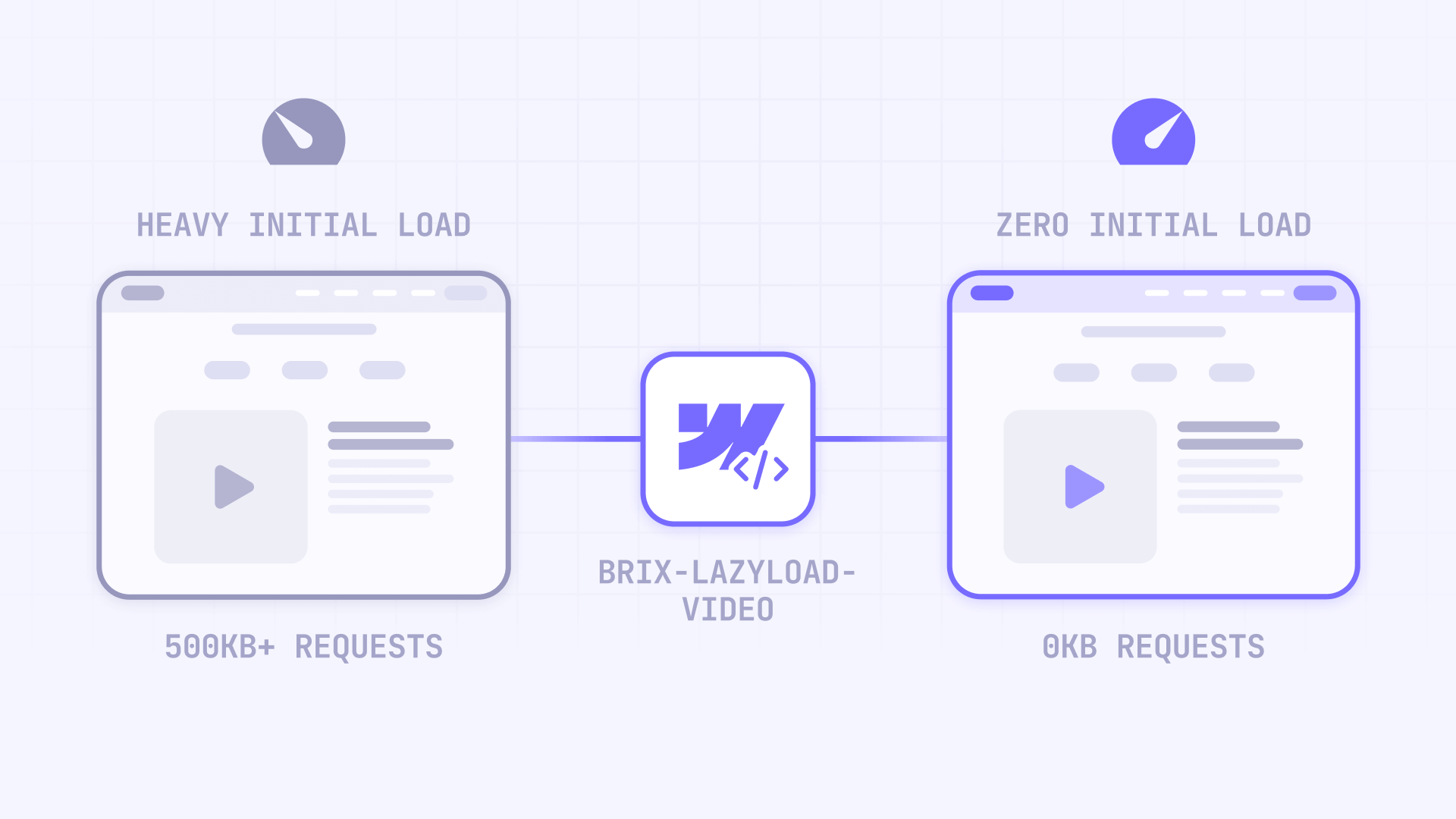
When you add a YouTube or Vimeo video to your Webflow page, the embed doesn't just load the video file. It loads the entire video player infrastructure: JavaScript files, CSS stylesheets, fonts, tracking scripts, and preview frames. A single YouTube embed adds roughly 500-800KB of data that your visitor's browser must download before the page feels fully loaded.
This happens immediately when the page loads—even if the video is below the fold, even if the visitor never scrolls to it, even if they have zero intention of watching it. When you have multiple videos on a page, the problem compounds quickly. Three embeds can add 1.5MB+ of unnecessary initial load. Ten videos on a portfolio page? That's potentially 5MB of overhead before your actual content even loads.
Lazy loading solves this by deferring video resources until they're actually needed. Instead of loading heavy embeds upfront, lazy loading waits until the video enters the viewport or until the user clicks play. The result is dramatically faster initial page loads, better user experience, and improved performance metrics across your entire site.
Understanding the two approaches to lazy loading videos in Webflow
There are two ways to lazy load videos in Webflow, and each has different strengths.
Native lazy loading uses the browser's built-in loading="lazy" attribute on iframes. You add a single attribute to your embed code, and the browser automatically defers loading until the video is near the viewport. It's incredibly simple—just two minutes to implement.
But it has limitations. The browser still loads the full 500KB+ video player once triggered, you're just delaying when that happens. You also can't control the exact timing; browsers decide based on scroll position and connection speed.
Click-to-load (using brix-lazyload-video) takes a different approach. Instead of an iframe, visitors see a lightweight thumbnail image with a play button overlay. The actual video player only loads when someone clicks play.
This means zero video resources load unless a visitor explicitly wants to watch. For a page with five videos, native lazy loading might save you 2MB initially but still loads everything as users scroll. Click-to-load saves that 2MB permanently unless users actually engage with the videos.
When to use each method: Use native lazy loading if you have just 1-3 videos below the fold and want the simplest possible fix. Use click-to-load for landing pages, portfolios with multiple videos, pages where performance is critical, or any video visible above the fold (where native lazy loading has no effect).
Method 1: Native lazy loading for Webflow video iframes
This quick method adds browser-native lazy loading to your video embeds. It's the fastest fix but provides moderate performance gains compared to the click-to-load approach.
Why you can't use Webflow's native video element for lazy loading
Webflow's built-in Video element doesn't support the loading="lazy" attribute directly. When you add a custom attribute in the Designer, it attaches to the wrapper div, not the actual iframe inside. This means the lazy loading attribute never reaches the element that needs it.
The workaround is simple: use an Embed element instead, where you have full control over the iframe code.
Adding lazy loading to YouTube videos in Webflow
Follow these steps to add native lazy loading to a YouTube embed:
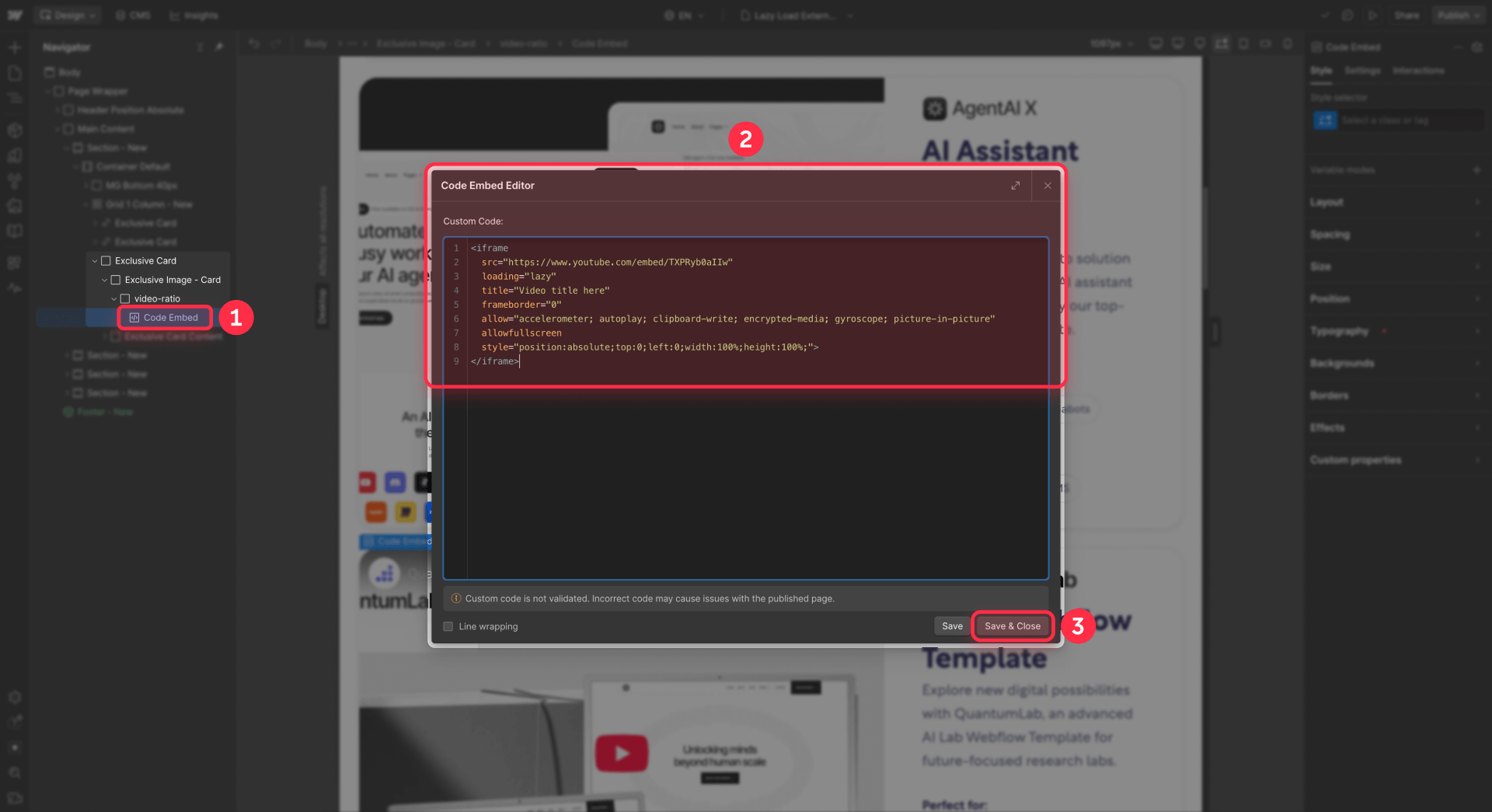
- In your Webflow project, open the page where you want the video
- From the Add panel, drag an Embed element to your desired location
- Click the Embed element and select Open Code Editor
Paste the following code into the editor, replacing VIDEO_ID with your actual YouTube video ID:
<iframe
  src="https://www.youtube.com/embed/VIDEO_ID"
  loading="lazy"
  title="Video title here"
  frameborder="0"
  allow="accelerometer; autoplay; clipboard-write; encrypted-media; gyroscope; picture-in-picture"
  allowfullscreen
  style="position:absolute;top:0;left:0;width:100%;height:100%;">
</iframe>- Click Save & Close
- Wrap the Embed in a Div Block and set these styles: Position: Relative, Width: 100%, Padding Bottom: 56.25% (this creates a 16:9 aspect ratio)
- Publish your site to see the changes live
The loading="lazy" attribute tells the browser to defer loading until the iframe is close to entering the viewport.
Adding lazy loading to Vimeo videos in Webflow
The process for Vimeo is nearly identical. Use this embed code instead:
<iframe
  src="https://player.vimeo.com/video/VIDEO_ID"
  loading="lazy"
  title="Video title here"
  frameborder="0"
  allow="autoplay; fullscreen; picture-in-picture"
  allowfullscreen
  style="position:absolute;top:0;left:0;width:100%;height:100%;">
</iframe>
Replace VIDEO_ID with your Vimeo video ID (the numbers after vimeo.com/ in the video URL).
Limitations of native lazy loading for Webflow videos
While native lazy loading is quick to implement, it has drawbacks you should understand:
- Browser controls the timing: You can't control exactly when the video starts loading—browsers decide based on scroll position and connection speed
- Still loads heavy resources: Once triggered, the full YouTube/Vimeo player still loads (500KB+), just delayed
- No benefit for above-the-fold videos: Videos visible on initial page load won't be lazy loaded at all
- Variable browser behavior: Different browsers handle the loading distance differently
For pages with multiple videos or where performance is critical, the click-to-load method below delivers significantly better results.
Method 2: Click-to-load videos in Webflow with brix-lazyload-video
This method delivers maximum performance gains by loading absolutely nothing until the user clicks play. Visitors see a fast-loading thumbnail image with a play button overlay, and the actual video player only loads on interaction.
Why click-to-load is the better solution for Webflow video performance
The click-to-load approach offers major advantages over native lazy loading:
- Zero initial resource cost: No video player JavaScript, CSS, or connection overhead until user interaction
- Immediate page speed improvement: Save 500KB+ per video on initial page load
- Better user experience: Visitors see a clean thumbnail instantly instead of waiting for an iframe to load
- Works for above-the-fold videos: Even hero videos benefit because resources only load on click
- Consistent behavior: No browser variations—you control exactly when videos load
Setting up the brix-lazyload-video script in Webflow
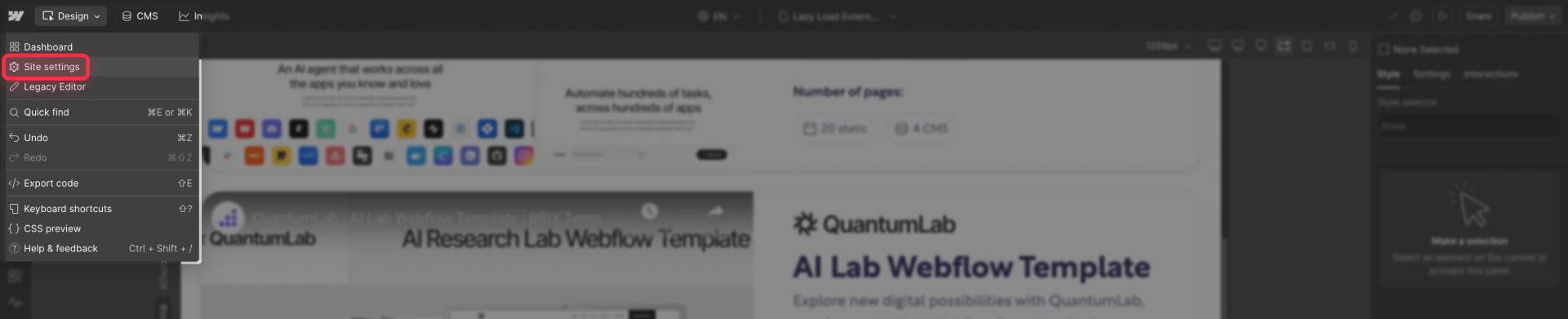
First, add the click-to-load script to your project. This is a one-time setup that enables the brix-lazyload-video attribute across your entire site.
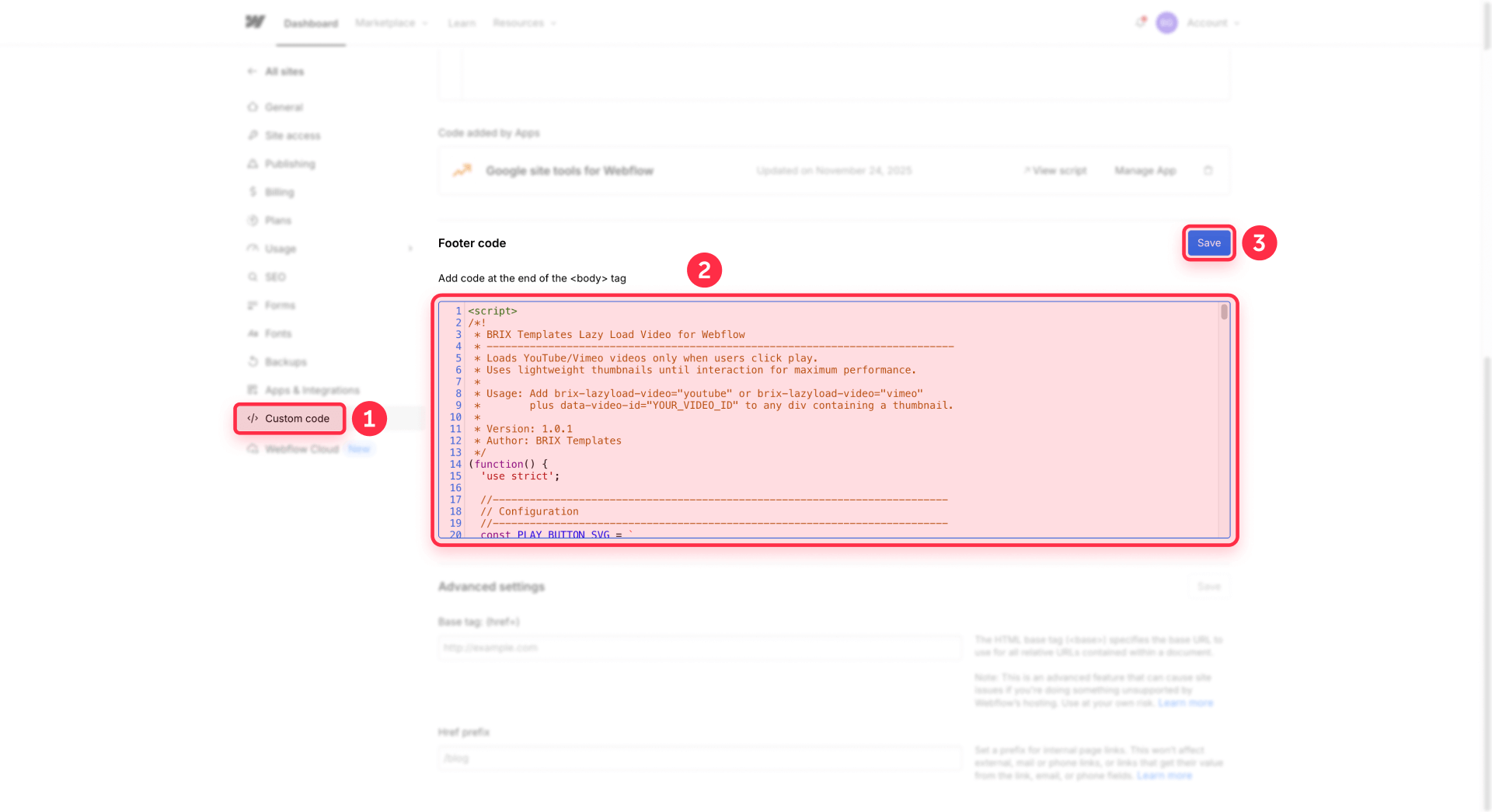
Go to your Project Settings, then Custom Code, and paste the following script in the Footer Code section (before tag). If you only need lazy-loaded videos on a single page, you can alternatively add this script to that specific page's settings under Page Settings > Custom Code > Before tag.
<script>
/*!
 * BRIX Templates Lazy Load Video for Webflow
 * ----------------------------------------------------------------------------
 * Loads YouTube/Vimeo videos only when users click play.
 * Uses lightweight thumbnails until interaction for maximum performance.
 *
 * Usage: Add brix-lazyload-video="youtube" or brix-lazyload-video="vimeo"
 *        plus data-video-id="YOUR_VIDEO_ID" to any div containing a thumbnail.
 *
 * Version: 1.0.1
 * Author: BRIX Templates
 */
(function() {
  'use strict';

  //--------------------------------------------------------------------------
  // Configuration
  //--------------------------------------------------------------------------
  const PLAY_BUTTON_SVG = `
    <svg xmlns="http://www.w3.org/2000/svg" viewBox="0 0 64 64" width="64" height="64">
      <circle cx="32" cy="32" r="32" fill="rgba(0,0,0,0.7)"/>
      <path d="M26 20 L26 44 L46 32 Z" fill="white"/>
    </svg>
  `;

  // Track which SDKs have been loaded
  const loadedSDKs = {
    vimeo: false
  };

  //--------------------------------------------------------------------------
  // Utility Functions
  //--------------------------------------------------------------------------

  /**
   * Detects if user is on a mobile device
   * Used to determine if videos should be muted for autoplay compatibility
   */
  function isMobileDevice() {
    const maxWidth = 767;
    return (
      window.innerWidth <= maxWidth ||
      /Android|webOS|iPhone|iPad|iPod|BlackBerry|IEMobile|Opera Mini/i.test(navigator.userAgent)
    );
  }

  /**
   * Dynamically loads a script and returns a promise
   */
  function loadScript(src) {
    return new Promise(function(resolve, reject) {
      const script = document.createElement('script');
      script.src = src;
      script.onload = resolve;
      script.onerror = reject;
      document.head.appendChild(script);
    });
  }

  /**
   * Loads Vimeo SDK if not already loaded
   */
  function loadVimeoSDK() {
    if (loadedSDKs.vimeo) {
      return Promise.resolve();
    }
    return loadScript('https://player.vimeo.com/api/player.js').then(function() {
      loadedSDKs.vimeo = true;
    });
  }

  /**
   * Creates and injects the play button overlay into each video wrapper
   */
  function addPlayButton(wrapper) {
    const playButton = document.createElement('div');
    playButton.className = 'brix-play-button';
    playButton.innerHTML = PLAY_BUTTON_SVG;
    playButton.setAttribute('aria-label', 'Play video');

    // Apply positioning styles
    Object.assign(playButton.style, {
      position: 'absolute',
      top: '50%',
      left: '50%',
      transform: 'translate(-50%, -50%)',
      cursor: 'pointer',
      zIndex: '10',
      transition: 'transform 0.2s ease',
      filter: 'drop-shadow(0 2px 8px rgba(0,0,0,0.3))'
    });

    wrapper.appendChild(playButton);
  }

  /**
   * Ensures the wrapper has proper positioning for the play button overlay
   */
  function ensureWrapperStyles(wrapper) {
    const computedStyle = window.getComputedStyle(wrapper);
    if (computedStyle.position === 'static') {
      wrapper.style.position = 'relative';
    }
    wrapper.style.cursor = 'pointer';
  }

  //--------------------------------------------------------------------------
  // Video Player Functions
  //--------------------------------------------------------------------------

  /**
   * Loads and plays a Vimeo video when clicked
   */
  function playVimeoVideo(wrapper, videoId) {
    // Load Vimeo SDK first, then initialize player
    loadVimeoSDK().then(function() {
      // Create container for the Vimeo player
      const playerContainer = document.createElement('div');
      playerContainer.style.cssText = 'position:absolute;top:0;left:0;width:100%;height:100%;';

      // Clear wrapper and add player container
      wrapper.innerHTML = '';
      wrapper.appendChild(playerContainer);

      // Determine if we need to mute for mobile autoplay
      const shouldMute = isMobileDevice();

      // Initialize Vimeo player
      const player = new Vimeo.Player(playerContainer, {
        id: videoId,
        width: '100%',
        autoplay: true,
        muted: shouldMute
      });

      // Ensure video plays when ready
      player.on('ready', function() {
        player.play();
        console.log('🎬 BRIX Lazy Load Video: Vimeo video ' + videoId + ' loaded');
      });
    });
  }

  /**
   * Loads and plays a YouTube video when clicked
   * YouTube doesn't require SDK - uses iframe embed directly
   */
  function playYouTubeVideo(wrapper, videoId) {
    // Determine if we need to mute for mobile autoplay
    const shouldMute = isMobileDevice();
    const muteParam = shouldMute ? '&mute=1' : '';

    // Create YouTube iframe
    const iframe = document.createElement('iframe');
    iframe.src = 'https://www.youtube.com/embed/' + videoId + '?autoplay=1&playsinline=1' + muteParam;
    iframe.style.cssText = 'position:absolute;top:0;left:0;width:100%;height:100%;border:0;';
    iframe.setAttribute('allow', 'accelerometer; autoplay; clipboard-write; encrypted-media; gyroscope; picture-in-picture');
    iframe.setAttribute('allowfullscreen', '');
    iframe.setAttribute('title', 'YouTube video player');

    // Clear wrapper and add iframe
    wrapper.innerHTML = '';
    wrapper.appendChild(iframe);

    console.log('🎬 BRIX Lazy Load Video: YouTube video ' + videoId + ' loaded');
  }

  //--------------------------------------------------------------------------
  // Click Handler
  //--------------------------------------------------------------------------

  /**
   * Handles click events on video wrappers
   */
  function handleVideoClick(event) {
    const wrapper = event.currentTarget;
    const provider = wrapper.getAttribute('brix-lazyload-video').toLowerCase();
    const videoId = wrapper.getAttribute('data-video-id');

    // Validate required attributes
    if (!videoId) {
      console.error('BRIX Lazy Load Video: Missing data-video-id attribute');
      return;
    }

    // Load the appropriate video player
    if (provider === 'vimeo') {
      playVimeoVideo(wrapper, videoId);
    } else if (provider === 'youtube') {
      playYouTubeVideo(wrapper, videoId);
    } else {
      console.error('BRIX Lazy Load Video: Invalid provider "' + provider + '". Use "youtube" or "vimeo".');
    }
  }

  //--------------------------------------------------------------------------
  // Initialization
  //--------------------------------------------------------------------------

  /**
   * Initializes all lazy load video elements on the page
   */
  function initBrixLazyLoadVideo() {
    const videoWrappers = document.querySelectorAll('[brix-lazyload-video]');

    if (videoWrappers.length === 0) {
      return; // No video elements found, exit silently
    }

    // Set up each video wrapper
    videoWrappers.forEach(function(wrapper) {
      ensureWrapperStyles(wrapper);
      addPlayButton(wrapper);
      wrapper.addEventListener('click', handleVideoClick);
    });

    // Log initialization
    console.log('┌──────────────────────────────────────────────────────────────┐');
    console.log('│ 🎬 BRIX Templates Lazy Load Video                            │');
    console.log('│    ' + videoWrappers.length + ' video(s) ready for click-to-load                       │');
    console.log('└──────────────────────────────────────────────────────────────┘');
  }

  // Run when DOM is ready
  if (document.readyState === 'loading') {
    document.addEventListener('DOMContentLoaded', initBrixLazyLoadVideo);
  } else {
    initBrixLazyLoadVideo();
  }
})();
</script>
Click Save Changes. The script is now active.
Adding lazy-loaded videos to your Webflow page
With the script installed, adding lazy-loaded videos is simple. Each video only requires a few lines of HTML in an Embed element.
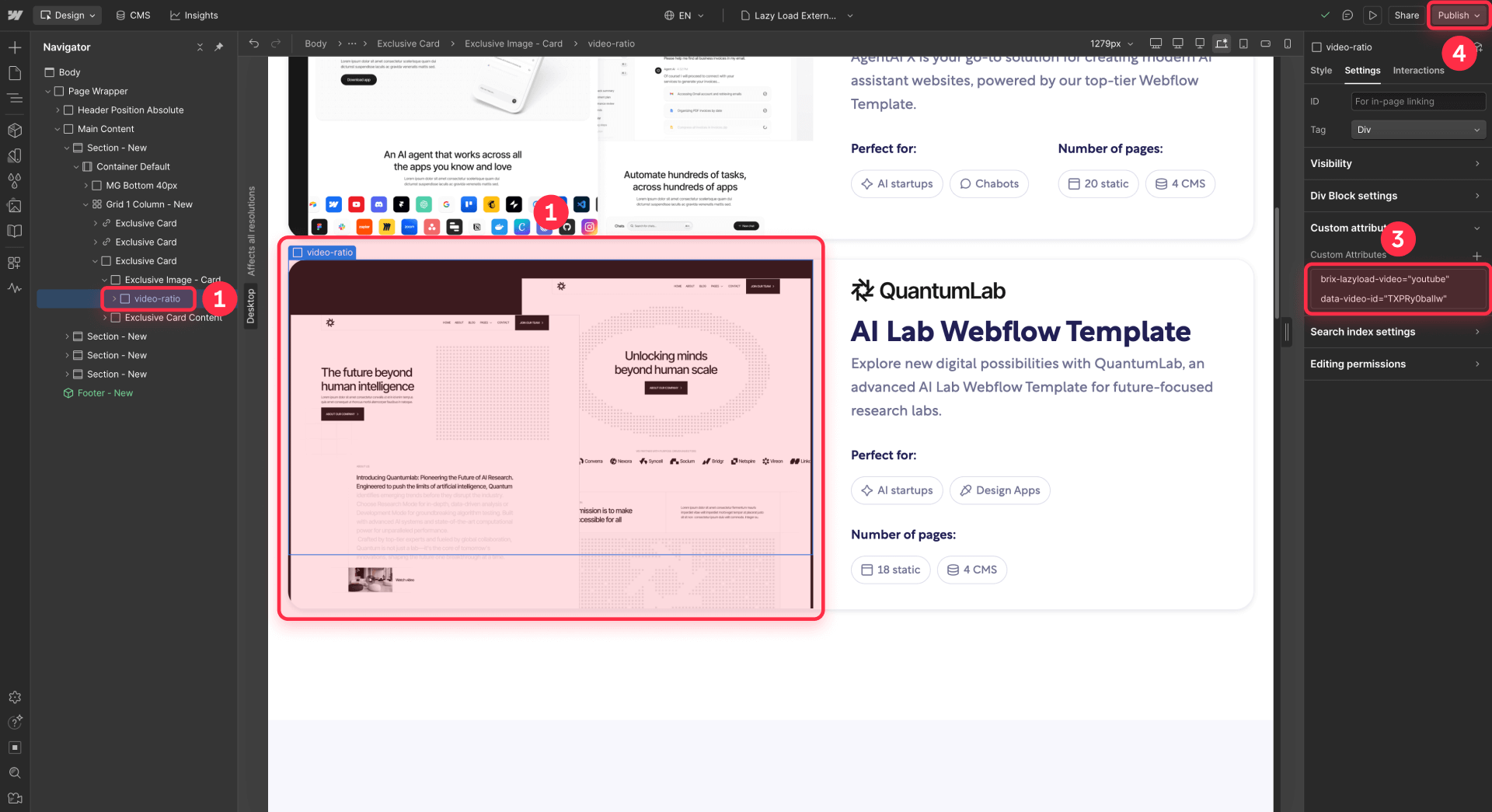
- Open your page in the Webflow Designer
- Add a Div Block where you want the video
- Set the Div Block styles: Position: Relative, Width: 100%, Padding Bottom: 56.25% (for 16:9 aspect ratio)
- Add an Image element inside the div for your video thumbnail
- Style the image: Position: Absolute, Top: 0, Left: 0, Width: 100%, Height: 100%, Object Fit: Cover
- Select the parent Div Block and go to the Settings panel
- Under Custom Attributes, add these two attributes:
For a YouTube video:
- Name: brix-lazyload-video | Value: youtube
- Name: data-video-id | Value: YOUR_YOUTUBE_VIDEO_ID
For a Vimeo video:
- Name: brix-lazyload-video | Value: vimeo
- Name: data-video-id | Value: YOUR_VIMEO_VIDEO_ID
How to find your YouTube video ID for Webflow lazy loading
The YouTube video ID is the code after v= in any YouTube URL.
For this URL: https://www.youtube.com/watch?v=dQw4w9WgXcQ
The video ID is: dQw4w9WgXcQ
How to find your Vimeo video ID for Webflow lazy loading
The Vimeo video ID is the number after vimeo.com/ in any Vimeo URL.
For this URL: https://vimeo.com/507360544
The video ID is: 507360544
How to get video thumbnails for Webflow lazy-loaded videos
You need a thumbnail image for each video. Here are the easiest ways to get them:
For YouTube videos, use this URL pattern to grab the default thumbnail:
https://img.youtube.com/vi/VIDEO_ID/maxresdefault.jpg
Replace VIDEO_ID with your actual video ID. Upload this image to your Webflow Assets panel.
For Vimeo videos, the thumbnail API is limited, so the easiest option is to take a screenshot from the video or upload your own custom thumbnail to your Webflow Assets panel.
You can also upload any custom thumbnail you prefer for either platform—it doesn't have to be the default video thumbnail. Just upload your desired image to Assets and use it as the Image source inside your video wrapper.
Using brix-lazyload-video with Webflow CMS collections
The click-to-load pattern works seamlessly with Webflow CMS for dynamic video galleries or portfolio pages.
First, create these fields in your CMS Collection:
- Video ID (Plain Text): Stores the YouTube or Vimeo video ID
- Video Provider (Plain Text): Stores either "youtube" or "vimeo"
- Video Thumbnail (Image): Stores the thumbnail image
Then, on your Collection Template or Collection List:
- Add a Div Block with the responsive aspect ratio styles
- Add an Image inside and connect it to the Video Thumbnail field
- Add custom attributes to the Div Block:
- Name: brix-lazyload-video | Value: Connect to Video Provider field
- Name: data-video-id | Value: Connect to Video ID field
Now every CMS item automatically gets lazy-loaded video functionality without any additional code.
Testing your Webflow video lazy loading implementation
After publishing your site, verify that lazy loading works correctly with these checks.
Checking network requests in your Webflow video pages
- Open your published page in Chrome
- Press F12 to open Developer Tools
- Go to the Network tab
- Refresh the page
- Look for YouTube or Vimeo requests—there should be none until you click a video thumbnail
- Click a video thumbnail and watch the Network tab populate with video resources
Troubleshooting common Webflow video lazy loading issues
- Video doesn't play when clicking the thumbnail: Check that data-video-id contains only the video ID (not the full URL). Verify the brix-lazyload-video attribute value is exactly "youtube" or "vimeo" (lowercase). Open the Console tab to check for error messages.
- Play button doesn't appear over the thumbnail: Make sure the parent Div Block has Position: Relative set. Check that the script is properly added to your Footer Code in Project Settings. Verify you've published the site after adding the script.
- Thumbnail image doesn't display: Confirm the image is uploaded to Webflow Assets and properly linked. Check that the Image element has correct positioning styles (Absolute, full width/height, cover).
- Console shows "Missing data-video-id attribute" error: You added the brix-lazyload-video attribute but forgot to add data-video-id. Add both attributes to the same element.
- Video loads but doesn't fill the container: Ensure your wrapper Div Block has Padding Bottom: 56.25% for 16:9 aspect ratio. For other aspect ratios, use: 75% for 4:3, 42.85% for 21:9.
- CMS-connected videos don't work: Verify your CMS field bindings are correct—the Video Provider field must output exactly "youtube" or "vimeo". Check that Video ID field only contains the ID, not the full URL.
Frequently asked questions about lazy loading videos in Webflow
What is lazy loading for videos in Webflow?
Lazy loading is a performance technique that delays loading video resources until they're actually needed. Instead of loading heavy YouTube or Vimeo embeds when your page first loads, lazy loading waits until the video enters the viewport or until the user clicks play.
This dramatically reduces initial page load time because video embeds typically add 500KB+ of scripts and resources. For Webflow sites, you can implement lazy loading using the native loading="lazy" attribute on iframes, or more effectively using a click-to-load pattern that shows a thumbnail until user interaction. The click-to-load approach delivers the best performance because it loads zero video resources until someone actually wants to watch.
Why are YouTube and Vimeo embeds slowing down my Webflow site?
Every YouTube or Vimeo embed loads the entire video player infrastructure immediately—JavaScript files, CSS, fonts, tracking scripts, and preview frames. A single YouTube embed adds roughly 500-800KB of data that your visitor's browser must download before the page feels fully loaded.
This happens even if the video is below the fold or if the visitor never intends to watch it. When you have multiple videos on a page, this compounds quickly: three embeds can add 1.5MB+ of unnecessary initial load. The solution is implementing lazy loading so these resources only load when needed, as described in Method 2 of this guide.
What's the difference between native lazy loading and click-to-load for Webflow videos?
Native lazy loading using loading="lazy" tells the browser to defer loading an iframe until it's near the viewport. It's simple to implement but the browser still loads the full video player once triggered—you're just delaying when that happens.
Click-to-load (facade pattern) shows a static thumbnail image with a play button. The actual video player never loads unless someone clicks. This means zero video resources on initial page load, regardless of scroll position. For a page with five videos, native lazy loading might save you 2MB initially but still loads everything as users scroll. Click-to-load saves that 2MB permanently unless users actually engage with videos—making it the better choice for most situations.
How do I add lazy loading to videos in Webflow without custom code?
Unfortunately, Webflow doesn't offer built-in lazy loading for video elements without some custom code. The native Video element doesn't expose the loading attribute, and custom attributes added in the Designer attach to wrapper divs rather than the iframe itself.
The simplest solution is using an Embed element with your iframe code and manually adding loading="lazy" to the iframe tag. This takes about 2 minutes and requires no JavaScript knowledge—just paste the embed code and add one attribute. For better results, the click-to-load method requires adding a script once to your Project Settings, after which you only need to add simple attributes to your video containers.
Does lazy loading videos affect SEO for Webflow sites?
Lazy loading videos actually improves SEO rather than hurting it. Search engines prioritize fast-loading pages, and reducing initial page weight by lazy loading videos directly improves load speed metrics.
Google's crawlers are sophisticated enough to understand lazy-loaded content. The key is ensuring your page still has relevant text content and that video thumbnails include descriptive alt text for accessibility and indexing. For click-to-load implementations, the thumbnail images provide visual context that search engines can index. Faster pages mean better user experience metrics, lower bounce rates, and ultimately better search rankings.
Can I lazy load videos in Webflow CMS collection lists?
Yes, both lazy loading methods work with Webflow CMS. For native lazy loading, create an Embed field or use an Embed element with a CMS-bound video URL.
For click-to-load, create CMS fields for Video ID, Video Provider, and Thumbnail, then bind these to the brix-lazyload-video attribute and data-video-id attribute using Webflow's dynamic attribute binding. The click-to-load script automatically initializes all videos on the page, including those generated dynamically from CMS collections. This makes it perfect for video portfolios, course platforms, or any site with multiple dynamic videos per page.
Will lazy-loaded videos autoplay when clicked on mobile devices?
Mobile browsers have strict autoplay policies that require videos to be muted for automatic playback. The brix-lazyload-video script handles this automatically by detecting mobile devices and muting videos when they load.
Users see the video start playing immediately after clicking (muted), and can unmute using the player controls. This is a browser-level restriction, not a limitation of the lazy loading implementation. The same behavior applies to native YouTube and Vimeo embeds—the only difference is that with lazy loading, users explicitly initiate playback rather than scrolling past an autoplaying muted video.
How many videos can I lazy load on a single Webflow page?
There's no practical limit to how many videos you can lazy load on a page. In fact, more videos makes lazy loading more valuable.
Without lazy loading, a page with 10 video embeds would need to load 5MB+ of resources upfront. With click-to-load lazy loading, that same page loads with zero video overhead until users interact. Each video loads independently when clicked, so even with 50 videos on a page, only the ones users actually watch consume resources. This makes click-to-load ideal for video galleries, course libraries, or any page with many videos.
What video hosting platforms work with lazy loading in Webflow?
The native loading="lazy" attribute works with any iframe-based embed, including YouTube, Vimeo, Wistia, Loom, and others.
The brix-lazyload-video script provided in this guide specifically supports YouTube and Vimeo, which cover the vast majority of use cases. For other platforms, you can extend the script by adding a new provider function following the same pattern, or use the native lazy loading approach with any iframe embed. Self-hosted videos using HTML5 video tags require a different approach using libraries like vanilla-lazyload.
Should I lazy load above-the-fold videos in Webflow?
Yes, but only with the click-to-load method. Native loading="lazy" has no effect on above-the-fold content because the browser loads anything visible in the initial viewport immediately.
However, click-to-load works regardless of position because it replaces the video with a thumbnail until user interaction. For hero videos or any prominent video visible on page load, click-to-load is the only way to avoid the performance hit. The thumbnail loads instantly, the page renders fast, and the actual video player only loads when the user demonstrates intent by clicking play.
Conclusion
Lazy loading external videos is one of the highest-impact performance optimizations for Webflow sites. The click-to-load approach using brix-lazyload-video delivers maximum performance gains by loading zero video resources until users actually want to watch. For simpler implementations, native loading="lazy" provides a quick fix with moderate benefits.
Start with the click-to-load method for any page where performance matters—especially landing pages, portfolios with multiple videos, or CMS-driven video galleries. The one-time script setup pays dividends across your entire site.
For advanced implementations like custom video players, analytics integration, or complex CMS setups, our Webflow development team can create tailored solutions that align with your specific requirements.











Join readers commenting on this post!