

After pasting HTML into a Framer CMS field and publishing your site, you notice the code displays as plain text instead of rendering as a working widget. Or perhaps you added an Embed component to your CMS detail page, only to find every single item shows the identical embed.
Both issues stem from the same root cause:
- Text fields don't execute HTML.
- Hardcoded embeds don't change per CMS item.
The solution in Framer is straightforward: unique embeds come from CMS variables bound to component properties, or Page Custom Code using {{ }} variable syntax. This guide covers two options to add unique HTML to each Framer CMS page.
Why unique HTML per Framer CMS item matters
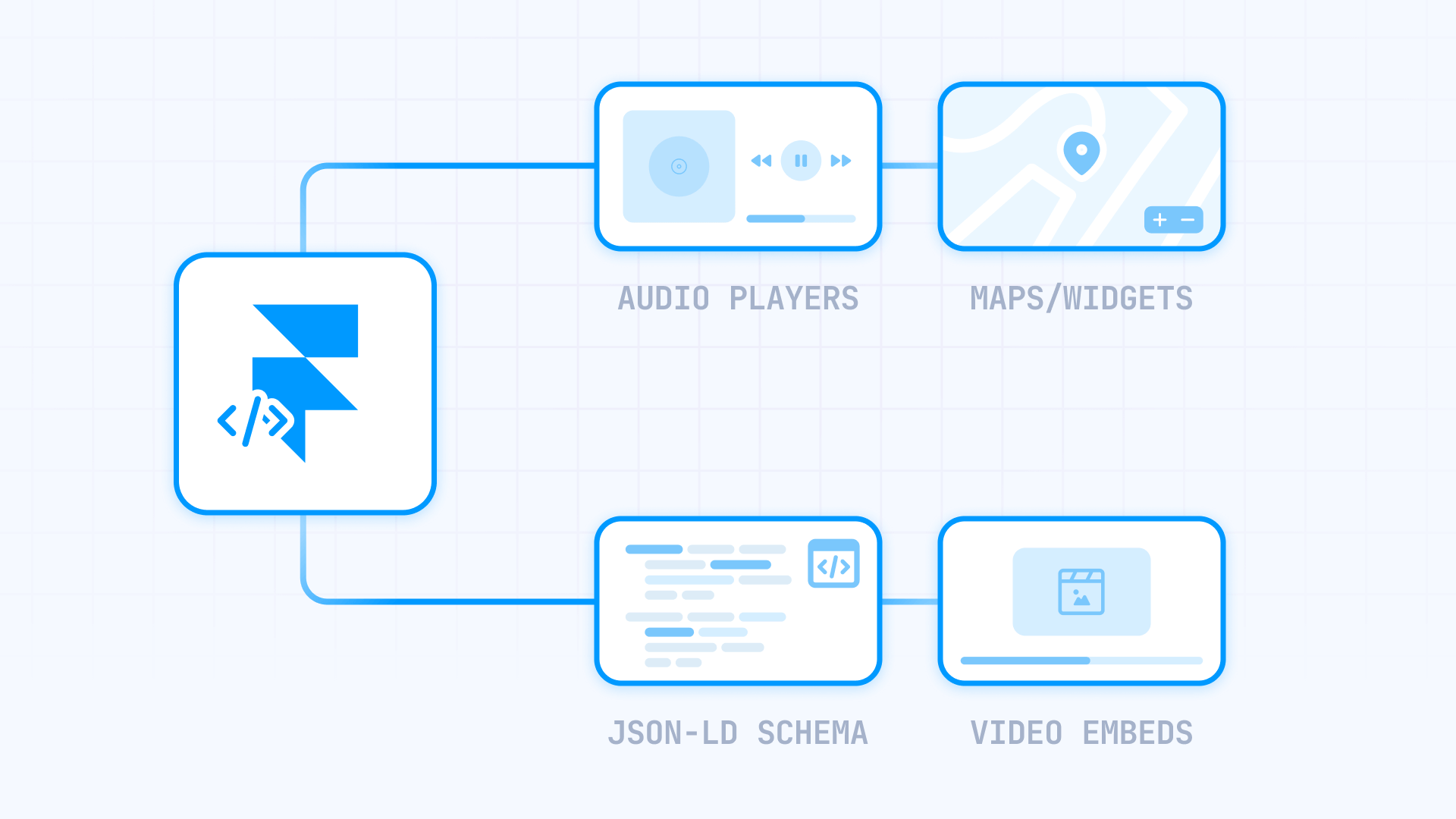
Embedding unique HTML per CMS item opens up practical capabilities for real-world Framer projects:
- Per-post audio players in Framer: Display a unique Spotify episode or podcast embed on each blog post. Store the embed URL in your CMS, and the layout handles the rest automatically.
- Per-case-study prototypes in Framer: Show a different Figma prototype, Loom walkthrough, or interactive demo on each portfolio piece. One layout pulls unique widget data from CMS fields.
- Per-item SEO schema in Framer: Generate unique JSON-LD Article, Product, or FAQ schema for each CMS detail page. This improves rich result eligibility without duplicating code manually.
- Per-property maps and booking widgets in Framer: For real estate or location-based sites, display different Google Maps iframes, Calendly embeds, or booking widgets pulled directly from CMS fields.
- Campaign-specific tracking in Framer: Add different analytics snippets or conversion pixels to specific CMS pages without editing each one individually.
Understanding Framer CMS Detail Pages vs. CMS Lists
Before implementing anything, understand this key distinction:
A CMS Detail Page generates one unique page per CMS item (like your blog post page or project page). This is where you implement unique HTML per page using Embed components or Page Custom Code.
A CMS List displays many items on a single page (like an index or archive). You can repeat components with per-item data here, but all items share the same page context.
When your goal is different HTML on each CMS page, you'll almost always work on the CMS Detail Page.
Option 1: Embed Component + CMS Variables (recommended default)
This is the Framer-native approach when your embed structure stays consistent across items and only one value changes—like a different URL, episode ID, or widget key.
Think of it as: Embed Component (template) + CMS field (value) = unique widget per item.
When to use the Embed Component in Framer
Use this option when:
- The widget is fundamentally an iframe or embed URL
- Only 1-2 values change between items (URLs, IDs, keys)
- You want centralized control over the embed layout
- Content editors should manage simple data, not code
Setting up CMS fields for Framer Embed Components
First, create the CMS fields to store your variable data:
- Open your CMS Collection (Blog Posts, Projects, Properties, etc.)
- Add a new field
- Choose Plain Text for values like URLs or IDs
- Name it descriptively: Embed URL, Spotify Episode URL, Widget Key
- Save the Collection
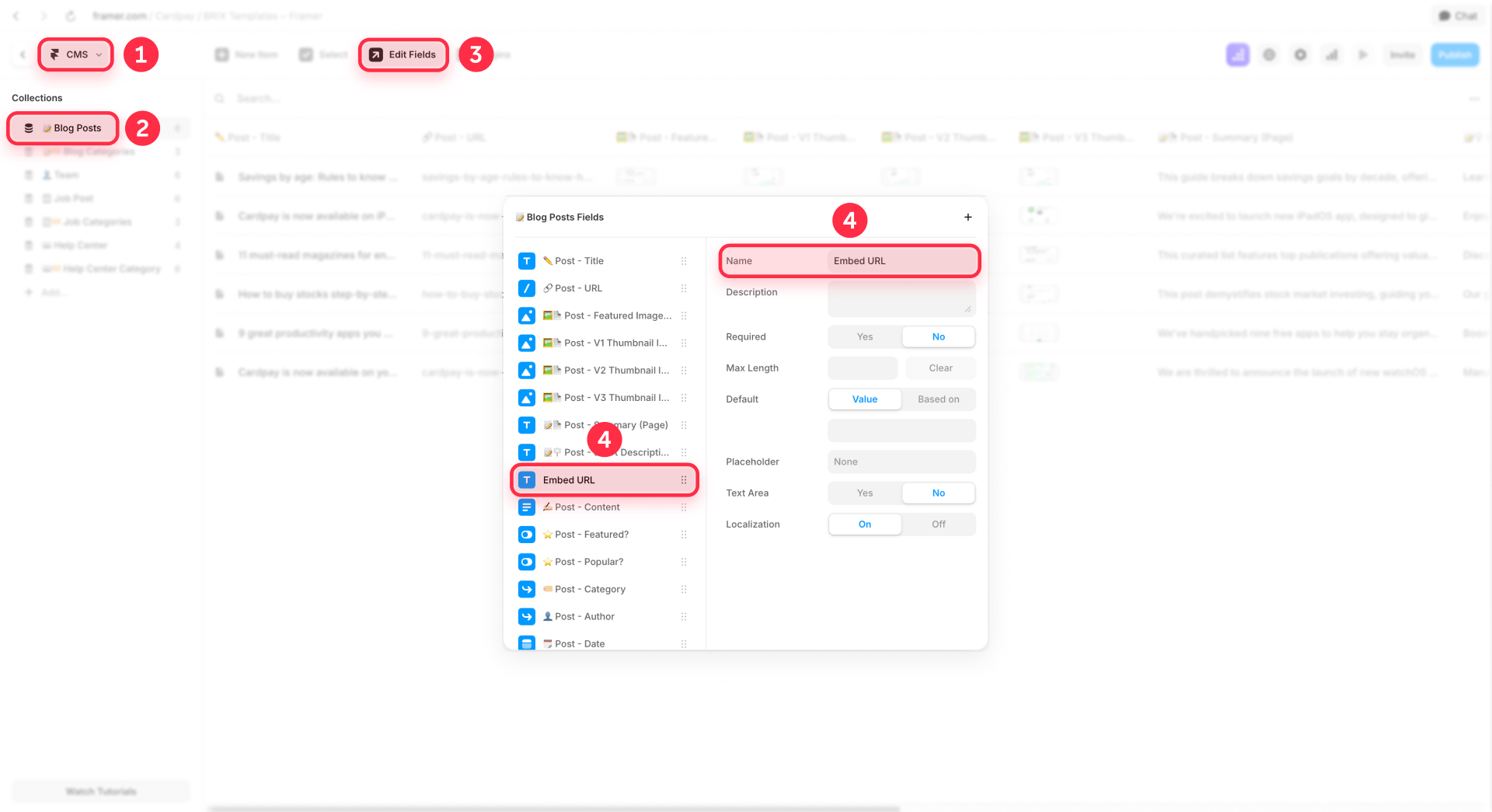
Tip: Store the complete embed URL in your CMS field rather than just an ID. This keeps things simple and avoids string concatenation issues.
Adding the Embed Component to your Framer CMS Detail Page
Now create the embed that pulls CMS data:
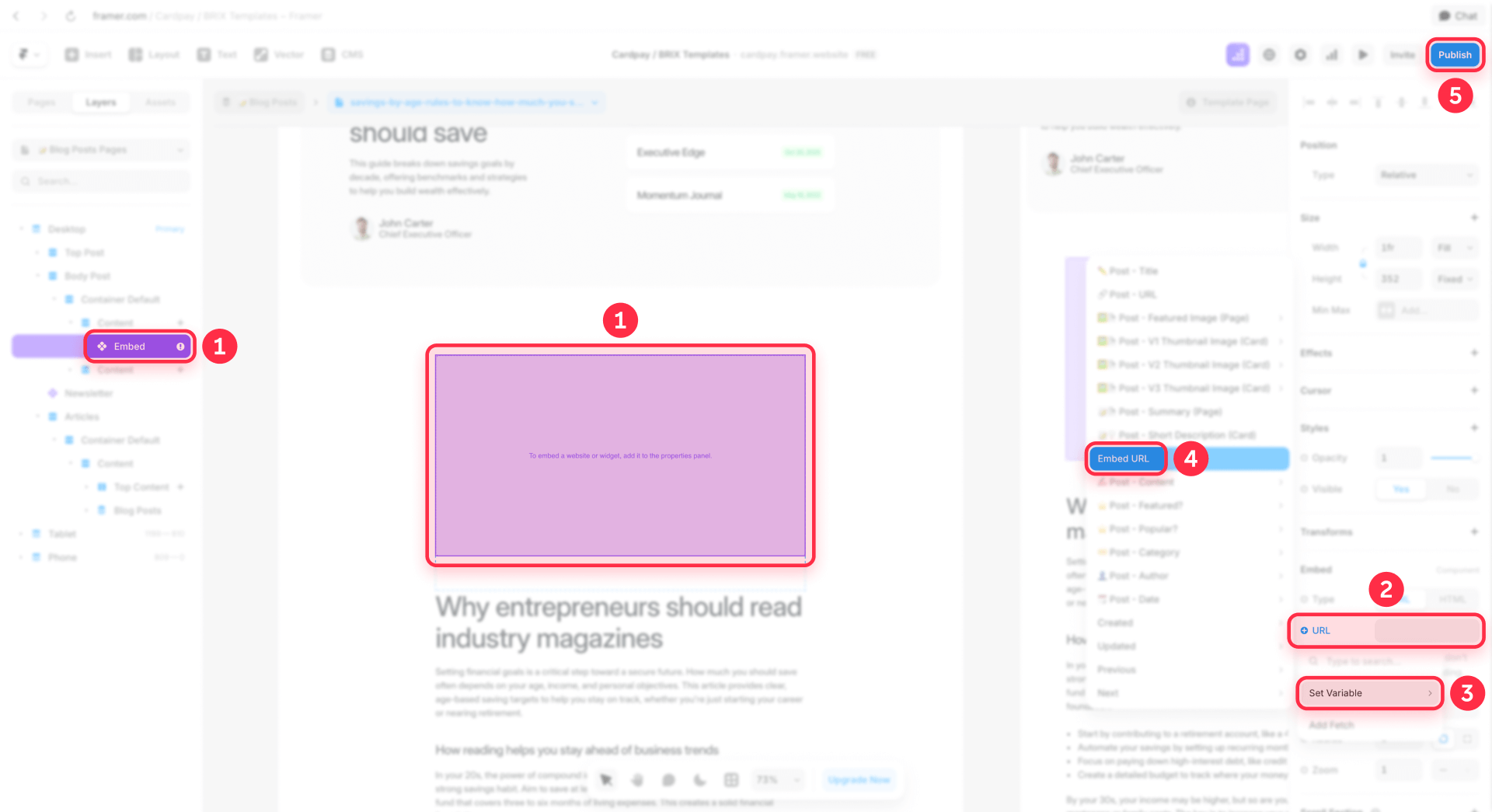
- Open the CMS Detail Page for your Collection
- Insert an Embed component from the Insert menu
- In the Embed settings, use the URL field for iframe-based embeds
- Click the + next to the URL property
- Select Set Variable and choose your CMS field (e.g., Embed URL)
- The field is now bound—each CMS item will display its own unique embed
Example: Spotify episode embed in Framer
The cleanest approach in Framer is storing the full embed URL in a CMS field. Example value:
https://open.spotify.com/embed/episode/4rOoJ6Egrf8K2IrywzwOMkThen bind the Embed component's URL property to that field using Set Variable.
Why this works better than pasting iframe code:
- No HTML parsing issues
- Editors paste one clean URL
- Framer handles the iframe rendering
Hiding the embed when the CMS field is empty in Framer
Framer has built-in conditional visibility to prevent broken layouts:
- Select the Embed component
- In the right panel, find Visible
- Click + → Set Variable → select your Embed URL field → choose Is Set
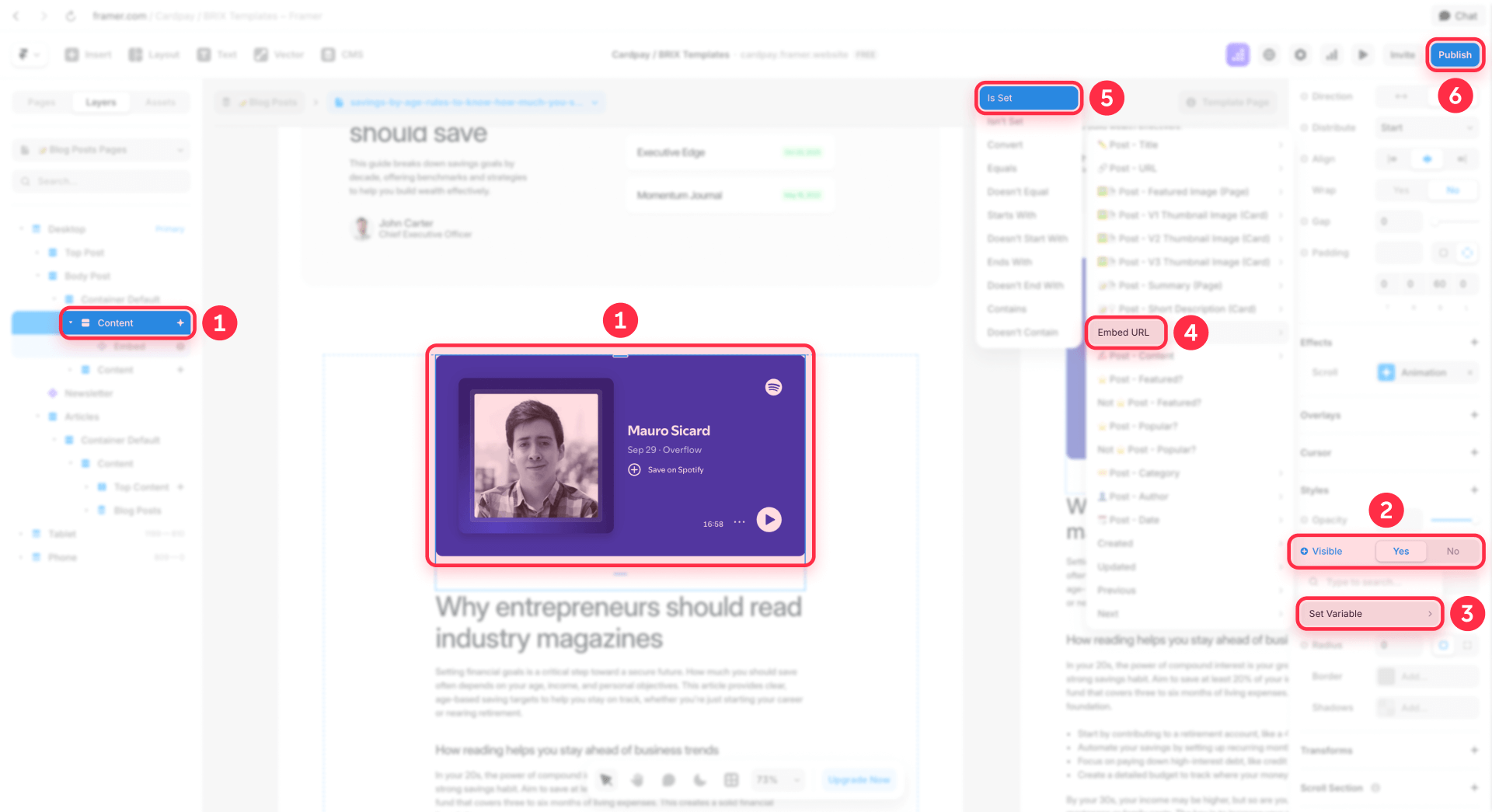
Now the embed section only appears when the CMS item actually has a URL filled in.
Common issue: some websites block embedding in Framer
If your embed appears blank even with a correct URL, the source website may block being placed in an iframe via HTTP headers. This is a server-side restriction that Framer cannot override.
Option 2: Page Custom Code in Framer for head and body scripts
Use this option when you need code in the head or body tags—like JSON-LD schema, verification tags, or analytics that must load before the page content.
Framer supports Custom Code at two levels:
- Site-wide (applies to every page)
- Per-page (applies to one specific page or CMS Detail Page)
For CMS Detail Pages, you can generate unique code per item using {{Field}} variable syntax.
When to use Page Custom Code in Framer
This works best for:
- JSON-LD structured data on CMS Detail Pages
- Analytics or tracking pixels per CMS item
- Custom canonical URLs per item
- Scripts that must execute in head or body
Adding per-item JSON-LD to a Framer CMS Detail Page
Framer has a built-in solution for the "double quotes break JSON" problem: the | json filter.
- Open your CMS Detail Page
- Go to Page Settings → Custom Code
- In the End of Head section, paste your JSON-LD script
- Use {{FieldName | json}} for any text values
Here's an example Article schema:
<script type="application/ld+json">
{
  "@context": "https://schema.org",
  "@type": "Article",
  "headline": {{Title | json}},
  "description": {{Summary | json}},
  "author": {
    "@type": "Person",
    "name": {{Author | json}}
  },
  "datePublished": {{Date | json}}
}
</script>
The | json filter automatically escapes special characters and wraps the value in quotes. This eliminates the manual quote-escaping problems you'd face in other platforms.
Alternative: storing complete JSON-LD in a CMS field
If each item needs radically different schema structure, Framer supports outputting raw content:
<script type="application/ld+json">
{{Schema | unsafeRaw}}
</script>
The | unsafeRaw filter outputs whatever is stored in the CMS field without modification.
Warning: This is flexible but risky. Invalid JSON in the CMS field will break your schema entirely. Only use this when the | json approach can't handle your complexity.
Per-item meta titles and descriptions in Framer
Framer supports dynamic meta fields natively in Page Settings:
- Title: {{Title}}
- Description: {{Summary}}
This sets unique SEO metadata per CMS item without writing Custom Code.
Choosing the right option for your Framer project
Here's a quick decision guide:
Situation
Best option
Same embed structure, different URL per item
Option 1: Embed Component + Set Variable
Need code in head/body (JSON-LD, pixels)
Option 2: Page Custom Code + {{ }}
For most projects, start with Option 1 (Embed Component). It's the cleanest and most maintainable. Add Option 2 when you need SEO schema or head scripts.
Troubleshooting Framer CMS embeds
HTML displays as visible text instead of rendering: You placed it in a regular CMS text field and displayed it as text. Use the Embed Component (Option 1) for URL-based embeds or Page Custom Code (Option 2) for head/body scripts.
Embed shows the same content on every CMS item: Your embed is hardcoded. Bind the URL property using Set Variable so it pulls from the current CMS item's field.
Embed appears blank even with a valid URL: The source website may block iframe embedding via HTTP headers. This is a server-side restriction you cannot override.
JSON-LD shows validation errors: Use the | json filter for every text value in your schema. This escapes special characters automatically.
Layout has empty space when no embed exists: Set the Embed component's Visible property to Is Set for the CMS field. The component will hide when the field is empty.
Not sure if it's working without publishing: Use Framer's Preview mode (play button) to test runtime behavior before publishing.
Frequently asked questions about Framer CMS HTML embeds
How do I embed unique HTML on each Framer CMS page?
Use one of two options depending on your needs. For most cases, add an Embed Component to your CMS Detail Page and use Set Variable to bind its URL property to a CMS field. Each page will display its own unique embed. For head-level scripts like JSON-LD or tracking pixels, use Page Custom Code with {{ }} variables.
Why does my HTML appear as text instead of rendering in Framer?
Framer's CMS text and rich text fields are designed for content display, not code execution. When you bind these fields to text elements, HTML tags appear as visible characters. To render executable HTML, use the Embed Component for URL-based embeds or Page Custom Code for scripts that need to run in the head or body.
Can I store HTML code in a Framer CMS text field?
You can store it, but it won't render when displayed through a standard text element. Framer treats CMS text content as text, not code. For executable embeds, use the Embed Component with a URL field bound via Set Variable. For scripts that need to run in head or body, use Page Custom Code with {{ }} variables.
How do I add per-page JSON-LD schema for Framer CMS items?
Open your CMS Detail Page's Page Settings → Custom Code. In the End of Head section, paste your JSON-LD script and use {{FieldName | json}} for dynamic values. The | json filter automatically escapes special characters and formats the output correctly. This eliminates manual quote-escaping issues.
Which Framer option is best for embedding different iframes on each CMS page?
For iframe embeds, use Option 1: Embed Component + Set Variable. Store the complete iframe URL in a CMS field, add an Embed Component to your CMS Detail Page, and bind its URL property to your CMS field using Set Variable. Each page renders the same embed structure with different sources.
Why do some embeds show blank in Framer even with a valid URL?
Some websites block being embedded in iframes through HTTP security headers. This is a server-side restriction that Framer cannot bypass. If an embed works directly in a browser but shows blank in Framer, the source site likely blocks iframe embedding.
How do I hide an embed section when the Framer CMS field is empty?
Use Framer's conditional visibility. Select your Embed Component, find the Visible property in the right panel, click +, select Set Variable, choose your CMS field, and select Is Set. The component will only display when that CMS item has a value in the field.
Can I test Framer embeds without publishing my site?
Yes. Use Framer's Preview mode by clicking the play button or using the keyboard shortcut. Preview mode executes scripts and renders embeds, so you can verify behavior before publishing. This is faster than publishing for every test.
Conclusion
Embedding unique HTML on each Framer CMS page becomes straightforward once you use the right approach. Embed Components with CMS variables handle most repeatable widgets, while Page Custom Code with {{ }} variables covers head scripts, JSON-LD schema, and tracking pixels.
Start with Option 1 (Embed Component) for most projects—it's native to Framer and easiest to maintain. Add Option 2 when you need SEO schema or scripts in the head/body.
If you need help architecting a scalable CMS structure or implementing complex embed patterns in Framer, our Framer agency team can build it right the first time.









Join readers commenting on this post!