
Framer generates canonical tags automatically when you connect a custom domain to your project. Once your domain is connected, Framer updates every page's canonical to point to that domain — no manual setup needed. For the vast majority of Framer sites, this is all you need to do.
That said, it's always worth verifying that your canonical tags are pointing to the right place after connecting your domain. This guide explains how Framer handles canonicals by default, how to verify they're working, and what options you have if you need to configure a custom canonical URL — including the important detail that changing the canonical URL natively requires an Enterprise plan or a paid Add-On.
Why canonical tags matter for Framer sites
A canonical tag is an HTML element in the <head> of your page that looks like this:
<link rel="canonical" href="https://example.com/some-page" />It tells search engines: "If you see this content under multiple URLs, treat this URL as the main one." This matters because several things can create duplicate URLs for the same content:
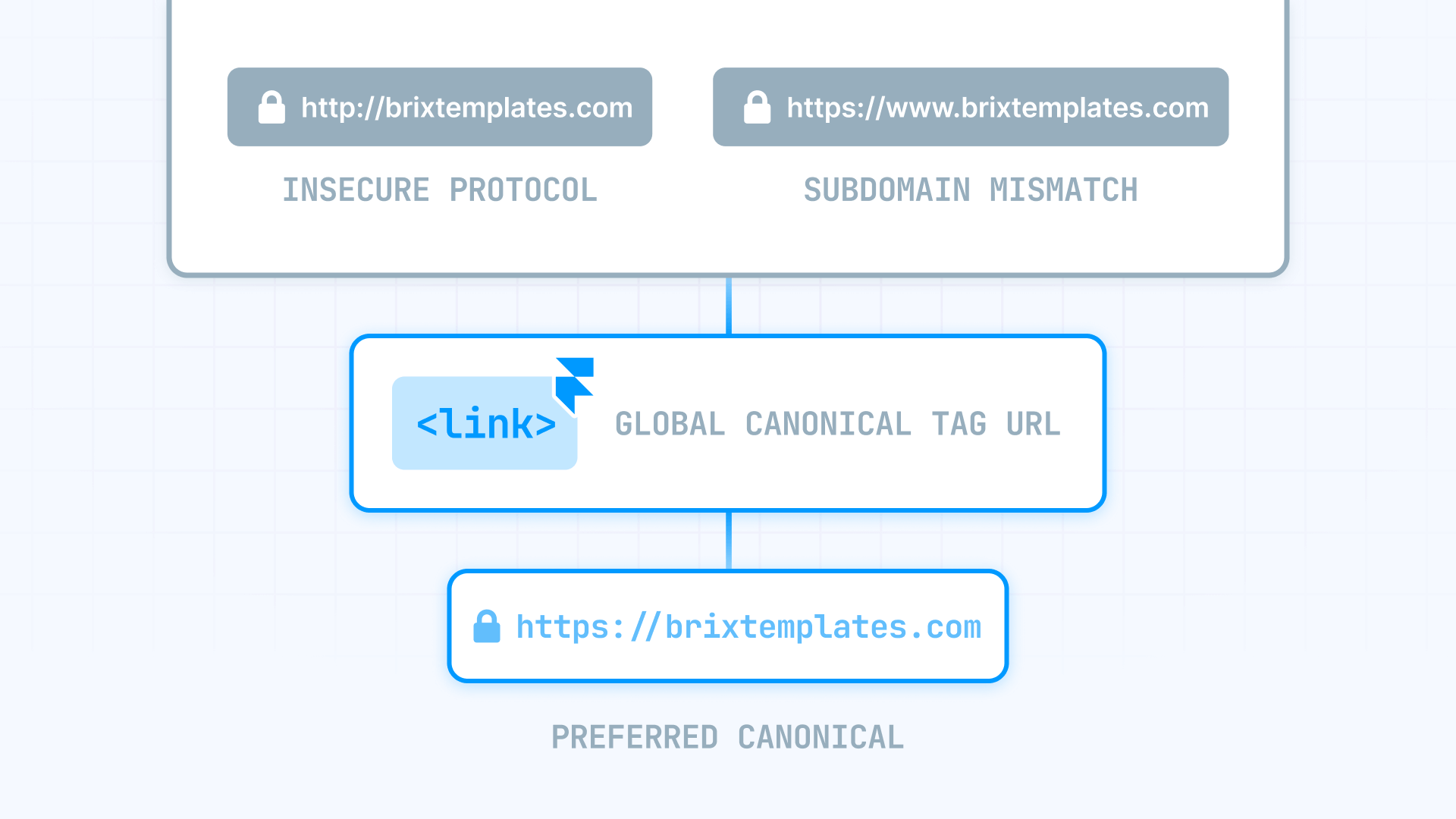
- www vs non-www are different hostnames: www.yourdomain.com and yourdomain.com are technically separate sites. Without canonicalization, search engines may index both and split your ranking signals between them.
- URL parameters create duplicates: yourdomain.com/pricing and yourdomain.com/pricing?ref=campaign look like two different pages to Google, even though the content is identical.
- HTTP vs HTTPS creates duplicates: If both protocol versions are accessible, search engines may crawl and index both — diluting your authority across two versions of every page.
A canonical tag is a signal, not a forced redirect. Users can still visit alternate URLs — the tag tells search engines which version to prioritize for indexing. For forcing traffic to one URL, use redirects alongside canonicals.
1 - How Framer handles canonical tags by default
When you connect a custom domain to your Framer project through the domain settings, Framer automatically updates the canonical tags on every page to point to that domain. A page at yourdomain.com/about gets a canonical tag pointing to https://yourdomain.com/about. This happens without any extra configuration on your part.
Connect your domain and choose your main version in Framer
Before verifying your canonicals, make sure your domain is properly connected and you've chosen whether www or non-www is your primary version. This decision determines what your canonical tags point to across your entire site.
There's no SEO advantage to either option — the only rule is consistency. If you're launching a brand-new domain, pick whichever you prefer. If you're migrating an existing site, keep whatever version was historically used as the primary to avoid reindexing churn. You can check what your old site used by viewing the page source and looking for the existing canonical tag, or by checking which URLs appear in Google Search Console.
Once your domain is connected and your preferred version is set, publish your site and move on to verification.
Verify your Framer canonical tags after connecting your domain
After publishing, check at least two pages — your homepage and one deeper page:
- Open the page in your browser.
- Right-click → View Page Source (or press Ctrl+U / Cmd+U).
- Search for rel="canonical" in the source code.
- Confirm the canonical points to your custom domain with the correct version (www or non-www), includes https://, and shows the correct page path.
If the canonical looks correct, you're done — Framer is handling everything automatically.
If the canonical isn't pointing to your custom domain, try disconnecting and reconnecting your domain in Framer's domain settings, then republish. This forces Framer to update the canonical tags based on the connected domain.
2 - How to configure a custom canonical URL in Framer
In some setups, you need a canonical URL that's different from your directly connected domain — for example, when using a reverse proxy, Multi Site rewrites, or serving your Framer project under a subpath like yourdomain.com/blog. For these cases, Framer provides a Canonical URL setting.
The Framer canonical URL setting requires Enterprise or an Add-On
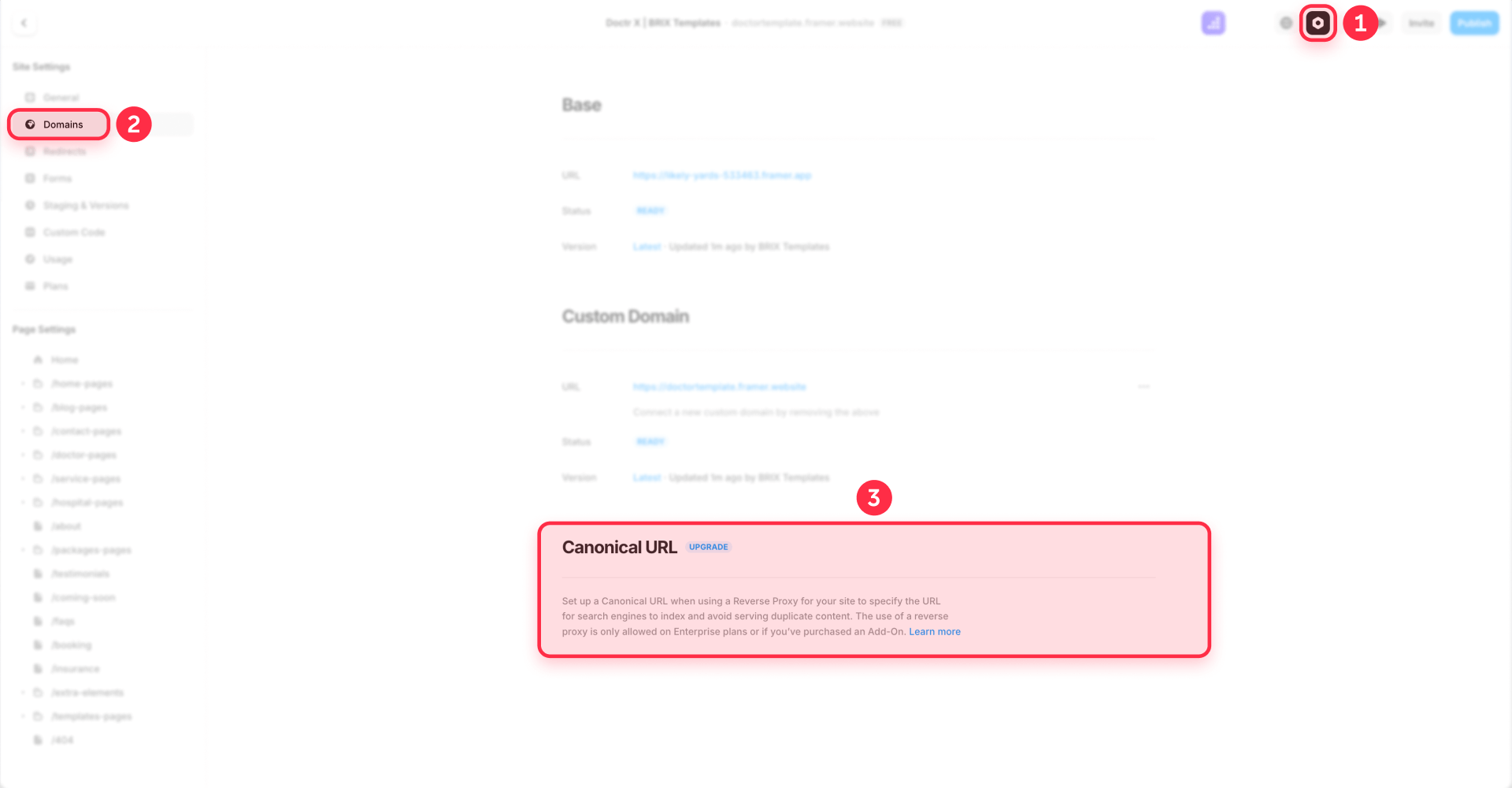
The Canonical URL setting in Framer is available on Enterprise plans or by purchasing a reverse proxy Add-On. It's located in Settings → Domains, and it lets you specify the exact public URL where your site is served — including a subpath if applicable.
If you have access to this setting:
- Open your Framer project.
- Go to Settings → Domains.
- Scroll to the Canonical URL field.
- Enter your actual public URL:
- For a full domain: https://yourdomain.com
- For a subpath setup: https://yourdomain.com/blog
- Publish your site and verify in the page source.
Do not include a trailing slash — Framer's reverse proxy documentation warns that trailing slashes can break client-side routing and create duplicate URL variants.
What if you don't have Enterprise or the Add-On
If you're on a plan without access to the Canonical URL setting and need a custom canonical (because you're using a reverse proxy or serving Framer under a subpath), your options are:
- Upgrade to Enterprise or purchase the Add-On: This is the cleanest solution — it lets you configure the canonical natively inside Framer without external workarounds.
- Handle the canonical at the proxy level: If you're already using Cloudflare Workers or another reverse proxy, you can modify the canonical tag there. However, Framer warns that some <head> tags are managed by Framer's JavaScript, and modifying or removing them can break behavior or conflict with future updates. Adding tags is supported; rewriting existing tags carries risk.
For most users who don't need a reverse proxy or subpath setup, this section doesn't apply — Framer's automatic canonical handling covers standard configurations.
How to configure canonicals for Framer Multi Site projects
When you use Multi Site rewrites to combine multiple Framer projects under one domain, each project needs its Canonical URL configured independently. Framer merges sitemaps automatically across rewrite sources, but canonical tags are a per-project setting.
For example, if you have:
- A main marketing site at yourdomain.com
- A blog project rewritten to serve at yourdomain.com/blog
- A docs project rewritten to serve at yourdomain.com/docs
Then each project needs its own Canonical URL:
- Marketing project: https://yourdomain.com
- Blog project: https://yourdomain.com/blog
- Docs project: https://yourdomain.com/docs
Since Multi Site is available on higher-tier plans, you'll typically have access to the Canonical URL setting. If not, Framer will automatically set the canonical based on the domain connected to each project. Make sure every origin project points to its final served domain and path.
3 - How to override the canonical tag for a specific Framer page
For edge cases where a specific page needs to point its canonical to a different URL — like a campaign landing page with duplicate content — you can add a custom canonical tag in the page's custom code.
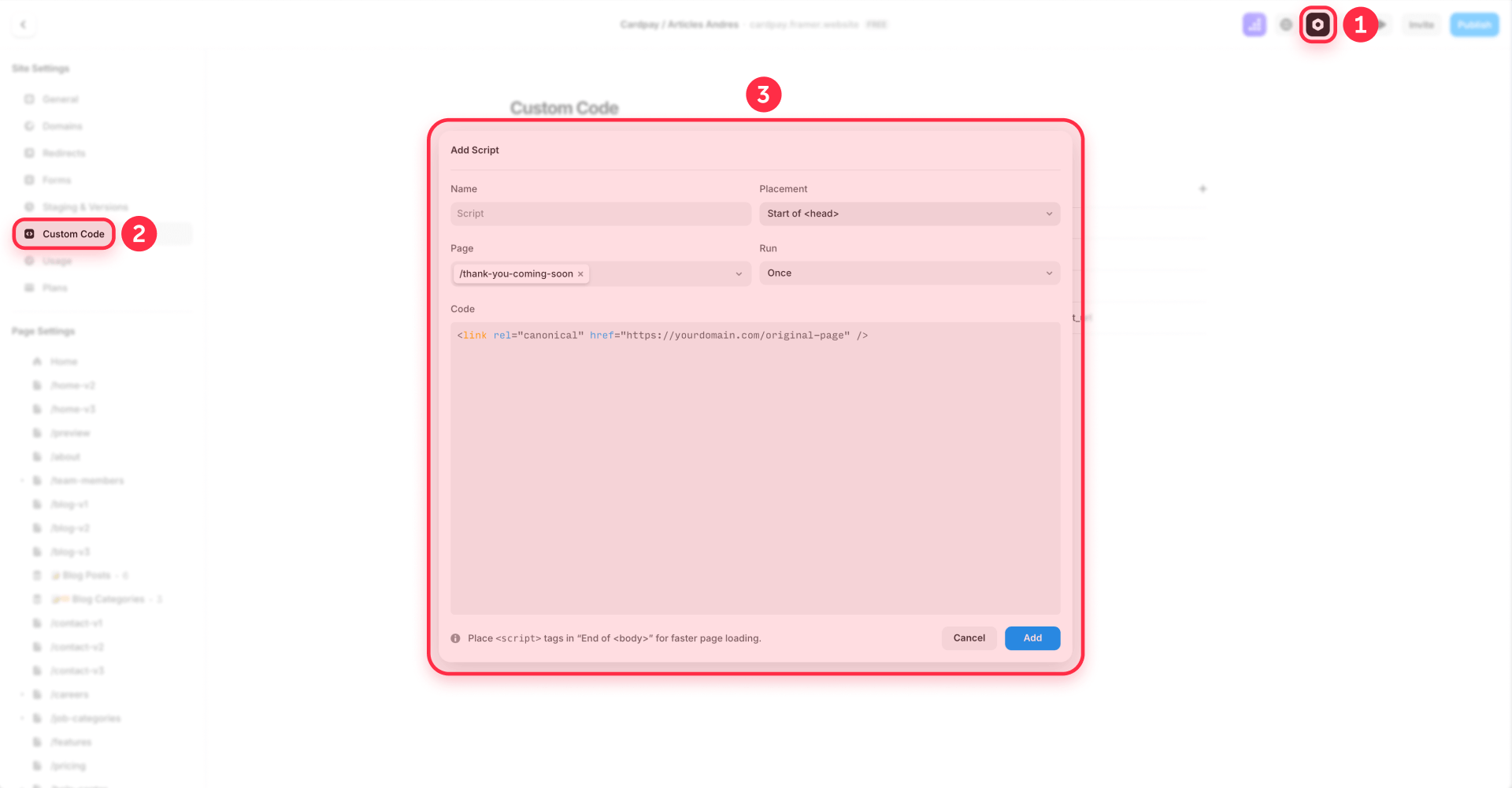
- Open the page in Framer.
- Go to Page Settings → Custom Code → Head.
- Add the canonical tag:
<link rel="canonical" href="https://yourdomain.com/original-page" />Important: Only add tags in the custom code — don't try to remove or rewrite Framer's existing canonical tags. Framer warns that modifying managed tags can break behavior. This override applies to that single page only.
Frequently asked questions about Framer canonical tags
Does Framer set canonical tags automatically?
Yes — when you connect a custom domain to your Framer project, Framer updates the canonical tags on every page to point to that domain automatically. For standard setups with a directly connected domain, no manual configuration is needed. Always verify by checking the page source after publishing to confirm the canonical points to the correct domain and path.
Where is the canonical URL setting in Framer?
The Canonical URL setting is in Settings → Domains in your Framer project. However, this setting is only available on Enterprise plans or by purchasing a reverse proxy Add-On. It's designed for cases where you need a canonical different from the connected domain — like reverse proxy or Multi Site setups. Standard sites with a directly connected domain don't need this setting.
Can I set a different canonical tag for a single Framer page?
Yes — add a custom canonical tag in the page's Custom Code → Head section. Enter the full tag: <link rel="canonical" href="https://yourdomain.com/target-page" />. Only add tags — don't try to remove or modify Framer's existing <head> tags, as Framer warns this can break behavior.
Can I use Cloudflare to modify Framer canonical tags instead of upgrading?
Technically yes, but Framer advises against it. Framer warns that some canonical tags are managed by its JavaScript, and modifying or removing them can break behavior or conflict with future updates. If you need a custom canonical and you're already using Cloudflare Workers as a proxy, modifying the tag there is possible — but upgrading to Enterprise or purchasing the Add-On is the cleaner, safer approach.
How do canonical tags interact with Framer's sitemap?
Framer auto-generates sitemap.xml and keeps it updated as you publish. For Multi Site setups, sitemaps merge automatically across rewrite sources. However, the sitemap and canonical tags are independent — Framer merging sitemaps does not fix incorrect canonicals. You must configure the Canonical URL in each project separately to ensure both sitemap URLs and canonical tags point to the same final domain.
Conclusion
For most Framer sites, canonical tags work automatically once you connect your custom domain — no configuration needed. After connecting your domain and choosing your preferred version (www or non-www), publish and verify the canonical tags in the page source.
If you need a custom canonical URL for a reverse proxy or Multi Site setup, the native Canonical URL setting in Framer requires an Enterprise plan or a paid Add-On. For users on other plans who need this level of control, upgrading is the most reliable path — handling canonicals at the proxy layer is possible but carries risks that Framer explicitly warns about.
If you need help configuring canonicals for a complex Framer setup with Multi Site rewrites or reverse proxies, our Framer agency team can make sure every page points to the right URL.









Join readers commenting on this post!