
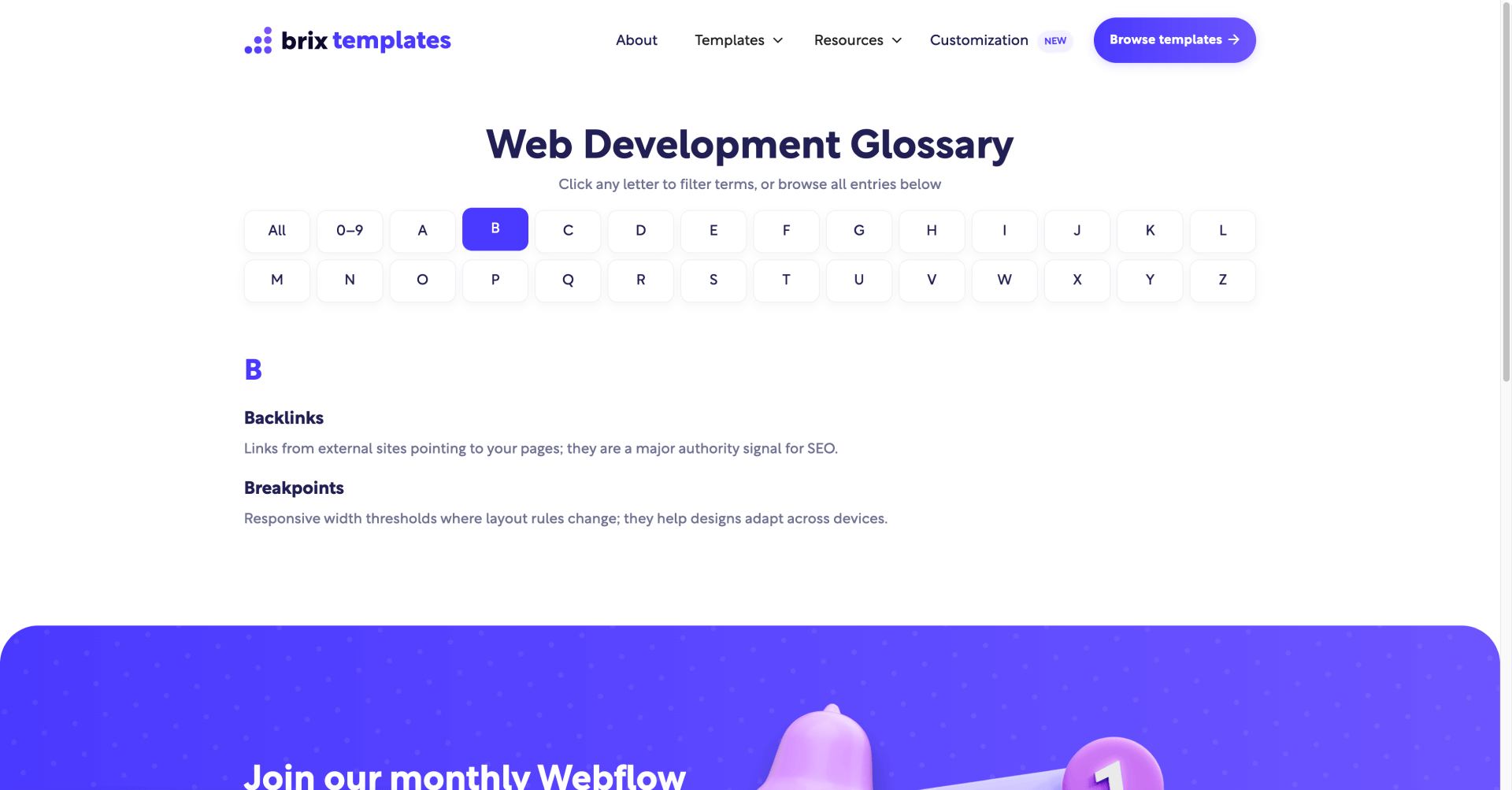
Sorting a Webflow CMS Collection List alphabetically takes seconds. But that's not what users actually want when they land on a glossary page. They want the Wikipedia-style experience: letter group headings (A, B, C…), a clickable letter bar, and the ability to jump to or filter by a specific letter.
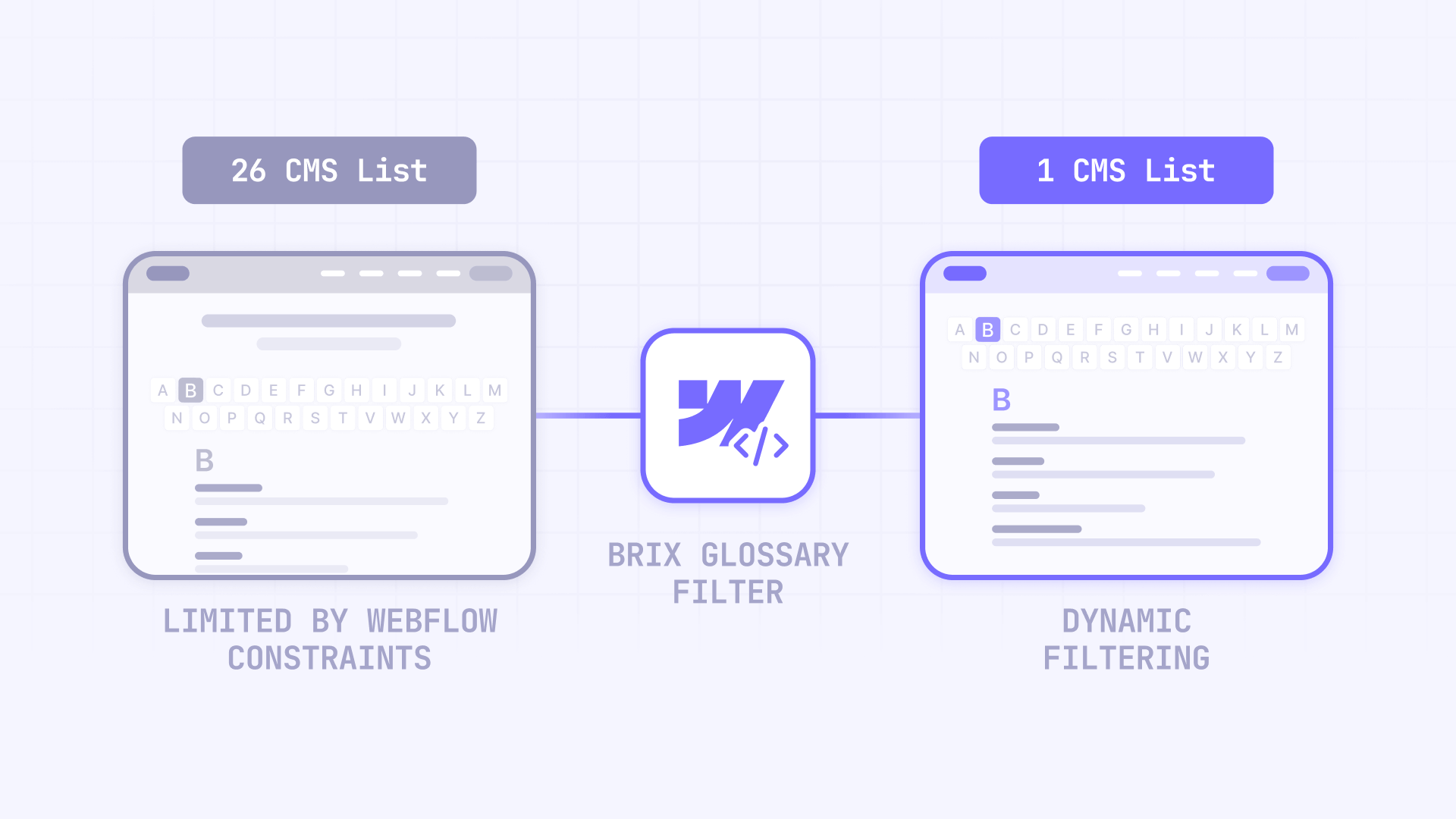
Webflow doesn't natively support "group by first letter," which leads many users to the obvious workaround: duplicate the CMS list 26 times and filter each one. This approach immediately hits Webflow's hard limit of 20 Collection Lists per page, leaving you stuck.
This tutorial shows you how to build a clean, SEO-friendly A-Z glossary from a single CMS Collection List. You'll learn the simple path (just alphabetized, no filtering) and the full path (interactive letter bar with filtering and deep links), plus when third-party tools like Jetboost or Finsweet make sense.
Why A-Z glossaries matter for SEO in Webflow
Alphabetical glossaries aren't just about user experience—they have direct SEO benefits when implemented correctly:
- Improved crawlability for Webflow CMS content: Search engines can discover and index all glossary terms through a well-structured single page with proper heading hierarchy, rather than paginated or dynamically loaded content that may be harder to crawl.
- Better internal linking structure in Webflow: Each term links to its definition page, creating a semantic network that distributes page authority and helps search engines understand topic relationships across your site.
- Reduced bounce rates on Webflow glossary pages: Users find terms faster with letter navigation instead of endless scrolling, which signals to search engines that your page satisfies user intent.
Beyond SEO, implementing A-Z filtering correctly brings practical benefits for both users and your team:
- Shareable deep links for specific letters in Webflow: URLs like ?letter=A let users share "the A section" directly—especially powerful for support documentation, knowledge bases, and reference materials.
- Avoiding Webflow platform limits: A single-list approach prevents you from hitting the 20 Collection Lists per page cap, keeping your glossary maintainable as it grows.
- Cleaner CMS maintenance for Webflow teams: You stop rebuilding layouts 26 times and reduce the risk of inconsistent styling across letters.
1. CMS preparation for Webflow glossaries
Before touching any filtering method, you need to make sure your CMS data won't sabotage your alphabetization. Webflow's sorting behavior has quirks that catch people off guard.
Understanding Webflow alphabetical sorting rules
Webflow's A-Z sort order is not "human alphabetical" in edge cases. Webflow sorts in this specific order:
- Numbers (based on the first digit, so "10" comes before "2")
- Uppercase letters
- Lowercase letters
- Characters with diacritics (é, ñ, å)
This means a glossary with mixed casing will look wrong—uppercase terms appear before all lowercase terms, not interleaved alphabetically.
Webflow CMS field setup for glossary terms
At minimum, your glossary Collection should include:
- Term field (Plain text) — the display name
- Definition field (Rich text) — the content
- Sort key field (Plain text) — optional but recommended for normalized sorting
The Sort key field gives you control over sorting edge cases. Store a normalized value (all lowercase, no leading articles like "The", no diacritics) and sort by this field instead of Term.
Tip: If your glossary includes "The Apple" and you want it under A, store apple in Sort key and keep "The Apple" in Term.
Configuring your Webflow Collection List for proper sorting
On your glossary page, set up the Collection List correctly:
- Select the Collection List element
- Open the Element settings panel
- Under Sort order, click the + icon
- Choose Sort key (or Term if you're not using a Sort key field)
- Select Alphabetical (A-Z)
- Click Save
If your glossary has more than 100 items, Webflow will only render the first 100 unless you enable pagination in the Collection List settings.
2. Create an alphabetized glossary in Webflow without filtering
If you just need terms displayed in alphabetical order—without letter headings or interactive filtering—the setup is minimal.
When the simple path is enough for your Webflow glossary
This approach works best when:
- Your glossary is small (under 50 terms)
- Users don't need to jump to specific letters
- You want zero JavaScript and zero third-party dependencies
- The glossary is secondary content, not a primary navigation destination
Setting up a simple alphabetized Webflow glossary
This is the simplest way to display a glossary in Webflow—just sort your Collection List alphabetically and you're done.
- Add a Collection List to your page
- Connect it to your glossary Collection
- Set Sort order to your text field, Alphabetical (A-Z)
- Design your Collection Item layout
- Publish
No additional fields, no JavaScript, no third-party tools. Terms display in alphabetical order, and users scroll to find what they need. For small glossaries where users don't need to jump to specific letters, this straightforward approach is often all you need.
3. Add interactive A-Z filtering to your Webflow glossary with JavaScript
This is the cleanest "single source of truth" approach when you want the full glossary experience. It gives you:
- One CMS list (no 26-list duplication)
- Auto-generated A-Z letter headings
- A clickable letter bar that can filter and/or jump
- Disabled styling for letters with no results
- Deep links like ?letter=S
Best of all, this method requires no CMS changes—it extracts the first letter dynamically from each term.
Building the Webflow A-Z glossary UI structure
Before adding the script, create these elements on your page:
- A letter bar wrapper (Div block) — will contain all letter buttons
- A button template (Link Block or Button) — styled as a letter chip, will be cloned for each letter
- A single CMS Collection List — your glossary items
- A letter heading template (Div or Heading) — will be cloned for A, B, C headings
- An empty state message (optional) — shows "No terms for this letter" when needed
Adding custom attributes in Webflow for the BRIX A-Z glossary script
In the Element settings panel → Custom attributes, add these attributes to the corresponding elements. Each attribute tells the script how to identify and manipulate the element.
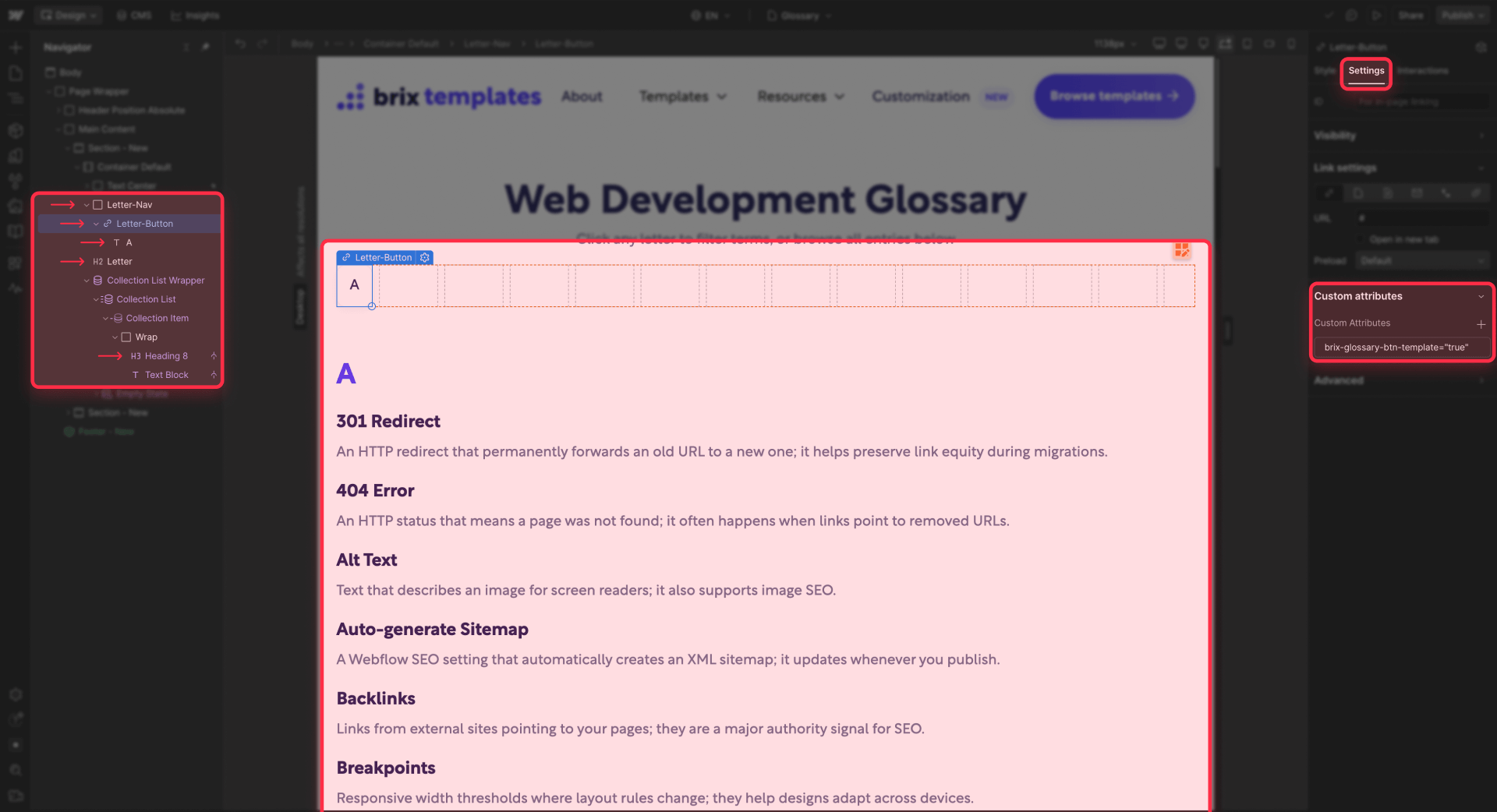
On the letter bar wrapper:
- Name: brix-glossary-nav | Value: true
- This identifies the container where letter buttons will be generated.
On the button template:
- Name: brix-glossary-btn-template | Value: true
- This is the design template that will be cloned for each letter (A, B, C…). Do NOT hide it using Webflow's display:none—we'll hide it with CSS below.
Optional elements inside the button template:
- brix-glossary-label="true" — Marks the text element that displays the letter.
- brix-glossary-count="true" — Marks the element that displays the count of terms for that letter (optional).
On the Collection List element:
- Name: brix-glossary-list | Value: true
- Identifies the CMS Collection List containing your glossary terms.
On each Collection Item:
- Name: brix-glossary-item | Value: true
- Marks each individual glossary entry so the script can process it.
On the term text element (inside each item):
- Name: brix-glossary-term | Value: true
- Identifies which text element contains the term name. The script reads this to determine the first letter.
On the heading template:
- Name: brix-glossary-heading-template | Value: true
- This is the design template for letter section headings (A, B, C…). Do NOT hide it using Webflow's display:none—we'll hide it with CSS below.
Optional inside the heading template:
- brix-glossary-heading-label="true" — Marks a child text element for the letter label. If you add this, the script will only update that element's text instead of replacing the entire heading content (useful if your heading has icons or other elements).
On the empty message element (optional):
- Name: brix-glossary-empty | Value: true
- Marks the element that displays when a selected letter has no terms.
Important: Do NOT use Webflow's built-in display settings to hide the template elements. If you hide them via a class in the Designer, the cloned elements will inherit that class and stay hidden. Instead, we'll use CSS attribute selectors.
Hiding template elements with CSS in Webflow
Add this CSS to your page to hide the template elements. Go to Page settings → Custom code → Head code and paste:
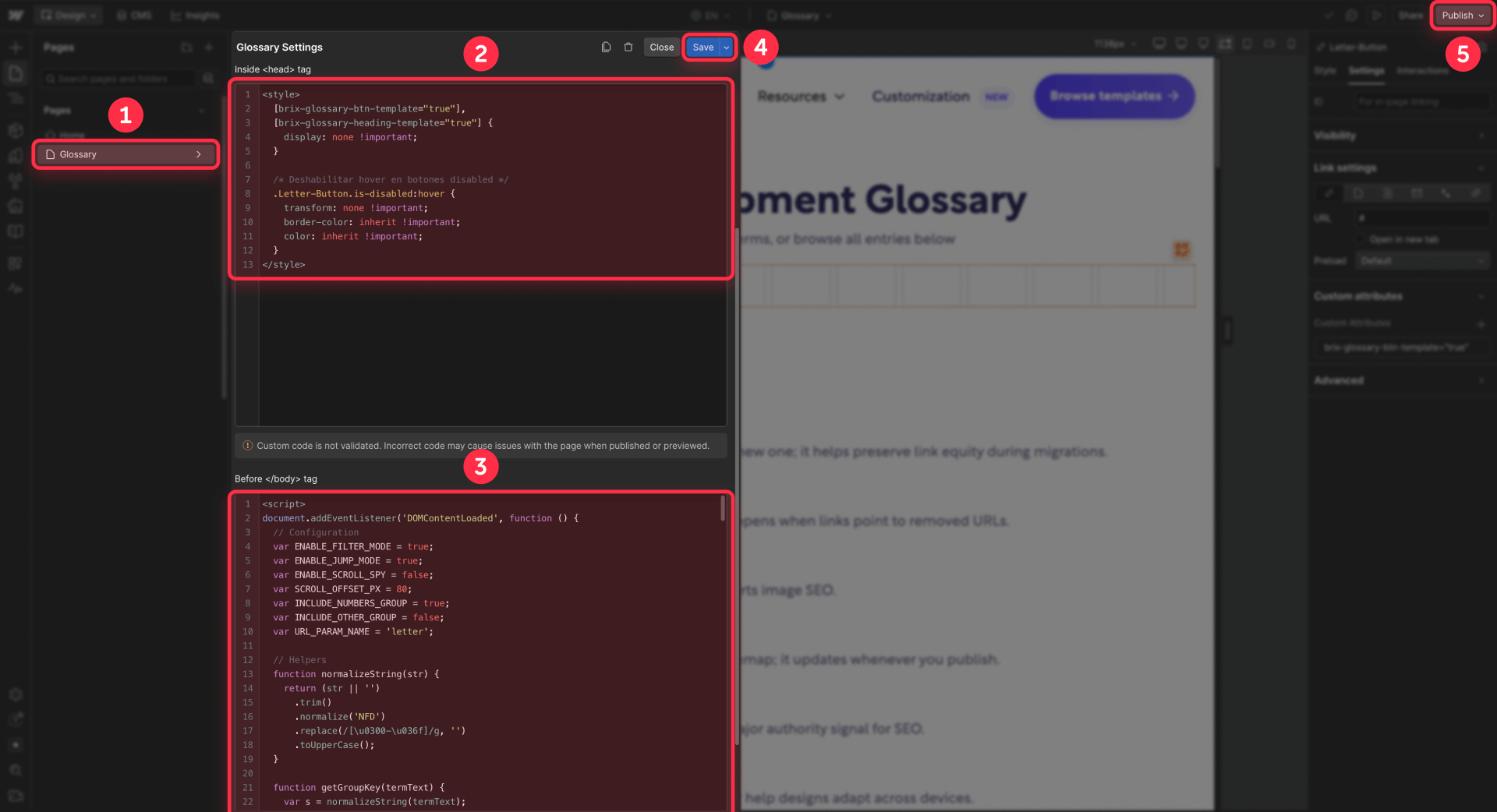
<style>
  [brix-glossary-btn-template="true"],
  [brix-glossary-heading-template="true"] {
    display: none !important;
  }
</style>
This approach hides elements only while they have the template attribute. When the script clones these templates, it removes the template attribute from the clones, so they become visible automatically.
Adding the BRIX A-Z filtering script to your Webflow project
Place this script in one of these locations:
Page settings → Custom code → Before tag (best for page-specific glossaries)
Project settings → Custom code → Footer code (if multiple pages use it)
Here's the complete implementation:
<script>
/**
 * BRIX Templates A-Z Glossary Filter for Webflow
 *
 * This script creates an interactive A-Z glossary experience from a single
 * CMS Collection List. It automatically generates letter headings, builds
 * a clickable letter navigation bar, and supports both filtering and
 * jump-to-letter functionality.
 *
 * Features:
 * - Builds letter headings (A, B, C...) by scanning the sorted list
 * - Builds an A-Z letter bar UI from one template button
 * - Supports jump-to-letter (anchors) and filter-by-letter (hide/show)
 * - Supports deep links via ?letter=A
 * - Disables letters with no matching terms
 *
 * Required attributes in Webflow:
 * - brix-glossary-nav="true"
 * - brix-glossary-btn-template="true"
 * - brix-glossary-list="true"
 * - brix-glossary-item="true"
 * - brix-glossary-term="true"
 * - brix-glossary-heading-template="true"
 * - (optional) brix-glossary-empty="true"
 * - (optional) brix-glossary-label="true"
 * - (optional) brix-glossary-count="true"
 * - (optional) brix-glossary-heading-label="true"
 *
 * @version 1.1.0
 */

document.addEventListener('DOMContentLoaded', function () {
  // -----------------------------
  // CONFIG (edit these)
  // -----------------------------
  var ENABLE_FILTER_MODE = true;     // true = show only selected letter
  var ENABLE_JUMP_MODE = true;       // true = scroll to the selected letter heading
  var ENABLE_SCROLL_SPY = false;     // true = highlight active letter while scrolling
  var SCROLL_OFFSET_PX = 80;         // adjust if you have a sticky header
  var INCLUDE_NUMBERS_GROUP = true;  // show "0–9" group
  var INCLUDE_OTHER_GROUP = false;   // show "#" group for symbols
  var URL_PARAM_NAME = 'letter';     // ?letter=A

  // -----------------------------
  // HELPERS
  // -----------------------------
  function normalizeString(str) {
    return (str || '')
      .trim()
      .normalize('NFD')
      .replace(/[\u0300-\u036f]/g, '')
      .toUpperCase();
  }

  function getGroupKey(termText) {
    var s = normalizeString(termText);
    if (!s) return '';

    var first = s.charAt(0);

    // Numbers
    if (first >= '0' && first <= '9') {
      if (INCLUDE_NUMBERS_GROUP) return '0-9';
      return INCLUDE_OTHER_GROUP ? '#' : '';
    }

    // A-Z letters
    if (first >= 'A' && first <= 'Z') return first;

    // Symbols
    return INCLUDE_OTHER_GROUP ? '#' : '';
  }

  function safeIdFromKey(key) {
    if (key === '#') return 'glossary-other';
    return 'glossary-' + String(key).toLowerCase().replace(/[^a-z0-9\-]/g, '-');
  }

  function getUrlSelectedKey() {
    var url = new URL(window.location.href);

    var q = url.searchParams.get(URL_PARAM_NAME);
    if (q) return normalizeString(q);

    var hash = (window.location.hash || '').replace('#', '').trim();
    if (!hash) return '';

    if (hash.length === 1) return normalizeString(hash);

    if (hash.indexOf('glossary-') === 0) {
      var remainder = hash.replace('glossary-', '');
      if (remainder === '0-9') return '0-9';
      if (remainder === 'other') return '#';
      return normalizeString(remainder).charAt(0);
    }

    return '';
  }

  function setUrlSelectedKey(key) {
    var url = new URL(window.location.href);

    if (!key || key === 'ALL') {
      url.searchParams.delete(URL_PARAM_NAME);
      window.history.replaceState({}, '', url.toString());
      return;
    }

    url.searchParams.set(URL_PARAM_NAME, key);
    window.history.replaceState({}, '', url.toString());
  }

  function scrollToElementWithOffset(el) {
    if (!el) return;
    var y = el.getBoundingClientRect().top + window.scrollY;
    window.scrollTo({ top: y - SCROLL_OFFSET_PX, behavior: 'smooth' });
  }

  // -----------------------------
  // GET REQUIRED ELEMENTS
  // -----------------------------
  var nav = document.querySelector('[brix-glossary-nav="true"]') || document.querySelector('[brix-glossary-nav]');
  var listRoot = document.querySelector('[brix-glossary-list="true"]') || document.querySelector('[brix-glossary-list]');
  if (!nav || !listRoot) return;

  var btnTemplate =
    nav.querySelector('[brix-glossary-btn-template="true"]') ||
    nav.querySelector('[brix-glossary-btn-template]');
  if (!btnTemplate) return;

  var headingTemplate =
    document.querySelector('[brix-glossary-heading-template="true"]') ||
    document.querySelector('[brix-glossary-heading-template]');
  if (!headingTemplate) return;

  var emptyEl =
    document.querySelector('[brix-glossary-empty="true"]') ||
    document.querySelector('[brix-glossary-empty]');

  var items = Array.prototype.slice.call(
    listRoot.querySelectorAll('[brix-glossary-item="true"], [brix-glossary-item]')
  );
  if (!items.length) return;

  // This is the real container that owns the CMS items (usually .w-dyn-items)
  var itemsContainer = items[0].parentNode;

  // -----------------------------
  // CLEANUP (safe)
  // -----------------------------
  // Remove previously inserted headings
  Array.prototype.slice.call(
    itemsContainer.querySelectorAll('[brix-glossary-heading="true"], [brix-glossary-heading]')
  ).forEach(function (h) { h.parentNode.removeChild(h); });

  // Remove previously generated buttons (do NOT delete other nav layout wrappers)
  Array.prototype.slice.call(
    nav.querySelectorAll('[brix-glossary-btn="true"], [brix-glossary-btn]')
  ).forEach(function (b) { b.parentNode.removeChild(b); });

  // -----------------------------
  // SCAN ITEMS + COUNT
  // -----------------------------
  var counts = {};

  items.forEach(function (item) {
    var termEl = item.querySelector('[brix-glossary-term="true"], [brix-glossary-term]');
    var termText = termEl ? termEl.textContent : '';
    var key = getGroupKey(termText);

    item.setAttribute('brix-glossary-key', key);

    if (!key) return;
    if (!counts[key]) counts[key] = 0;
    counts[key] += 1;
  });

  // -----------------------------
  // INSERT GROUP HEADINGS
  // -----------------------------
  var lastKey = null;

  items.forEach(function (item) {
    var key = item.getAttribute('brix-glossary-key');
    if (!key) return;

    if (key !== lastKey) {
      lastKey = key;

      var heading = headingTemplate.cloneNode(true);

      // Remove template attribute so CSS hiding doesn't affect clones
      heading.removeAttribute('brix-glossary-heading-template');

      // Mark as generated heading
      heading.setAttribute('brix-glossary-heading', 'true');
      heading.setAttribute('brix-glossary-heading-key', key);

      // Ensure jump target is stable
      heading.id = safeIdFromKey(key);

      // Text label (supports a child label element if you add it)
      var headingLabel = (key === '0-9') ? '0–9' : (key === '#') ? '#' : key;
      var headingLabelEl = heading.querySelector('[brix-glossary-heading-label="true"], [brix-glossary-heading-label]');
      if (headingLabelEl) {
        headingLabelEl.textContent = headingLabel;
      } else {
        heading.textContent = headingLabel;
      }

      // Unhide if the template is hidden inline
      heading.style.display = '';

      // Insert before the first item in this group
      itemsContainer.insertBefore(heading, item);
    }
  });

  // Hide templates (extra safety)
  btnTemplate.style.display = 'none';
  headingTemplate.style.display = 'none';

  // -----------------------------
  // BUILD NAV BUTTONS
  // -----------------------------
  function createButton(key, label) {
    var btn = btnTemplate.cloneNode(true);

    // Prevent duplicate IDs if the template had one
    btn.removeAttribute('id');
    Array.prototype.slice.call(btn.querySelectorAll('[id]')).forEach(function (el) {
      el.removeAttribute('id');
    });

    btn.style.display = '';
    btn.removeAttribute('brix-glossary-btn-template');

    btn.setAttribute('brix-glossary-btn', 'true');
    btn.setAttribute('brix-glossary-btn-key', key);

    var labelEl = btn.querySelector('[brix-glossary-label="true"], [brix-glossary-label]');
    if (labelEl) labelEl.textContent = label;
    else btn.textContent = label;

    var countEl = btn.querySelector('[brix-glossary-count="true"], [brix-glossary-count]');
    if (countEl) countEl.textContent = (key === 'ALL') ? '' : String(counts[key] || 0);

    if (btn.tagName === 'A') {
      btn.href = (key === 'ALL') ? '#' : ('#' + safeIdFromKey(key));
    }

    // Disable empty letters
    if (key !== 'ALL' && !(counts[key] > 0)) {
      btn.setAttribute('aria-disabled', 'true');
      btn.classList.add('is-disabled');
      btn.tabIndex = -1;
    } else {
      btn.removeAttribute('aria-disabled');
      btn.classList.remove('is-disabled');
      if (btn.tabIndex === -1) btn.tabIndex = 0;
    }

    return btn;
  }

  var navKeys = ['ALL'];
  if (INCLUDE_NUMBERS_GROUP) navKeys.push('0-9');
  for (var i = 65; i <= 90; i++) navKeys.push(String.fromCharCode(i));
  if (INCLUDE_OTHER_GROUP) navKeys.push('#');

  navKeys.forEach(function (key) {
    var label = (key === 'ALL') ? 'All' : (key === '0-9') ? '0–9' : key;
    nav.appendChild(createButton(key, label));
  });

  // -----------------------------
  // ACTIVE STATE
  // -----------------------------
  function setActiveButton(key) {
    var buttons = Array.prototype.slice.call(
      nav.querySelectorAll('[brix-glossary-btn="true"], [brix-glossary-btn]')
    );
    buttons.forEach(function (b) {
      b.classList.remove('is-active');
      b.removeAttribute('aria-current');
      if (b.getAttribute('brix-glossary-btn-key') === key) {
        b.classList.add('is-active');
        b.setAttribute('aria-current', 'true');
      }
    });
  }

  // -----------------------------
  // FILTER + JUMP (fixed logic)
  // -----------------------------
  function showAll() {
    if (emptyEl) emptyEl.style.display = 'none';

    items.forEach(function (item) { item.style.display = ''; });

    Array.prototype.slice.call(
      itemsContainer.querySelectorAll('[brix-glossary-heading="true"], [brix-glossary-heading]')
    ).forEach(function (h) { h.style.display = ''; });

    setActiveButton('ALL');
    setUrlSelectedKey('ALL');

    if (ENABLE_JUMP_MODE) window.scrollTo({ top: 0, behavior: 'smooth' });
  }

  function applyLetter(key) {
    if (emptyEl) emptyEl.style.display = 'none';

    var hasResults = counts[key] > 0;

    setActiveButton(key);
    setUrlSelectedKey(key);

    // If no results
    if (!hasResults) {
      if (emptyEl) emptyEl.style.display = '';

      if (ENABLE_FILTER_MODE) {
        items.forEach(function (item) { item.style.display = 'none'; });
        Array.prototype.slice.call(
          itemsContainer.querySelectorAll('[brix-glossary-heading="true"], [brix-glossary-heading]')
        ).forEach(function (h) { h.style.display = 'none'; });
      } else {
        items.forEach(function (item) { item.style.display = ''; });
        Array.prototype.slice.call(
          itemsContainer.querySelectorAll('[brix-glossary-heading="true"], [brix-glossary-heading]')
        ).forEach(function (h) { h.style.display = ''; });
      }

      if (ENABLE_JUMP_MODE) {
        if (emptyEl) scrollToElementWithOffset(emptyEl);
        else window.scrollTo({ top: 0, behavior: 'smooth' });
      }
      return;
    }

    if (ENABLE_FILTER_MODE) {
      items.forEach(function (item) {
        item.style.display = (item.getAttribute('brix-glossary-key') === key) ? '' : 'none';
      });

      Array.prototype.slice.call(
        itemsContainer.querySelectorAll('[brix-glossary-heading="true"], [brix-glossary-heading]')
      ).forEach(function (h) {
        h.style.display = (h.getAttribute('brix-glossary-heading-key') === key) ? '' : 'none';
      });
    } else {
      items.forEach(function (item) { item.style.display = ''; });
      Array.prototype.slice.call(
        itemsContainer.querySelectorAll('[brix-glossary-heading="true"], [brix-glossary-heading]')
      ).forEach(function (h) { h.style.display = ''; });
    }

    if (ENABLE_JUMP_MODE) {
      var heading = document.getElementById(safeIdFromKey(key));
      scrollToElementWithOffset(heading);
    }
  }

  function applySelection(key) {
    if (!key || key === 'ALL') {
      showAll();
      return;
    }
    applyLetter(key);
  }

  // Click handling
  nav.addEventListener('click', function (e) {
    var btn = e.target.closest('[brix-glossary-btn="true"], [brix-glossary-btn]');
    if (!btn) return;

    e.preventDefault();

    if (btn.classList.contains('is-disabled')) return;

    var key = btn.getAttribute('brix-glossary-btn-key');
    applySelection(key);
  });

  // -----------------------------
  // OPTIONAL: SCROLL SPY
  // -----------------------------
  if (ENABLE_SCROLL_SPY && 'IntersectionObserver' in window) {
    var headings = Array.prototype.slice.call(
      itemsContainer.querySelectorAll('[brix-glossary-heading="true"], [brix-glossary-heading]')
    );

    var observer = new IntersectionObserver(function (entries) {
      entries.forEach(function (entry) {
        if (entry.isIntersecting) {
          var k = entry.target.getAttribute('brix-glossary-heading-key');
          if (k) setActiveButton(k);
        }
      });
    }, { rootMargin: '-' + SCROLL_OFFSET_PX + 'px 0px -70% 0px', threshold: 0 });

    headings.forEach(function (h) { observer.observe(h); });
  }

  // -----------------------------
  // INIT FROM URL
  // -----------------------------
  var initialKey = getUrlSelectedKey();
  if (!initialKey) initialKey = 'ALL';

  if (initialKey === '0–9' || initialKey === '0_9') initialKey = '0-9';
  if (initialKey === 'OTHER') initialKey = '#';

  applySelection(initialKey);
});
</script>
Configuring the script behavior for your Webflow glossary
The script has several configuration options at the top that you can adjust:
- ENABLE_FILTER_MODE: When true, clicking a letter hides all other terms. When false, all terms remain visible.
- ENABLE_JUMP_MODE: When true, clicking a letter scrolls to that section.
- ENABLE_SCROLL_SPY: When true, the active letter updates as you scroll through the glossary.
- SCROLL_OFFSET_PX: Adjust this value if you have a sticky header (set it to your header height).
- INCLUDE_NUMBERS_GROUP: Shows a "0-9" button for terms starting with numbers.
- INCLUDE_OTHER_GROUP: Shows a "#" button for terms starting with symbols.
- URL_PARAM_NAME: The query parameter name for deep links (default is letter).
Tip: If you want "jump only" behavior (scroll to letter without hiding other terms), set ENABLE_FILTER_MODE to false and keep ENABLE_JUMP_MODE as true. For "filter only" behavior, do the opposite.
Styling active and disabled states in Webflow
The script adds CSS classes you can style in Webflow:
- is-active: Added to the currently selected letter button
- is-disabled: Added to letter buttons with no matching terms
Create these classes in Webflow and style them appropriately. For example, make is-active buttons have a different background color, and make is-disabled buttons appear faded with cursor: not-allowed.
Limitations of the JavaScript method for Webflow glossaries
This method only filters what exists in the DOM. If your glossary has more than 100 items and you rely on Webflow pagination, items on page 2+ are not loaded, so they can't be filtered or counted.
Webflow's limit is explicit: 100 items per Collection List unless pagination is enabled. If you need filtering across hundreds or thousands of items, consider Jetboost (covered in the next section).
4. Alternative approaches for Webflow A-Z glossaries
The JavaScript method above works for most glossaries, but specific constraints might push you toward different solutions.
Jetboost for large Webflow glossaries (100+ items)
Jetboost is the most reliable option when you need filtering across hundreds or thousands of items with a no-code dashboard setup.
When to use Jetboost:
- Your glossary has 100+ items
- You need filtering to work across paginated content
- You want URL-based filter state without writing code
- You're already using Jetboost for other features
What Jetboost requires:
- A Letter field in your CMS (Option field with values A-Z)
- Webflow pagination enabled (set items per page to 100 for best performance)
- Remove any Webflow filters/limits on the Collection List
How Jetboost overcomes the 100-item limit:
Jetboost works differently from DOM-based solutions. Instead of filtering only what's visible on the page, Jetboost intercepts Webflow's pagination and dynamically loads matching items from all pages. When a user clicks a letter filter, Jetboost fetches items from every paginated page that match the criteria and displays them—even if those items were originally on page 5 or page 10. This is why enabling Webflow pagination is required: it gives Jetboost access to the full dataset rather than just the first 100 items.
Jetboost can save filter state to the URL using query parameters like ?letter=A. It cannot create "pretty" path-based URLs like /glossary/a/ because Webflow controls directory routing.
Finsweet Attributes for existing Webflow Attributes users
Finsweet's CMS Filter is a mature attribute-driven filtering system that works well for letter filtering—if you already use Finsweet Attributes in your project.
When to use Finsweet:
- You're already using Finsweet Attributes for other features
- You want a form-based filter UI (radio buttons, checkboxes)
- You prefer attribute-based configuration over JavaScript
What Finsweet requires:
- A Letter field in your CMS
- The Finsweet Attributes script in your project
- Specific attributes on your Collection List and filter form elements
Like the JavaScript method, Finsweet filters only what's present in the DOM. Items beyond the first 100 (or your pagination limit) won't be filterable without additional loading strategies.
Dynamic letter pages for zero-JavaScript Webflow glossaries
If you want zero JavaScript and zero third-party scripts, you can avoid the single-page approach entirely by creating one page per letter.
When to use dynamic letter pages:
- You have zero tolerance for JavaScript
- Your glossary is very large (1000+ terms)
- SEO for individual letter pages matters to your strategy
- You're okay with users navigating between pages
What this approach requires:
- A Letters Collection with items A, B, C… (and optionally 0-9)
- A Letter Reference field on each glossary term pointing to the Letters Collection
- A template page for the Letters Collection that displays filtered glossary terms
This creates URLs like /glossary/a/, /glossary/b/, etc. Each page shows only terms for that letter, filtered natively through Webflow's Reference field filtering.
Trade-offs:
- It's not a single-page A-Z glossary experience
- Users can't see multiple letters at once
- You need to build a letter navigation component that appears on each page
Which Webflow A-Z glossary method is best for you?
Choosing the right approach depends on your glossary size, technical comfort, and specific requirements. Here's a quick decision framework:
Choose simple Webflow sorting if:
- Your glossary has fewer than 50 terms
- You don't need letter navigation or filtering
- You want the fastest possible setup with zero dependencies
Choose the BRIX JavaScript method for Webflow if:
- Your glossary has up to 100 items (Webflow's rendering limit)
- You want letter headings, filtering, and deep links
- You don't want to add CMS fields or pay for third-party tools
- You're comfortable adding a script to your project
Choose Jetboost for Webflow glossaries if:
- Your glossary has 100+ items
- You need filtering across paginated content
- You prefer a no-code dashboard over custom JavaScript
- Budget allows for a paid tool
Choose Finsweet Attributes for Webflow if:
- You already use Finsweet Attributes in your project
- You want form-based filter controls (radio buttons, checkboxes)
- Your glossary is under 100 items (or you'll implement load-more)
Choose dynamic letter pages in Webflow if:
- You want zero JavaScript on your site
- Individual letter pages benefit your SEO strategy
- Your glossary is extremely large (1000+ terms)
- You're okay with a multi-page rather than single-page experience
Still unsure? For most Webflow glossaries under 100 terms, the BRIX JavaScript method offers the best balance of features and simplicity. It requires no CMS changes, no third-party subscriptions, and gives you the full Wikipedia-style experience.
Frequently asked questions about A-Z glossaries in Webflow
Can I create 26 Collection Lists to build a glossary in Webflow CMS?
No, Webflow limits you to 20 Collection Lists per page. This means the approach of duplicating a Collection List for each letter (A through Z) will fail once you exceed 20 letters. The solution is to use a single Collection List with client-side filtering, which is exactly what the JavaScript method in this tutorial provides. One list handles all letters, and the script dynamically creates the letter navigation and filtering.
What is the best way to create an A-Z glossary in Webflow?
For glossaries under 100 terms, use a single CMS Collection List sorted alphabetically combined with JavaScript that generates letter headings and a clickable letter bar. This approach requires no additional CMS fields, works entirely client-side, and supports both filtering and jump-to-letter functionality. For larger glossaries (100+ items), third-party tools like Jetboost can filter across paginated content.
How do I add letter navigation to a Webflow CMS glossary page?
Add a button template element to your page, mark it with the brix-glossary-btn-template attribute, and include the BRIX A-Z glossary script in your page's custom code. The script automatically clones your button template to create A through Z navigation buttons, complete with active states for the selected letter and disabled states for letters with no matching terms.
Why is my Webflow glossary sorting incorrectly with uppercase and lowercase?
Webflow sorts uppercase letters before lowercase letters, so "Zebra" appears before "apple" in A-Z order. To fix this, create a Sort key field in your CMS with normalized values (all lowercase) and sort your Collection List by that field instead of the display term. This ensures consistent alphabetical ordering regardless of how terms are capitalized for display.
How do I create shareable links to specific letters in a Webflow glossary?
The JavaScript method in this tutorial automatically updates the URL with a query parameter like ?letter=S when users click a letter. When someone visits that URL, the page loads with that letter pre-selected. This makes glossary sections shareable via email, social media, or documentation without any additional setup.
Can I filter a Webflow glossary by letter without using JavaScript?
Yes, but with trade-offs. You can create a separate Letters Collection (A, B, C…) and add a Reference field to your glossary terms pointing to their corresponding letter. Then create a template page for the Letters Collection that filters glossary terms by the current letter. This creates separate pages like /glossary/a/ with zero JavaScript, but users must navigate between pages rather than filtering on a single page.
How do I handle glossary terms that start with numbers in Webflow?
The BRIX JavaScript method automatically groups all terms starting with digits (0-9) under a single "0-9" button. This is controlled by the INCLUDE_NUMBERS_GROUP configuration option in the script. Set it to false if you don't have terms starting with numbers and want to hide that button from the letter bar.
What happens when a letter has no glossary terms in Webflow?
The script automatically adds an is-disabled class to letter buttons with no matching terms and sets aria-disabled="true" for accessibility. Style this class in Webflow to make empty letters visually distinct—typically with reduced opacity and a not-allowed cursor. Clicking a disabled letter has no effect, preventing users from filtering to empty results.
How many glossary terms can I have with the JavaScript filtering method?
The JavaScript method works with as many terms as Webflow renders on the page—up to 100 items without pagination. If your glossary exceeds 100 terms, Webflow only loads the first 100 unless you enable pagination. For glossaries larger than 100 items where you need all terms filterable on one page, consider Jetboost, which can filter across paginated content.
Is the JavaScript A-Z glossary method SEO-friendly for Webflow?
Yes. All glossary content is rendered in the initial HTML from Webflow's CMS, so search engines can crawl and index every term. The JavaScript only adds interactivity (filtering, jumping) after the page loads—it doesn't hide content from crawlers. Letter headings improve semantic structure, and deep links allow search engines to understand distinct sections of your glossary.
Conclusion
Building an A-Z glossary in Webflow requires one key mindset shift: sorting is not the same as grouping or filtering. Webflow handles alphabetical sorting natively, but the Wikipedia-style experience—letter headings, clickable letter bar, filtered views—requires additional implementation.
For most glossaries, the BRIX JavaScript method is the best starting point: it works from a single CMS Collection List, requires no additional CMS fields, and gives you full control over filtering, jumping, and deep linking behavior. If your glossary grows beyond 100 items and you need filtering across paginated content, Jetboost is the most reliable upgrade path.
For advanced implementations requiring custom conditional logic, multi-step filtering, or integration with other site features, our Webflow development team can build solutions tailored to your specific requirements. If you're looking to implement Jetboost alongside other dynamic functionalities for your Webflow project, our Jetboost agency specialists can help you get the most out of the platform.








Join readers commenting on this post!