
When you use the same contact form across multiple pages — in a footer, modal, or sidebar — every submission looks identical in your inbox or CRM. You see the name, email, and message, but you have no idea which page the lead came from. Was it your homepage? A specific service page? A blog post about pricing?
Framer gives you native hidden fields and built-in UTM tracking, but it doesn't have a native feature to automatically inject the current page URL or browser title into form submissions. That means if you want page-level context on each lead, you need to add it yourself.
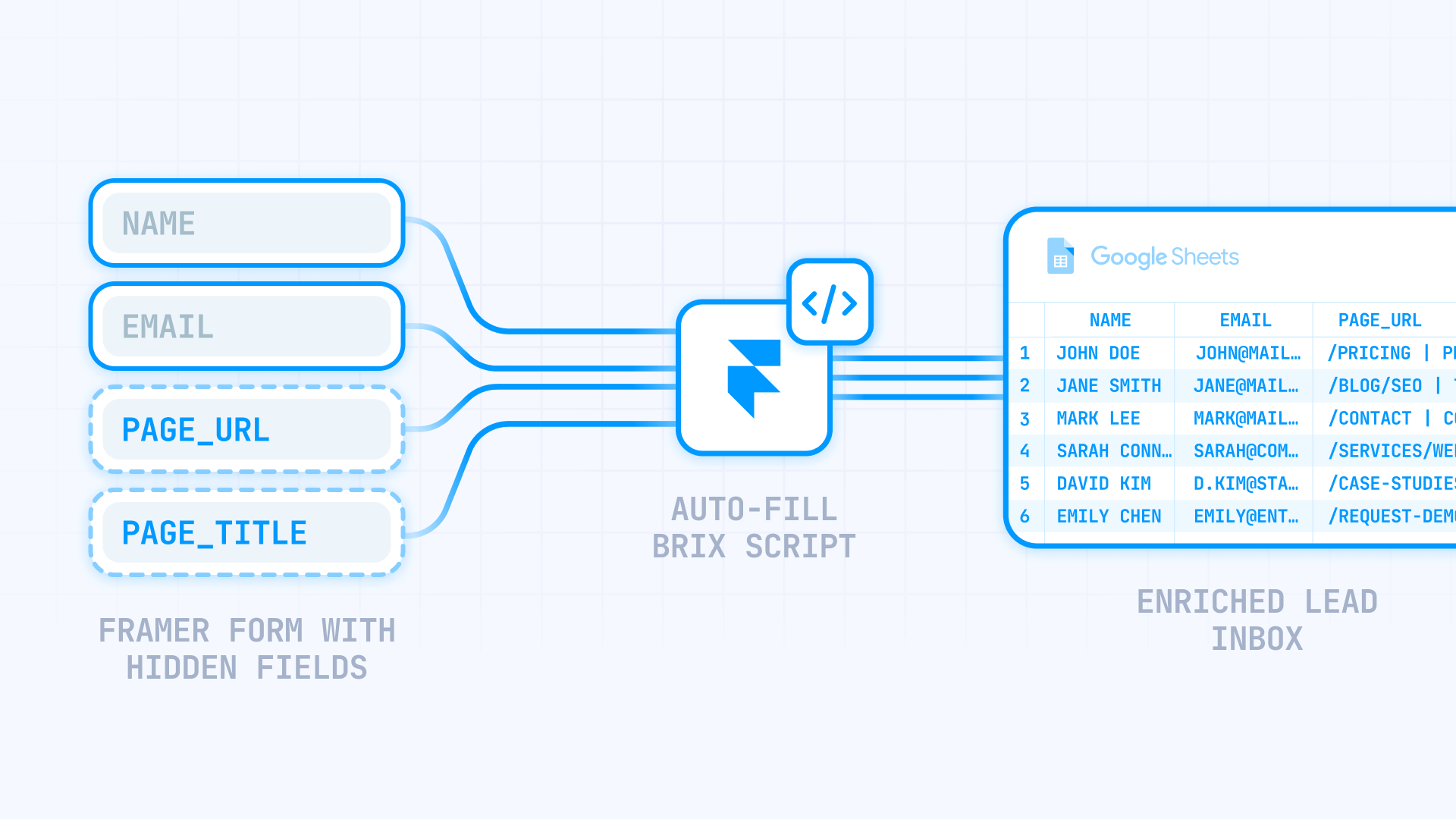
This guide shows you how to implement BRIX Templates' Form Source Tracker — a simple script that automatically fills hidden fields with the current page URL and title on every form submission, so you always know exactly where each lead originated.
When page context tracking matters for Framer forms
This implementation becomes valuable whenever the same form appears on multiple pages and you need submission-level attribution.
- Site-wide footer forms: Your contact form lives in the footer across 30+ pages. When a lead comes in, you want to know which page they were reading before reaching out.
- CMS detail pages: You have blog posts, case studies, or portfolio items with inquiry forms. Knowing which specific piece of content generated the lead helps you understand what resonates.
- Multiple landing pages: You're running campaigns to different landing pages that all feed the same pipeline. The form fields are identical, but you need to track which landing page converted.
- Modal and sidebar forms: A "Get a Quote" modal can be triggered from anywhere on your site. Without page context, you lose the trail of where that intent originated.
- Sales team context: Your sales reps want to know what the lead was looking at before submitting. "They inquired from the Enterprise Pricing page" is more actionable than "they filled out a form somewhere."
What Framer provides natively for form tracking (and what it doesn't)
Framer has solid form infrastructure, but there's a specific gap this solution fills.
What Framer gives you:
- Hidden fields: You can add hidden inputs to native Framer Forms that get included in submissions. This is the foundation we'll build on.
- Campaign tracking: Framer can automatically capture UTM parameters and Google Click IDs in form submissions. If that's what you need, check out our UTM tracking guide instead — it covers Framer's native features plus advanced attribution.
- Webhook destinations: Framer sends form data as JSON using input names as keys, which makes hidden fields straightforward to work with.
What Framer doesn't give you:
- Auto-capture of current page URL: There's no toggle that automatically includes window.location.href in submissions.
- Auto-capture of page title: There's no native way to include document.title in form data.
- Hidden field auto-binding: Framer explicitly notes that hidden fields do not automatically bind to URL parameters or page metadata — they're just empty fields unless you fill them.
That gap is exactly what the BRIX Form Source Tracker solves.
How the BRIX Form Source Tracker works in Framer
The solution has two parts:
Part 1 — Hidden fields: You add two hidden inputs to your Framer form named page_url and page_title. These fields are invisible to users but get included in every submission.
Part 2 — The script: A small script runs on your site that automatically fills those hidden fields with:
- page_url: The full URL of the current page (window.location.href)
- page_title: The browser/SEO title of the current page (document.title)
The script fills these values on page load, when a user interacts with the form, and again right before submission — ensuring the data is always current even if the user navigated via client-side routing.
How to add the hidden fields to your Framer form
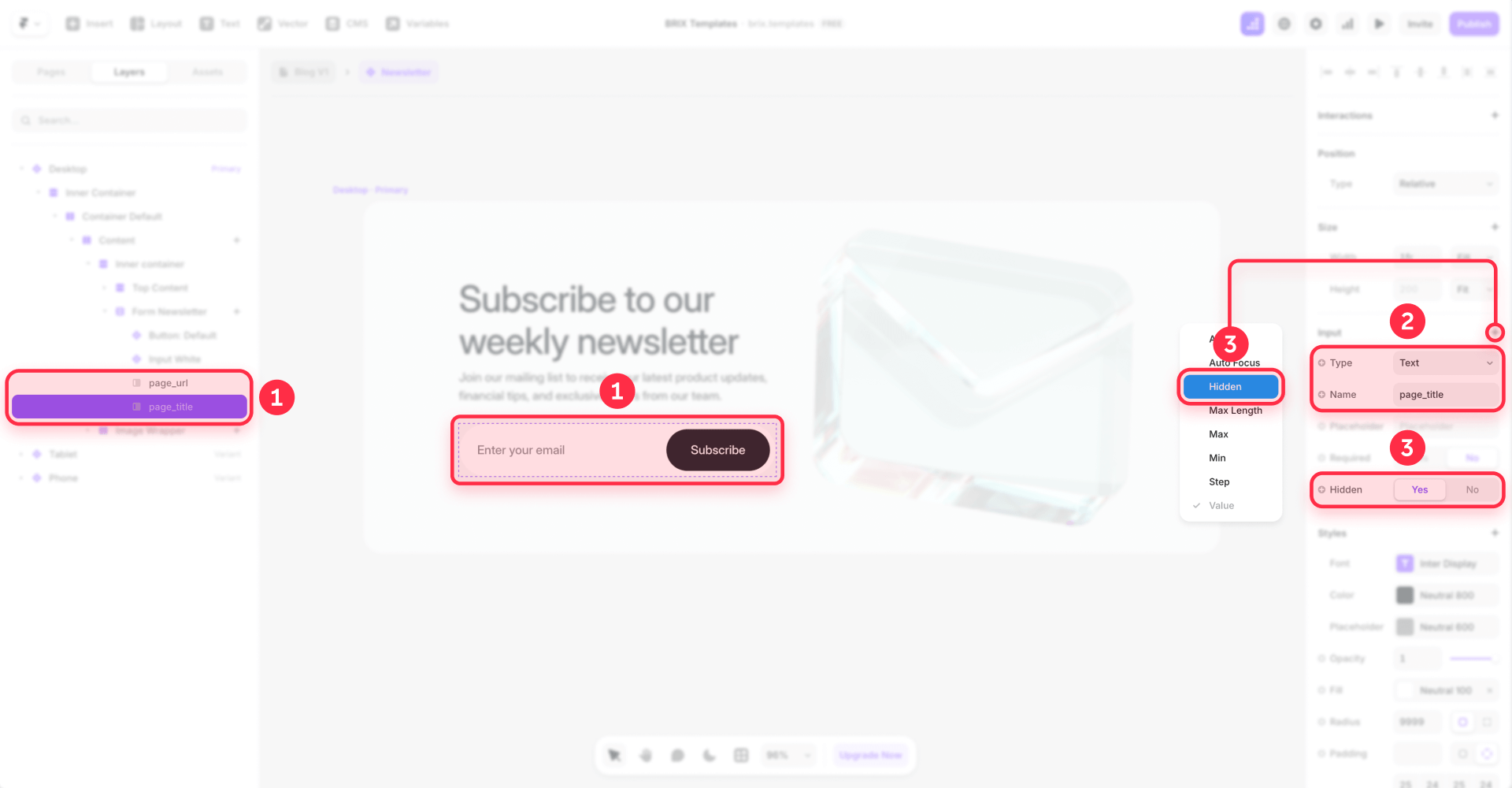
Before adding the script, you need the hidden fields that will receive the page context data.
Step 1 — Add the page URL hidden field
- Open your Framer project and select your Form component.
- Add an Input field to the form.
- In the right panel, enable the Hidden property.
- Set the Name to page_url.
- Remove the label so the field stays fully invisible.
Step 2 — Add the page title hidden field
- Add another Input field to the form.
- Enable the Hidden property.
- Set the Name to page_title.
- Remove the label.
Critical warning: Do not use the Visible toggle to hide these fields. Framer excludes inputs hidden with the Visible toggle from form submissions entirely. You must use the Hidden property — this keeps the field in the submission while making it invisible to users.
If you want to debug the setup first, temporarily leave the fields visible so you can see the values being filled. Once confirmed working, enable Hidden on both.
How to add the BRIX Form Source Tracker script to Framer
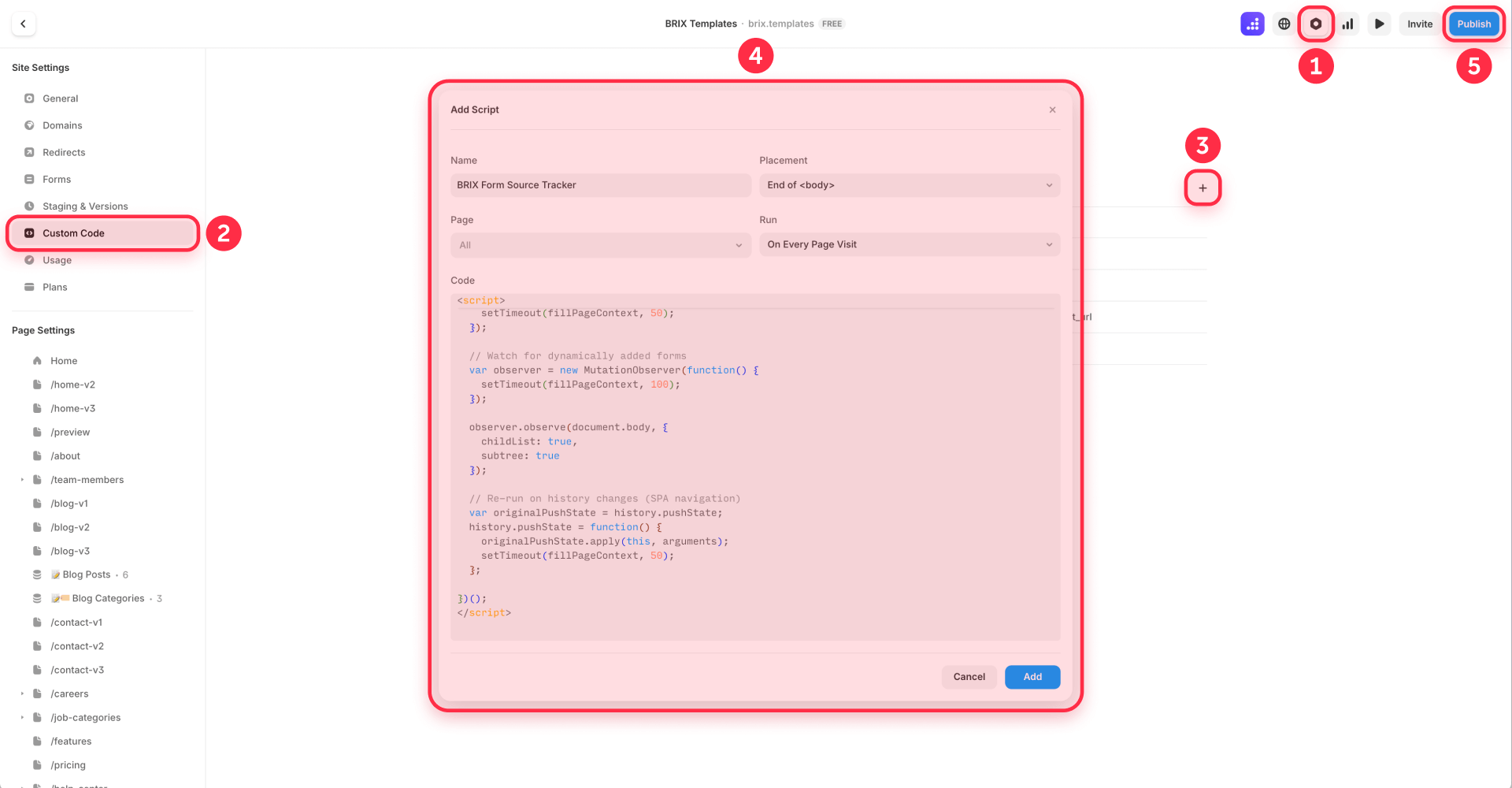
Now add the script that fills those hidden fields automatically.
Step 1 — Open Custom Code settings
- In your Framer project, open Project Settings.
- Go to the Custom Code tab.
- Click Add Script.
Step 2 — Configure the script placement
- Set placement to End of <body> (better for performance).
- Set scope to All pages (or only specific pages if you prefer).
- Set run mode to Run on every page visit (important for Framer's SPA navigation).
Step 3 — Paste the script
<script>
/**
 * BRIX Templates — Framer Form Source Tracker
 * --------------------------------------------------------------------------
 * Automatically captures the current page URL and browser title into hidden
 * form fields. Works on static pages and CMS pages. Fills fields on load,
 * on form interaction, and before submission to ensure accuracy.
 *
 * Version: 1.0.0
 * Author: BRIX Templates
 */
</script>
<script src="https://apps.brixtemplates.com/framer-form-source-tracker/script.js"></script>
Configuring the script
The script's config object at the top lets you customize behavior:
urlFieldNames: Array of field names to fill with the page URL. Default is ["page_url"]. Add more names if you have multiple forms with different naming conventions.
titleFieldNames: Array of field names to fill with the page title. Default is ["page_title"].
stripQueryParams: Set to true if you want the URL without query parameters. Useful if you want clean URLs without UTM strings cluttering your data.
debug: Set to true to see console logs while testing.
How page title capture works on Framer CMS pages
The script captures document.title — the browser/SEO title, not necessarily the visible H1 heading on the page. This is intentional and works well with Framer's architecture.
In Framer, you set page titles in Page Settings. For CMS pages, you can make titles dynamic using template syntax like {{Title}} or {{Title}} – Blog. Whatever you configure there becomes the document.title that the script captures.
For example:
- If your CMS page title is set to {{Title}} | Your Company, and the CMS item's title is "10 Tips for Better Design", the form will submit page_title: "10 Tips for Better Design | Your Company".
This is usually the correct behavior — the SEO title is often more descriptive and consistent than whatever H1 happens to be on the page.
How to test page context tracking in Framer
Custom code added through Project Settings does not run in Framer's preview mode. You must publish and test on the live site.
Testing steps
- Publish your Framer site.
- Open the live URL in your browser (not preview).
- Navigate to a page with the form.
- Submit a test entry.
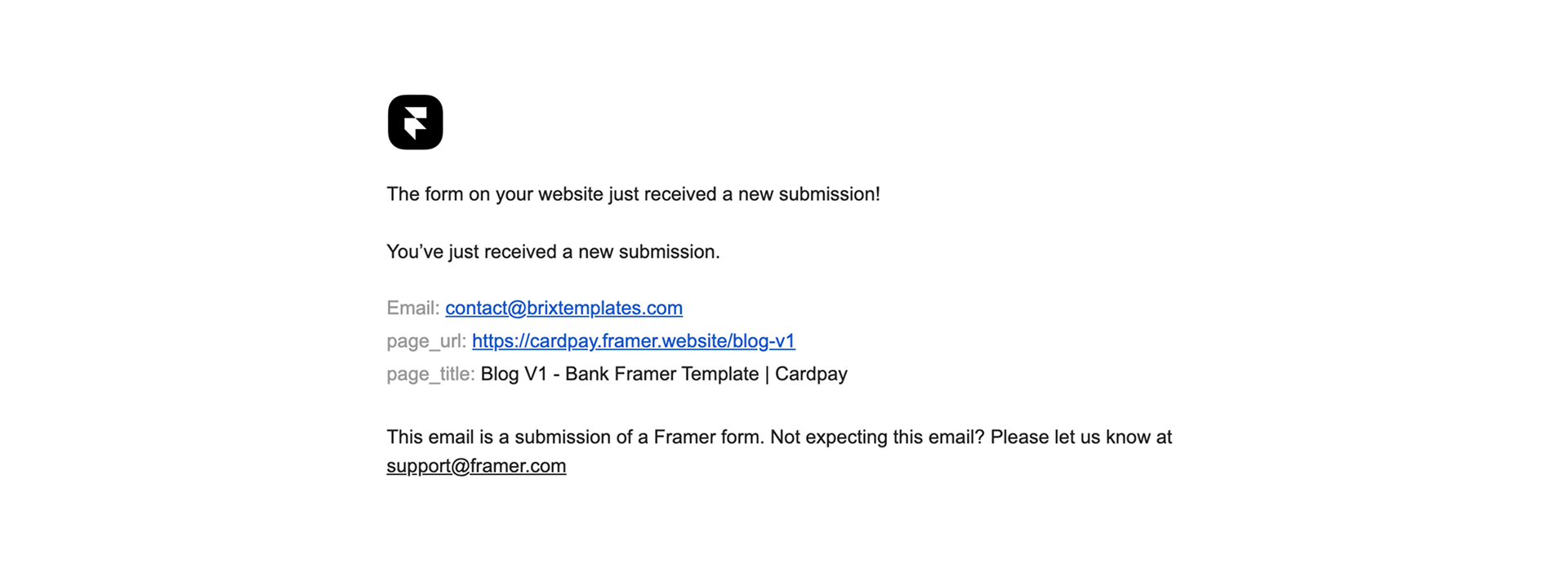
- Check your form destination (email, webhook, spreadsheet) for page_url and page_title values.
- Test from multiple pages: Submit from at least 2-3 different pages to verify the values change correctly.
Verifying the script is running
Open your browser's DevTools console. If you set debug: true in the config, you'll see logs like:
[BRIX Form Source] Filled 2 fields with page context [BRIX Form Source] URL: https://yoursite.com/pricing [BRIX Form Source] Title: Pricing – Your Company
Troubleshooting Framer form page context tracking
- Hidden fields are blank in submissions: Check that you used the Hidden property, not the Visible toggle. Verify the field Name exactly matches what the script expects (page_url, page_title). Confirm you published after adding the script.
- Values don't appear at all: Make sure you're testing on the published site, not in Framer's preview. Check the browser console for JavaScript errors that might prevent the script from running.
- Page title shows something unexpected: The script captures document.title from Page Settings, not the visible H1. If your SEO title differs from your heading, you'll see the SEO title. Update Page Settings if you want different values.
- URL includes query parameters you don't want: Set stripQueryParams: true in the script config to capture only the base URL without query strings.
- Form works on some pages but not others: If you scoped the script to specific pages, verify it's running on all pages with forms. Check that dynamically loaded forms (modals, lazy-loaded sections) are being caught by the MutationObserver.
- Values are stale after navigation: Ensure the script is set to Run on every page visit in Custom Code settings. Framer's SPA navigation can cause issues if the script only runs once.
Frequently asked questions about capturing page data in Framer forms
How do I capture the current page URL in Framer form submissions?
Framer doesn't automatically include the page URL in form submissions, but you can capture it using a hidden field and a small script. Add a hidden input named page_url to your Framer form, then use a script that fills it with window.location.href when the form loads or submits. This lets you track exactly which page each lead came from — essential when the same contact form appears across multiple pages on your site.
Can I track which page a Framer form was submitted from?
Yes, but it requires a simple setup since Framer doesn't offer this natively. Add hidden fields named page_url and page_title to your form, then install a script that automatically populates them with the current page's URL and browser title. Once configured, every form submission includes this context — so you can see whether a lead came from your pricing page, a blog post, or your homepage.
Does Framer automatically capture page URL in form submissions?
No. Framer has native hidden fields and Campaign tracking for UTM parameters, but there's no built-in toggle to automatically capture the current page URL or title in form submissions. For that functionality, you need to add a script that fills hidden fields with window.location.href and document.title. The setup takes about 5 minutes and works across all your Framer forms once implemented.
How do I add hidden fields to Framer forms for tracking?
In Framer, select your Form component, add an Input field, and enable the Hidden property in the right panel. Set the field's Name to something descriptive like page_url or page_title, then remove the label. Critical detail: use the Hidden property, not the Visible toggle — Framer excludes inputs hidden with Visible from form submissions entirely.
What's the difference between UTM tracking and page URL tracking in Framer?
UTM tracking captures parameters that came with the user from external sources — like which ad campaign or email they clicked. Page URL tracking captures which page on your site they submitted the form from. They solve different problems: UTMs tell you how someone found your site, page URLs tell you what content they were viewing when they converted. You can use both together for complete attribution.
Do Framer hidden form fields work on CMS pages?
Yes. Hidden fields work identically on static pages and CMS pages. When capturing page titles on CMS pages, the script captures document.title, which Framer sets from Page Settings. If your CMS page title uses dynamic syntax like {{Title}} – Your Brand, that's exactly what gets captured in the form submission — giving you the specific CMS item name, not just a generic template title.
Why are my Framer hidden form fields empty in submissions?
The most common causes are: using the Visible toggle instead of the Hidden property (Framer excludes Visible-hidden fields from submissions), mismatched field names between your form and script, testing in Framer's preview mode instead of the published site (custom code doesn't run in preview), or forgetting to republish after adding the script. Check each of these in order — the Visible/Hidden distinction trips up most people.
Can I capture form source data in Framer without writing code?
Not for page URL and title. Framer's native Campaign tracking handles UTM parameters without code, but there's no equivalent for capturing the current page's URL or title. You'll need a small script that reads window.location.href and document.title and writes them to hidden fields. The script is straightforward — about 50 lines — and only needs to be added once to work site-wide.
Does page URL tracking slow down Framer sites?
No. A properly written tracking script is under 2KB and executes in milliseconds. It runs once when the page loads and again when users interact with forms — it doesn't continuously poll or make network requests. The performance impact is negligible and won't affect your Core Web Vitals or page speed scores.
How do I know which Framer pages generate the most form submissions?
Once you're capturing page_url or page_title in your form submissions, you can filter, sort, and analyze leads by source page in your CRM, spreadsheet, or webhook destination. Most tools let you create views or reports based on these fields. You'll quickly identify patterns — like discovering your pricing page generates 3x more inquiries than your features page, or that a specific blog post consistently drives qualified leads.
Conclusion
Framer's native forms are solid, but they don't automatically capture which page a submission came from. When the same form appears across multiple pages, you lose valuable context about where each lead originated.
The BRIX Templates Form Source Tracker fills that gap with a simple setup: two hidden fields (page_url and page_title) plus one script that automatically populates them on every submission. It works on static pages, CMS pages, and handles Framer's SPA navigation correctly.
If you need help implementing form tracking, building custom attribution workflows, or integrating Framer forms with your CRM, our Framer agency can help you get it set up right.










Join readers commenting on this post!