

Most social share button widgets are tracking scripts disguised as features. On a Webflow CMS blog, that usually means extra JavaScript, extra requests, slower pages, and one more vendor dependency you'll eventually regret.
The good news is that share buttons are fundamentally just links — and the preview card (title, image, description) that appears when someone shares your post is controlled by Open Graph tags, not by magical URL parameters. Webflow supports dynamic Open Graph per CMS item, so you can build fast, lightweight share buttons without heavy third-party code.
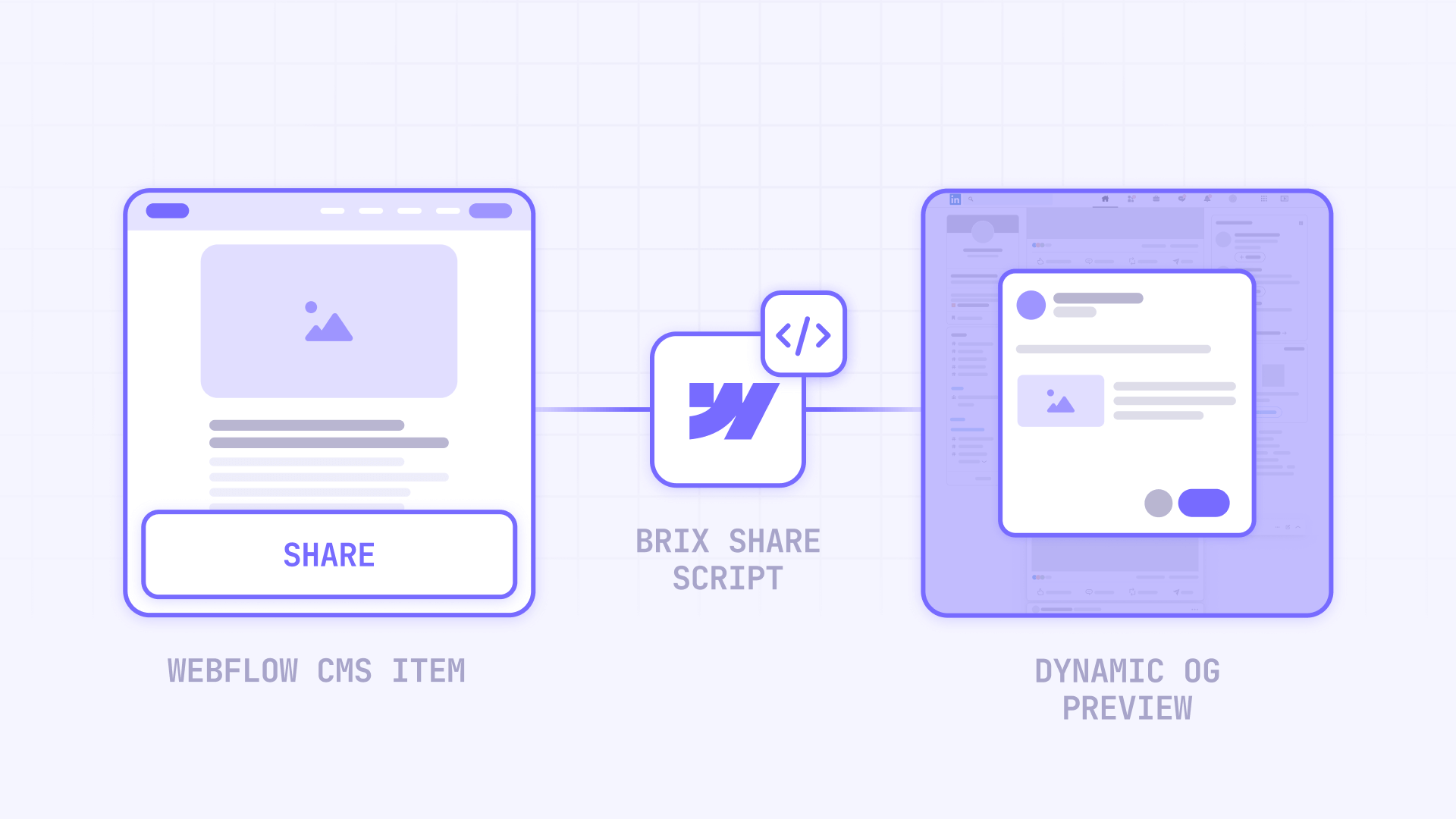
This guide shows you how to set up Open Graph correctly for your Webflow CMS posts, then add share buttons using the BRIX Share Script — a single lightweight script that handles Facebook, X, LinkedIn, Email, and native mobile sharing through simple attributes.
Why social share buttons matter for Webflow CMS blogs
Adding share functionality to your blog posts creates opportunities you don't get from just publishing content.
- Faster sharing without performance cost: The BRIX Share Script is self-contained with no external dependencies — everything loads from one small script with near-zero overhead.
- Consistent previews across platforms: When Open Graph is set per CMS post, your shared links show the correct title, image, and description instead of random fallbacks.
- Better mobile experience: The script includes native Web Share API support, giving mobile users the familiar share sheet with all their apps.
- Less debugging later: You avoid vendor breakage, script conflicts, and the "it worked yesterday" problems that plague third-party share widgets.
- Simple implementation: Just add an attribute to any button or icon — no HTML embeds, no manual URL building, no placeholder replacements.
How social share buttons work in Webflow (the mental model)
Before implementing anything, it helps to understand the two separate pieces that make sharing work.
The share link is just a URL that opens a platform's share dialog. When someone clicks "Share on LinkedIn," you're sending them to something like https://www.linkedin.com/sharing/share-offsite/?url=yourpost.com. That's it — the link controls where the user goes.
The Open Graph preview is what the shared post looks like when it appears in a LinkedIn feed, Facebook timeline, or email preview. The title, description, and thumbnail image are pulled from Open Graph meta tags on your page — not from parameters in the share URL.
This separation is why most "share widget" complexity is unnecessary. The platforms ignore custom title/image parameters in share URLs and scrape your page's OG tags instead. So the correct approach is: configure Open Graph properly once, then use simple share links. No heavy scripts required.
How to configure Open Graph for Webflow CMS pages
If you skip this section, your share buttons will "work" but shares will look wrong. Open Graph controls the preview card on LinkedIn, Facebook, X, and most other platforms.
How to set dynamic Open Graph on Webflow CMS template pages
- Open your CMS Collection template page (your blog post template, case study template, etc.).
- Click the gear icon to open Page Settings.
- Scroll to Open Graph Settings.
- Set these fields using your CMS fields:
- Open Graph Title → your post title field
- Open Graph Description → your excerpt or summary field
- Open Graph Image → your post thumbnail or cover image field
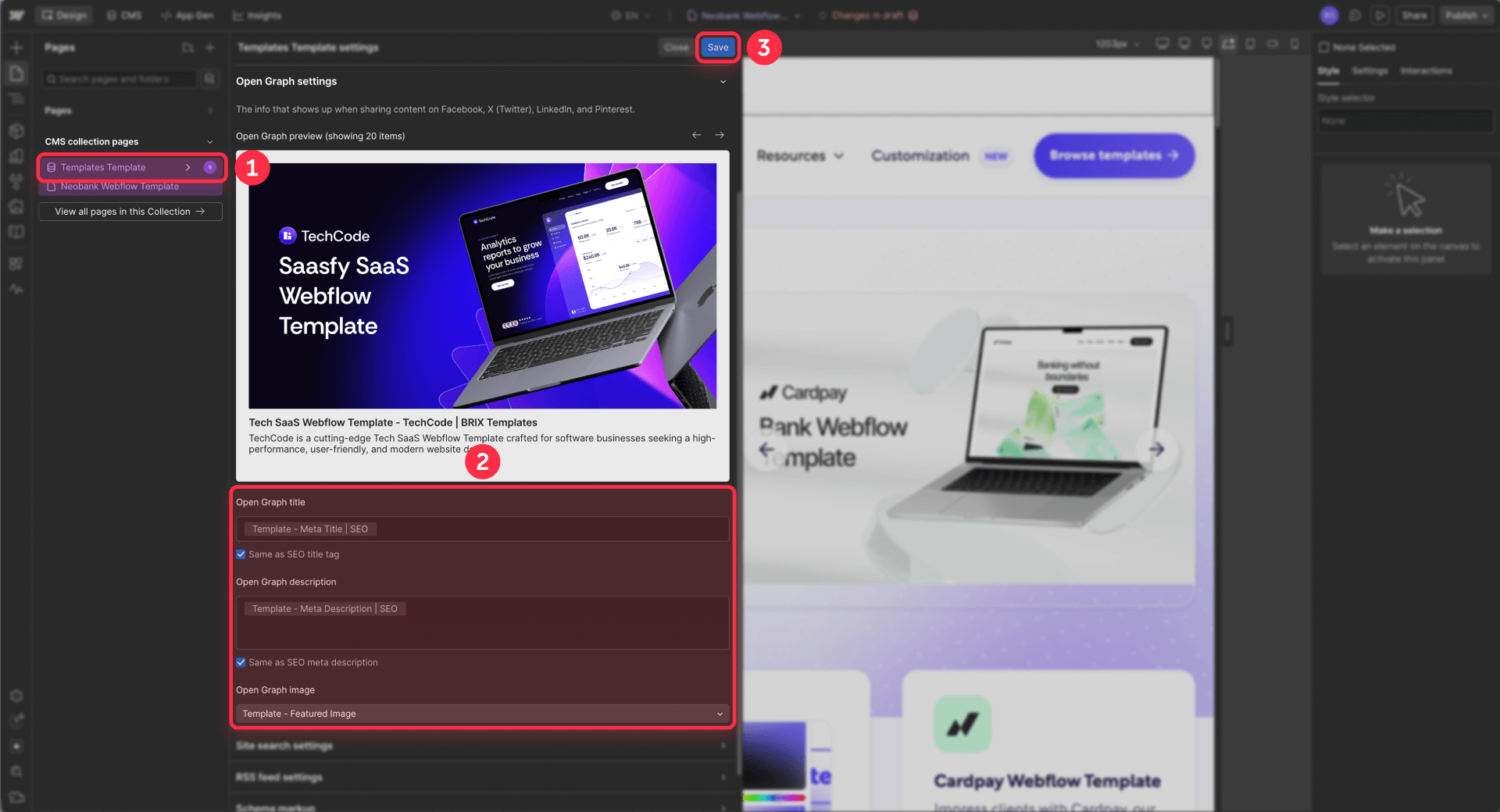
This creates unique OG tags for every CMS item, so each post shows its own title, description, and image when shared.
Don't try to pass custom title or image through share URL parameters — Facebook, LinkedIn, and other platforms ignore those parameters and pull from OG tags instead.
Webflow Open Graph image requirements
Webflow has specific constraints for OG images that affect how your shares display:
- Use JPG or PNG format for OG images. Webflow explicitly notes that WebP and AVIF are not supported for Open Graph.
- Keep the same dimensions across all OG images in your Collection for consistent previews.
- LinkedIn recommends approximately 1200×627 pixels (1.91:1 ratio) and a maximum of 5 MB file size.
If your CMS uses WebP for regular images, you'll need a separate JPG/PNG field specifically for Open Graph.
For more reliable preview rendering, you can add og:image:width and og:image:height meta tags in your page's custom code. These help crawlers render OG images faster and avoid "missing image" issues when platforms can't determine dimensions automatically.
How to refresh cached previews for Webflow shares
After updating OG tags, platforms may show an old cached preview until you force a rescrape.
For Facebook: Use the Meta Sharing Debugger (requires login). Paste your URL and click Scrape Again to fetch fresh OG tags.
For LinkedIn: Use LinkedIn Post Inspector (requires login). Paste your URL to see the current preview and refresh the cache.
For X (Twitter): The old Card Validator no longer shows previews. Test by composing a new post and pasting your link to see the preview card.
Note that refreshing only affects new shares — old posts that already used the cached preview won't update retroactively.
How to add share buttons to Webflow CMS pages
The BRIX Share Script uses a simple attribute-based system. You create buttons or icons in Webflow Designer however you like, add a brix-share attribute to each one, and the script handles everything else — URL encoding, popup windows, mobile detection, and the Web Share API.
How the BRIX Share Script works in Webflow
The script is completely self-contained — no external libraries, no CDN dependencies, no third-party requests. Everything runs from the single script you paste into your site. This means:
- No external loading: The script doesn't fetch anything from other servers
- No vendor lock-in: You're not depending on a service that might change or disappear
- No tracking: Unlike AddThis or ShareThis, there's no hidden analytics or data collection
- Instant functionality: Share buttons work as soon as the page loads
When a user clicks a share button, the script reads the canonical URL (avoiding UTM parameter fragmentation) and the OG title (for cleaner share text), properly encodes them for the target platform, and opens the share dialog. On desktop, it opens a centered popup window with proper security settings (noopener, noreferrer). On mobile with the native option, it triggers the device's built-in share sheet.
How to create share buttons in Webflow Designer
You can use any element as a share button — a Button, Link Block, Div with an icon, or even just an image. The script doesn't care about the element type; it only looks for the brix-share attribute.
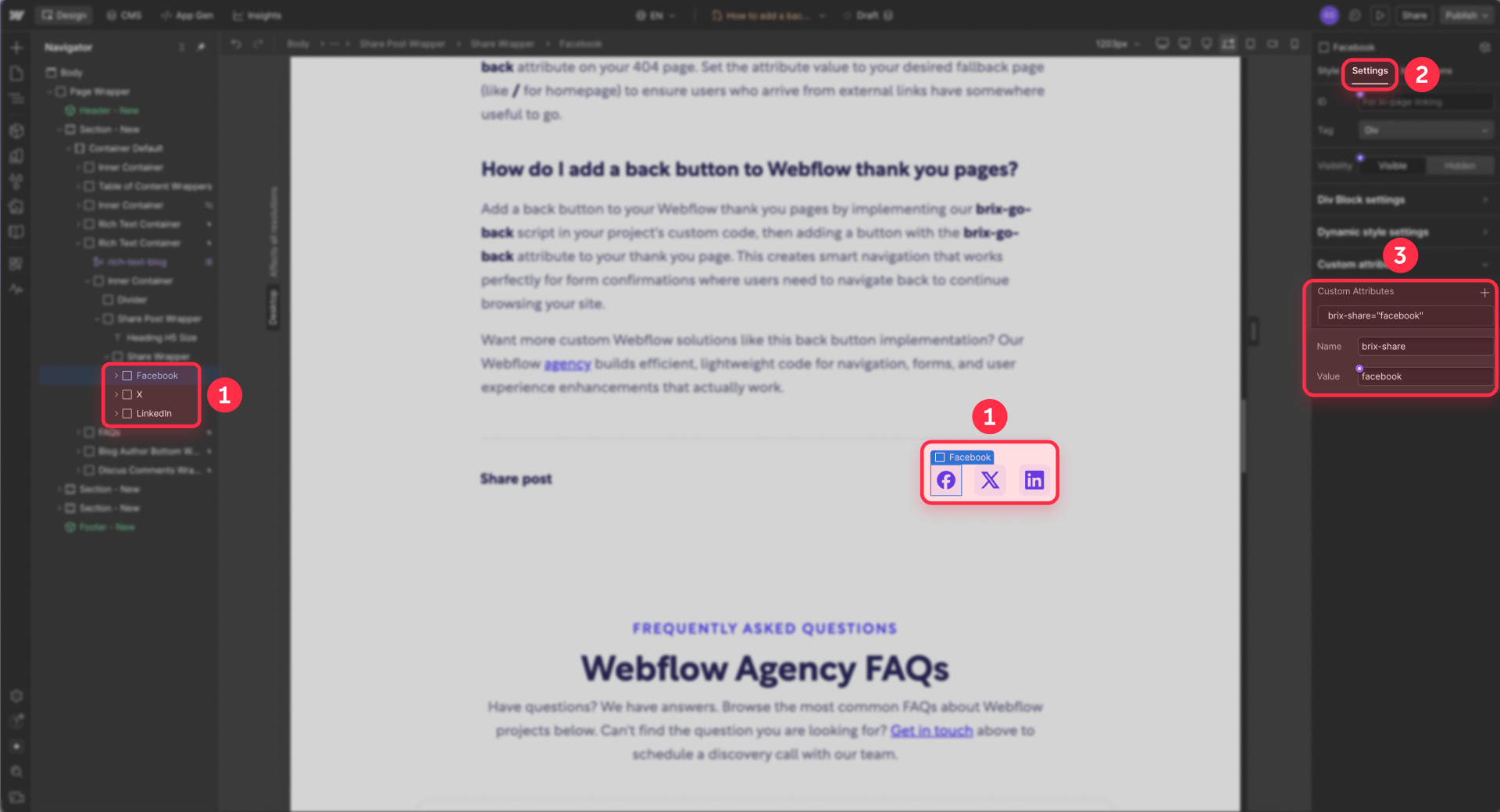
- In your CMS template page (blog post, case study, etc.), add the elements you want to use as share buttons.
- Style them however you like — icons, text buttons, or a combination.
- For each share button, open Element Settings (the gear icon or D key).
- In Custom Attributes, add:
- Name: brix-share
- Value: the platform name (see options below)
- Set the link URL to # so clicking doesn't navigate away.
BRIX Share Script attribute options for Webflow
The brix-share attribute accepts these values:
brix-share="facebook" — Opens Facebook's share dialog with the current page URL. Facebook pulls the preview title, description, and image from your Open Graph tags.
brix-share="x" — Opens X (Twitter) with the page URL and title as prefilled tweet text. The title is properly encoded to handle special characters.
brix-share="linkedin" — Opens LinkedIn's share dialog. LinkedIn pulls all preview data from Open Graph tags.
brix-share="email" — Opens the user's default email client with the page title as subject and URL in the body.
brix-share="native" — Triggers the Web Share API on supported devices (primarily mobile). This shows the native share sheet with all available apps. On unsupported browsers, the click does nothing — so keep your regular share buttons visible as fallback.
How to add the BRIX Share Script to Webflow
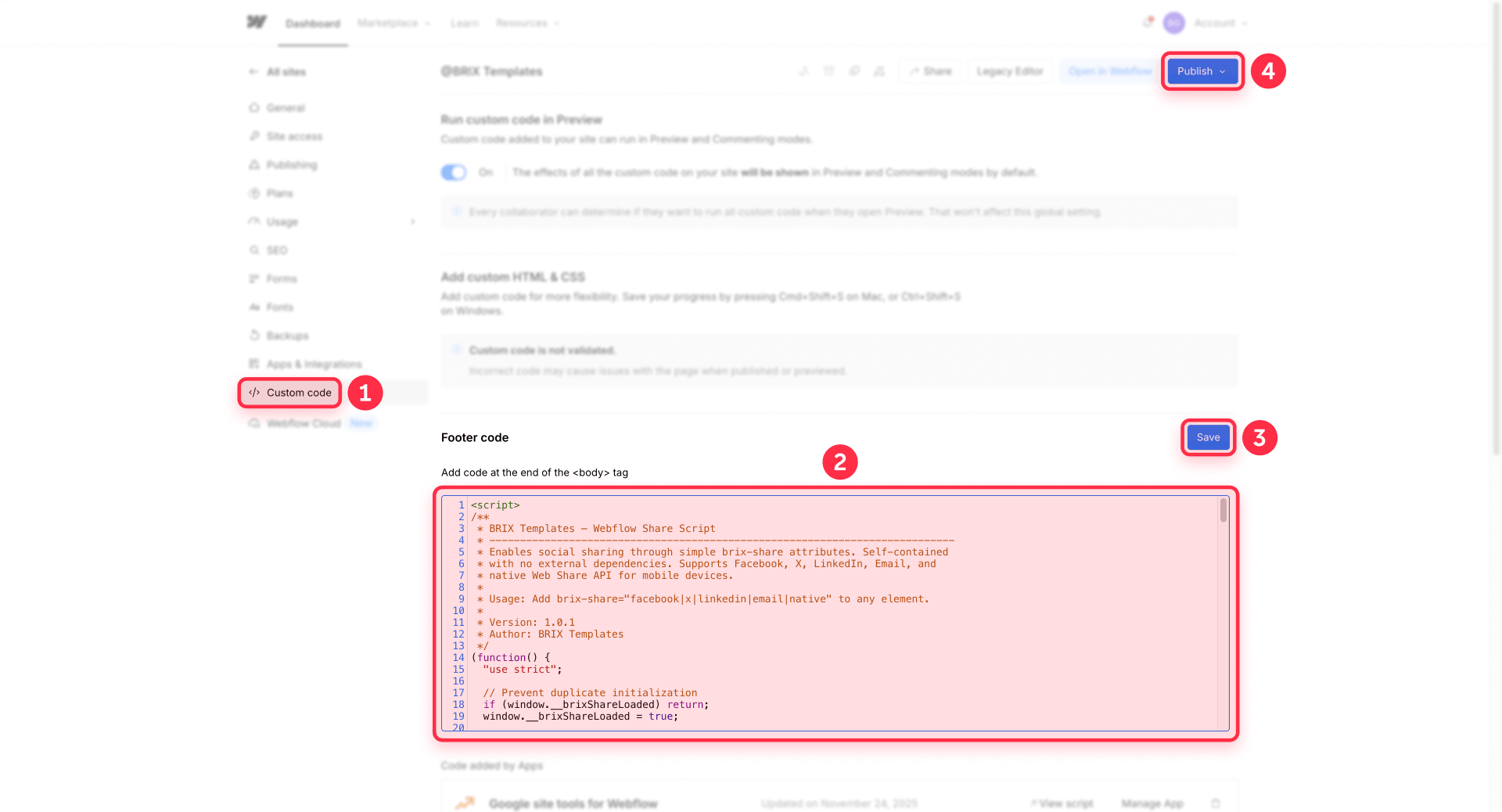
- Go to Site Settings → Custom Code.
- Paste the script below into Footer Code.
- Click Save Changes.
- Publish your site to test.
<script>
/**
 * BRIX Templates — Webflow Share Script
 * ----------------------------------------------------------------------------
 * Enables social sharing through simple brix-share attributes. Self-contained
 * with no external dependencies. Supports Facebook, X, LinkedIn, Email, and
 * native Web Share API for mobile devices.
 *
 * Usage: Add brix-share="facebook|x|linkedin|email|native" to any element.
 *
 * Version: 1.0.1
 * Author: BRIX Templates
 */
(function() {
  "use strict";

  // Prevent duplicate initialization
  if (window.__brixShareLoaded) return;
  window.__brixShareLoaded = true;

  // -------------------------------------------------------------------------
  // Configuration
  // -------------------------------------------------------------------------
  var config = {
    popupWidth: 580,
    popupHeight: 520,
    mobileBreakpoint: 767
  };

  // -------------------------------------------------------------------------
  // Helpers
  // -------------------------------------------------------------------------
  function isMobile() {
    return (
      window.matchMedia &&
      window.matchMedia("(max-width: " + config.mobileBreakpoint + "px)").matches
    );
  }

  function getCanonicalUrl() {
    // Prefer canonical URL to avoid UTM/hash fragmentation
    var canonical = document.querySelector('link[rel="canonical"]');
    if (canonical && canonical.href) return canonical.href;

    // Fallback: strip hash
    return window.location.href.split("#")[0];
  }

  function getBestTitle() {
    // Prefer OG title if present (often cleaner than document.title)
    var ogTitle =
      document.querySelector('meta[property="og:title"]') ||
      document.querySelector('meta[name="twitter:title"]');

    if (ogTitle && ogTitle.content) return ogTitle.content;

    return document.title || "";
  }

  function openPopup(url, title) {
    if (isMobile()) {
      var newTab = window.open(url, "_blank", "noopener,noreferrer");
      if (newTab) newTab.opener = null;
      return;
    }

    var screenLeft = window.screenLeft !== undefined ? window.screenLeft : window.screenX;
    var screenTop = window.screenTop !== undefined ? window.screenTop : window.screenY;
    var windowWidth = window.innerWidth || document.documentElement.clientWidth;
    var windowHeight = window.innerHeight || document.documentElement.clientHeight;

    var left = Math.round(windowWidth / 2 - config.popupWidth / 2 + screenLeft);
    var top = Math.round(windowHeight / 2 - config.popupHeight / 2 + screenTop);

    var features =
      "scrollbars=yes" +
      ",width=" + config.popupWidth +
      ",height=" + config.popupHeight +
      ",top=" + top +
      ",left=" + left +
      ",noopener=yes,noreferrer=yes";

    var popup = window.open(url, title, features);
    if (popup) {
      popup.opener = null;
      if (popup.focus) popup.focus();
    }
  }

  function getShareUrl(platform, pageUrl, pageTitle) {
    var encodedUrl = encodeURIComponent(pageUrl);
    var encodedTitle = encodeURIComponent(pageTitle);

    switch (platform) {
      case "facebook":
        return "https://www.facebook.com/sharer/sharer.php?u=" + encodedUrl;

      case "x":
        return "https://twitter.com/intent/tweet?url=" + encodedUrl + "&text=" + encodedTitle;

      case "linkedin":
        return "https://www.linkedin.com/sharing/share-offsite/?url=" + encodedUrl;

      case "email":
        return "mailto:?subject=" + encodedTitle + "&body=" + encodeURIComponent(pageTitle + "\n\n" + pageUrl);

      default:
        return null;
    }
  }

  async function handleNativeShare(pageUrl, pageTitle) {
    if (!navigator.share) return false;

    try {
      await navigator.share({
        title: pageTitle,
        text: pageTitle,
        url: pageUrl
      });
      return true;
    } catch (error) {
      return false;
    }
  }

  // -------------------------------------------------------------------------
  // Click Handler (Capture Phase)
  // -------------------------------------------------------------------------
  document.addEventListener(
    "click",
    async function(event) {
      // Normalize target to Element (Text nodes don't have .closest)
      var target = event.target;
      if (!(target instanceof Element)) target = target && target.parentElement;
      if (!target) return;

      var button = target.closest("[brix-share]");
      if (!button) return;

      // Intercept early to prevent parent handlers from firing
      event.preventDefault();
      event.stopPropagation();

      var platform = (button.getAttribute("brix-share") || "").trim().toLowerCase();
      if (!platform) return;

      var pageUrl = getCanonicalUrl();
      var pageTitle = getBestTitle();

      if (platform === "native") {
        await handleNativeShare(pageUrl, pageTitle);
        return;
      }

      var shareUrl = getShareUrl(platform, pageUrl, pageTitle);
      if (shareUrl) openPopup(shareUrl, "share");
    },
    true // capture phase
  );
})();
</script>
Once added, any element with a brix-share attribute becomes a functional share button. The script automatically uses the canonical URL if available (falling back to the current URL without hash), and prefers the OG title over document.title for cleaner share text. This avoids UTM parameter fragmentation and ensures consistent share counts across your posts.
How to test Webflow social share buttons
Don't assume everything works — previews and links can fail silently.
Testing share functionality in Webflow
- Publish to your real domain (not just Designer preview).
- Click each share button and verify the share dialog opens with the correct URL.
- Test on both desktop (should open centered popup) and mobile (should open new tab, or native share sheet for brix-share="native").
- Verify the page title appears correctly in the share text for X and Email.
Testing Open Graph previews for Webflow
- Share the URL in iMessage or a messaging app — these show OG previews quickly without needing debugger tools.
- Use LinkedIn Post Inspector to verify LinkedIn sees the correct title, description, and image.
- Use Meta Sharing Debugger to check Facebook's view of your OG tags.
- If previews are stale, use the rescrape functions in each tool.
Webflow share button accessibility
- Add aria-label attributes describing the action (e.g., aria-label="Share on LinkedIn") for screen readers.
- Ensure keyboard focus is visible using Webflow's Focus state styles.
- Keep tap targets at least 44px in height for mobile usability.
Troubleshooting Webflow social share buttons
- Share preview shows wrong image or old content: Confirm your CMS template has Open Graph fields set dynamically to CMS fields. Verify the OG image is JPG or PNG (not WebP/AVIF). Run LinkedIn Post Inspector and Meta Sharing Debugger to force a cache refresh.
- LinkedIn share opens but preview is blank: LinkedIn requires og:title, og:description, og:image, and og:url tags. Use Post Inspector to verify LinkedIn can fetch your OG image — blank previews usually mean the image is inaccessible or the wrong format.
- Share buttons don't do anything when clicked: Confirm you published (not just saved in Designer). Make sure the element with brix-share wraps what users actually click (or is the clicked element itself) — the script uses closest() so wrapper elements work fine. Check browser console for JavaScript errors. Make sure the link URL is set to #.
- Native share doesn't work: The Web Share API only works on HTTPS and primarily on mobile devices. Desktop browser support is limited. Keep your regular Facebook/X/LinkedIn buttons visible as fallback — the native option is progressive enhancement, not a replacement.
- Special characters in post title break the share: The script automatically handles encoding with encodeURIComponent() and uses the OG title (which is typically cleaner), so this shouldn't happen. If you see issues, check that you're using the BRIX Share Script and not a manual URL approach.
- Popup is blocked by browser: This typically happens if the share action isn't directly triggered by a user click. Make sure the brix-share attribute is on the element the user actually clicks, not on a parent element.
Frequently asked questions about social share buttons in Webflow
How do I add social share buttons to Webflow CMS blog posts without external scripts?
The BRIX Share Script is completely self-contained — paste it once in your Footer Code and it handles everything. No CDN links, no external API calls, no third-party tracking. Create buttons or icons in Webflow Designer, add the brix-share attribute with the platform name (facebook, x, linkedin, email, or native), and publish. The script uses the current page URL and title automatically, so there's no per-page configuration needed.
What is the difference between share buttons and Open Graph in Webflow?
Share buttons trigger the action — when clicked, they open Facebook, LinkedIn, X, or the email client with your page URL. Open Graph tags control what the shared post looks like in feeds and previews — the title, description, and thumbnail image. Platforms scrape OG tags from your page and ignore custom parameters in share URLs. You need both: share buttons handle the click, Open Graph handles the preview card.
Why does my Webflow shared link show the wrong image on LinkedIn or Facebook?
This is an Open Graph configuration issue, not a share button issue. Confirm that your CMS template page has Open Graph Image set dynamically to your post's thumbnail field. Verify the image is JPG or PNG — WebP and AVIF don't work for OG. Check that the image URL is publicly accessible. Then use LinkedIn Post Inspector or Meta Sharing Debugger to force a cache refresh since platforms cache OG data.
How do I create a Facebook share button for Webflow CMS blog posts?
Add any button or icon element in your CMS template page, then add a custom attribute: brix-share="facebook". Set the link URL to #. The BRIX Share Script detects this attribute and opens Facebook's share dialog with the current page URL when clicked. Facebook pulls the preview title, description, and image from your Open Graph tags — so make sure those are configured correctly in Page Settings.
How do I add an X (Twitter) share button to a Webflow blog post?
Add your share button element, then add the attribute brix-share="x". The script opens X's tweet composer with the page URL and title as prefilled text. The title is automatically encoded to handle special characters like & or ?. X preview cards depend on your Open Graph tags, so configure those in your CMS template's Page Settings for correct thumbnails.
How do I add a LinkedIn share button to a Webflow CMS blog post?
Add a button or icon, then add brix-share="linkedin" as a custom attribute. LinkedIn's share dialog opens with the current page URL. All preview data — title, description, image — comes from your Open Graph tags. If the preview appears blank, use LinkedIn Post Inspector to verify LinkedIn can access your OG image. Most blank preview issues come from inaccessible images or missing OG tags.
How do I add native mobile sharing to Webflow with the share sheet?
Add a button with brix-share="native". On supported devices (primarily iOS and Android), this triggers the Web Share API and shows the native share sheet with all available apps. On unsupported browsers (most desktop), the click does nothing — so keep your regular Facebook, X, and LinkedIn buttons visible as fallback. The native option is progressive enhancement for mobile users, not a desktop replacement.
Do I need to manually build share URLs for each Webflow CMS post?
No. The BRIX Share Script automatically detects the canonical URL (or falls back to the current URL without hash fragments) and uses the OG title for share text. You don't need to build URLs manually, use Embed elements with slug placeholders, or configure anything per post. Just add the script once and use brix-share attributes — the script handles everything dynamically and avoids UTM parameter fragmentation.
How do I make Webflow share buttons open in a popup instead of a new tab?
The BRIX Share Script handles this automatically. On desktop, share buttons open a centered popup window at 580×520 pixels. On mobile devices (under 767px width), it opens a regular new tab instead since popups create poor mobile UX. You don't need to configure anything — the script detects the device and chooses the appropriate behavior.
How do I force LinkedIn and Facebook to refresh my Webflow Open Graph preview?
Platforms cache OG data, so updates don't appear immediately. For Facebook, use Meta Sharing Debugger — paste your URL and click Scrape Again. For LinkedIn, use LinkedIn Post Inspector to refresh the cached preview. Changes only affect new shares; old posts keep their previous preview. Make rescraping part of your workflow whenever you update OG images or descriptions on important posts.
Conclusion
The clean way to add social share buttons in Webflow is straightforward: configure Open Graph dynamically per CMS item so previews display correctly, then use the BRIX Share Script with simple attributes on your buttons. This gives you fast pages, correct previews, and share functionality that doesn't depend on bloated third-party widgets.
The script is completely self-contained — no external dependencies, no tracking, no CDN links. Just paste it once and add brix-share attributes to any button or icon. It handles Facebook, X, LinkedIn, Email, and native mobile sharing automatically.
If you need help implementing social sharing across your Webflow CMS — including Open Graph setup, preview debugging, and custom styling — our Webflow agency can set it up properly.










Join readers commenting on this post!